
@a11y-ngx/tooltip
v1.0.8
Published
A fully accessible tooltip directive that provides a standards-compliant experience across mouse, keyboard and touch interactions

Maintainers
 ldv
ldvReadme
Tooltip
A fully accessible tooltip directive for Angular that provides a standards-compliant experience across mouse, keyboard and touch interactions.
It's built with WCAG 2.1/2.2 AA compliance in mind:
✔️ Shows on mouse hover, focus or touch (with configurable delay for each)
✔️ Hides on mouse leave, blur, touch outside or Escape key (it also supports extra configurable keys for toggle its visibility)
✔️ It remains visible even when hover over the tooltip
✔️ It will also cover elements with title attribute (usually <abbr> or any other you may have)
✔️ Color contrast ratio of at least 4.5:1 for the basic themes availables ('light' and 'dark')
✔️ Ensures that the tooltip's text is always present for assistive technologies, either by the ARIA association between trigger and tooltip, or visually hidden text if it is not an interactive element
✔️ It will open to the most appropriate side when space is limited on the preferred position
✔️ It will reposition itself, if needed, in case of page scroll or resize
⚠️ IMPORTANT: Think carefully at what you are adding a tooltip to, remember that there are people with disabilities who can't use a mouse and rely on a keyboard for navigation, so adding a tooltip to non-interactive elements (
<i>,<span>, etc.) won't be reachable by keyboard and thus the tooltip won't appear.📘 NOTE: Since tooltips are meant to provide purely informational content, only basic inline tags (
<b>,<strong>,<i>,<em>and<br>) are allowed. All other markup will be removed for consistency and accessibility.
This library was generated with Angular CLI version 12.2.0.
Index
- Installation
- The
rootConfig()Method - The Tooltip Config
- The Position Input
- The Position Strategy
- The Custom Boundary
- The Safe Space
- The Fluid Alignment
- The Arrow Size
- The Offset Size
- The Fade Timeout
- The Fade Delay Timeout
- The Delay On Event
- The zIndex
- The Padding
- The Shadow
- The Background Color
- The Text Color
- The Border Size
- The Border Border
- The Border Radius
- The Max Width
- The Class Names
- Use Animate
- Use Prevail
- Use As Label
- Toggle On
- The
recalculate()Method - The Color Schemes
- The Use with Image Maps
- The Use with Abbreviation Elements
- The Use with Non-Interactive Elements
Installation
Install npm package:
npm install @a11y-ngx/tooltip --saveImport
A11yTooltipModuleinto your module or standalone component:
import { A11yTooltipModule } from '@a11y-ngx/tooltip';

@NgModule({
    declarations: [...],
    imports: [
        ...
        A11yTooltipModule,
    ],
})
export class AppModule { }
The rootConfig() Method
Serves to establish and override the global default configuration.
Accepts a single parameter config of type TooltipRootConfig.
On Angular v12 - v14:
A11yTooltipModule.rootConfig({
    offsetSize: 10,
    safeSpace: { top: 65, left: 50 },
}),
On Angular v15+:
provideA11yTooltip({
    offsetSize: 10,
    safeSpace: { top: 65, left: 50 },
}),
The Tooltip Config
The TooltipConfig provides several properties to customize.
- Input:
tooltipConfig. - Type:
TooltipConfig.
All color related default values (★) are coming from the variables set within the Color Scheme global configuration.
| Property | Type | Description |
| :------- | :--- | :---------- |
| position | OverlayPositionInput | See the Position Input |
| positionStrategy | OverlayPositionStrategy | See the Position Strategy |
| positionsAllowed | OverlayPositionsAllowedInput | See the Positions Allowed Input |
| alignmentsAllowed | OverlayAlignmentsAllowedInput | See the Alignments Allowed Input |
| safeSpace | OverlaySafeSpace | See the Safe Space |
| fluidAlignment | boolean | See the Fluid Alignment |
| arrowSize | number | See the Arrow Size |
| offsetSize | number | See the Offset Size |
| fadeMs | number | See the Fade Timeout |
| fadeDelayMs | number | See the Fade Delay Timeout |
| delayOnEvent | TooltipDelayEvents | See the Delay On Event |
| animate | boolean | See Use Animate |
| prevail | boolean | See Use Prevail |
| asLabel | boolean | See Use as Label |
| toggleOn | string[] | See Toggle On |
| zIndex | number | See the zIndex |
| padding | string | See the Padding |
| shadow ★ | string | See the Shadow |
| shadowColor ★ | string | See the Shadow |
| backgroundColor ★ | string | See the Background Color |
| textColor ★ | string | See the Text Color |
| borderSize | number | See the Border Size |
| borderColor ★ | string | See the Border Color |
| borderRadius | number | See the Border Radius |
| className | string or string[] | See the Class Names |
| maxWidth | string | See the Max Width |
As part as the config object, there is a set of properties for Color Scheme:
- Dependency: Color Scheme library.
- Type:
ColorSchemeStylesConfig. - Properties:
| Property | Type | Description |
| :------- | :--- | :---------- |
| colorSchemes | ColorSchemesStyles | See how to Configure the Color Schemes |
| forceScheme | ColorScheme | See how to Force a Scheme |
The Position Input
To input, in a simple way, either position or position & alignment (hyphen separated if string is used).
- Config Property:
position. - Type:
OverlayPositionInput. - Default:
['top', 'center'].
For more details, check the Position Input from the Overlay library.
The Positions Allowed Input
To establish which positions are allowed.
- Config Property:
positionsAllowed. - Type:
OverlayPositionsAllowedInput. - Default:
'auto'(all sides are allowed). - You can use:
'auto','opposite',stringorstring[].
For more details, check the Positions Allowed Input from the Overlay library.
The Alignments Allowed Input
To establish which alignments are allowed.
- Config Property:
alignmentsAllowed. - Type:
OverlayAlignmentsAllowedInput. - Default:
'auto'(all alignments are allowed). - You can use:
'auto','edges', an alignment value ('start','center','end') or an array of them.
For more details, check the Alignments Allowed Input from the Overlay library.
The Position Strategy
To establish whether a fixed or absolute strategy positioning is used in CSS.
- Config Property:
positionStrategy. - Type:
OverlayPositionStrategy. - Default:
'fixed'. - Values:
'fixed'or'absolute'.
The absolute strategy was designed mainly to be utilized inside containers with overflow (such as responsive tables) and to avoid the tooltip to be seen in case of scrolling while the trigger being visually hidden.
For more details and examples, check the Position Strategy from the Overlay library.
The Custom Boundary
A custom boundary can be interpreted as a wrapper/container, and the tooltip will consider that boundary as the new limits for its positioning.
- Config Property:
boundary. - Type:
HTMLElement. - Default:
<body>.
For more details and examples, check the Custom Boundary from the Overlay library.
The Safe Space
To establish an extra safe space to the viewport's edges in case some fixed areas are present, such as headers, side menus or footers.
This way, the tooltip will consider this area as the edge limit and reposition itself if reached. Most useful use cases are related to scroll events.
- Config Property:
safeSpace. - Type:
OverlaySafeSpace:objectwith each side as a property of typenumber.
- Default:
{ top: 0, bottom: 0, left: 0, right: 0 }.
For more details and examples, check from the Overlay library:
The Fluid Alignment
To establish whether the tooltip's alignment will stick to the edges of the viewport/boundary (if set to true) or make jumps between start, center or end (if set to false).
- Config Property:
fluidAlignment. - Type:
boolean. - Default:
false.
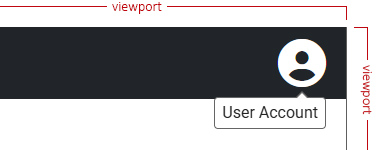
As you can see in the next example, the fluid alignment is set to false (by default), which will make the tooltip to be aligned to the "end" of its trigger since it's too close to the viewport's right side and doesn't have enough space to be centered (default alignment).
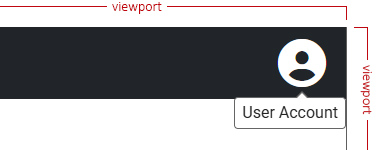
If we turn fluid alignment on, then the tooltip will stick to the right side of the viewport.
For more details and examples, check from the Overlay library
The Arrow Size
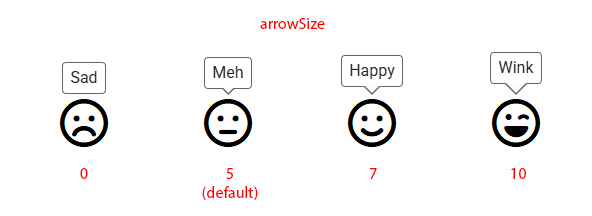
It defines the size of the arrow.
- Config Property:
arrowSize. - Type:
number. - Default:
5. - Accepts: zero or greater.
- Translated to: pixels.
The Offset Size
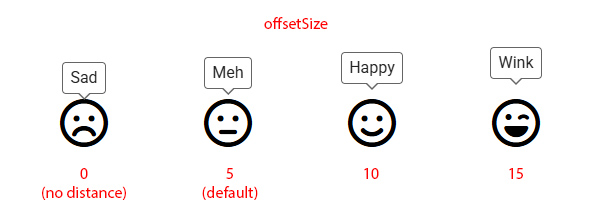
It defines the space between the tooltip's arrow and its trigger.
- Config Property:
offsetSize. - Type:
number. - Default:
5. - Accepts: positives and negatives.
- Translated to: pixels.
The Fade Timeout
It defines the timeout to fade in or out the tooltip.
- Config Property:
fadeMs. - Type:
number. - Default:
125. - Translated to: milliseconds.
The Fade Delay Timeout
It is the time it will take to start to fade in or out after the tooltip is shown or hidden.
- Config Property:
fadeDelayMs. - Type:
number. - Default:
400. - Translated to: milliseconds.
The Delay On Event
To establish on which events should delay (fadeDelayMs property) when show/hide the tooltip.
- Config Property:
delayOnEvent. - Type:
TooltipDelayEvents. - Default:
{ mouse: true, keyboard: false, touch: false }.
The zIndex
It defines the z-index CSS value.
This can be helpful for scenarios where the page contains fixed landmarks. See the Safe Space and zIndex issues from the Overlay library.
- Config Property:
zIndex. - Type:
number. - Default:
9999.
The Padding
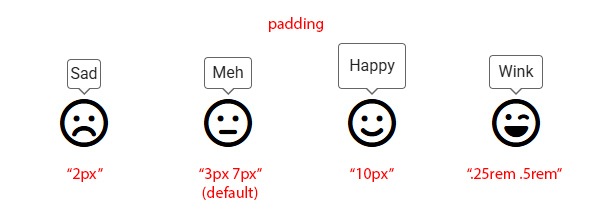
It defines the padding CSS value.
- Config Property:
padding. - Type:
string. - Default:
'3px 7px'(3pxtop & bottom,7pxleft & right).
The Shadow
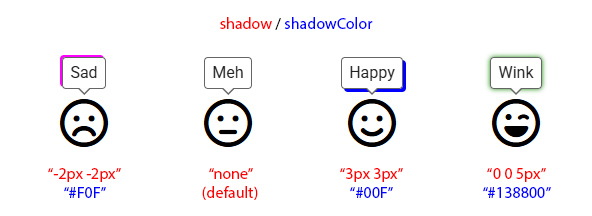
It defines the box-shadow CSS value, by combining two properties:
- Config Property:
shadow.- Type:
string. - Default:
none.
- Type:
- Config Property:
shadowColor.- Type:
string. - Default:
var(--a11y-shadow-color)(coming from the Color Scheme library).
- Type:
The Background Color
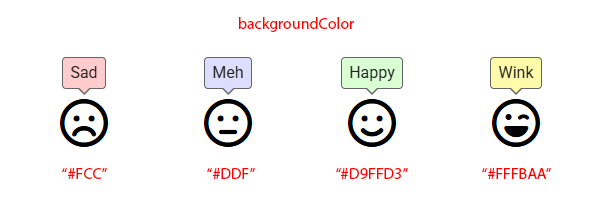
It defines the background-color CSS value.
- Config Property:
backgroundColor. - Type:
string. - Default:
var(--a11y-bg-color)(coming from the Color Scheme library).
The Text Color
It defines the color CSS value.
- Config Property:
textColor. - Type:
string. - Default:
var(--a11y-text-color)(coming from the Color Scheme library).

The Border Size
It defines the border-width CSS value.
- Config Property:
borderSize. - Type:
number. - Default:
1. - Translated to: pixels.

The Border Color
It defines the border-color CSS value.
- Config Property:
borderColor. - Type:
string. - Default:
var(--a11y-border-color)(coming from the Color Scheme library).

The Border Radius
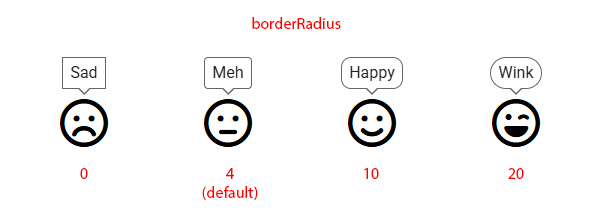
It defines the border-radius CSS value.
- Config Property:
borderRadius. - Type:
number. - Default:
4(same for each corner). - Translated to: pixels.
The Max Width
It defines the maximum width allowed for the tooltip.
- Config Property:
maxWidth. - Type:
string. - Default:
'200px'. - You can use:
px,em,%, etc.
The Class Names
It defines custom class names for your tooltip element.
- Config Property:
className. - Type:
stringorstring[]. - Default: unset.
Use Animate
To establish wether to use a small CSS animation when show/hide the tooltip.
- Config Property:
animate. - Type:
boolean. - Default:
true.
Use Prevail
To establish wether the tooltip will prevail open when the user hovers over it.
NOTE: The WCAG 2.1/2.2 - Criteria 1.4.13: Content on Hover or Focus, establishes under the "Hoverable" principle that: The pointer can move over the new content without it disappearing.
- Config Property:
prevail. - Type:
boolean. - Default:
true.
Use As Label
To establish the same tooltip's text as the actual label to its trigger.
It will add an aria-label attribute with the same text.
- Config Property:
asLabel. - Type:
boolean. - Default:
false.
NOTE: Not all HTML elements are allowed to use
aria-label, so in case the trigger does not allow it, a visually hidden text will be added after it, to keep the text within the content at all times and be reachable to all assistive technologies (such as Screen Readers).
Toggle On
To establish which keys are allowed to toggle the tooltip's visibility.
- Config Property:
toggleOn. - Type:
string[]. - From:
KeyboardEvent.code. - Default:
['ControlLeft', 'ControlRight'].
The recalculate() Method
To recalculate the tooltip's position on demand.
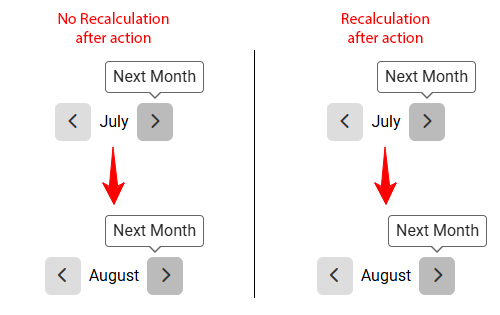
This can come handy when we face scenarios where the trigger element can move after an interaction (like, by clicking on it) and it changes its original position. The tooltip doesn't know its trigger moved, so we have to force to recalculate by using this method.
A bit forced example: let's say we have a calendar with the typical "Previous Month" and "Next Month" buttons, with the current month in between, and all centered in the screen. Unless that current month's wrapper has a fixed width, it will change its size and, therefore, the buttons will change their positions.
To access the tooltip, we can use the exported instance from a11yTooltip:
TypeScript:
currentMonth: number = 0;
readonly months: string[] = [
    'January', 'February', 'March', 'April', 'May', 'June', 'July',
    'August', 'September', 'October', 'November', 'December'
];

changeMonth(monthToAdd: number): void {
    const newMonth: number = this.currentMonth + monthToAdd;
    if (monthToAdd === -1 && newMonth < 0) this.currentMonth = 11;
    else if (newMonth > 11) this.currentMonth = 0;
    else this.currentMonth = newMonth;
}
Template:
<button
    type="button"
    class="btn"
    tooltip="Previous Month"
    [tooltipConfig]="{ asLabel: true }"
    #ttPrev="a11yTooltip"
    (click)="changeMonth(-1); ttPrev.recalculate()">
    <i class="fa-solid fa-chevron-left"></i>
</button>
<div>{{ months[currentMonth] }}</div>
<button
    type="button"
    class="btn"
    tooltip="Next Month"
    [tooltipConfig]="{ asLabel: true }"
    #ttNext="a11yTooltip"
    (click)="changeMonth(1); ttNext.recalculate()">
    <i class="fa-solid fa-chevron-right"></i>
</button>
By default, the tooltip will stay where it was, being now misaligned from its trigger as you can see in the next example at the left, while the one at the right did recalculate its position and is perfectly aligned to the button.
The Color Schemes
This library uses Color Scheme package as a dependency so you can make use of the two basic color schemes: light and dark (or more).
How to Configure the Color Schemes
You can establish all the color related stuff for the preset schemes (light and dark) or any other you may have added when using the rootConfig() method from A11yColorSchemeModule.
- Config Property:
colorSchemes. - Type:
ColorSchemesStyles. - Properties:
schemesof typeColorSchemes:- In here we have to specify each color scheme by its code-name and, within, the properties we want to override (of type
ColorSchemeProperties):light.dark.- 'code-name' (any other).
- In here we have to specify each color scheme by its code-name and, within, the properties we want to override (of type
Let's say you don't like the default text color for the light scheme (#222), then you can change it like this:
A11yTooltipModule.rootConfig({
    ...
    safeSpace: { top: 65, left: 50 },
    borderSize: 2,
    ...
    colorSchemes: {
        schemes: {
            light: {
                textColor: '#000',
            },
            dark: {...},
            'red-velvet': {...}, // being 'red-velvet' the code-name
        },
    },
}),
NOTES:
- Although
colorSchemesalso includes thegenericsobject to define (redundant as it may sound) the generic values (not related to color), that property was removed from here, and you can add those at the root level of the object provided, as shown for theborderSizeproperty.- If you add a color-related property at the root level, it will be treated as generic and will affect all tooltips.
How to Force a Scheme
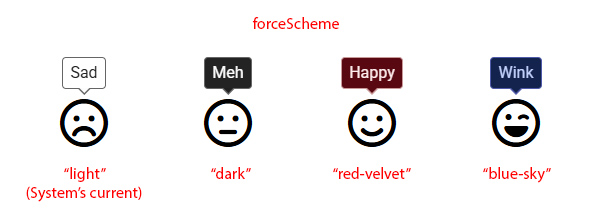
Even when the color scheme is set to a specific value (globally), you can force a tooltip to use another.
- Config Property:
forceScheme. - Type:
ColorScheme(akastring, aka 'code-name').
I've added a couple color schemes for testing purposes, called 'red-velvet' and 'blue-sky'.
How to add a New Color Scheme
Since Color Scheme package is a dependency, you can add new schemes if you need to. You can use the rootConfig() method on the A11yColorSchemeModule in your app.
The properties you can configure within the scheme object are:
a11yBackgroundColora11yTextColora11yBorderColora11yShadowa11yShadowColor
NOTE: Any property you don't specify, it will use the value defined within
light.
A11yColorSchemeModule.rootConfig({
    newSchemes: [
        {
            value: 'red-velvet',
            name: 'Red Velvet',
            scheme: {
                a11yBackgroundColor: '#590811',
                a11yTextColor: '#FFEEEE',
                a11yBorderColor: '#995555',
                a11yShadowColor: '#995555',
            },
        }
    ],
}),
The Use with Image Maps
Image maps can also be a "problem":
❌ The <area> elements have no "surface" like a normal element
❌ If the image has been resized after the map was generated (based on its original size, duh!), events like hover and focus will no longer match
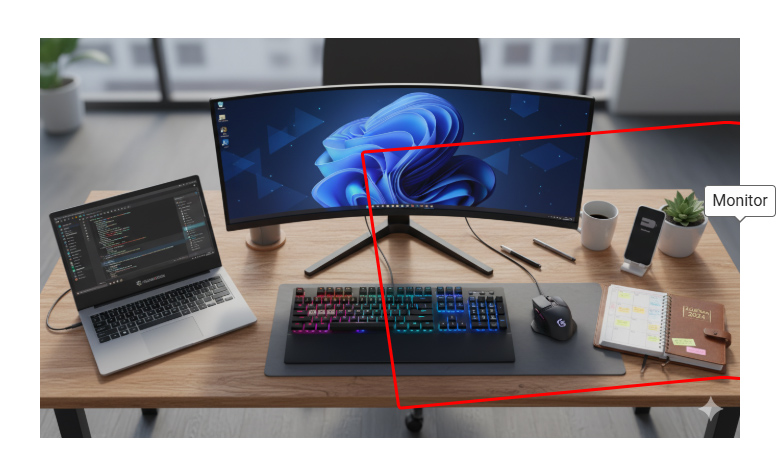
For the next example, we are working with an image with an original size of 1344px x 768px, downsized to 700px width.
<img src="/assets/images/desktop-map-image.png" alt="" usemap="#image-map" width="700" />

<map name="image-map">
    <area tooltip="Monitor" shape="poly" coords="322,114,359,370,684,339,1030,367,1064,115,687,84" href="..."/>
    <area tooltip="Laptop" shape="poly" coords="17,338,75,527,117,649,417,542,350,436,302,262" href="..." />
    <area tooltip="Keyboard" shape="poly" coords="485,480,466,627,915,624,887,478" href="..." />
    <area tooltip="Mouse" shape="rect" coords="937,490,1035,590" href="..." />
    <area tooltip="Phone" shape="poly" coords="1119,418,1151,320,1201,338,1168,440" href="..." />
</map>
As seen in the next screenshot, there are two issues:
- The beautiful (for visual purpose) red square is the focus ring for the monitor (since the coordinates of the polygon were generated for its original size), so the focused element is respecting that size
- The tooltip has no "surface" to attach to, so it's kind of "floating around"
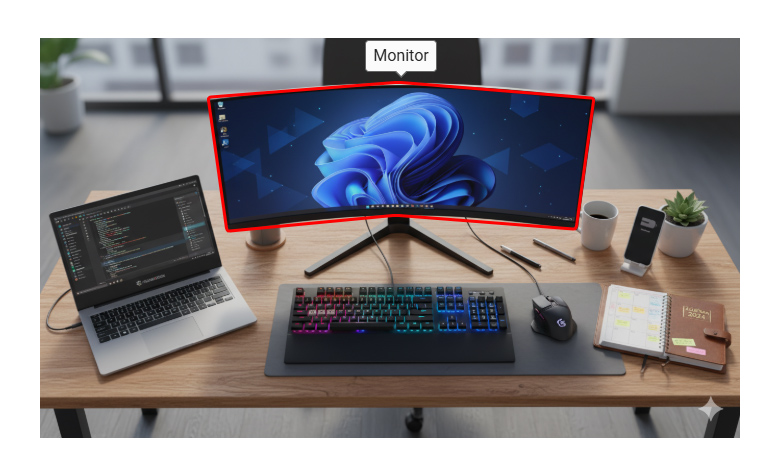
To fix this, you can make use of the Responsive Image Maps library (if you have Image Maps in your website, of course).
✔️ It will readjust the coordinates for each <area> element to the current image size
✔️ The tooltip will make use of the new coordinates to position itself properly
import { A11yTooltipModule } from '@a11y-ngx/tooltip';
import { A11yResponsiveImageMapsModule } from '@a11y-ngx/responsive-image-maps';

@NgModule({
    declarations: [...],
    imports: [
        ...
        A11yTooltipModule,
        A11yResponsiveImageMapsModule,
    ],
})
export class MyCustomModule { }
Now, we can observe that:
✔️ The focus ring matches the original coordinates in the new downsized image ✔️ The tooltip is correctly located to its default position/alignment (top-center)
The Use with Abbreviation Elements
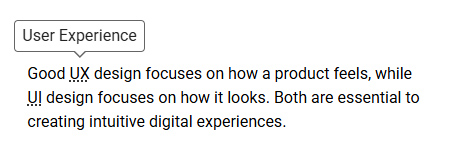
Abbreviations (<abbr>) are one of the few elements where using the native title attribute is both expected and "accessible".
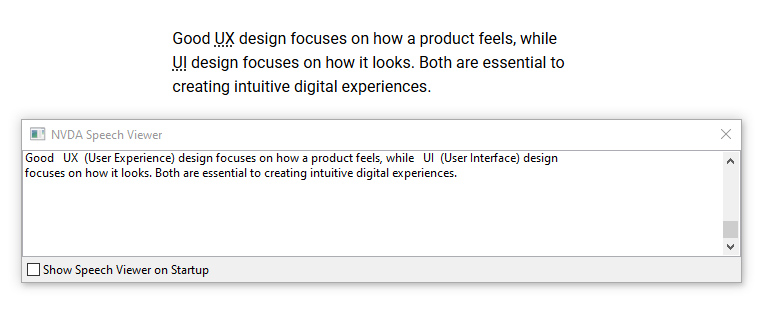
While this is semantically correct, screen readers (as far as I know, all of them) won't read the title at all, that's why the library will add a visually hidden text after the <abbr>.
Template:
Good <abbr title="User Experience">UX</abbr> design focuses on how a product feels,
while <abbr title="User Interface">UI</abbr> design focuses on how it looks.
Both are essential to creating intuitive digital experiences.
Result for the Tooltip:
Result for the NVDA Screen Reader:
The Use with Non-Interactive Elements
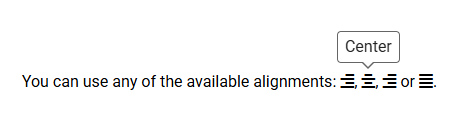
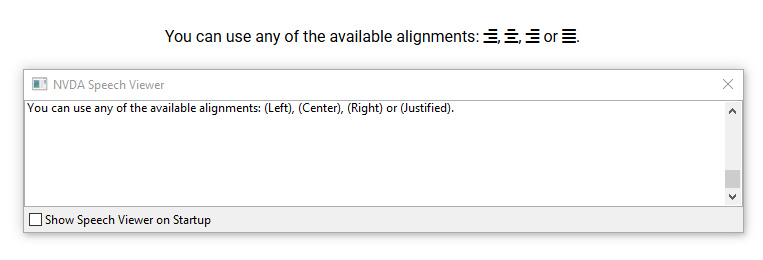
In case you are using the tooltip in a non-interactive element (not recommended), the same thing will happen as with the use of the <abbr> element, it will add a visually hidden text after it.
Template:
You can use any of the available alignments:
<i class="fa-solid fa-align-right" tooltip="Left"></i>,
<i class="fa-solid fa-align-center" tooltip="Center"></i>,
<i class="fa-solid fa-align-right" tooltip="Right"></i> or
<i class="fa-solid fa-align-justify" tooltip="Justified"></i>.
Result for the Tooltip:
Result for the NVDA Screen Reader:
IMPORTANT: Remember that this is NOT recommended, since keyboard users can't reach the tooltip at all. Making the element focusable (
tabindex="0") might seem to "fix" the keyboard scenario, but it's NOT accessible, since users expect that focusable elements to be interactive.