
@acedatacloud/n8n-nodes-flux
v0.1.1
Published
Generate and edit Flux images and retrieve their tasks in n8n through AceDataCloud.

Maintainers
 germey
Readme
Flux for n8n: first image
Generate one Flux image and retrieve its completed result in an n8n workflow through AceDataCloud. Screenshots use a real self-hosted n8n 2.42.3 instance in English. This package is maintained by Ace Data Cloud.
Package: @acedatacloud/n8n-nodes-flux · Flux image API · Current models and pricing · Source
1. Install the node
In self-hosted n8n, sign in as an owner or admin. Open Settings → Community nodes → Install, enter @acedatacloud/n8n-nodes-flux, review the author Ace Data Cloud, accept n8n's installation notice and select Install. Your n8n server needs HTTPS access to npm and api.acedata.cloud.
n8n Cloud offers a community node in the node picker only after n8n verifies it. Check the picker for the current status; an npm release alone does not prove Cloud availability. See n8n's self-hosted installation guide.
2. Get an API key with Flux access
New account? Register and sign in first. If the Applications page has no General application yet, choose Initialize General Application, then continue with the key steps below.
- Sign in at Ace Data Cloud → Applications.
- Open General application. Copy its API key or choose Manage Keys → Create for a separate n8n key.
- Check Flux service access, current pricing and balance. If Allowed APIs is enabled, include both
/flux/imagesand/flux/tasks.
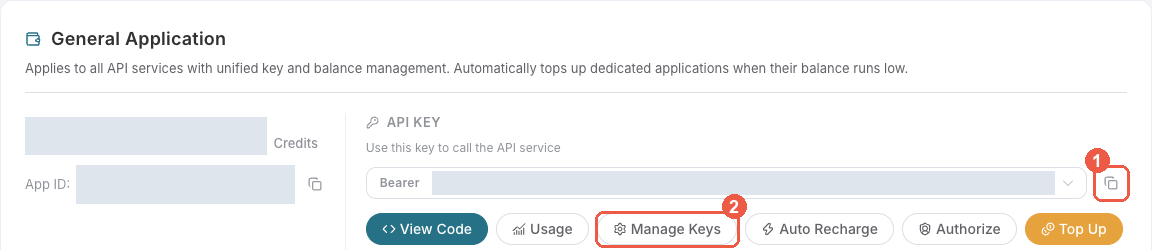
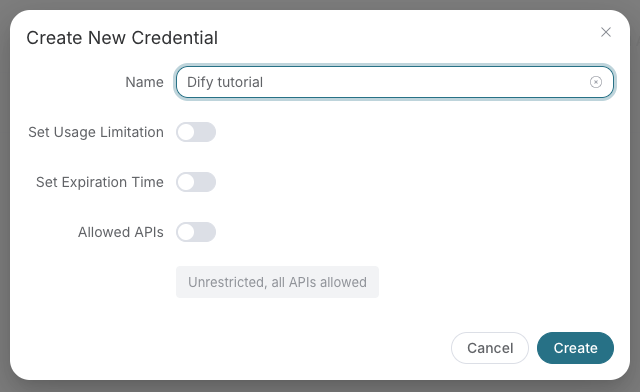
Copy only the API token. Do not include Bearer , quotes or a platform management token, and do not put the token into a prompt or workflow export.
3. Save the credential in n8n
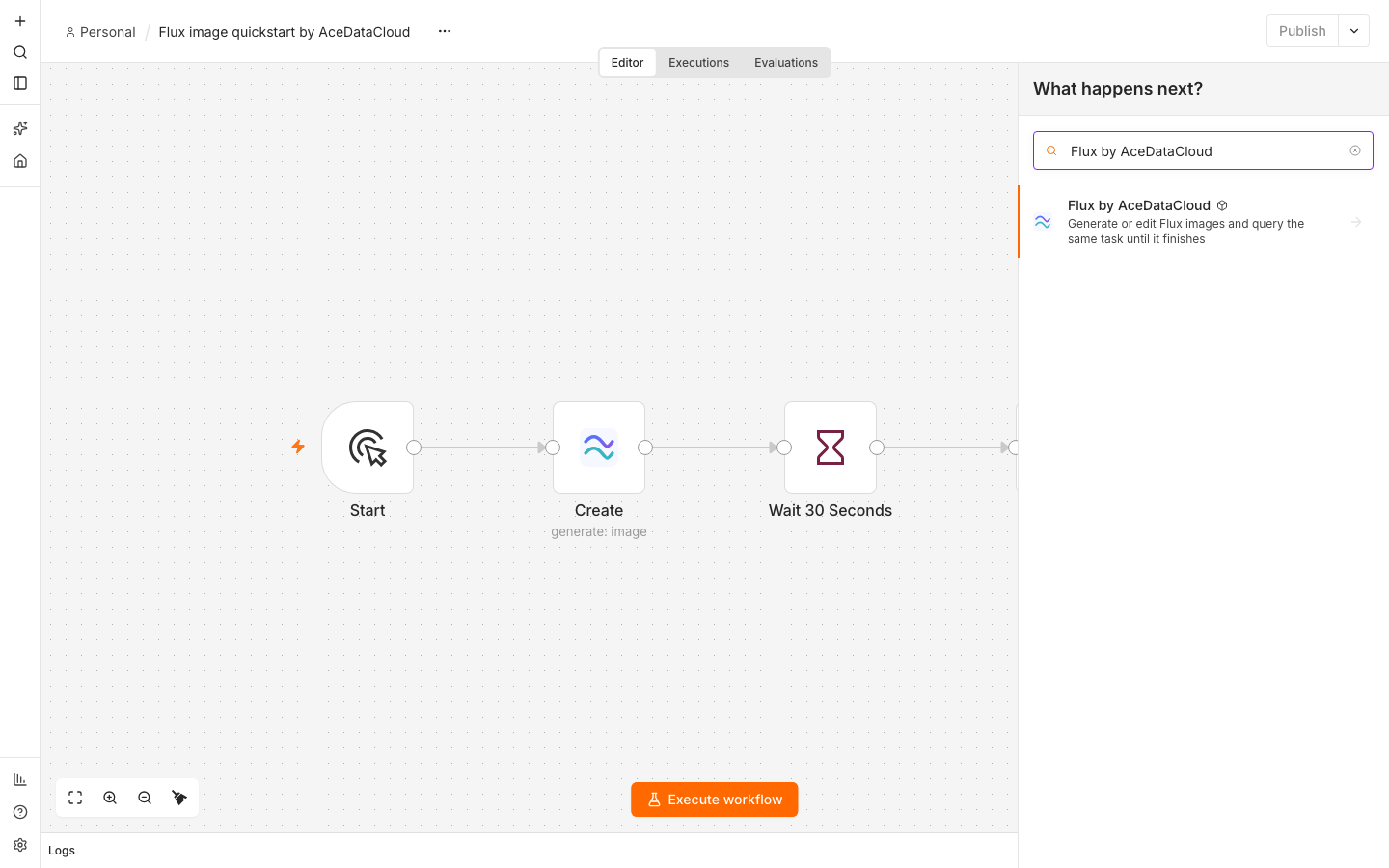
Add Flux by AceDataCloud to a workflow. In Credential, select Connect to Flux by AceDataCloud and then Create new credential. Paste the token into API Token. Set Allowed HTTP Request Domains to Specific Domains and enter api.acedata.cloud, then save. Select the same credential on both Create and Get Task.
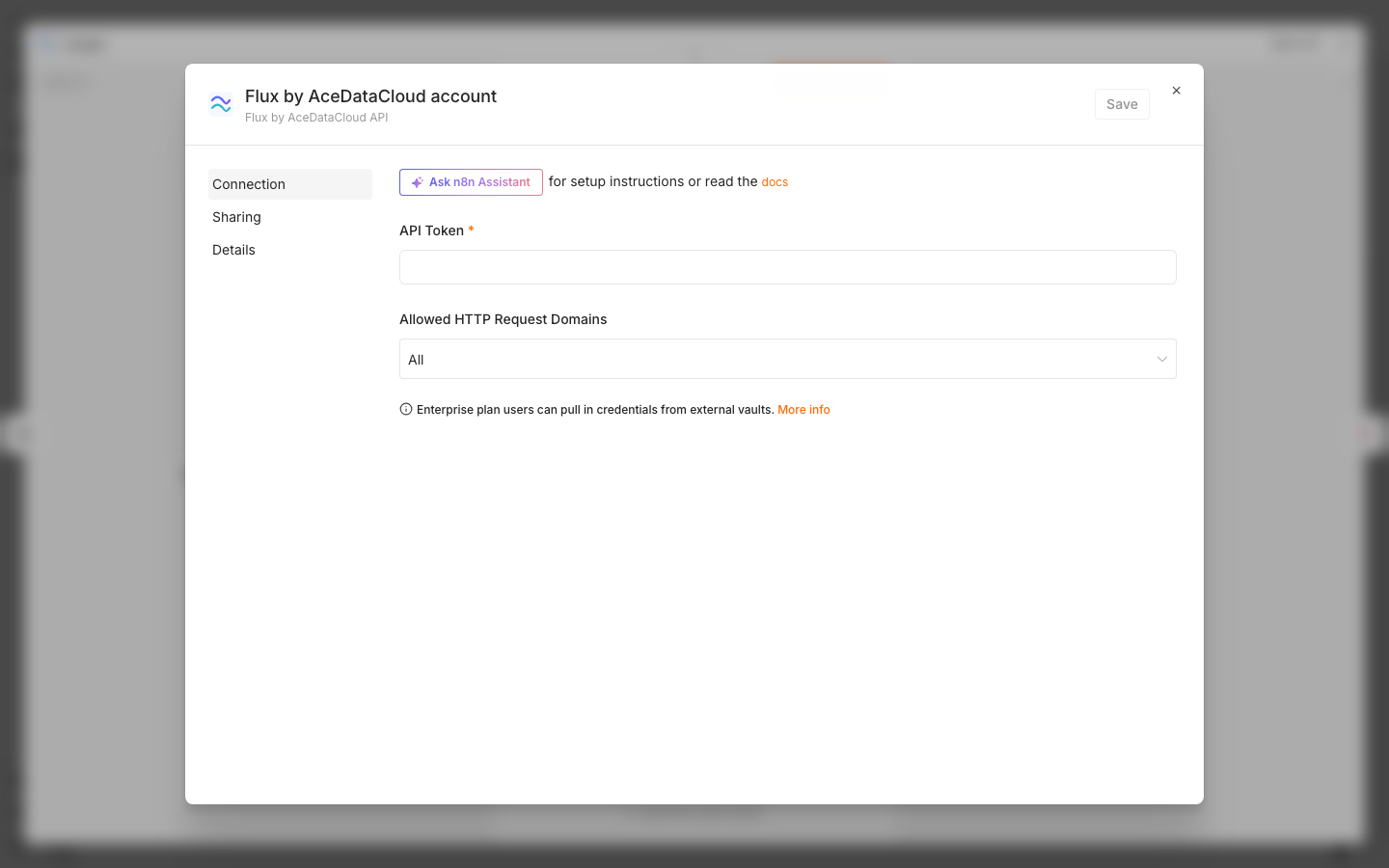
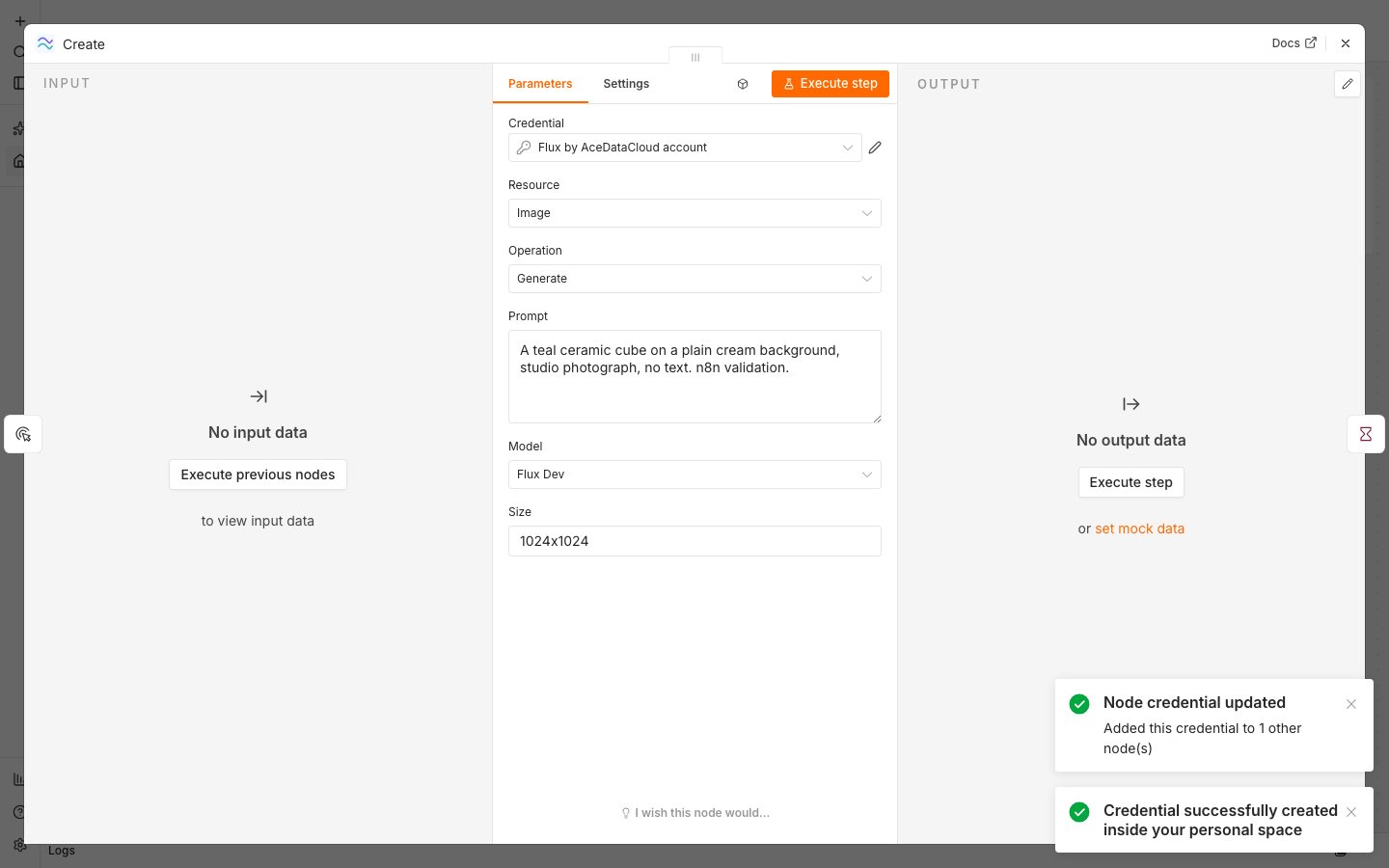
The credential test retrieves an empty task batch; it does not create or charge for an image. A saved credential alone does not prove Flux generation access.
4. Import and run the first workflow
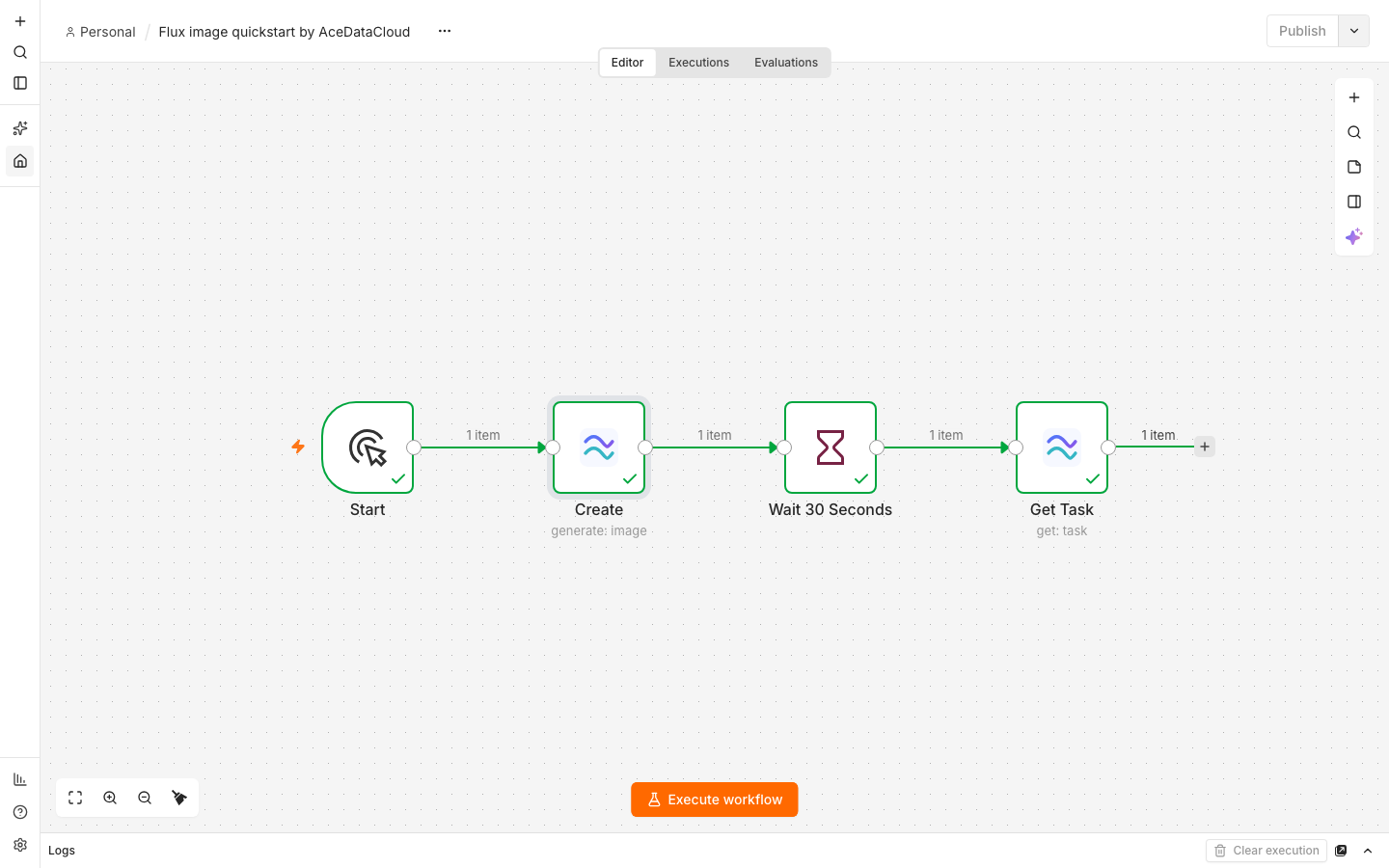
Download the credential-free quickstart. In a new n8n workflow, choose ⋯ → Import → From file, select that JSON file, and assign your credential to both Flux nodes. The path is:
Start → Create → Wait 30 Seconds → Get Task.
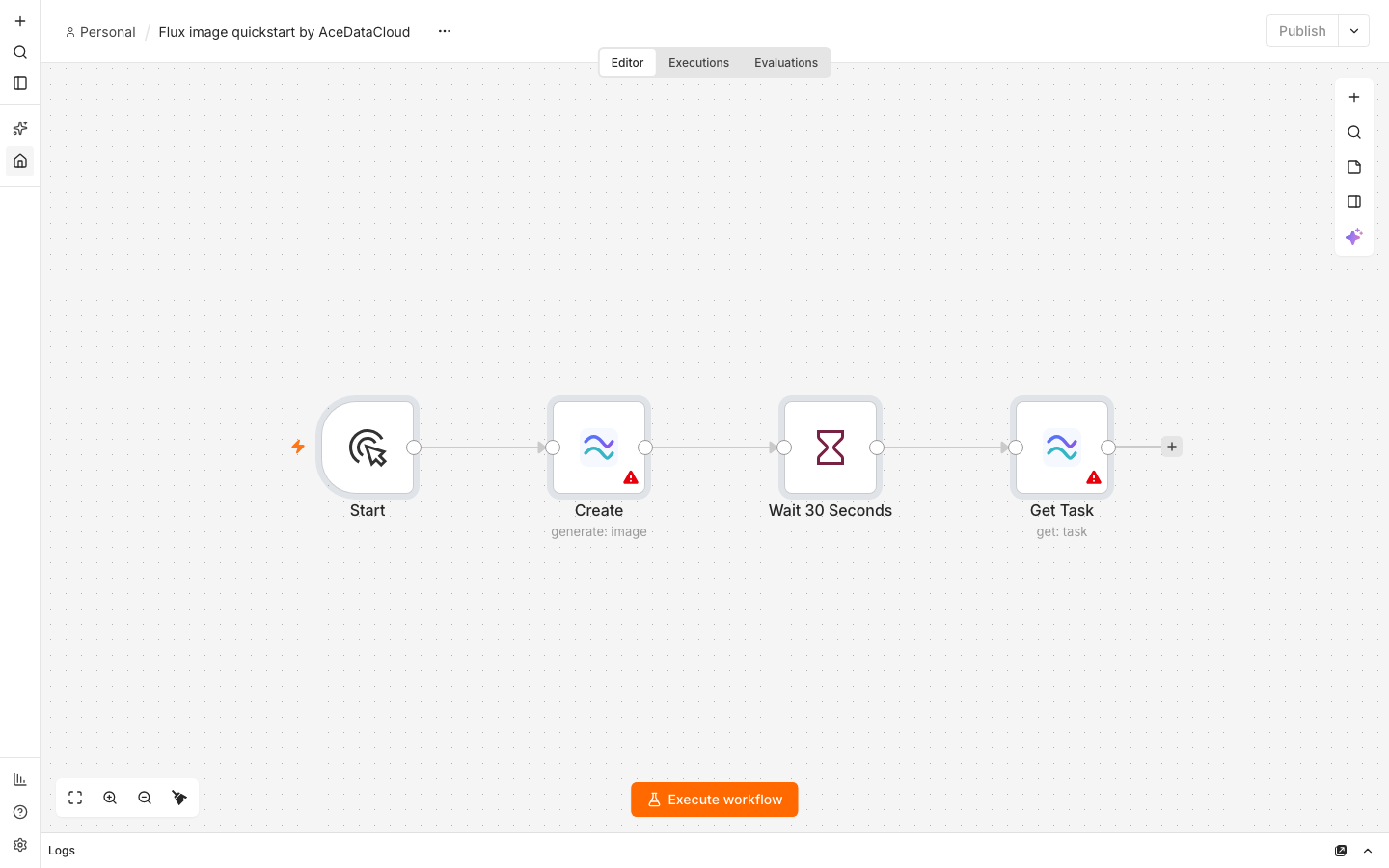
The Create node is already set to the smallest confirmed example:
| Field | Value |
| --- | --- |
| Resource / Operation | Image / Generate |
| Model | flux-dev |
| Size | 1024x1024 |
| Images per request | 1 |
Prompt:
A teal ceramic cube on a plain cream background, studio photograph, no text. n8n validation.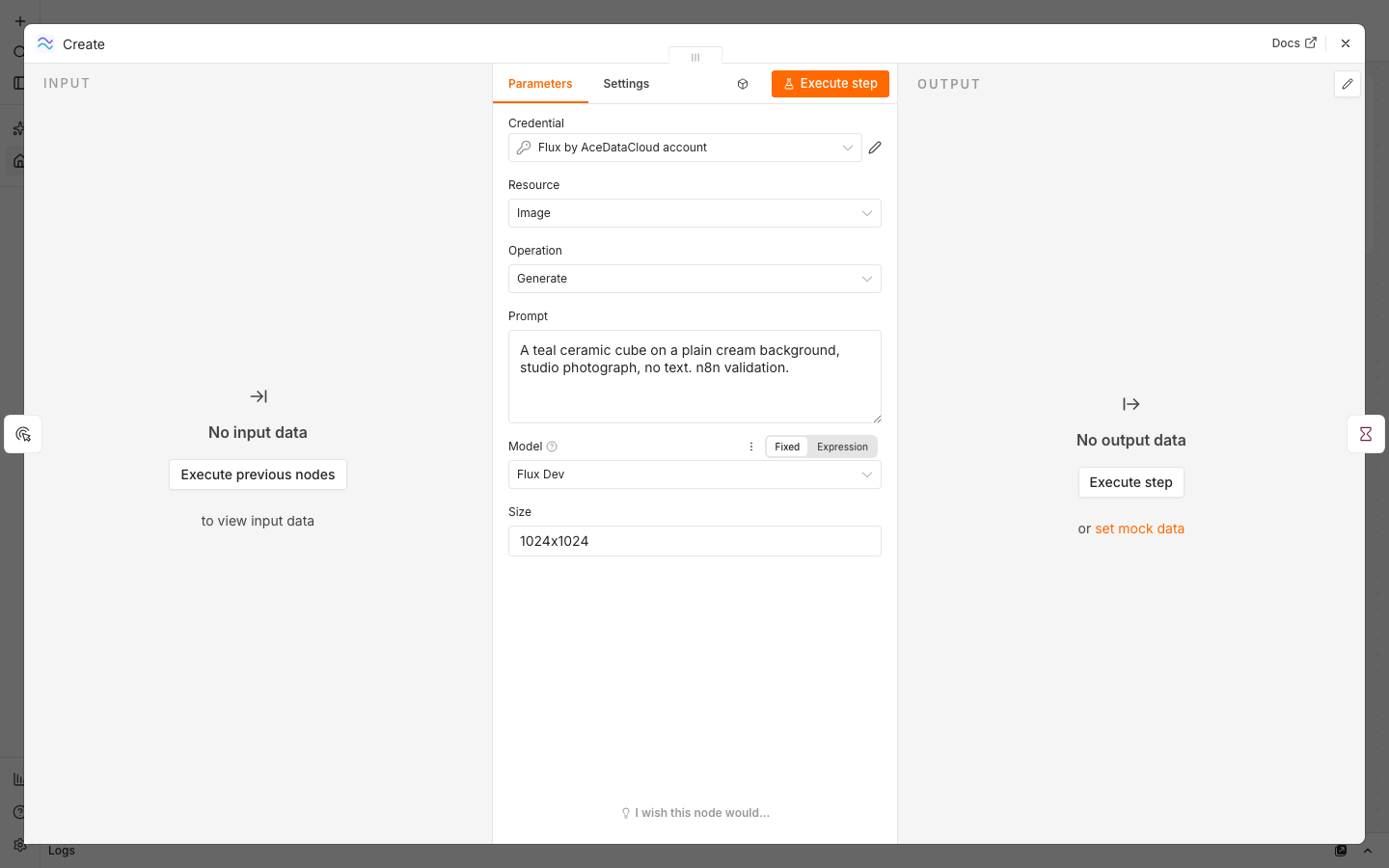
Keep Retry On Fail off on Create. Select Execute workflow once. Create returns a taskId with status=submitted; that is an acknowledgment, not a completed image. The Get Task field is an n8n expression pointing to Create → taskId, so the workflow queries that same ID after waiting.
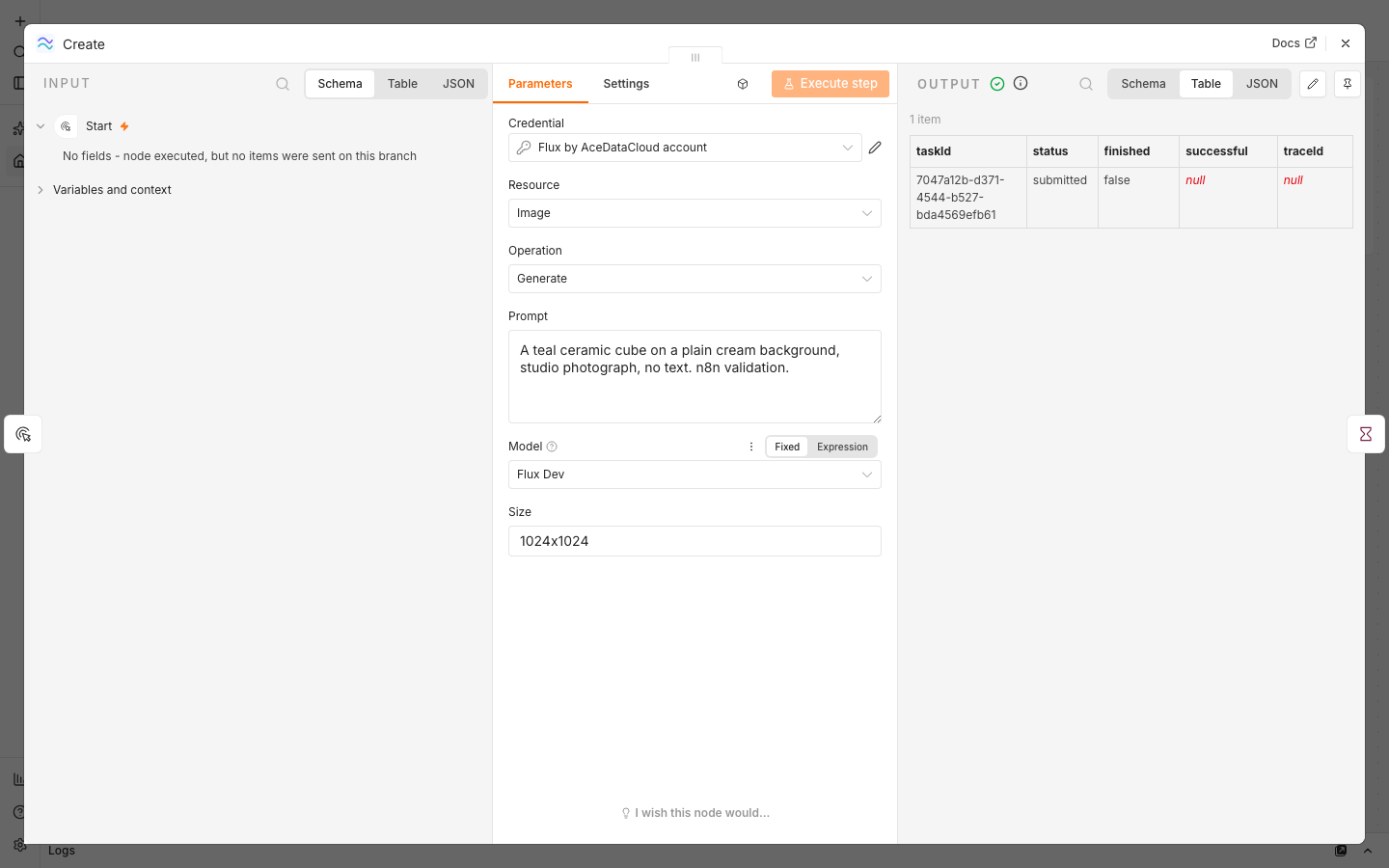
5. Confirm completion and the charge
Open Get Task output. Continue only when status=succeeded, finished=true and successful=true. Open the URL in imageUrls. This actual validation run returned a 1024×1024 PNG:
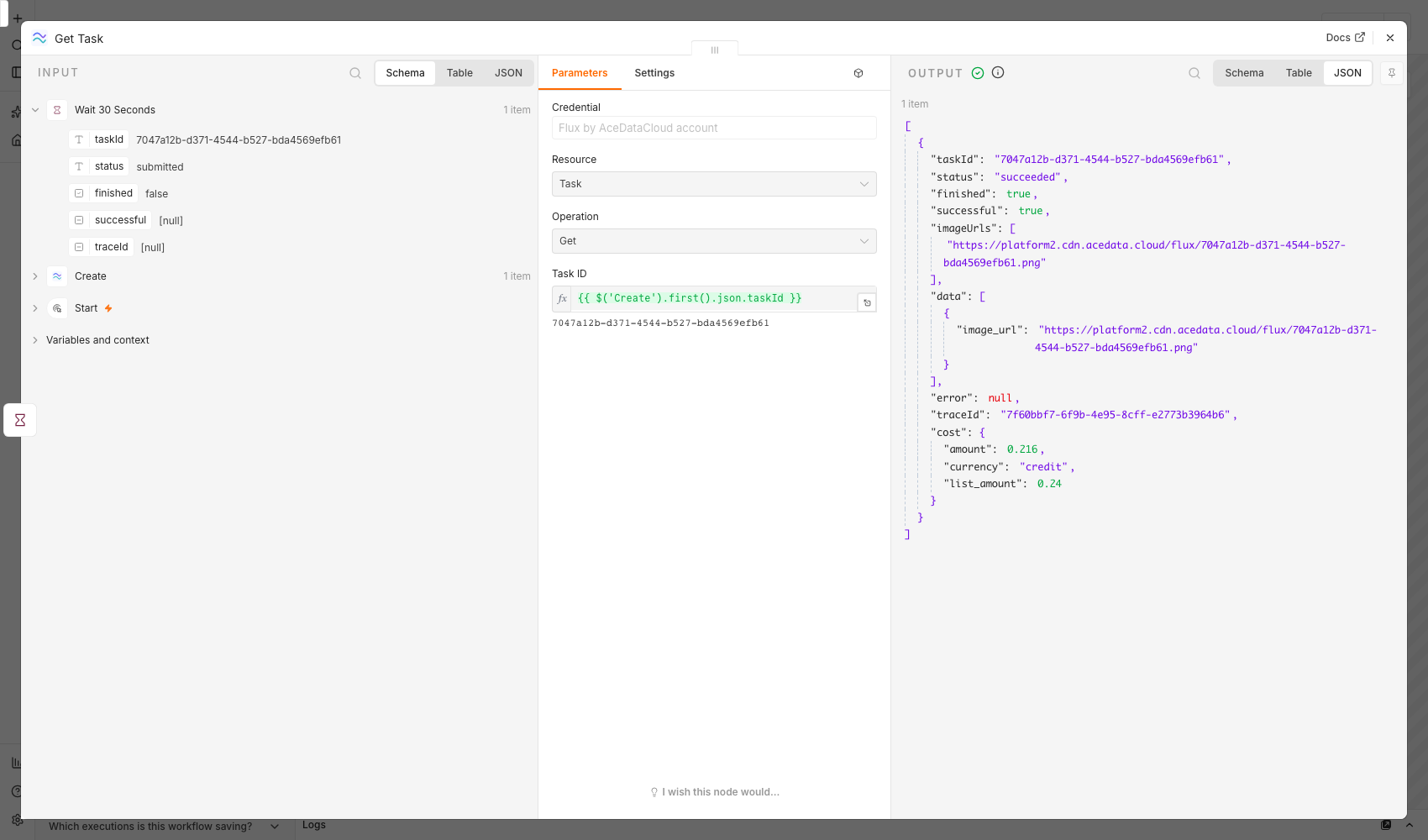

The result reported 0.216 Credits, and read-only Ace Data Cloud usage history showed one matching HTTP 200 record for the same test key and trace ID. Credits are not USD; the current package rate determines conversion. Your charge can differ by model, size, account and current price. Use the Ace Data Cloud console to inspect the matching usage record.
If Get Task still says processing after 30 seconds, do not rerun this workflow: that would submit a second paid image. Copy the original task ID, import the query-only workflow, replace its placeholder task ID, assign the same credential and run only that workflow until the task reaches a terminal state. The bounded polling example automates queries of one task for up to 30 minutes without resubmitting Create. Reaching its deadline does not cancel a submitted task.
Troubleshooting
| What you see | What to check |
| --- | --- |
| 401 or 403 | Copy the full application API token without Bearer ; check expiration, Flux access, balance and Allowed APIs for both image and task endpoints. |
| 400 | Use flux-dev with 1024x1024 for this first run. Flux 2 and Kontext models require an aspect ratio such as 1:1; editing also requires a publicly accessible image URL. |
| submitted or processing | Query the same task ID. Do not run Create again to poll. |
| 429 | Reduce concurrency; leave automatic paid retries off. |
| Timeout or 5xx | Inspect the existing task and usage history before resubmitting, because the first request may have been accepted. |
| Image link fails | Confirm the task is terminal and that the returned URL opens in a browser. |
More capabilities
Image Edit uses a public reference URL and flux-kontext-pro or flux-kontext-max with an aspect-ratio size. A separate credential-free Edit workflow was validated using the generated image above, flux-kontext-pro, size 1:1, and the prompt below. Assign the credential to both nodes, execute once, and query only its task ID if still processing.
Change the cube color to coral while keeping the cream background and studio lighting. No text.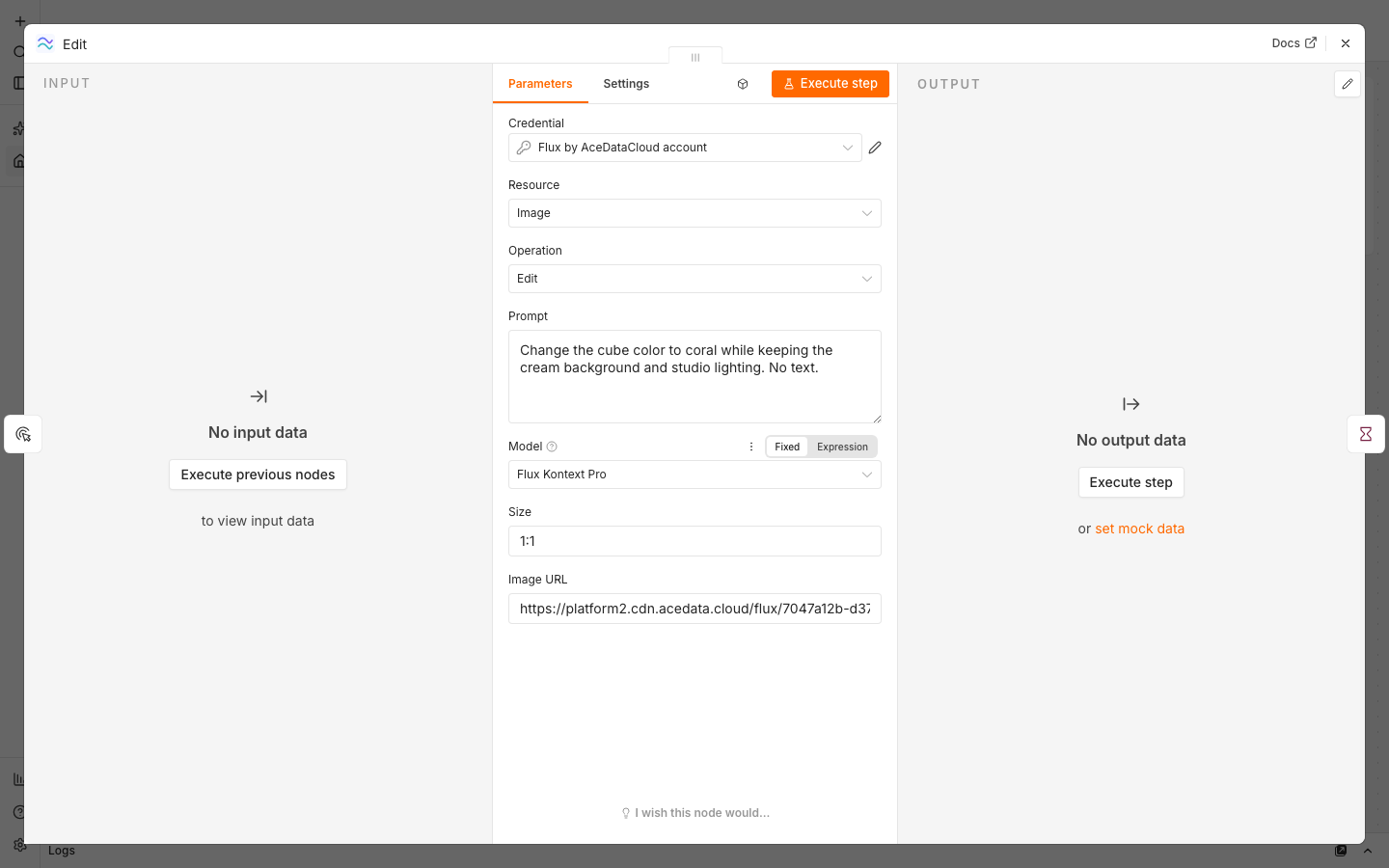
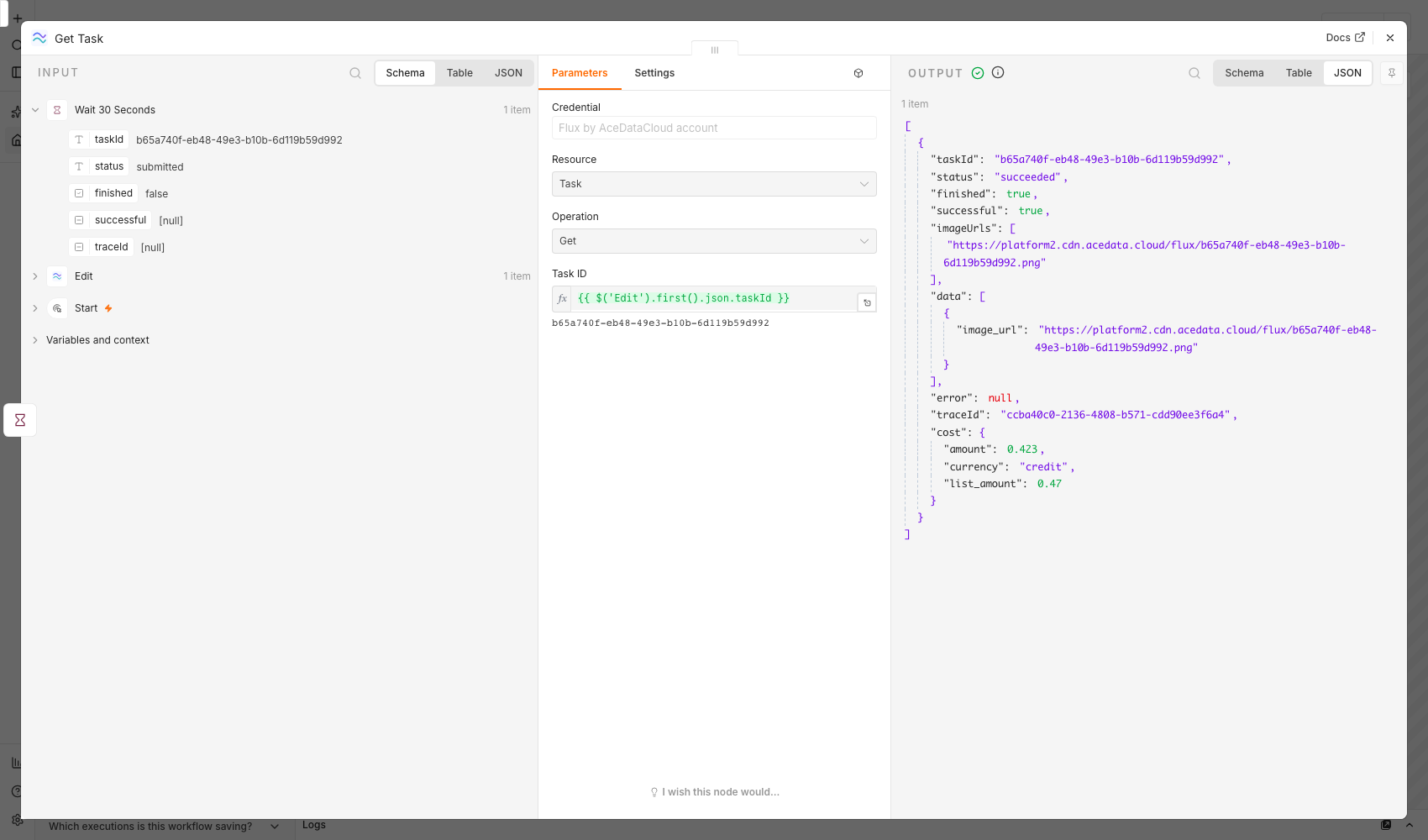

This separate edit completed successfully and deducted 0.423 Credits, matching its task trace and one usage record. Flux 2 generation also uses aspect ratios; the node checks size and model combinations before sending a paid request. Task → Get Many retrieves up to 50 specific IDs without generating new images. The node never adds an automatic create retry or a substitute model. Each input item creates at most one task. Agent tool use is available, but each generation tool call may be charged separately. Video generation is outside this initial image release and needs its own operation and live validation.