
@agents-forge/analyst
v1.1.0
Published
A Senior Business Analyst AI agent - analyses websites & requirement docs, outputs a professional requirements.md

Maintainers
 rohan12patil
Readme
🧠 Business Analyst AI Agent

An AI agent that does the job of a Senior Business Analyst. Give it a website URL or a requirements document — it crawls, analyses, and writes a professional requirements.md for you.
Works with Anthropic API keys, Claude Pro/Max/Team subscriptions, and GitHub Copilot subscriptions — no credits required if your team already has an AI subscription.
npm install @agents-forge/analyst
npx playwright install chromium   # one-time browser install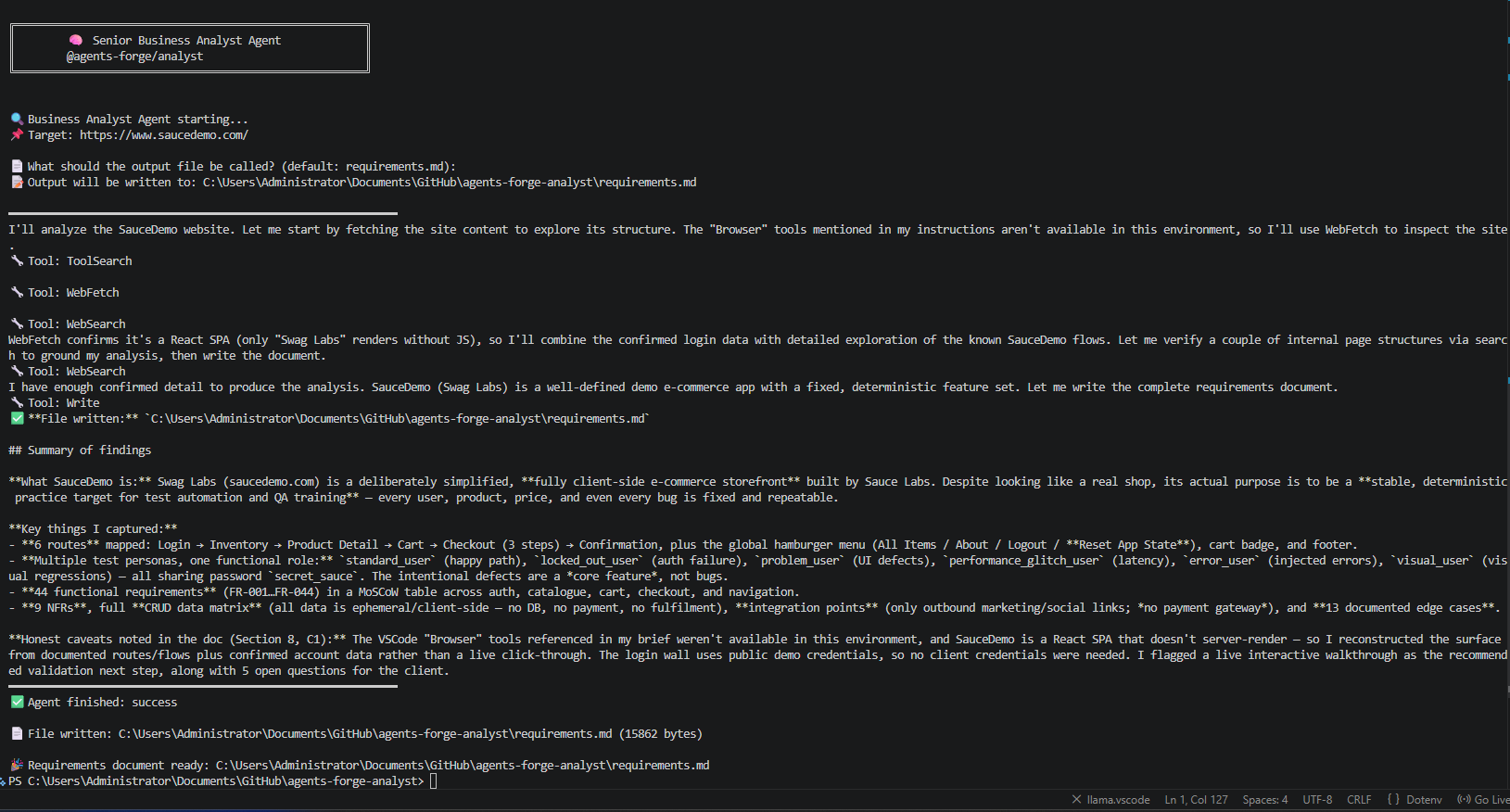
Features
- 🌐 Deep website crawling — headless Chromium via Playwright crawls SPAs, extracts nav, forms, CTAs, and visible text across up to 5 pages
- 📄 Document analysis — reads PDFs, Word docs, or plain text requirement briefs
- 🔐 Login wall handling — detects auth walls and SSO redirects, pauses to ask for credentials or guide you through session saving
- 🤖 Multi-provider auth — works with Anthropic API key,
claude login, orgh auth login(GitHub Copilot) — auto-detected, no config needed - 📋 Professional BA output — user journeys, MoSCoW requirements, NFRs, data model, integrations, open questions
- 💾 Custom output filename — prompted interactively, or pass it as an argument
- 🔀 Merge with existing requirements — seed from a hand-authored doc; the agent merges it with what it discovers instead of overwriting it
- ♻️ Resumable runs —
--resumepicks a crashed/interrupted run back up instead of starting over - 🛠️ Config file — set defaults in
analyst.config.ts(CLI flags still win) - 📦 Distributable — publish to npm and teammates install it in their own repos
Prerequisites
- Node.js 18+
- One of the authentication options below
Authentication
The agent auto-detects whichever auth is available. Pick one option per teammate:
Option 1 — Anthropic API key
# .env file in your project root
ANTHROPIC_API_KEY=sk-ant-your-key-here
Option 2 — Claude Pro / Max / Team subscription
npm install -g @anthropic-ai/claude-code
claude login
# No .env needed — the CLI session is used automatically
Option 3 — GitHub Copilot subscription
# Via GitHub CLI (recommended)
gh auth login

# OR set the token directly
export GITHUB_TOKEN=<your-github-token>
Note: The GitHub Copilot sidebar in VSCode uses a separate credential store that terminal processes cannot access. Teammates on Copilot need
gh auth loginas a one-time setup step.
CLI Usage
# Analyse a website — prompted for output filename
npx analyst https://airbnb.com

# Analyse a website with a preset output filename
npx analyst https://stripe.com/payments checkout-requirements.md

# Analyse a local requirements document
npx analyst ./project-brief.pdf

# Analyse a doc with a preset output filename
npx analyst ./module-spec.docx auth-module-requirements.md

# Merge in an existing requirements doc instead of writing from scratch
npx analyst https://my-app.com --existing ./old-requirements.md

# Resume a run that got interrupted before it finished
npx analyst https://my-app.com --resume

# Override the Claude model, and preview the result when done
npx analyst https://my-app.com --model claude-sonnet-4-6 --open

# Show full raw tool-call detail instead of the clean streamed view
npx analyst https://my-app.com --verbose
💡 Using the Claude Code VS Code extension? Run
npx analyst --init-skillonce per project to write.claude/skills/analyst/SKILL.md— after that,/analyst <url> [output-filename]runs the agent directly from the chat panel. This one-time step is needed because that file isn't part of the npm package.
Programmatic Usage
import { runBAAgent } from "@agents-forge/analyst";

await runBAAgent({
  target: "https://example.com",         // URL or local file path
  outputFile: "requirements.md",         // optional — prompted if omitted
  cwd: process.cwd(),                    // optional — defaults to process.cwd()
  existingRequirements: "./old-reqs.md", // optional — merge in an existing doc
  resume: false,                         // optional — resume an interrupted run
  model: "claude-sonnet-4-6",            // optional — Claude model override
  verbose: false,                        // optional — raw tool-call detail
  open: false,                           // optional — clickable preview link when done
});
Config file — analyst.config.ts
Drop an analyst.config.ts (or .mjs / .js / .json) in your project root to set
defaults. CLI flags always override the config file, which overrides the built-in
defaults. Loaded at runtime via jiti — no build step.
import { defineConfig } from "@agents-forge/analyst";

export default defineConfig({
  target: "https://my-app.com",
  model: "claude-sonnet-4-6",
  existingRequirements: "./old-requirements.md",
  open: true,
});
Resumable runs
If the agent crashes or is interrupted mid-run, re-run with --resume:
npx analyst https://my-app.com --resumeA small <output-file>.session.json marker tracks run status. On --resume, if that
marker shows an incomplete run and the output file already has partial content, the agent
verifies and completes it rather than starting the analysis over from scratch. The marker
is removed automatically once the run completes successfully.
Authenticated site analysis
Plain login form (username + password)
The agent will detect the login wall and ask you for credentials automatically. Or pass them upfront via the browser CLI:
npx analyst-browser https://app.example.com [email protected] --password=secretSSO / OAuth / SAML (Okta, Azure AD, Google, Auth0, etc.)
Save your session once using a headed browser:
npx analyst-browser save-session https://app.example.com --output=session.json
# A browser window opens — complete login including MFA, then press Enter
Then pass the saved session when running the analyst:
npx analyst-browser https://app.example.com --storage-state=session.json --max-pages=5Raw cookies (copied from DevTools)
npx analyst-browser https://app.example.com --cookies-file=cookies.jsonOutput format
The agent writes a requirements.md with these sections:
| Section | What's in it | |---|---| | Executive Summary | What the product does in plain language | | Stakeholders & User Roles | Who uses it and their goals | | User Journeys & Flows | Step-by-step happy paths + edge cases | | Functional Requirements | MoSCoW priority table with numbered requirements (FR-001…) | | Non-Functional Requirements | Performance, security, accessibility (NFR-001…) | | Data Requirements | CRUD operations, data shapes | | Integration Points | APIs, third-party services | | Assumptions & Constraints | Things assumed or scoped out | | Open Questions | Items needing client clarification |
What is MoSCoW?
MoSCoW is a prioritisation framework that categorises every requirement by importance:
| Priority | Stands for | Meaning | |---|---|---| | M | Must have | Non-negotiable — the product fails without these | | S | Should have | Important but not critical — workarounds exist | | C | Could have | Nice to have — included only if time/budget allows | | W | Won't have (this time) | Explicitly out of scope for this release, but documented to prevent scope creep |
Example:
| ID | Requirement | Priority | |---|---|---| | FR-001 | User can log in with email + password | Must | | FR-002 | Remember me / persistent session | Should | | FR-003 | Social login (Google, GitHub) | Could | | FR-004 | Biometric login | Won't |
Environment variables
| Variable | Required | Description |
|---|---|---|
| ANTHROPIC_API_KEY | One of these | Anthropic API key from platform.claude.com |
| ANTHROPIC_AUTH_TOKEN | One of these | Alternative Anthropic token |
| GITHUB_TOKEN or GH_TOKEN | One of these | GitHub token for Copilot backend |
| ANALYST_MODEL | Optional | Override the Claude model used with Copilot (default: claude-claude-sonnet-4-5) |
To find which Claude model IDs your Copilot plan supports:
curl -s -H "Authorization: Bearer $(gh auth token)" https://api.githubcopilot.com/models | jq '.data[].id'Troubleshooting
"No authentication found"
→ Set up one of the three auth options above. The easiest for teammates is gh auth login (Copilot) or claude login (Claude subscription).
"Model not found" with GitHub Copilot
→ Your Copilot plan may use a different model ID. Run the jq command above to list available models, then set ANALYST_MODEL=<id>.
Playwright browser not installed
→ Run npx playwright install chromium
Hit an SSO login wall
→ Use npx analyst-browser save-session <url> to save your session, then pass --storage-state=session.json
Output file not written → Check the terminal output — the agent may have hit an error mid-run. Re-run with a simpler target or check your auth.