
@ainyc/canonry
v7.45.1
Published
Self-hosted AI visibility (AEO) platform: track how ChatGPT, Claude, Gemini, and Perplexity cite your domain, join it with Search Console, GA4, server-side traffic, and paid media, and fix what you find through agent tools (CLI, REST, MCP). Local SQLite.

Maintainers
 arberx
Readme
Canonry


Canonry is an agent-first (CLI, MCP, API), open-source AEO operating platform with a comprehensive web UI. Track AI visibility over time, investigate changes across search and traffic, and measure progress after you or your agent acts.
Self-hosted, using SQLite, with your own (BYOK) provider keys. The web UI and your agent see the same evidence.
Live UI Demo · Quick start · Evidence · Actions · Integrations · Docs · Support
Quick start
Start with your agent
Help me set up Canonry for my public site.

Use the official Canonry docs:
- Agent quickstart: https://github.com/Canonry/canonry#or-use-any-shell-capable-coding-agent
- CLI reference: https://github.com/Canonry/canonry/blob/main/skills/canonry/references/canonry-cli.md
- Plugin setup: https://github.com/Canonry/canonry/blob/main/docs/plugins.md
- MCP setup: https://github.com/Canonry/canonry/blob/main/docs/mcp.md

Pick one path and stay on it. Use connected Canonry tools (plugin or MCP) only if you have them and I have not pointed you at a specific install. A connected tool runs in its own process and never sees `CANONRY_CONFIG_DIR`, `CANONRY_PORT`, or anything else you export in a shell, so it always acts on my default install. If I named a config directory, a port, or a sandbox, that is the shell path: use `cnry` and tell me which path you chose. Never mix the two in one run, and never create a duplicate project. The `cnry` and `canonry` commands are interchangeable.

1. Ask for my public domain, country, and language. Do not create or scan anything yet. Country and language are only applied when a project is created, so if you reuse an existing project, report its country and language instead of changing them.
2. Shell path only: confirm `cnry` is on PATH, then run `cnry --version`. If Canonry is missing, propose `npm install -g @canonry/canonry` and wait for approval. Then run `cnry doctor --format json`, which is the command that says whether config, database, and server are in place. `cnry --version` does not read config and succeeds on a completely unconfigured install, so it cannot answer this. If config is missing, run `cnry bootstrap` yourself: it is not interactive, takes about a second, and is safe to rerun. Do not hand it to me and wait. The interactive command is `cnry init`, which is optional provider and OAuth setup that Page Health does not need. Bootstrap prints an API key, so do not repeat its output back to me, and never ask me to paste passwords, API keys, OAuth credentials, or command output.
3. Confirm the API is reachable. `cnry doctor --format json` reports it, and any project read exits non-zero with `CONNECTION_ERROR` when it is not. If it is unreachable, propose `cnry start` and wait for approval. Use `cnry start`, which is the background daemon, and not `cnry serve`, which runs in the foreground and will block you until I stop it, even though some error messages suggest it. Stop anything you started with `cnry stop`.
4. List projects with the connected project tool or `cnry project list --format json`, and reuse one whose domain matches. Confirm the proposed name is not already assigned to a different domain. To find out whether a project has already been scanned, run `cnry technical-aeo score <project> --format json` with no `--run-id`, which reports the latest run. Read the `hasData` field, not the score: this command exits 0 and reports `aggregateScore: 0` for a project that has never been scanned, so reading the score alone would have you tell me my site scored zero. If `hasData` is true and `runStatus` is `completed` or `partial`, read that scan instead of starting a new one. If no project matches, show the exact create operation and wait for approval.
5. Propose a bounded Site Health scan: `--max-pages 100` for a first look, plus whether dead-link checking is on (it is off unless you pass `--check-dead-links`). Show the connected operation or the exact `cnry technical-aeo run <project> --max-pages 100 --wait --format json` command with the project name filled in, and wait for separate approval before scanning. `--wait` polls for up to 15 minutes and returns only the run id and status. If the status it returns is still `queued` or `running`, the scan has not finished: do not rerun it or report results, poll `cnry technical-aeo progress <project> --run-id <run-id> --format json` until it is terminal. If `--wait` outruns your own tool timeout first, recover the run id with `cnry technical-aeo score <project> --format json` and poll the same way.
6. When the run is `completed` or `partial`, read `cnry technical-aeo crawl <project> --run-id <run-id> --format json` first. It is the only one of these commands that carries `termination` and `complete`; the score and pages commands do not. Then read `cnry technical-aeo score <project> --run-id <run-id> --format json` and `cnry technical-aeo pages <project> --run-id <run-id> --sort score-asc --limit 10 --format jsonl`. Tell me the termination reason in plain words and whether the scan covered the whole site or stopped at a page, link, depth, or time limit. A `partial` run scored the pages it reached and not my site, so never present it as a full-site result. If it stopped early, the fix depends on the reason, so say which: a page or depth limit needs a larger budget, a time limit needs a smaller scan (a lower `--max-pages` or `--max-depth`). If the run failed or was cancelled, inspect the run error and stop.
7. Summarize only completed evidence, then propose AI Visibility setup. Ask before you add queries, connect providers, start a provider-backed or quota-consuming run, edit files, or publish.
Or Use Official Claude and Codex Plugins
Connect the Agent Plugin or MCP adapter to your own agent.
Or start it locally yourself
Install Canonry.
npm install -g @canonry/canonryInitialize Canonry.
cnry bootstrapStart Canonry.
cnry serveOpen http://127.0.0.1:4100/setup and follow the setup to scan your site.
The crawl saves a Page Health baseline. AI Visibility is optional and has a separate setup.
Keep cnry serve active. In a second terminal, create a project and start a bounded scan:
cnry project create my-site --domain example.com --country US --language en
cnry technical-aeo run my-site --max-pages 100 --wait --format json
Read the run ID and status from the output. If the status is completed or partial, read evidence from that run:
cnry technical-aeo score my-site --run-id <run-id> --format json
cnry technical-aeo pages my-site --run-id <run-id> --sort score-asc --limit 10 --format jsonl
--wait polls for up to 15 minutes. If the scan remains active, use cnry technical-aeo progress <project> --run-id <id> --format json.
If the scan fails or is cancelled, read the error with cnry run show <run-id> --format json.
Explore the evidence
Your agent and dashboard use the same project API. The dashboard makes trends, exact answers, and site findings available for human review.
AI visibility
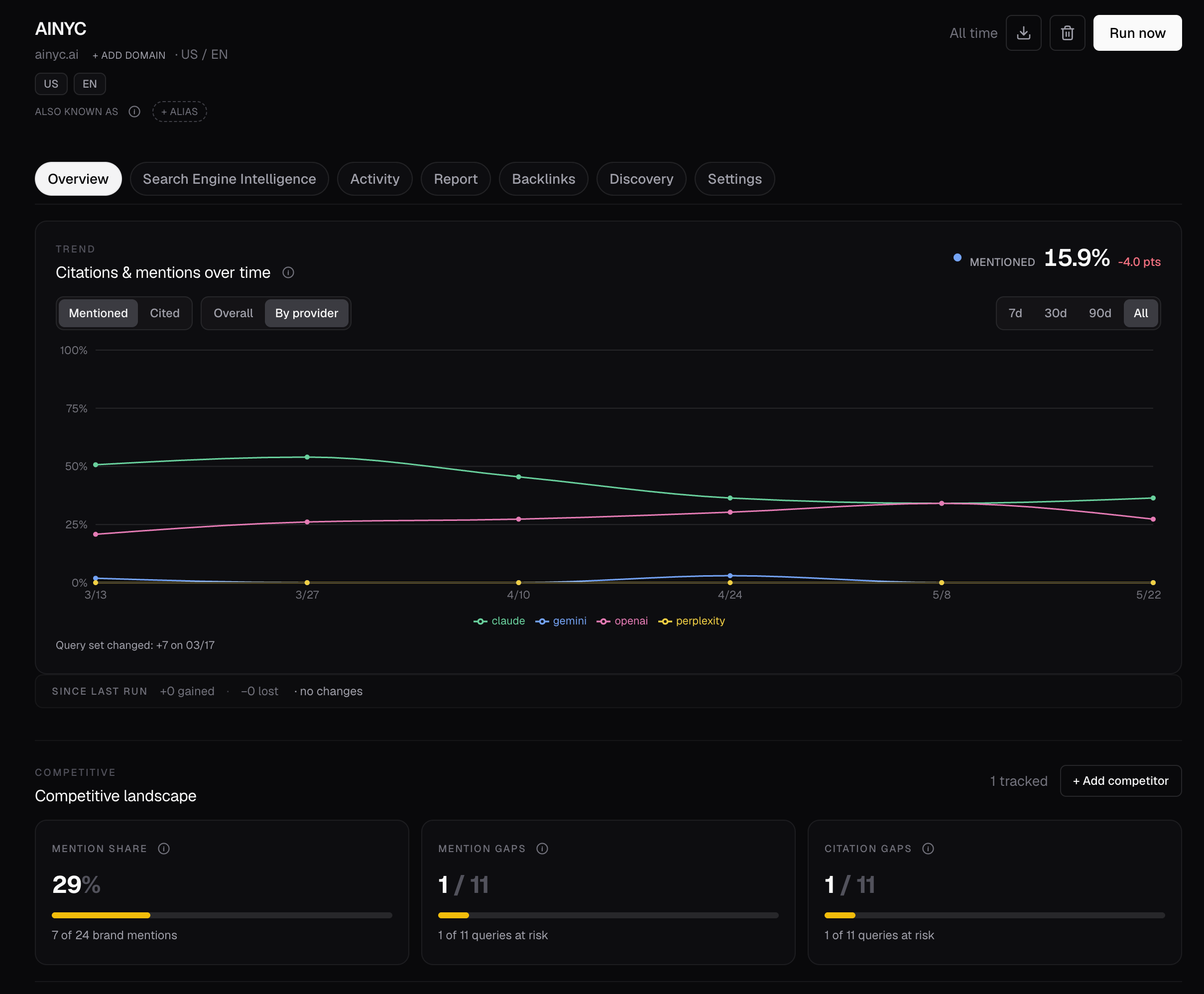
Track brand mentions and citations over time, by query and answer engine. Find answers that cite competitors but omit your site.
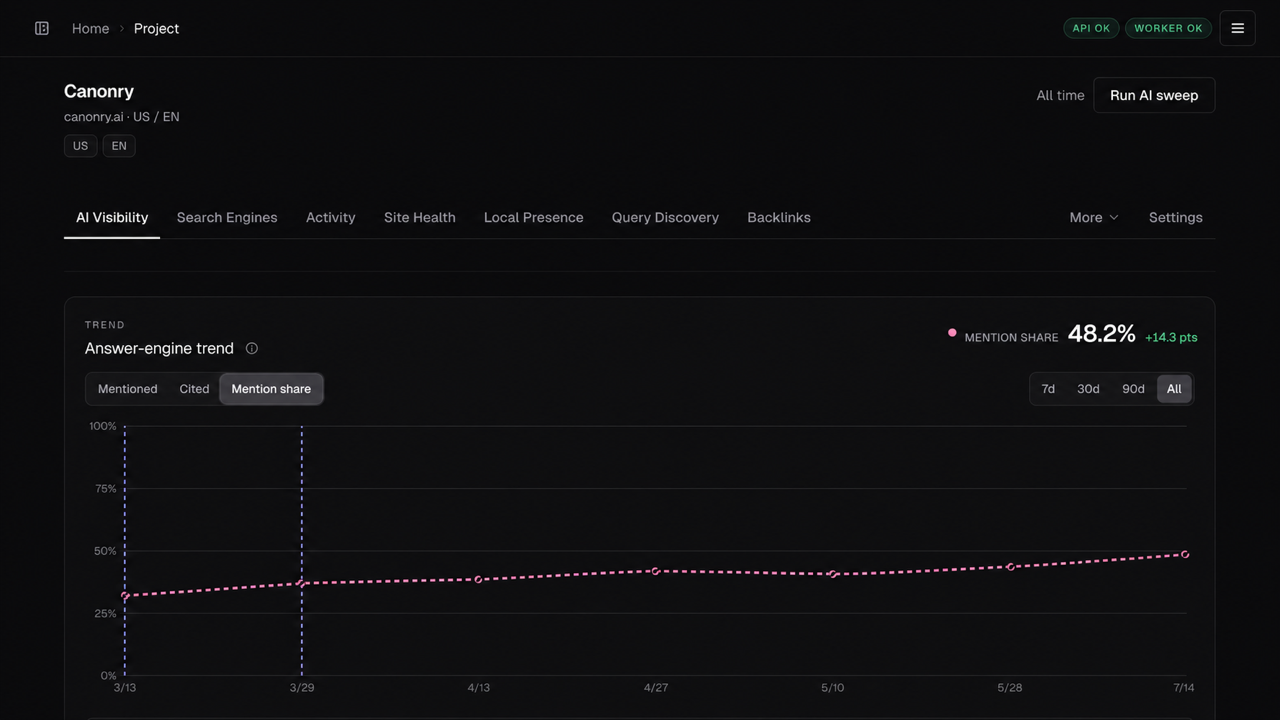
Track your share of answer-engine brand mentions over time.
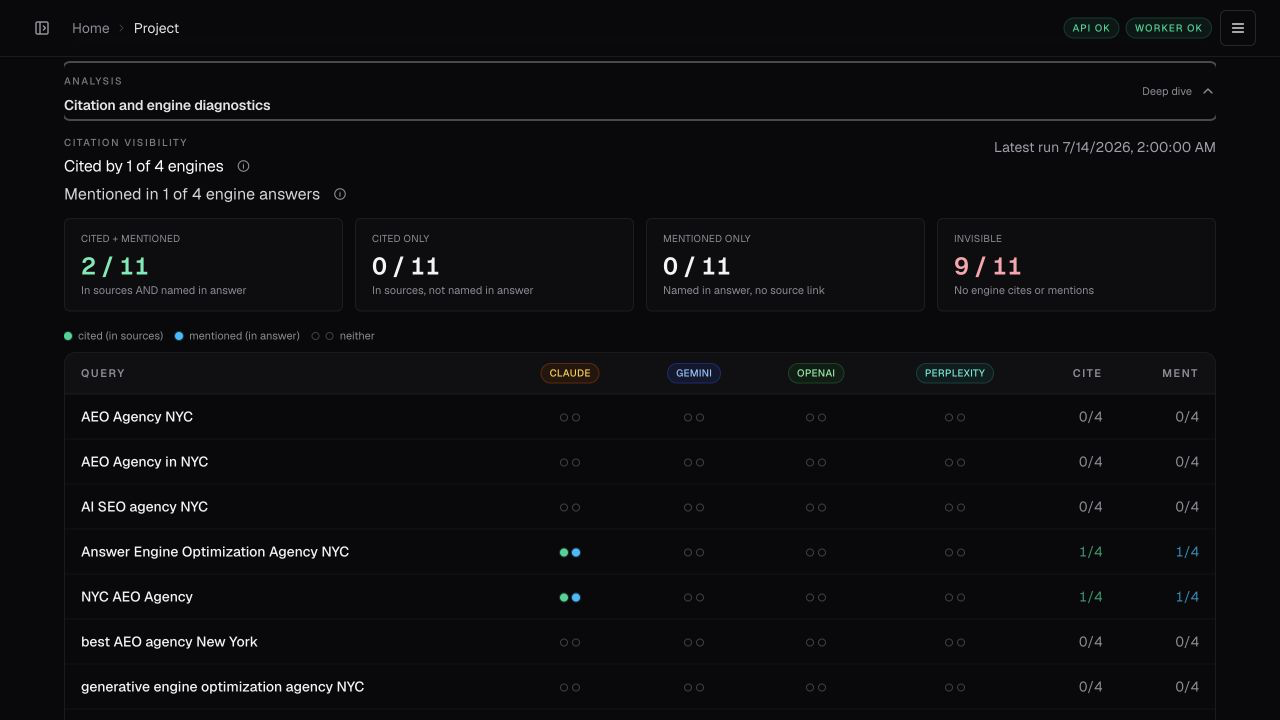
The citation map shows mention and citation coverage across queries and engines. Rank cited domains and pages, then inspect the exact answers and URLs behind each result.
For an existing project, configure a provider with your own key.
| Provider | Key source | Environment variable |
|---|---|---|
| Gemini | Google AI Studio | GEMINI_API_KEY |
| OpenAI | OpenAI Platform | OPENAI_API_KEY |
| Meta (Muse) | Meta Model API | MUSE_API_KEY |
| Claude | Anthropic Console | ANTHROPIC_API_KEY |
| Perplexity | Perplexity settings | PERPLEXITY_API_KEY |
| Local model | Any OpenAI-compatible endpoint | LOCAL_BASE_URL |
Add the queries that matter to your project:
cnry query add my-site "your first query" "your second query"
cnry run my-site --wait
cnry visibility-stats my-site --by-provider
Canonry uses direct provider APIs to capture answers, citations, and available search details that model routers can omit. This richer data helps us measure brand mentions and website citations accurately and explain changes in your visibility. Read more about accuracy and why we chose models and direct provider API adapters individually.
Expand your tracked questions. Run cnry discover run <project> --icp "...". This does not change the tracked questions.
Preview a completed session with cnry discover promote preview <project> <session-id>. Promote only after approval.
Research without changing tracking. Run cnry research run <project> "query one" "query two" --wait.
For a configured portfolio destination, select one --market <key> or --property <key>; Canonry saves the destination with the answers without changing the query. Add paired --template-id <id> --template-version <version> only to preserve an already-expanded template's provenance. Research never adds queries to the tracked questions.
Search, traffic, and site health
Investigate visibility changes with evidence from search and local performance, crawler visits, AI page fetches, referrals, and conversions. Site audits show technical findings alongside that evidence.
Map crawlable pages and the internal links that connect them.
Portfolios and competitors
Use versioned measurement plans for portfolios of locations, products, or site sections.
- Properties: Assign queries, engines, models, and locations to each property. Keep branded and non-brand coverage separate.
- Market groups: Organize overlapping sets of properties, each with its own competitors.
- Comparisons: Compare properties, groups, engines, and locations. Open the exact answers and cited URLs behind each result.
Act on the evidence
Your agent coordinates the work through Canonry and its own tools.
- Improve the site: Combine your agent's coding tools with Canonry's content, WordPress publishing, JSON-LD, and indexing workflows.
- Measure after changes: Configure independent schedules for data syncs and checks. Compare new results with earlier evidence.
- Export and follow up: Read AI visibility evidence and traffic analytics. Send webhook alerts to Discord, Slack, or your systems.
An example job for your connected agent:
Find where competitors get cited and we don't. Use search data and the site audit to prepare a pull request or WordPress draft for review. After it ships, rerun checks and report what changed.
Integrations
Connect the sources you use. Each integration adds evidence or tools to the same project workflow.
| Area | Supported integrations | |---|---| | AI answers | ChatGPT · Claude · Gemini · Meta (Muse) · Perplexity · OpenAI-compatible local models | | Search and local | Google Search Console · Bing Webmaster Tools · Google Business Profile | | Analytics | Google Analytics 4 | | Conversion measurement | Google Ads + Google Tag Manager: read-only snapshots and declared conversion contracts | | Server traffic | Cloudflare · Vercel · Cloud Run · WordPress | | Backlinks | Common Crawl hyperlink releases, queried locally with DuckDB | | Publishing and indexing | WordPress · JSON-LD · sitemap and URL submissions | | ChatGPT Ads | Campaign measurement, paused campaign editing, approved activation, and operation reconciliation |
Self-hosting and API
Canonry is single-tenant. Run one instance for one operator or team. Keep unrelated teams on separate instances.
The CLI and REST API are the primary interfaces. They expose measurements, diagnoses, actions, evidence exports, and schedules.
OpenAPI is available at GET /api/v1/openapi.json.
See the deployment guide for reverse proxies, daemon mode, Docker, systemd, and Tailscale.
Documentation
- Operate Canonry: CLI reference · Agent Plugin · MCP
- Use built-in Aero: Setup and analysis workflows
- Understand the system: Architecture · Data model
- Install standalone agent skills:
cnry skills install(guide) - Browse all guides: Documentation index
| Problem | Next step |
|---|---|
| Site scan is still active | Read exact counters with cnry technical-aeo progress <project> --run-id <id> --format json. |
| Site scan failed | Read the error with cnry run show <run-id> --format json. Read the last phase and counters with the progress command. |
| No visibility results | Inspect existing work with cnry runs <project> --format json, then cnry run show <run-id> --format json. This does not start another paid run. |
| npm install fails on node-gyp | Install build tools for better-sqlite3 (guide). |
Support
Join the Canonry Discord for support and questions about Canonry.
Contributing
git clone https://github.com/Canonry/canonry.git && cd canonry
pnpm install
For local agent work, run tests only after changes are finalized and ready for push or review.
pnpm verify is optional locally. See CONTRIBUTING.md and the testing guide.
License
MIT, starting with Canonry 5.0.0. Use, modify, self-host, redistribute, and build commercial products with Canonry. Keep the copyright and permission notice with copies or substantial portions of the software.
Earlier releases retain their original licenses, including any future-license grants. Dependencies and bundled assets retain their own licenses; see third-party notices.