
@benpley/wappler-pki-operations
v1.0.1
Published
PKI (Public Key Infrastructure) operations for Wappler Server Connect - Generate and manage X.509 certificates, Certificate Authorities, and PKCS#12 bundles

Maintainers
 benpley
Readme
PKI Operations Server Connect Module
This module provides comprehensive Public Key Infrastructure (PKI) operations for Wappler NodeJS projects. Generate X.509 certificates, create Certificate Authorities (CA), sign certificates, create PKCS#12 bundles, and verify certificate validity - all server-side within your Wappler workflows.
Features
- Generate Self-Signed Certificates: Create X.509 end-entity certificates with RSA key pairs
- Create Certificate Authorities: Generate CA certificates that can sign other certificates
- CA-Signed Certificates: Sign end-entity certificates using your own CA
- PKCS#12 Bundles: Create password-protected .p12/.pfx files for certificate distribution
- Certificate Verification: Validate certificate authenticity, expiration, and signatures
- Flexible Security: Support for password-protected private keys
- Multiple Key Sizes: Choose from 2048, 3072, or 4096-bit RSA keys
- Configurable Validity: Set certificate validity periods from 1 to 30 years
Available Actions
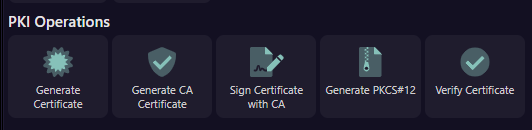
1. Generate Certificate
Creates a self-signed X.509 end-entity certificate with an RSA key pair.
Use Cases:
- Development and testing environments
- Internal applications
- Quick certificate generation without CA infrastructure
Output:
serialNumber: Unique certificate serial number (UUID-based)certificatePEM: Certificate in PEM formatprivateKeyPEM: Unencrypted private key in PEM format (only returned when no password is provided; otherwisenull)encryptedPrivateKeyPEM: Password-encrypted private key in PEM format (if password provided, otherwisenull)encrypted_private_key_pem: Same asencryptedPrivateKeyPEM(snake_case for easier DB mapping;nullwhen not encrypted)publicKeyPEM: Public key in PEM formatissuedDate: Certificate issue date (ISO 8601)expiresDate: Certificate expiration date (ISO 8601)fingerprint: SHA-256 fingerprint
Configuration:
- Common Name (required): Full name of certificate holder (e.g., "John Doe")
- Email Address (required): Valid email address
- Organization: Organization name (default: "InductEase PKI Certificate Authority")
- Key Size: 2048, 3072, or 4096 bits (default: 2048)
- Validity Period: Years the certificate is valid (1-30, default: 1)
- Private Key Password: Optional password to encrypt the private key
2. Generate CA Certificate
Creates a Certificate Authority certificate that can sign other certificates.
Use Cases:
- Building your own internal PKI infrastructure
- Creating trusted certificate chains
- Enterprise certificate management
Output: Same as Generate Certificate
*Note*: privateKeyPEM is only returned when no private key password is provided. When a password is supplied, privateKeyPEM will be null and the encrypted key outputs should be used.
Configuration:
- CA Common Name (required): Name of your Certificate Authority (default: "InductEase Root CA")
- Organization (required): Organization name (default: "InductEase PKI Certificate Authority")
- Key Size: 2048, 3072, or 4096 bits (default: 4096 for CA)
- Validity Period: Years valid (typically 10-30, default: 10)
- CA Private Key Password (required): Strong password to protect CA private key (CRITICAL!)
Important: The CA private key password is critical for security. Store it securely - losing it means you cannot sign certificates, and compromising it means anyone can sign certificates as your CA.
3. Sign Certificate with CA
Sign an end-entity certificate using your Certificate Authority.
Use Cases:
- Issue trusted certificates to users/devices
- Build certificate chains with your CA
- Distribute CA-signed certificates instead of self-signed
Output: Same as Generate Certificate
*Note*: privateKeyPEM is only returned when no private key password is provided. When a password is supplied, privateKeyPEM will be null and the encrypted key outputs should be used.
Configuration:
- Common Name (required): Certificate holder's full name
- Email Address (required): Certificate holder's email
- Organization: Organization name
- CA Certificate (PEM) (required): Your CA certificate in PEM format
- CA Private Key (PEM) (required): Your CA private key (encrypted or unencrypted)
- CA Password: Password for CA private key (if encrypted)
- Key Size: 2048, 3072, or 4096 bits (default: 2048)
- Validity Period: Years valid (1-30, default: 1)
- Private Key Password: Optional password to encrypt the end-entity private key
4. Generate PKCS#12
Create a password-protected PKCS#12 bundle (.p12/.pfx) containing certificate and private key.
Use Cases:
- Distribute certificates to end users
- Import certificates into browsers, email clients, or devices
- Bundle certificate with CA chain for complete trust
Output:
pkcs12Base64: Base64-encoded PKCS#12 bundlefriendlyName: Friendly name stored inside the PKCS#12 bundleformat: Output format identifierhasCAChain: Whether a CA chain was included in the bundle (boolean)
Configuration:
- Certificate (PEM) (required): The certificate to bundle
- Private Key (PEM) (required): The private key to bundle
- CA Certificate (PEM): Optional CA certificate to include
- PKCS#12 Password (required): Password to protect the bundle
- Friendly Name: Display name for the certificate in certificate stores
Optional overrides:
- pkcs12Algorithm: Algorithm to use (default:
3des) - pkcs12Iterations: Iterations/work factor (default:
10000)
Note: The output pkcs12Base64 can be decoded and saved as a .p12 or .pfx file for distribution.
5. Verify Certificate
Verify the validity and authenticity of an X.509 certificate.
Use Cases:
- Validate certificate before use
- Check certificate expiration
- Verify CA signature on certificates
Output:
isValid: Overall validity status (boolean)isSignatureValid: Whether the certificate signature is valid (boolean)isExpired: Whether the certificate has expired (boolean)isNotYetValid: Whether the certificate is not yet valid (boolean)isCA: Whether the certificate is a CA certificate (boolean)serialNumber: Certificate serial numbersubject: Certificate subject (object)issuer: Certificate issuer (object)notBefore: Validity start datenotAfter: Validity end datefingerprint: SHA-256 fingerprintisCAVerified: Whether CA verification was performed successfully (boolean)verificationError: Verification error message/details (when verification fails)
Configuration:
- Certificate (PEM) (required): Certificate to verify
- CA Certificate (PEM): Optional CA certificate to verify signature against
Dependencies
The module requires the following npm packages:
node-forge(^1.3.1) - PKI operations and certificate generationuuid(^9.0.0) - Unique serial number generation
These dependencies are automatically installed when you add the module to your project.
Usage Examples
Example 1: Create a Self-Signed Certificate
1. Add "Generate Certificate" step to your Server Connect workflow
2. Configure:
   - Common Name: {{$_POST.fullName}}
   - Email: {{$_POST.email}}
   - Key Size: 2048
   - Validity: 1 year
   - Password: {{$_POST.certPassword}}
3. Use the output:
   - Store certificatePEM and encryptedPrivateKeyPEM (or encrypted_private_key_pem) in database
   - Return to user or generate PKCS#12 for download
Example 2: Build a CA and Issue Certificates
Step 1: Generate CA Certificate (one-time setup)
   - Common Name: "My Company Root CA"
   - Organization: "My Company, Inc."
   - Key Size: 4096
   - Validity: 10 years
   - Password: (strong password - store securely!)
   - Save CA certificate and private key securely

Step 2: Sign User Certificates (repeated for each user)
   - Use "Sign Certificate with CA" action
   - Provide CA certificate and private key from Step 1
   - Configure user details (name, email)
   - Output: CA-signed certificate trusted by your infrastructure
Example 3: Create Downloadable Certificate Bundle
Step 1: Generate or sign a certificate
Step 2: Add "Generate PKCS#12" step
   - Certificate PEM: {{step1.certificatePEM}}
   - Private Key PEM: {{step1.privateKeyPEM}}
   - CA Certificate: {{your_ca_cert}} (optional)
   - Password: {{$_POST.bundlePassword}}
   - Friendly Name: {{$_POST.fullName}}
Step 3: Decode and serve for download
   - Use core:setvalue to decode base64: {{step2.pkcs12Base64.base64decode()}}
   - Set content-type: application/x-pkcs12
   - Set filename: certificate.p12
Example 4: Verify Certificate Before Use
1. Add "Verify Certificate" step
2. Provide certificate PEM from user upload or database
3. Optionally provide CA certificate to verify signature
4. Check output:
   - If isValid == true: Certificate is good to use
   - If isExpired == true: Certificate has expired
   - If isSignatureValid == false: Certificate not signed by provided CA
Security Best Practices
CA Private Keys:
- Always password-protect CA private keys with strong passwords
- Store CA certificates and keys in secure, encrypted storage
- Limit access to CA operations to authorized personnel only
Private Key Passwords:
- Use strong passwords for all private keys
- Never store passwords in plain text
- Consider using environment variables or secure vaults
- Plaintext private keys are no longer returned when an encryption password is supplied
Certificate Validity:
- Use shorter validity periods for end-entity certificates (1-2 years)
- Use longer validity for CA certificates (10+ years)
- Implement certificate renewal processes before expiration
Key Sizes:
- Use 4096-bit keys for CA certificates
- Use at least 2048-bit keys for end-entity certificates
- Consider 3072 or 4096 bits for high-security applications
Distribution:
- Always protect PKCS#12 bundles with strong passwords
- Use secure channels to distribute certificates and passwords
- Provide separate communication for passwords (out-of-band)
Typical Workflows
Setting Up Your PKI
- Generate a CA certificate (one-time, secure storage required)
- Sign end-entity certificates using the CA
- Distribute certificates as PKCS#12 bundles
- Verify certificates before use
Certificate Lifecycle
- Issuance: Sign certificate with CA
- Distribution: Create PKCS#12 bundle for user
- Validation: Verify certificate periodically
- Renewal: Generate new certificate before expiration
- Revocation: (Future feature - consider implementing CRL or OCSP)
Common Use Cases
- User Authentication: Issue certificates for secure login
- Email Signing: S/MIME certificates for email encryption/signing
- Code Signing: Sign applications or scripts
- Device Authentication: IoT device certificates
- VPN Access: Client certificates for VPN authentication
- Internal APIs: Mutual TLS authentication
- Document Signing: Digital signatures on documents
Limitations
- RSA keys only (no ECDSA support currently)
- No built-in certificate revocation list (CRL) generation
- No OCSP responder functionality
- Self-signed or single-tier CA only (no intermediate CA support)
Issues and Support
For bug reports, feature requests, or assistance, please use the Wappler Community Forum.
Future Enhancements
Potential future features:
- ECDSA key support
- Certificate Revocation Lists (CRL)
- OCSP responder
- Intermediate CA support
- CSR (Certificate Signing Request) handling
- Certificate chain validation
Changelog
1.0.1
- Fixed node-forge subject/issuer API compatibility (no setAttrs usage)
- Encrypted key output now includes both
encryptedPrivateKeyPEMandencrypted_private_key_pem - Plaintext
privateKeyPEMis not returned when password is provided (security hardening) - Verify output stabilized (
isCAVerifiedandverificationErroralways present) - PKCS#12 optional overrides:
pkcs12Algorithm,pkcs12Iterations
0.2.0-beta.4
- Last beta prior to stable.
Version 1.0.0 - Initial release. Feedback welcome!