
@bentaro/apidoc
v1.1.3
Published
Create basic and fully customisable documentation for your API REFERENCES

Maintainers
 bentaro
Readme
Create basic and fully customisable documentation for your API REFERENCES from markdown source to static HTML files.
Command line usage
npx @bentaro/apidoc --name='"API REFERENCES"' --version="2.1" --out="build" --src="./examples/apidoc_v2.1" --separator="-" --homeTitle="My home page"Command line parameters
| Name | Required | Default | Description | | --------- | --------- | ----------------- | --------------------------------------- | | name | no | Documentation | Name of your documentation | | version | no | 1.0 | Version of your documentation | | out | no | build | Output folder | | src | yes | n/a | Source folder | | separator | no | > | Breadcrumbs & title separator | | homeTitle | no | Home | Title of the home page (src/index.html) |
Javascript usage
const Apidoc = require("@bentaro/apidoc");

let api = new Apidoc(name, version, src, out, separator, homeTitle);
api.generate(); // generate is an async function
How it work
Apidoc convert a specific folder tree of .md files into a basic and fully customisable website. Another "static" folder is needed to let you load your own style
Example tree:
- demo_doc/
  - markdown/
    - Users/
      - Authentication/
        - createToken.md - Markdown displayed Users/createToken page
        - main.md - Markdown displayed in the Users/Authentication/ page
      - main.md - Markdown displayed in the Users/ page
    - main.md - Markdown displayed in the Home page
    - How-to_guides.md - Markdown displayed in the How-to guides page
    - Overview.md - Markdown displayed in the Overview page
    - Quickstart.md - Markdown displayed in the Quickstart page
  - static/
    - css/
      - navbar.css - CSS code of the navbar
      - page.css - CSS code of the page content (where ur markdown is displayed)
      - sidebar.css - CSS code of the sidebar
      - style.css - Global CSS code
    - favicon.png
    - logo.png
Become:
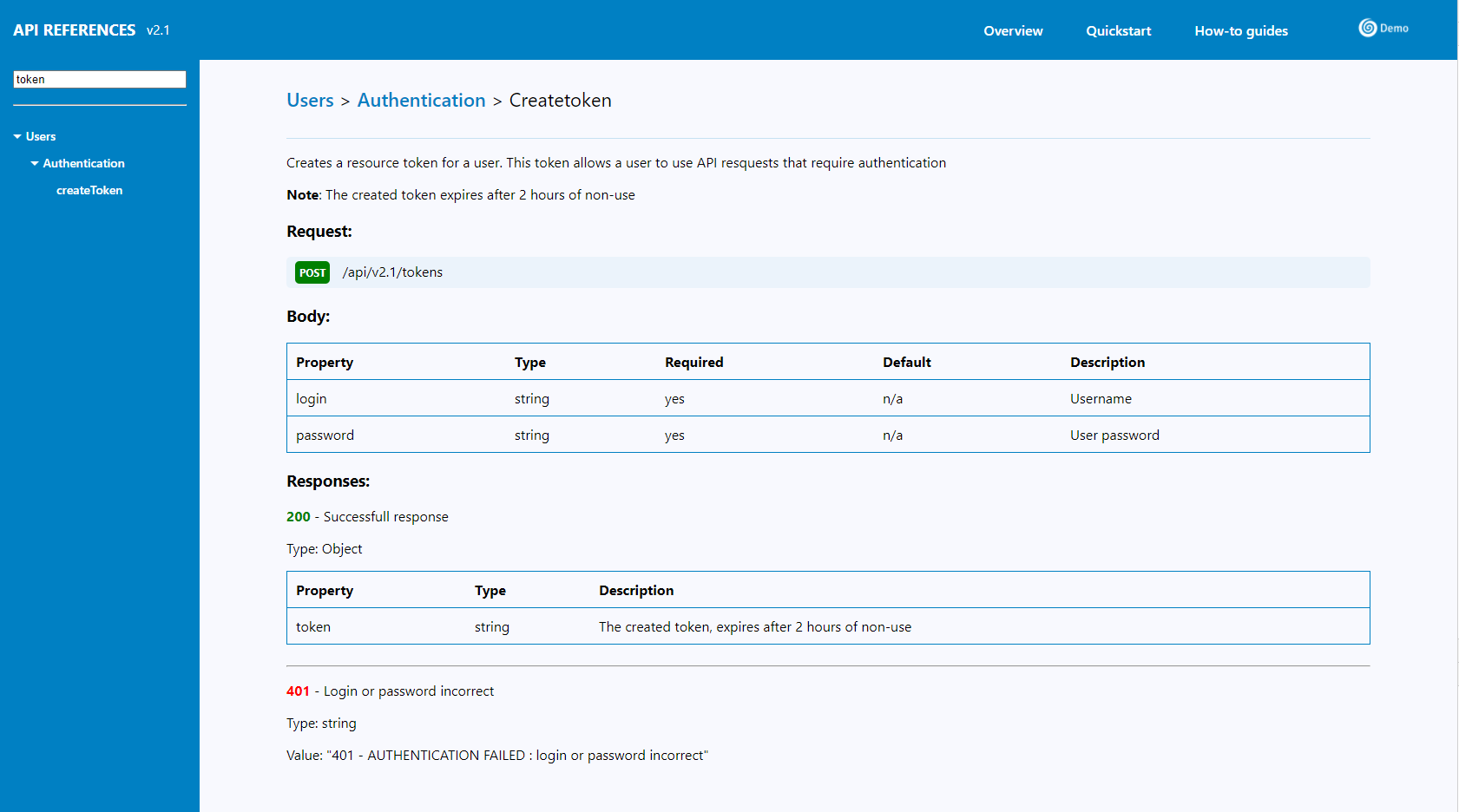
Note: You can find the complete source directory example here
Note: You can change all UI style as you want, just update .css files (color, font-size etc...)
Important: In this example we only have the "Users" resource with the "Authentication" category and the "createToken" request. But you can create multiple resources. And each resource can have multiple categories. And a category can have multiple requests.
Markdown shortcuts
| Name | Display |
| :--------------------------: | :---------------------------------------------------------------------------------------------------------------------------------------------------------------------: |
| {{{url}}} | Path to the root folder. Use case: href="{{{url}}}/index.html" is redirecting to the home page |
| {{{title}}} | Current page title |
| {{{request($method, $url)}}} | Shortcut to the html <div class="requestContainer"><div class="${$method.toLowerCase()}">${method.toUpperCase()}</div><div class="requestUrl">${url}</div> </div> |
| {{{status($method, $url)}}} | Shortcut to the html <span class="${code >= 400 ? "error" : "success"}" style="font-weight: bold">${code}</span> |
How to create my own markdown shortcuts
In your source folder create a folder called "shortcuts". Then create a JS file in the folder "shortcuts" for each of your shortcut. In our example it look like:
- demo_doc/
  - shortcuts/
    - multiply.js
multiply.js content:
module.exports = function (...args){
  return args.reduce((acc, val) => acc * val);
}
Usage in markdown:
### My amazing markdown file
4 * 2 * 5 = {{{multiply(4,2,5)}}}
How to customize the navbar links
Navbar links are customisable. In our example we have "How-to guides", "Overview" and "Quickstart". But you can remove a .md file to remove his button in the navbar or rename it to change his name. Do what you want, the only rule is in the filename the character underscore (_) is replaced by a space in the navbar