
@blackbox_ai/blackbox-cli-core
v1.0.2
Published
Blackbox Code Core


Readme
Blackbox Code
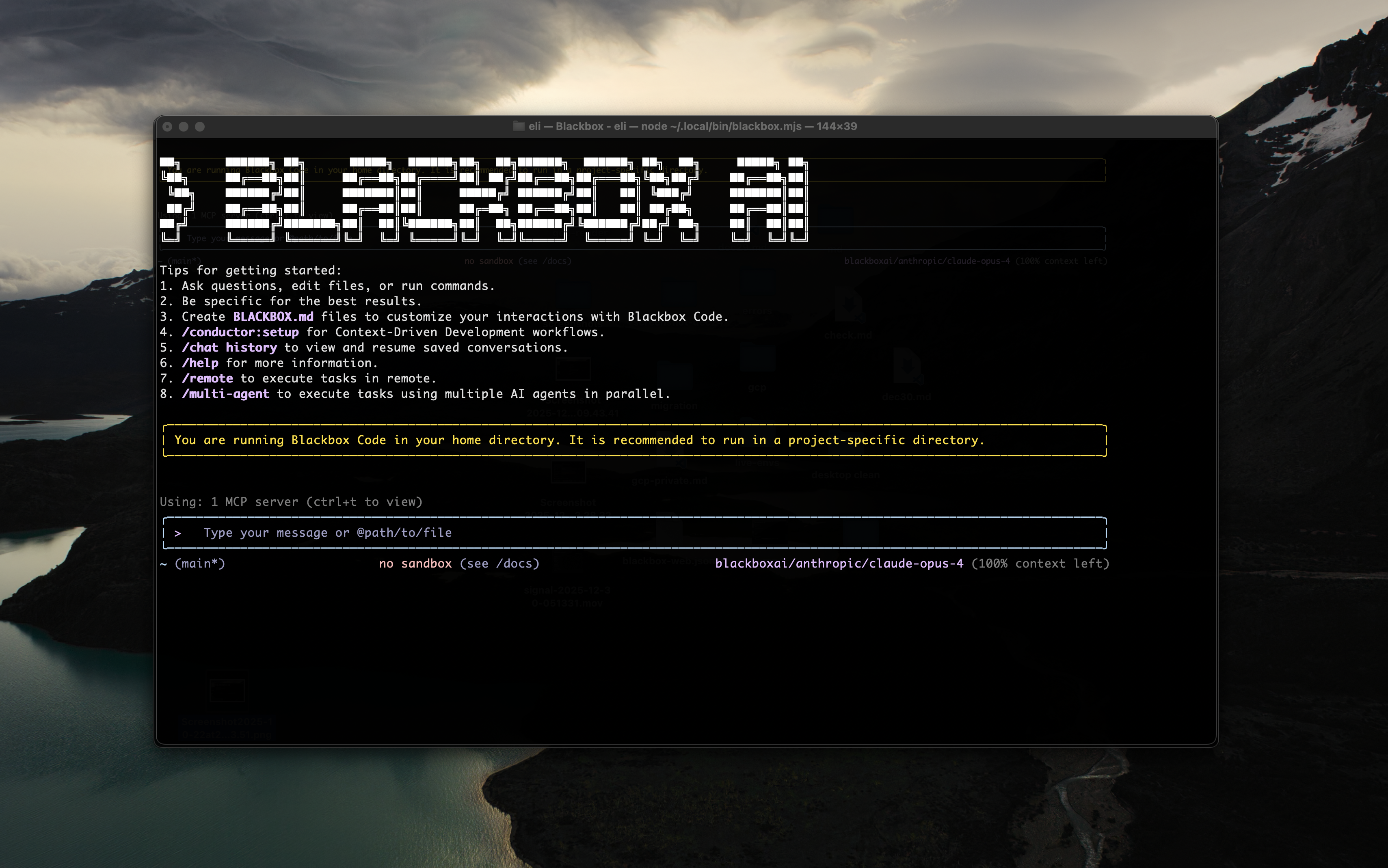
Key Features
- Code Understanding & Editing - Query and edit large codebases beyond traditional context window limits
- Workflow Automation - Automate operational tasks like handling pull requests and complex rebases
- Enhanced Parser - Adapted parser specifically optimized for BlackboxAI models
- Vision Model Support - Automatically detect images in your input and seamlessly switch to vision-capable models for multimodal analysis
Installation
Prerequisites
Ensure you have Node.js version 20 or higher installed.
curl -qL https://www.npmjs.com/install.sh | shInstall from source
git clone https://github.com/blackboxaicode/cli.git
cd cli
npm install
npm install -g .
Quick Start
# Start Blackbox Code
blackbox

# Example commands
> Explain this codebase structure
> Help me refactor this function
> Generate unit tests for this module
Shell Shortcut (Optional)
For faster access, you can add the b shortcut to use b instead of blackbox:
# Add/remove 'b' shortcut during configuration
blackbox configure
# Select "Yes, add 'b' alias" when prompted

# Or toggle the 'b' shortcut anytime
blackbox shortcut

# Now you can use:
b
# instead of:
blackboxNote: The
blackbox shortcutcommand toggles the 'b' shortcut on/off. After toggling, runsource ~/.zshrc(or~/.bashrcfor bash) to apply changes immediately, or restart your terminal.
Session Management
Control your token usage with configurable session limits to optimize costs and performance.
Configure Session Token Limit
Create or edit .blackboxcli/settings.json in your home directory:
{
  "sessionTokenLimit": 32000
}
Session Commands
/compress- Compress conversation history to continue within token limits/clear- Clear all conversation history and start fresh/stats- Check current token usage and limits
Note: Session token limit applies to a single conversation, not cumulative API calls.
Vision Model Configuration
Blackbox Code includes intelligent vision model auto-switching that detects images in your input and can automatically switch to vision-capable models for multimodal analysis. This feature is enabled by default - when you include images in your queries, you'll see a dialog asking how you'd like to handle the vision model switch.
Skip the Switch Dialog (Optional)
If you don't want to see the interactive dialog each time, configure the default behavior in your .blackboxcli/settings.json:
{
  "experimental": {
    "vlmSwitchMode": "once"
  }
}
Available modes:
"once"- Switch to vision model for this query only, then revert"session"- Switch to vision model for the entire session"persist"- Continue with current model (no switching)- Not set - Show interactive dialog each time (default)
Disable Vision Models (Optional)
To completely disable vision model support, add to your .blackboxcli/settings.json:
{
  "experimental": {
    "visionModelPreview": false
  }
}Tip: In YOLO mode (
--yolo), vision switching happens automatically without prompts when images are detected.
Authorization
API Key Authentication
For programmatic access or advanced use cases, you can authenticate using an API key:
Getting Your API Key:
- Navigate to the API Keys section of your BLACKBOX dashboard
- Your API key will be displayed on this page
- Click the copy icon to copy the key to your clipboard
- Run
blackbox configureand you will be able to set the key
Important: Treat your API key like a password! Do not share it publicly or commit it to version control.
Usage Examples
Explore Codebases
cd your-project/
blackbox

# Architecture analysis
> Describe the main pieces of this system's architecture
> What are the key dependencies and how do they interact?
> Find all API endpoints and their authentication methods
Code Development
# Refactoring
> Refactor this function to improve readability and performance
> Convert this class to use dependency injection
> Split this large module into smaller, focused components

# Code generation
> Create a REST API endpoint for user management
> Generate unit tests for the authentication module
> Add error handling to all database operations
Automate Workflows
# Git automation
> Analyze git commits from the last 7 days, grouped by feature
> Create a changelog from recent commits
> Find all TODO comments and create GitHub issues

# File operations
> Convert all images in this directory to PNG format
> Rename all test files to follow the *.test.ts pattern
> Find and remove all console.log statements
Debugging & Analysis
# Performance analysis
> Identify performance bottlenecks in this React component
> Find all N+1 query problems in the codebase

# Security audit
> Check for potential SQL injection vulnerabilities
> Find all hardcoded credentials or API keys
Popular Tasks
Understand New Codebases
> What are the core business logic components?
> What security mechanisms are in place?
> How does the data flow through the system?
> What are the main design patterns used?
> Generate a dependency graph for this module
Code Refactoring & Optimization
> What parts of this module can be optimized?
> Help me refactor this class to follow SOLID principles
> Add proper error handling and logging
> Convert callbacks to async/await pattern
> Implement caching for expensive operations
Documentation & Testing
> Generate comprehensive JSDoc comments for all public APIs
> Write unit tests with edge cases for this component
> Create API documentation in OpenAPI format
> Add inline comments explaining complex algorithms
> Generate a README for this module
Development Acceleration
> Set up a new Express server with authentication
> Create a React component with TypeScript and tests
> Implement a rate limiter middleware
> Add database migrations for new schema
> Configure CI/CD pipeline for this project
Commands & Shortcuts
Session Commands
/help- Display available commands/clear- Clear conversation history/compress- Compress history to save tokens/stats- Show current session information/exitor/quit- Exit Blackbox Code
Keyboard Shortcuts
Ctrl+C- Cancel current operationCtrl+D- Exit (on empty line)Up/Down- Navigate command history
Acknowledgments
This project is based on Google Gemini CLI. We acknowledge and appreciate the excellent work of the Gemini CLI team.