
@blen/react-lighthouse-viewer
v13.6.0
Published
Show Lighthouse reports in React: analyze a website, load a saved report, or pass a report object. Uses the official Lighthouse report renderer.


Readme
@blen/react-lighthouse-viewer



Render Lighthouse JSON reports in React, with the official Lighthouse report renderer.
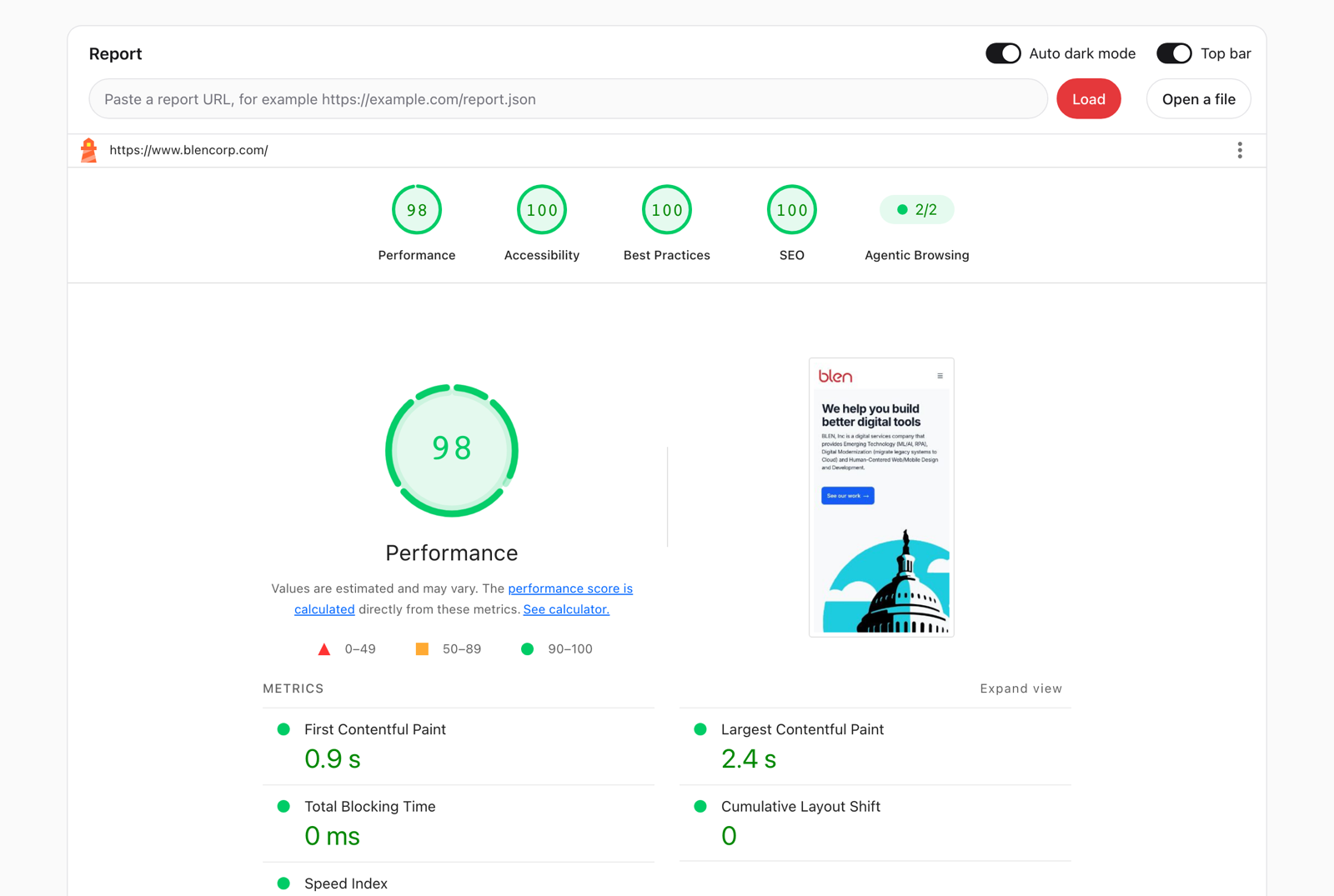
- The report looks and works like the HTML report Lighthouse writes, because it uses the same renderer.
- One prop to show a report: a website
url, thesrcof a saved report, or areportobject. - Loading, errors and caching are built in. Built for React 19:
use, Suspense, and promises from Server Components. - Renders reports from Lighthouse 3 and later.
- The version follows Lighthouse:
13.5.xbundles the Lighthouse 13.5 renderer. - No runtime dependencies. The only peer dependencies are
reactandreact-dom19. Works with npm, pnpm, yarn and bun. - Typed props that allow exactly one source, plus a runtime check for untrusted JSON.
- Works with server rendering and React Server Components (it is a client component).
Install
npm install @blen/react-lighthouse-viewer
pnpm add @blen/react-lighthouse-viewer
yarn add @blen/react-lighthouse-viewer
bun add @blen/react-lighthouse-viewer
Usage
Pass one of three props: a website url, the src of a saved report, or a report you already
have. The component loads the report, shows a loading state and errors, and renders it.
import { LighthouseViewer } from '@blen/react-lighthouse-viewer';

// Analyze a live website with Google PageSpeed Insights.
<LighthouseViewer url="https://www.example.com" apiKey={PAGESPEED_API_KEY} />

// Show a saved Lighthouse JSON report.
<LighthouseViewer src="/reports/example.json" />

// Show a report object, or a promise of one.
<LighthouseViewer report={report} />
Analyze a website: url
<LighthouseViewer url="https://www.example.com" apiKey={import.meta.env.VITE_PAGESPEED_API_KEY} />Lighthouse needs a real browser to measure a page, so the component asks the
PageSpeed Insights API to run
it. A run takes about 10 to 30 seconds. The page must be public. www.example.com works too;
https:// is added.
apiKey is optional, but without it requests share a public quota that is often used up.
[!IMPORTANT] An
apiKeyin a browser app is public. Anyone can copy it from your bundle or the network tab. A key restricted to your site and to the PageSpeed Insights API is fine for demos, docs and internal tools: the API is free, so the worst case is that someone uses up your daily quota. For a public production app, call PageSpeed Insights from your server and pass the result withsrcorreport(Next.js example).
Read PageSpeed Insights API key for how to create a free key, restrict it, and keep it off the browser.
strategy="desktop" analyzes the desktop version. The default is "mobile", as in Lighthouse.
locale="de" asks PageSpeed Insights for a German report. The default is "en-US". The report has
the five categories of the default Lighthouse config: Performance, Accessibility, Best Practices,
SEO and Agentic Browsing.
Show a saved report: src
<LighthouseViewer src="/reports/example.json" />src is the URL of a report that Lighthouse wrote, for example with
lighthouse https://www.example.com --output=json --output-path=public/reports/example.json. A
URL on another site must allow cross-origin requests (CORS). No key is needed.
src also opens a saved PageSpeed Insights response, which keeps the report in
lighthouseResult, and a saved Node runner result, which keeps it in lhr.
Show a report you have: report
report takes a report object, for example from a file upload or your own API. Check JSON that
you do not control with isLighthouseReport:
import { useState } from 'react';
import {
  isLighthouseReport,
  LighthouseViewer,
  type LighthouseReport,
} from '@blen/react-lighthouse-viewer';

export function Upload() {
  const [report, setReport] = useState<LighthouseReport>();

  async function open(file: File) {
    const json: unknown = JSON.parse(await file.text());
    if (isLighthouseReport(json)) setReport(json);
  }

  return (
    <>
      <input
        type="file"
        accept=".json"
        onChange={(event) => {
          const file = event.target.files?.[0];
          if (file) void open(file);
        }}
      />
      {report && <LighthouseViewer report={report} />}
    </>
  );
}
report also takes a promise of a report, which the component reads with React's use.
Create the promise outside render (in an event handler, a router loader, or a Server Component),
so it stays the same between renders.
Loading and errors
While a report loads, the component shows a short status message (<output class="lh-viewer-loading">).
If it cannot load or render the report, it shows a short alert with the reason
(<div role="alert" class="lh-viewer-error">). Style those classes, or replace them:
<LighthouseViewer
  src="/reports/example.json"
  fallback={<Spinner />}
  errorFallback={(error) => <p>Could not load the report: {error.message}</p>}
/>
The component caches each url and src result for the lifetime of the page, so two viewers
with the same source share one request. After an error, the next attempt loads again.
To keep the current report on screen while the next one loads, switch sources with
useDeferredValue or inside startTransition. The
example site does this.
Props
Pass exactly one of url, src or report. TypeScript reports an error for none or more than
one.
| Prop | Type | Default | Description |
| --------------- | ----------------------------------------------- | ---------------- | ------------------------------------------------------------------------------- |
| url | string | | A public website to analyze with PageSpeed Insights. |
| apiKey | string | | PageSpeed Insights API key. Only with url. See the key guide. |
| strategy | 'mobile' \| 'desktop' | 'mobile' | The device to emulate. Only with url. |
| locale | string | 'en-US' | The language of the report, for example 'de'. Only with url. |
| src | string | | The URL of a saved Lighthouse JSON report. |
| report | LighthouseReport \| Promise<LighthouseReport> | | A report object, or a promise of one. |
| options | RendererOptions | {} | Options for the Lighthouse renderer. See Renderer options. |
| fallback | ReactNode | a status message | Shown while the report loads. |
| errorFallback | ReactNode \| ((error: Error) => ReactNode) | an alert | Shown when the report cannot load or render. |
| ref | Ref<HTMLDivElement> | | The root element, which holds the loading state, the error, or the report. |
| ...div props | className, style, id, aria-*, … | | Passed to the root element, so they apply in every state. |
Renderer options
options goes to the Lighthouse renderer unchanged:
<LighthouseViewer
  src="/reports/example.json"
  options={{ disableDarkMode: true, omitTopbar: true }}
/>
| Option | Type | Description |
| ------------------------- | ------------------------------------------------- | ------------------------------------------------------------------------------- |
| disableDarkMode | boolean | Do not switch to dark mode when the user prefers it. |
| disableFireworks | boolean | Do not show the fireworks when all core categories score 100. |
| omitTopbar | boolean | Hide the top bar (URL, tools menu, sticky score header). |
| omitGlobalStyles | boolean | Do not inject the report styles. Use this when the page already includes them. |
| occupyEntireViewport | boolean | Make the report fill the viewport. Use this when the report is the whole page. |
| getStandaloneReportHTML | () => string | Supplies your own HTML for Save as HTML. See Save as HTML. |
| onSaveFileOverride | (blob: Blob, filename: string) => Promise<void> | Called to save JSON or HTML, instead of a browser download. |
| onPrintOverride | (rootEl: HTMLElement) => Promise<void> | Called to print, instead of window.print(). |
| onViewTrace | () => void | Shows a View Trace action and calls this when the user clicks it. |
| onPageAnchorRendered | (link: HTMLAnchorElement) => void | Called for each in-report anchor link, so you can change its href. |
Save as HTML
The tools menu has Save as HTML. The file is one HTML page that works offline, the same as
lighthouse --output=html writes. Its code (about 50 kB gzipped) loads only when the user saves,
so it does not add to your bundle. To save the file somewhere else, for example to your server,
pass onSaveFileOverride. To supply your own HTML, pass getStandaloneReportHTML.
The report renders again when its source, an option value, or a callback changes. Option values
are compared by value, so an inline options={{ ... }} object is fine. Callbacks are compared by
identity: a new function renders the report again, and the user loses scroll position and open
audits. React Compiler keeps inline callbacks stable for
you. Without it, wrap callbacks in useCallback.
Next.js and React Server Components
LighthouseViewer is a client component ('use client'), so you can use it in a Server
Component. isLighthouseReport and lighthouseVersion are plain exports that Server Components
can call and read. On the server, it renders the loading state for url and src (and an empty container
for a report object). The report renders in the browser.
A Server Component can also load the report itself and pass the promise down without await.
React streams the result to the browser, and the server keeps any API key:
// app/report/page.tsx
import { LighthouseViewer } from '@blen/react-lighthouse-viewer';
import { getReport } from './get-report'; // your data access, for example a database or storage read

export default function Page() {
  return <LighthouseViewer report={getReport()} />;
}
Load the renderer only when it is needed
The renderer is about 200 kB (50 kB gzipped). To keep it out of your main bundle, load it with
React.lazy:
import { lazy } from 'react';

const LighthouseViewer = lazy(() =>
  import('@blen/react-lighthouse-viewer').then((m) => ({ default: m.LighthouseViewer })),
);
Styling and dark mode
The report brings its own styles. They apply only inside the report element (.lh-vars).
- Dark mode follows
prefers-color-schemeat the time the report renders. SetdisableDarkModeto keep it light. - Sticky header: the report's top bar sticks, and a score header appears at the top of the
window as you scroll. Both expect the report to be the main content of the page. If the report
sits below other content, give the viewer
overflow: hiddento turn them off. Do not put the viewer in a scroll box (a fixed height withoverflow: auto): the score header then shows at the top of the window, outside the box. UseomitTopbarthere. - Theme with the report's CSS variables:
.report .lh-vars {
  --report-font-family: 'Inter', sans-serif;
  --report-content-max-width: 1200px;
}
TypeScript
The package exports these types:
LighthouseViewerProps: the component's props, a union ofUrlSource,SrcSourceandReportSource, combined withViewerProps.LighthouseReport: the Lighthouse result type.RendererOptions: the renderer options.PageSpeedStrategy:'mobile' | 'desktop'.
Every prop has documentation that shows in your editor.
isLighthouseReport(value) is a type guard. Use it for JSON that users upload or that you fetch.
It checks the top-level fields that every report has (lighthouseVersion, categories, audits,
configSettings), not every field that the renderer reads. A report that passes the check but
cannot render shows the renderer's error. For a report file in your own repo, a cast
(report as LighthouseReport) is fine, because TypeScript widens string literals in imported JSON.
lighthouseVersion is the Lighthouse version that the package bundles.
Make a report
- CLI:
npx lighthouse https://example.com --output=json --output-path=report.json - Node: the
lighthouseNode API returns the report asrunnerResult.lhr. - PageSpeed Insights:
<LighthouseViewer url="…" />runs it for you. In your own backend, thelighthouseResultfield of the API response is a report.
Versioning
The major and minor version numbers are those of the Lighthouse renderer that the package
bundles. For example, every 13.5.x release bundles Lighthouse 13.5.x. The patch number belongs
to this package, so component fixes and features can ship without a new Lighthouse release. The
exact bundled version is in the changelog,
on each GitHub release, and in the lighthouseVersion export.
A workflow checks for new Lighthouse releases every day and opens a pull request for the next version. When a maintainer merges it, GitHub Actions publishes the release to npm with provenance.
Migrate from 6.x
Version 6.x was published as react-lighthouse-viewer and copied the Lighthouse 6 renderer.
Version 13 is published as @blen/react-lighthouse-viewer and uses the official renderer.
npm uninstall react-lighthouse-viewer
npm install @blen/react-lighthouse-viewer- React 19 or later is required.
- Use the named export:
import { LighthouseViewer } from '@blen/react-lighthouse-viewer'. - Rename the
jsonprop toreport. - The
idprop no longer selects the container. Userefto get the container element.
- import ReportViewer from 'react-lighthouse-viewer';
- <ReportViewer json={report} id="my-report" />
+ import { LighthouseViewer } from '@blen/react-lighthouse-viewer';
+ <LighthouseViewer report={report} />
Limitations
- The package renders single reports. It does not render user flow reports (
FlowResult). To show one step of a flow, passreport={flow.steps[0].lhr}. - View Treemap (in the Performance section) and Open in Viewer (in the tools menu) open
the Lighthouse apps on
googlechrome.github.ioand send the report to them. On a*.vercel.apphost, the renderer opens/gh-pageson that host instead, which usually does not exist. - Each
urlandsrcresult stays cached until the page reloads. To run Lighthouse on the same website again, reload the page. - The Lighthouse renderer adds listeners to the page (for copy, print, screen size and scroll) and has no way to remove them. Each report that renders stays in memory until the page reloads. This matters only for apps that show many reports in one long session.
Contributing
See CONTRIBUTING.md.
License
Apache-2.0. The bundled Lighthouse renderer is © Google LLC, also under Apache-2.0 (see NOTICE).
Made by BLEN in Washington, DC.