
@cmusei/console-forge
v0.22.1
Published
 


Readme


Welcome to ConsoleForge!
ConsoleForge is an Angular 19+ library with a single purpose: to make serving hypervisor-hosted virtual machine console access easy and satisfying. It currently supports access to VNC and VMWare virtual machines.
Why not take it for a test-drive?
If you want to see what ConsoleForge can do, start by cloning our repo and installing dependencies:
git clone https://github.com/cmu-sei/console-forge.git
cd console-forge
npm i
Starting a compatible console
Since ConsoleForge is all about virtual consoles, you're going to need at least one to test drive it. Fortunately, this repo includes a script based on the x11vnc_desktop project that does the job very nicely. If you're on a POSIX-compliant shell (i.e. on Windows, you'll need Git Bash or WSL) and are a VS Code user, you can use the included VS Code Task "Run X11VNC Desktop" to pull and start the container. Easy-peasy! See the x11vnc_desktop project if our script doesn't fit your needs.
NOTE: If you have access to a Proxmox cluster or some other hypervisor host, you can use also connect to those consoles! Read on to start up our demo/docs app, and use the appropriate page to connect to your consoles.
Building and debugging
Once you have a compatible console available, you can build the library...
ng build console-forge --watch... and in a second terminal (or with npx concurrently, or whatever)
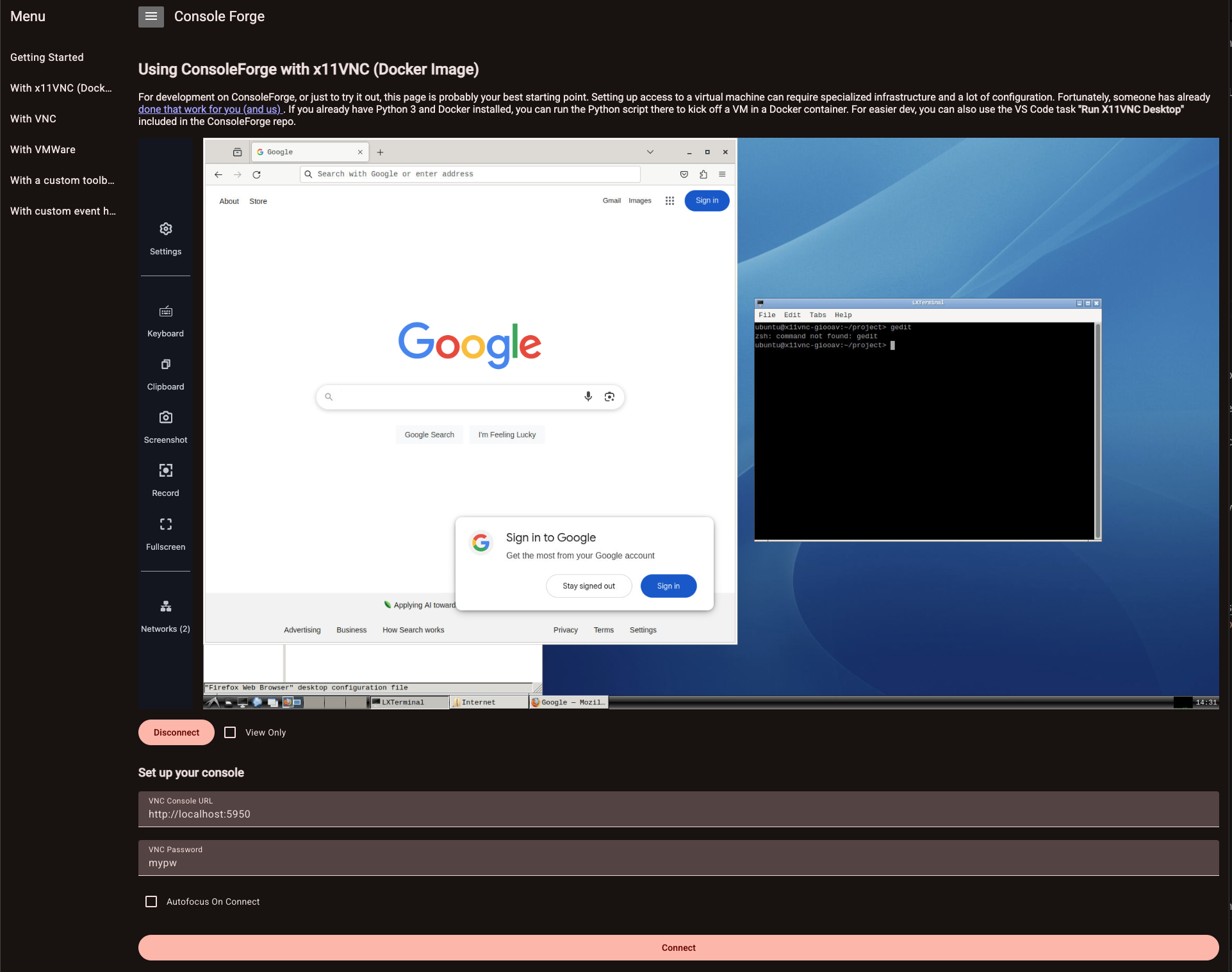
ng serve console-forge-docsNavigate to http://localhost:4200. If you're running the X11VNC container, you should be able to access it via the "With x11VNC (Docker Image)" tab! If you have some other supported console host, you can use the various tabs in our little demo app to connect to your consoles.
Configuring ConsoleForge in your app
ConsoleForge exposes standard configuration via its included provideConsoleForge function. You can inject this function where you set up your application's root injector, typically in app.config.ts. Here's an example from our docs app:
import { provideHttpClient, withInterceptorsFromDi } from "@angular/common/http";
import { ApplicationConfig, provideZoneChangeDetection } from "@angular/core";
import { provideRouter, TitleStrategy } from "@angular/router";
import { LogLevel, provideConsoleForge } from "console-forge";
import { routes } from "./app.routes";
import { AppTitleStrategy } from "./app.title-strategy";

export const appConfig: ApplicationConfig = {
  providers: [
    provideZoneChangeDetection({ eventCoalescing: true }),
    provideRouter(routes),
    provideHttpClient(withInterceptorsFromDi()),
    { provide: TitleStrategy, useClass: AppTitleStrategy },
    provideConsoleForge({
      canvasRecording: {
        frameRate: 30,
      },
      logThreshold: LogLevel.DEBUG,
    }),
  ],
};
See the config definition in the library for available options and defaults.
The Toolbar
ConsoleForge's ConsoleComponent includes a default toolbar that exposes a console's various functions to the end user (e.g. taking screenshots, going fullscreen, using the console clipboard, and so on). You can either use this default toolbar, or replace it with your own custom component.
Setting up the default toolbar
To minimize impact on client applications using ConsoleForge, its default toolbar uses PicoCSS, a lightweight CSS framework. To avoid contaminating the global DOM with PicoCSS, ConsoleForge expects to find and download its assets from your app's assets directory. To make this happen, add this to your angular.json to make the included assets available in your app's assets directory:
"assets": [
  // any other assets you might have
  {
    "glob": "**/*",
    "input": "node_modules/@cmusei/console-forge/assets",
    "output": "assets/"
  }
]
NOTE: We know this is an installation pain point and are considering alternative ways to make this happen so that modifying your angular.json isn't necessary.
Creating a custom toolbar
ConsoleForge provides a capable toolbar out of the box, but as the only visible element of the library, we felt it important to support customization so that ConsoleForge can happily live within the design language of any app.
To create a custom toolbar, simply create your toolbar component in your Angular project:
ng generate component my-sweet-toolbarPass it your ConsoleForge configuration:
provideConsoleForge({ consoleToolbarComponent: MySweetToolbarComponent });OR just test drive it on a single console:
app.component.ts
protected customToolbar = MySweetToolbarComponent;app.component.html
<!--snip -->
<cf-console [toolbarComponent]="customToolbar"></cf-console>
To make your toolbar any or all of the many useful things the default toolbar does, just add an input for ConsoleForge's toolbar context:
my-sweet-toolbar.component.ts
public consoleContext = input.required<ConsoleToolbarContext>();Questions about how to implement your toolbar? Check out our implementation of the default one - it's using the same context as you are!
Requirements
The ConsoleForge library is built on Angular 19. Consult its package.json for specific dependencies.
We don't currently support independent installation of specific hypervisor support, so when you install ConsoleForge, it includes peer dependencies for all console clients (currently, VNC and VMWare WMKS).
ConsoleForge uses noVNC for VNC client support. See this fantastic package's documentation for currently-supported browsers. (In general, recent versions of Chrome, Firefox, and Edge are supported. Safari is unsupported until such time as it becomes, more or less, a completely different browser.)
Use noVNC 1.4.x or 1.5.x. ConsoleForge's peer range is >=1.4.0 <1.6.0, because noVNC 1.6.0 and 1.7.0 both use a top-level await that Angular's esbuild-based builder rejects — any Angular app depending on them fails to build. noVNC has since removed that top-level await for its v1.8.0 milestone, so we expect to widen the range once 1.8.0 is released.
If you're on ConsoleForge 0.21.4 or earlier and consoles fail immediately with TypeError: import_rfb.default is not a constructor, upgrade — that's a module-interop bug fixed in 0.21.5.
VMWare WMKS and jQuery dependencies
If your use case for ConsoleForge doesn't require the ability to connect to VMWare-hosted consoles you can ignore everything about this section. Sweet!
If it does, things are a little become slightly complex.
Including the HTML Console SDK's assets
ConsoleForge bundles version 2.2.0 of the VMware HTML Console SDK and loads it on demand the first time a VMware console connects. Nothing needs to be added to the styles or scripts sections of your Angular app's angular.json.
The only requirement is the assets glob described above, mapping node_modules/@cmusei/console-forge/assets to assets/ in your app. This makes the bundled SDK available at the path ConsoleForge expects.
The SDK version and the directory it's served from are both configurable:
provideConsoleForge({ wmks: { assetsPath: "assets/vmware-wmks", version: "2.2.0" } })Those are the defaults, so most apps never set them.
version selects among the SDK versions bundled with ConsoleForge. Version 2.2.0 is currently the only bundled version and is the default. Additional tested versions will be added to the package and require no consumer change beyond this setting. If the configured version and the loaded SDK's own WMKS.version disagree, ConsoleForge logs a warning and proceeds.
assetsPath is the directory ConsoleForge's assets/vmware-wmks tree was copied to by your assets glob — change it only if your glob maps ConsoleForge's assets somewhere other than assets/. The browser resolves it against your app's <base href>, so keep it relative: a path beginning with a single / ignores <base href> and 404s in any deployment served under a path prefix (for example a container that rewrites <base href="/"> to <base href="/my-app/"> at start-up). ConsoleForge logs a warning if the configured path is absolute. Protocol-relative (//cdn.example.com/wmks) and fully-qualified (https://cdn.example.com/wmks) values are left alone, so a CDN-hosted copy of the assets works.
Apps that already list wmks.min.js in angular.json continue to work: ConsoleForge detects an existing window.WMKS and skips its own script injection.
jQuery
jQuery and jQuery UI are peer dependencies, so npm install surfaces them, but a peer dependency does not put jQuery on window. Your app must still list both in its own angular.json scripts, with jQuery first. ConsoleForge does not inject them.
Supported versions are jquery@>=3.7.0 <4.0.0 and jquery-ui@>=1.14.0 <2.0.0. [email protected] with [email protected] is the combination verified against a live VMWare console. Point your angular.json scripts at node_modules/jquery/dist/jquery.js and node_modules/jquery-ui/dist/jquery-ui.js, jQuery first; equivalent CDN tags in index.html work too.
jQuery must stay below 4.0. jQuery 4.0.0 removed jQuery.now and jQuery.isFunction, and the HTML Console SDK 2.2.0 calls them (7 and 2 times respectively), so it breaks on jQuery 4 unless you also load the jQuery Migrate plugin. The constraint comes from the SDK, not from ConsoleForge.
If either dependency is missing when a VMWare console connects, ConsoleForge logs a warning naming which one, so the failure is diagnosable instead of surfacing as an error inside wmks.min.js.
Building ConsoleForge
You can build your own copy of ConsoleForge using the Angular CLI (currently, 19+). Just clone:
git clone https://github.com/cmu-sei/console-forgeAnd build!
ng build console-forgeMaintainers
ConsoleForge is proudly maintained by the Software Engineering Institute at Carnegie Mellon University.
Assets
ConsoleForge's default toolbar (which can be replaced by end developers) uses SVG Icons by thewolfkit and Iconship under the Attribution CC BY license.
Special thanks
Special thanks to these projects which make ConsoleForge possible!