
@code-indexer/mcp
v0.0.5
Published
Model Context Protocol integration for CodeIndexer


Readme
@code-indexer/mcp
Model Context Protocol (MCP) integration for CodeIndexer - A powerful MCP server that enables AI assistants and agents to index and search codebases using semantic search.


📖 New to CodeIndexer? Check out the main project README for an overview and setup instructions.
The Model Context Protocol (MCP) is an open protocol that standardizes how AI applications can securely connect to and interact with data sources and tools. This package provides an MCP server that exposes CodeIndexer's semantic search capabilities to any MCP-compatible client.
Features
- 🔌 MCP Protocol Compliance: Full compatibility with MCP-enabled AI assistants and agents
- 🔍 Semantic Code Search: Natural language queries to find relevant code snippets
- 📁 Codebase Indexing: Index entire codebases for fast semantic search
- 🔄 Auto-Sync: Automatically detects and synchronizes file changes to keep index up-to-date
- 🧠 AI-Powered: Uses OpenAI embeddings and Milvus vector database
- ⚡ Real-time: Interactive indexing and searching with progress feedback
- 🛠️ Tool-based: Exposes three main tools via MCP protocol
Available Tools
1. index_codebase
Index a codebase directory for semantic search.
Parameters:
path(required): Path to the codebase directory to indexforce(optional): Force re-indexing even if already indexed (default: false)
2. search_code
Search the indexed codebase using natural language queries.
Parameters:
query(required): Natural language query to search for in the codebaselimit(optional): Maximum number of results to return (default: 10, max: 50)
3. clear_index
Clear the search index.
Parameters:
confirm(required): Confirmation flag to prevent accidental clearing
Installation
npm install @code-indexer/mcpOr run directly with npx:
npx @code-indexer/mcp@latestQuick Start
Prerequisites
Before using the MCP server, make sure you have:
- API key for your chosen embedding provider (OpenAI, VoyageAI, Gemini, or Ollama setup)
- Milvus vector database (local or cloud)
💡 Setup Help: See the main project setup guide for detailed installation instructions.
Prepare Environment Variables
Embedding Provider Configuration
CodeIndexer MCP supports multiple embedding providers. Choose the one that best fits your needs:
# Supported providers: OpenAI, VoyageAI, Gemini, Ollama
EMBEDDING_PROVIDER=OpenAI
1. OpenAI Configuration (Default)
OpenAI provides high-quality embeddings with excellent performance for code understanding.
# Required: Your OpenAI API key
OPENAI_API_KEY=sk-your-openai-api-key

# Optional: Specify embedding model (default: text-embedding-3-small)
EMBEDDING_MODEL=text-embedding-3-small

# Optional: Custom API base URL (for Azure OpenAI or other compatible services)
OPENAI_BASE_URL=https://api.openai.com/v1
Available Models:
text-embedding-3-small(1536 dimensions, faster, lower cost)text-embedding-3-large(3072 dimensions, higher quality)text-embedding-ada-002(1536 dimensions, legacy model)
Getting API Key:
- Visit OpenAI Platform
- Sign in or create an account
- Generate a new API key
- Set up billing if needed
2. VoyageAI Configuration
VoyageAI offers specialized code embeddings optimized for programming languages.
# Required: Your VoyageAI API key
VOYAGEAI_API_KEY=pa-your-voyageai-api-key

# Optional: Specify embedding model (default: voyage-code-3)
EMBEDDING_MODEL=voyage-code-3
Available Models:
voyage-code-3(1024 dimensions, optimized for code)voyage-3(1024 dimensions, general purpose)voyage-3-lite(512 dimensions, faster inference)
Getting API Key:
- Visit VoyageAI Console
- Sign up for an account
- Navigate to API Keys section
- Create a new API key
3. Gemini Configuration
Google's Gemini provides competitive embeddings with good multilingual support.
# Required: Your Gemini API key
GEMINI_API_KEY=your-gemini-api-key

# Optional: Specify embedding model (default: gemini-embedding-001)
EMBEDDING_MODEL=gemini-embedding-001
Available Models:
gemini-embedding-001(3072 dimensions, latest model)
Getting API Key:
- Visit Google AI Studio
- Sign in with your Google account
- Go to "Get API key" section
- Create a new API key
4. Ollama Configuration (Local/Self-hosted)
Ollama allows you to run embeddings locally without sending data to external services.
# Required: Specify which Ollama model to use
EMBEDDING_MODEL=nomic-embed-text

# Optional: Specify Ollama host (default: http://127.0.0.1:11434)
OLLAMA_HOST=http://127.0.0.1:11434
Available Models:
nomic-embed-text(768 dimensions, recommended for code)mxbai-embed-large(1024 dimensions, higher quality)all-minilm(384 dimensions, lightweight)
Setup Instructions:
- Install Ollama from ollama.ai
- Pull the embedding model:
ollama pull nomic-embed-text - Ensure Ollama is running:
ollama serve
Milvus Configuration
Zilliz Cloud (fully managed Milvus vector database as a service, you can use it for free)
MILVUS_ADDRESSis the Public Endpoint of your Zilliz Cloud instanceMILVUS_TOKENis the token of your Zilliz Cloud instance.
# Required: Milvus address
MILVUS_ADDRESS=https://xxx-xxxxxxxxxxxx.serverless.gcp-us-west1.cloud.zilliz.com

# Required for Zilliz Cloud: Milvus token
MILVUS_TOKEN=xxxxxxx
Optional: Self-hosted Milvus. See Milvus Documentation for more details to install Milvus.
Embedding Batch Size
You can set the embedding batch size to optimize the performance of the MCP server, depending on your embedding model throughput. The default value is 100.
EMBEDDING_BATCH_SIZE=512Usage with MCP Clients
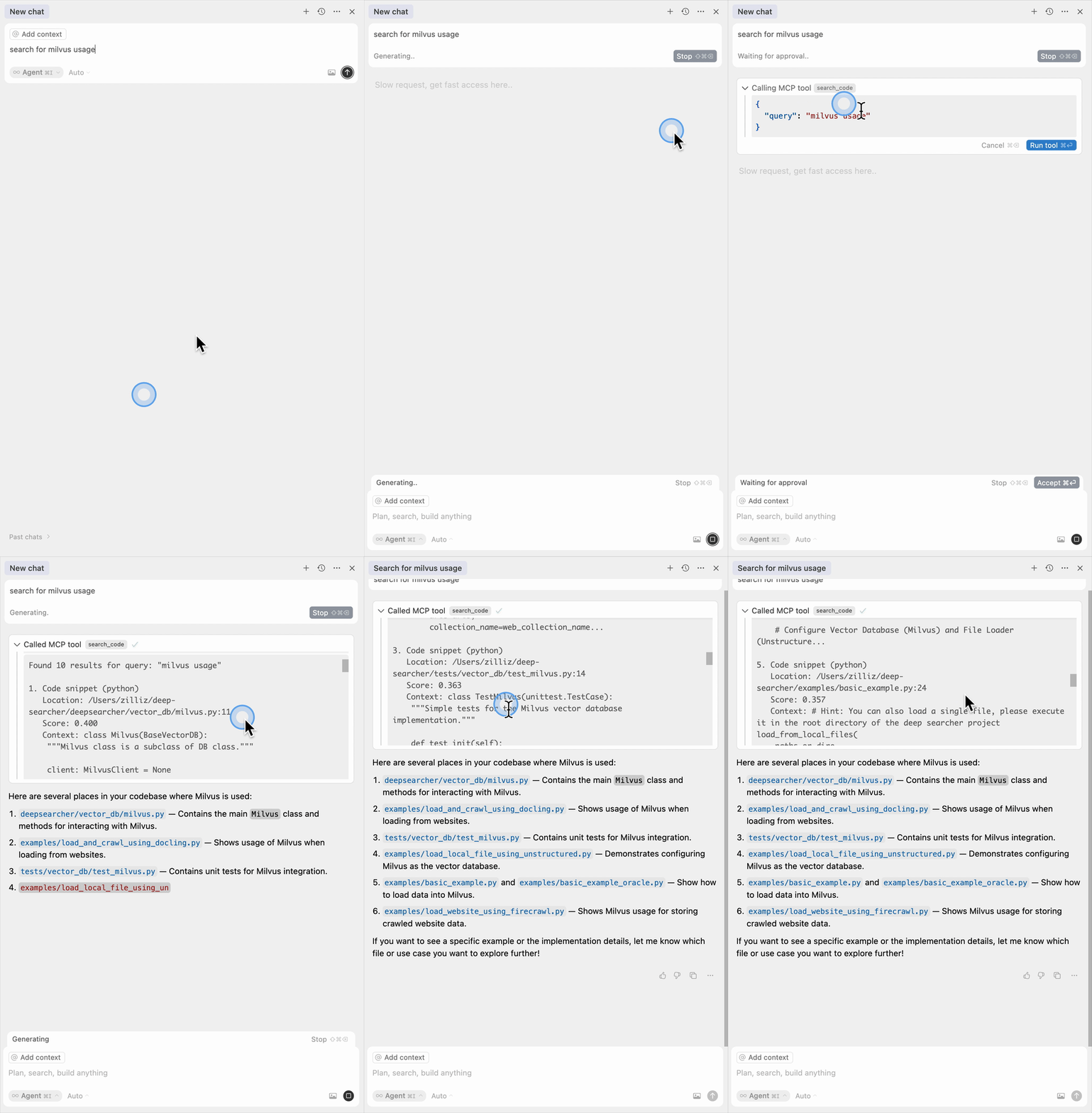
Go to: Settings -> Cursor Settings -> MCP -> Add new global MCP server
Pasting the following configuration into your Cursor ~/.cursor/mcp.json file is the recommended approach. You may also install in a specific project by creating .cursor/mcp.json in your project folder. See Cursor MCP docs for more info.
OpenAI Configuration (Default):
{
  "mcpServers": {
    "code-indexer": {
      "command": "npx",
      "args": ["-y", "@code-indexer/mcp@latest"],
      "env": {
        "EMBEDDING_PROVIDER": "OpenAI",
        "OPENAI_API_KEY": "your-openai-api-key",
        "OPENAI_BASE_URL": "https://your-custom-endpoint.com/v1",
        "MILVUS_ADDRESS": "localhost:19530"
      }
    }
  }
}
VoyageAI Configuration:
{
  "mcpServers": {
    "code-indexer": {
      "command": "npx",
      "args": ["-y", "@code-indexer/mcp@latest"],
      "env": {
        "EMBEDDING_PROVIDER": "VoyageAI",
        "VOYAGEAI_API_KEY": "your-voyageai-api-key",
        "EMBEDDING_MODEL": "voyage-code-3",
        "MILVUS_ADDRESS": "localhost:19530"
      }
    }
  }
}
Gemini Configuration:
{
  "mcpServers": {
    "code-indexer": {
      "command": "npx",
      "args": ["-y", "@code-indexer/mcp@latest"],
      "env": {
        "EMBEDDING_PROVIDER": "Gemini",
        "GEMINI_API_KEY": "your-gemini-api-key",
        "MILVUS_ADDRESS": "localhost:19530"
      }
    }
  }
}
Ollama Configuration:
{
  "mcpServers": {
    "code-indexer": {
      "command": "npx",
      "args": ["-y", "@code-indexer/mcp@latest"],
      "env": {
        "EMBEDDING_PROVIDER": "Ollama",
        "EMBEDDING_MODEL": "nomic-embed-text",
        "OLLAMA_HOST": "http://127.0.0.1:11434",
        "MILVUS_ADDRESS": "localhost:19530"
      }
    }
  }
}
Add to your Claude Desktop configuration:
{
  "mcpServers": {
    "code-indexer": {
      "command": "npx",
      "args": ["@code-indexer/mcp@latest"],
      "env": {
        "OPENAI_API_KEY": "your-openai-api-key",
        "MILVUS_ADDRESS": "localhost:19530"
      }
    }
  }
}
Use the command line interface to add the CodeIndexer MCP server:
# Add the CodeIndexer MCP server
claude mcp add code-indexer -e OPENAI_API_KEY=your-openai-api-key -e MILVUS_ADDRESS=localhost:19530 -- npx @code-indexer/mcp@latest
See the Claude Code MCP documentation for more details about MCP server management.
Windsurf supports MCP configuration through a JSON file. Add the following configuration to your Windsurf MCP settings:
{
  "mcpServers": {
    "code-indexer": {
      "command": "npx",
      "args": ["-y", "@code-indexer/mcp@latest"],
      "env": {
        "OPENAI_API_KEY": "your-openai-api-key",
        "MILVUS_ADDRESS": "localhost:19530"
      }
    }
  }
}
The CodeIndexer MCP server can be used with VS Code through MCP-compatible extensions. Add the following configuration to your VS Code MCP settings:
{
  "mcpServers": {
    "code-indexer": {
      "command": "npx",
      "args": ["-y", "@code-indexer/mcp@latest"],
      "env": {
        "OPENAI_API_KEY": "your-openai-api-key",
        "MILVUS_ADDRESS": "localhost:19530"
      }
    }
  }
}
Cherry Studio allows for visual MCP server configuration through its settings interface. While it doesn't directly support manual JSON configuration, you can add a new server via the GUI:
- Navigate to Settings → MCP Servers → Add Server.
- Fill in the server details:
- Name:
code-indexer - Type:
STDIO - Command:
npx - Arguments:
["@code-indexer/mcp@latest"] - Environment Variables:
OPENAI_API_KEY:your-openai-api-keyMILVUS_ADDRESS:localhost:19530
- Name:
- Save the configuration to activate the server.
Cline uses a JSON configuration file to manage MCP servers. To integrate the provided MCP server configuration:
Open Cline and click on the MCP Servers icon in the top navigation bar.
Select the Installed tab, then click Advanced MCP Settings.
In the
cline_mcp_settings.jsonfile, add the following configuration:
{
  "mcpServers": {
    "code-indexer": {
      "command": "npx",
      "args": ["@code-indexer/mcp@latest"],
      "env": {
        "OPENAI_API_KEY": "your-openai-api-key",
        "MILVUS_ADDRESS": "localhost:19530"
      }
    }
  }
}- Save the file.
To configure Code Indexer MCP in Augment Code, you can use either the graphical interface or manual configuration.
A. Using the Augment Code UI
Click the hamburger menu.
Select Settings.
Navigate to the Tools section.
Click the + Add MCP button.
Enter the following command:
npx @code-indexer/mcp@latestName the MCP: Code Indexer.
Click the Add button.
B. Manual Configuration
- Press Cmd/Ctrl Shift P or go to the hamburger menu in the Augment panel
- Select Edit Settings
- Under Advanced, click Edit in settings.json
- Add the server configuration to the
mcpServersarray in theaugment.advancedobject
"augment.advanced": {
  "mcpServers": [
    {
      "name": "code-indexer",
      "command": "npx",
      "args": ["-y", "@code-indexer/mcp@latest"]
    }
  ]
}
Gemini CLI requires manual configuration through a JSON file:
Create or edit the
~/.gemini/settings.jsonfile.Add the following configuration:
{
  "mcpServers": {
    "code-indexer": {
      "command": "npx",
      "args": ["@code-indexer/mcp@latest"],
      "env": {
        "OPENAI_API_KEY": "your-openai-api-key",
        "MILVUS_ADDRESS": "localhost:19530"
      }
    }
  }
}- Save the file and restart Gemini CLI to apply the changes.
Roo Code utilizes a JSON configuration file for MCP servers:
Open Roo Code and navigate to Settings → MCP Servers → Edit Global Config.
In the
mcp_settings.jsonfile, add the following configuration:
{
  "mcpServers": {
    "code-indexer": {
      "command": "npx",
      "args": ["@code-indexer/mcp@latest"],
      "env": {
        "OPENAI_API_KEY": "your-openai-api-key",
        "MILVUS_ADDRESS": "localhost:19530"
      }
    }
  }
}- Save the file to activate the server.
The server uses stdio transport and follows the standard MCP protocol. It can be integrated with any MCP-compatible client by running:
npx @code-indexer/mcp@latestContributing
This package is part of the CodeIndexer monorepo. Please see:
- Main Contributing Guide - General contribution guidelines
- MCP Package Contributing - Specific development guide for this package
Related Projects
- @code-indexer/core - Core indexing engine used by this MCP server
- VSCode Extension - Alternative VSCode integration
- Model Context Protocol - Official MCP documentation
License
MIT - See LICENSE for details