
@codegraphy-dev/tldraw
v0.2.4
Published
Render a CodeGraphy workspace as a native tldraw document

Maintainers
 poleski
Readme
@codegraphy-dev/tldraw
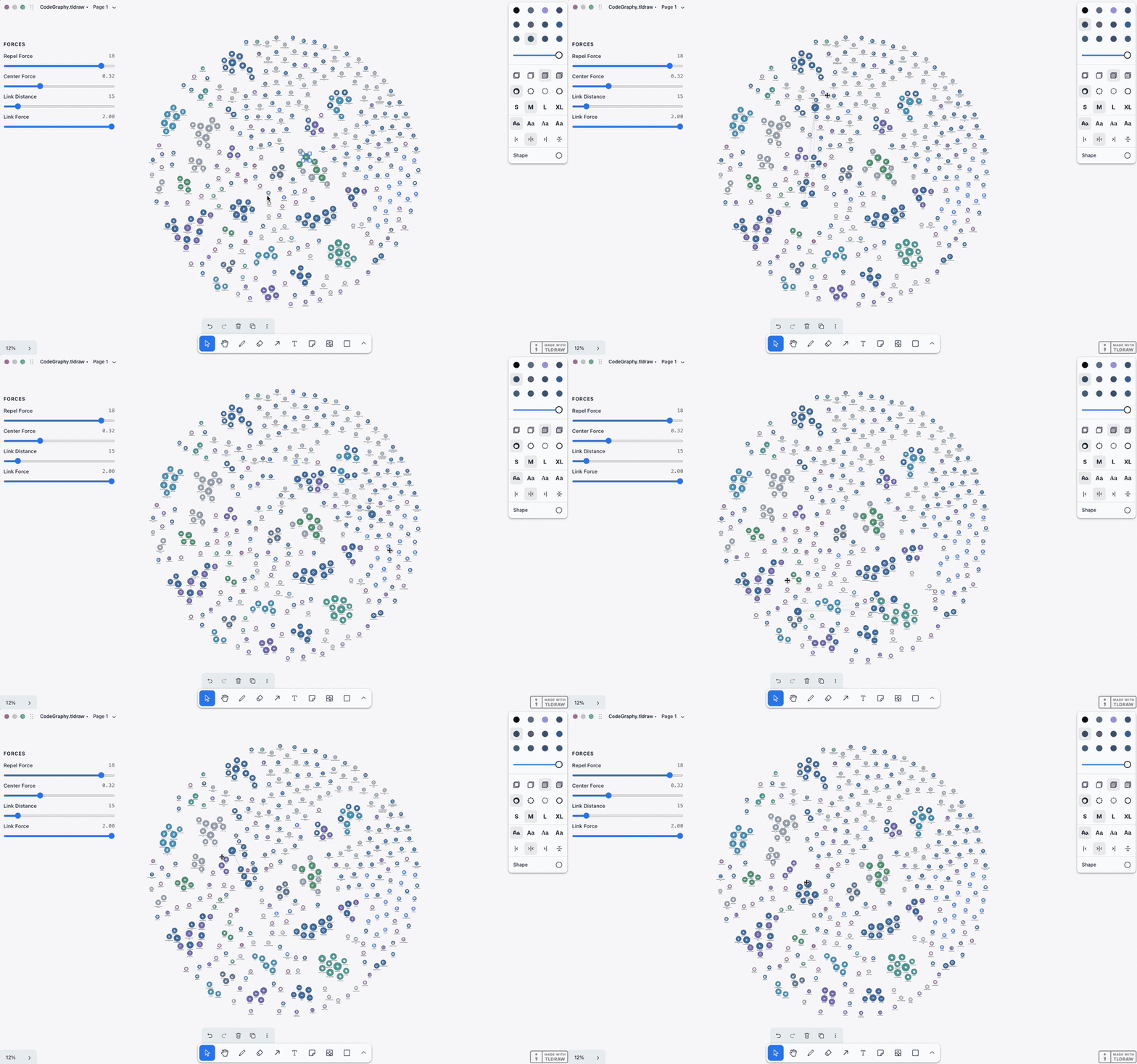
Render a CodeGraphy Workspace as editable native shapes in tldraw offline.
CodeGraphy indexes the workspace, creates the Relationship Graph, and runs its
force physics inside the saved .tldraw document.
Requirements
- macOS
- Node.js
^22.14.0 || >=23.6.0. An active LTS release is recommended. - tldraw offline installed in
/Applications
The first launcher release supports macOS because it opens documents through
the macOS open command and reads tldraw offline's local application data.
Install the released package
Install and open tldraw offline once.
Install CodeGraphy Core and the tldraw interface:
npm install --global @codegraphy-dev/core @codegraphy-dev/tldrawConfirm that the launcher is available:
codegraphy-tldraw --help
Create your first canvas
Open a terminal in the workspace that you want CodeGraphy to index:
cd /path/to/workspaceRun the launcher:
codegraphy-tldrawtldraw offline opens
CodeGraphy.tldrawfrom the workspace. Select Run Script when tldraw asks whether to run the embedded script. Run scripts only in documents that you generated or trust.
The launcher indexes the current directory through CodeGraphy Core. It creates
CodeGraphy.tldraw when the file does not exist and refreshes it when it does.
Create a separate canvas
Pass a relative or absolute .tldraw path:
codegraphy-tldraw docs/architecture.tldraw
codegraphy-tldraw /tmp/my-workspace-graph.tldraw
The launcher creates a new canvas when the path does not exist. An existing path
must point to a document generated by @codegraphy-dev/tldraw.
The output path does not select the indexed workspace. CodeGraphy always indexes the current working directory.
Refresh after workspace changes
Keep the canvas open or close it.
Change files in the workspace.
Run the same launcher command again:
codegraphy-tldrawFor a named canvas, include the same path:
codegraphy-tldraw /tmp/my-workspace-graph.tldraw
If the canvas is open, CodeGraphy updates it in place. If it is closed, CodeGraphy updates the saved document and opens it. Refresh preserves:
- user-created notes, drawings, images, and other media
- surviving nodes' positions, manual sizes, and styles
- saved force-control values
The launcher exits after each run. It does not start a daemon or filesystem watcher.
Try the package from source
Use this path to test an unreleased checkout:
Clone the repository and enter it:
git clone https://github.com/joesobo/CodeGraphyV4.git
cd CodeGraphyV4
Install the repository package manager and dependencies:
npm install --global [email protected]
pnpm install
Build the tldraw package and its workspace dependencies:
pnpm exec turbo run build --filter @codegraphy-dev/tldrawRun the built launcher against the complete
examples/workspace. Use a path that does not exist to guarantee a new canvas:cd examples node ../packages/tldraw/dist/codegraphy-tldraw.js \ /tmp/CodeGraphy-example.tldrawSelect Run Script in tldraw offline. Run the same command again to test an in-place refresh.
Node sizes
File nodes use a stable cool categorical theme and embedded white Material Icon Theme icons. Files with no visible connections use an 80-unit diameter. Connected files grow on a bounded square-root scale from 110 to 300 units.
Refresh preserves a node that you resized manually. Use a new output path when you want to inspect the current generated size bands without preserved canvas edits:
codegraphy-tldraw /tmp/CodeGraphy-fresh-size-test.tldrawForce physics
The document runs WebAssembly force physics from
@codegraphy-dev/graph-renderer. Node size controls collision spacing and repel
strength. Resizing a node restarts the layout with the new size.
The canvas includes these controls:
| Control | Default | Range |
|---|---:|---:|
| Repel Force | 10 | 0–20 |
| Center Force | 0.10 | 0–1 |
| Link Distance | 80 | 5–100 |
| Link Force | 1.00 | 0–2 |
Changes apply to the active graph and remain saved in the document.
Inspect a node
Double-click a generated node or its file icon. CodeGraphy opens one inspector below tldraw's style panel on the right side of the canvas with:
- the file name and workspace-relative path
- the file type
- total, incoming, and outgoing connection counts
- each incoming and outgoing relationship
Double-click another node to update the same inspector. Click an empty part of the canvas to close it. The inspector is a temporary canvas control, so it does not add a shape to the saved document.
Search the graph
Use the search bar at the top of the canvas to find files by their workspace-relative path. Search is case-insensitive and updates while you type. The canvas shows matching nodes, their icons and labels, and edges between matching nodes. The filtered nodes continue to use force physics, and the camera fits the results when their layout settles. You cannot select hidden results.
Use * as a wildcard. For example, *.ts shows TypeScript files, and *
shows the complete graph.
Clear the search to restore the complete graph. Search is temporary and does
not change the saved .tldraw document.
Troubleshooting
Every node looks the same size
Check whether the output path already exists. Refresh preserves older and manual dimensions. Run the launcher with a path that does not exist:
codegraphy-tldraw /tmp/CodeGraphy-new-canvas.tldrawThe source launcher reports MODULE_NOT_FOUND
Build the package again and run the launcher from dist:
pnpm exec turbo run build --filter @codegraphy-dev/tldraw
node ../packages/tldraw/dist/codegraphy-tldraw.js
The package does not use the old packages/tldraw/bin/ development path.
The canvas does not update after a file change
Run the same launcher command again. The MVP updates only when you run the command.
The launcher rejects an existing document
Choose a path that does not exist or pass a .tldraw document that CodeGraphy
created. The launcher rejects unsupported documents instead of replacing their
contents.