
@debugg-ai/react
v1.0.11
Published
Debugg.ai SDK for React.js


Readme
Debugg AI's Node sdk for enabling your personal AI QA engineer
DebuggAI super‑charges engineers with an AI‑powered custom QA Engineer personalized to every user that finds and fixes bugs while your app runs locally, in production, or in CI. DebuggAI's Agent works with you in the background to generate, run, and improve your test suites to ensure that every PR is ready to go. Stop waiting for problems to pop up and build robust code without the big headache of managing your tests.
✨ Why DebuggAI?
Most AI coding tools focus on writing code. DebuggAI focuses on the other 50 % of an engineer’s life: getting it to run.
- AI Test Suites — We let you focus on the code while our QA engineering agent handles the rest. DebuggAI builds & runs test suites in the background to ensure old code continues to run and new code avoids possible edge cases BEFORE it gets to a PR, or worse to your users.
- 1‑line monitoring SDK — drop‑in client (Node, Python, Go) that captures rich runtime context remotely similar to DebuggAI or Datadog
- AI Debug — Errors are instantly sent to failure lines in your IDE so you can see what happened and why, making solving it easy.
- Instant Fix Suggestions — one‑click patches and PRs generated from stack‑trace + context
- Source‑map de‑minification — readable traces even for bundled / minified front‑end code
- Branch‑aware log search — slice errors by branch, release, or feature flag to zero in fast
📺 Demo - Get Instant Insight Into Runtime Issues
🔍 Typical workflows:
- You use your favorite AI agent to write code
- You run your app and it crashes (ah whyyyyy!)
- DebuggAI sees the error, grabs the full stack trace + context, and uses it to generate a solution & show you EXACTLY where to look
- You review the solution, edit it locally if needed, and apply it
🔍 How it works
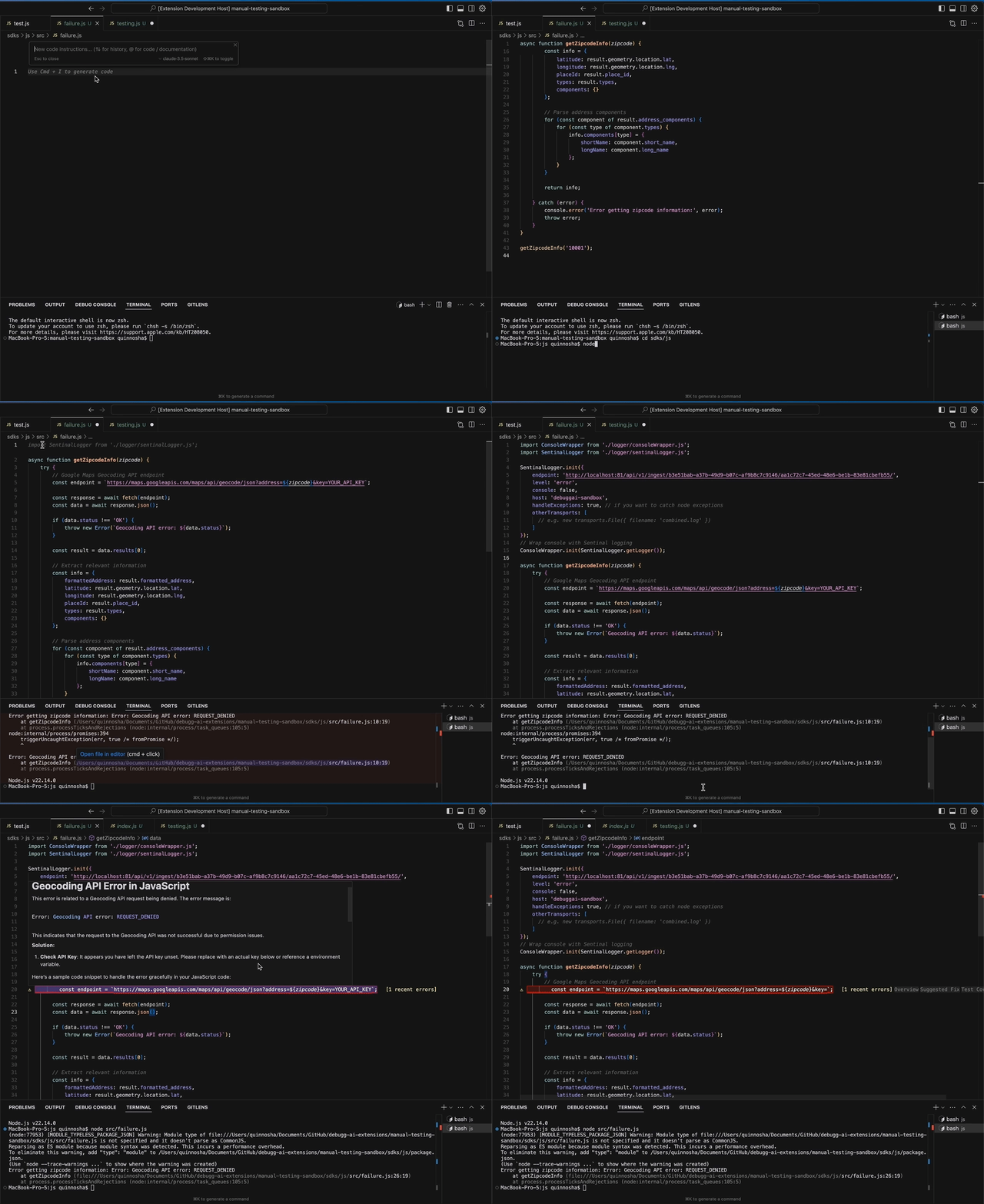
🖥️ Core IDE Features
| Feature | Description | | ---------------------------- | --------------------------------------------------------------------------------- | | Inline Issue Highlighter | See issues in realtime in your IDE, with full stack traces and suggested fixes | | AI Test Generator | Go from 0 to 100% test coverage for files with a single command | | Test iteration | Run & Improve tests in the background while you code | | Future Proof | Continually add new tests as new errors arise to ensure your code is future proof |
🚀 Getting Started
Install the extension
- VS Code Marketplace
- Jetbrains coming soon
Create a project
Add the Node Logging SDK (using
npmoryarn)npm install @debugg-ai/node # Or yarn yarn add @debugg-ai/nodeInitialize (one line):
Get the initialization code from the DebuggAI app

Usage
This package is a wrapper around
@debugg-ai/browser, with added functionality related to React. All methods available in@debugg-ai/browsercan be imported from@debugg-ai/react.To use this SDK, call
DebuggAI.init(options)before you mount your React component.import React from 'react'; import { createRoot } from 'react-dom/client'; import * as DebuggAI from '@debugg-ai/react'; DebuggAI.init({ dsn: '__DSN__', hostName: 'your-host-name' // ... }); // ... const container = document.getElementById(“app”); const root = createRoot(container); root.render(<App />); // also works with hydrateRoot // const domNode = document.getElementById('root'); // const root = hydrateRoot(domNode, reactNode); // root.render(<App />);React 19
Starting with React 19, the
createRootandhydrateRootmethods expose error hooks that can be used to capture errors automatically. Use theDebuggAI.reactErrorHandlerfunction to capture errors in the error hooks you are interested in.const container = document.getElementById(“app”); const root = createRoot(container, { // Callback called when an error is thrown and not caught by an Error Boundary. onUncaughtError: DebuggAI.reactErrorHandler((error, errorInfo) => { console.warn('Uncaught error', error, errorInfo.componentStack); }), // Callback called when React catches an error in an Error Boundary. onCaughtError: DebuggAI.reactErrorHandler(), // Callback called when React automatically recovers from errors. onRecoverableError: DebuggAI.reactErrorHandler(), }); root.render(<App />);If you want more finely grained control over error handling, we recommend only adding the
onUncaughtErrorandonRecoverableErrorhooks and using anErrorBoundarycomponent instead of theonCaughtErrorhook.ErrorBoundary
@debugg-ai/reactexports an ErrorBoundary component that will automatically send Javascript errors from inside a component tree to DebuggAI, and set a fallback UI.app.js
import React from 'react';
import * as DebuggAI from '@debugg-ai/react';

function FallbackComponent() {
  return <div>An error has occurred</div>;
}

class App extends React.Component {
  render() {
    return (
      <DebuggAI.ErrorBoundary fallback={FallbackComponent} showDialog>
        <OtherComponents />
      </DebuggAI.ErrorBoundary>
    );
  }
}

export default App;
Trigger an error – head back to the IDE and watch DebuggAI suggest a fix ⚡

Full walkthrough ▶ docs.debugg.ai/getting-started
🛠️ Configuration
You can log in to your DebuggAI account directly in the extension, and then it will automatically connect to your project.
Contact & Support
If you have any questions or need personalized support:
- Email: [email protected]
- Discord: Join our Discord community at DebuggAI Discord Server
- Documentation: Official DebuggAI Docs
🤝 Interested in Contributing?
We're looking to expand the DebuggAI team!
If you're interested in joining the team or contributing to the project, please reach out to us at [email protected].
📜 License & Credits
- Code: MIT © 2025 Debugg, Inc.
- Foundation: proudly built on open-source technology, see note below.
Attribution
We at Debugg AI want to thank the open-source community for their contributions. Particularly DebuggAI for the work on this SDK. DebuggAI is building the first fully AI QA Engineer that can automatically generate test suites and highlight issues in your app, but DebuggAI continues to be a great option for Application Monitoring. Use both for the best results!