
@decimalstudios/sanity-plugin-vercel-deploy
v5.0.1
Published
Trigger Vercel Deploy Hooks from your Sanity Studio (Sanity v5 fork)

Maintainers
 florentdecimalstudios
Readme
Fork of
sanity-plugin-vercel-deployby Nick DiMatteo, updated for Sanity Studio v5,@sanity/uiv3, React 19, and modernized hooks/types.
🔌 Install
npm i @decimalstudios/sanity-plugin-vercel-deploy
# or yarn
yarn add @decimalstudios/sanity-plugin-vercel-deploy
Requires Sanity Studio v5 and React 19. For Studio v3, use the original plugin.
⚙️ Configure
// `sanity.config.ts` / `sanity.config.js`:
import { defineConfig } from 'sanity'
import { vercelDeployTool } from '@decimalstudios/sanity-plugin-vercel-deploy'

export default defineConfig({
  // ...
  plugins: [
    // ...
    vercelDeployTool({
      // Optional preconfigured projects
      projects: [
        {
          name: 'Production',
          projectId: '<project_id>',
          teamId: '<team_id>',
          url: '<deploy_hook_url>',
        },
      ],
    }),
  ],
})
🚀 Your first Vercel Deployment
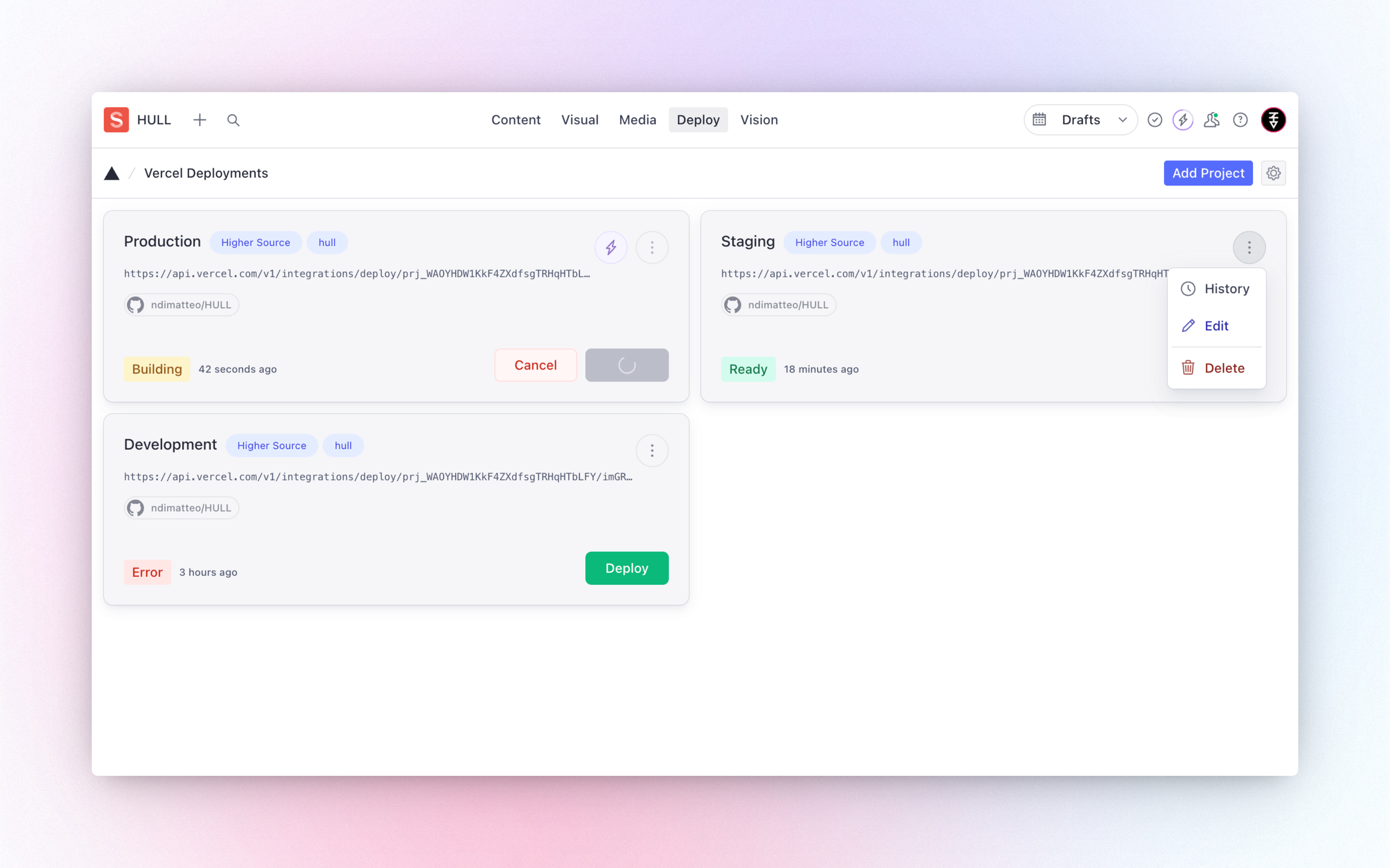
Once installed, you should see a new "Deploy" tool in your Sanity Studio navbar.
To create a new project deployment, click the "Add Project" button. You'll be prompted to add the following:
Display Name
A name for your deployment to help you organize your deployments in Sanity.
This can be the environment you are deploying to, like Production or Staging
Project ID
This is the project ID listed in the Vercel Project settings. You can find this in your Vercel Project under Settings → General → "Project ID"
Team ID (optional)
If your project is part of a Vercel Team you must provide the Team’s ID. You can find this in your Vercel Team, under Settings → General → "Team ID"
Deploy Hook URL
This is the Vercel Deploy hook you want to trigger builds with. You can find this in your Vercel Project under Settings → Git → "Deploy Hooks"
Access Token
This is a valid, scoped token from your Vercel Personal Account (not team or project). You can find this in your Vercel Account dropdown under Account Settings → "Tokens"
Prevent deletion in production? (optional)
This option disables the "Delete" action in the UI for production environments of the Studio.
⚡️ Preconfigured Projects
Projects can be preconfigured by defining a projects array in the tool’s options (see example code above).
Warning Never include your Access Token in the Studio or plugin config – this exposes your token in the client bundle. Instead, you’ll be prompted to add it securely as a Studio Secret when the tool is first initialized. Once added, it can be updated anytime from the tool’s UI, next to the “Add Project” button.
Note The "Edit" and "Delete" actions are disabled in
productionenvironments of the Studio for all preconfigured projects.
🧪 Develop & test
This plugin uses @sanity/plugin-kit with default configuration for build & watch scripts.
See Testing a plugin in Sanity Studio on how to run this plugin with hotreload in the studio.