
@dhtmlx/vault
v5.0.8
Published
DHTMLX Vault - JavaScript file upload library. GPL v2 edition for GPL-compatible open-source projects; commercial licenses are available for proprietary and production use.


Readme
DHTMLX Vault — JavaScript File Uploader (GPL Edition)




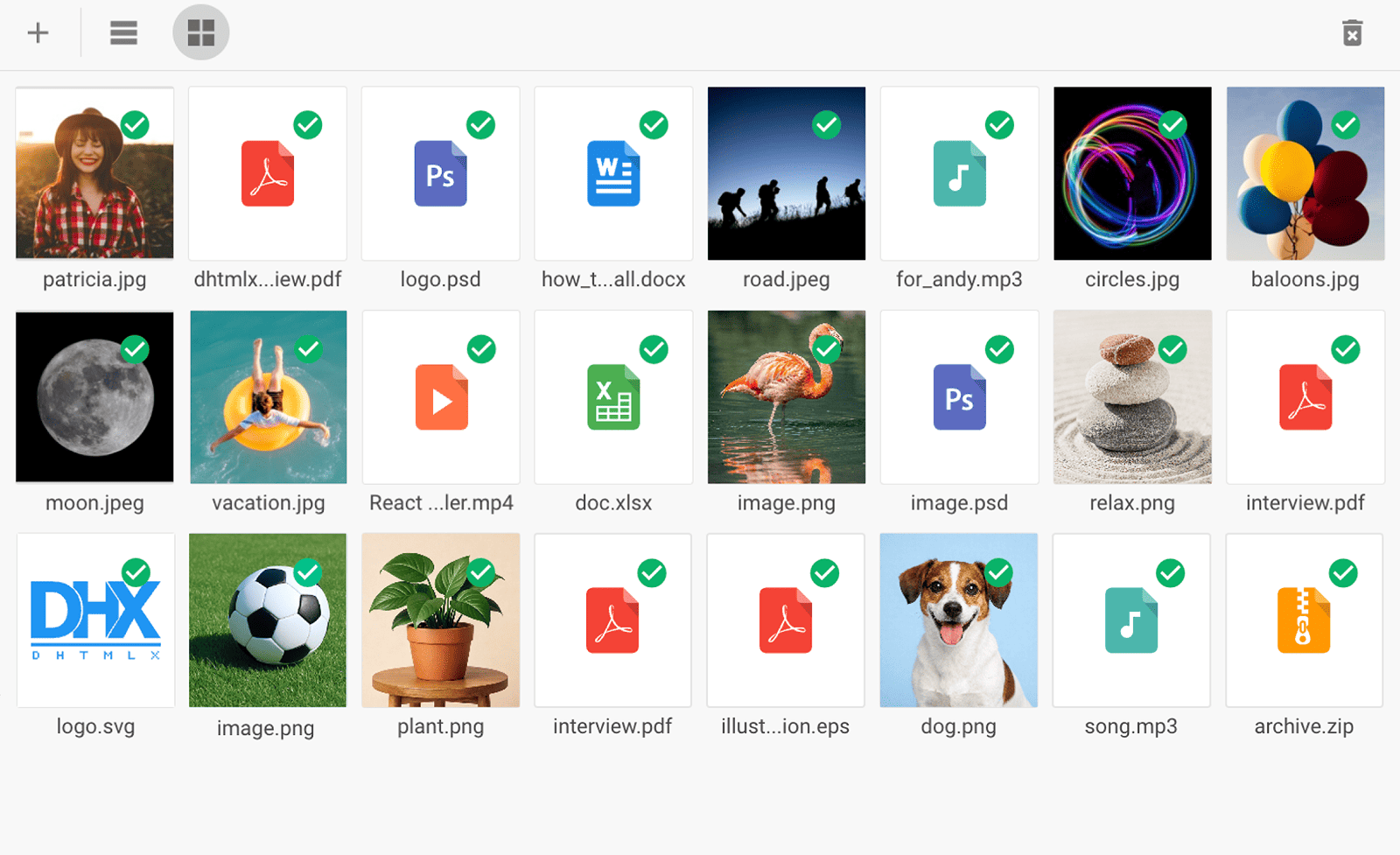
@dhtmlx/vault is a JavaScript file upload and management component with drag-and-drop queuing, real-time progress tracking, list and grid display modes, inline file renaming, file download support, upload restrictions, custom HTML templates, and a configurable toolbar.
It is a standalone widget that works with plain JavaScript and integrates with React, Angular, Vue, and Svelte.
It is ideal for prototyping file upload interfaces, embedding file management in open-source applications, and evaluating DHTMLX Vault's core features under the GPL v2 license.
License
This edition of DHTMLX Vault is licensed under the GNU General Public License v2.0 (GPL v2).
You can redistribute this package and/or modify it under the terms of the GPL v2.
GPL v2 requires that any project using this package also be open source under a GPL-compatible license.
You may NOT use this package in closed-source, proprietary, or commercial applications without a separate commercial license. For commercial use, please obtain a commercial license of DHTMLX Vault.
This package is distributed in the hope that it will be useful, but WITHOUT ANY WARRANTY; without even the implied warranty of MERCHANTABILITY or FITNESS FOR A PARTICULAR PURPOSE. See the GPL v2 for more details.
Using DHTMLX Vault in a commercial or closed-source project?
You need a commercial license. DHTMLX offers Individual, Commercial, Enterprise, and Ultimate license tiers.
- Compare licenses and pricing
- Download a free 30-day trial of DHTMLX Vault
- Download 30-day trial versions of all DHTMLX components
- Contact us regarding licensing: [email protected]
Copyright © 2026 XB Software Ltd.
What is DHTMLX Vault
DHTMLX Vault is a JavaScript file upload and management component for web applications. It renders a configurable layout consisting of a toolbar, a real-time progress bar, and a file area where users can add files by clicking or by dragging them from the file system. Files are displayed in list mode (default) or grid mode with image previews. Uploaded files can be renamed inline, reordered in the queue by drag-and-drop, cleared individually or in bulk, and downloaded from the server. Developers control upload behavior via the uploader configuration object, including the server target URL, automatic or manual upload triggering, and file restrictions by type, size, and count. Custom HTML templates can be applied to the list view, grid view, and progress bar for full visual control.
DHTMLX Vault is a standalone component. It is not part of the DHTMLX Suite library, is distributed and licensed separately, and does not require Suite as a dependency. It can be combined with Suite widgets such as DHTMLX Form or Layout to embed the uploader inside larger application interfaces.
Use this GPL edition when you want to prototype a file upload feature, integrate file management into an open-source project, or evaluate DHTMLX Vault's core features before obtaining a commercial license.
Quick Start
Install the package, import the styles, and initialize Vault in a container element.
Install
npm install @dhtmlx/vaultInclude in your project
import { Vault } from "@dhtmlx/vault";
import "@dhtmlx/vault/vault.css";
Or with script tags pointing to local codebase files:
<script type="text/javascript" src="./codebase/vault.js"></script>
<link rel="stylesheet" href="./codebase/vault.css">
The CSS import is required for default Vault styling and layout.
Initialize
import { Vault } from "@dhtmlx/vault";
import "@dhtmlx/vault/vault.css";

const vault = new Vault("vault_container", {
    uploader: {
        target: "/upload"   // required: URL of your server-side upload handler
    }
});
Add a container element to your HTML:
<div id="vault_container" style="width: 100%; height: 400px;"></div>Basic Usage — DHTMLX Vault
Manual upload with file restrictions
Disable automatic upload so users queue files first and upload on demand. Restrict uploads to images under 2 MB:
import { Vault } from "@dhtmlx/vault";
import "@dhtmlx/vault/vault.css";

const vault = new Vault("vault_container", {
    uploader: {
        target: "/upload",
        autosend: false,        // disable auto-upload; show Upload button instead
        singleRequest: false,   // upload files one by one (not as a single request)
        params: {               // additional params sent with each upload request
            userId: "123"
        }
    }
});

// React to successful upload of each file
vault.events.on("uploadComplete", function(files) {
    console.log("All files uploaded:", files);
});

// React to upload errors
vault.events.on("uploadFail", function(file) {
    console.warn("Upload failed for:", file.name);
});
Grid mode with image previews
Switch Vault to grid mode to show thumbnails for uploaded images:
import { Vault } from "@dhtmlx/vault";
import "@dhtmlx/vault/vault.css";

const vault = new Vault("vault_container", {
    mode: "grid",               // display files as a grid with image previews
    scaleFactor: 2,             // preview image quality (1 = 98×98px, 2 = 196×196px)
    uploader: {
        target: "/photos"
    },
    downloadURL: "/files/"      // base URL for file download links
});
Loading a pre-existing file list from the server
Pre-populate the file area with files already stored on the server:
import { Vault } from "@dhtmlx/vault";
import "@dhtmlx/vault/vault.css";

const vault = new Vault("vault_container", {
    uploader: {
        target: "/upload"
    },
    downloadURL: "/files/"
});

// Load a JSON list of previously uploaded files
vault.data.load("/api/files");
Custom progress bar template
Replace the default progress bar with a custom template showing uploaded vs. total size:
import { Vault } from "@dhtmlx/vault";
import "@dhtmlx/vault/vault.css";

function formatBytes(bytes) {
    return (bytes / 1024 / 1024).toFixed(2) + " MB";
}

const vault = new Vault("vault_container", {
    uploader: { target: "/upload" },
    templates: {
        progressBar: function(percent, extra) {
            return formatBytes(extra.current) + " / " + formatBytes(extra.total);
        }
    }
});
The templates.progressBar function receives the current upload percentage and an extra object containing current (bytes uploaded so far) and total (total bytes to upload). Return any HTML string to fully replace the default progress bar content.
DHTMLX Vault Features
DHTMLX Vault includes the following features in the GPL edition.
| Feature | Details |
|:---|:---|
| Drag-and-drop file adding | Drag files from the file system directly into the Vault file area |
| Drag-and-drop queue reordering | Reorder files in the upload queue by dragging them within the file area |
| List mode | Display uploaded files as a vertical list with file name, size, and status |
| Grid mode | Display uploaded files as a grid of thumbnails; image previews generated as HTML canvas |
| Automatic upload | Files upload to the server as soon as they are added (default behavior) |
| Manual upload | Disable autosend to let users queue files and upload on demand via a toolbar button |
| Real-time progress bar | Total upload progress displayed in the toolbar area as a percentage |
| Per-file progress bars | Individual progress indicators shown on each file item during upload |
| Cancel upload | Cancel an in-progress upload batch via the Cancel button in the progress bar |
| Inline file renaming | Rename files by double-clicking the file name; enabled via editable: true |
| File download | Set downloadURL to enable direct download links for uploaded files |
| Load file list from server | Pre-populate the file area from a server JSON endpoint via vault.data.load(url) |
| File restrictions | Restrict uploads by file extension, file size, or total file count |
| Single or multi-request upload | Send all files in one request or upload them individually via singleRequest |
| Custom upload params | Pass additional parameters with each upload request via uploader.params |
| Configurable toolbar | Show, hide, or replace toolbar buttons; add custom controls with any icon font |
| Custom list template | Replace the default list item HTML via templates.list function |
| Custom grid template | Replace the default grid item HTML via templates.grid function |
| Custom progress bar template | Replace the default progress bar HTML via templates.progressBar function |
| Event handlers in templates | Attach DOM event handlers to custom template elements via eventHandlers config |
| Keyboard navigation | Navigate files in the queue using keyboard controls |
| Four built-in themes | Light, Dark, Light High Contrast, and Dark High Contrast themes |
| CSS variable theming | Customize colors, borders, and spacing via CSS variables |
| Localization | Translate all UI labels via the locale configuration option |
| Event system | API events including uploadComplete, uploadFail, beforeUpload, fileAdded, and more |
This table highlights key features. For the complete and up-to-date feature list, see the DHTMLX Vault documentation.
Framework Integration
DHTMLX Vault works with popular front-end frameworks including React, Angular, Vue, and Svelte. These integration guides apply to both the GPL edition and the commercial editions of DHTMLX Vault.
Documentation and Resources
- Product page – overview, screenshots, and key features.
- Documentation – getting started, guides, and configuration options.
- API reference – full JavaScript API for DHTMLX Vault.
- Live demos and samples – interactive examples of DHTMLX Vault features.
- Support forum – community Q&A and discussions for DHTMLX Vault.