
@directus-labs/elasticsearch-operation
v1.0.0
Published
Intergrate Directus content with Elasticsearch.
Downloads
32


Readme
Elasticsearch Operation
Intergrate Directus content with Elasticsearch.
Requirements
- An Elasticsearch cloud project or selfhosted project with access to the API.
- An API key with full write access.
The operation is processed on the server side. If using localhost, elasticsearch must be on the same server.
Installation
Refer to the Official Guide for details on installing the extension from the Marketplace or manually.
Usage
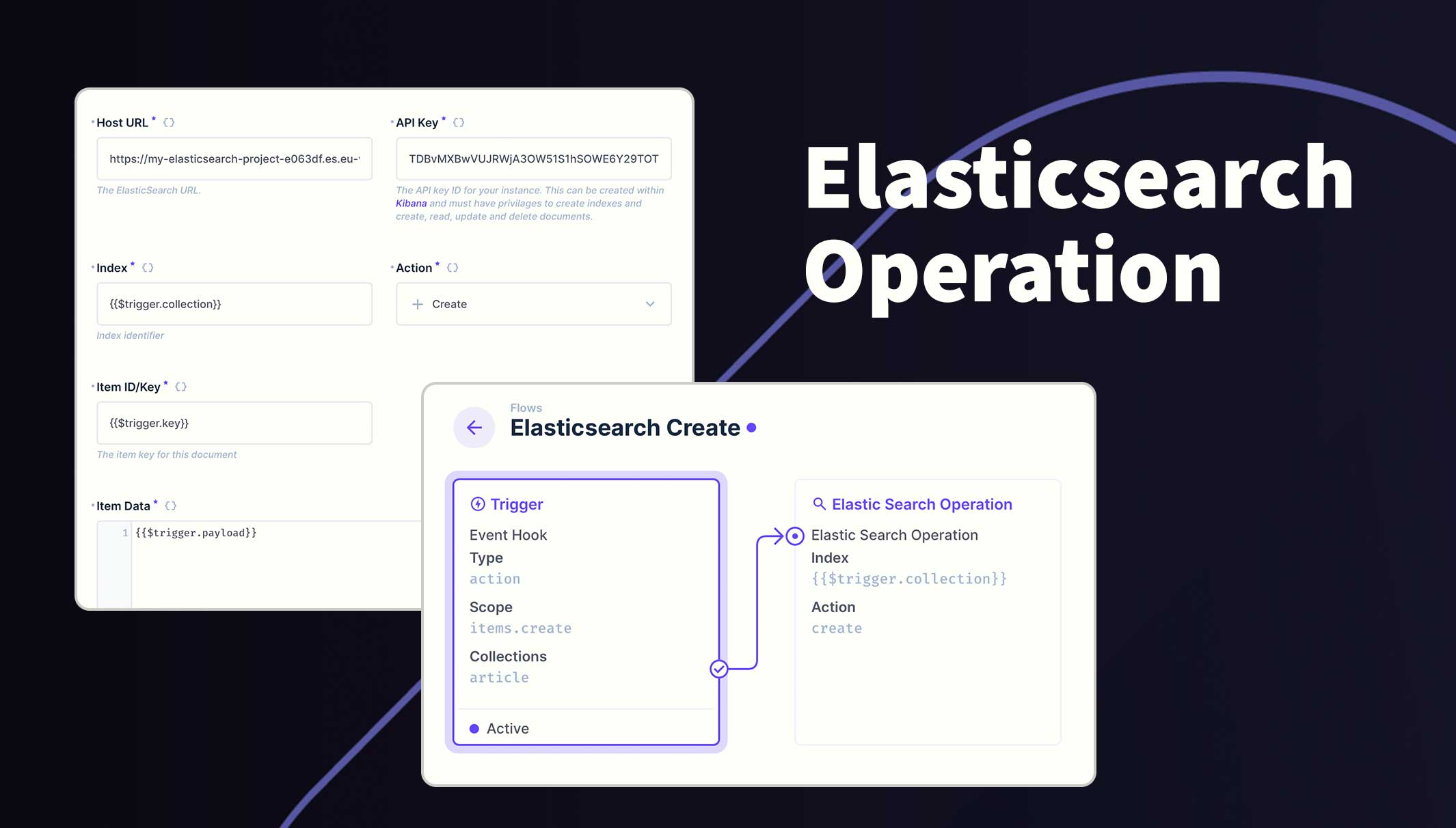
Once installed, select the Elasticsearch as an operation in the flow, then required values into the fields provided. Here is detailed information on each field.
| Field | Type | Comments |
|---------|--------|------------|
| Host | URL | For cloud projects, the URL will look something like this: https://my-elasticsearch-project-a0123bc.es.reigon-1.aws.elastic.cloud. A local project will have a URL like this: http://localhost:9200 |
| API Key | string | Create the API in the cloud project or fetch the API key from your local env for Elasticsearch. |
| Index | string | The identifier for the index. This is usually the collection such as the {{$trigger.collection}} variable. |
| Action | Create, Read, Update or Delete | Choose the desired action for this request. |
| Item ID/Key | string, integer or an Array | The identifier for the item. Typically {{$trigger.key}} or {{$trigger.keys}}. |
| Item Data | json | The content for this request. This can be {{$trigger.key}} or the output from another operation. |
On Create
- Create a flow that is triggered on item.create and choose all the collection to include.
- Add the Elasticsearch operation and set:
- index to
{{$trigger.collection}} - action to Create
- item id/key to
{{$trigger.key}} - item data to
{{$trigger.payload}}.
- index to
On Update
- Create a flow that is triggered on item.update and choose all the collection to include.
- Add the Elasticsearch operation and set:
- index to
{{$trigger.collection}} - action to Update
- item id/key to
{{$trigger.keys}} - item data to
{{$trigger.payload}}.
- index to
On Delete
- Create a flow that is triggered on item.delete and choose all the collection to include.
- Add the Elasticsearch operation and set:
- index to
{{$trigger.collection}} - action to Delete
- item id/key to
{{$trigger.keys}}
- index to
Manual Trigger
This is useful if you want to manually index items using a manual flow.
- Create a second flow that is triggered by another flow and set the Response body to the Data of the last operation.
- Add the Elasticsearch operation and set:
- index to
{{$trigger.collection}} - action to Update
- item id/key to
{{$trigger.key}} - item data to
{{$trigger.payload}}.
- index to
- Create a manual flow set the following:
- choose the collections to include
- location to Collection only
- leave 'Required Selection' checked
- Add the Read Data operation with the following:
- collection set to
{{$trigger.body.collection}} - IDs set to
{{$trigger.body.keys}}
- collection set to
- Create a Script operation to transform that data into valid payloads. Copy and paste the following:
module.exports = async function(data) {
	return Array.isArray(data['$last']) ? data['$last'].map((item) => {
    	return {
            collection: data['$trigger'].body.collection,
            key: item.id,
            payload: item,
        };
    }) : [
      {
        collection: data['$trigger'].body.collection,
        key: data['$last'].id,
        payload: data['$last'],
      }
    ];
}- Create an operation that triggers another flow.
- From the dropdown, cloose the flow created in step 1
- Set the Iteration mode to serial
- Set the Payload to
{{$last}}
Now you can open any of the included collections and tick all the items to index, then click the flows icon (lightning bolt) from the right navigation bar and click the button. The label will match what you called the flow.