
@dynatrace/react-native-plugin
v2.345.1
Published
This plugin gives you the ability to use the Dynatrace Mobile agent in your react native application.


Readme

Dynatrace React Native Plugin
The Dynatrace React Native plugin helps auto-instrument your React Native app with Dynatrace OneAgent for Android and iOS and also provides an API to add manual instrumentation.
If you want to start using this plugin and are not a Dynatrace customer yet, head to dynatrace.com and sign up for a free trial. For an intro you can also check out our announcement blog post.
Supported features
- Auto-instrumentation using OneAgent for Android and iOS
- User actions for application start and native controls
- Web requests
- Crashes
- React-native Auto-instrumentation
- User actions for onPress and onLongPress (Touchables, Buttons, Pressable, Switch, RefreshControl, Picker)
- User actions for class and functional components (lifecycle events such as render(), didMount() and didUpdate())
- Reporting React Native errors
- Tracking navigation via
react.navigation.enabled - UI Interaction feature toggle via
react.userInteraction(enable/disable user interaction capturing at runtime)
- Manual instrumentation
- Typescript bindings to add manual instrumentation
- New React-Native architecture
Requirements
- React v16.8 or newer
- React Native v0.60 or newer
- For Android users:
- SDK version 23+
- Gradle version 8.1.1+ (How to update?)
- Android Gradle plugin version 7.0+
- Java 17
- Kotlin 2.0.21 - see Kotlin Compatibility Note
- Jetpack Compose 1.4 - 1.10 - see Compose Compatibility Note
- For iOS users: Minimum iOS 15
- NodeJS 16.0.0+ since our dependencies require NodeJS 16.0.0
Agent Versions
These agent versions are configured in this plugin:
- Android Agent: 8.345.1.1003
- iOS Agent: 8.345.1.1003
Quick Setup
Advanced topics
- Manual OneAgent Startup
- Real User Monitoring (RUM)
- RUM Classic
- Extended topics
- NPX Commands
- Customizing paths for configuration
- Manual adding iOS Agent to project
- Setup for tvOS
- Configuration structure
- How does Dynatrace determine the user action name?
- How does Dynatrace automatically report crashes?
- React Automatic Runtime
- Using a second transformer besides the dynatrace transformer
- Upgrading project to Gradle 7
- Kotlin Compatibility Note
- Compose Compatibility Note
- Maven Central in top-level gradle file
- Configuration of standalone React Native project
- Instrumentation Overhead
- Typescript Setup for dtActionName and dtActionIgnore
Troubleshooting
Quick Setup
Note: If you are upgrading to React Native v0.70 (or newer) or using the @react-native-community/cli 9.x+ version, be aware that our automated script running before every start/run-android/run-ios command is no longer working. When your dynatrace.config.js changed be sure to execute
npx instrumentDynatracebeforehand.
1. Install the plugin
- Install the plugin by calling
npm install @dynatrace/react-native-plugin - iOS only : If you use pods, you need to go into your
iosdirectory and executepod installto install the new Dynatrace dependency to your xCode project.
Troubleshooting
- Expo: Make sure you actually have platform folders like
android/and/orios/so the plugin can do the configuration correctly. Furthermore you need to trigger the configuration manually as the plugin is only automatically working with the React Native CLI. This means every time the configuration changes you need to callnpx instrumentDynatrace. - Standalone Project: If you are using React Native standalone and embed it in your native project have a look here.
- If for some reason (e.g. seperate native projects)
react-native linkdoesn't work as expected, manually add the iOS agent to your project.
2. Setup dynatrace.config.js
Note: If you are upgrading from a previous version of this plugin, you'll notice that the file format has changed. Your old configuration is still available in
dynatrace.configand you have to copy your values to the newdynatrace.config.js.
Define a mobile app in Dynatrace and open the Mobile app instrumentation settings. In the settings you will see a dynatrace.config.js file which can be downloaded for React Native. Download and copy this file into the root folder of your application. If you are not sure you can always use npx configDynatrace to create a default configuration file.
Note: Define the components that you want to see lifecycle instrumented (example). This is important as you will only see Application startup and Touches out of the box.
For more details about the configuration, see Advanced topics.
3. Register our babel plugin in babel.config.js
Add the Dynatrace babel plugin to your babel.config.js:
module.exports = {
  ...
  plugins: [..., '@dynatrace/react-native-plugin/instrumentation/BabelPluginDynatrace'],
};
This plugin handles the auto-instrumentation of your React Native code at build time.
Note: We recently moved our auto-instrumentation from a custom Metro transformer to a babel plugin for much faster bundling, independence of Metro and correct sourcemaps. The code shown above is the new and recommended way to add our auto-instrumentation to your project by adding the babel plugin directly. However, our plugin is backwards compatible in a sense that we keep supporting auto-instrumentation via the Dynatrace Metro transformer and reporter. In short, no configuration change is needed. If you continue using the Dynatrace Metro transformer and reporter, we reroute the instrumentation logic to the babel plugin internally.
Note: Bypassing Metro by adding the Babel plugin directly allows for the use of alternative bundlers. However, please be aware that we only regularly test with the default Metro bundler; other bundlers are not explicitly supported or documented.
4. Register our jsx-runtime in babel.config.js
Depending on your version of Metro or Expo (if used), you additionally need to add our jsx-runtime to your babel configuration babel.config.js.
The changes have to be done in the following cases:
- metro v0.72.0 or newer: https://github.com/facebook/metro/releases/tag/v0.72.0
- expo v44.0.0 or newer or babel-preset-expo v9.0.0 or newer: https://github.com/expo/expo/blob/main/packages/babel-preset-expo/CHANGELOG.md#900--2021-12-03
The required changes for the versions above can be found here.
5. Build and run your app
Only for Expo: If using expo make sure that your project is containing a "android" and/or "ios" folder. This can be done by using
npx expo prebuild.Execute
npx instrumentDynatraceorreact-native instrument-dynatracein the root of your React Native project. This will configure both Android and iOS projects with the settings fromdynatrace.config.js. You can use the same custom arguments as mentioned above. Be aware this configuration step will modify your application's *.plist and build.gradle file. This modification enables auto instrumentation on Android and is writing the configuration for both platforms needed for the OneAgent.Use
react-native run-androidorreact-native run-iosto rebuild and run your app. Specify custom paths via custom arguments..Attention: Whenever you change your configuration in dynatrace.config.js please use
react-native start --reset-cacheoption. Metro caches all files and a configuration change might lead to a different situation. Not resetting the cache might result in an mixture of old and new configuration.
Advanced topics
Manual OneAgent startup
If you can't do a automated startup through the dynatrace.config.js, you can always perform a manual startup and decide values such as beaconUrl and applicationId at runtime.
Note: An automated startup usually provides you with a lifecycle application start-up event. A manual startup on the other hand occurs later, thereby causing you to miss everything, including this application startup event, until the startup occurs.
A manual startup requires the following two steps:
- Deactivate the automated startup in
dynatrace.config.js:
module.exports = {
    react: {
        autoStart: false,
        // ...
    },
    android: {
        config: `
        dynatrace {
            configurations {
                defaultConfig {
                    autoStart.enabled false
                }
            }
        }
        `
    },
    ios: {
        config: `
        <key>DTXAutoStart</key>
        <false/>
        `
    },
};- Call
Dynatrace.start()with your configuration. The startup call is triggered via thestart(configuration: IConfiguration)method — if you configureddynatrace.config.jsfor manual startup, the plugin doesn't send any data until this function is called. At minimum you needbeaconUrlandapplicationId, but there are several optional configuration parameters as well:
import { Dynatrace, ConfigurationBuilder, LogLevel } from '@dynatrace/react-native-plugin';

const configurationBuilder = new ConfigurationBuilder("beaconUrl", "applicationId");

configurationBuilder.withCrashReporting(true)
  .withErrorHandler(true)
  .withReportFatalErrorAsCrash(true)
  .withLogLevel(LogLevel.Info)
  .withLifecycleUpdate(false)
  .withUserOptIn(false)
  .withActionNamePrivacy(false)
  .withActionNamePreference('any')
  .withActionNameAlgorithm('depth-first');

await Dynatrace.start(configurationBuilder.buildConfiguration());Note: If you don't deactivate the automated startup with the dynatrace.config.js file, the beaconUrl and applicationId values have no impact and are thrown away.
Info: The value used in the function calls for the parameters is also their default value.
| Property name | Type | Default | Description |
|-------------------------|--------|-------------|---------------------------------------------------|
|beaconUrl |string |undefined |Identifies your environment within Dynatrace. This property is mandatory for manual startup. OneAgent issues an error when the key isn't present.|
|applicationId |string |undefined |Identifies your mobile app. This property is mandatory for manual startup. OneAgent issues an error when the key isn't present.|
|reportCrash |boolean |true |Reports crashes. |
|errorHandler |boolean |true |Enables the error/crash handler. |
|reportFatalErrorAsCrash |boolean |true |Reports an unhandled fatal error as a crash or an error. |
|logLevel |LogLevel|LogLevel.Info|Allows you to choose between LogLevel.Info and LogLevel.Debug. Debug returns more logs. This is especially important when something is not functioning correctly.|
|lifecycleUpdate |boolean |false |Decide if you want to see update cycles on lifecycle actions as well. This is per default false as it creates a lot more actions.|
|userOptIn |boolean |false |Activates the privacy mode when set to true. User consent must be queried and set. The privacy settings for data collection and crash reporting can be changed via OneAgent SDK for Mobile as described under Data privacy. The default value is false.|
|actionNamePrivacy |boolean |false |Activates a privacy mode especially for onPress. Setting this option to true means that a name for the control will no longer be shown, e.g. "Touch on Button". When setting a dtActionName onto the component this setting will be ignored.
|actionNamePreference |string |'any' |Controls which type of child element is preferred when searching the component tree for the name of an onPress action. 'text' prefers text and falls back to any match. 'icon' prefers ReactNative.Image and custom Icons and falls back to any match. 'any' accepts the first match regardless of type (text, image, or custom icon).
|actionNameAlgorithm |string |'depth-first' |Controls the traversal algorithm used when searching the component tree for the name of an onPress action. 'depth-first' follows the first child branch fully before trying siblings. 'breadth-first' visits all siblings at a level before going deeper, returning the shallowest match first.|
|bundleName |string |undefined |Should be used only if you have a multiple bundle setup where you load several .bundle files within your React Native application. Enter the name of your bundle. This should be unique in comparison to your other bundle names. This will ensure that actions coming from different bundles will not interfere with each other.
Attention:
- Keep in mind that configuration within the
dynatrace.config.jsfile is the basis, even for manual startup. When we look at the lifecycleUpdate property: Per default if not used, it is false. If enabled (set to true) indynatrace.config.jsfile, this will be also true if manual startup is used. You can still override this behavior by callingConfigurationBuilder.withLifecycleUpdate(false). - Please use those parameters only when doing a manual startup. If you want to do an automated startup, please configure the properties via the auto startup configuration. You will find a list which explains all the counterparts for the available options here.
Real User Monitoring (RUM)
Real User Monitoring introduces a set of advanced APIs that allow you to send custom events, modify event data, track exceptions, monitor HTTP requests, and manage view contexts in your React Native application. These APIs provide more granular control over the data captured by Dynatrace and are designed for the next generation RUM capabilities.
For more detailed information about Real User Monitoring, see the official Dynatrace documentation.
Send Event
The sendEvent() method allows you to send custom events with arbitrary properties using the EventData class. This is useful for tracking specific user interactions or application state changes.
import { Dynatrace, EventData } from '@dynatrace/react-native-plugin';

// Send a custom event with properties
Dynatrace.sendEvent(new EventData()
  .addEventProperty("event_properties.button_clicked", "login_button")
  .addEventProperty("event_properties.user_type", "premium")
  .addEventProperty("event_properties.attempt_count", 3)
  .withDuration(250)
);
Property Requirements:
- Only properties prefixed with
event_properties.*are allowed - Additionally, the
durationproperty is allowed - Maximum of 50 custom properties per event
- If the limit is exceeded, properties are sorted alphabetically by key and excess properties are dropped deterministically
- String properties are limited to 5000 characters (exceeding characters are truncated)
- Field names must contain only alphabetic characters, numbers, underscores, and dots
- Each dot must be followed by an alphabetic character
- Each underscore must be followed by an alphabetic character or number
- Values must be primitive types (string, number, boolean)
- Cannot contain functions, undefined, Infinity, or NaN as values (they will be replaced with null)
Send Session Property Event
Session properties apply to all events within the current session. Use sendSessionPropertyEvent() to set properties that should be available across the entire user session.
import { Dynatrace, SessionPropertyEventData } from '@dynatrace/react-native-plugin';

// Set session-wide properties
Dynatrace.sendSessionPropertyEvent(new SessionPropertyEventData()
  .addSessionProperty("session_properties.user_tier", "premium")
  .addSessionProperty("session_properties.app_version", "2.1.0")
  .addSessionProperty("session_properties.feature_flag_enabled", true)
);
Important Notes:
- Session properties persist throughout the entire session
- If you send the same property multiple times, only one value will be kept (first or last)
- Use session properties for data that applies to the entire user session
- Field naming follows the same rules as events, but with
session_properties.prefix - Maximum of 50 custom properties per event
- If the limit is exceeded, properties are sorted alphabetically by key and excess properties are dropped deterministically
Event Modifier
Event modifiers allow you to intercept and modify events before they are sent to Dynatrace. This is useful for adding common properties, filtering sensitive data, or enriching events with additional context. Event modifiers apply to all event types, including custom events, session properties, exceptions, and HTTP events.
If multiple event modifiers are added, they are executed in the order they were added.
Most fields and namespaces can't be modified in any way (added, removed or overridden), while others are open for modification.
Open for modification and can be added:
event_properties.*session_properties.*
session_properties.* are only allowed to be on a session property event.
Open for modification only:
url.fullexception.stack_trace
Example
import { Dynatrace, IEventModifier } from '@dynatrace/react-native-plugin';

// Create an event modifier
const myModifier: IEventModifier = {
  modifyEvent(event) {
    // Add common properties to all events
    event["event_properties.app_build"] = "1.2.3";
    event["event_properties.environment"] = "production";

    // Return null to discard the event entirely
    if (event["event_properties.ignore"] === true) {
      return null;
    }

    return event;
  }
};

// Add the modifier
Dynatrace.addEventModifier(myModifier);

// Remove the modifier when no longer needed
Dynatrace.removeEventModifier(myModifier);
Important Considerations
- Execution order: If multiple event modifiers are added, they are executed in the order they were added
- Returning null: Returning
nulldiscards the event and prevents future modifier functions from being executed - Performance: Event modifiers should be efficient as they are called for every event
- Field naming: Custom properties must follow the
event_properties.*orsession_properties.*prefix naming convention - Reserved fields: Certain reserved fields and namespaces cannot be modified. Attempts to modify them will be ignored
- Error handling: If a modifier throws an exception, it will be logged but won't prevent other modifiers from executing
- Primitive values: Event fields can only contain primitive values (String, int, double, bool)
- Invalid argument: In case you pass an invalid argument to
addEventModifier, we return a no-op placeholder modifier.
Send Exception Event
The sendExceptionEvent() method provides a structured way to report exceptions with additional context and custom properties using the ExceptionEventData class.
import { Dynatrace, ExceptionEventData } from '@dynatrace/react-native-plugin';

try {
  // Code that may throw an error
  throw new Error('Something went wrong');
} catch (error) {
  if (error instanceof Error) {
    Dynatrace.sendExceptionEvent(new ExceptionEventData(error)
      .addEventProperty('event_properties.custom_key', 'custom_value')
      .addEventProperty('event_properties.error_context', 'user_action')
    );
  }
}
Parameters:
error: The Error object containing exception information (required)
Send HTTP Request Event
The sendHttpRequestEvent() method allows you to manually report HTTP request events with detailed information about the request and response.
import { Dynatrace, HttpRequestEventData } from '@dynatrace/react-native-plugin';

// Basic HTTP request event
const requestEventData = new HttpRequestEventData('https://api.example.com/users', 'GET');
Dynatrace.sendHttpRequestEvent(requestEventData);

// HTTP request with additional details
const detailedRequestEventData = new HttpRequestEventData('https://api.example.com/data', 'POST')
  .withStatusCode(200)
  .addEventProperty('event_properties.headers.content_type', 'application/json');
Dynatrace.sendHttpRequestEvent(detailedRequestEventData);
Parameters:
url: The URL of the HTTP request (required)method: The HTTP method (e.g., 'GET', 'POST', 'PUT', 'DELETE') (required)
View Monitoring
The view monitoring APIs allow you to track different screens or views in your application, providing context for all events happening within those views.
There are two ways to monitor views:
- Automatic view monitoring - Enable navigation tracking in your configuration to automatically capture view changes through supported navigation libraries (enabled by default)
- Manual view monitoring - Use the
startView()API to manually control when view contexts are created and updated
Important: These approaches should not be mixed, as the outcome is unpredictable. Choose either automatic or manual view monitoring for your application.
Automatic Navigation tracking
Note: This feature only works with
@react-navigationversions 5.x through 7.x.
The following is an example of how this feature can be configured in your dynatrace.config.js file. Note that this feature is enabled by default.
react: {
  navigation: {
    enabled: true
  }
}
When this feature is enabled, the view context will represent the current state of the @react-navigation NavigationContainer. The state gets represented as a URL-style route. All subsequent events get associated with the view context and thus with the current route.
For instance, assume the following setup:
const Drawer = createDrawerNavigator();

function App() {
  return (
    <NavigationContainer>
      <Drawer.Navigator initialRouteName="Home">
        <Drawer.Screen name="Home" component={HomeScreen} />
        <Drawer.Screen name="Feature" component={FeatureScreen}/>
      </Drawer.Navigator>
    </NavigationContainer>
  );
}

const Stack = createStackNavigator();

function FeatureScreen() {
  return (
    <Stack.Navigator initialRouteName="ScreenOne">
      <Stack.Screen name="ScreenOne" component={NestedScreenOne} />
      <Stack.Screen name="ScreenTwo" component={NestedScreenTwo} />
    </Stack.Navigator>
  );
}
When navigating to Home, the view context will be set to /Home. When navigating to Feature and being redirected to the nested ScreenOne, the view context will be set to /Home/ScreenOne. When navigating to ScreenTwo within Feature, the view context will be set to /Feature/ScreenTwo.
Start View
Use startView() to begin monitoring a specific view or screen. When a view is started, all subsequent events will be associated with that view context.
import { Dynatrace } from '@dynatrace/react-native-plugin';

// Start monitoring a view
Dynatrace.startView("HomeScreen");
Important Considerations:
- Only one view can be active at a time
- Starting a new view will automatically stop the previous one
- View names should be meaningful and consistent across your application
- All events captured after starting a view will include the view context
Complete Example:
import { Dynatrace, EventData } from '@dynatrace/react-native-plugin';

// User navigates to profile screen
Dynatrace.startView("UserProfile");

// Send custom event within the view
Dynatrace.sendEvent(new EventData()
  .addEventProperty("event_properties.profile_action", "edit_profile")
  .addEventProperty("event_properties.changes_made", true)
);

// User navigates away
Dynatrace.startView("UserProfileDetailed");
User Interaction
User Interaction is an automatic instrumentation feature that captures touch and press events in your React Native application without requiring any manual API calls. When enabled, the plugin instruments your UI components at build time and sends structured interaction events to Dynatrace at runtime.
The following is an example of how this feature can be configured in your dynatrace.config.js file. Note that this feature is enabled by default.
react: {
  userInteraction: true
}
When enabled, UI Interaction can be controlled by two layers:
- Build/config layer (
dynatrace.config.js)
react.userInteraction: true|falsecontrols whether the UI Interaction instrumentation feature is applied.
- Runtime remote layer
- CP always forwards User Interaction Actions (UIA) to the native agent unconditionally. The native agent decides whether to record or discard each UIA based on its own remote configuration (e.g.
touch_interaction_enabled).
Masking sensitive UI labels
UI Interaction also supports masking sensitive labels before events are sent.
Masking is applied when:
- the touched element or one of its parents is marked with
dtMask - the runtime masking rules classify the detected text as sensitive
- the runtime masking rules classify the element
testIDas sensitive
When masking is active:
- the interaction path and component information are still reported
- the detected UI label is replaced with the configured replacement string (default:
***) ui_element.name_originis reported asmasked
Example using dtMask:
<View dtMask>
  <Pressable onPress={onPress}>
    <Text>[email protected]</Text>
  </Pressable>
</View>
This allows you to preserve interaction analytics while avoiding exposure of sensitive text in the emitted UI Interaction event.
Produced data
Each captured interaction produces an event describing what the user touched and where. The event includes:
- Detected name — the resolved label of the touched element, derived from its visible text, accessibility label, component name, or test ID.
- Component — the type of the UI component that was touched (e.g.
Pressable). - Component Path — a stable path through the component tree that uniquely identifies the element (e.g.
App/View[1]/Pressable[1]). - Interaction type — how the user interacted (e.g.
touch). - Position — the screen coordinates where the touch occurred.
In some cases, a responder is also included. The responder is the component that ultimately handled the user's touch — for example, a Pressable that received the press event. It carries the same name, component type, and path information as the touched element, and can differ when a touch is visually on a child element but handled by a parent.
If masking is active for an interaction, the event still contains the same structural information, but the detected name is replaced and the name origin changes to masked.
Example event
{
  "characteristics.has_user_interaction": true,
  "ui_element.detected_name": "LoginButton",
  "ui_element.components": ["Pressable"],
  "ui_element.id": "App/View/Pressable",
  "ui_element.name_origin": "component",
  "interaction.type": "touch",
  "positions": [{ "x": 120, "y": 460 }],
  "ui_element.responder.detected_name": "Pressable",
  "ui_element.responder.components": ["Pressable"],
  "ui_element.responder.id": "App/View[/Pressable",
  "ui_element.responder.name_origin": "component"
}
Custom Names for Components
You can assign custom names to your components. A custom name affects both the Component and the Component Path described above. There are two ways to do this, depending on how the component is used.
1. As a JSX prop (dtActionName)
Use this when you render the component as JSX. Pass dtActionName as a prop, and it overrides the auto-detected name for that specific usage:
<TouchableOpacity dtActionName="Checkout Button" onPress={onCheckout}>
    <Text dtActionName="Checkout Text">Buy now</Text>
</TouchableOpacity>
Touching it produces:
"ui_element.components": ["Checkout Text"],
"ui_element.id": ".../Checkout Button/Checkout Text"
2. As a static property (Component.dtActionName)
Use this when the component is not rendered as JSX, so the prop approach above is not available — for example, a screen component you define once and hand to a navigator by reference. Set dtActionName directly on the component. This affects every place the component is used at once:
import { NavigationContainer } from '@react-navigation/native';
import { createDrawerNavigator } from '@react-navigation/drawer';

const Drawer = createDrawerNavigator();

function ProfileScreen() {
    return (/* ... */);
}

// Applies to all usages of ProfileScreen below
ProfileScreen.dtActionName = 'User Profile';

function App() {
    return (
        <NavigationContainer>
            <Drawer.Navigator>
                {/* Both screens reference the same component,
                    so both pick up the 'User Profile' name */}
                <Drawer.Screen name="Me" component={ProfileScreen} />
                <Drawer.Screen name="Account" component={ProfileScreen} />
            </Drawer.Navigator>
        </NavigationContainer>
    );
}
Touches inside one of the 2 screens now produce:
"ui_element.id": ".../User Profile/..."Note: The static property applies to all uses of the component. If you need a different name per usage, render the component as JSX and use the
dtActionNameprop (option 1) instead.Note: The static property has no effect when a component is rendered as JSX. In that case the name is taken from either the
dtActionNameprop passed to it (option 1) or the name of the JSX component.
React Native Symbolication
Dynatrace can automatically symbolicate JavaScript stack traces captured by the plugin using sourcemaps. This allows you to view human-readable file names, line numbers, and column information in your crash reports.
Generating Sourcemaps
Sourcemaps are generated during release builds and map bytecode offsets (Hermes) and locations in the minified JavaScript bundle (JavaScriptCore) back to your original source code. We support sourcemaps for both Hermes and JavaScriptCore. For detailed instructions on generating sourcemaps, see the React Native debugging release builds guide.
To generate a sourcemap:
Android:
- Run
npx react-native run-android --mode releasein your project root, or - Run
gradlew assembleReleasein the/androiddirectory
iOS:
- First, enable sourcemaps according to the React Native debugging release builds guide
- Then run
npx react-native run-ios --mode Release, or - Build for release in Xcode
Uploading Sourcemaps
Once generated, upload your sourcemaps to Dynatrace. For detailed instructions, see the symbol file management documentation.
RUM Classic
Monitor a Component
A component can be either monitored automatically or manually. The auto instrumentation is handled via the dynatrace.config.js file. If you want to manually instrument a component you can use the API call withMonitoring.
- Example with Functional Component:
import { Dynatrace } from '@dynatrace/react-native-plugin';
import { FunctionComponent } from 'react';

export const MyFunctionalComponent: FunctionComponent<{}> = () => {
  return null;
}

Dynatrace.withMonitoring(MyFunctionalComponent, "MyFunctionalComponent");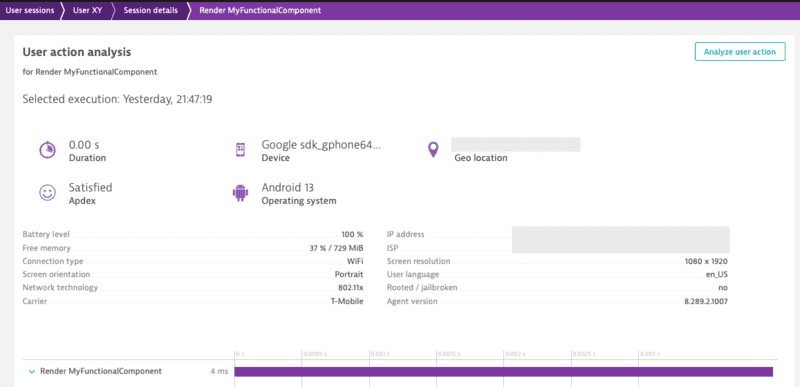
The String "MyFunctionalComponent" is optional as the name of the component can be retrieved through different properties.
Combining manual and auto instrumentation should not be a problem. As they're running the same execution, the manual instrumentation will only override the content of auto instrumentation happening through the transformer.
Create custom actions
There are two options to create an action. Either using enterAutoAction (the previous enterAction) or enterManualAction:
Important: Action names are limited to 250 characters and will be truncated if they exceed this limit.
enterAutoAction- Creates an Action which will be automatically handled by the plugin (This is the type of action which is internally used by the plugin when monitoring components and touchables). This means that the plugin decides about the hierarchy of this action. If there is no open action, the following action will be a root action. All other actions created by this method, while a root action is open, will be automatically inserted as a child action. Furthermore the plugin will automatically link webrequest (if they are not tagged manually) to the open root action. Be aware that the timeout/wait time for sub actions or web requests cannot be modified on the Android side for React Native Auto actions. The timeout is fixed to a 1000ms.
import { Dynatrace } from '@dynatrace/react-native-plugin';

const myAction = Dynatrace.enterAutoAction("MyButton tapped");
//Perform the action and whatever else is needed.
myAction.leaveAction();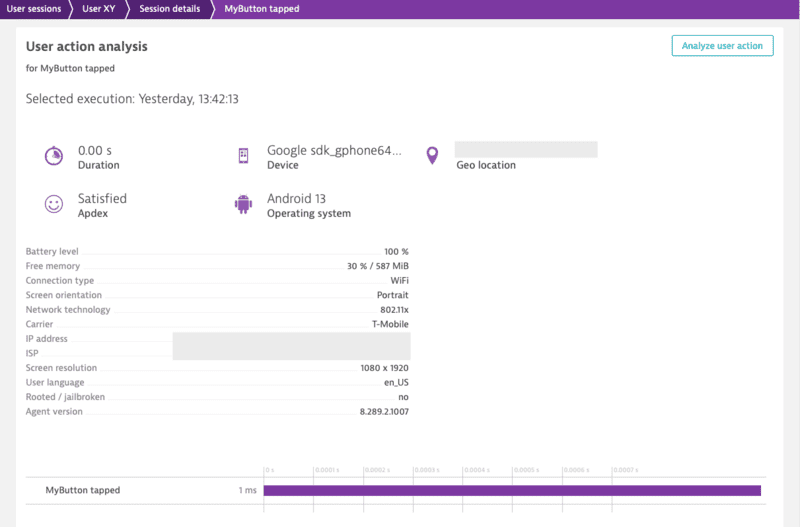
enterManualAction- Creates an Action which will NOT be handled by the plugin. This means that you have full control about the hierarchy of your actions. This function will create a root action for you, which has the ability to create child actions viaenterAction. Be aware, because of the full manual approach the plugin will not link webrequest automatically. Webrequest have to be manually tagged by using the tag provided by the action viagetRequestTag.
import { Dynatrace } from '@dynatrace/react-native-plugin';

const myAction = Dynatrace.enterManualAction("MyButton tapped");
//Perform the action and whatever else is needed.
myAction.leaveAction();
To create a custom action named "MyButton tapped", use the following code. The leaveAction closes the action again. To report values for this action before closing, see Report Values.
import { Dynatrace } from '@dynatrace/react-native-plugin';

const myAction = Dynatrace.enterAutoAction("MyButton tapped");
//Perform the action and whatever else is needed.
myAction.leaveAction();
Create custom sub actions
You can create a single custom action as well as sub actions. The MyButton Sub Action is automatically put under the MyButton tapped. As long as MyButton tapped is open, it gathers all the web requests.
Important: Action names are limited to 250 characters and will be truncated if they exceed this limit.
import { Dynatrace } from '@dynatrace/react-native-plugin';

const myAction = Dynatrace.enterManualAction("MyButton tapped");
const mySubAction = myAction.enterAction("MyButton Sub Action");
//Perform the action and whatever else is needed.
mySubAction.leaveAction();
myAction.leaveAction();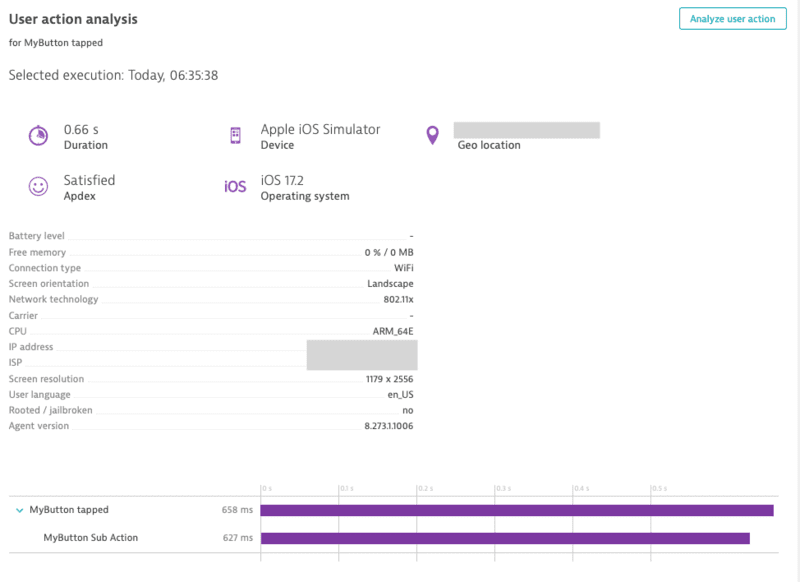
Cancel actions
Actions can be canceled. That means they will not be sent and discarded fully. This also means that any values and sub actions attached to the action will be removed.
import { Dynatrace } from '@dynatrace/react-native-plugin';

const myAction = Dynatrace.enterAutoAction("MyButton tapped");
// Action will be canceled
myAction.cancel();

// Has no impact as the action is already canceled
myAction.leaveAction();
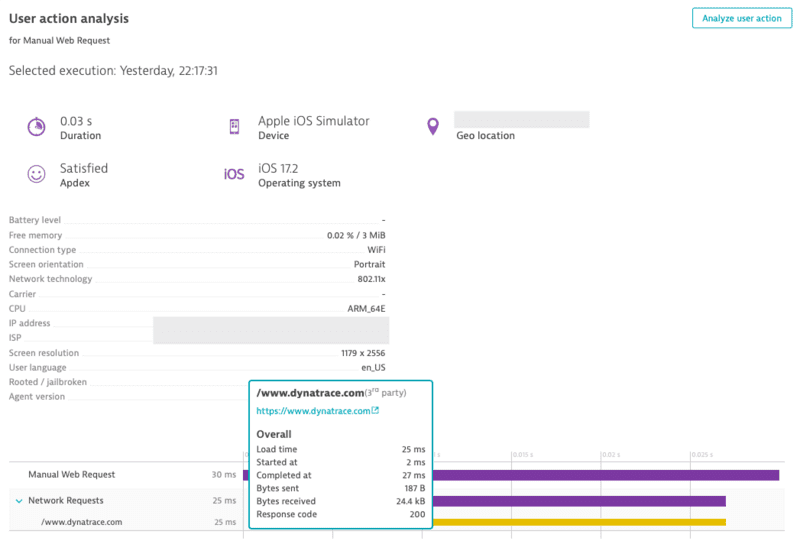
Manual Web Request Tagging
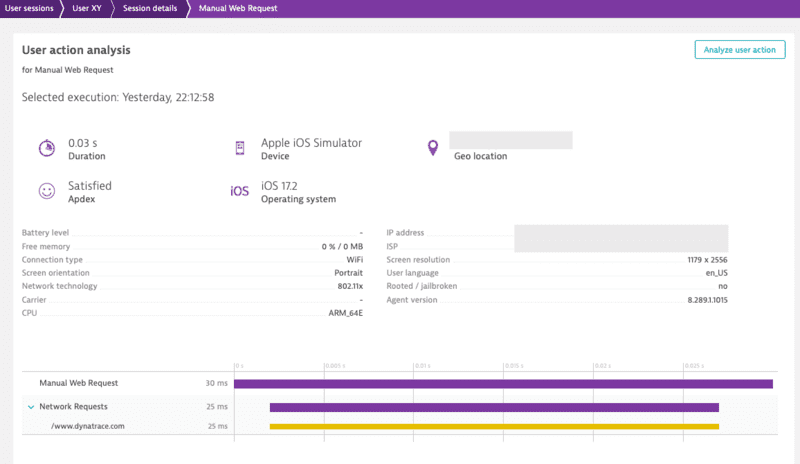
You can manually tag and time your web requests. With the API shown below, you are able to manually capture the web requests of an http framework/library.
Note: Using this API will force the request to be added to the action that is manually created.
import { Dynatrace, DynatraceWebRequestTiming } from '@dynatrace/react-native-plugin';

const action = Dynatrace.enterManualAction('API Data Fetch');
const url = 'https://api.example.com/data';
const tag = await action.getRequestTag(url);
const timing = new DynatraceWebRequestTiming(tag, url);

try {
  timing.startWebRequestTiming();
  const response = await fetch(url, {
    headers: {
      [timing.getRequestTagHeader()]: tag
    }
  });
  timing.stopWebRequestTiming(response.status, response.statusText);
} catch (error) {
  if (error instanceof Error) {
    timing.stopWebRequestTiming(-1, error.message);
  } else {
    timing.stopWebRequestTiming(-1, (error as any).toString());
  }
} finally {
  action.leaveAction();
}
There is also the option to report values for request and response size:
import { Dynatrace, DynatraceWebRequestTiming } from '@dynatrace/react-native-plugin';

const action = Dynatrace.enterManualAction('API Data Upload');
const url = 'https://api.example.com/upload';
const tag = await action.getRequestTag(url);
const timing = new DynatraceWebRequestTiming(tag, url);
const requestData = JSON.stringify({ key: 'value' });

try {
  timing.startWebRequestTiming();
  const response = await fetch(url, {
    method: 'POST',
    headers: {
      [timing.getRequestTagHeader()]: tag,
      'Content-Type': 'application/json'
    },
    body: requestData
  });
  const responseData = await response.text();
  timing.stopWebRequestTimingWithSize(
    response.status,
    response.statusText,
    requestData.length,
    responseData.length
  );
} catch (error) {
  if (error instanceof Error) {
    timing.stopWebRequestTiming(-1, error.message);
  } else {
    timing.stopWebRequestTiming(-1, (error as any).toString());
  }
} finally {
  action.leaveAction();
}
Report values
For any open action you can report certain values. The following API is available for action:
import { Platform } from '@dynatrace/react-native-plugin';

interface IDynatraceAction {
  reportDoubleValue(valueName: string, value: number, platform?: Platform): void;
  reportError(errorName: string, errorCode: number, platform?: Platform): void;
  reportEvent(eventName: string, platform?: Platform): void;
  reportIntValue(valueName: string, value: number, platform?: Platform): void;
  reportStringValue(valueName: string, value: string, platform?: Platform): void;
}
Important: All string parameters (errorName, eventName, valueName, value) are limited to 250 characters and will be truncated if they exceed this limit.
To report a string value, use the following:
import { Dynatrace } from '@dynatrace/react-native-plugin';

const myAction = Dynatrace.enterAutoAction("MyButton tapped");
myAction.reportStringValue("ValueName", "ImportantValue");
myAction.leaveAction();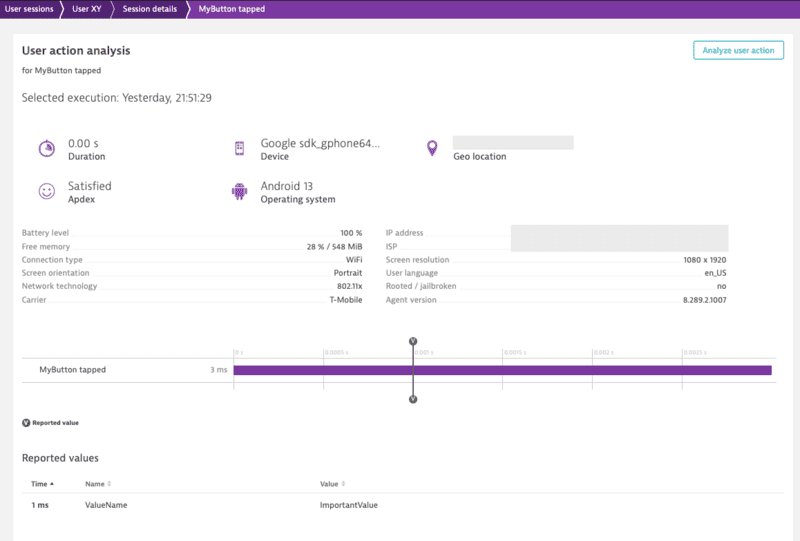
If you look at the API calls, you will see the optional parameter platform?: Platform. This parameter offers the possibility to report values only for a specific platform. to know more, see Platform independent reporting.
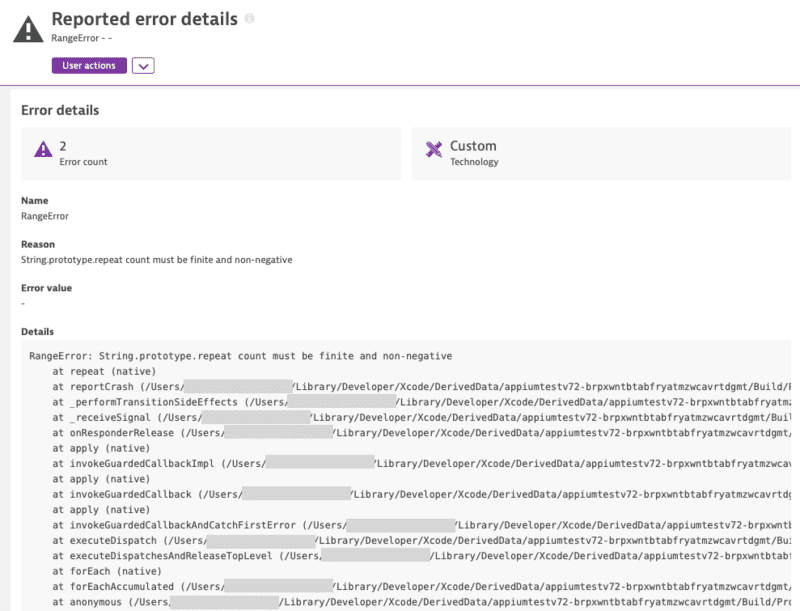
Report an error stacktrace
To manually report an error stacktrace, use the following API call:
import { Dynatrace } from '@dynatrace/react-native-plugin';

try {
  throw new Error('Database connection failed');
} catch (error) {
  if (error instanceof Error) {
    Dynatrace.reportErrorStacktrace(
      'DatabaseError',
      error.message,
      'Failed to connect to remote database',
      error.stack || 'No stack trace available'
    );
  }
}
Note: The previous API without errorValue is deprecated and will be removed in the future. Please use the new API with errorValue if possible.
Manually report a crash
You can manually report a crash via the following API calls:
import { Dynatrace } from '@dynatrace/react-native-plugin';

try {
  throw new Error('Fatal memory allocation failure');
} catch (error) {
  if (error instanceof Error) {
    Dynatrace.reportCrash(
      'MemoryError',
      error.message,
      error.stack || 'No stack trace available'
    );

    // or directly via the full error
    Dynatrace.reportCrashWithException('MemoryError', error);
  }
}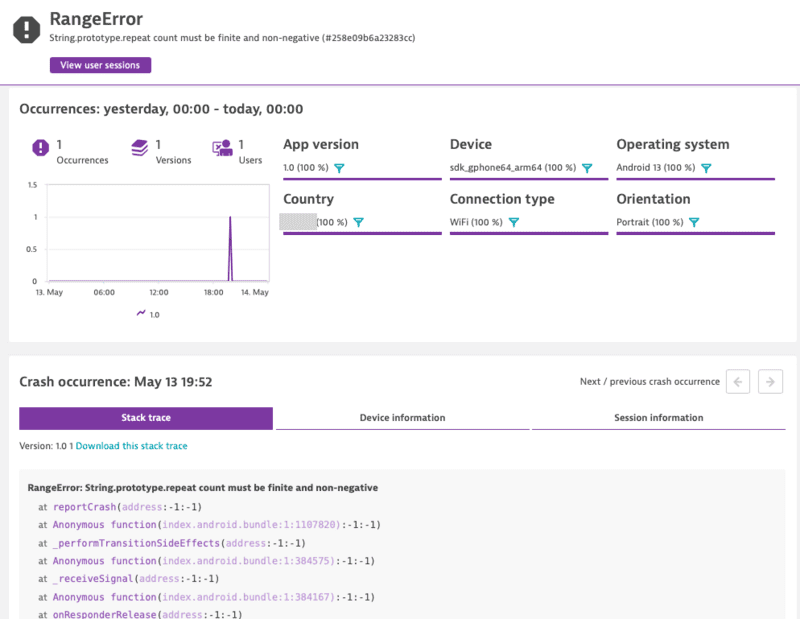
Note: If you use this API call to report a crash manually, it will force the session to be completed. Any new actions that are captured afterwards will be added into a new session.
reportCrashWithException will use the crashName as name for the crash. It will only report the crash if there is also a stacktrace available.
Report GPS Location
You can report latitude and longitude and specify an optional platform.
import { Dynatrace } from '@dynatrace/react-native-plugin';

Dynatrace.setGPSLocation(48.31518732698596, 14.305245274594471);
Platform independent reporting
You probably noticed that each method has an additional optional parameter named platform of type Platform. You can use this to only trigger manual instrumentation for a specific OS. The available values are: Platform.Ios and Platform.Android. Default is that it will work on any platform. Otherwise it is passed only to the relevant OS. For example:
- Passing to iOS only:
import { Dynatrace, Platform } from '@dynatrace/react-native-plugin';

const myAction = Dynatrace.enterAutoAction("MyButton tapped", Platform.Ios);
//Perform the action and whatever else is needed.
myAction.leaveAction(Platform.Ios); - Passing to Android only:
import { Dynatrace, Platform } from '@dynatrace/react-native-plugin';

const myAction = Dynatrace.enterAutoAction("MyButton tapped", Platform.Android);
//Perform the action and whatever else is needed.
myAction.leaveAction(Platform.Android); - Passing to both:
import { Dynatrace } from '@dynatrace/react-native-plugin';

const myAction = Dynatrace.enterAutoAction("MyButton tapped");
//Perform the action and whatever else is needed.
myAction.leaveAction();
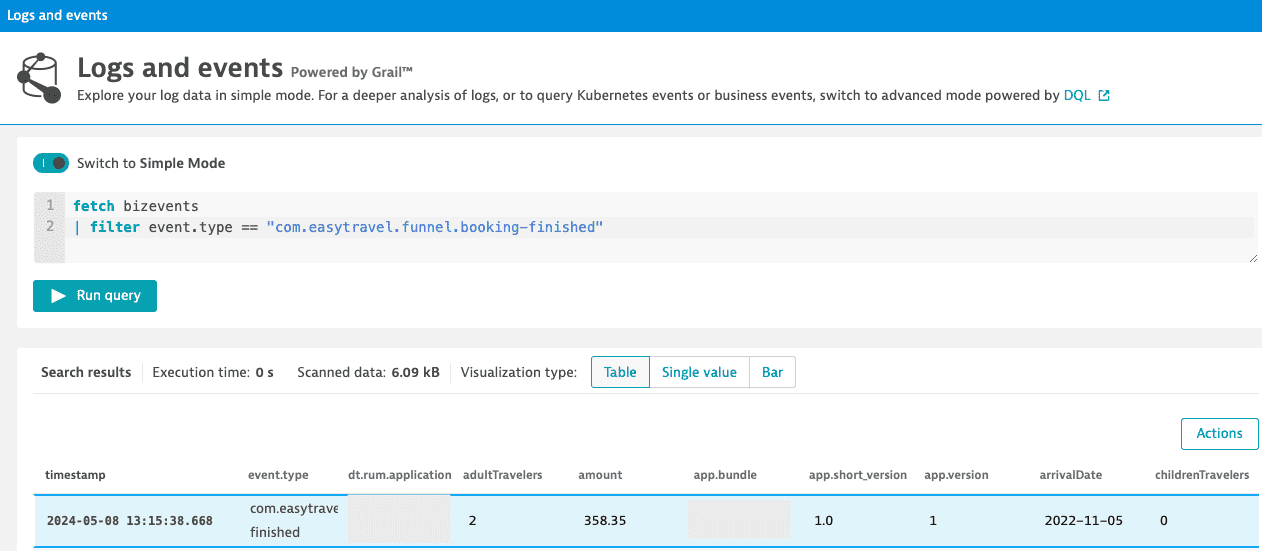
Business event capturing
With sendBizEvent, you can report business events. These events are standalone events, as OneAgent sends them detached from user actions or user sessions.
For more information on business events, see dynatrace documentation.
import { Dynatrace } from '@dynatrace/react-native-plugin';

Dynatrace.sendBizEvent("com.easytravel.funnel.booking-finished", {
  "event.name" : "Confirmed Booking",
  "screen": "booking-confirmation",
  "product": "Danube Anna Hotel",
  "amount": 358.35,
  "currency": "USD",
  "reviewScore": 4.8,
  "arrivalDate": "2022-11-05",
  "departureDate": "2022-11-15",
  "journeyDuration": 10,
  "adultTravelers": 2,
  "childrenTravelers": 0
});
Setting beacon headers
This allows you to put a set of http headers on every agent http request (i.e. Authorization header etc.). It will also triggers the agent to reconnect to the beacon endpoint with the new headers.
Note: To clear the previously set headers, call the method without the headers parameter or with a null value for the headers parameter.
import { Dynatrace } from '@dynatrace/react-native-plugin';

const beaconHeaders = new Map<string, string>();
beaconHeaders.set('headerName', 'headerValue');
Dynatrace.setBeaconHeaders(beaconHeaders);
Exclude Individual JSX Elements
If you want to instrument a functional component or class component but want to exclude a certain button or element, you can do this via the dtActionIgnore property. Example:
import React from 'react';
import { TouchableHighlight, Text, View } from 'react-native';

const TouchableHighlightScreen = () => {
    return (
        <View>
            <TouchableHighlight onPress={onPress}>
                <Text>TouchableHighlight that will be monitored</Text>
            </TouchableHighlight>
            <TouchableHighlight onPress={onPress} dtActionIgnore="true">
                <Text>TouchableHighlight that will be ignored</Text>
            </TouchableHighlight>
        </View>
    );
};

const onPress = () => {
    console.log("TouchableHighlight Pressed!");
};

export default TouchableHighlightScreen;
This example shows two TouchableHighlight, which will fire the onPress() function when pressed. The property dtActionIgnore="true" will prevent the monitoring of one of them. This means that the onPress will still be executed but we will no longer create a user action which is wrapping the button click.
Attention: If you are using Typescript and want to set this property with type-safety, look here.
Extended topics
Identify a user
You can identify a user and tag the current session with a name by making the following call:
Important: The user identifier is limited to 250 characters and will be truncated if it exceeds this limit.
import { Dynatrace } from '@dynatrace/react-native-plugin';

Dynatrace.identifyUser("User XY");
End the current user session
To end the current user session, use the following API call:
import { Dynatrace } from '@dynatrace/react-native-plugin';

Dynatrace.endSession();
Note: The user tagging will not carry over to the new user session that is started after using this API. If user tagging is desired in the new user session, please ensure that you call the user tagging API.
User Privacy Options
The privacy API methods allow you to dynamically change the data-collection level based on the individual preferences of your end users. Each end user can select from three data-privacy levels:
export enum DataCollectionLevel {
    Off, Performance, UserBehavior
}- Off: Native Agent doesn't capture any monitoring data.
- Performance: Native Agent captures only anonymous performance data. Monitoring data that can be used to identify individual users, such as user tags and custom values, aren't captured.
- UserBehavior: Native Agent captures both performance and user data. In this mode, Native Agent recognizes and reports users who re-visit in future sessions.
Crash reporting is enabled by default. The Mobile agent captures all unhandled exceptions/errors and immediately sends the crash report to the server. With this API you can activate or deactivate crash reporting. To change this behaviour via the API, enable/activate userOptIn and set the User Privacy Options.
The API to get and set the current privacy level looks like this:
import { Platform, UserPrivacyOptions } from '@dynatrace/react-native-plugin';

interface IDynatrace {
  getUserPrivacyOptions(platform?: Platform): Promise<UserPrivacyOptions>;
  applyUserPrivacyOptions(userPrivacyOptions: UserPrivacyOptions, platform?: Platform): void;
}
To check the current privacy options that are set:
import { Dynatrace } from '@dynatrace/react-native-plugin';

const privacyOptions = await Dynatrace.getUserPrivacyOptions();
If you want to create a new UserPrivacyOptions object and pass it to Dynatrace:
import { Dynatrace, DataCollectionLevel, UserPrivacyOptions } from '@dynatrace/react-native-plugin';

const privacyConfig = new UserPrivacyOptions(DataCollectionLevel.UserBehavior, true);

// Getter and setter available for UserPrivacyOptions
privacyConfig.crashReportingOptedIn = false;
privacyConfig.dataCollectionLevel = DataCollectionLevel.Performance;

const level = privacyConfig.dataCollectionLevel;
const crashReporting = privacyConfig.crashReportingOptedIn;

Dynatrace.applyUserPrivacyOptions(privacyConfig);
NPX Commands
The following npx commands are available for the plugin:
- npx instrumentDynatrace - Is triggering the configuration process and will insert the configuration into the Android and iOS application. This is mandatory and should usually happen automatically when doing
react-native run-androidorreact-native run-ioscommand. - npx configDynatrace - Is checking the current configuration and is creating a default configuration if there is none.
npx instrumentDynatrace
npx instrumentDynatrace [optional: config=... gradle=... plist=...]gradle=C:\MyReactAndroidProject\build.gradle: The location of the root build.gradle file. We will assume that the other gradle file resides in/app/build.gradle. This will add the whole agent dependencies automatically for you and will update the configuration.plist=C:\MyReactIOSProject\projectName\info.plist: Tell the script where your info.plist file is. The plist file is used for updating the configuration for the agent.config=C:\SpecialFolderForDynatrace\dynatrace.config.js: If you have not got your config file in the root folder of the React Native project but somewhere else.--reset: Clear any previously-persisted custom config path and revert the Metro/Babel transformer to the defaultdynatrace.config.jslookup. Useful after switching between build flavors.
If plist=... is not provided, the plugin tries to resolve Info.plist automatically in this order:
- Resolve app name from Expo config files in the app root (
app.json,app.config.js,app.config.ts) and check common iOS plist locations. - Fallback to scanning the
ios/folder forInfo.plist.
For monorepos or multi-target iOS setups, automatic discovery can be ambiguous. In those cases, pass plist=... explicitly to select the exact file.
npx configDynatrace
npx configDynatrace [optional: config=...]config=C:\SpecialFolderForDynatrace\dynatrace.config.js: If you have not got your config file in the root folder of the React Native project but somewhere else.
Customizing paths for configuration
Note: This feature works directly on run-android, run-ios or start command only for React Native v0.60.1 or newer until v0.69.x.
MacOS Users: This feature is not working correctly on MacOS. Arguments are not passed between run-ios and starting the webserver. If you still want to use custom arguments you need to start the webserver first with custom arguments and later on executing run-ios, which will then no longer create a webserver as it is already running in background.
Our scripts assumes that the usual React Native project structure is given. The following arguments can be specified for our instrumentation script if the project structure is different.
gradle=C:\MyReactAndroidProject\build.gradle: The location of the root build.gradle file. We will assume that the other gradle file resides in/app/build.gradle. This will add the whole agent dependencies automatically for you and will update the configuration.plist=C:\MyReactIOSProject\projectName\info.plist: Tell the script where your info.plist file is. The plist file is used for updating the configuration for the agent.config=C:\SpecialFolderForDynatrace\dynatrace.config.js: If you have not got your config file in the root folder of the React Native project but somewhere else.
DYNATRACE_CONFIG environment variable
As an alternative to config=, you can set the DYNATRACE_CONFIG environment variable to specify the config file path. This is particularly useful in CI pipelines and Xcode schemes where multiple build flavors each need their own config file, because it does not require changing the instrumentation script — only the environment of the build step.
DYNATRACE_CONFIG=dynatrace.config.prod.js npx instrumentDynatracePrecedence (highest to lowest):
config=CLI argument — always winsDYNATRACE_CONFIGenvironment variable- Default
dynatrace.config.jsin the project root
Note:
DYNATRACE_CONFIGapplies to the Metro/Babel transformer as well asnpx instrumentDynatrace. This means you can set it in your Xcode scheme's environment variables to ensure the correct config is used during iOS archive/bundling, independently of what was passed to the instrumentation step.
Examples:
- React Native v0.60.1 or newer:
npx react-native run-android config=C:\SpecialFolderForDynatrace\dynatrace.config.js --port=2000- React Native v0.70.0 or newer:
npx instrumentDynatrace config=C:\SpecialFolderForDynatrace\dynatrace.config.js
npx react-native run-android --port=2000
Note: that custom arguments must not be prefixed with -- !
pnpm Monorepo Setup
In a pnpm monorepo where React Native apps share a single native project (e.g. packages/shared/android and packages/shared/ios), the native platform folders are not located inside each app directory. To use shared native projects, you must provide the paths explicitly via config=, gradle=, and plist= arguments.
Add a dedicated instrument script for each app in the root package.json of your monorepo:
"scripts": {
  "instrument:my-app": "pnpm --filter my-app exec instrumentDynatrace config=$PWD/apps/my-app/dynatrace.config.js gradle=$PWD/packages/shared/android/build.gradle plist=$PWD/packages/shared/ios/MyApp/Info.plist",
  "instrument:another-app": "pnpm --filter another-app exec instrumentDynatrace config=$PWD/apps/another-app/dynatrace.config.js gradle=$PWD/packages/shared/android/build.gradle plist=$PWD/packages/shared/ios/AnotherApp/Info.plist"
}
Then run the instrumentation for each app from the monorepo root:
pnpm instrument:my-app
pnpm instrument:another-app
Key points:
$PWDexpands to the monorepo root at the time the script runs, so all paths are absolute and unambiguous regardless of the calling directory.--filter <app-name>scopespnpm execto the correct app workspace soinstrumentDynatraceis resolved from that app'snode_modules.- The
gradle=argument accepts either abuild.gradle/build.gradle.ktsfile path or a folder path. When a file is given, the plugin derives theapp/build.gradle(.kts)path from the same directory automatically. - If your project uses Kotlin DSL, point
gradle=tobuild.gradle.ktsinstead.
Manually adding iOS OneAgent to a project
Adding the iOS agent manually depends on the availability of support for CocoaPods.
With CocoaPods support
Insert the following in your Podfile:
pod 'react-native-dynatrace', :path => '../node_modules/@dynatrace/react-native-plugin'Without CocoaPods support
- Open your project in Xcode.
- Run open
node_modules/@dynatrace/react-native-plugin/ios. - Drag
DynatraceRNBridge.xcodeprojinto your Libraries group. - Select your main project in the navigator to bring up settings.
- Under Build Phases expand the Link Binary With Libraries header.
- Scroll down and click + to add a library.
- Find and add
libRNDynatrace.aunder the Workspace group. - ⌘+B
Setup for tvOS
Note: Testing has only been done using the react-native-tvos package and currently is the only package supported with our plugin.
To allow our plugin to work with tvOS, please follow the below steps:
Before installing the plugin, add the following to your package.json:
"overrides": {
	"@dynatrace/react-native-plugin": {
		"react-native": "<insert-version-here>"
	}
},
If you are using the following "react-native": "npm:[email protected]", use the below snippet:
"overrides": {
	"@dynatrace/react-native-plugin": {
		"react-native": "0.69.8-2"
	}
},
Once the above is completed, follow the steps from the install plugin section.
When you are ready to build, make sure that you use the plist= parameter when running the npx instrumentDynatrace or npx react-native run-ios commands for the tvOS scheme.
Examples:
Using React Native v0.69.x or lower and @react-native-community/cli v8.x or lower:
npx react-native run-ios --simulator "Apple TV" --scheme "ApplicationName-tvOS" plist=/path/to/application/ios/ApplicationName-tvOS/Info.plistUsing React Native v0.70 or higher or @react-native-community/cli v9.x or higher:
// Update the Info.plist with the properties from the dynatrace.config.js file
npx instrumentDynatrace plist=/path/to/application/ios/ApplicationName-tvOS/Info.plist

// Build your tvOS application
npx react-native run-ios --simulator "Apple TV" --scheme "ApplicationName-tvOS"
For more information regarding the differences in the react native versions, please see the Note from the quick setup section.
Structure of the dynatrace.js file
The configuration is structured in the following way:
/** @type {import('@dynatrace/react-native-plugin').DynatraceUserConfiguration} */
const config = {
    react : {
      // Configuration for React Native instrumentation
    },
    android : {
      // Configuration for Android auto instrumentation
    },
    ios : {
      // Configuration for iOS auto instrumentation
    }
};
module.exports = config;
Thanks to the @type annotation above, your editor can provide autocomplete and type checking for the configuration. To ensure this works, enable checkJs in your tsconfig.json:
{
  "compilerOptions": {
    "checkJs": true
  }
}
If your tsconfig.json uses an include array, make sure dynatrace.config.js is listed — TypeScript ignores files not matched by include, even when checkJs is enabled:
{
  "include": ["**/*.ts", "**/*.tsx", "dynatrace.config.js"]
}
Manual Startup Counterparts
Here is a list of all the counterparts for the options that can be used with a manual startup. Below in the counterparts table you will find an example configuration block for both Android and iOS.
| Property Name | Default | Android | iOS | React | |---------------|------|---------|-------------|-------------| |beaconUrl|undefined|autoStart.beaconUrl|DTXBeaconURL| - | |applicationId|undefined|autoStart.applicationId|DTXApplicationId| - | |reportCrash|true|crashReporting|DTXCrashReportingEnabled| - | |errorHandler|true| - | - |errorHandler.enabled| |reportFatalErrorAsCrash|true| - | - |errorHandler.reportFatalErrorAsCrash| |logLevel|LogLevel.Info|debug.agentLogging|DTXLogLevel| debug | |lifecycleUpdate|false| - | - | lifecycle.includeUpdate | |userOptIn|false|userOptIn|DTXUserOptIn| - | |actionNamePrivacy|false|-|-|input.actionNamePrivacy |actionNamePreference|'any'|-|-|input.actionNamePreference |actionNameAlgorithm|'depth-first'|-|-|input.actionNameAlgorithm |bundleName|undefined|-|-|bundleName
React block
The react configuration block contains all settings regarding the react instrumentation. The following options are available:
Input
react : {
  input : {
    instrument(filename) => {
      return true;
    },

    actionNamePrivacy: false,
    actionNamePreference: 'any',
    actionNameAlgorithm: 'depth-first',
  }
}
This instrument function expects you to return true or false. In this case, all files are instrumented to capture user input.
Lifecycle
react : {
  lifecycle : {
    includeUpdate : false,
    instrument(filename) => {
      // This will only capture inputs in files in the path src/screens/
      return filename.startsWith(require('path').join('src', 'screens'));
    }
  }
}
The instrument function expects you to return true or false. In this case, all files in the src/screens/ folder are instrumented to capture lifecycle changes.
Note: it is important that you input all files here where you wish lifecycle instrumentation. Probably this should contain all your "real" screens. If you return true for this function, all lifecycle events will be reported, which can be a lot in React Native.
Debug mode
react: {
  debug: true
}
This activates the debug mode. You will get more console output during instrumentation and at runtime.
User Interaction Configuration
react: {
  userInteraction: true // set it to true here if you want to enable UI interaction, default value is false
}
Enables or disables the UI interaction (user interaction) feature. Set to false to disable capturing of user interactions (for example, touch/click actions) produced by the React Native UI interaction instrumentation. See the User Interaction section for behavior, produced data, and runtime control details.
Error Handler
react: {
  errorHandler: {
    enabled: true,
    reportFatalErrorAsCrash: true,
  },
}
The enabled property activates our Error/Crash handler which will insert our handler into your React Native application. This is true per default.
The reportFatalErrorAsCrash property should be set to false if you are wanting to report a fatal/unhandled error as an error and NOT a crash. Setting this value to false will keep the current session open.
Note:
if enabled is set to false, the value of reportFatalErrorAsCrash is not be considered/used as our error handler will not be started.
Autostart
react: