@ea-controls/layout
v18.0.2
Published
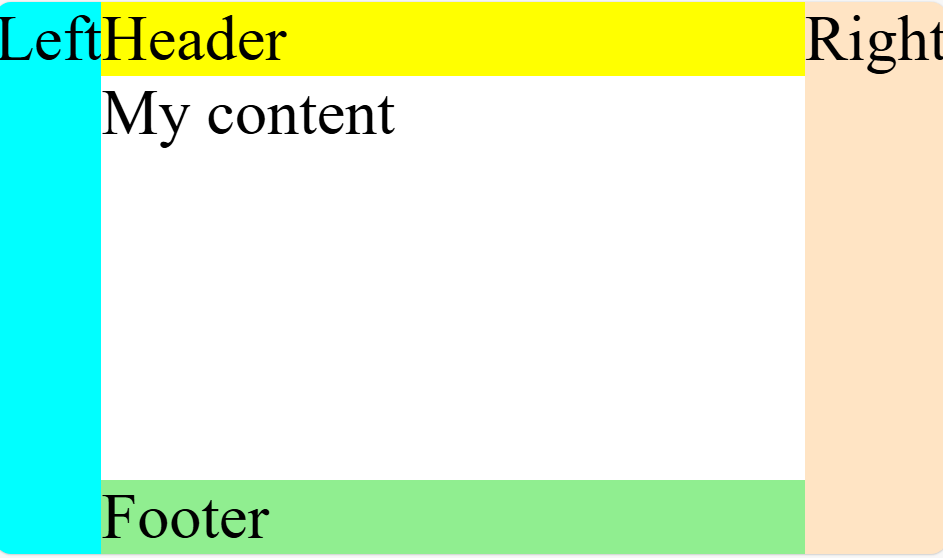
The Layout component allows flexible positioning options with the ability to choose between vertical and horizontal layouts.

Maintainers
 eaar0890
Readme
Layout
The Layout component allows flexible positioning options with the ability to choose between vertical and horizontal layouts.
Demo
Check out the demo on StackBlitz: Demo
Installation
npm i @ea-controls/layoutInstructions
Modules
Import the LayoutComponent from @ea-controls/layout in your TypeScript file:
import { LayoutComponent } from '@ea-controls/layout';Usage
Apply these CSS rules to your main container tags (html, body, and app-root) in your styles.scss:
html,
body,
app-root {
    width: 100%;
    height: 100%;
    box-sizing: border-box;
    margin: 0;
    padding: 0;
}
Use the <ea-layout> tag to start defining your layout. You can use optional attributes in your sections:
ea-headerea-footerea-left-sidebarea-right-sidebar
By default, all positioned sections are fixed, and content has overflow (which can be overridden with styles if necessary).
<ea-layout mode="vertical | horizontal">

    <section ea-header style="background-color: yellow;">
        Header
    </section>

    <section ea-left-sidebar style="background-color: aqua;">
        Left Sidebar
    </section>

    <section ea-right-sidebar style="background-color: bisque;">
        Right Sidebar
    </section>

    <section ea-footer style="background-color: lightgreen;">
        Footer
    </section>

    <!-- Your main content goes here -->

</ea-layout>
Result
Vertical Layout
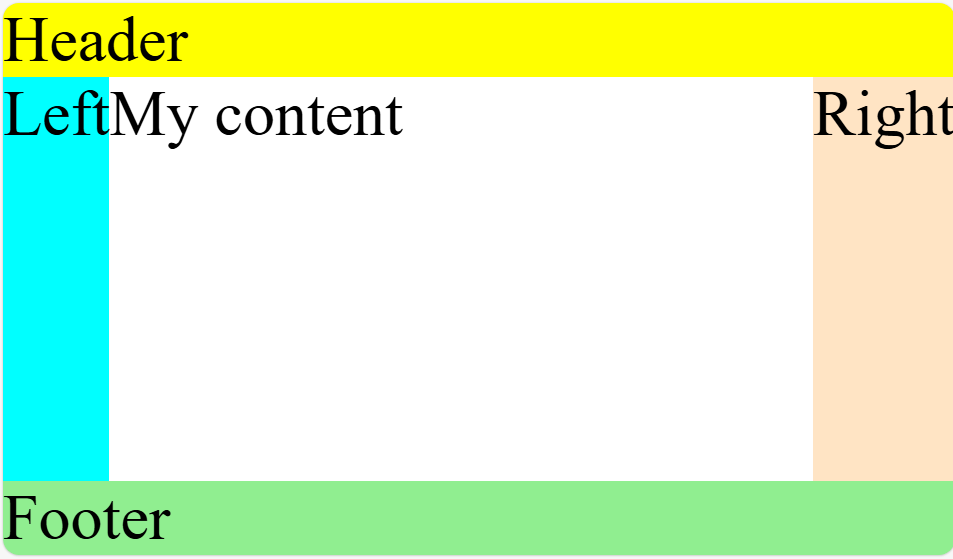
Horizontal Layout