
npm package discovery and stats viewer.

Discover Tips

  • General search

    [free text search, go nuts!]

  • Package details

    pkg:[package-name]

  • User packages

    @[username]

Sponsor

Optimize Toolset

I’ve always been into building performant and accessible sites, but lately I’ve been taking it extremely seriously. So much so that I’ve been building a tool to help me optimize and monitor the sites that I build to make sure that I’m making an attempt to offer the best experience to those who visit them. If you’re into performant, accessible and SEO friendly sites, you might like it too! You can check it out at Optimize Toolset.

About

Hi, 👋, I’m Ryan Hefner  and I built this site for me, and you! The goal of this site was to provide an easy way for me to check the stats on my npm packages, both for prioritizing issues and updates, and to give me a little kick in the pants to keep up on stuff.

As I was building it, I realized that I was actually using the tool to build the tool, and figured I might as well put this out there and hopefully others will find it to be a fast and useful way to search and browse npm packages as I have.

If you’re interested in other things I’m working on, follow me on Twitter or check out the open source projects I’ve been publishing on GitHub.

I am also working on a Twitter bot for this site to tweet the most popular, newest, random packages from npm. Please follow that account now and it will start sending out packages soon–ish.

Open Software & Tools

This site wouldn’t be possible without the immense generosity and tireless efforts from the people who make contributions to the world and share their work via open source initiatives. Thank you 🙏

© 2026 – Pkg Stats / Ryan Hefner

@finch.app/plan-mode

v0.1.8

Published

Planning mode for Finch conversations.

Readme

Plan Mode · 计划小工具

A Finch mini tool that adds a Plan Mode button to the Composer toolbar. When enabled, your AI assistant will output a structured plan only — no tool calls, no file writes — and ask for your confirmation before executing.
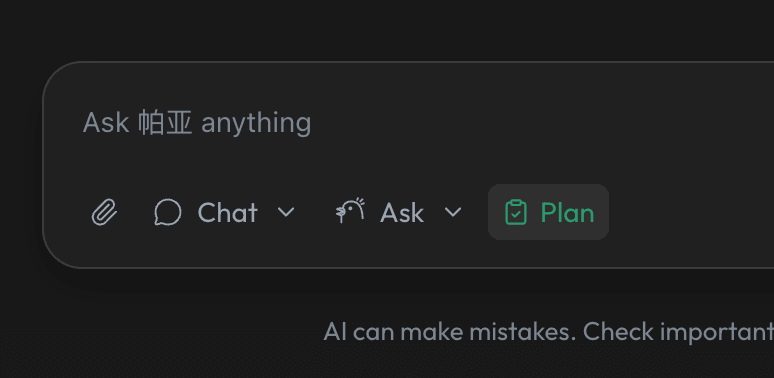
Plan Mode

Usage

  1. Click the Plan Mode button (📋) in the Composer toolbar to toggle planning mode on.
  2. Send your task as usual. The assistant will reply with a structured plan only.
  3. After each reply, a confirmation bar appears at the bottom of the Composer:
    • Execute — exits planning mode and sends a follow-up prompt to start execution.
    • Continue Planning — keeps planning mode on for another round.
  4. Click the button again at any time to exit planning mode manually.

Home page: Enabling Plan Mode on the home page applies to the next message only. A new conversation opens with planning mode already active.

Install

npx @finch.app/minitools add @finch.app/plan-mode

为 Finch 对话添加计划模式按钮。开启后,AI 助手只会输出方案,不会执行任何操作,每轮回复结束后会询问你是否开始执行。

使用方法

  1. 点击对话小工具栏中的计划模式按钮(📋)开启。
  2. 像往常一样发送任务,助手只会输出结构化方案。
  3. 每轮回复结束后,Composer 底部出现确认条:
    • 执行 — 关闭计划模式,自动发送一条引导语驱动助手执行方案。
    • 继续计划 — 保持计划模式,继续下一轮计划。
  4. 随时再次点击按钮手动退出计划模式。

首页: 在首页开启计划模式,仅对下一条消息生效,发送后自动进入新对话并保持计划模式。

安装

npx @finch.app/minitools add @finch.app/plan-mode