
@frkntmbs/strapi-plugin-video-optimizer
v1.0.4
Published
Per-video optimization controls for the Strapi Media Library upload flow with async FFmpeg processing.

Maintainers
 frkntmbs
Readme
Strapi Plugin Video Optimizer
Per-video optimization controls for the Strapi 5 Media Library upload flow, with async FFmpeg encoding.
npm install @frkntmbs/strapi-plugin-video-optimizer


GitHub · Issues · npm · Image Optimizer
Overview
Strapi's Media Library uploads videos as-is unless you add custom server logic. There is no built-in way to choose different encoding settings per file at upload time, and video transcoding can block the upload request on small servers.
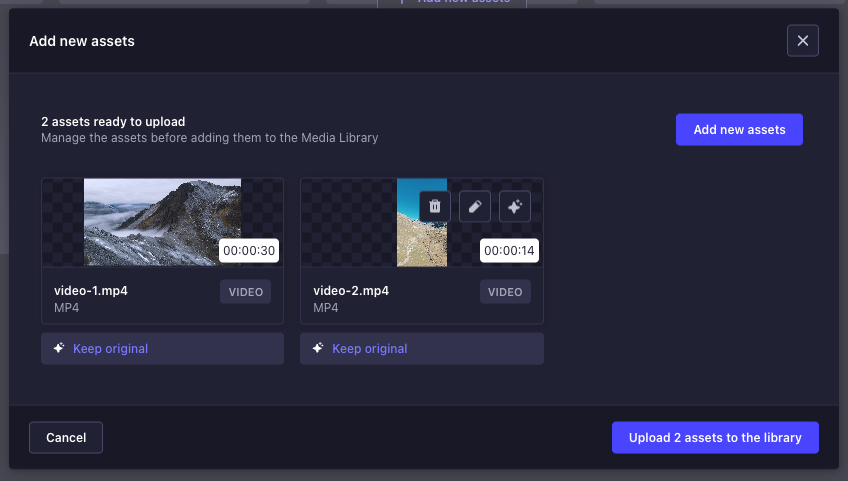
Video Optimizer adds a sparkle button to each pending upload card and to existing videos in the Media Library. Before or after upload, you can choose to keep the file unchanged, apply your global profile, or configure format, quality, audio, and output dimensions for that specific video.
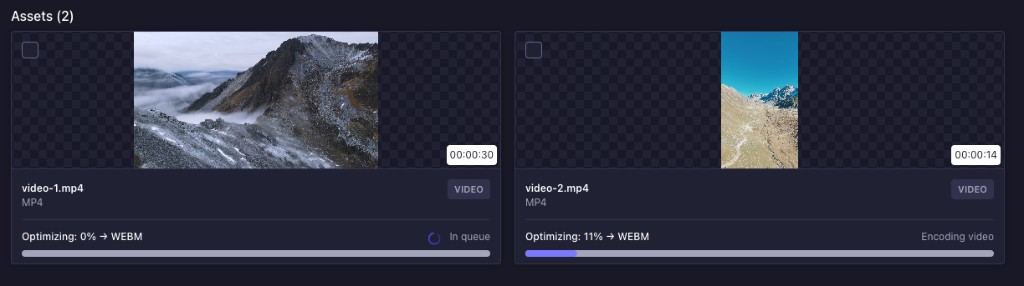
Encoding runs asynchronously in the background — the original file appears in the Media Library immediately, and FFmpeg replaces it when the job completes.
Server notice: Video encoding is CPU-intensive. Large files can consume significant server resources. Use
maxConcurrentJobsandmaxFfmpegThreadson small VPS hosts. This plugin is recommended for server/VPS environments where FFmpeg is available.
Upload UX mirrors strapi-plugin-image-optimizer; image processing is replaced with FFmpeg-based video encoding.
Screenshots
Media Library upload
Each pending video shows the current optimization choice and a sparkle button to open per-file settings.
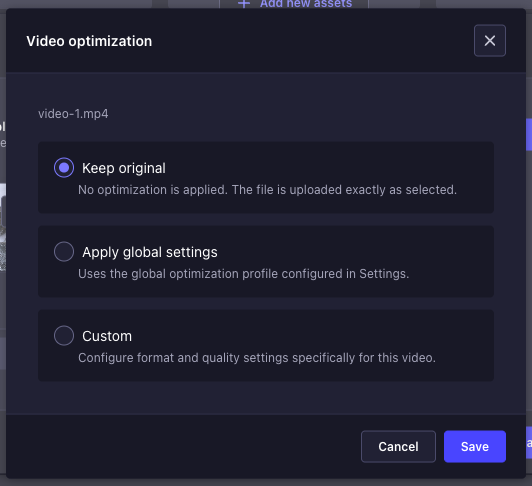
Optimization choice
Pick Keep original, Apply global settings, or Custom for the selected video.
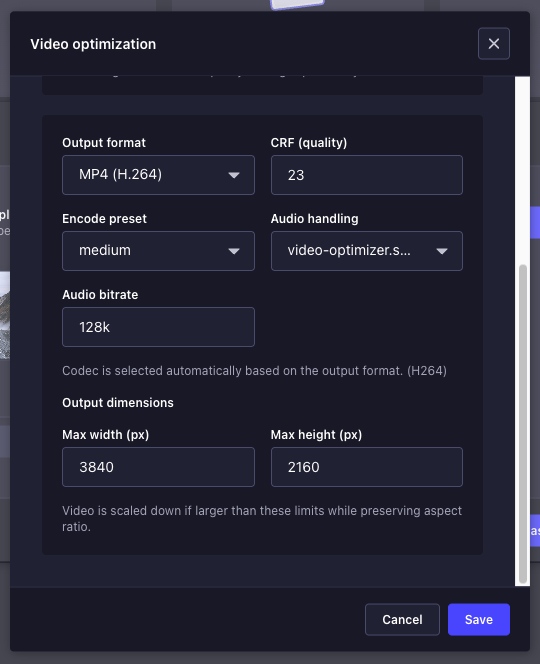
Custom per-file settings
In Custom mode, configure output format, CRF, encode preset, audio handling, and output dimensions. Width and height default to the original video size; changing one value updates the other to preserve aspect ratio.
Media Library progress
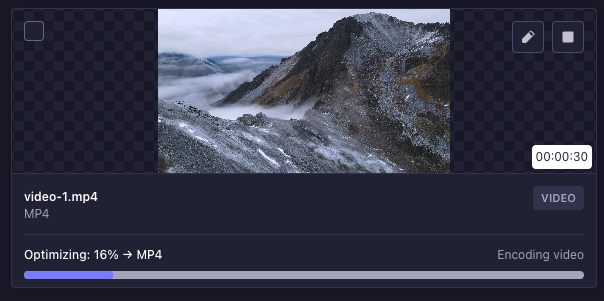
After upload, active jobs show a progress bar on each card — In queue with a spinner, then Encoding video with a percentage.
Media Library card actions
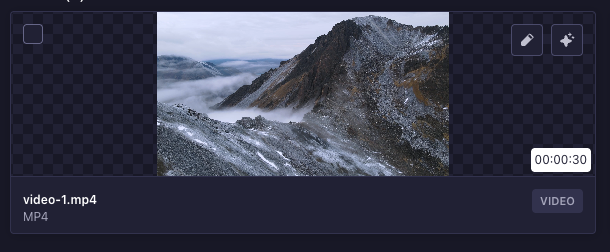
Hover an existing video to re-optimize (sparkle) or cancel an active encode job (stop).
Global settings
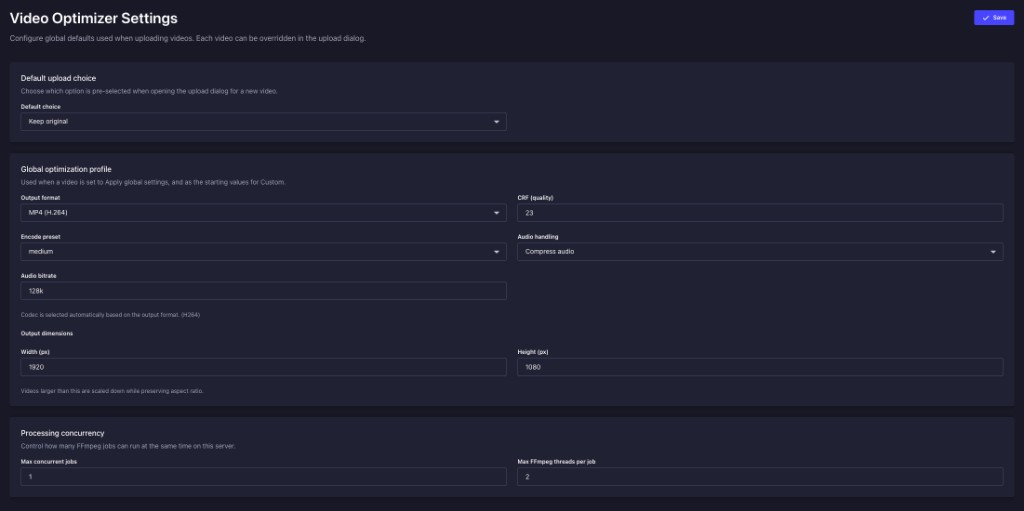
Configure default upload choice, the global optimization profile, and server concurrency limits under Settings → Global → Video Optimizer.
Features
- Three upload modes — Keep original, Apply global settings, or Custom per file
- Two output formats — MP4 (H.264) and WebM (VP9)
- Custom encode controls — CRF, x264 preset, audio keep / remove / compress, audio bitrate
- Custom resize — Set output width and height with automatic aspect-ratio preservation (defaults to source dimensions)
- Global settings page — Configure defaults under Settings → Global → Video Optimizer
- Async job queue — Upload returns immediately; FFmpeg runs in the background
- Concurrency limits —
maxConcurrentJobsandmaxFfmpegThreadsfor weak VPS servers - Media Library progress — Queued / processing / failed status with progress bar on each card
- Re-optimize & cancel — Sparkle and stop buttons on existing Media Library video cards
- Admin i18n — English and Turkish translations included
- Role-based access — Separate permissions for reading and updating global settings
How it works
flowchart LR
  uploadModal[UploadModal] --> sparkleBtn[SparkleButton]
  sparkleBtn --> choicePanel[ChoicePanel]
  choicePanel --> fetchPatch[FetchPatch]
  fetchPatch --> videoOptimizerPrefs[videoOptimizerPreferences]
  videoOptimizerPrefs --> uploadStore[MediaLibraryUpload]
  uploadStore --> jobQueue[BackgroundJobQueue]
  jobQueue --> ffmpegEncode[FFmpegEncode]
ffmpegEncode --> mediaLibrary[MediaLibrary]- You pick optimization settings in the upload dialog (or re-open settings from the Media Library).
- Preferences are sent alongside the file in a dedicated
videoOptimizerPreferencesfield (Strapi'sfileInfovalidation only allows a fixed set of keys). - The original file is stored in the Media Library immediately.
- If optimization is requested, a background job is queued and FFmpeg encodes the video.
- On success, the file record is updated in place. On failure, the original file is kept and the job status shows the error.
Requirements
- Strapi 5.x
- Node.js 20–24
@strapi/plugin-upload(included with Strapi)- FFmpeg — required for video encoding (see FFmpeg requirement below)
FFmpeg requirement
This plugin requires an FFmpeg executable at runtime. Resolution order:
ffmpeg-static— installed as an npm dependency and used when available (may pull platform-specific FFmpeg binaries intonode_modules)- System FFmpeg — if
ffmpeg-staticis unavailable, the plugin falls back to anffmpegbinary on the hostPATH
You are responsible for ensuring your FFmpeg installation and use comply with the applicable LGPL/GPL license terms.
Install FFmpeg on the host (recommended for Docker/production)
macOS
brew install ffmpegUbuntu / Debian
sudo apt update && sudo apt install ffmpegDocker
Install FFmpeg in your Strapi application image, for example:
RUN apt-get update && apt-get install -y ffmpeg && rm -rf /var/lib/apt/lists/*Or use a base image that already includes FFmpeg.
Installation
npm install @frkntmbs/strapi-plugin-video-optimizerEnable and configure the plugin in config/plugins.ts:
export default {
  'video-optimizer': {
    enabled: true,
    config: {
      defaultChoice: 'original',
      defaultFormat: 'mp4',
      videoCodec: 'h264',
      crf: 23,
      preset: 'medium',
      maxWidth: 1920,
      maxHeight: 1080,
      audioMode: 'compress',
      audioBitrate: '128k',
      maxConcurrentJobs: 1,
      maxFfmpegThreads: 2,
    },
  },
};
Rebuild the admin panel and restart Strapi:
npm run build
npm run develop
When installed from npm, no resolve path is required — Strapi loads the plugin from node_modules automatically.
Configuration
All options can be set in config/plugins.ts (defaults) and overridden from the admin settings page (stored in the plugin store).
| Option | Type | Default | Description |
|--------|------|---------|-------------|
| defaultChoice | 'original' | 'global' | 'custom' | 'original' | Pre-selected option when opening the upload dialog for a new video |
| defaultFormat | 'mp4' | 'webm' | 'mp4' | Output container format for global / custom profiles |
| videoCodec | 'h264' | 'vp9' | 'h264' | Video codec (selected automatically from format) |
| crf | 0–51 | 23 | Constant Rate Factor — lower = better quality, larger file |
| preset | x264 preset | 'medium' | Encode speed vs compression (H.264 only) |
| maxWidth | number | 1920 | Global profile: max width ceiling (fit-within, scale down if exceeded) |
| maxHeight | number | 1080 | Global profile: max height ceiling (fit-within, scale down if exceeded) |
| audioMode | 'keep' | 'remove' | 'compress' | 'compress' | Audio track handling |
| audioBitrate | string | '128k' | Audio bitrate when compressing |
| maxConcurrentJobs | 1–32 | 1 | Max parallel FFmpeg jobs on the server |
| maxFfmpegThreads | 1–8 | 2 | Max CPU threads per encode job (use 1–2 on weak VPS) |
Server resource tuning
Large videos can consume significant CPU and memory during encoding. On small VPS hosts, keep concurrency low:
| Setting | Weak VPS suggestion | Notes |
|---------|---------------------|-------|
| maxConcurrentJobs | 1 | Only one video encodes at a time |
| maxFfmpegThreads | 1–2 | Limits CPU usage per encode; not exposed in Custom mode — always read from global settings |
Thread and concurrency limits apply to all encodes (global and custom). Custom mode only controls per-video encode parameters (format, quality, dimensions, audio).
Usage
Upload flow
- Open Media Library → Add new assets
- Select one or more videos
- Hover a pending card and click the sparkle button (Optimization settings)
- Choose a mode, adjust settings if needed, and click Save
- Click Upload — each file uses the profile shown on its card footer
- Watch progress on each card while FFmpeg encodes in the background
Global defaults can be changed anytime under Settings → Global → Video Optimizer.
Upload modes
Keep original
No optimization is applied. The file is uploaded exactly as selected — same format, quality, and dimensions.
Apply global settings
Uses the global optimization profile from the settings page (format, CRF, preset, audio, max dimensions). Global width/height form a bounding box — videos are scaled down only if they exceed either limit, with aspect ratio preserved (e.g. a 1080×1920 portrait video with a 1920×1080 global profile becomes ~608×1080).
Custom
Configure settings for a single video:
- Output format — MP4 (H.264) or WebM (VP9)
- CRF & preset — Quality and encode speed
- Audio handling — Keep, remove, or compress with a target bitrate
- Output dimensions — Defaults to the original video size; change width or height to resize (the other dimension updates to preserve aspect ratio)
Re-optimize from Media Library
- Open Media Library
- Hover a video card
- Click the sparkle button to open the optimization dialog
- Choose a mode and save — a new background job is queued
Cancel an active job
While a video is queued or encoding, hover the card and click the stop button to cancel the job. If the file was deleted during encoding, the job is cancelled automatically.
Test results
Real-world encode runs on a Strapi 5 project. Results vary by source file, output format, and server CPU.
Test environment
Benchmarks below were captured on a Hetzner VPS running Strapi in production-like conditions:
| Component | Value |
|-----------|-------|
| Provider | Hetzner |
| vCPU | 2 |
| RAM | 4 GB |
| Strapi | 5.x |
| FFmpeg | ffmpeg-static (npm dependency) |
| maxConcurrentJobs | 1 |
| maxFfmpegThreads | 2 |
| Default CRF | 23 |
These results reflect a small VPS tier — weaker hosts may be slower; maxConcurrentJobs: 1 and maxFfmpegThreads: 1–2 are recommended here.
Note: Optimization controls encoding — it does not guarantee a smaller file. Re-encoding an already compressed source at the same resolution may increase size. For size reduction, raise CRF, lower resolution, or stay on H.264 instead of switching to WebM.
Test 1 — video-2.mp4 (Custom → MP4, downscale)
Source file
| Property | Value |
|----------|-------|
| File | video-2.mp4 |
| Resolution | 1080×1920 (9:16 portrait) |
| Duration | ~14.2 s |
| Video codec | H.264 |
| File size | 43.9 MB (46,009,883 bytes) |
| Bitrate | ~26 Mbps |
Optimization profile
| Setting | Value | |---------|-------| | Mode | Custom | | Output format | MP4 (H.264) | | Output dimensions | 432×768 (exact) |
Result
| Metric | Value |
|--------|-------|
| Output format | .mp4 |
| Output resolution | 432×768 |
| Output size | 2.8 MB (2,897,316 bytes) |
| Size change | −94% (43.9 MB → 2.8 MB) |
| Encode time | ~22 s (first progress → completed) |
| Realtime factor | ~0.63× (14.2 s video in ~22 s on test host) |
Server log (excerpt)
[video-optimizer] Job … progress  9% (encoding, mp4)   01:10:44
[video-optimizer] Job … progress 52% (encoding, mp4)   01:10:55
[video-optimizer] Job … progress 95% (encoding, mp4)   01:11:06
[video-optimizer] Job … progress 98% (finalizing, mp4) 01:11:06
[video-optimizer] File 2 updated in Media Library (45MB → 3MB, .mp4)
[video-optimizer] Job … completed for file 2 → .mp4 (2897316 bytes)
Downscaling a high-bitrate portrait clip produced a large file-size win. Log MB values are rounded (Math.round); actual sizes are in the table above. ECONNRESET lines in the server log came from the browser closing preview range requests while encoding continued in the background — the job still completed successfully.
Permissions
Global settings are protected by admin permissions:
| Action | Description |
|--------|-------------|
| plugin::video-optimizer.settings.read | View global Video Optimizer settings |
| plugin::video-optimizer.settings.update | Update global Video Optimizer settings |
Assign these in Settings → Administration panel → Roles for each admin role that should manage global defaults.
Limitations
- Video files only — Non-video uploads are ignored
- Async encoding — The optimized file replaces the original after the job completes; very large files may take several minutes
- Jobs on restart — Active jobs are cleared when Strapi restarts; re-upload or re-optimize manually if needed
- Custom thread limit — Per-video thread count is not configurable; use global
maxFfmpegThreads - Strapi uploads each pending card in a separate request; preferences are matched to the correct file by name and card order
Publishing
For maintainers releasing a new version to npm:
npm login
npm run build
npm run verify
npm publish --access public
Scoped package name: @frkntmbs/strapi-plugin-video-optimizer (publishConfig.access is already set to public in package.json).
Development
Clone the repository and install dependencies:
git clone https://github.com/frkntmbs/strapi-plugin-video-optimizer.git
cd strapi-plugin-video-optimizer
npm install
Build and verify the package:
npm run build
npm run verify
Link to a Strapi project
npm run watch:linkIn your Strapi app:
npx yalc add --link @frkntmbs/strapi-plugin-video-optimizer && npm install
npm run develop
Legal note
This plugin's source code is licensed under MIT.
Video encoding relies on FFmpeg, which is licensed under LGPL/GPL. By default, the plugin uses the ffmpeg-static npm package, which may install platform-specific FFmpeg binaries as a transitive dependency. When ffmpeg-static is unavailable, the plugin uses the FFmpeg executable available on the host system.
Please make sure your FFmpeg installation and use comply with the applicable LGPL/GPL license terms.
Disclaimer
This is a community plugin and is not an official Strapi plugin.
Strapi is a trademark of Strapi Solutions SAS.