
@fuxishi/svelte-jsoneditor
v1.0.3
Published
一个基于web的工具, 用于查看、编辑、格式化、转换和验证JSON, 将原本的svelte-jsoneditor项目进行汉化


Readme
svelte-jsoneditor
一个基于Web的工具,用于查看、编辑、格式化、转换和验证JSON数据。
在线体验: https://jsoneditoronline.org
该库使用Svelte编写,但也可以在纯JavaScript和任何框架(SolidJS、React、Vue、Angular等)中使用。它需要2022年3月或更新版本的浏览器。
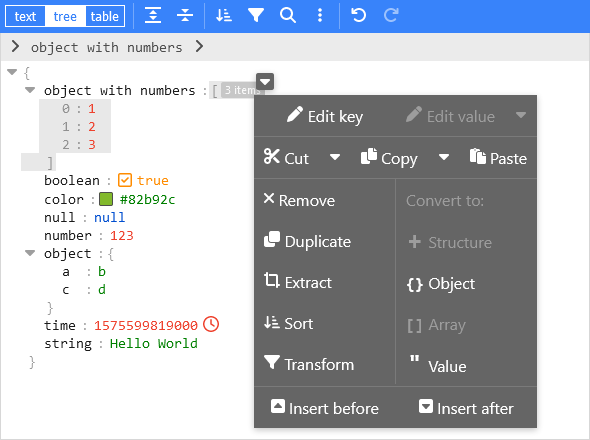
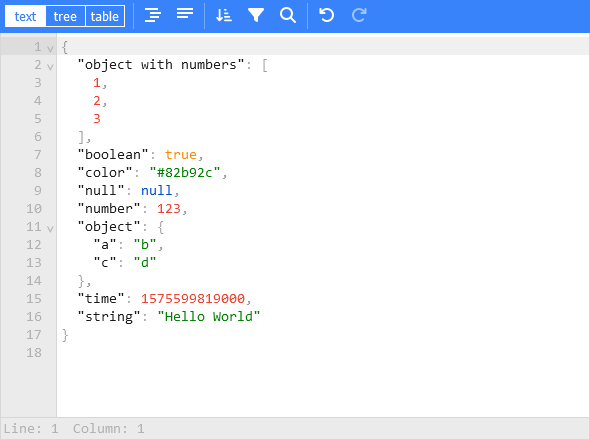
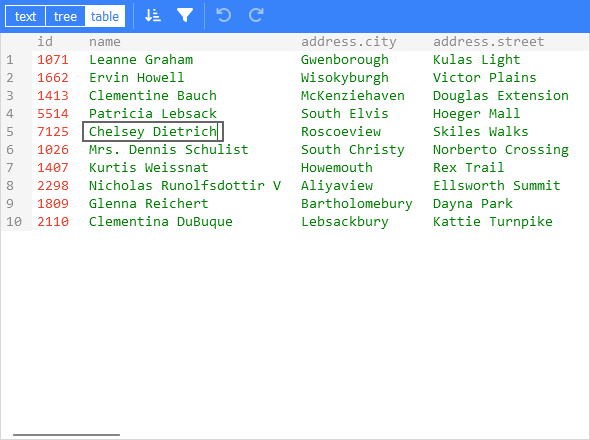
功能特点
- 查看和编辑JSON
- 提供低级别的文本编辑器和高级的树形视图、表格视图
- 格式化(美化)和压缩JSON
- 对JSON进行排序、查询、过滤和转换
- 修复JSON
- JSON Schema验证和可插拔的自定义验证
- 语法高亮、撤销/重做、搜索替换
- 实用工具如颜色选择器和时间戳标签
- 可处理最大512MB的大型JSON文档
安装
在Svelte项目中使用:
npm install svelte-jsoneditor注意:[email protected] 需要 Svelte 5。如果您使用 Svelte 3 或 4,请安装 [email protected]。
在纯JavaScript或框架如SolidJS、React、Vue、Angular等中使用:
npm install vanilla-jsoneditor有关各个版本的详细信息,请参阅 https://github.com/josdejong/svelte-jsoneditor/releases。
使用
示例
- Svelte:
- 纯JavaScript示例:
- React示例: https://stackblitz.com/edit/svelte-jsoneditor-in-react
- Vue示例: https://stackblitz.com/edit/svelte-jsoneditor-in-vue
Svelte使用方法
创建一个带有双向绑定 bind:content 的JSONEditor:
<script>
  import { JSONEditor } from "svelte-jsoneditor"

  let content = {
    text: undefined, // 可用于传递字符串化的JSON文档
    json: {
      array: [1, 2, 3],
      boolean: true,
      color: "#82b92c",
      null: null,
      number: 123,
      object: { a: "b", c: "d" },
      string: "Hello World",
    },
  }
</script>

<div>
  <JSONEditor bind:content />
</div>
或者单向绑定:
<script>
  import { JSONEditor } from "svelte-jsoneditor"

  let content = {
    text: undefined, // 可用于传递字符串化的JSON文档
    json: {
      greeting: "Hello World",
    },
  }

  function handleChange(
    updatedContent,
    previousContent,
    { contentErrors, patchResult }
  ) {
    // content 是一个对象 { json: unknown } | { text: string }
    console.log("onChange: ", {
      updatedContent,
      previousContent,
      contentErrors,
      patchResult,
    })
    content = updatedContent
  }
</script>

<div>
  <JSONEditor {content} onChange="{handleChange}" />
</div>
Vanilla包(在React、Vue、Angular、纯JavaScript中使用)
该库通过npm库vanilla-jsoneditor(而非svelte-jsoneditor)提供了一个编辑器的vanilla包,可以在任何浏览器环境和框架中使用。在React、Vue或Angular等框架中,您需要围绕类接口编写一些包装代码。
如果您有使用打包工具(如Vite、Rollup或Webpack)的项目设置,最好使用默认的ES导入:
// 用于在React、Vue或Angular项目中使用
import { JSONEditor } from "vanilla-jsoneditor"
如果您想直接在浏览器中使用,请使用提供的独立ES包:
// 用于直接在浏览器中使用
import { createJSONEditor } from "vanilla-jsoneditor/standalone.js"独立包包含vanilla-jsoneditor的所有依赖项,例如lodash-es和Ajv。如果您在项目中也使用了这些依赖项,意味着它们将在您的Web应用程序中被两次打包,导致应用程序大小不必要的增大。通常,最好使用默认的import { createJSONEditor } from 'vanilla-jsoneditor'而不是独立包,以便重用依赖项。
浏览器示例加载独立ES模块:
<!doctype html>
<html lang="en">
  <head>
    <title>JSONEditor</title>
  </head>
  <body>
    <div id="jsoneditor"></div>

    <script type="module">
      import { createJSONEditor } from 'vanilla-jsoneditor/standalone.js'

      // 或者通过CDN使用(不推荐在生产环境中使用):
      // import { createJSONEditor } from 'https://unpkg.com/vanilla-jsoneditor/standalone.js'
      // import { createJSONEditor } from 'https://cdn.jsdelivr.net/npm/vanilla-jsoneditor/standalone.js'

      let content = {
        text: undefined,
        json: {
          greeting: 'Hello World'
        }
      }

      const editor = createJSONEditor({
        target: document.getElementById('jsoneditor'),
        props: {
          content,
          onChange: (updatedContent, previousContent, { contentErrors, patchResult }) => {
            // content 是一个对象 { json: unknown } | { text: string }
            console.log('onChange', { updatedContent, previousContent, contentErrors, patchResult })
            content = updatedContent
          }
        }
      })

      // 使用get、set、update和onChange方法获取数据或修改编辑器内容
      // 使用updateProps更新属性
    </script>
  </body>
</html>
特定框架的包装库
为了更轻松地在您选择的框架中使用该库,您可以使用包装库:
API
构造函数
Svelte组件:
<script>
  import { JSONEditor } from "svelte-jsoneditor"

  let content = { text: "[1,2,3]" }
</script>

<div>
  <JSONEditor {content} />
</div>
JavaScript类:
import { createJSONEditor } from "vanilla-jsoneditor" // 或 'vanilla-jsoneditor/standalone.js'

const content = { text: "[1,2,3]" }

const editor = createJSONEditor({
  target: document.getElementById("jsoneditor"),
  props: {
    content,
    onChange: (
      updatedContent,
      previousContent,
      { contentErrors, patchResult }
    ) => {
      // content 是一个对象 { json: unknown } | { text: string }
      console.log("onChange", {
        updatedContent,
        previousContent,
        contentErrors,
        patchResult,
      })
    },
  },
})
属性
属性如content和mode要么作为属性传递给Svelte组件,如<JSONEditor {content} {mode} />,要么通过vanilla JS工厂函数的props传递:createJSONEditor({ target, props: { content, mode }.
content
content: Content传递要在JSONEditor中呈现的JSON内容。Content是一个包含属性json(已解析的JSON文档)或text(字符串化的JSON文档)的对象。必须定义这两个属性中的一个。您可以独立于编辑器的模式传递这两种内容类型。您可以使用双向绑定bind:content。
selection
selection: JSONEditorSelection | undefined当前选定的内容。您可以使用双向绑定bind:selection。tree模式支持MultiSelection、KeySelection、EditKeySelection、ValueSelection、EditValueSelection、InsideSelection或AfterSelection。table模式支持ValueSelection,而text模式支持TextSelection。
mode
mode: "tree" | "text" | "table"以'tree'模式(默认)、'table'模式或'text'模式(以前:code模式)打开编辑器。
mainMenuBar
mainMenuBar: boolean显示主菜单栏。默认值为true。
navigationBar
navigationBar: boolean显示导航栏,您可以在其中查看选定的路径并从那里导航文档。默认值为true。
statusBar
statusBar: boolean在'text'编辑器底部显示状态栏,显示有关光标位置和选定内容的信息。默认值为true。
askToFormat
askToFormat: boolean当为true(默认值)时,当紧凑文档在'text'模式中加载或粘贴时,将询问用户是否要格式化JSON文档。仅适用于'text'模式。
readOnly
readOnly: boolean以只读模式打开编辑器:不能进行更改,不相关的按钮从菜单中隐藏,并且上下文菜单未启用。默认值为false。
indentation
indentation: number | string字符串化JSON时用于缩进的空格数,或用作缩进的字符串,如'\t'使用制表符作为缩进,或' '使用4个空格(相当于配置indentation: 4)。另请参见属性tabSize。
tabSize
tabSize: number当缩进配置为制表符字符(indentation: '\t')时,tabSize配置制表符字符的渲染大小。默认值为4。仅适用于text模式。
truncateNumberSize
truncateNumberSize: numberJSON值包含的字符串长度大于truncateNumberSize字节时,将在tree模式和table模式中截断。可以通过单击字符串末尾的"显示更多"按钮来展开文本。默认值为1000字节。
escapeControlCharacters
escapeControlCharacters: boolean默认为false。当为true时,控制字符如换行符和制表符将呈现为转义字符\n和\t。仅适用于'tree'模式,在'text'模式中控制字符始终转义。
escapeUnicodeCharacters
escapeUnicodeCharacters: boolean默认为false。当为true时,unicode字符如☎和😀将呈现为转义形式,如\u260e和\ud83d\ude00。
flattenColumns
flattenColumns: boolean默认为true。仅适用于'table'模式。当为true时,嵌套对象属性将各自显示在自己的列中,列名为嵌套路径。当为false时,嵌套对象将内联呈现,双击它们将在弹出窗口中打开。
validator
validator: function (json: unknown): ValidationError[]验证JSON文档。
使用Ajv进行JSON Schema验证
您可以使用内置的由Ajv支持的JSON Schema验证器:
import { createAjvValidator } from "svelte-jsoneditor"

const validator = createAjvValidator({ schema, schemaDefinitions })
解析远程Schema
如果您希望Ajv通过其loadSchema函数加载远程schema,请使用异步验证器构建器,如下所示:
import { createAjvValidatorAsync } from 'svelte-jsoneditor'

const validator = await createAjvValidatorAsync({
  schema: {
    $ref: "/schema.json",
  },
  ajvOptions: {
    loadSchema: function (uri: string) {
      return fetch(uri).then((response) => response.json());
    },
  },
});createAjvValidatorAsync仅在Ajv加载并编译所有引用的schema后解析,或者在出错时拒绝,例如如果loadSchema返回一个被拒绝的Promise。
parser
parser: JSON = JSON配置自定义JSON解析器,如lossless-json。默认情况下,使用JavaScript的原生JSON解析器。JSON接口是一个具有parse和stringify函数的对象。例如:
<script>
  import { JSONEditor } from "svelte-jsoneditor"
  import { parse, stringify } from "lossless-json"

  const LosslessJSONParser = { parse, stringify }

  let content = { text: "[1,2,3]" }
</script>

<div>
  <JSONEditor {content} parser="{LosslessJSONParser}" />
</div>
validationParser
validationParser: JSONParser = JSON仅在提供validator时适用。这与parser相同,只是此解析器用于在将数据发送到validator之前解析数据。配置一个自定义JSON解析器,该解析器用于在传递给validator之前解析JSON。默认情况下,使用内置的JSON解析器。当传递自定义validationParser时,请确保解析器的输出受配置的validator支持。因此,当validationParser可以输出bigint数字或其他数字类型时,validator也必须支持该类型。在树形模式中,当parser不等于validationParser时,JSON文档将通过validationParser.parse(parser.stringify(json))转换,然后再传递给validator。
pathParser
pathParser: JSONPathParser一个可选的对象,具有parse和stringify方法,用于解析和字符串化JSONPath,这是一个包含属性名称的数组。pathParser用于导航栏中的路径编辑器,通过单击导航栏右侧的编辑按钮打开。pathParser.parse函数允许在输入无效时抛出Error。默认情况下,使用JSON Path表示法,看起来像$.data[2].nested.property。另外,可以使用例如JSON Pointer表示法如/data/2/nested/property或自定义表示法。相关辅助函数:parseJSONPath和stringifyJSONPath,parseJSONPointer和compileJSONPointer。
onError
onError(err: Error)发生错误时调用的回调。默认实现是在控制台记录错误并向用户显示简单的警告消息。
onChange
onChange(content: Content, previousContent: Content, changeStatus: { contentErrors: ContentErrors | undefined, patchResult: JSONPatchResult | undefined })在用户从编辑器内部进行的每次内容更改时调用的回调。在通过.set()、.update()或.patch()等方法以编程方式应用更改时不会触发。
返回的content有时是{ json }类型,有时是{ text }类型。返回哪种类型取决于编辑器的模式、应用的更改以及文档的状态(有效、无效、空)。请注意,{ text }可能包含无效的JSON:在text模式中输入时,JSON文档将暂时无效,例如当用户正在输入新字符串时。参数patchResult仅在可以表示为JSON Patch文档的更改上返回,例如在text模式中自由输入时则不返回。
onChangeMode
onChangeMode(mode: 'tree' | 'text' | 'table')在模式更改时调用。
onClassName
onClassName(path: JSONPath, value: any): string | undefined基于节点的路径和/或值,向特定节点添加自定义类名。请注意,在自定义类中,您可以覆盖CSS变量(如--jse-contents-background-color)来更改节点的样式,例如背景颜色。相关变量有:
--jse-contents-background-color
--jse-selection-background-color
--jse-selection-background-inactive-color
--jse-hover-background-color
--jse-context-menu-pointer-hover-background
--jse-context-menu-pointer-background
--jse-context-menu-pointer-background-highlight
--jse-collapsed-items-background-color
--jse-collapsed-items-selected-background-color要调整键或值的文本颜色,可以覆盖.jse-key和.jse-value类的颜色。
onRenderValue
onRenderValue(props: RenderValueProps) : RenderValueComponentDescription[]自定义值的渲染。默认情况下,使用renderValue,它将值渲染为可编辑的div,根据值还可以渲染布尔切换、颜色选择器和时间戳标签。多个组件可以彼此相邻渲染,例如布尔切换和颜色选择器在可编辑div的左侧渲染。为了禁用例如内置的颜色选择器或时间戳标签,您可以查看renderValue的源代码,复制它,然后从函数中删除不需要的组件。内置的值渲染组件:EditableValue、ReadonlyValue、BooleanToggle、ColorPicker、TimestampTag、EnumValue。
对于JSON Schema枚举,有一个现成的值渲染器renderJSONSchemaEnum,它使用EnumValue组件渲染枚举。可以这样使用:
import { renderJSONSchemaEnum, renderValue } from "svelte-jsoneditor"

function onRenderValue(props) {
  // 使用枚举渲染器,并回退到默认渲染器
  return (
    renderJSONSchemaEnum(props, schema, schemaDefinitions) || renderValue(props)
  )
}回调onRenderValue必须返回一个包含一个或多个渲染器的数组。每个渲染器可以是Svelte组件或Svelte操作:
interface SvelteComponentRenderer {
  component: typeof SvelteComponent<RenderValuePropsOptional>
  props: Record<string, unknown>
}

interface SvelteActionRenderer {
  action: Action // Svelte Action
  props: Record<string, unknown>
}SvelteComponentRenderer接口可用于提供Svelte组件,如上面提到的EnumValue组件。SvelteActionRenderer期望一个Svelte Action作为action属性。由于此接口是纯JavaScript接口,因此它允许在vanilla JS环境中创建自定义组件。基本上,它是一个接收DOM节点的函数,并需要返回一个具有update和destroy函数的对象:
const myRendererAction = {
  action: (node) => {
    // 附加到HTML DOM节点
    return {
      update: (node) => {
        // 更新DOM
      },
      destroy: () => {
        // 清理DOM
      },
    }
  },
}
onRenderMenu
onRenderMenu(items: MenuItem[], context: { mode: 'tree' | 'text' | 'table', modal: boolean, readOnly: boolean }) : MenuItem[] | undefined可用于修改菜单项的回调。可以添加新项,或删除或重新组织现有项。当函数返回undefined时,将应用原始的items。
使用上下文值mode、modal和readOnly,可以根据编辑器的模式、编辑器是否在模态框中呈现以及是否为只读采取不同的操作。
菜单项MenuItem可以是以下类型之一:
按钮:
interface MenuButton {
  type: "button"
  onClick: () => void
  icon?: IconDefinition
  text?: string
  title?: string
  className?: string
  disabled?: boolean
}
分隔符(项目组之间的灰色垂直线):
interface MenuSeparator {
  type: "separator"
}
空间(填充空余空间):
interface MenuSpace {
  type: "space"
}
onRenderContextMenu
onRenderContextMenu(items: ContextMenuItem[], context: { mode: 'tree' | 'text' | 'table', modal: boolean, readOnly: boolean, selection: JSONEditorSelection | undefined }) : ContextMenuItem[] | false | undefined可用于修改上下文菜单项的回调。可以添加新项,或删除或重新组织现有项。当函数返回undefined时,将应用原始的items,并且当readOnly为false时,将显示上下文菜单。当函数返回false时,上下文菜单将永远不会显示。当编辑器为readOnly时也会触发回调,在大多数情况下,您希望此时返回false。
使用上下文值mode、modal、readOnly和selection,可以根据编辑器的模式、编辑器是否在模态框中呈现、编辑器是否为只读以及选择的路径采取不同的操作。
菜单项ContextMenuItem可以是以下类型之一:
按钮:
interface MenuButton {
  type: "button"
  onClick: () => void
  icon?: IconDefinition
  text?: string
  title?: string
  className?: string
  disabled?: boolean
}
下拉按钮:
interface MenuDropDownButton {
  type: "dropdown-button"
  main: MenuButton
  width?: string
  items: MenuButton[]
}
分隔符(项目组之间的灰色线):
interface MenuSeparator {
  type: "separator"
}
菜单行和列:
interface MenuLabel {
  type: "label"
  text: string
}

interface ContextMenuColumn {
  type: "column"
  items: Array<MenuButton | MenuDropDownButton | MenuLabel | MenuSeparator>
}

interface ContextMenuRow {
  type: "row"
  items: Array<MenuButton | MenuDropDownButton | ContextMenuColumn>
}
onSelect
onSelect: (selection: JSONEditorSelection | undefined) => void当选择更改时调用的回调。当选择被移除时,使用undefined作为参数调用回调。在text模式中,将触发TextSelection。在tree和table模式中,将触发JSONSelection(可以是MultiSelection、KeySelection、EditKeySelection、ValueSelection、EditValueSelection、InsideSelection或AfterSelection)。使用isTextSelection和isValueSelection等类型保护来检查选择的类型。
queryLanguages
queryLanguages: QueryLanguage[]配置一个或多个可在转换模态框中使用的查询语言。该库包含以下语言:
这些语言可以如下
import {
  jsonQueryLanguage,
  jmespathQueryLanguage,
  jsonpathQueryLanguage,
  lodashQueryLanguage,
  javascriptQueryLanguage,
} from "svelte-jsoneditor"

const allQueryLanguages = [
  jsonQueryLanguage,
  jmespathQueryLanguage,
  jsonpathQueryLanguage,
  lodashQueryLanguage,
  javascriptQueryLanguage,
]
By default, only jsonQueryLanguage is loaded in the editor.
Note that both lodashQueryLanguage and javascriptQueryLanguage can execute arbitrary JavaScript code and use new Function(...) to execute the code. Therefore, they are not suitable in general to store or share queries because of the security risks. In some environments, trying to use them will result in CSP (Content Security Policy) errors depending on the security policy.
queryLanguageId
queryLanguageId: stringThe id of the currently selected query language.
onChangeQueryLanguage
onChangeQueryLanguage: (queryLanguageId: string) => voidCallback function invoked when the user changes the selected query language in the TransformModal via the configuration button top right.
onFocus()callback fired when the editor got focus.onBlur()callback fired when the editor lost focus.
methods
Methods can be called on a JSONEditor instance. In Svelte, you can create a reference and call a method like:
<script>
  let editor

  function logContents() {
    const content = editor.get() // using a method
    console.log(content)
  }
</script>

<JSONEditor bind:this={editor} />
In the vanilla editor, a factory function is used to create an editor instance:
const editor = createJSONEditor({ ... })

function logContents() {
  const content = editor.get() // using a method
  console.log(content)
}
Note that most methods are asynchronous and will resolve after the editor is re-rendered (on the next tick).
get
JSONEditor.prototype.get(): ContentGet the current JSON document.
IMPORTANT: do not mutate the received
content, that will mess up history and rendered contents. See section Immutability.
set
JSONEditor.prototype.set(content: Content): voidReplace the current content. Will reset the state of the editor. See also method update(content).
update
JSONEditor.prototype.update(content: Content): voidUpdate the loaded content, keeping the state of the editor (like expanded objects). You can also call editor.updateProps({ content }). See also method set(content).
IMPORTANT: only apply immutable changes to
content. Mutable changes will mess up history and rendered contents. See section Immutability.
patch
JSONEditor.prototype.patch(operations: JSONPatchDocument) : JSONPatchResultApply a JSON patch document to update the contents of the JSON document. A JSON patch document is a list with JSON Patch operations.
IMPORTANT: only apply immutable changes to the contents. Mutable changes will mess up history and rendered contents. See section Immutability.
updateProps
JSONEditor.prototype.updateProps(props: Object): voidTpdate some or all of the properties. Updated content can be passed too; this is equivalent to calling update(content). Example:
editor.updateProps({
  readOnly: true,
})
expand
JSONEditor.prototype.expand(path: JSONPath, callback?: (relativePath: JSONPath) => boolean = expandSelf): voidExpand paths in the editor. All nodes along the provided path will be expanded and become visible (rendered). So for example collapsed sections of an array will be expanded. Using the optional callback, the node itself and some or all of its nested child nodes can be expanded too. The callback function only iterates over the visible sections of an array and not over any of the collapsed sections. By default, the first 100 items of an array are visible and rendered.
The method expand will not collapse any nodes that are already expanded. For example, editor.expand([], relativePath => relativePath.length < 2) will not collapse any expanded nodes with a path length of 2 or larger. To achieve that, all nodes can be collapsed first using editor.collapse([]).
Examples:
editor.expand([], () => true)expand alleditor.expand([], relativePath => relativePath.length < 2)expand all paths up to 2 levels deepeditor.expand(['array', '204'])expand the root object, the array in this object, and the 204th item in the array.editor.expand(['array', '204'], () => false)expand the root object, the array in this object, but not the 204th item itself.editor.expand(['array', '204'], relativePath => relativePath.length < 2)expand the root object, the array in this object, and expand the 204th array item and all of its child's up to a depth of max 2 levels.
The library exports a couple of utility functions for commonly used callback functions:
expandAll: recursively expand all nested objects and arrays.expandNone: expand nothing, also not the root object or array.expandSelf: expand the root array or object. This is the default for thecallbackparameter.expandMinimal: expand the root array or object, and in case of an array, expand the first array item.
collapse
JSONEditor.prototype.collapse(path: JSONPath, recursive?: boolean = false): voidCollapse a path in the editor. When recursive is true, all nested objects and arrays will be collapsed too. The default value of recursive is false.
transform
JSONEditor.prototype.transform(options?: { id?: string, rootPath?: [], onTransform: ({ operations: JSONPatchDocument, json: unknown, transformedJson: unknown }) => void, onClose: () => void })Programmatically trigger clicking of the transform button in the main menu, opening the transform model. If a callback onTransform is provided, it will replace the build-in logic to apply a transform, allowing you to process the transform operations in an alternative way. If provided, onClose callback will trigger when the transform modal closes, both after the user clicked apply or cancel. If an id is provided, the transform modal will load the previous status of this id instead of the status of the editors transform modal.
scrollTo
JSONEditor.prototype.scrollTo(path: JSONPath): Promise<void>Scroll the editor vertically such that the specified path comes into view. Only applicable to modes tree and table. The path will be expanded when needed. The returned promise is resolved after scrolling is finished.
findElement
JSONEditor.prototype.findElement(path: JSONPath): Element | undefinedFind the DOM element of a given path. Returns undefined when not found.
acceptAutoRepair
JSONEditor.prototype.acceptAutoRepair(): ContentIn tree mode, invalid JSON is automatically repaired when loaded. When the repair was successful, the repaired contents are rendered but not yet applied to the document itself until the user clicks "Ok" or starts editing the data. Instead of accepting the repair, the user can also click "Repair manually instead". Invoking .acceptAutoRepair() will programmatically accept the repair. This will trigger an update, and the method itself also returns the updated contents. In case of text mode or when the editor is not in an "accept auto repair" status, nothing will happen, and the contents will be returned as is.
refresh
JSONEditor.prototype.refresh(): Promise<void>Refresh rendering of the contents, for example after changing the font size. This is only available in text mode.
validate
JSONEditor.prototype.validate() : ContentErrors | undefinedGet all current parse errors and validation errors.
select
JSONEditor.prototype.select(newSelection: JSONEditorSelection | undefined)Change the current selection. See also option selection.
focus
JSONEditor.prototype.focus(): voidGive the editor focus.
destroy
JSONEditor.prototype.destroy(): Promise<void>Destroy the editor, remove it from the DOM.
Utility functions
The library exports a set of utility functions. The exact definitions of those functions can be found in the TypeScript d
- Rendering of values:
renderValuerenderJSONSchemaEnum- Components:
BooleanToggleColorPickerEditableValueEnumValueReadonlyValueTimestampTag
- HTML:
getValueClasskeyComboFromEvent
- Validation:
createAjvValidatorcreateAjvValidatorAsync
- Query languages:
jsonQueryLanguagejmespathQueryLanguagelodashQueryLanguagejavascriptQueryLanguage
- Content:
isContentisTextContentisJSONContentisLargeContenttoTextContenttoJSONContentestimateSerializedSize
- Expand:
expandAllexpandMinimalexpandNoneexpandSelf
- Selection:
isValueSelectionisKeySelectionisInsideSelectionisAfterSelectionisMultiSelection,isEditingSelectioncreateValueSelectioncreateEditValueSelectioncreateKeySelectioncreateEditKeySelectioncreateInsideSelection,createAfterSelectioncreateMultiSelectiongetFocusPathgetAnchorPathgetStartPathgetEndPathgetSelectionPaths
- Parser:
isEqualParser
- Path:
parseJSONPathstringifyJSONPath
- Actions:
resizeObserveronEscape
- Type checking:
valueTypestringConvertisObjectisObjectOrArrayisBooleanisTimestampisColorisUrl
- Typeguards:
isContentParseErrorisContentValidationErrors
- More: you can install
immutable-json-patchand use its functions:immutableJSONPatchrevertJSONPatchparseJSONPointerparsePathparseFromcompileJSONPointercompileJSONPointerPropgetInsetInupdateIninsertAtexistsIndeleteIn
Types
The TypeScript types (like Content, JSONSelection, and JSONPatchOperation) are defined in the following source file:
https://github.com/josdejong/svelte-jsoneditor/blob/main/src/lib/types.ts
Styling
The editor can be styled using the available CSS variables. A full list with all variables can be found here:
https://github.com/josdejong/svelte-jsoneditor/blob/main/src/lib/themes/defaults.scss
Custom theme color
For example, to change the default blue theme color to anthracite:
<script>
  import { JSONEditor } from "svelte-jsoneditor"

  let content = {
    text: undefined, // can be used to pass a stringified JSON document instead
    json: {
      string: "Hello custom theme color :)",
    },
  }
</script>

<div class="my-json-editor">
  <JSONEditor bind:content />
</div>

<style>
  .my-json-editor {
    /* define a custom theme color */
    --jse-theme-color: #383e42;
    --jse-theme-color-highlight: #687177;
  }
</style>
Dark theme
The editor comes with a built-in dark theme. To use this theme:
- Load the css file of the dark theme:
themes/jse-theme-dark.css - Add the class name
jse-theme-darkof the dark theme to the HTML container element where the editor is loaded.
It is possible to load styling of multiple themes, and toggle them by changing the class name (like jse-theme-dark) attached to the HTML container element.
Full Svelte example:
<script>
  import { JSONEditor } from "svelte-jsoneditor"

  let content = {
    text: undefined, // can be used to pass a stringified JSON document instead
    json: {
      string: "Hello dark theme :)",
    },
  }
</script>

<!-- use a theme by adding its name to the container class -->
<div class="my-json-editor jse-theme-dark">
  <JSONEditor bind:content />
</div>

<style>
  /* load one or multiple themes */
  @import "svelte-jsoneditor/themes/jse-theme-dark.css";
</style>
Updating styles dynamically
When updating CSS variables dynamically, it is necessary to refresh the via editorRef.refresh() to update the font-size of the line numbers in the gutter and update the colors of the indentation markers in text mode:
<script>
  let editorRef

  function refresh() {
    editorRef?.refresh()
  }
</script>
<JSONEditor bind:this="{editorRef}" ... />
Immutability
It is important that the content of the editor is only updated in an immutable way. Mutating the content will break the history (undo/redo), and will not always immediately update the user interface according to the changes.
The reasons for requiring immutable changes are:
- It is necessary in order to support history (undo/redo).
- It allows efficiently re-rendering only changed sections of the user interface.
Other advantages of an immutable way of working are that it makes the data that you work with much more predictive and less error-prone. You can learn more about immutability by searching for articles or videos about the subject, such as this video or this article. Immutability is not always the best choice, but in the case of this JSON Editor we're dealing with large and deeply nested data structures, in which we typically make only small changes like updating a single nested value. An immutable approach really shines here, enabling svelte-jsoneditor to smoothly render and edit JSON documents up to 512 MB.
Here is an example of a mutable change:
// mutable change (NOT SUPPORTED!)
function updateDate() {
  const lastEdited = new Date().toISOString()
  const content = toJsonContent(myJsonEditor.get())
  content.json.lastEdited = lastEdited // <- this is a mutable change
  myJsonEditor.update(content)
  // ERROR: The UI will not update immediately but only update after changing something
  // inside the editor like the selection. And most importantly, history is broken now,
  // because the original document is mutated. You cannot undo this action.
}
Instead, you can apply the same change in an immutable way. There are various options for that:
// immutable change using a libary like "mutative" or "immer" (efficient and easy to work with)
import { create } from "mutative"
function updateDate1() {
  const content = toJsonContent(myJsonEditor.get())
  const updatedContent = create(content, (draft) => {
    draft.json.lastEdited = new Date().toISOString()
  })
  myJsonEditor.update(updatedContent)
}

// immutable change using "immutable-json-patch"
import { setIn } from "immutable-json-patch"
function updateDate2() {
  const content = toJsonContent(myJsonEditor.get())
  const updatedContent = setIn(
    content,
    ["json", "lastEdited"],
    new Date().toISOString()
  )
  myJsonEditor.update(updatedContent)
}

// immutable change using the spread operator (not handy for updates in nested data)
function updateDate3() {
  const content = toJsonContent(myJsonEditor.get())
  const updatedContent = {
    json: {
      ...content.json,
      lastEdited: new Date().toISOString(),
    },
  }
  myJsonEditor.update(updatedContent)
}

// immutable change by creating a deep clone (simple though inefficient)
import { cloneDeep } from "lodash-es"
function updateDate4() {
  const content = toJsonContent(myJsonEditor.get())
  const updatedContent = cloneDeep(content)
  updatedContent.json.lastEdited = new Date().toISOString()
  myJsonEditor.update(updatedContent)
}
Differences between josdejong/svelte-jsoneditor and josdejong/jsoneditor
This library josdejong/svelte-jsoneditor is the successor of josdejong/jsoneditor. The main differences are:
| | josdejong/jsoneditor | josdejong/svelte-jsoneditor |
| ------------ | -------------------------------------------------------------------------------------------------------------------- | --------------------------------------------------------------------------------------------------------------------------------------------------------------------------------------------------------------------- |
| Creation | Original (first published in 2011) | Successor (first published in 2021) |
| Framework | Implemented in plain JavaScript, using low level DOM operations | Uses Svelte |
| Tree mode | A tree view having context menu buttons on the left of every line. The keys and values are always in editable state. | A tree view utilizing right-click to open the context menu, and double-click to start editing a key or value (more similar to a Spreadsheet or text editor). It supports copy/paste from and to the system clipboard. |
| Text mode | Powered by Ace editor | Powered by Code Mirror |
| Preview mode | Used to preview large documents | Not needed, both tree and text mode can handle large documents |
The main reasons to create a new library instead of extending the existing one are:
- The codebase had become hard to maintain, the architecture needed a big overhaul. The codebase uses plain JavaScript to create and update the DOM based on changes in the state of the application. This is complex. Letting a framework like Svelte do this for you makes the code base much simpler.
- Performance limitations in the old editor.
- Tree mode: the classic tree mode of
josdejong/jsoneditoris simple and straightforward, but also limited. The new tree mode ofjosdejong/svelte-jsoneditorallows for much more streamlined editing and interaction. It works quite similar to a Spreadsheet or text editor. Navigate and select using the Arrow and Shift+Arrow keys or by dragging with the mouse. Double-click (or press Enter) to start editing a key or value. Open the context menu by right-clicking on the item or selection you want to operate on. Use cut/copy/paste to move parts of the JSON around and interoperate with other applications. - Code or text mode: the Ace editor library is using an outdated module system (AMD) and the way it is bundled and published is hard to integrate in modern JavaScript projects. Code Mirror 6 is very straightforward to integrate, has much better performance, and is very extensible (paving the way for future features).
Known issues
When the library gives compile errors in your Svelte setup, it could be related to Vite having trouble importing ESM/CommonJS libraries the right way. The error could look like:
SyntaxError: The requested module '/node_modules/json-source-map/index.js?v=fda884be' does not provide an export named 'default' (at jsonUtils.js?v=fda884be:2:8)
A workaround is to add the following to your vite.config.js file (read more):
// ...

/** @type {import('vite').UserConfig} */
const config = {
  // ...
  optimizeDeps: {
    include: [
      "ajv-dist",
      "immutable-json-patch",
      "lodash-es",
      "@fortawesome/free-regular-svg-icons",
      "jmespath",
    ],
  },
}

// ...
Develop
To get started: clone the git repository, run npm install, and then npm run dev.
All available scripts:
npm install             # Install dependencies (once)

npm run dev             # Start the demo project (at http://localhost:5173)
npm run build           # Build the library (output in ./package and ./package-vanilla)

npm run test            # Run unit tests in watch mode
npm run test-ci         # Run unit tests once
npm run coverage        # Run unit test coverage (output in ./coverage)

npm run check           # Run Svelte checks
npm run lint            # Run linter
npm run format          # Automatically fix linting issues

npm run release-dry-run # To run the build and see the change list without actually publishing
npm run release         # Publish the npm packages `svelte-jsoneditor` and `vanilla-jsoneditor`.
                        # This will test, check, lint, build, create a version tag and publish
                        # to npm and GitHub releases. This script runs automatically via the GitHub
                        # Actions workflow "Automated release" after a push to the `main` branch.
                        # Note that the script requires environment variables NPM_TOKEN and
                        # GITHUB_TOKEN.
License
svelte-jsoneditor is released as open source under the permissive the ISC license.
If you are using svelte-jsoneditor commercially, there is a social (but no legal) expectation that you help fund its maintenance. Start here.