
@geometricpanda/storybook-addon-iframe
v0.2.2
Published
A Storybook addon which allows you to add iFrames to Stories

Maintainers
 geometricpandadev
Readme

Storybook Addon iFrame
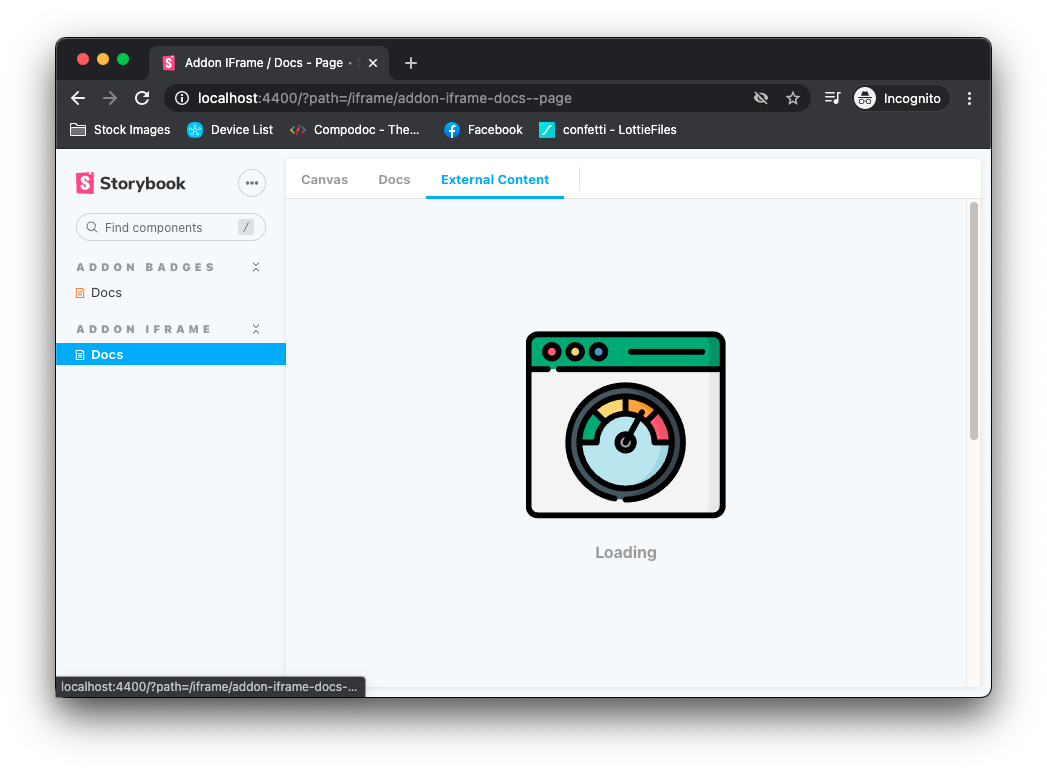
Using @geometricpanda/storybook-addon-iframe you're able to embed external content through a tab in
the Storybook toolbar.
Installation
NPM:
npm install @geometricpanda/storybook-addon-iframe --saveYarn:
yarn add @geometricpanda/storybook-addon-iframeConfiguration
In your .storybook/main.js you'll need to load @geometricpanda/storybook-addon-iframe into Storybook:
// .storybook/main.js
module.exports = {
  stories: [],
  addons: ['@geometricpanda/storybook-addon-iframe'],
};
Optionally, you can define top level config .storybook/preview.js.
// .storybook/preview.js
import { addParameters } from '@storybook/react';

addParameters({
  iframe: {
    url: 'https://www.bing.com',
    timeout: 1000,
  },
});iframe.urlconfigures the default iFrame URL, this is optional.iframe.timeoutconfigures the Delay before the iFrame has considered not to have loaded , this is optional, defaulting to 10000 (or 10 seconds)
Tip: If you prefer, instead of using the addParameters function, you can also export const parameters containing a
full parameters object.
Renaming the Tab
Whilst potentially not the most intuitive way of renaming the tab, you're able to use Storybook's standard previewTabs
functionality to rename the tab.
Due to how previewTabs works you may also need to define canvas and storybook/docs/panel in order to maintain the
default order of tabs (or configure how you wish).
// .storybook/preview.js
import { addParameters } from '@storybook/react';
import { ADDON_ID as ADDON_IFRAME } from '@geometricpanda/storybook-addon-iframe';

addParameters({
  previewTabs: {
    canvas: {},
    'storybook/docs/panel': {},
    [ADDON_IFRAME]: {
      title: 'External Content',
    },
  },
});
Component Story Format (CSF)
All Stories
The following will configure the iFrame to all components within your Story:
export default {
  title: 'Path/To/MyComponent',
  parameters: {
    iframe: {
      url: 'https://www.bing.com',
    },
  },
};

const Template = () => <h1>Hello World</h1>;

export const FirstComponent = Template.bind({});
export const SecondComponent = Template.bind({});
export const ThirdComponent = Template.bind({});
Individual Stories
You can also selectively add iFrames to each Story:
export default {
  title: 'Path/To/MyComponent',
};

const Template = () => <h1>Hello World</h1>;

export const FirstComponent = Template.bind({});
FirstComponent.parameters = {
  iframe: {
    url: 'https://www.google.com',
  },
};

export const SecondComponent = Template.bind({});
SecondComponent.parameters = {
  iframe: {
    url: 'https://www.bing.com',
  },
};

export const ThirdComponent = Template.bind({});
SecondComponent.parameters = {
  iframe: {
    url: 'https://www.yahoo.com',
    timeout: 5000,
  },
};
MDX
In your mdx documentation you can add iFrames to your stories using the <Meta> component.
import { Meta } from '@storybook/addon-docs/blocks';

<Meta
  title="Path/To/MyComponent"
  parameters={{
    iframe: {
      url: 'https://www.google.com',
    },
  }}
/>;
Known Limitations
Unfortunately due to Browser security concerns when using iFrame content served with the x-frame-options: DENY header,
the iFrame won't show the content and will instead show the browser's broken pane window. I did consider trying to resolve
this gracefully but ultimately felt it would impair the developer debug experience.