
@gradio/imageslider
v0.8.1
Published
Gradio UI packages


Readme
technical notes
tldr
- We use
object-fit: containto show the full image at all times. - This causes the DOM width of the image to differ from the real image width.
- Slider positions are based on the unscaled image's coordinate space.
- Zooming introduces translation and scale, which makes slider positions behave in surprising ways (including going negative).
details
The main challenge with this component is managing image sizing. A different approach might surface other challenges, but I wanted to document this one somewhere because it’s not particularly intuitive.
object-fit: contain
The image slider is essentially two images overlaid exactly; the “comparison” image is gradually revealed by modifying its clip-path.
We have a few key requirements:
- The whole image should be visible with no clipping.
- The DOMRect of the image should ideally match 100% of the parent’s width and height—this is crucial when zooming, as we don’t want any part of the image to get clipped.
- Both images must be identically overlaid.
We use a few standard CSS techniques to achieve this, but the key part for this discussion is object-fit: contain.
This is a great CSS property and ensures that the entire image is always visible which is a great baseline for the image slider. The challenge (and also the benefit) of object-fit: contain is that an image with width: 100% and this property will stretch to the full width of its parent, even if the image itself is narrower.
This is problematic because slider-progress should be relative to the unscaled image, not the container box. When someone sets slider_position=10 that should be 10% across the image, not the container.
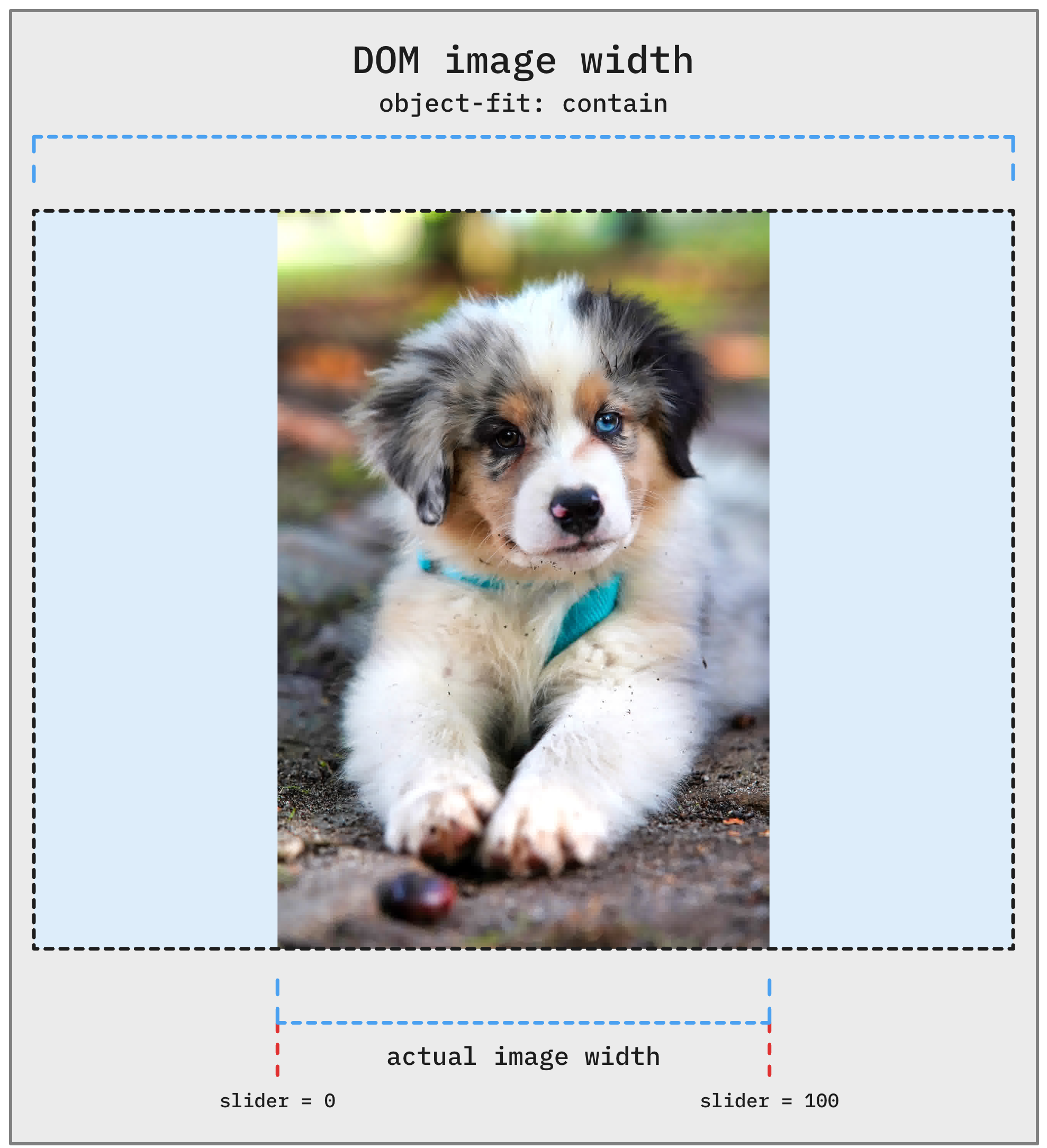
This is fine. We manually calculate the “real” image width and offsets (there’s no built-in API for this), and map slider position values accordingly. It works, but introduces a few quirks:
zooming needs to know about the 'real' image size.
The zoom applies constraints to prevent users from dragging the image out of view, so it needs to know the image's true start and end positions (i.e. the actual pixel bounds of the image within the container).
slider positions can become 'negative' (and this is ok).
This is confusing but bear with me.
At the default zoom level, slider = 0 and slider = 100 correspond to the actual edges of the image. Makes sense. But when we zoom in, we still use the same 'unscaled, actual image coordinate space'.
So now, say the slider is at 25: it still refers to 25% across the unscaled image. But visually, that might no longer line up with the expected spot in the zoomed view. It’s viewport-relative, but calculated against a base coordinate system that isn’t.
I did a picture to help conceptualise. Here we zoom (scale and translate) but the slider stays in the same position on the screen, corresponding to its 25% of image width + left offset origin.
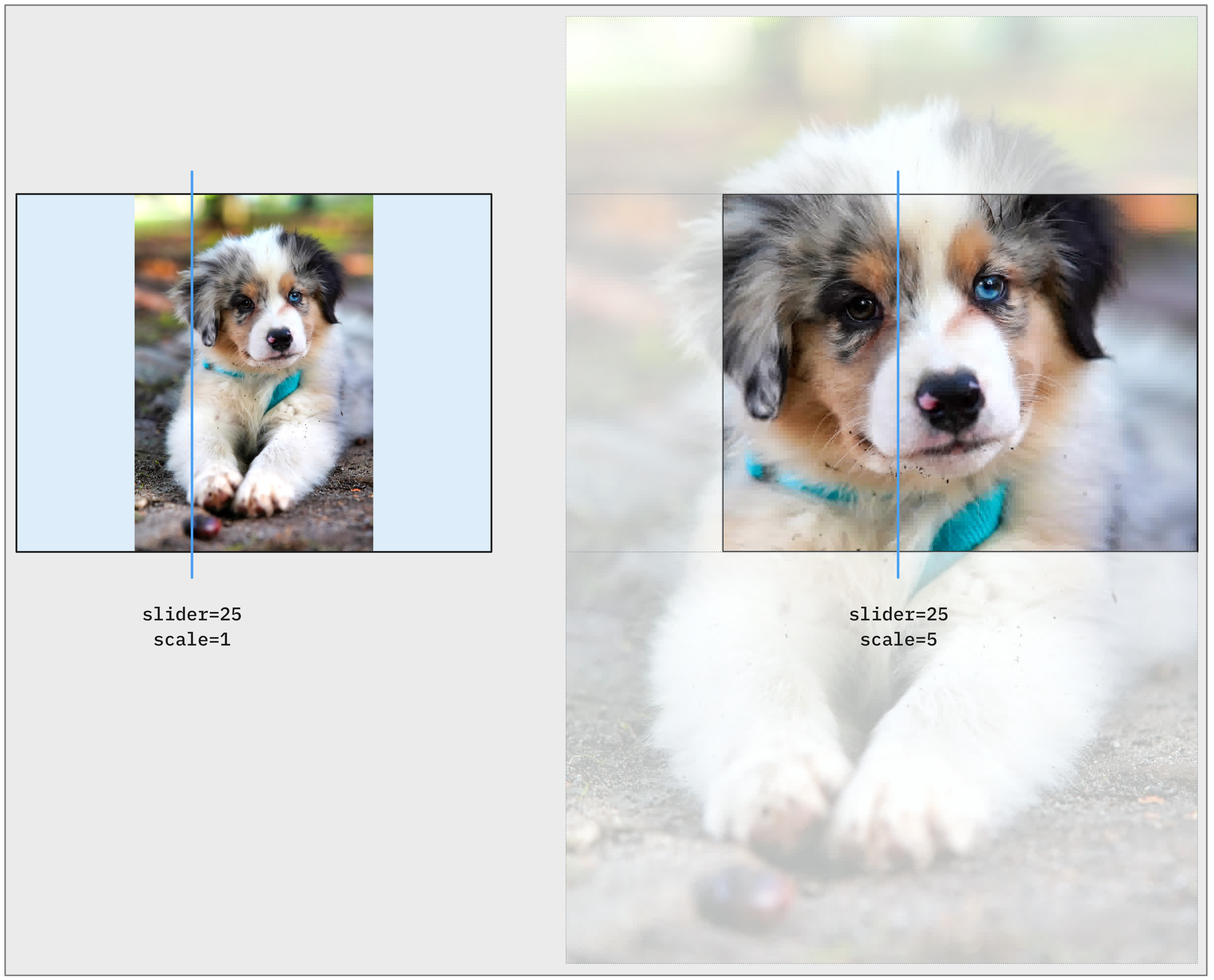
Because of this, the 0 point might actually lie partway into the image’s visible region when zoomed. This means we can't actually compare the whole image at higher zoom levels unless we allow negative slider positions.
So that's exactly what we do.
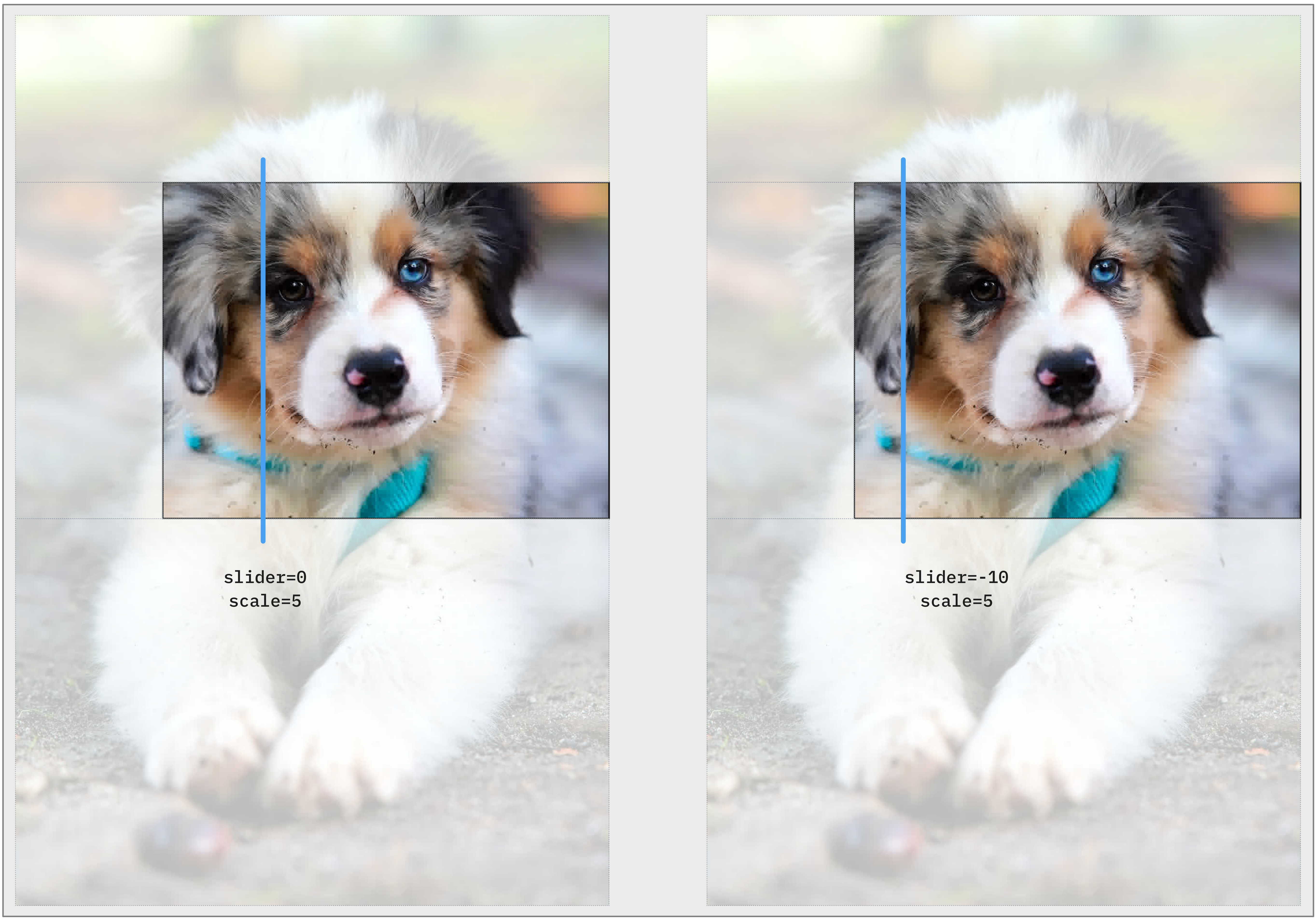
The image slider performs a fair amount of translation and projections, nothing absurd but there is enough. We need to make sure that any time we are interacting with the slider position, our calculations can handle negative values.
We also need to dynamically clamp the slider position, based on:
- the current zoom scale
- any translation offsets
- the real image bounds (not just the DOMRect)