
@gravity-ui/aikit
v2.20.0
Published
Gravity UI base kit for building ai assistant chats
Downloads
38,549


Readme
AIKit · 


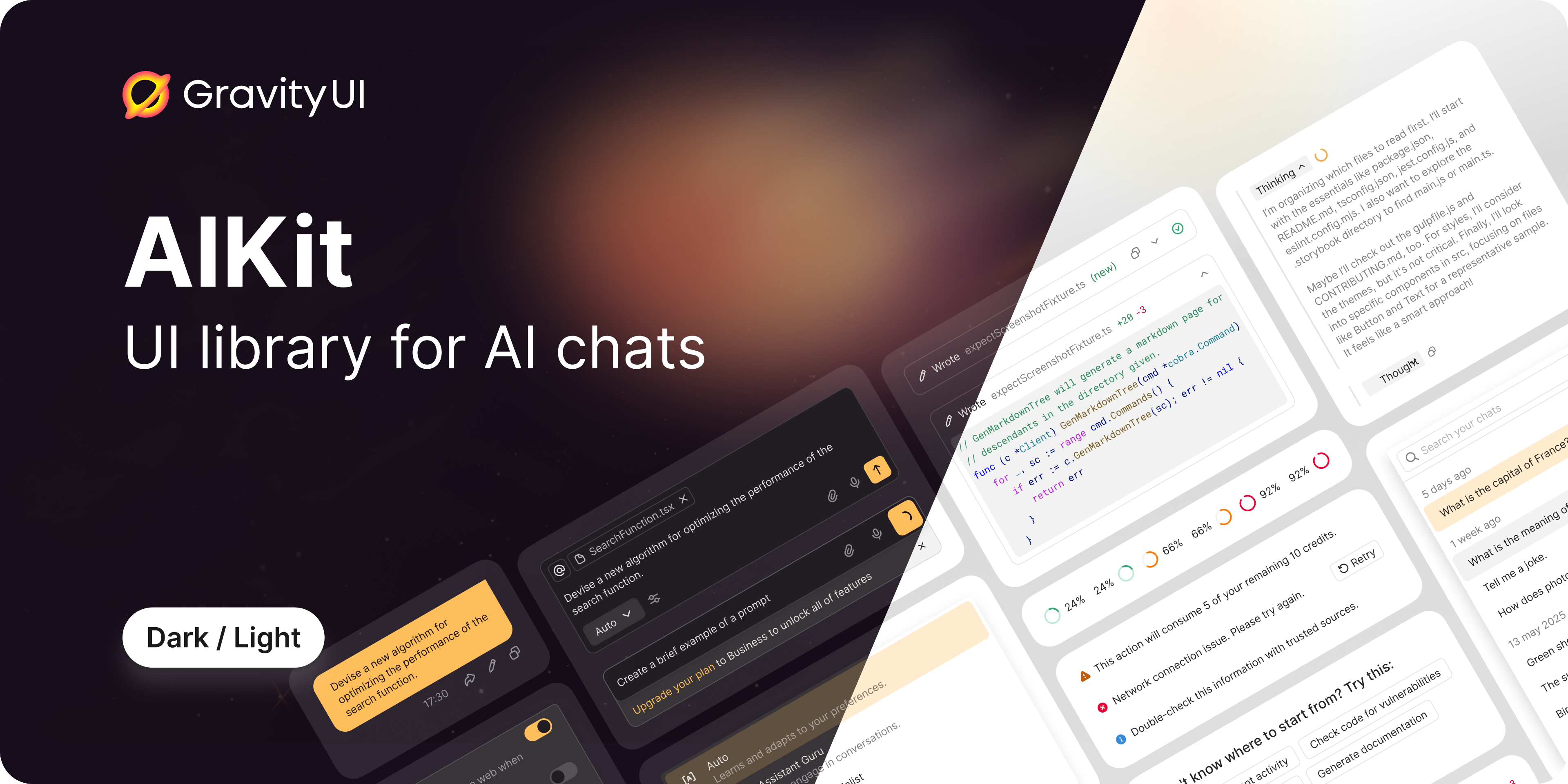
UI component library for AI chats built with Atomic Design principles.
Resources

 Website

 Storybook

 Community
Description
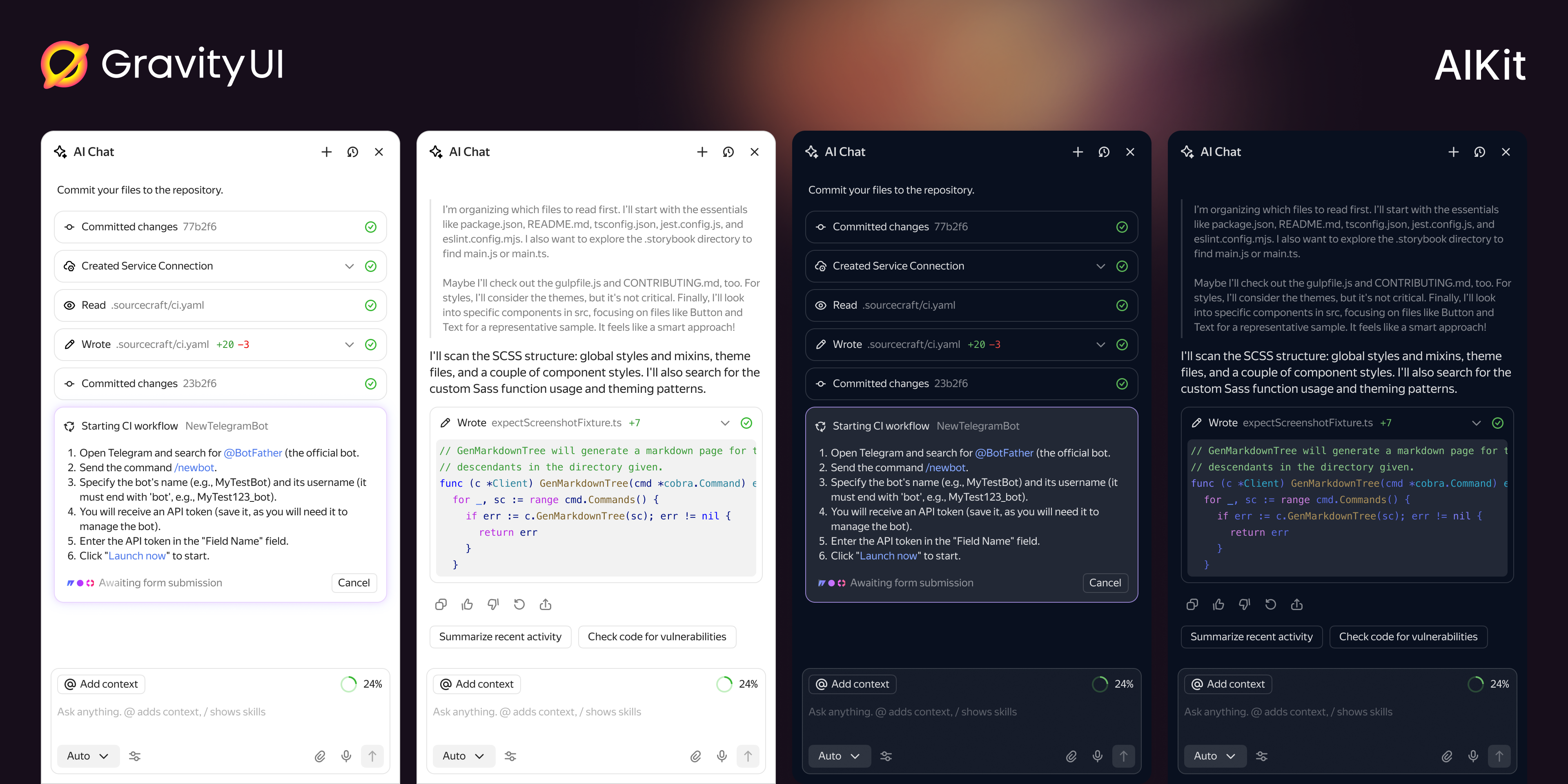
@gravity-ui/aikit is a flexible and extensible React component library for building AI chats of any complexity. The library provides a set of ready-made components that can be used as-is or customized to fit your needs.
Key Features
- 🎨 Atomic Design — clear component hierarchy from atoms to pages
- 🔧 SDK Agnostic — independent of specific AI SDKs
- 🎭 Two-Level Approach — ready-made components + hooks for customization
- 🎨 CSS Variables — easy theming without component overrides
- 📦 TypeScript — full type safety out of the box
- 🔌 Extensible — custom message type registration system
Project Structure
src/
├── components/
│ ├── atoms/ # Basic indivisible UI elements
│ ├── molecules/ # Simple groups of atoms
│ ├── organisms/ # Complex components with logic
│ ├── templates/ # Complete layouts
│ └── pages/ # Full integrations with data
├── hooks/ # General purpose hooks
├── types/ # TypeScript types
├── utils/ # Utilities
└── themes/ # CSS themes and variablesInstallation
npm install @gravity-ui/aikitQuick Start
import { ChatContainer } from '@gravity-ui/aikit';
import type { ChatType, TChatMessage } from '@gravity-ui/aikit';
function App() {
const [messages, setMessages] = useState<TChatMessage[]>([]);
const [chats, setChats] = useState<ChatType[]>([]);
const [activeChat, setActiveChat] = useState<ChatType | null>(null);
return (
<ChatContainer
chats={chats}
activeChat={activeChat}
messages={messages}
onSendMessage={async (data) => {
// Your sending logic
console.log('Message:', data.content);
}}
onSelectChat={setActiveChat}
onCreateChat={() => {
// Create new chat
}}
onDeleteChat={(chat) => {
// Delete chat
}}
/>
);
}Architecture
The library is built on Atomic Design principles:
🔹 Atoms
Basic indivisible UI elements without business logic:
ActionButton— button with integrated tooltipAlert— alert messages with variantsChatDate— date formatting with relative datesContextIndicator— token context usage indicatorContextItem— context label with remove actionDiffStat— code change statistics displayDisclaimer— disclaimer text componentInlineCitation— text citationsLoader— loading indicatorMarkdownRenderer— Yandex Flavored Markdown rendererMessageBalloon— message wrapperShimmer— loading animation effectSubmitButton— submit button with statesToolIndicator— tool execution status indicator
🔸 Molecules
Simple combinations of atoms:
BaseMessage— base wrapper for all message typesButtonGroup— button group with orientation supportInputContext— context managementPromptInputBody— textarea with auto-growingPromptInputFooter— footer with action icons and submit buttonPromptInputHeader— header with context items and indicatorPromptInputPanel— panel container for custom contentSuggestions— clickable suggestion buttonsTabs— navigation tabs with delete functionalityToolFooter— tool message footer with actionsToolHeader— tool message header with icon and actions
🔶 Organisms
Complex components with internal logic:
AssistantMessage— AI assistant messageHeader— chat headerMessageList— message listPromptInput— message input fieldThinkingMessage— AI thinking processToolMessage— tool executionUserMessage— user message
📄 Templates
Complete layouts:
ChatContent— main chat contentEmptyContainer— empty stateHistory— chat history
📱 Pages
Full integrations:
ChatContainer— fully assembled chat
Documentation
Testing
The project uses Playwright Component Testing for visual regression testing.
Run tests
Important: All tests must be run via Docker to ensure consistent screenshots across different environments.
# Run all component tests in Docker (recommended)
npm run playwright:docker
# Update screenshot baselines in Docker
npm run playwright:docker:update
# Run specific test by grep pattern in Docker
npm run playwright:docker -- --grep "@ComponentName"
# Clear Docker cache if needed
npm run playwright:docker:clear-cacheLocal testing (Linux only)
If you're on Linux, you can run tests locally:
# Install Playwright browsers (run once)
npm run playwright:install
# Run all component tests
npm run playwright
# Update screenshot baselines
npm run playwright:updateFor detailed testing documentation, see Playwright Guide.
Development
Development and contribution instructions are available in CONTRIBUTING.md.
License
MIT
For AI agents
A React component library for building AI chat interfaces, organized by Atomic Design (atoms → molecules → organisms → templates → pages) and SDK-agnostic — reach for it to assemble a chat UI (message lists, prompt input, tool calls, attachments) instead of composing those primitives out of @gravity-ui/uikit by hand.
When to use
- Building an AI/LLM chat UI (assistant/user/tool messages, prompt input with suggestions, attachment uploads, thinking states).
- Wanting ready-made chat layouts (
ChatContainer,MessageList,PromptInput) plus hooks to customize behavior. - Embedding into the Gravity UI ecosystem with shared theming via CSS variables.
When not to use
- For general-purpose UI primitives (buttons, inputs, modals), use
@gravity-ui/uikitdirectly — AIKit builds on top of it for chat-specific needs. - To render rich markdown in messages, AIKit's
MarkdownRendererwraps@gravity-ui/markdown-editor; for standalone markdown rendering use that package directly. - For a single chat bubble without chat orchestration, a uikit
MarkdownRenderer/text block is lighter than the full AIKit message pipeline.
Common pitfalls
- Hallucinating an AI SDK import — AIKit is SDK-agnostic; it provides components/hooks, not an LLM client. Bring your own data source and feed messages via props.
- Reaching for
<Chat>/<AIChat>— the page-level export isChatContainer(andAIStudioChat); there is no component literally namedChat. - Skipping message-type registration for custom types — custom message kinds must be registered in the message type system, or they render as unknown.
- Editing base components instead of using hooks — the two-level design expects you to customize via hooks/composition; overriding internals directly breaks upgrades.
Documentation for AI agents
Agent-readable documentation for the installed version is located in node_modules/@gravity-ui/aikit/build/docs/INDEX.md.