
@gregoriusrippenstein/node-red-contrib-flowcompare
v0.3.2
Published
Compare editor flow with the flow deployed to the server.

Maintainers
 gregoriusrippenstein
Readme
FlowCompare
FlowCompare node is a node for visually comparing the editor flows with flows deployed to the server.
Flows are deployed from the editor to the server, hence they can differ. This node highlights changes that have occurred in the editor.
Why?
I wanted to have a visual comparison between versions of flows. Also I wanted changes to be classified as being either visual or textual: visual changes movements of nodes, textual are content changes. Node-RED does have a diff tool however, for me, this shows too much (all nodes are shown even those that haven't changed) and changes that are visual are shown textually.
Screencast
For more details why this node exists, check out the screencast.
Description
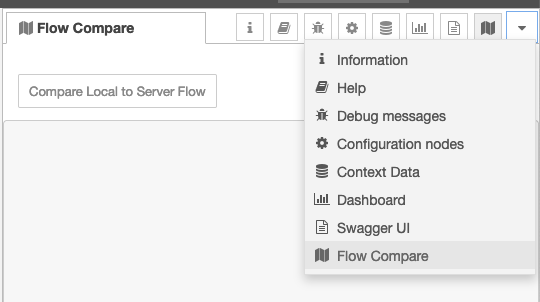
Once installed, node can be accessed via the menu:
(NOTE: You may be required to restart/redeploy Node-RED to access the menu for the first time.)
The panel is split into a list of changes, an image visually showing changes and a detailed change panel at the bottom:
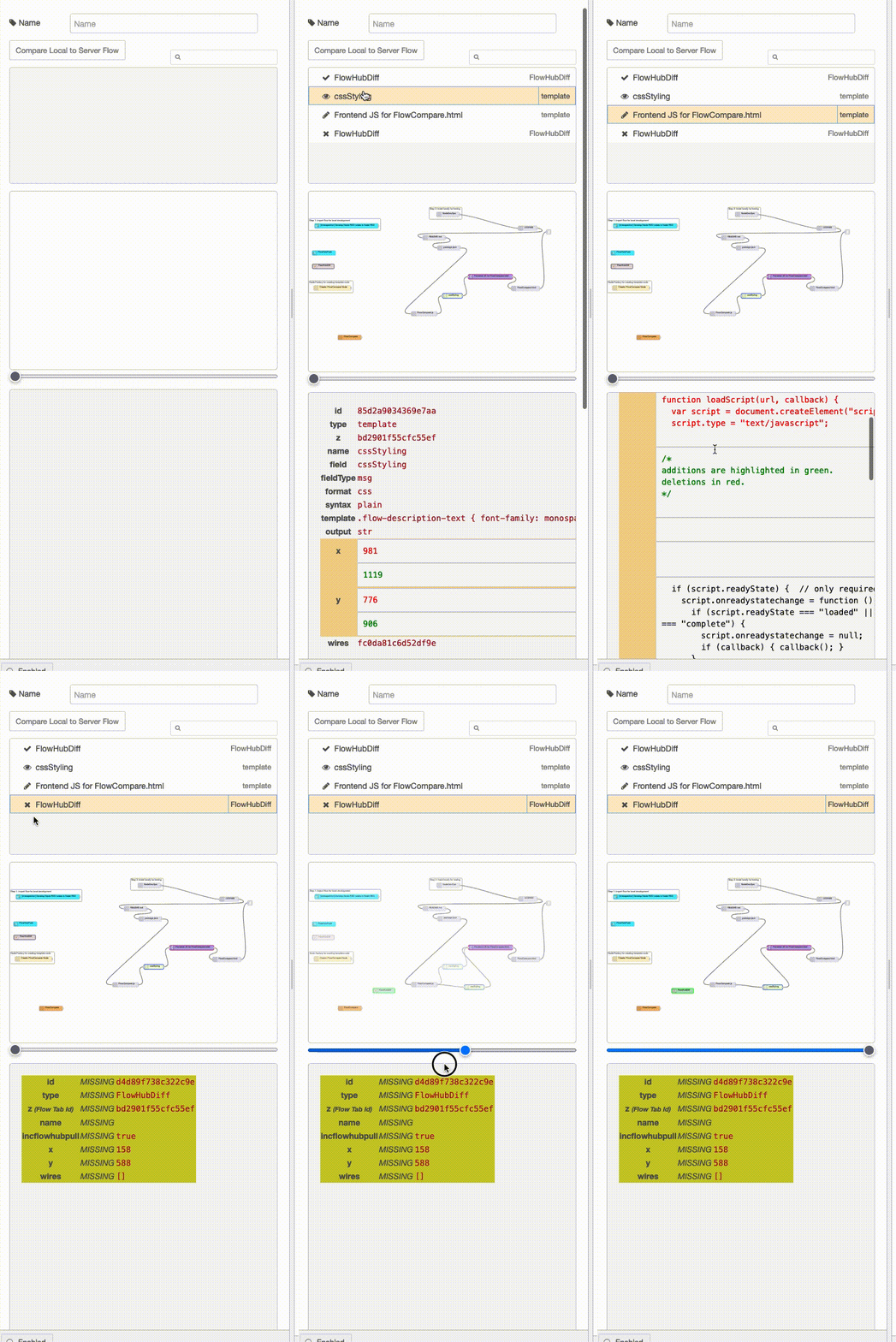
Clicking the compare button generates the comparison details.
Update: A double click in the listing of changes will now open the edit panel for that node. That is not shown in the above animation.
Iconography
The top box contains all changes that have happened:
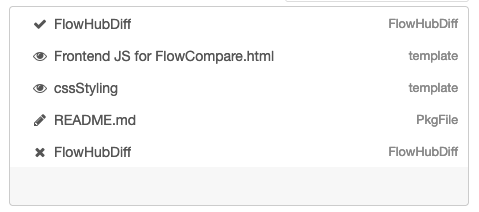
pencilare nodes that have content changes in addition - potentially - to visual changeseyeare nodes that have only visual changesticksare nodes that have been addedcrossare nodes that have been deleted.
Colourisation
In the image, nodes are colorised:
- grey/black are deleted nodes
- green are added nodes
- green with blue border are moved nodes, nodes that have only changed visually
- purple nodes have textual, i.e., content changes
- nodes are highlighted with red-border when change is selected in the change box
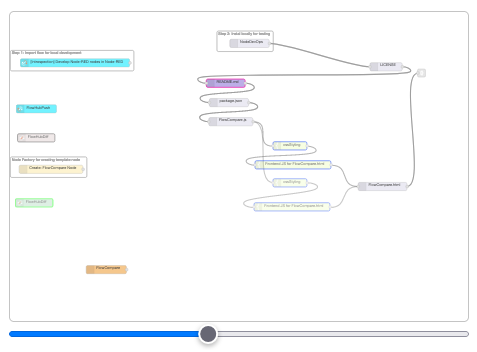
The slider to the left is the server version, to the right its the local version of the flow.
In the textual diff box:
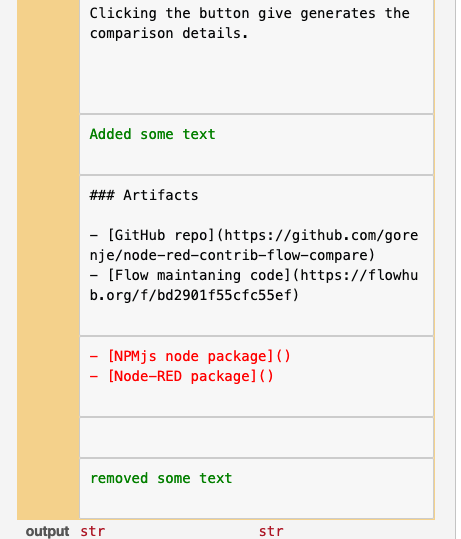
Red are deletions and green are additions, i.e., changes.
Try before you buy
The sidebar can also be previewed in the serverless Node-RED - change something in the preloaded flow and press the compare button before pressing the deploy button.
Not Perfect
- Image Zoom
Zoom of comparison image is not perfect since pinch does not work, only the scroll works for zoom. Since scroll is also used to scroll up and down, scroll left and right to zoom image in and out.
Artifacts
- GitHub repo
- Flow maintaning code
- NPMjs node package
- Node-RED package
- Frontend Flow to trigger a comparison update on flow tab change.
- Contact Author