
@icjia/voicecap
v0.17.0
Published
Listen through a website with a real screen reader: voicecap takes NVDA page by page, saves every word it says as transcripts, and records what people reviewed.

Maintainers
 cschweda
Readme
voicecap



voicecap has a real screen reader, NVDA, read each page of a website and saves every word it says, so one person can review a whole site the way a screen reader user hears it, and hand managers and auditors a dated record they can check to the byte. No off-the-shelf checker does this: tools such as axe and Lighthouse inspect a page's code but can't tell you what a screen reader actually says, and checking by hand goes one page at a time and leaves no record, far too slow for the more than a dozen websites ICJIA must review before the April 2027 ADA Title II deadline for accessible digital content.
voicecap in brief
voicecap is a free, open-source tool from the Illinois Criminal Justice Information Authority (ICJIA) that captures what a screen reader user actually hears on a website.
Automated accessibility checkers such as axe and Lighthouse catch problems like missing labels, but they can't tell you what a page sounds like. voicecap is the other half: a listen-through with a real screen reader, NVDA on a Windows PC, and VoiceOver on a Mac. The screen reader reads each page from top to bottom, jumps from heading to heading, and tabs through links and buttons, the way a blind visitor would, and voicecap saves every word it says as plain-text transcripts. On a Mac, setup, checks, and a live VoiceOver test work today, and full VoiceOver audits come with voicecap's VoiceOver driver.
Every line of a transcript is what the screen reader actually said. voicecap presses the screen reader's keys the way a person would, and moves from page to page on its own, following the site's sitemap or a list of pages. Working from the list, it accounts for every page on it: none is missed or done twice, an easy slip when clicking through a site by hand. So one person can spot-check a large site, zero in on the pages that need attention, or go through a whole small site.
It's a human review, sped up: voicecap does the key presses and the page turning, so the person running it can:
- hear the screen reader at work, then go back over exactly what it said, line by line;
- compare runs to see exactly what changed after an update;
- record what they found and what they fixed, and add their own hands-on NVDA sessions.
Everything goes into one record that voicecap never rewrites, summed up in an accessible HTML report, and voicecap verify checks that the recorded files still match what voicecap wrote.
voicecap makes screen reader testing faster, repeatable, and documented: https://github.com/ICJIA/voicecap
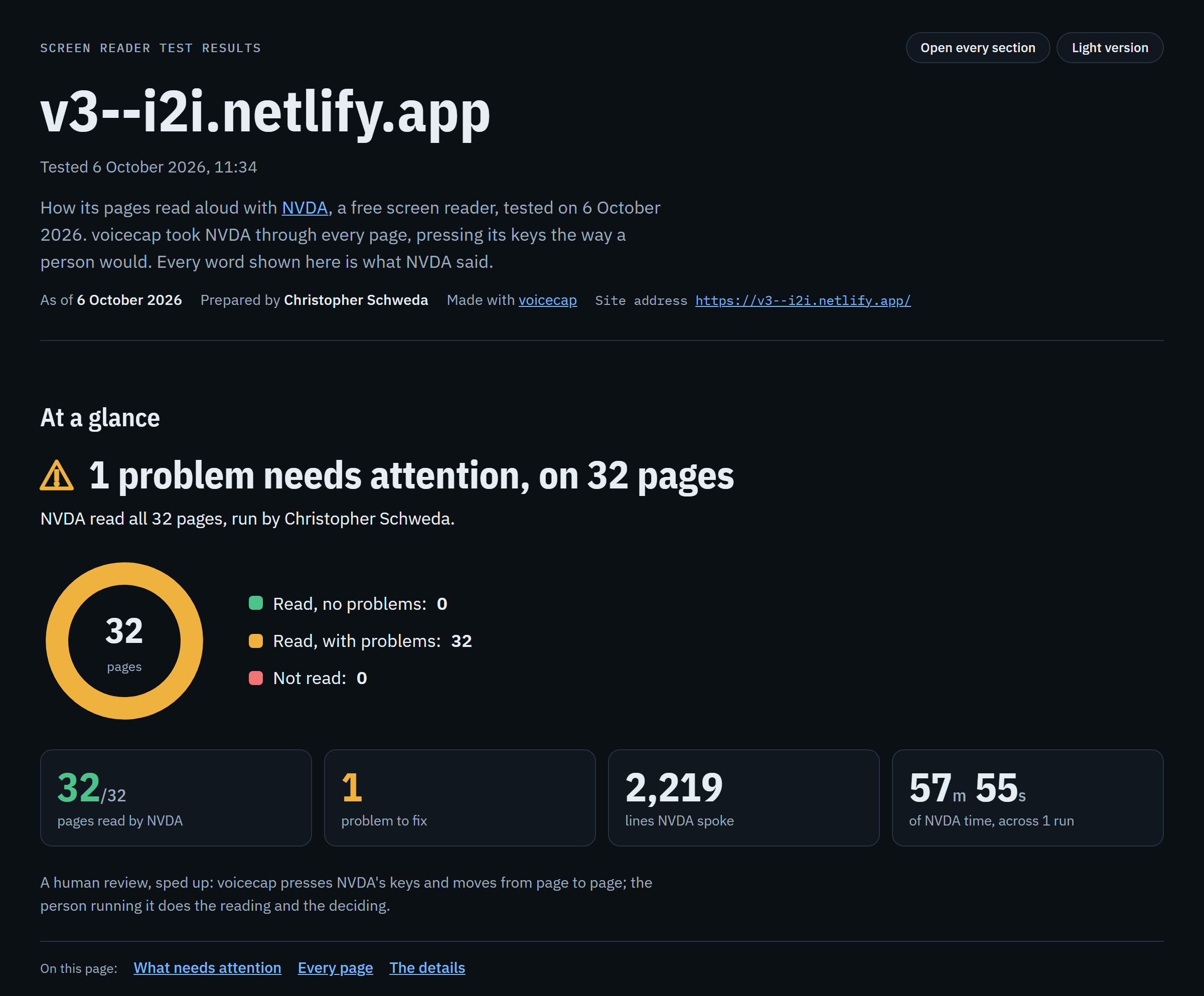
Here is the top of that report for the new version of i2i.illinois.gov, as NVDA read it on 6 October 2026. Every screenshot in this README is of that report, or of the website built from it. The page leads with the site's name, v3--i2i.netlify.app (the address NVDA read the new version at), and when it was tested. Under it is "At a glance", for a manager who reads nothing else: the verdict, in words and a sign, "1 problem needs attention, on 32 pages"; the result in one sentence, "NVDA read all 32 pages, run by Christopher Schweda."; a ring of the pages, all 32 of them in one part, "Read, with problems"; four big numbers (32 of 32 pages read, 1 problem to fix, 2,219 lines NVDA spoke, and 57 minutes 55 seconds of NVDA time); a line on what voicecap does and what the person running it does; and links to the page's sections. The problem comes next, then each page, with its screenshot and what NVDA said first, and last the details for reviewers and auditors.
Status: what works where.
- Windows: everything, including full audits with NVDA and Chrome, checked end to end with real NVDA 2026.2 and Chrome 153.
- Mac:
setup,doctor, andinitprepare and check a Mac for VoiceOver, down to a live test that starts it. Audits with VoiceOver come with voicecap's VoiceOver driver, in a later release; until then, run audits on a Windows computer.- Any computer, Linux included: reviews, reports,
share,site,walkthrough, manual NVDA sessions,list-urls,verify, and replay runs, which play back a recorded run (--replay-from). Hearing pages again, withreview --replay, needs Windows or a Mac.
Why voicecap, and who it's for
An accessibility review has two halves. Automated checkers such as axe, Lighthouse, and Pa11y test a page's code against rules, and they're quick: they catch a missing label or missing alt text. What they can't tell you is what a page sounds like:
- whether its links make sense read aloud;
- whether its headings tell a screen reader user where they are;
- whether its buttons and fields are named in words that make sense when a screen reader says them.
That takes a person going through each page with a real screen reader. On a large site, or a dozen sites, it's weeks of work that's hard to write down and harder to repeat.
voicecap speeds up that second half. It presses NVDA's keys the way a person would, moves from page to page along the site's sitemap or a list of pages, and saves every word NVDA says. The person running it hears NVDA at work, reads the transcripts, records what they found, and fixes it.
How it's different:
- The real screen reader, never a simulation. Every line of a transcript is what NVDA said.
- Every page on the list, three ways. voicecap goes line by line, heading by heading, and control by control, as a blind visitor moves through a page. No page on the list is missed or done twice.
- A person's review, on the record. What the person found and fixed is recorded beside the transcripts, with their own hands-on NVDA sessions.
- A record anyone can check. Each transcript has a fingerprint and each finished run is sealed, so
voicecap verifyflags any recorded file that has changed (see Checking the record). - Results for people who never open a terminal. There's a plain-language web page and its Word copy, dated copies to send with their fingerprints, and a website that leads with each site's current report (see The shareable page).
- Repeatable. Comparing two runs shows what changed after an update. A walkthrough file repeats a run, with the same pages in the same order and the same passes, then says page by page how each page sounds against the original (see Repeating a run).
To see it at work before you use it on your own site, try the guided demo on a Windows PC (see Try it first).
Stories of the people it's for
These stories were written for this page. Each is a composite of the people voicecap is made for: how they'd describe using it, and why they'd choose it. They aren't quotes from real users, and none of them endorses voicecap. Each line below names one of them and what voicecap gives them. Open one to read their story.
"I look after more than a dozen websites, and every one has to meet the April 2027 ADA Title II deadline for accessible digital content. Our automated checks came back clean, but my manager wanted to know that a person had gone through each site with a real screen reader. voicecap takes NVDA through every page on the list from each site's sitemap. Then I read the transcripts and fix what I find, one site after another. When someone asks how we know, I send the report."
"When a page sounds wrong, I don't want to guess from the markup. The transcript shows me, line by line, what NVDA said and in what order. I fix the code, run that page again with --page, and compare it with the earlier run, naming that run with --compare, to see exactly which lines changed."
"I judge the hard pages in my own hands-on sessions with NVDA, and voicecap keeps those beside its transcripts, with voicecap manual add. What it saves me is the key-pressing on the hundreds of pages in between. Its flags point me to what's worth a closer listen, like links that say only 'click here', which axe passes."
"I'm never going to run a command. I need something I can read and forward: which pages were reviewed, by whom, with what screen reader, what was found, and what was fixed. The shareable page gives me that in plain language, and its Word copy goes in our files."
"I'm paid to look for holes, so I don't take a report's word for it. I check the file's own fingerprint against the one in the sender's email. Inside it, the page checks every transcript against its sealed records, and failures are shown with their records, not smoothed over. To hear it for myself, I repeat the run from its walkthrough file on my own Windows PC with NVDA, and it tells me page by page whether anything sounds different."
"After each major update, I run the same list of pages again and compare it with the run before. The report marks the pages that changed and shows the lines that changed. When we need to know a page still sounds the way it did at launch, the walkthrough file from launch repeats that exact run."
"I write the pages; I don't build them. Reading the transcripts was the first time I knew how my links sounded: 'click here', again and again, on one page. Those were mine to fix, and I fixed them without touching any code."
"Before we accept a vendor's work, voicecap goes through the pages on our list on the staging site, and the vendor gets the shareable report: every page on the list, what NVDA said, and what needs fixing. When they say it's fixed, we run it again and compare."
"I use NVDA every day. When I report a problem, developers want it written down exactly. voicecap writes down every word NVDA says on each page on the list, so my report can point at the line, not at my memory of it."
How voicecap works
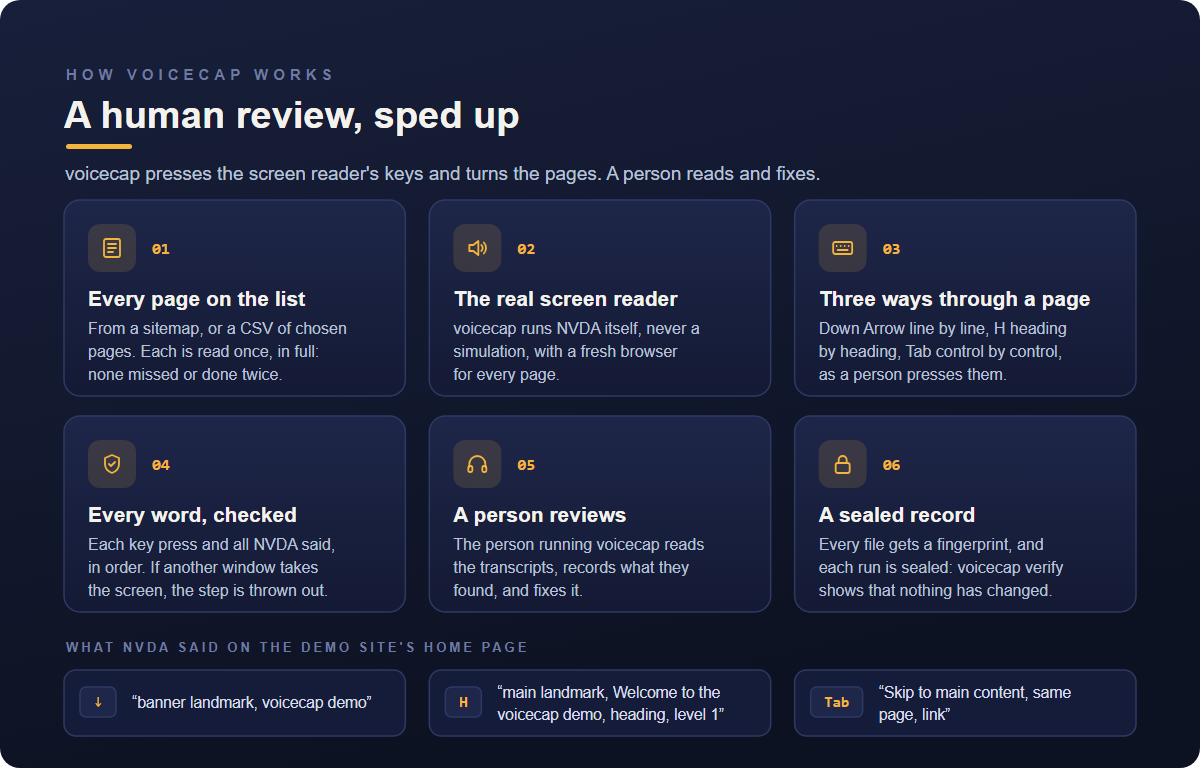
Automated checkers such as axe and Lighthouse read a page's code and test it against rules. voicecap is a human review, sped up: it takes a real screen reader through each page the way a person would and saves every word it says, while the person running it reads the transcripts and fixes what they find. It also has axe check each page before NVDA reads it (from voicecap 0.16.0), and shows what axe found on the page's card, beside what NVDA said, as evidence for the person's review and never its verdict (see axe).
- Every page on the list. voicecap works from the site's sitemap, or a list of chosen pages in a CSV or JSON file. Each page is read once, in full, or recorded with the reason it couldn't be. None is missed or done twice, an easy slip when clicking through a site by hand.
- The real screen reader. voicecap runs NVDA itself, never a simulation, with a fresh browser for every page, so no page's results depend on the pages before it.
- Three ways through each page. It presses NVDA's keys as a person would: Down Arrow to go line by line, H to go heading by heading, and Tab to go control by control.
- Every word, checked. It saves each key press and everything NVDA said, in order, waiting until NVDA has been quiet for a second so nothing is cut off. Before and after every key press, it checks that the page still has the screen. If another window took it, the step is thrown out and the page tried again, with NVDA and the browser started fresh.
- A person reviews. The person running voicecap hears NVDA at work, and says so when the run ends. NVDA speaks very fast during a run, so the transcripts are where its words are read: the person reads them, records what they found with
voicecap review, and fixes it.voicecap review --replayreads a page's saved words aloud, at a speed a person can follow. Flags point to moments worth a closer look, such as links that say only "click here". - A sealed record. Every file gets a fingerprint (SHA-256) and each run is sealed, so
voicecap verifycan show that nothing has changed since.
The first lines NVDA said on the home page of the new i2i site, in each pass:
read (Down Arrow)   same page, link, Skip to navigation
                    banner landmark, same page, link, current page, Unlabeled graphic, i 2i Logo. To get missing image descriptions, open the context menu.
                    same page, link, current page, INSTITUTE 2 INNOVATE
headings (H)        main landmark, INSTITUTE to INNOVATE, heading, level 1
                    Directory, heading, level 2
                    list, with 4 items, Overview and History, heading, level 3, link
tab (Tab)           Skip to main content, same page, link
                    Skip to navigation, same page, link
                    banner landmark, i 2i Logo. To get missing image descriptions, open the context menu., Unlabeled graphic, INSTITUTE 2 INNOVATE, same page, link, current page
The "Unlabeled graphic" in two of those lines is the one problem the report finds on the site: its logo (see The shareable page). The details of each pass are in What voicecap does on each page.
When to run voicecap
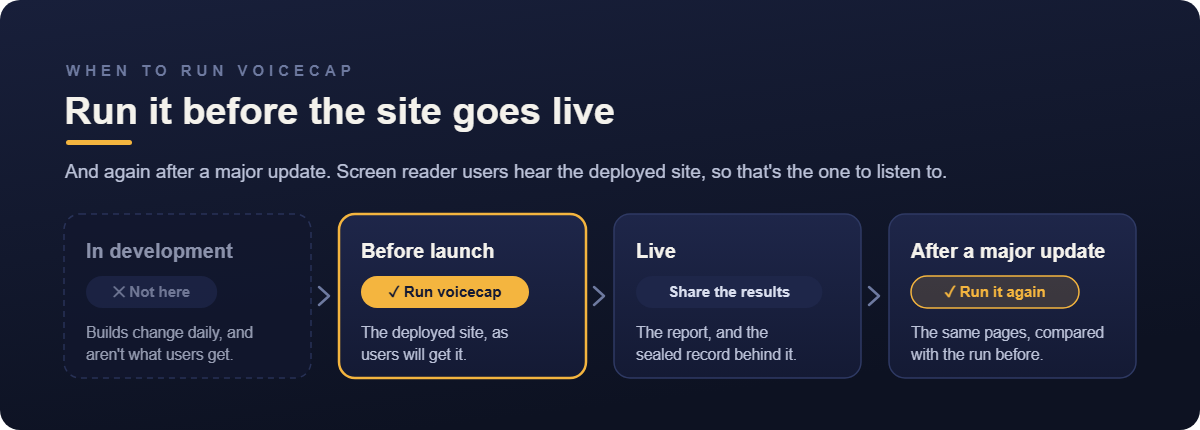
Run voicecap on the deployed site before it goes live, and again after a major update.
- Not on every build during development. Builds change daily, and a development copy isn't what users get. Screen reader users hear the deployed site, with its real content, so that's the one to listen to.
- Before launch, run the full listen-through on the site as it will go live, such as a staging copy of the production site. Fix what you find, then run the pages you fixed again.
- After a major update, run the same pages again with
--compare previousto see exactly what changed in what the screen reader says.
Contents
- Why voicecap, and who it's for
- How voicecap works
- When to run voicecap
- Quick start
- Try it first: npx @icjia/voicecap demo
- Windows setup (for someone new to Windows)
- Mac setup
- Commands and options
- Page sources
- What voicecap does on each page
- The transcripts folder
- The audit record
- Long runs, interruptions, and resuming
- Reviews: the audit trail
- Manual NVDA sessions
- Verifying transcript fidelity
- Reading the report
- The shareable page
- The website: voicecap site
- Repeating a run: the walkthrough file
- Heuristic flags
- Configuration
- Programmatic API
- Drivers
- Updating Guidepup
- Known limitations
- Future enhancements
- Development
- Credits
- License
Quick start
voicecap needs Node.js 22.19 or later (24 recommended), and nothing else to start: run it with npx, as below. npx downloads voicecap the first time and reuses it; npx @icjia/voicecap@latest … picks up a newer version. pnpm is only for developing voicecap, or for the replay demo below.
Why voicecap is built the way it is, in three short answers:
- Why an npm package. voicecap runs on your own computer, where the screen reader is. It's one package for Windows and a Mac,
npxfetches the version you ask for, and every run records the version of voicecap that made it. - Why PowerShell, not Git Bash, on a PC. Git Bash rewrites any argument that starts with
/into a Windows path (--page /aboutarrives asC:/Program Files/Git/about). voicecap catches that and explains it, but it's an extra step. Git Bash's own window (mintty) also doesn't always let Node see a terminal. When it doesn't, voicecap leaves out what needs one: the live test thatinitandsetupoffer, and "Did you hear NVDA speaking as it read these pages?" at the end of a run.demowon't start at all. PowerShell has neither problem, on its own or in Windows Terminal (see Git Bash and paths that start with "/"). It has one catch of its own, fixed once: on a new PC it can refuse to runnpx(see If PowerShell says "running scripts is disabled"). - Why a command-line app, not a web app. voicecap has to start a real screen reader, press its keys on your computer, and capture what it says. A web page can't do any of that from inside the browser's sandbox. Running on your own computer also keeps every transcript in a folder you control. The web part is what voicecap makes: the shareable page.
Three steps take you from a new computer to a first run:
- Check your computer: in PowerShell on a PC, or Terminal on a Mac, run
npx @icjia/voicecap preflight. It never starts the screen reader, and it needs no site. It ends with a verdict, in words as well as color: "Ready", in green, means you can go on to step 3. "Not ready", in red, comes after a numbered list of exactly what to fix. See The checks, and the live test. If PowerShell refuses to runnpxat all, see If PowerShell says "running scripts is disabled". - Fix what it lists, then run
preflightagain, until it says Ready. Each problem comes with its own numbered steps.npx @icjia/voicecap setupinstalls what's missing and, on a Mac, walks you through the permissions. Windows setup and Mac setup, below, have the details. - Run voicecap:
npx @icjia/voicecap initasks a few questions, then prints the command for your first real run and starts it when you say yes. NVDA speaks and takes over the keyboard until the run ends, so keep your hands off. (On a Mac, voicecap can't run VoiceOver yet:initends with the command to run on a Windows computer.)
To try voicecap first, npx @icjia/voicecap demo is a guided first run on voicecap's own built-in demo site, so you need no site of your own (see Try it first).
On Windows
In PowerShell inside Windows Terminal (on a computer new to all this, start with Windows setup; if you use Git Bash, read Git Bash and paths that start with "/" first):
- Set up, once:
npx @icjia/voicecap setupinstalls voicecap's own copy of NVDA, and Playwright's Chromium if Google Chrome isn't installed, with no administrator rights. It ends by checking this computer. - Check:
npx @icjia/voicecap doctorchecks this computer and runs a 20-second live test with NVDA, then prints a report to paste into a bug report. - Compose the run:
npx @icjia/voicecap initchecks this computer, asks a few questions, and prints the run's command, with the offer to run it now. - Run: the command
initprinted, such asnpx @icjia/voicecap --site https://i2i.illinois.gov --sitemap https://i2i.illinois.gov/sitemap.xml --limit 5 --reviewer icjia. NVDA speaks and takes over the keyboard until the run ends (see Windows setup, step 6). To resume a run that stopped, run the same command again.
init on a ready computer, declining the live test:
PS> npx @icjia/voicecap init

voicecap preflight, 2026-09-28 11:10

This computer
  Computer        DESKTOP-4K2P1, user cschw
  Model           Dell Inc. OptiPlex 7010, Intel(R) Core(TM) i5-3470 CPU @ 3.20GHz, 16 GB memory, 120 GB free of 476 GB
  System          Windows 11 Pro 24H2 (10.0.26100), x64
  Node.js         22.19.0
  voicecap        0.4.0, with @guidepup/guidepup 0.34.0
  Screen reader   NVDA 2026.2 (Guidepup's build 0.2.1-2026.2)
  Browser         Chrome 153.0.8010.53
  Language        English (United States)
  Transcripts     C:\Users\cschw\code\voicecap-transcripts
  Guidepup files  C:\Users\cschw\AppData\Local\guidepup
  Browser path    C:\Program Files\Google\Chrome\Application\chrome.exe

Checks
  OK    Node.js 22.19.0
  OK    Guidepup's folder: C:\Users\cschw\AppData\Local\guidepup
  OK    NVDA 2026.2 (Guidepup's build 0.2.1-2026.2) is installed
  OK    No other voicecap is using NVDA
  OK    Your NVDA isn't running
  OK    Windows is unlocked
  OK    Browser: Chrome

Ready: this computer can run NVDA for voicecap.

The live test takes about 20 seconds. NVDA speaks and takes over the keyboard, so keep your hands off.
Test NVDA now? [y/N]: n

Website: i2i.illinois.gov
Checking https://i2i.illinois.gov…
  → https://i2i.illinois.gov (it answers)
The site names its canonical address: https://i2i.illinois.gov/. Reports will name it so.
Looking for the site's sitemap…
Where are the pages?
  1. The site's sitemap, listed in robots.txt: https://i2i.illinois.gov/sitemap-index.xml
  2. The site's sitemap at /sitemap.xml: https://i2i.illinois.gov/sitemap.xml
  3. A sitemap at another address
  4. A page list file (.csv or .json)
  5. One page
Choose [1]: 2
How many pages? A number, or Enter for all [all]: 5
Transcripts home [C:\Users\cschw\code\voicecap-transcripts]:
  → this run goes into C:\Users\cschw\code\voicecap-transcripts\i2i.illinois.gov\2026-09-28\
Reviewer, recorded with the run [icjia]:
Tip: set VOICECAP_REVIEWER to make your own name the default.

Your command:
  npx @icjia/voicecap --site https://i2i.illinois.gov --sitemap https://i2i.illinois.gov/sitemap.xml --limit 5 --reviewer icjia
Run the same command again later to resume where it stopped.

NVDA will speak and take over the keyboard until the run ends.
Run it now? [y/N]:
init offers every sitemap the site has: each one its robots.txt lists, then /sitemap.xml. A site with one sitemap shows just "The site's sitemap". "A sitemap at another address" asks for Sitemap (a full URL, or a name like sitemap.xml). A name is read on the site, and an address typed without https:// gets it added.
The site's name. init reads the site's home page when it checks the website. When the page names the site's own address as its canonical address, as i2i.illinois.gov's does above, init says so and goes on. When the website is at an IP address or a local address, such as http://localhost:3000, and its home page names none, init asks for the address people visit, and writes the answer into the command it prints as --canonical. When the home page names an address with a path, such as the demo's https://voicecap.icjia.app/demo-site/, the question ends Its home page names https://voicecap.icjia.app/demo-site/: press Enter to use that., and Enter takes it, or type the address in its place. A site that lives under a path needs its whole address, path and all: the host alone would put every page on the wrong path. The reports then name the site by it (see A site's name: its canonical address).
The reviewer is recorded with each session of the run, and the report shows it. Enter takes the quick default, icjia; type a person's name to record who ran it. The command ends with --reviewer, so it's easy to change for someone else. To make your own name the default, set VOICECAP_REVIEWER once: in PowerShell, setx VOICECAP_REVIEWER "Your Name", then open a new window (on a Mac, add export VOICECAP_REVIEWER="Your Name" to ~/.zshrc). voicecap review records the same name.
On a Mac
In Terminal, iTerm, or Visual Studio Code's terminal:
- Set up, once:
npx @icjia/voicecap setupinstalls Guidepup's VoiceOver files, and Playwright's Chromium if Google Chrome isn't installed. It changes two VoiceOver settings, walks you through the macOS permissions voicecap needs, and ends by checking this Mac (see Mac setup). - Check:
npx @icjia/voicecap doctorchecks this Mac and runs a 20-second live test that starts VoiceOver, then prints a report to paste into a bug report. - Compose the run:
npx @icjia/voicecap initchecks this Mac, asks the same questions as on Windows, and prints the run's command. - Run: on a Windows computer, for now. voicecap can't run VoiceOver yet: that comes with its VoiceOver driver, in a later release. (A run started on a Mac stops at once, with exit code 2.)
On a ready Mac, the checks end with this verdict:
Ready: this computer is set up for VoiceOver, but voicecap can't run VoiceOver yet: that comes with its VoiceOver driver.
Tip: turn on Do Not Disturb, so notifications don't interrupt VoiceOver.
And init ends with the command, and where to run it, in place of "Run it now?":
Your command:
  npx @icjia/voicecap --site https://i2i.illinois.gov --page https://i2i.illinois.gov/program-overview/
Run the same command again later to resume where it stopped.

voicecap can't run VoiceOver yet: that comes with its VoiceOver driver. For now, run this command on a Windows computer.
Try it without a screen reader
The replay driver plays back a run recorded with real NVDA, so the whole pipeline works on any computer, Linux included. With the test fixture in this repository:
git clone https://github.com/ICJIA/voicecap.git
cd voicecap
pnpm install
pnpm build
node dist/cli.js --site http://127.0.0.1:4747 --pages fixture/pages.json --replay-from fixture/replay-run
Then open transcripts/127.0.0.1_4747/report.html.
The checks, and the live test
preflight, init, doctor, and setup check this computer: preflight, init, and doctor first, setup after installing. A real run on Windows does too, before NVDA starts (see Checks before a run, and getting your screen reader back). In about three seconds, the checks show this computer's details and whether NVDA (on Windows) or VoiceOver (on a Mac) is ready. They only read, with two exceptions on a Mac: the Full Disk Access check creates and removes a small file in the folder where VoiceOver keeps its settings, and the System Events check makes macOS ask, the first time, whether your terminal app may control System Events. So on a Mac they start with Checking this Mac. If macOS asks for access to control "System Events", click Allow.
npx @icjia/voicecap preflight is the checks on their own, for finding out whether a computer is ready with nothing else happening. It shows this computer's details, each check passed or failed, and for each failure the numbered steps that fix it. It never starts NVDA or VoiceOver, never opens the browser, and never runs the live test, and it needs no site. doctor adds the live test to the same checks.
It ends with a verdict, in words as well as color: green or red where the output is a terminal, and plain when it isn't or when NO_COLOR is set. A ready computer exits with code 0:
✓ Ready: this computer can run voicecap.
Next: npx @icjia/voicecap doctor adds a 20-second live test with NVDA (hands off the keyboard and mouse), or npx @icjia/voicecap init sets up a run.
A computer that isn't ready exits with code 2, as init does, after the numbered fixes:
✗ Not ready: 2 things to fix.
Fix these, then run npx @icjia/voicecap preflight again.
On a Mac that passes every check, the verdict is ✓ Ready: this Mac passed every check., followed by a note that voicecap can't run VoiceOver audits yet, and that npx @icjia/voicecap doctor, a 20-second live test, shows VoiceOver working now. The exit code is still 0, so a script can tell that the checks passed. On Linux, which has no screen reader for voicecap to drive, it says so, with exit code 2.
A computer that isn't ready gets a numbered diagnosis of what's wrong and how to fix it (see the example under Mac setup), and preflight and init stop there, with exit code 2.
A ready computer can take the live test. It starts NVDA or VoiceOver for real, brings the browser to the front with a small check page, and checks that the screen reader can be heard, then puts everything back as it was, your own screen reader included. It takes about 20 seconds, after a warning to keep your hands off. init and setup offer it when you're at a terminal to answer; doctor runs it without asking; preflight never runs it. If it fails, voicecap says what's wrong and exits with code 2. To stop it early, click the terminal window first (the browser is in front, and would get the keystroke), then press Ctrl+C: voicecap stops the test and puts everything back the same way.
Installing voicecap
You don't have to: npx runs voicecap without installing it. npx @icjia/voicecap with nothing after it starts init too, in a terminal. Git Bash's own window (mintty) doesn't always let Node see a terminal, though, and there the bare command prints the usage error instead, so type npx @icjia/voicecap init.
To install it anyway: npm install -g @icjia/voicecap, and npm install -g @icjia/voicecap@latest to update. Then voicecap does what npx @icjia/voicecap does: voicecap init, voicecap setup, voicecap --site …. On Windows 11 this creates voicecap, voicecap.cmd, and voicecap.ps1 commands, for Git Bash, cmd, and PowerShell, with no administrator rights needed.
The command init prints always starts with npx @icjia/voicecap, so it works on any computer with Node.js. It's quoted for Git Bash, PowerShell, and a Mac's terminal; in cmd, its single quotes must become double quotes (init says so when it uses any), or answer "Run it now?" with y, which uses no shell.
npm may say it skipped ffmpeg-static's install script, or it may download ffmpeg (about 30 MB): @guidepup/setup can screen-record its own macOS setup with it, which voicecap never does. Either way, voicecap works the same.
Try it first: npx @icjia/voicecap demo
npx @icjia/voicecap demo is a guided first run, about 9 minutes, against a small demo site that comes with voicecap. The tour's copy of the site runs only on this computer, and only while the tour needs it: nothing is downloaded, and nothing is sent anywhere. Its pages name their own address, voicecap.icjia.app/demo-site/, where ICJIA publishes the same pages (see The website), so the demo's report names the demo by that address, not by the one on your computer. The tour goes one step at a time, and each step waits for Enter. Ctrl+C at any of them stops the tour, with nothing left running.
- Welcome: what voicecap does, and what the tour will do.
- Checking this computer: the checks
initstarts with. On their own, they'renpx @icjia/voicecap preflight. - The live test: about 20 seconds of NVDA speaking. Keep your hands off the keyboard.
- Auditing the demo site: NVDA reads the demo's seven pages, hands off, for about 7 minutes. The tour shows the command it runs, such as
npx @icjia/voicecap --site http://127.0.0.1:4848 --sitemap sitemap.xml --out voicecap-demo --fresh. To stop early, click the terminal window first (the browser is in front), then press Ctrl+C. - The transcripts: where they are, and the first lines NVDA said on the demo's home page.
- The report: where it is, its flags, which are all on the "Common mistakes (on purpose)" page, and an offer to open it.
- Your own site:
npx @icjia/voicecap initsets up a run.
The demo's files go in a voicecap-demo folder in the current folder, never in your VOICECAP_TRANSCRIPTS audit record, and they're safe to delete. The one exception is a demo you put on the website: it's made in the home's folder and committed with the records, so deleting it and committing that, then pushing, takes the demo off the website at the next build (see Publishing it, and the demo). The demo site uses port 4848, or any free port when that one is taken. The tour needs a terminal: it doesn't run from a script. On Windows, run it in PowerShell or Windows Terminal, not Git Bash's own window (mintty), which doesn't always let Node see a terminal.
On a Mac, for now, the tour checks the Mac and runs the VoiceOver live test (steps 1 to 3). Step 4 says what the audit will do, and the tour ends with the Mac's next steps. The audit, the transcripts, and the report come with voicecap's VoiceOver driver, in a later release; a Windows PC runs the full tour.
Windows setup (for someone new to Windows)
These steps assume Windows 11, a normal (non-administrator) account, and PowerShell inside Windows Terminal (its default profile).
Install Git and Node.js. Open Windows Terminal from the Start menu (it starts in PowerShell, its default profile), and run:
winget install --id Git.Git -e
winget install --id OpenJS.NodeJS.LTS -e
Node's installer is machine-wide and usually needs administrator rights once, so on a managed PC you may need IT to run it (Git may prompt too).
Close Windows Terminal and open it again, so both are on your PATH. Check with
node --version(22.19 or later),git --version, andnpx --version. If PowerShell refuses to runnpx, see If PowerShell says "running scripts is disabled".Only if you'll develop voicecap: install pnpm with
corepack enable pnpm(ornpm install -g pnpm). Running voicecap needs only Node andnpx.Install NVDA for voicecap:
npx @icjia/voicecap setup. This downloads (about 100 MB, from GitHub) the portable NVDA build that voicecap's pinned Guidepup expects into%LOCALAPPDATA%\guidepup. It's separate from any NVDA you already have installed, and needs no administrator rights. If Google Chrome isn't installed, setup also installs Playwright's Chromium for voicecap to use instead. Behind a proxy, setHTTPS_PROXYfirst (in PowerShell,$env:HTTPS_PROXY = "http://your-proxy:port"sets it for the current window).- If your Windows user folder's path has a space or one of
& ( , ; = ^(C:\Users\Jane Doe,C:\Users\R&D), Guidepup can't start NVDA from there. setup explains the fix: setGUIDEPUP_SCREEN_READERS_PATHto a plain folder such asC:\guidepup(mkdir "C:\guidepup", thensetx GUIDEPUP_SCREEN_READERS_PATH "C:\guidepup", the same in PowerShell and Git Bash), open a new terminal, and run setup again. - The first time NVDA starts, Windows may ask whether NVDA can communicate on networks. voicecap talks to NVDA only on this computer (127.0.0.1); it doesn't need network access.
- Then setup checks this computer. If it's ready, setup offers the live test (see The checks, and the live test); if it isn't, setup says what's wrong and exits with code 2.
- If your Windows user folder's path has a space or one of
Check everything:
npx @icjia/voicecap doctor. It checks the NVDA build, whether your own NVDA or another voicecap is running, Windows' lock state, and the browser, then runs the live test, which also checks that the browser comes to the front and that NVDA speaks English. It prints one report, with a plain-language fix for anything wrong, to paste into a bug report (see Other commands).Before a run:
- voicecap checks this computer first, and stops with exit code 2, before touching anything, if it isn't ready (see Checks before a run, and getting your screen reader back).
- Your own NVDA can stay on. voicecap warns you, shuts it down when it starts (Guidepup does this), and turns it back on afterwards, with your own settings.
- Don't use the computer during a run. NVDA's keystrokes go to whichever window is in front. voicecap brings its browser to the front for every page, checks it with NVDA+T, and throws away any step during which another window came forward, but each click elsewhere costs a page (it's recorded as failed). The only windows voicecap tries to close for you are Windows Search and the Start menu: they sometimes open by themselves, with no one at the computer, and then keep the browser from coming forward. If voicecap finds one of them in front as it brings its browser forward, it presses Escape once and tries again, and the run's event log says it pressed the key. NVDA speaks aloud throughout, and NVDA's Speech Viewer window opens beside the browser.
- Keep the computer unlocked. On a locked computer, NVDA can't press keys or speak, and voicecap stops with "Windows is locked". voicecap keeps Windows from sleeping or turning the screen off while it runs, but it can't stop a lock: Win+L, a screen saver set to lock, or a workplace lock policy. If you step away, leave it unlocked. A minimized Remote Desktop window (Windows stops drawing it) breaks a run too.
- Turn on Do Not Disturb (Settings → System → Notifications) so notifications don't get read into transcripts.
- Pause Windows Update restarts during long runs (Settings → Windows Update → Pause updates). If a restart happens anyway, voicecap resumes where it stopped.
If PowerShell says "running scripts is disabled"
On a new Windows PC, PowerShell can refuse to run npx (and npm) at all:
npx : File C:\Program Files\nodejs\npx.ps1 cannot be loaded because running scripts is disabled on this system.Nothing is wrong with voicecap or Node.js. In PowerShell, npx runs as a PowerShell script (npx.ps1), and Windows starts out not letting PowerShell run any script. Two ways past it:
- Allow scripts for your own account, once. Run
Set-ExecutionPolicy -ExecutionPolicy RemoteSigned -Scope CurrentUser, and answerYif it asks. It needs no administrator rights, and it works at once, in the same window. From then on, your account can run scripts written on this computer. One downloaded from the internet still needs a signature. - Or change nothing, and type
npx.cmdwherever these steps saynpx, as innpx.cmd @icjia/voicecap preflight. Use this on a work PC where the first way is refused, or where your organization's settings override it. One catch: an address with&in it, such as--page "https://example.org/search?q=a&lang=en", doesn't survivenpx.cmd. For an address like that, use the first way, or put the address in a--pagesfile.
Git Bash and paths that start with "/"
PowerShell doesn't rewrite arguments, so this note is only for people who use Git Bash. To open Git Bash in Windows Terminal, use the tab drop-down, the small down arrow (˅) next to the +: it lists "Git Bash" once Git is installed. Git Bash rewrites command-line arguments that start with / into Windows paths, so --page /about reaches voicecap as C:/Program Files/Git/about. voicecap detects this and stops with an explanation. Four ways around it:
- use full URLs:
--page https://dvfr.illinois.gov/about/(always works); - leave off the leading slash in patterns:
--include 'news/*'(patterns match with or without it); - give a sitemap by its name, without the slash:
--sitemap sitemap.xmlis the same file as/sitemap.xml; - turn the rewriting off for one command:
MSYS_NO_PATHCONV=1 npx @icjia/voicecap review --page /about ....
With the rewriting off, Git Bash also stops translating its own way of writing a Windows path, /c/Users/me (what ~ expands to), so voicecap reads that form itself on Windows: --out (site's too), site's --home, VOICECAP_TRANSCRIPTS, --pages, --walkthrough, --replay-from, and the files manual add, list-urls, and walkthrough take all accept it.
Mac setup
npx @icjia/voicecap setup prepares a Mac for VoiceOver. It:
checks that voicecap's Guidepup can drive VoiceOver on this version of macOS (12 to 26), and if it can't, stops there, before downloading anything;
installs Guidepup's VoiceOver files (the settings Guidepup starts VoiceOver with) and, if Google Chrome isn't installed, Playwright's Chromium;
changes two VoiceOver settings itself, and says how to undo each:
Turned off VoiceOver's welcome screen (to undo: defaults delete com.apple.VoiceOverTraining doNotShowSplashScreen).
Turned on VoiceOver's own "allow AppleScript" setting (to undo: defaults delete com.apple.VoiceOver4/default SCREnableAppleScript).
The welcome screen would otherwise stop voicecap the moment VoiceOver starts. The AppleScript setting is VoiceOver's own switch for accepting AppleScript commands at all; Guidepup's own setup turns on the same one.
walks you through each permission that's still missing, one at a time (see Permissions and the terminal app);
checks this Mac, as
initdoes, and once it's ready, offers the live test.
Without a terminal to answer (a script, say), setup still installs everything and changes the two settings, then lists whatever's still missing, and exits with code 2 if the Mac isn't ready.
Here's init on a Mac that's missing one permission, which setup would walk you through:
$ npx @icjia/voicecap init

Checking this Mac. If macOS asks for access to control "System Events", click Allow.

voicecap preflight, 2026-09-28 11:10

This computer
  Computer        cschweda’s Mac mini, user cschweda
  Model           Mac mini (Mac16,10), Apple M4, 16 GB memory, 72 GB free of 228 GB
  System          macOS 26.6.2 (25G83), Apple silicon
  Terminal app    Visual Studio Code (macOS gives permissions to this app)
  Node.js         22.22.2
  voicecap        0.4.0, with @guidepup/guidepup 0.34.0
  Screen reader   VoiceOver 10 (build 993)
  Browser         Chromium 153.0.8010.12 (Playwright's)
  Language        English (United States)
  Transcripts     /Users/cschweda/webdev/voicecap-transcripts
  Guidepup files  /Users/cschweda/Library/Caches/guidepup
  Browser path    ~/Library/Caches/ms-playwright/chromium-1243/chrome-mac-arm64/Google Chrome for Testing.app/Contents/MacOS/Google Chrome for Testing

Checks
  OK    macOS 26 is supported
  OK    Node.js 22.22.2
  OK    Terminal app: Visual Studio Code
  OK    VoiceOver's files for Guidepup are installed
  OK    VoiceOver can be controlled by AppleScript
  OK    VoiceOver's welcome screen is off
  OK    Accessibility: Visual Studio Code is allowed
  FAIL  Full Disk Access: Visual Studio Code isn't allowed
  OK    Visual Studio Code can control System Events
  OK    No other voicecap is using VoiceOver
  OK    Browser: Chromium
  WARN  VoiceOver is on: voicecap will use it, then turn it back on with your settings

Not ready: 1 problem.

1. Full Disk Access for Visual Studio Code
   What's wrong: voicecap keeps its VoiceOver settings apart from yours by linking them into
   a folder macOS protects, and macOS blocks Visual Studio Code from that folder.
   How to fix:
     1. Open System Settings, then Privacy & Security, then Full Disk Access.
     2. Switch on Visual Studio Code. If it isn't listed, click + and choose it.
     3. When macOS asks, quit and reopen Visual Studio Code.
     4. Run npx @icjia/voicecap init again.
   Or run npx @icjia/voicecap setup, which walks you through it.
Permissions and the terminal app
Every permission belongs to the app you run voicecap in (Terminal, iTerm, Visual Studio Code, or another editor's terminal), not to voicecap itself, because that's the app macOS sees asking. voicecap finds it by walking up its own parent processes to the outermost app, and calls it by the name System Settings lists, in the machine details ("Terminal app") and in every check and step. Switch to another terminal app and you'll need to grant these again; over SSH there's no app to find, and the check fails.
| Permission | Why voicecap needs it | | --- | --- | | VoiceOver Utility → General → "Allow VoiceOver to be controlled with AppleScript" | voicecap sends VoiceOver its commands through AppleScript, which VoiceOver accepts only once you allow it. | | Privacy & Security → Accessibility | voicecap presses VoiceOver's keys through macOS's Accessibility features, which need your OK for your terminal app. | | Privacy & Security → Automation → System Events | voicecap sends VoiceOver's keys through System Events. | | Privacy & Security → Full Disk Access | voicecap keeps its VoiceOver settings apart from yours by linking them into a folder macOS protects, and macOS blocks your terminal app from that folder. | | Privacy & Security → Automation → VoiceOver | voicecap drives VoiceOver through AppleScript. Only the live test can tell whether this one is missing, since that takes starting VoiceOver. |
setup walks through whichever of the first four are missing, in that order, one step each. It says what the permission is for, opens VoiceOver Utility or System Settings at the right page when there's one to open (or says it couldn't, and where to go), and says what to switch on, naming your terminal app. Then it waits for Enter (or s to skip) and checks again:
Step 2 of 4: Accessibility for Visual Studio Code
  voicecap presses VoiceOver's keys through macOS's Accessibility features, which need your OK for Visual Studio Code.
  Opening System Settings at Privacy & Security, Accessibility…
  Switch on Visual Studio Code. If it isn't listed, click + and choose it.
Press Enter when it's on, or type s to skip:
Full Disk Access comes last because it takes effect only once your terminal app quits and reopens, so its step ends with When Visual Studio Code reopens, run npx @icjia/voicecap setup again to finish. A rerun skips whatever's already fixed.
The Full Disk Access check looks at the folder Guidepup will actually use, so it can also say:
Full Disk Access: not needed on this Mac, where VoiceOver keeps your settings outside the protected folder;VoiceOver: not set up for this user yet, when VoiceOver has never been turned on for your user, so your settings don't exist yet. Press Command-F5 to turn VoiceOver on, press it again once VoiceOver starts speaking, then run setup again.
The live test on a Mac
Before it starts, voicecap says:
The live test takes about 20 seconds. VoiceOver speaks and takes over the keyboard, so keep your hands off.
If macOS asks whether Visual Studio Code can control VoiceOver, click Allow.
Click Allow if macOS asks: that's Automation for VoiceOver, which only starting VoiceOver for real can raise. The test starts VoiceOver through Guidepup with voicecap's own settings, brings the browser to the front with a small check page, and asks VoiceOver to describe what has the keyboard focus. A pass looks like this:
Checks
  OK    Visual Studio Code can control VoiceOver
  OK    VoiceOver started with voicecap's settings
  OK    The browser came to the front
  OK    VoiceOver hears the page ("127.0.0.1:57951 Address and search bar edit text has keyboard focus contents selected")
Then voicecap puts VoiceOver back the way it found it (see Checks before a run, and getting your screen reader back).
Commands and options
You type these commands the same way in PowerShell, in Git Bash, and in a Mac's terminal, except that Git Bash rewrites arguments that start with / (see Git Bash and paths that start with "/").
Run an audit
npx @icjia/voicecap --site <url> (--sitemap <url> | --pages <file> | --page <url>...) [options]
npx @icjia/voicecap --walkthrough <file> [options]
--site is required, plus exactly one kind of page source: --sitemap, --pages, or one or more --page; giving none of them, or a mix, is an error. The second line is the other way to give the pages: a walkthrough file repeats a run, and needs no --site, since the site is the file's (see Repeating a run: the walkthrough file).
| Option | Meaning |
| --- | --- |
| --site <url> | The site. Pages must be on its origin. Required, except with --walkthrough, which takes the site from its file. |
| --canonical <address> | The address people visit, for the reports to name the site by, such as https://dvfr.illinois.gov. A bare name works (dvfr.illinois.gov), and the run keeps the address as a root with a / on the end. Default: the one the pages' canonical tags name, and none for a replay, which reads no tags. An IP address or a local address is refused, since neither is a site's name. The run records it (see A site's name: its canonical address). |
| --sitemap <url> | Take pages from a sitemap: a <urlset> or a <sitemapindex> (child sitemaps are read too; gzip is fine). Give its full URL, or its name or path on the site, from its root (sitemap.xml, /sitemaps/pages.xml). |
| --pages <file> | Take pages from a page list: .csv or .json (see Page sources). |
| --page <url> | Take this page: a full URL, or a path like /faq/, resolved against --site (repeatable). |
| --walkthrough <file> | Repeat a run from its walkthrough file (see Repeating a run: the walkthrough file): the same pages in the same order, with the same passes, step limits, capture mode, and readiness settings (this computer's readiness settings, when the file has none). Refused beside --sitemap, --pages, --page, --limit, --include, --exclude, --passes, --max-steps, and a --site that isn't the file's. |
| --limit <n> | Transcribe at most n pages (after include and exclude). |
| --include <pattern> | Only URL paths matching. Glob by default; re: for a regular expression. Repeatable. |
| --exclude <pattern> | Skip URL paths matching. Same syntax. Repeatable. |
| --passes <list> | Which passes to run: any of read,headings,tab (default: all three). |
| --max-steps <n> | Override every pass's step cap. |
| --compare <run-id\|previous> | Compare with an earlier run in the report. previous is the most recent earlier completed run with the same page source. |
| --fresh | Start a new run even if an interrupted run with the same settings could be resumed. |
| --out <dir> | The transcripts home (default: VOICECAP_TRANSCRIPTS, else ./transcripts). |
| --run-name <name> | Add a name to the run's folder: --run-name exhaustive makes it 2026-09-26/1405_exhaustive, and the run's id 2026-09-26_1405_exhaustive. |
| --reviewer <name> | Who is running it, recorded with each session of the run and shown in the report. Default: VOICECAP_REVIEWER, then git config user.name, then reviewer in the config. With none, the run goes ahead and its record says no name was given. init always asks. |
| --replay-from <dir> | Use the replay driver: play back a run folder instead of running NVDA. |
Patterns. Globs match the URL's path: news/* matches /news/fy27-grants but not /news/ itself; news/** matches both, and deeper paths. The leading slash is optional in both the pattern and the path. re: patterns are regular expressions tested against the path plus the query string (with and without the leading slash), e.g. --exclude 're:\?page=\d+'. --include, then --exclude, then --limit apply, in that order.
The question at the end. When a session that read pages ends, voicecap asks at the terminal, once NVDA has stopped: "Did you hear NVDA speaking as it read these pages?" With it, voicecap says that NVDA speaks very fast during a run, so the words are hard to follow, and that the transcripts have every word. The answers are "Yes, the whole time", "Part of the time", and "No", typed as 1, 2, or 3. Enter picks No, so a run never says you heard it unless you said so. The session's record keeps the answer, with when voicecap asked and when it was answered, and the run's seal covers it (see What each run records).
- It's asked however the session ends: when the run completes; after Ctrl+C; when the run stops after too many failed pages in a row (exit code 2); and when an error ends it (the browser updating itself mid-run, say). After an error, a line before the question says why the session stopped, and the full explanation follows your answer.
- Only an answer typed after the question appears counts. Keys pressed while the run went on, a stray Enter say, are dropped before the question shows, so they can't answer it for you.
- Ctrl+C at the question, or closing the window, gives no answer. The record then has none.
- It isn't asked, and the record has no answer:
- without a terminal (a script, or CI), or when the output is redirected to a file (
voicecap … > log.txt), where no one would see the question; - in Git Bash's own window (mintty), which doesn't always let Node see a terminal: run voicecap in PowerShell or Windows Terminal to be asked;
- for a replay, or for a session that read no pages;
- by
voicecap demo.
- without a terminal (a script, or CI), or when the output is redirected to a file (
Other commands
voicecap list-urls --site <url> --sitemap <url> [--sample N] [--include p] [--exclude p] [--limit n] <output.csv|output.json>
voicecap review --page <url> --status <unreviewed|reviewed|issue|fixed> [--note "..."] [--reviewer <name>] [--run <run-id>] [--site <url>] [--out <dir>]
voicecap review --replay [--page <url> | --all] [--rate <words a minute>] [--reviewer <name>] [--site <url>] [--out <dir>]
voicecap manual add <file> --page <url> [--from <time>] [--to <time>] [--date <YYYY-MM-DD>] [--redact-typing] [--keep-raw] [--no-raw] [--reviewer <name>] [--site <url>] [--out <dir>]
voicecap report [--run <run-id>] [--compare <run-id|previous>] [--site <url>] [--out <dir>]
voicecap share [--site <url>] [--out <dir>] [--reviewer <name>]
voicecap walkthrough [--site <url>] [--run <id>] [--out <dir>] <file>
voicecap site [--home <dir>] [--out <dir>]
voicecap verify [--site <url>] [--out <dir>]
voicecap setup     # install and check what voicecap needs on this computer (Windows or a Mac)
voicecap preflight # check this computer is ready for a run, without starting the screen reader
voicecap doctor    # check this computer and print a summary to paste into a bug report
voicecap demo      # a guided first run against a demo site that comes with voicecap
Wherever a command takes a page, give a full URL or a root-relative path (/about). review, manual add, report, share, and walkthrough work in one site's folder in the transcripts home (see The audit record): give --site, or a full URL with --page, or, when the home has only one site's folder so far, nothing at all. With more than one and neither given, voicecap stops and names them.
--site takes the address voicecap read, or the site's canonical address, on these five commands and on verify (see A site's name: its canonical address). --site https://dvfr.illinois.gov finds the folder named for that address when the folder holds records, and otherwise the one folder that recorded it as the site's canonical address: by its newest completed run, such as a run on a copy of the site on the tester's own computer, or by its newest share, which records the address report.canonical gave. An address with a path, such as the demo's https://voicecap.icjia.app/demo-site/, is looked for the other way round: first a folder that recorded it, then the folder named for its host, which holds that host's own pages. When two folders recorded it, voicecap stops, names both, and asks for the address it read. With --run, walkthrough looks in every folder the address names, and takes the one that holds the run, so the command the shareable page and its Word copy show for a run finds it, even beside the live site's own folder. When none of them holds the run, it stops and names the folders it looked in. When several do, it takes the folder named for an address with no path, if that's one of them, and otherwise stops, names them, and asks for the address voicecap read. A run's own --site is still the address to read.
share takes three options: --site <url>, the site's address or its canonical address (default: the home's only site); --out <dir>, the transcripts home (default: VOICECAP_TRANSCRIPTS, else ./transcripts); and --reviewer <name>, who is sharing (default: VOICECAP_REVIEWER, then git config user.name, then reviewer in the config). With no name it stops, as review does: a share is recorded with who made it. What it makes and prints is under Sending it: voicecap share.
walkthrough takes the file to write, and three options: --site <url>, the site's address or its canonical address (default: the home's only site); --run <id>, the run to write it from (default: the site's latest completed run); and --out <dir>, the transcripts home (default: VOICECAP_TRANSCRIPTS, else ./transcripts). It never overwrites a file, and it needs no screen reader. What it writes is under Writing the file: voicecap walkthrough.
site takes two options: --home <dir>, the transcripts home (default: VOICECAP_TRANSCRIPTS, else ./transcripts); and --out <dir>, the folder to build the website in (default: _site in the home). Here --out isn't the home. In every other command that takes it, --out is the transcripts home, and site takes the home as --home. It reads every site's folder in the home, so it takes no --site, and it needs no screen reader. What it builds and prints is under The website: voicecap site.
setup and doctor work on Windows and on a Mac; Quick start says what each does there. doctor installs nothing and changes no settings. It runs the checks and, if they pass, the live test, without asking first, then prints one report to paste whole into a bug report: this computer's details, one line per check (OK, WARN, or FAIL), and a verdict. On Windows:
PS> npx @icjia/voicecap doctor

The live test takes about 20 seconds. NVDA speaks and takes over the keyboard, so keep your hands off.
voicecap doctor, 2026-09-28 11:10

This computer
  Computer        DESKTOP-4K2P1, user cschw
  Model           Dell Inc. OptiPlex 7010, Intel(R) Core(TM) i5-3470 CPU @ 3.20GHz, 16 GB memory, 120 GB free of 476 GB
  System          Windows 11 Pro 24H2 (10.0.26100), x64
  Node.js         22.19.0
  voicecap        0.4.0, with @guidepup/guidepup 0.34.0
  Screen reader   NVDA 2026.2 (Guidepup's build 0.2.1-2026.2)
  Browser         Chrome 153.0.8010.53
  Language        English (United States)
  Transcripts     C:\Users\cschw\code\voicecap-transcripts
  Guidepup files  C:\Users\cschw\AppData\Local\guidepup
  Browser path    C:\Program Files\Google\Chrome\Application\chrome.exe

Checks
  OK    Node.