
@inspectr/mcplab
v1.24.2
Published
MCPLab - Test and evaluate MCP servers with LLMs — run evals, compare agents and launch the MCPLab web app

Maintainers
 trinix
Readme
MCPLab 🧪
Test, debug and evaluate Model Context Protocol servers with LLMs
Test how well LLM agents use your MCP tools, compare different models, and track quality over time with automated testing and detailed reports.
What is MCPLab?
MCPLab is a testing and evaluation framework for MCP servers. It helps you:
- Validate that LLM agents correctly use your MCP tools
- Compare different LLMs (Claude, GPT-4, etc.) on the same tasks
- Track tool usage patterns, success rates, and performance metrics
- Automate quality assurance in CI/CD pipelines
- Debug agent behavior with detailed execution traces
Perfect for MCP server developers who want to ensure their tools work reliably across different AI models.
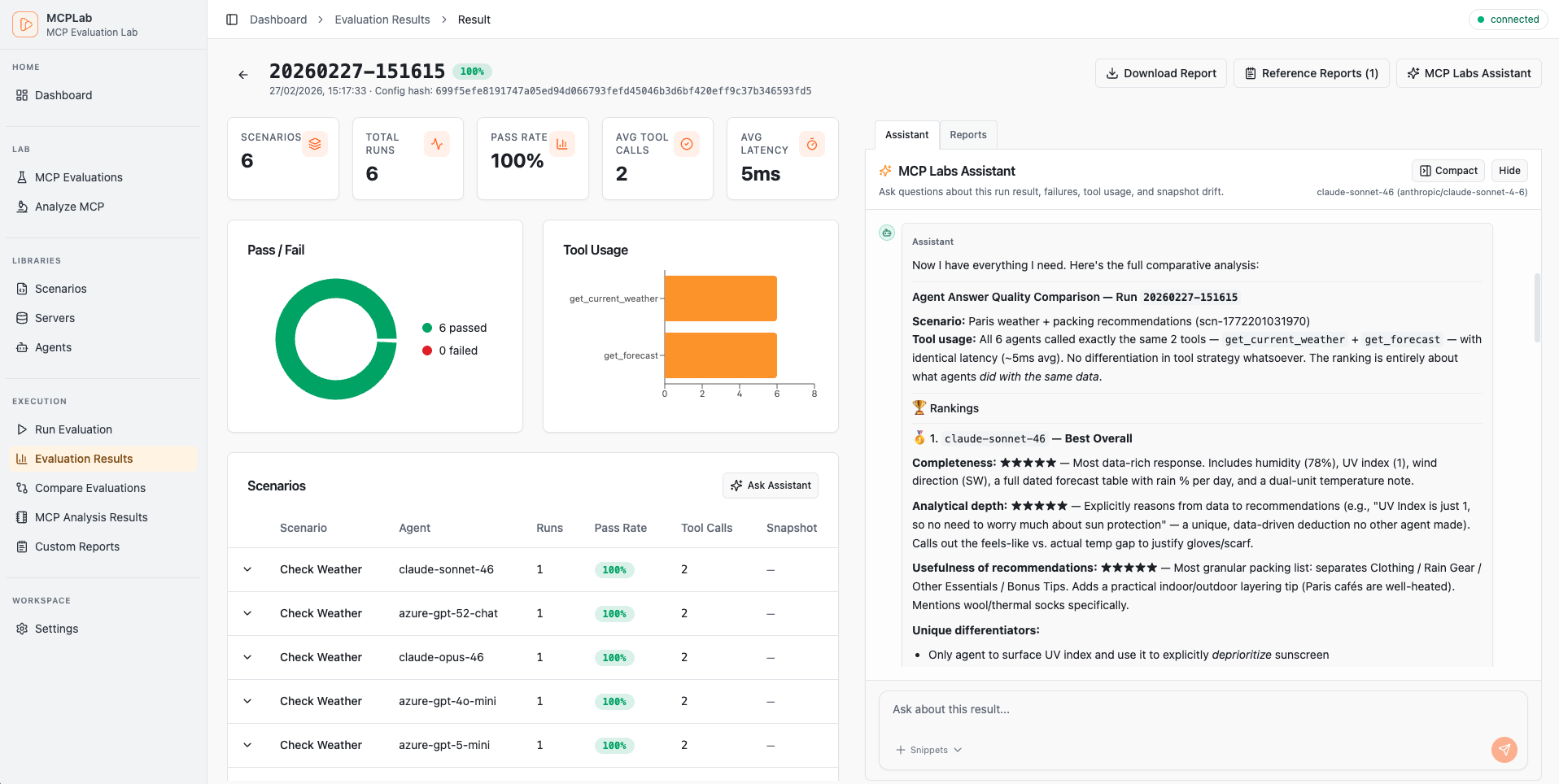
Visit mcplab.inspectr.dev to learn more.
✨ Features
Core Capabilities
- HTTP SSE Transport - Test MCP servers over Streamable HTTP
- Multi-LLM Support - OpenAI, Anthropic Claude, Azure OpenAI
- Rich Assertions - Validate tool usage, sequences, and response content
- Variance Testing - Run multiple iterations to measure stability
- Detailed Traces - JSONL logs of every tool call and LLM response
Analysis & Reporting
- Trend Analysis - Track pass rates and performance over time
- LLM Comparison - Built-in tools to compare agent behavior
- Multiple Outputs - HTML report, JSON results, Markdown summary, JSONL trace
- Custom Metrics - Extract values and track domain-specific KPIs
- Markdown Reports - Store and browse custom analysis notes alongside runs
AI-Powered Tools (App Mode)
- Scenario Assistant - AI chat to help design and refine eval scenarios
- Result Assistant - AI chat to analyze and explain completed run results
- MCP Tool Analysis - Automated review of MCP tool quality and safety
Developer Experience
- Watch Mode - Auto-rerun tests when configs change
- YAML Configuration - Declarative, version-controllable eval specs
- Interactive Reports - Self-contained HTML with filtering and drill-down
- Multi-Agent Testing - Compare LLMs with a single CLI flag
- Scenario Isolation - Run specific tests or full suites
🚀 Quick Start
1. Install
npx @inspectr/mcplab --helpOr install globally:
npm install -g @inspectr/mcplab2. Set up environment
cp .env.example .env
# Edit .env and add your API keys:
# ANTHROPIC_API_KEY=sk-ant-...
# OPENAI_API_KEY=sk-...
Add your API keys to .env. See Environment Variables for full examples.
3. Run your first evaluation
# Run the app (frontend + local API bridge)
npx @inspectr/mcplab app --open

# Run an evaluation from a config file
npx @inspectr/mcplab run -c mcplab/evals/eval.yaml

# View the results
open mcplab/results/evaluation-runs/$(ls -t mcplab/results/evaluation-runs | head -1)/report.html
4. Create your own test
Create my-eval.yaml:
servers:
  - id: my-server
    transport: "http"
    url: "http://localhost:3000/mcp"

agents:
  - id: claude
    provider: "anthropic"
    model: "claude-haiku-4-5-20251001"
    temperature: 0
    max_tokens: 2048

scenarios:
  - id: "basic-test"
    servers: ["my-server"]
    prompt: "Use the available tools to complete this task..."
    eval:
      tool_constraints:
        required_tools: ["my_tool"]
      response_assertions:
        - type: "regex"
          pattern: "success|completed"
Run it:
mcplab run -c my-eval.yaml📖 Configuration Guide
Structure Overview
Add this at the top of your eval file for editor validation/autocomplete:
# yaml-language-server: $schema=./config-schema.jsonservers: # MCP servers to test against
- id: local-server
transport: "http"
url: "http://localhost:3000/mcp"
- ref: "shared-server"
agents: # LLM agents to use for testing
- id: local-agent
provider: "anthropic"
model: "claude-sonnet-4-6"
- ref: "claude-sonnet-46"
scenarios: # Test scenarios to run
- id: "basic-test"
servers: ["local-server"]
prompt: "..."
- ref: "scn-shared-basic"Servers
Define MCP servers with connection details and authentication:
servers:
  - id: my-server
    transport: "http"
    url: "https://api.example.com/mcp"
    auth:
      type: "bearer"
      token: ${MCP_TOKEN}        # env var reference
      # token: my-secret-token   # or direct value
Authentication types:
Bearer Token:
auth:
  type: "bearer"
  token: ${MCP_TOKEN}        # env var reference
  # token: my-secret-token   # or direct value
API Key:
auth:
  type: "api_key"
  header_name: "X-API-Key"     # optional, defaults to X-API-Key
  value: ${MY_API_KEY}
OAuth Client Credentials:
auth:
  type: "oauth_client_credentials"
  token_url: "https://auth.example.com/token"
  client_id_env: "CLIENT_ID"
  client_secret_env: "CLIENT_SECRET"
  scope: "read:data"              # Optional
  audience: "https://api.example.com"  # Optional
Agents
Configure LLM agents with provider-specific settings:
Anthropic (Claude):
agents:
  - id: claude-sonnet
    provider: "anthropic"
    model: "claude-sonnet-4-6"
    temperature: 0
    max_tokens: 2048
    system: "You are a helpful assistant."
OpenAI (ChatGPT):
agents:
  - id: gpt-4
    provider: "openai"
    model: "gpt-4o-mini"
    temperature: 0
    max_tokens: 2048
    system: "You are a helpful assistant."
Azure OpenAI:
agents:
  - id: azure-gpt
    provider: "azure_openai"
    model: "gpt-4o"  # Deployment name
    temperature: 0
    max_tokens: 2048
    system: "You are a helpful assistant."
Required environment variables:
- Anthropic:
ANTHROPIC_API_KEY - OpenAI:
OPENAI_API_KEY - Azure:
AZURE_OPENAI_ENDPOINT,AZURE_OPENAI_API_KEY,AZURE_OPENAI_DEPLOYMENT
Scenarios
Define test scenarios with prompts and evaluation criteria:
scenarios:
  - id: "search-and-analyze"
    servers: ["my-server"]
    prompt: |
      Search for items matching criteria X,
      then analyze the results and provide insights.

    eval:
      # Validate tool usage
      tool_constraints:
        required_tools: ["search", "analyze"]
        forbidden_tools: ["delete"]

      # Validate tool order
      tool_sequence: ["search", "analyze"]

      # Validate response content
      response_assertions:
        - type: "contains"
          value: "found"
        - type: "not_contains"
          value: "error"
        - type: "regex"
          pattern: "found \\d+ items"
        - type: "jsonpath"
          path: "$.summary.count"
          equals: 10
        - type: "jsonpath_exists"
          path: "$.summary.items"

    # Extract metrics
    extract:
      - name: "item_count"
        from: "final_text"
        regex: "found (?<value>\\d+) items"

run_defaults:
  selected_agents:
    - claude-sonnet
Evaluation options:
tool_constraints- Which tools must/must not be usedrequired_tools: Tools that must be calledforbidden_tools: Tools that must not be called
tool_sequence- Ordered tool list that must appear in the run in the same order- Example:
["search", "analyze"]passes when the run containssearchbeforeanalyze, even if other tools happen in between
- Example:
response_assertions- Validate the final responsecontains: Final text must include a literal substring (case-insensitive)not_contains: Final text must not include a literal substring (case-insensitive)starts_with: Final text must start with a literal substring (case-insensitive)ends_with: Final text must end with a literal substring (case-insensitive)equals: Final text must exactly equal a literal string (case-insensitive)regex: Pattern matching on response textjsonpath: Query and validate JSON responses (with optionalequals)jsonpath_exists: JSONPath must resolve at least one valuejsonpath_not_exists: JSONPath must resolve no values
extract- Extract metrics from responses- Capture values using regex named groups:
(?<value>...)
- Capture values using regex named groups:
🔑 Environment Variables
Add your LLM Agent API keys to .env for each provider you want to use:
Anthropic (Claude models):
# -----------------------------------------------------------------------------
# Anthropic Configuration
# -----------------------------------------------------------------------------
# Required for testing Claude models (claude-haiku-4, claude-sonnet-4)

ANTHROPIC_API_KEY=sk-ant-api03-XXXXXXXXXXXXXXXXXXXXXXXXXXXXXXXXXXXXXXXXXXXXXXXX
Azure OpenAI (GPT models):
# -----------------------------------------------------------------------------
# Azure OpenAI Configuration
# -----------------------------------------------------------------------------
# Required for testing GPT models (gpt-4o-mini, gpt-4o, etc.)

AZURE_OPENAI_API_KEY=XXXXXXXXXXXXXXXXXXXXXXXXXXXXXXXXXXXXXXXXXXXXXXXX
AZURE_OPENAI_ENDPOINT=https://your-resource.openai.azure.com
AZURE_OPENAI_DEPLOYMENT="gpt-5.2-chat"
AZURE_OPENAI_API_VERSION="2025-04-01-preview"
OpenAI:
# -----------------------------------------------------------------------------
# OpenAI Configuration
# -----------------------------------------------------------------------------
OPENAI_API_KEY=sk-XXXXXXXXXXXXXXXXXXXXXXXXXXXXXXXXXXXXXXXXXXXXXXXX
💡 Usage Examples
Basic Usage
# Run all scenarios
mcplab run -c mcplab/evals/eval.yaml

# Interactive mode (choose config + agents)
mcplab run --interactive

# Run specific scenario
mcplab run -c mcplab/evals/eval.yaml -s basic-test

# Run with variance testing (5 iterations)
mcplab run -c mcplab/evals/eval.yaml -n 5
App Mode
Serve the web app and local API in one process:
mcplab app --open

# Interactive startup (host/port/paths prompt + summary)
mcplab app --interactive
Optional custom paths:
mcplab app --evals-dir mcplab/evals --runs-dir mcplab/results/evaluation-runs --port 8787 --openOptional development mode (proxy frontend to Vite, keep API local):
mcplab app --devMulti-LLM Testing
Compare how different LLMs perform on the same tasks:
# Test with multiple agents
mcplab run -c examples/eval.yaml \
  --agents claude-haiku,gpt-4o-mini,gpt-4o

# This runs each scenario with each agent automatically
# 3 scenarios × 3 agents = 9 tests

# Compare results
node scripts/compare-llm-results.mjs mcplab/results/evaluation-runs/LATEST/results.json
Output:
📊 LLM Performance Comparison

LLM              | Pass Rate | Avg Tools/Run | Avg Duration (ms)
-----------------|-----------|---------------|------------------
claude-haiku     |    100.0% |           2.5 |               850
gpt-4o-mini      |     88.9% |           2.8 |               950
gpt-4o           |     88.9% |           3.2 |              1200

💡 Key Insights
• Highest Pass Rate: claude-haiku (100.0%)
• Fastest: claude-haiku (850ms avg)
• Most Efficient: claude-haiku (2.5 tools/run)
Watch Mode
Auto-rerun tests when config changes:
mcplab watch -c examples/eval.yaml

# With multi-agent testing
mcplab watch -c examples/eval.yaml \
  --agents claude-haiku,gpt-4o-mini
Generate Reports
# Regenerate HTML report from previous run
mcplab report --input mcplab/results/evaluation-runs/20260206-212239

# Interactive run selection from recent runs
mcplab report --interactive
🤖 AI-Powered Features
These features are available through the web app (mcplab app).
Scenario Assistant
An interactive AI chat that helps you design and refine evaluation scenarios. Given a scenario, it can suggest improvements to the prompt, evaluation rules, and extraction patterns — and can call your MCP server's tools directly to demonstrate expected behavior.
Open the app, navigate to an eval, and open the Scenario Assistant panel on any scenario.
Result Assistant
An AI chat that analyzes completed evaluation runs. Ask it to explain failures, identify patterns across scenarios, or summarize what went wrong in a specific run. It has read-only access to run artifacts, traces, and results.
Open a run in the app and click Result Assistant.
MCP Tool Analysis
Automated quality review of your MCP server's tools. Connects to your server, discovers all tools, and produces a report covering:
- Name and description quality
- Schema completeness
- Safety classification (read-like vs. potentially destructive)
- Sample call behavior (optional — runs real calls against your server)
Reports are saved to mcplab/results/tool-analysis/ and viewable in the app.
Navigate to Tool Analysis in the app sidebar to start an analysis job.
Markdown Reports
Store and browse custom analysis notes, comparison docs, or generated reports alongside your eval runs. Place .md files in mcplab/reports/ and they become accessible in the app under Reports.
📚 Reusable configurations
Define servers, agents, and scenarios once and reuse them across multiple eval files.
mcplab/
├── servers.yaml       # Shared MCP server definitions
├── agents.yaml        # Shared LLM agent definitions
└── scenarios/
    ├── scenario-a.yaml
    └── scenario-b.yaml
Reference library items in eval configs:
servers:
  - ref: "my-server"          # from servers.yaml
agents:
  - ref: "claude-sonnet"      # from agents.yaml
scenarios:
  - ref: "scenario-a"         # from scenarios/scenario-a.yaml
Libraries can be managed through the app's Libraries page.
📂 Output Structure
Each evaluation run creates a timestamped directory:
mcplab/results/evaluation-runs/20260206-212239/
├── trace.jsonl        # Detailed execution log (every tool call, LLM response)
├── results.json       # Structured results (pass/fail, metrics, aggregates)
├── summary.md         # Human-readable summary table
└── report.html        # Interactive HTML report (self-contained)
Other output directories:
mcplab/
├── evals/                          # Eval definition YAML files
├── results/
│   ├── evaluation-runs/            # Run artifacts
│   └── tool-analysis/              # Saved tool analysis reports
├── reports/                        # Custom markdown reports
├── servers.yaml                    # Library: shared server definitions
├── agents.yaml                     # Library: shared agent definitions
└── scenarios/                      # Library: shared scenario files
Trace Format (JSONL)
{"type":"run_started","run_id":"...","ts":"2026-02-06T20:03:54.585Z"}
{"type":"scenario_started","scenario_id":"search-tags","agent":"claude-haiku","ts":"..."}
{"type":"llm_request","messages_summary":"user:Search for tags...","ts":"..."}
{"type":"llm_response","raw_or_summary":"tool_calls:search_tags","ts":"..."}
{"type":"tool_call","server":"demo","tool":"search_tags","args":{...},"ts_start":"..."}
{"type":"tool_result","server":"demo","tool":"search_tags","ok":true,"result_summary":"...","ts_end":"...","duration_ms":1114}
{"type":"final_answer","text":"Found 42 tags matching...","ts":"..."}
{"type":"scenario_finished","scenario_id":"search-tags","pass":true,"metrics":{...},"ts":"..."}
Results Format (JSON)
{
  "metadata": {
    "run_id": "20260206-212239",
    "timestamp": "2026-02-06T20:22:39.000Z",
    "config_hash": "abc123...",
    "git_commit": "def456..."
  },
  "summary": {
    "total_scenarios": 8,
    "total_runs": 8,
    "pass_rate": 1.0,
    "avg_tool_calls_per_run": 2.5,
    "avg_tool_latency_ms": 950
  },
  "scenarios": [...]
}
🎓 Real-World Examples
Example 1: Weather MCP Server
Test a weather data MCP server:
# Run comprehensive test suite (9 scenarios)
mcplab run -c examples/eval-weather-comprehensive.yaml

# Test a specific scenario
mcplab run -c examples/eval-weather-comprehensive.yaml \
  -s forecast-accuracy

# Compare Claude vs GPT-4 on all scenarios
mcplab run -c examples/eval-weather-simple.yaml \
  --agents claude-haiku,gpt-4o-mini
Included scenarios:
- Current conditions lookup
- Multi-day forecast retrieval
- Location search and resolution
- Severe weather alerts
- Historical data queries
- Unit conversion (metric/imperial)
Example 2: Multi-Agent Comparison
Create multi-agent-eval.yaml with one agent defined:
agents:
  - id: claude-haiku
    provider: anthropic
    model: claude-haiku-4-5-20251001
  - id: gpt-4o-mini
    provider: openai
    model: gpt-4o-mini
  - id: gpt-4o
    provider: openai
    model: gpt-4o

scenarios:
  - id: "complex-task"
    prompt: "..."

run_defaults:
  selected_agents:
    - claude-haiku
Run with all agents:
mcplab run -c multi-agent-eval.yaml \
  --agents claude-haiku,gpt-4o-mini,gpt-4o \
  -n 5

# 1 scenario × 3 agents × 5 runs = 15 tests
Example 3: CI/CD Integration
Add to .github/workflows/mcp-eval.yml:
name: MCP Evaluation

on: [push, pull_request]

jobs:
  evaluate:
    runs-on: ubuntu-latest
    steps:
      - uses: actions/checkout@v4
      - uses: actions/setup-node@v4
        with:
          node-version: '22'

      - run: npm install
      - run: npm run build

      - name: Run evaluations
        run: mcplab run -c examples/eval.yaml -n 3
        env:
          ANTHROPIC_API_KEY: ${{ secrets.ANTHROPIC_API_KEY }}
          OPENAI_API_KEY: ${{ secrets.OPENAI_API_KEY }}

      - name: Upload results
        uses: actions/upload-artifact@v4
        with:
          name: evaluation-results
          path: mcplab/results/evaluation-runs/
🛠️ Advanced Features
Custom Analysis Scripts
Analyze results with custom logic:
// my-analysis.mjs
import { readFileSync } from 'fs';

const results = JSON.parse(readFileSync('mcplab/results/evaluation-runs/LATEST/results.json'));

// Calculate custom metrics
for (const scenario of results.scenarios) {
  const efficiency = scenario.pass_rate / scenario.runs[0].tool_call_count;
  console.log(`${scenario.scenario_id}: ${efficiency.toFixed(2)} success/tool`);
}
Generate Multi-LLM Configs
Auto-generate multi-agent configs:
# Creates eval-weather-multi-llm.yaml
node scripts/generate-multi-llm-config.mjs examples/eval-weather.yaml
Compare LLM Performance
Built-in comparison script:
node scripts/compare-llm-results.mjs mcplab/results/evaluation-runs/20260206-212239/results.jsonShows:
- Pass rates by LLM
- Tool usage efficiency
- Response times
- Scenario-by-scenario breakdown
🔧 Development
Project Structure
mcp-evaluation/
├── packages/
│   ├── cli/           # CLI tool (run, watch, report, app commands)
│   ├── app/           # Web frontend (React)
│   ├── core/          # Evaluation engine, agent adapters, MCP client
│   └── reporting/     # HTML report generation
├── examples/          # Example evaluation configs
├── scripts/           # Utility scripts (multi-LLM, comparison)
├── mcplab/results/    # Evaluation results + analysis (gitignored)
└── .claude/           # Claude Code skills (optional)
Run in Development Mode
# Build all packages
npm run build

# Run CLI directly with tsx (no build needed)
npm run dev -- app --dev

# Or run just the frontend dev server
npm run app:dev:ui
Run Tests
npm test🤝 Contributing
Contributions welcome! Please:
- Fork the repository
- Create a feature branch (
git checkout -b feature/amazing-feature) - Commit your changes (
git commit -m 'Add amazing feature') - Push to the branch (
git push origin feature/amazing-feature) - Open a Pull Request
License
MIT License - see LICENSE for details.
Acknowledgments
Built with:
Support
⭐ Star this repo if you find it useful!
Made with ❤️ by Inspectr for the MCP community