
@kansnpms/console-log-pipe-cli
v2.5.0
Published
Global CLI tool for Console Log Pipe - Real-time log streaming server and management

Maintainers
 gbpnkans
Readme
@kansnpms/console-log-pipe-cli




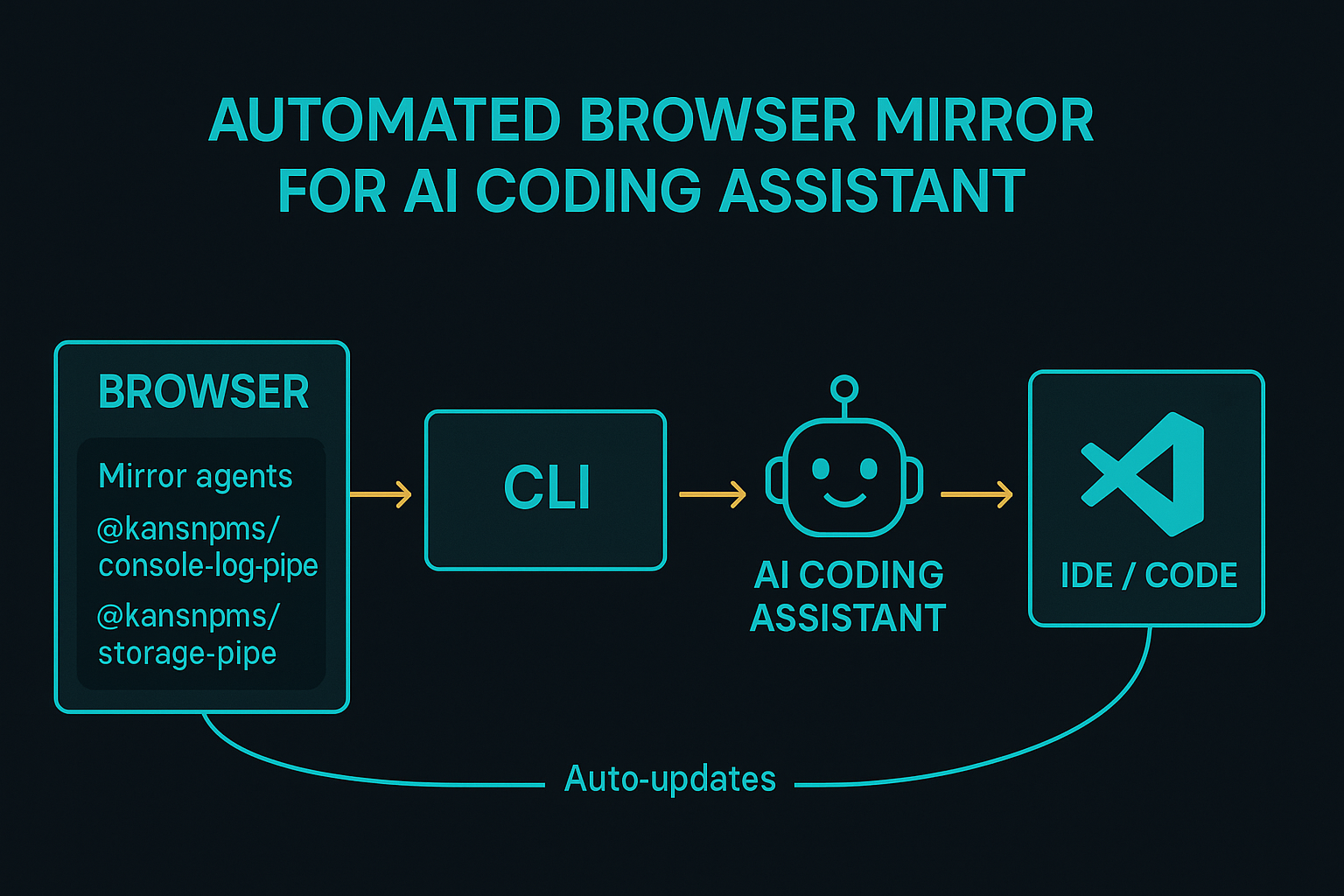
AI‑Friendly CLI server – receive real‑time browser console logs, errors, network traffic, and storage changes from your web applications directly in your terminal. Perfect for AI coding assistants and developers who want instant debugging feedback.
✨ Highlights
| Feature | Description |
| -------------------------------- | ------------------------------------------------------------------------------------ |
| Global CLI installation | Install once, use everywhere → npm i -g @kansnpms/console-log-pipe-cli |
| Real‑time WebSocket server | <10 ms latency from browser to terminal on typical localhost. |
| Multi‑application monitoring | Run multiple CLI instances on different ports for isolated app debugging. |
| AI‑optimised terminal output | Structured, colorized logs designed for effortless AI parsing and human readability. |
| Storage + Network capture | Monitor cookies, localStorage, sessionStorage, and network requests in real‑time. |
| Session isolation | Each browser tab/app gets unique sessionId for organized debugging. |
📦 Installation
# Install globally – use anywhere
npm  i -g @kansnpms/console-log-pipe-cli

# Verify installation
clp --version
Companion client – you'll also need the browser client:
npm i @kansnpms/console-log-pipe-client # for your web app
🚀 Quick Start
# 1. Start the CLI server (port is required)
clp start --port 3001

# 2. Add client to your web app
npm install @kansnpms/console-log-pipe-client

# 3. Initialize in your app (port must match CLI port)
import ConsoleLogPipe from '@kansnpms/console-log-pipe-client';
await ConsoleLogPipe.init({
  serverPort: 3001,        // ⚠️ serverPort is mandatory
  serverHost: 'localhost'  // optional, defaults to 'localhost'
});

# 4. Watch logs stream to your terminal! 📡
⚙️ CLI Commands
clp start --port <port>
Start the WebSocket server and begin monitoring. Port is required.
# Basic usage
clp start --port 3001

# With options
clp start --port 3001 --developer "alice" --env production
Options:
| Option | Type | Default | Notes |
| -------------- | -------------------------------------------- | ------------- | ---------------------------------------------- |
| --port, -p | number | required | WebSocket server port (1024-65535). |
| --host | string | localhost | Server host binding. |
| --env | "development" \| "staging" \| "production" | development | Environment context. |
| --developer | string | – | Developer name for session identification. |
| --log-level | "debug" \| "info" \| "warn" \| "error" | debug | Minimum log level to display. |
| --max-logs | number | 1000 | Maximum logs to store in memory. |
| --session-id | string | auto | Custom session ID (auto-generated if omitted). |
📋 Commands
clp start --port <port>
Start Console Log Pipe server. Port number is required. Monitoring happens automatically - logs appear in real-time in your terminal.
# Basic usage
clp start --port 3001
clp start --port 3016
clp start --port 3002

# With additional options
clp start --port 3001 --log-level warn --developer "John"
clp start --port 3001 --env production --branch "feature/auth"
clp start --port 3001 --max-logs 500 --host localhost

# Stop with Ctrl+C when done
Options:
--port, -p <port>- Server port (required, must be between 1024-65535)--host <host>- Server host (default: localhost)--env <environment>- Environment (development, staging, production) (default: development)--log-level <level>- Minimum log level (debug, info, warn, error) (default: debug)--max-logs <number>- Maximum logs to store (default: 1000)--developer <name>- Developer name for identification--branch <name>- Git branch name for context--session-id <id>- Custom session ID (auto-generated if not provided)--no-browser- Do not open browser automatically--enable-compression- Enable gzip compression (default: true)--enable-cors- Enable CORS (default: true)
clp storage --port <port>
Start Storage Monitor service for real-time browser storage and cookies monitoring.
# Basic usage
clp storage --port 3002

# With custom options
clp storage --port 3002 --poll-interval 500 --no-indexeddb
clp storage --port 3002 --session-id "debug-session" --no-cookies
Options:
--port, -p <port>- Storage monitor port (default: 3002)--host <host>- Storage monitor host (default: localhost)--session-id <sessionId>- Custom session ID for storage monitoring--poll-interval <ms>- Polling interval for storage changes in milliseconds (default: 1000)--no-cookies- Disable cookie monitoring--no-localstorage- Disable localStorage monitoring--no-sessionstorage- Disable sessionStorage monitoring--no-indexeddb- Disable IndexedDB monitoring
Features:
- 🍪 Real-time cookie change detection
- 💾 localStorage monitoring with method interception
- 🔄 sessionStorage tracking
- 🌈 Color-coded output (green=add, yellow=modify, red=delete)
- 📊 Web dashboard at
http://localhost:<port>
🎯 Real-World Examples
Basic Usage
# 1. Start monitoring (port is required)
clp start --port 3001

# 2. Add client to your React app
npm install @kansnpms/console-log-pipe-client

# 3. Initialize in your app
import ConsoleLogPipe from '@kansnpms/console-log-pipe-client';
ConsoleLogPipe.init({ port: 3001 });

# 4. Logs appear automatically in real-time
# Stop with Ctrl+C when done
Multi-Application Development
# Start multiple servers (each in separate terminal)
clp start --port 3001
clp start --port 3002
clp start --port 3003

# Each terminal shows logs automatically
# Stop each with Ctrl+C when done
🔧 Configuration
The CLI automatically manages configuration and stores data in:
- Config:
~/.console-log-pipe/config.json - Logs:
~/.console-log-pipe/logs/ - Sessions:
~/.console-log-pipe/sessions/
🌐 Integration
React
# Start CLI server first
clp start --port 3001
import { useEffect } from 'react';
import ConsoleLogPipe from '@kansnpms/console-log-pipe-client';
function App() {
useEffect(() => {
ConsoleLogPipe.init({ port: 3001 });
}, []);
return <div>My App</div>;
}Vue.js
# Start CLI server first
clp start --port 3016
import { createApp } from 'vue';
import ConsoleLogPipe from '@kansnpms/console-log-pipe-client';
const app = createApp({});
ConsoleLogPipe.init({ port: 3016 });Vanilla JavaScript
# Start CLI server first
clp start --port 3002
<script src="https://unpkg.com/@kansnpms/console-log-pipe-client"></script>
<script>
ConsoleLogPipe.init({ port: 3002 });
</script>📚 More Information
- Main Repository: Console Log Pipe
- Client Library: @kansnpms/console-log-pipe-client
- Documentation: Full Documentation
📄 License
MIT