
@liiift-studio/mac-os9-ui
v2.6.0
Published
A pixel-perfect Mac OS 9 UI component library for React and TypeScript


Readme
Mac OS 9 UI Component Library
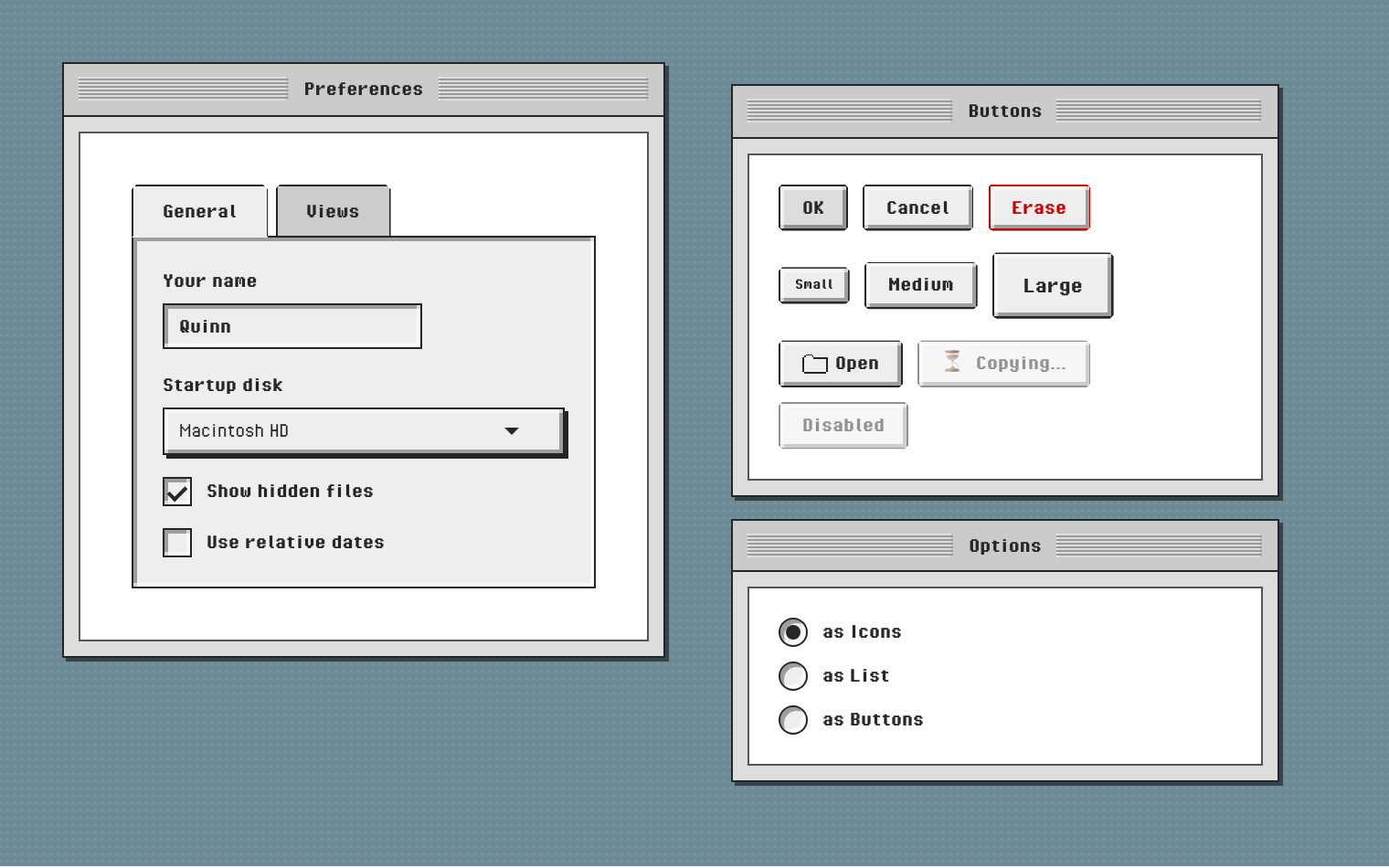
A pixel-perfect Mac OS 9 UI component library for React and TypeScript. Bring authentic retro Mac OS 9 styling to your web applications with accessible, well-typed components.
TypeScript · Zero runtime dependencies · ~3 kB for a single component · React 18 & 19


Live site · Storybook · npm · Changelog
npm install @liiift-studio/mac-os9-uiimport '@liiift-studio/mac-os9-ui/styles';
import { Window, Button } from '@liiift-studio/mac-os9-ui';
<Window title="My Application">
<Button variant="primary">Click Me</Button>
</Window>;Features
- 🎨 Pixel-Perfect Design - Faithful recreation of Mac OS 9 UI elements based on the original design system
- 📦 TypeScript First - Full TypeScript support with complete type definitions
- ⌨️ Really Keyboard Operable - windows move and resize with the arrow keys, menus use a roving tabindex, lists are navigable listboxes. See Accessibility for exactly what is and isn't verified
- 🎭 Dual Module Support - ESM and CommonJS builds included
- 🪶 No runtime dependencies - React and React DOM are the only peers
- 🎚️ Themeable - every value is a CSS custom property, in three tiers
- 📖 Storybook Docs - browse every component, interactively
- 🧪 Tested - 804 tests, including an axe sweep over every rendering component and WCAG contrast assertions on the palette
Compatibility and footprint
| | |
| ------------------------ | --------------------------------------------------------------------------------------------------------------------------------------------------------------------------------------- |
| React | 18 or 19 — both are exercised by the test matrix in CI (react and react-dom are peer dependencies) |
| Runtime dependencies | None |
| Module formats | ESM (dist/index.js) and CommonJS (dist/index.cjs) |
| Bundle | 288 kB ESM, 71 kB gzipped for the whole library — but see tree-shaking below |
| Stylesheet | 138 kB, 25 kB gzipped |
| Fonts | 20 KB fetched by an ASCII page — the family is split into latin and latin-ext subsets with unicode-range, so only the parts your text needs are downloaded (49 KB of woff2 total) |
| Published tarball | 391 kB (1245 kB unpacked) |
| Types | Bundled .d.ts and .d.cts |
Server components and 'use client'
Every component in this library is interactive, so the published bundle carries
a "use client" banner at the top. In a Next.js App Router project you can
import it from a server component without adding a directive yourself — the
boundary is already declared inside the package.
The stylesheet is a side-effect import and belongs in your root layout:
// app/layout.tsx — a server component
import '@liiift-studio/mac-os9-ui/styles';
Tree-shaking
Import what you need from the package root; your bundler drops the rest.
import { Button } from '@liiift-studio/mac-os9-ui';That produces about 3 KB of JavaScript, against 102 kB for the whole
library. The package ships as preserved modules — one output file per source
module, rather than a single flattened bundle — because a flattened bundle
cannot be tree-shaken at all here: each component's displayName assignment is
a top-level statement referencing it, so nothing could be dropped and a
Button-only import pulled the entire library. sideEffects is scoped to CSS, so only the
stylesheet is treated as unconditional.
There are no deep subpath entry points, and they would not buy anything: the root import already gives you only what you use.
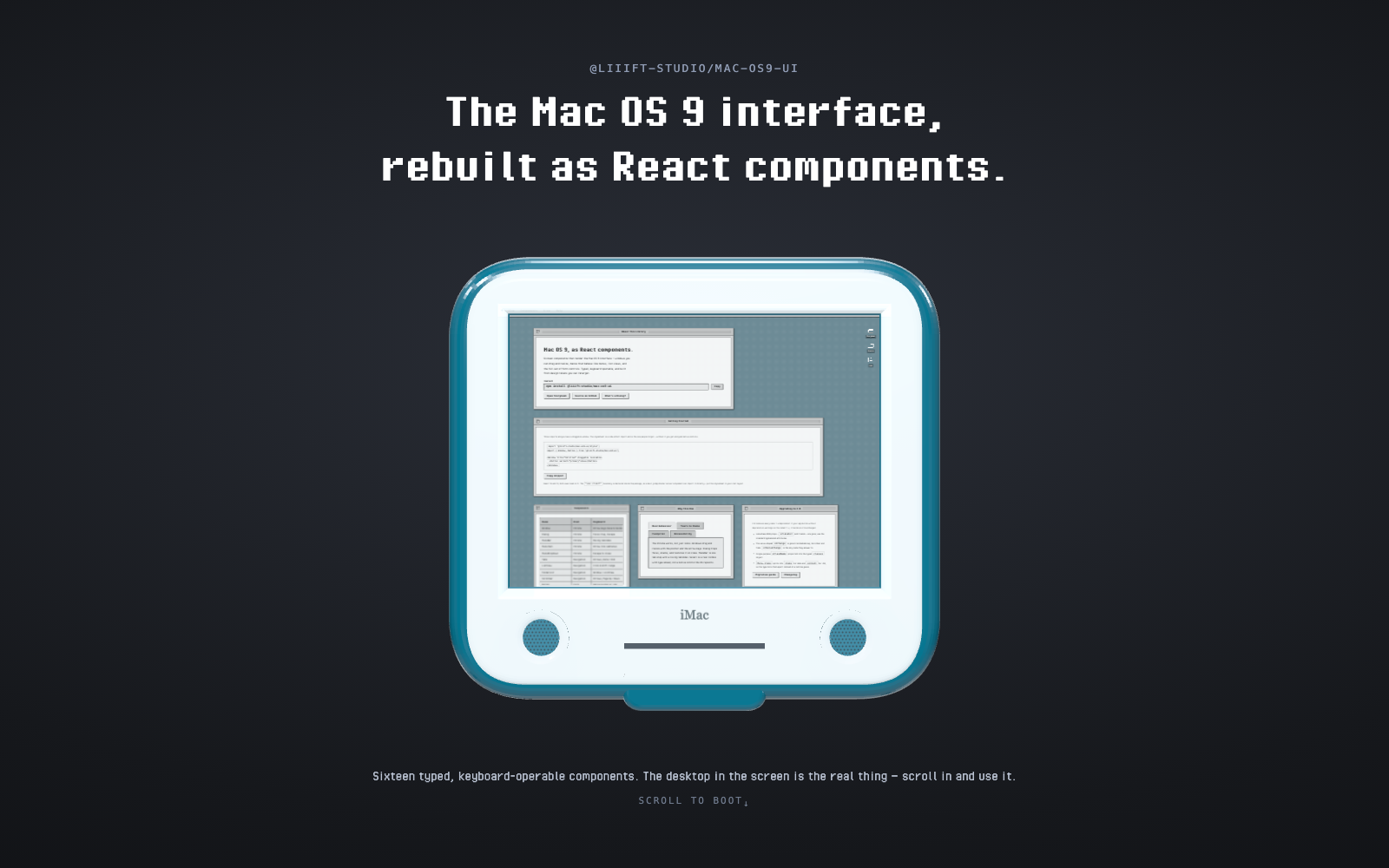
The demo is the library
The landing site is built out
of these components — the windows are Window, the component index is a
ListView, the controls are the real form controls. Scroll and it zooms into
the machine.
Components
Form Controls
- Button - Classic Mac OS 9 buttons. Variants
default/primary/danger, sizessm/md/lg,loading,leftIcon/rightIcon,iconOnly, and polymorphism viaas="a"orasChild - IconButton - Icon button with an optional label in any of four positions
- Checkbox - Mac OS 9 style checkboxes, including an indeterminate state
- Slider - Value dragged along a track, with optional tick marks. Ticks are behaviour, not decoration: a ticked slider snaps to them
- LittleArrows - The stacked up/down stepper, for driving the field beside it. Two buttons rather than one control with halves
- BevelButton - A beveled surface that behaves as a push button, toggle, radio or pop-up. The behaviour picks the semantics
- ImageWell - A sunken well you can drop a picture into. A button first, so it works without a pointer
- ClockControl - Time field edited a segment at a time, with one pair of arrows driving the selected segment
- Radio / RadioGroup - Radio buttons; the group adds
role="radiogroup"and arrow-key navigation - TextField - Single-line or
multilinetext input, with helper text and a live-region error slot - Select - A real
role="listbox"popup with type-ahead, option groups, and a hidden input so native form submission still works
Feedback
- Progress - Determinate bar, or the indeterminate barber pole when the length of the work is unknown.
valuedecides which — there is no default, because a default would claim progress nobody measured - BalloonHelp - The speech balloon from Help › Show Balloons, with the global switch that gated it. Opens on focus as well as hover, and describes its trigger rather than renaming it
- ChasingArrows - Apple's asynchronous arrows, for background work with no dialog to hold a progress bar. Claims no progress value, and pulses rather than freezing under
prefers-reduced-motion - Alert - The Mac OS 9 alert arrangement over
Dialog: severity icon, message, buttons bottom-right with the default rightmost. Renders asrole="alertdialog"
Layout & Chrome
- Window - Classic Mac OS 9 window container. Optionally
draggableandresizable, by pointer or arrow keys - WindowManagerProvider - z-order and focus coordination for several windows at once
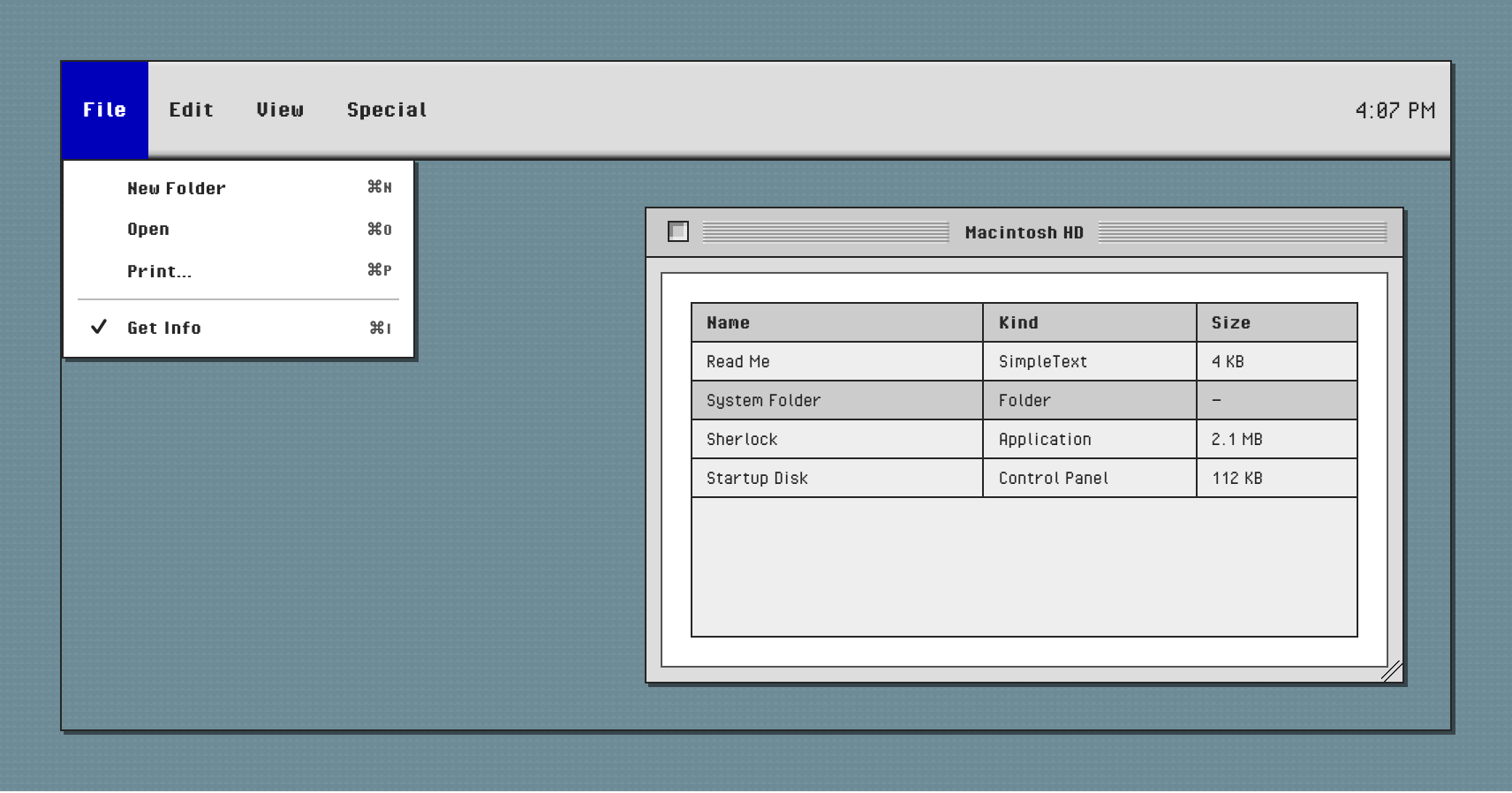
- MenuBar / MenuItem / MenuDropdown - Application menu bar with dropdowns, submenus and keyboard shortcuts
- Tabs / TabPanel - Tabbed navigation, generic over the tab id
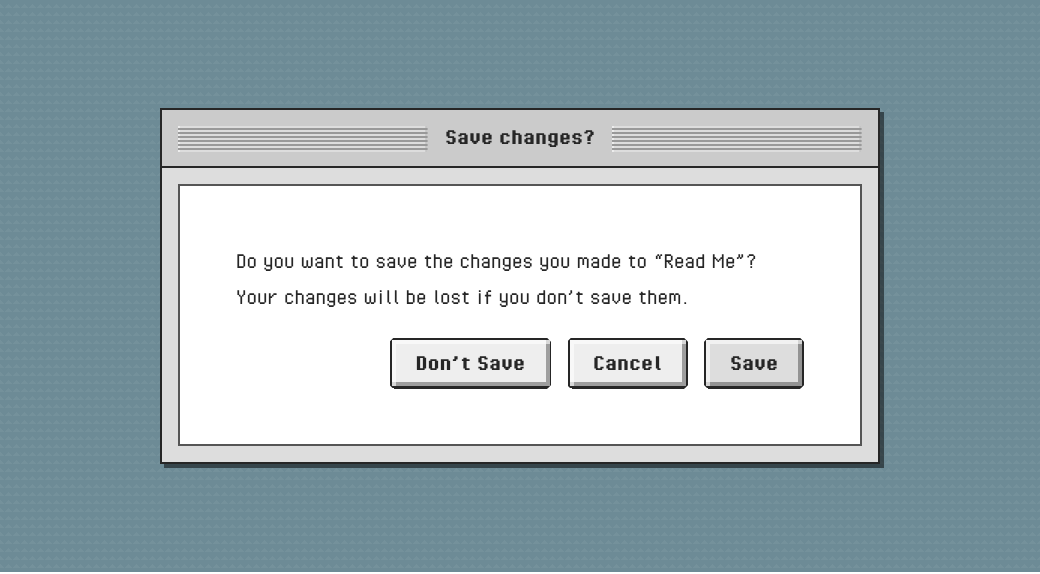
- Dialog - Modal dialog, portalled to the body, with a focus trap
Lists & Navigation
- ListView - Multi-column list with sortable headers and selection, generic over the row type
- FolderList - A Window with a ListView inside it, for file browsing
- Scrollbar - Custom Mac OS 9 styled scrollbars
- TreeView - Finder's hierarchical list view. A tree, not a listbox with indentation:
aria-level, nested groups, and Right/Left to open and close - ContextualMenu - Right-click menus, also reachable with the ContextMenu key or Shift+F10
- DisclosureTriangle - The expand triangle from Finder lists and dialog sections. A real
<button>witharia-expanded, not a clickable span - GroupBox - The etched border that groups related settings, in the HIG's two weights and all four title modes. A real
fieldset, so the grouping reaches assistive tech - WindowHeader - Finder's "12 items, 1.2 GB available" bar. Pointedly not a heading
- Placard - The sunken status nub beside the horizontal scroll bar. Only a button when you give it an action
- Separator - The engraved rule. Decorative by default; opt into
role="separator"when it genuinely divides
Content
- Icon - Wrapper giving any SVG consistent sizing
- IconLibrary - 39 bundled icons, addressed by name
- createPixelIcon - Build your own icons from a character map, in the same style
Utilities and hooks
- mergeClasses / createClassBuilder - Class name helpers
- useOutsideClick - Dismiss on interaction outside a set of elements
- useMenuPosition - Keep a dropdown inside the viewport
- tokens - Every design token, readable from JavaScript
Recommended starting points
Every component works with defaults alone. These are the four where the useful setting is not the default, because it depends on something only you know.
| Component | Start with | Then tune |
| ----------- | -------------------------------------------------------------------------- | ------------------------------------------------------------------------------------------------------------------------------------ |
| Window | draggable on its own | Add resizable once the content can reflow; boundary="none" only if the window may leave its container |
| Scrollbar | viewportRatio={clientHeight / scrollHeight} | There is deliberately no default — it sets both the thumb length and the Page Up/Down step, and omitting it warns in development |
| ListView | columns + items + height | Add onSelectionChange for controlled selection, onSort once you have more rows than fit |
| Tabs | aria-label + a value on each TabPanel | The value is what makes the literal union survive into onValueChange; without it the index is the identity |
| Progress | value + label for a known length; omit value for the barber pole | Add showValue when the number itself matters; max when you are counting steps rather than percent |
| Slider | label + value/defaultValue | Add ticks to make the values discrete; valueText where a bare number would not communicate |
| GroupBox | title and the controls inside | Use control for a checkbox or select title; variant="secondary" only for nesting |
| Alert | severity, heading, onClose | Add message for detail, cancelLabel for a second button, destructive when the confirming action loses something |

import { IconLibrary, getAllIconNames } from '@liiift-studio/mac-os9-ui';

<IconLibrary icon="folder" size="lg" />;
<IconLibrary icon="trash" label="Move to Trash" />;
IconName is derived from the registry, so an unknown name is a compile error.
Usage Examples
Creating a Window with Menu Bar
MenuBar accepts a menus array describing each top-level entry. A menu's
contents come from one of two props: content for JSX (typically a fragment of
MenuItem components), or items for an array of MenuItemData, which MenuBar
renders for you — useful when the menu comes from a config file or an API rather
than JSX.
MenuBar works controlled (openMenuIndex + onMenuOpen / onMenuClose) or
uncontrolled (defaultOpenMenuIndex).
import { useState } from 'react';
import { Window, MenuBar, MenuItem } from '@liiift-studio/mac-os9-ui';

function MyApp() {
	const [openMenu, setOpenMenu] = useState<number | undefined>();

	return (
		<Window title="My Application">
			<MenuBar
				openMenuIndex={openMenu}
				onMenuOpen={setOpenMenu}
				onMenuClose={() => setOpenMenu(undefined)}
				menus={[
					{
						label: 'File',
						content: (
							<>
								<MenuItem label="New" shortcut="⌘N" onClick={() => console.log('New')} />
								{/* `separator` draws a divider AFTER this item — it is not a
								    standalone divider element. */}
								<MenuItem
									label="Open..."
									shortcut="⌘O"
									separator
									onClick={() => console.log('Open')}
								/>
								<MenuItem label="Quit" shortcut="⌘Q" onClick={() => console.log('Quit')} />
							</>
						),
					},
					{
						label: 'Edit',
						content: (
							<>
								<MenuItem label="Cut" shortcut="⌘X" onClick={() => console.log('Cut')} />
								<MenuItem label="Copy" shortcut="⌘C" onClick={() => console.log('Copy')} />
								<MenuItem label="Paste" shortcut="⌘V" onClick={() => console.log('Paste')} />
							</>
						),
					},
				]}
			/>
			{/* Your content here */}
		</Window>
	);
}
The same menu as data:
<MenuBar
	menus={[
		{
			label: 'File',
			items: [
				{ label: 'New', shortcut: '⌘N', onClick: onNew },
				{ label: 'Open…', shortcut: '⌘O', onClick: onOpen, separator: true },
				{ label: 'Recent', submenu: [{ label: 'report.txt', onClick: onRecent }] },
			],
		},
	]}
/>
Using Form Controls
import { Button, Checkbox, TextField, Select } from '@liiift-studio/mac-os9-ui';
import { useState } from 'react';

function MyForm() {
	const [checked, setChecked] = useState(false);
	const [text, setText] = useState('');
	const [selected, setSelected] = useState('');

	return (
		<div>
			<TextField label="Name" value={text} onChange={(e) => setText(e.target.value)} />

			<TextField label="Notes" multiline rows={4} />

			<Checkbox
				label="I agree to the terms"
				checked={checked}
				onChange={(e) => setChecked(e.target.checked)}
			/>

			{/* Select reports through `onValueChange`, which receives the value
			    itself rather than a DOM event — it is a listbox, not a native
			    <select>. */}
			<Select
				label="Choose an option"
				value={selected}
				onValueChange={setSelected}
				options={[
					{ value: 'option1', label: 'Option 1' },
					{ value: 'option2', label: 'Option 2' },
					{ value: 'option3', label: 'Option 3' },
				]}
			/>

			<Button variant="primary" onClick={() => console.log('Submit')}>
				Submit
			</Button>
		</div>
	);
}
Creating a Dialog
Dialog portals to document.body, traps focus, closes on Escape, restores
focus to whatever opened it, and locks page scroll without the layout shifting.
import { Dialog, Button } from '@liiift-studio/mac-os9-ui';
import { useState } from 'react';

function MyComponent() {
	const [open, setOpen] = useState(false);

	return (
		<>
			<Button onClick={() => setOpen(true)}>Open Dialog</Button>

			<Dialog
				open={open}
				onClose={() => setOpen(false)}
				title="Confirm Action"
				aria-describedby="confirm-copy"
			>
				<p id="confirm-copy">Are you sure you want to proceed?</p>
				<div style={{ display: 'flex', gap: '8px', marginTop: '16px' }}>
					<Button variant="primary" onClick={() => setOpen(false)}>
						OK
					</Button>
					<Button onClick={() => setOpen(false)}>Cancel</Button>
				</div>
			</Dialog>
		</>
	);
}
Use role="alertdialog" for destructive confirmations, and container={null}
to render inline instead of portalling.
Router links with asChild
Button renders a <button> by default and an <a> with as="a". When a
router wants to own the element — Next.js <Link>, React Router, TanStack
Router — use asChild, and Button contributes only its styling, ARIA and
disabled behaviour:
import Link from 'next/link';
import { Button } from '@liiift-studio/mac-os9-ui';

<Button asChild variant="primary">
	<Link href="/dashboard">Go to Dashboard</Link>
</Button>;
Several windows at once
Wrap them in a WindowManagerProvider and clicking a window brings it forward:
import { WindowManagerProvider, Window } from '@liiift-studio/mac-os9-ui';

<WindowManagerProvider>
	<Window id="finder" title="Finder" draggable>
		…
	</Window>
	<Window id="notes" title="Notes" draggable>
		…
	</Window>
</WindowManagerProvider>;
Outside a provider, Window falls back to its own zIndex, active and
onActivate props.
Styling
Basic Setup
Import the component styles once in your application's entry point:
// In your app's main file (e.g., main.tsx, _app.tsx, app/layout.tsx)
import '@liiift-studio/mac-os9-ui/styles';
This provides:
- CSS custom properties (design tokens/variables)
- Font declarations (the bundled Pixel family)
- Component styles
- Utility classes
This needs to be done only once at the root of your application. All components will then have the correct Mac OS 9 styles applied.
Entry points
| Import | What you get |
| ---------------------------------------- | ------------------------------------------------------------- |
| @liiift-studio/mac-os9-ui/styles | Everything: tokens, @font-face, component styles, utilities |
| @liiift-studio/mac-os9-ui/tokens | Design tokens only — no @font-face, no font downloads |
| @liiift-studio/mac-os9-ui/base | Optional global html / body / box-sizing styles |
| @liiift-studio/mac-os9-ui/webfonts | Opt-in Google Fonts for IBM Plex and EB Garamond |
| @liiift-studio/mac-os9-ui/fonts/* | The raw font files |
| @liiift-studio/mac-os9-ui/platinum.css | The framework-agnostic paint: stable mac- class names |
| @liiift-studio/mac-os9-ui/platinum | The framework-agnostic behaviour: plain DOM modules, no React |
Using the look without React. The token entry point is framework-neutral and
supported: /tokens is plain custom properties, and /base and /webfonts are
plain CSS. Build a button in Vue, Svelte or hand-written HTML against
--color-surface, --border-width-thin and the rest, and it will match.
The React components' class names are not a public API. They come from CSS Modules and are content-hashed, so they change between builds — targeting them will break on any release.
platinum.css is the opposite: hand-written mac- class names that are a
public API, versioned with the package, with the list held in a test so renaming
one has to be a deliberate breaking change.
It ships with platinum, the behaviour half, because paint alone is the half
that matters least — a div that looks like a button is not a button. Those
modules are plain DOM code with no framework, no dependencies and no
"use client" banner, covering disclosure, menus, balloon help and steppers.
The harder controls — the focus trap, the roving tabindex, the listbox with
type-ahead, the tree — remain React-only, and that is stated plainly rather than
implied away.
If you want the look in another framework, docs/without-react.md has the twenty lines written out: tested recipes for every control that is only paint — separators, group boxes, window headers, placards, bevels, wells and the chasing arrows — plus an honest table of the ones where a CSS-only version is not a simpler implementation but a broken one.
Where this comes from
The controls here are not invented, and they are not copied from screenshots. They follow Apple's own specification for the interface — the Platinum appearance, which shipped as the default look of Mac OS 8 and carried through Mac OS 9.
| Source | What it settles | | ---------------------------------------------------------------------------------------------- | ------------------------------------------------------------------------------------------------------------------ | | Mac OS 8 Human Interface Guidelines | The whole document. Six chapters: overview, controls, dialog boxes, menus, windows, control panels | | Chapter 2 — Control Guidelines | The control inventory this library is measured against: 24 control types, from push buttons to asynchronous arrows | | Platinum Appearance | What "Platinum" means — the theme introduced in Mac OS 8 and the grey palette that defines it |
Coverage: 23 of the 24 controls in chapter 2. The one that is missing is
static text, which is a <p>; wrapping it would add a component that earns
nothing. Three more — BalloonHelp, TreeView and ContextualMenu — are
recognisable parts of the system that sit outside the Controls chapter, so the
count does not include them.
Where the guidelines and modern accessibility disagree, accessibility wins and the reason is written down in the component. Two examples:
- Balloon help was hover-only, which makes it invisible without a pointer.
BalloonHelpalso opens on focus and dismisses on Escape. - Mac OS 9 touch targets are far below the 44px WCAG guideline. The library keeps the original metrics, and says so plainly rather than quietly resizing the interface it claims to reproduce — see Accessibility.
Where a name in this library differs from Apple's, Apple's is right and the
difference is a bug. Window's buttons were labelled "Minimize" and "Maximize"
until 2.3.0; Mac OS 9 had a collapse box and a zoom box, and neither
minimises nor maximises anything.
Theming
Every value the components draw with is a CSS custom property, organised in three tiers. Override whichever tier matches how far you want the change to reach — there is no theme provider component to install, because there doesn't need to be one.
- Primitives —
--color-gray-500,--spacing-2,--font-size-md - Semantics —
--color-text,--color-surface,--color-highlight - Per-component —
--button-bg,--window-titlebar-bg,--menu-highlight-bg,--listview-row-selected-bg,--field-bg,--scrollbar-thumb-bg
Each tier defaults to the one above it, so retargeting a semantic moves everything downstream, while a component hook moves exactly one component.
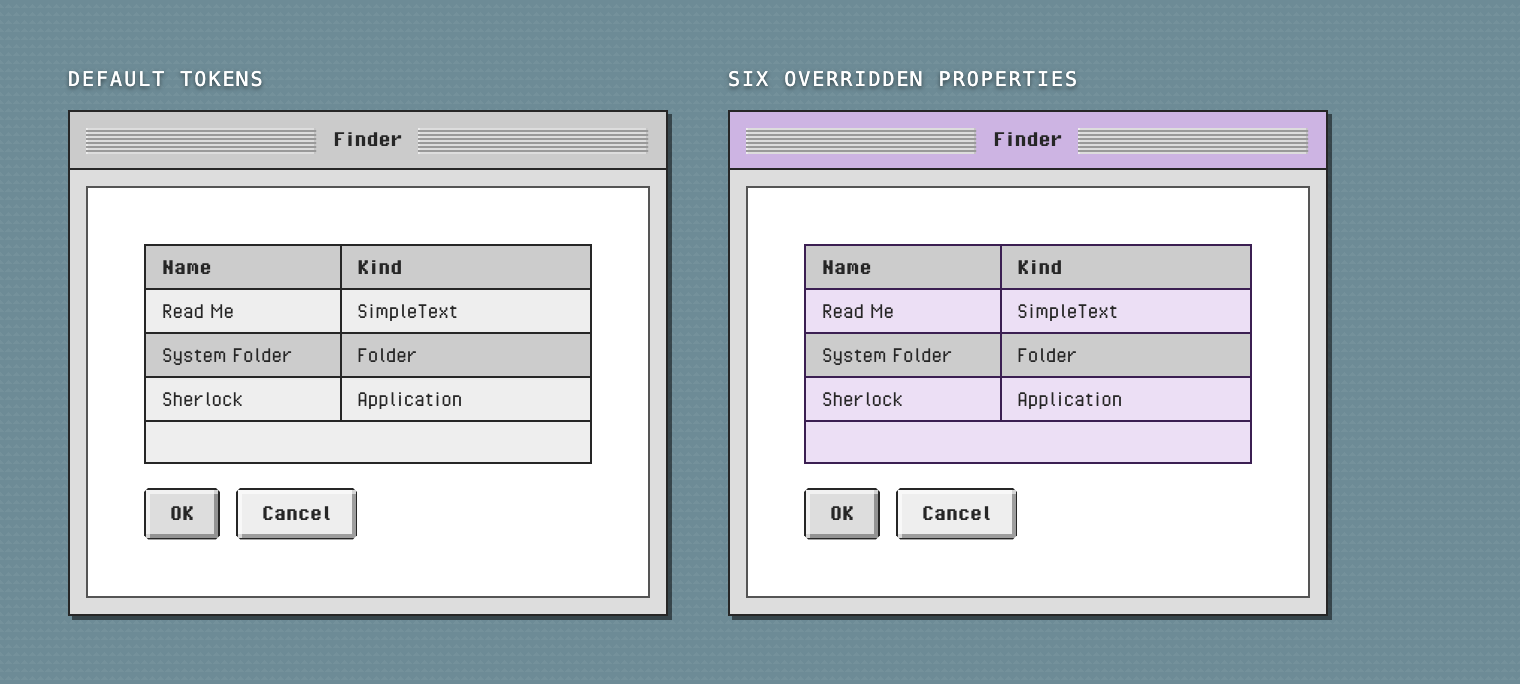
The window on the right is the same markup as the one on the left. The entire difference is six declarations:
.lilac {
	--color-surface: #ecdff5;
	--color-surface-inset: #fdf9ff;
	--color-border: #3b1f52;
	--window-titlebar-bg: #cdb4e3;
	--color-highlight: #6c2bd9;
	--color-highlight-text: #ffffff;
}
Scope an override to :root, a wrapper element, a media query, or a
[data-theme] attribute — whatever suits your app. The full token list, with
the naming convention and the override recipe, is at the top of
src/styles/tokens.css. Tokens are also readable
from JavaScript:
import { tokens, colors, spacing } from '@liiift-studio/mac-os9-ui';Targeting inner elements
Tokens restyle everything of a kind. When you need to reach one part of one
component, there are two narrower escape hatches. Every component accepts
classes; the ones with a list or a row structure also take render props.
classes attaches your own class to a named sub-element, so you are not
guessing at hashed CSS-module names:
<Window
	title="Finder"
	classes={{
		titleBar: 'my-title-bar',
		content: 'my-content',
		resizeHandle: 'my-grow-box',
	}}
/>
The keys are typed per component — ButtonClasses, WindowClasses,
SelectClasses, MenuItemClasses and so on, all exported — so a misspelled
slot is a compile error rather than a class that silently does nothing.
classes is the only way in. The single-purpose *ClassName props that
predated it — wrapperClassName, tabListClassName, panelClassName,
dropdownClassName, backdropClassName and dialogClasses — were removed in
2.0. Window.contentClassName is the one holdout: it was never marked
deprecated in 1.x, so it warns through 2.x and goes in 3.0. Use
classes.content.
Render props replace an element outright. Each receives the item, its state, and the props the default implementation would have used — spread those to keep the behaviour and accessibility that come with them:
<ListView
	columns={columns}
	items={items}
	renderRow={(item, state, defaultProps) => {
		const { key, ...rowProps } = defaultProps;
		return (
			<div key={key} {...rowProps} data-overdue={item.overdue}>
				{item.name}
			</div>
		);
	}}
	renderCell={(value, item, column, state) =>
		column.key === 'size' ? <code>{String(value)}</code> : String(value)
	}
/>
defaultProps carries the row's role="option", aria-selected, roving
tabIndex and key handlers. Dropping them makes the list pointer-only again.
Rows and cells also expose data-selected, data-index, data-item-id,
data-column and data-hovered, so a lot of this can be done from CSS alone.
The custom styling guide covers all three approaches with worked examples.
Optional Global Styles
If you want the full Mac OS 9 experience with global styles applied to your entire application (body background, typography, box-sizing reset), you can optionally import the base styles:
// In your app's main file
import '@liiift-studio/mac-os9-ui/styles'; // Required
import '@liiift-studio/mac-os9-ui/base'; // Optional global styles
The optional base styles include:
- Universal
box-sizing: border-boxreset - Responsive typography scaling on
<html> - Body styles (margin, padding, font-family, colors)
Note: Only import /base if you want these global styles. The library is designed to work without polluting your application's global styles, making it easier to integrate into existing projects.
CSS Modules
All components use CSS Modules internally, so styles are scoped and won't conflict with your application's CSS. The theme variables and component styles are extracted to separate CSS files for optimal caching and performance.
Content Security Policy
The stylesheet inlines one small data:image/svg+xml URI (the Select
disclosure arrow) and loads fonts from the package. Under a strict CSP:
img-src   'self' data:;
font-src  'self';
If you also import /webfonts, add the Google Fonts origins:
style-src 'self' https://fonts.googleapis.com;
font-src  'self' https://fonts.gstatic.com;
Callback conventions
Two names, one rule, so you never have to check which shape a component uses:
| Name | Receives | On |
| --------------- | -------------------- | ------------------------------------------------------------------------- |
| onChange | the native DOM event | components wrapping a native input: TextField, Checkbox, Radio |
| onValueChange | the value itself | components reporting a value: Select, RadioGroup, Scrollbar, Tabs |
// Wraps an input, so onChange is the DOM handler you already know.
<TextField value={name} onChange={(event) => setName(event.target.value)} />

// Reports a value, so you get the value.
<Select value={sort} onValueChange={setSort} options={options} />
<RadioGroup name="view" value={view} onValueChange={setView}>…</RadioGroup>
Anything reporting something other than a single value names what it reports:
onSelectionChange on ListView, onPositionChange and onResize on Window,
onMenuOpen / onMenuClose on MenuBar.
RadioGroup, Scrollbar and Tabs accepted onChange for a value in 1.x.
Those aliases were removed in 2.0, so the two names never overlap: if a
component reports a value, onValueChange is the only name it answers to.
Tabs.onValueChange leads with the value — (value, index) — like every other
one.
Accessibility
The components target WCAG 2.1 AA. Being specific about what that means here, because "compliant" on its own is not a checkable claim:
What is verified automatically. Every component that renders chrome is
rendered in a realistic configuration and scanned against the wcag2a, wcag2aa, wcag21a
and wcag21aa axe-core rule sets on every test run — 28 configurations in
src/test/a11y.test.tsx, all clean. Dialog,
Window, Tabs, MenuBar, ListView, TextField and Button additionally have
keyboard and focus test suites.
What that does not cover. Automated rules reach roughly a third of the WCAG criteria. This library has not had a manual audit or screen-reader testing. Treat the axe sweep as a floor, not a certificate.
Colour contrast is checked at the token level. axe's contrast rule is
disabled in the component sweep, because jsdom performs no layout and resolves
no CSS custom properties, so every result there would be meaningless. Contrast
is asserted directly against the palette instead, in
src/tokens/contrast.test.ts: every
text-bearing pair meets AA for normal text, and borders and the focus ring meet
the 3:1 non-text threshold. That file also pins tokens.css and the TypeScript
token export to the same values, which have drifted apart before.
What that does not cover is your own content on these surfaces, or any palette you retarget to. The Mac OS 9 look is low-contrast by nature, so if you override the tokens, re-check the pairs you changed.
What you get. Dialog traps focus, restores it, stacks, and locks scroll
without layout shift. Window drags and resizes with the arrow keys
(keyboardStep, Shift for 10×). MenuBar is a single tab stop with a roving
tabindex, Home/End, and disabled-menu skipping. Tabs implements the full
tablist pattern with per-instance ids. ListView rows are listbox options with
arrow-key navigation, Shift-extend, Enter to open, and aria-sort on sortable
headers. Select is a real listbox with type-ahead and aria-activedescendant.
MenuItem exposes aria-keyshortcuts. Component CSS honours
prefers-contrast: high, prefers-reduced-motion and :focus-visible.
Props you must supply. Some components cannot generate their own
accessible name: aria-label on an iconOnly Button, on IconButton, and on
Tabs, Scrollbar, RadioGroup and ListView; aria-describedby on Dialog. These
are the standard hyphenated attributes — 2.0 removed the camelCase aliases.
Development builds log an error when Button can't resolve a name.
Touch targets are small, on purpose. Mac OS 9 controls were drawn for a
mouse, and this library reproduces their metrics: a md Button is 24px tall,
sm is 20px, and a Checkbox is 14–16px square. All of those are below the 44px
WCAG 2.5.5 Target Size
guideline. Growing them would break the one thing the library exists to get
right, so it does not — but if you are shipping to touch, use size="lg" (32px)
and give controls a padded hit area of your own rather than assuming the
defaults are finger-friendly.
Accessibility bugs are worth reporting — open an issue.
TypeScript Support
All components are written in TypeScript and include full type definitions. Import types as needed:
import type { ButtonProps, WindowProps } from '@liiift-studio/mac-os9-ui';Several components are generic, so your own types survive into the callbacks:
interface FileRow extends ListItem {
	name: string;
	size: number;
}

<ListView<FileRow> items={files} columns={columns} onItemOpen={(row) => row.size} />;

<Tabs<'general' | 'advanced'> onChange={(index, value) => value}>…</Tabs>;
Browser Support
- Chrome/Edge (latest)
- Firefox (latest)
- Safari (latest)
Versioning
This package follows semantic versioning. A renamed prop keeps working for one major version, warning once in development, before it is removed — so an upgrade gives you a migration window rather than a build break.
Migrating to 2.0
2.0 removes every name 1.x deprecated. Nothing new was deprecated in its
place except one prop, so this is a one-time cleanup: if your app builds
without deprecation warnings on the latest 1.x, it builds on 2.0.
camelCase ARIA props → the standard attributes. These were aliases for attributes React already passes through, so the change is mechanical:
- <Tabs ariaLabel="Settings">
+ <Tabs aria-label="Settings">
- <Dialog open title="Confirm" ariaDescribedBy="copy">
+ <Dialog open title="Confirm" aria-describedby="copy">ariaLabel, ariaLabelledBy, ariaDescribedBy and ariaPressed are gone from
Button, Checkbox, Dialog, ListView, Radio, RadioGroup, Scrollbar, Tabs and
TextField.
Value-shaped onChange → onValueChange. On RadioGroup, Scrollbar and
Tabs, onChange reported a value rather than a DOM event. Tabs also changes
argument order, so check the callback body and not just the name:
- <RadioGroup name="view" onChange={setView}>
+ <RadioGroup name="view" onValueChange={setView}>

- <Tabs onChange={(index, value) => select(value, index)}>
+ <Tabs onValueChange={(value, index) => select(value, index)}>
Single-purpose *ClassName props → classes slots.
| Removed | Use |
| -------------------------------- | ------------------ |
| TextField.wrapperClassName | classes.root |
| Tabs.tabListClassName | classes.tabList |
| Tabs.panelClassName | classes.panel |
| MenuBar.dropdownClassName | classes.dropdown |
| MenuDropdown.dropdownClassName | classes.dropdown |
| Dialog.backdropClassName | classes.backdrop |
| Dialog.dialogClasses | classes |
Window.contentClassName still works. It was never marked deprecated in 1.x,
so removing it here would have broken code that had no warning — it warns
through 2.x and goes in 3.0. Use classes.content.
Menu.items splits into items and content. This is the one change that
can be silent, so it is worth reading even if you had no warnings.
In 1.x, items was typed ReactNode | MenuItemData[] and the two forms were
told apart at runtime by asking whether the first array element was a React
element. That guess mis-read items={[<MenuItem key="a" />]} — an ordinary way
to write one JSX child — as data, and rendered an empty menu with no error.
items is now data only, content is JSX only, and the type tells them apart:
  <MenuBar
  	menus={[
- 		{ label: 'File', items: <><MenuItem label="Open…" /></> },
+ 		{ label: 'File', content: <><MenuItem label="Open…" /></> },
  		{ label: 'Edit', items: [{ label: 'Undo', shortcut: '⌘Z' }] },
  	]}
  />
For consistency, the JSX-valued items prop on MenuItem (its submenu) and on
MenuDropdown is also now content. Across the MenuBar family, items always
means data and content always means JSX. A menu whose items is [] opens no
dropdown, rather than an empty role="menu" panel.
Also gone: the resolveAria helper and LegacyAriaProps type, which
existed only to resolve the ARIA aliases. They were never exported from the
package root.
Migrating to 1.0 (from 0.3.x)
Select no longer renders a native <select>. It is a button plus a
role="listbox" popup, so the whole control can be themed — previously the
open option list was drawn by the operating system, which broke the library's
premise on the one surface people look at most.
The visual and keyboard behaviour is a superset of what a native select does
(arrow keys, Home/End, type-ahead, Escape), and a hidden input keeps native
form submission and FormData working. Two API changes:
- <Select value={v} onChange={(e) => setV(e.target.value)} options={options} />
+ <Select value={v} onValueChange={setV} options={options} />
onValueChange receives the value directly and is generic, so a literal union
survives. Option groups move from <optgroup> to a group field on each
option.
Other breaking changes in 1.0:
| Change | What to do |
| ------------------------------------------------------------------------------------------- | ----------------------------------------------------------------------------------------------------------- |
| Google Fonts no longer imported by /styles | add import '@liiift-studio/mac-os9-ui/webfonts' if you use --font-body, --font-title or --font-mono |
| Variant is 'default' \| 'primary' \| 'danger', Size is 'sm' \| 'md' \| 'lg' | they now match what the components always accepted |
| BaseComponentProps, RenderState, State, ButtonRef and the other ref aliases removed | nothing referenced them |
| ComponentClasses index signature removed | a misspelled slot is now a compile error |
| typography.fontFamily.chicago removed | the library never loaded that family |
| Font files renamed to .latin / .latin-ext subsets | only affects direct ./fonts/* imports |
| IconButton renders a Button internally | only affects CSS targeting its old class names |
| Button no longer sets aria-disabled on a native <button> | the disabled attribute is authoritative there |
Those renamed props warned through 1.x and were removed in 2.0 — see Migrating to 2.0.
Migrating to 0.3.0
0.3.0 moved the global html / body / box-sizing rules out of the main
stylesheet, so importing /styles no longer restyles your whole page. If you
relied on that — a Mac OS 9 body background, the responsive <html> font
scaling — add the opt-in import:
import '@liiift-studio/mac-os9-ui/styles';
import '@liiift-studio/mac-os9-ui/base'; // restores the previous global styles
Development
Two files are worth reading before you change anything:
PITFALLS.md— every bug that shipped once, and what to do instead. Add a row when you fix something that was invisible until you looked at the right thing.RELEASING.md— the pre-ship checklist, including the manual accessibility gate that automated scanning cannot cover.
# Install dependencies
npm install

# Run Storybook for development
npm run dev

# Run the landing site
npm run site:dev

# Build the library
npm run build

# Run tests
npm test

# Run tests with coverage
npm test -- --coverage

# Run linting
npm run lint

# Regenerate the README images
npm run capture
Every image in this README is produced by npm run capture, which builds the
site and screenshots the scenes in site/src/capture.tsx
with Playwright. They are never captured by hand.
Attribution
This component library is based on the Mac OS 9 UI Kit created by Michael Feeney.
Original Figma design: Mac OS 9 UI Kit
Design licensed under CC BY 4.0
Fonts
The bundled Pixel Operator family by Jayvee Enaguas is released under
CC0 1.0, a public domain dedication, and is
redistributed inside this package. IBM Plex and EB Garamond are referenced by
the optional /webfonts entry point and are not bundled. See
src/fonts/README.md.
License
MIT License - see LICENSE file for details.
Contributing
Contributions are welcome! Please feel free to submit a Pull Request.
Links
Made with 💾 by Liiift Studio