
@line-copy/webpack-loader
v2.0.51
Published
A front-end plugin for locating the code position.


Readme
@line-copy/webpack-loader
A front-end plugin for locating the code position.
When you hold down the Alt key and move the mouse over a component, it will prompt:
- The fileName and line number of the component have been copied. You can then manually open the IDE's search box and paste to open the file.
- Alternatively, you can choose to open the IDE, which will be activated from the background and automatically navigate to the file location.
一个定位代码位置的前端插件,
按住 Alt 键并移动鼠标到组件,会提示:
- 已复制组件所在的 文件名 和 行号 , 之后手工打开ide的搜索文件框 , 黏贴就可打开文件
- 也可以选择 打开ide , 之后ide从后台唤起, 自动导航到文件位置
✨ Features 功能特点
- Injects file:line info to specified Vue components (e.g.,
<el-button>) - 自动向指定的 Vue 组件(如
<el-button>)注入文件名:行号信息 - It provides an @mouseover event binding, allowing you to copy the fileName and line number to the clipboard by holding down the Alt key and hovering over the component, or directly open the IDE.
- 提供
@mouseover事件绑定,实现按住 Alt 悬停即可复制 文件和行号到剪贴板 或者 直接打开IDE - Useful for debugging and tracing source
- 方便调试和追踪源代码位置
📦 Installation 安装
npm install @line-copy/webpack-loader --save-dev
npm update --force @line-copy/webpack-loader
🔧 Usage 使用
In Webpack config 在 Webpack 配置中引入 loader
原:vue.config.js
module.exports = {
    chainWebpack: config => {
        if (process.env.NODE_ENV !== 'development') return // 非开发环境不处理
        {
            config.module
                .rule('line-copy-template')
                .resourceQuery(/vue&type=template/)// 只处理模板部分
                .use('line-copy-loader')
                .loader(path.resolve(__dirname, 'line-copy-loader.js'))
                .before('vue-loader');
        }
    }
}
新建: line-copy-loader.js (样例1 - VUEPC)
// line-copy-loader.js
const {webpackLoaderLineCopy, defaultVUEPCOptions} = require('@line-copy/webpack-loader');

const options = {
  ...defaultVUEPCOptions,
  printLog: false,
  setEventTagName: '@mouseover.native',// @mouseover @mouseover.native 哪个生效用那个
}

module.exports = function (source) {
  const newSource = webpackLoaderLineCopy(source, this.resourcePath, options)
  return newSource;
}
新建: line-copy-loader.js (样例2 - uniappWX)
// line-copy-loader.js
const {webpackLoaderLineCopy, defaultUniappWXOptions} = require('@line-copy/webpack-loader');

const options = {...defaultUniappWXOptions}

module.exports = function (source) {
    const newSource = webpackLoaderLineCopy(source, this.resourcePath, options)
    return newSource;
}
In main.js 在 main.js 中注册插件
import {handleShowDebugInfo} from "@line-copy/webpack-loader";

// 全局方法挂载
Vue.prototype.handleShowDebugInfo = handleShowDebugInfo
📋 How it works 工作原理
When Alt is held and your mouse hovers over a target component, it copies a string like: 当按住 Alt 键并鼠标悬停在目标组件上时,会自动复制类似如下格式的字符串:
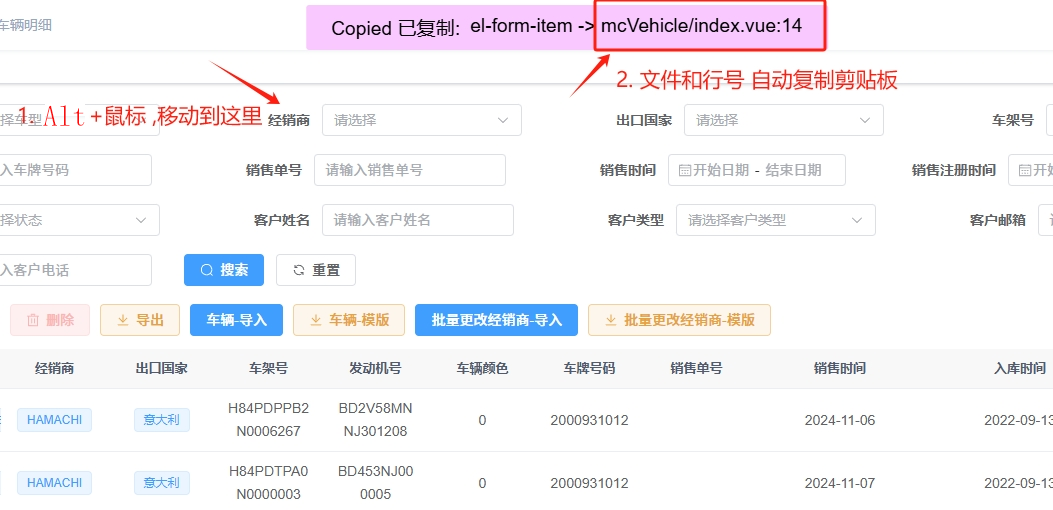
src/components/MyButton.vue:12📋 复制文件行号 - 操作说明
First 第一步 Alt+鼠标 移动到元素上 ,自动复制文件行号
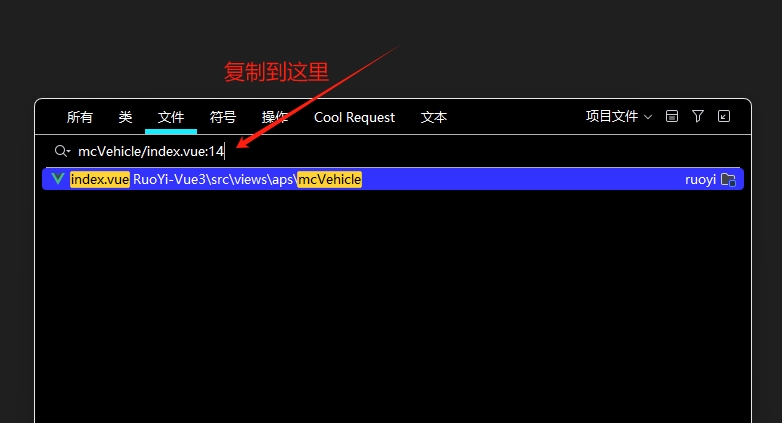
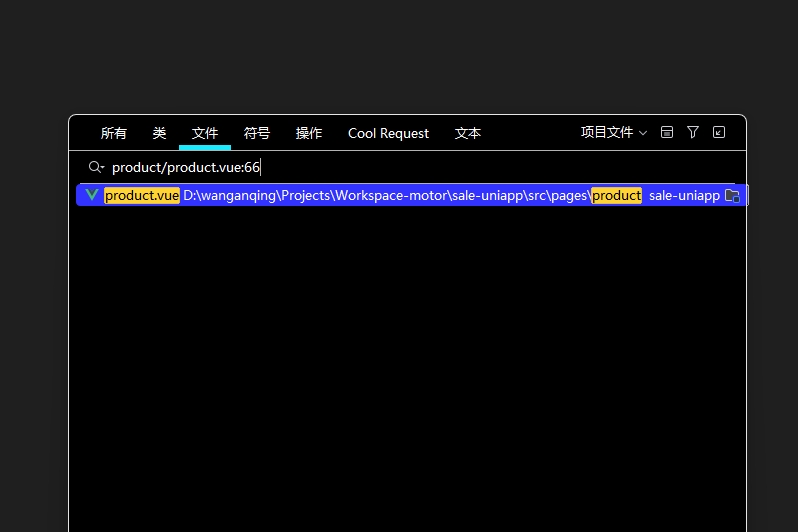
Second 第二步 在IDEA中打开文件搜索框 , 复制
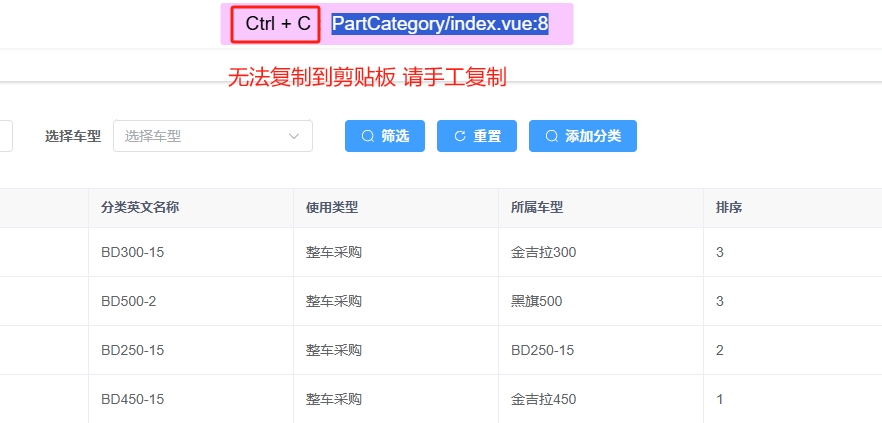
tips 提示 手工复制
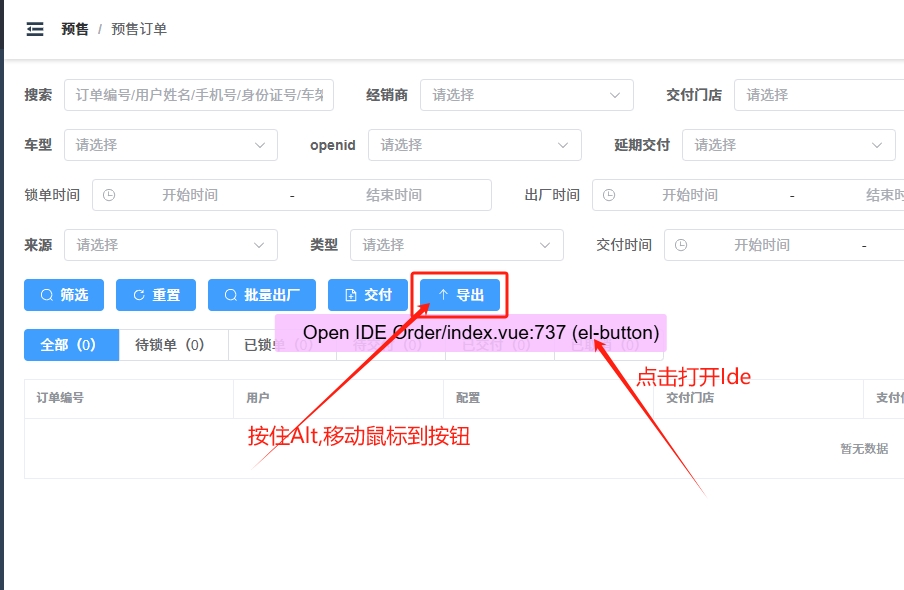
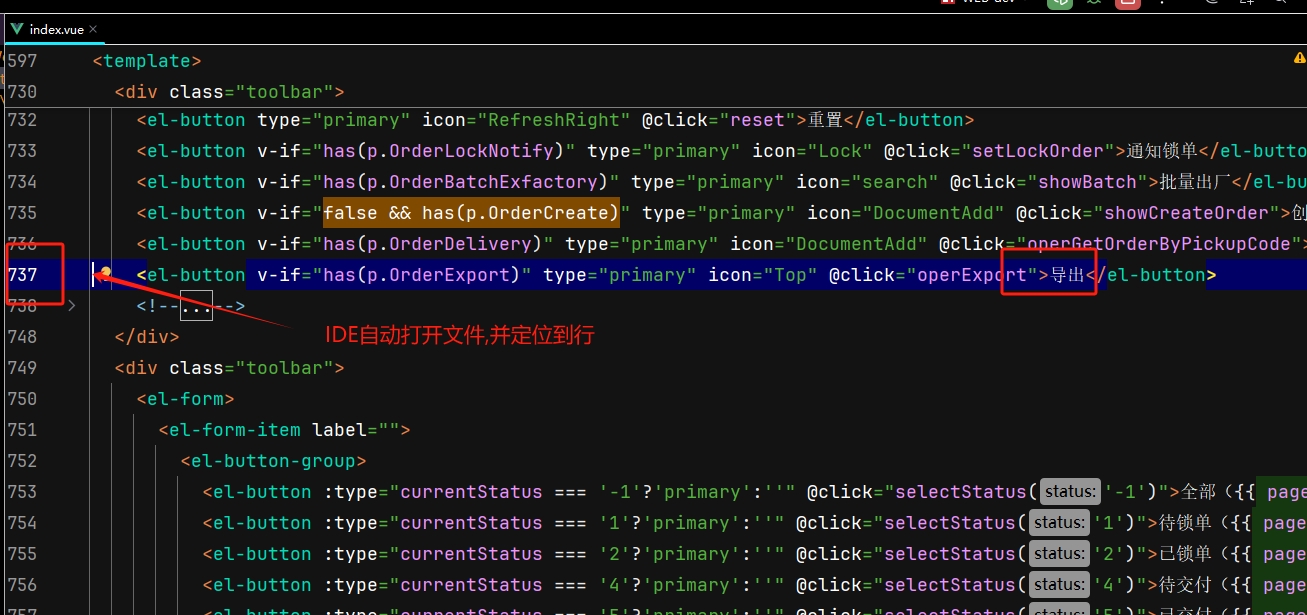
📋 高级 直接打开idea - 操作说明
- 前提在Idea中配置插件 line_copy_idea_plugin
First 第一步 Alt+鼠标 移动到元素上 , 点击打开IDE
Second 第二步 自动打开到文件行号
📋 小程序 复制文件行号 - 操作说明
First 第一步 长按按钮
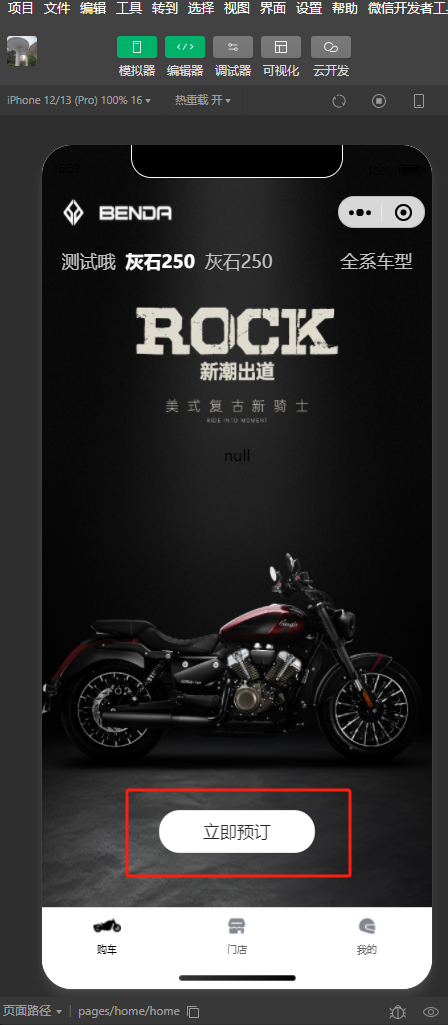
Second 第二步 选择确定复制文件行号
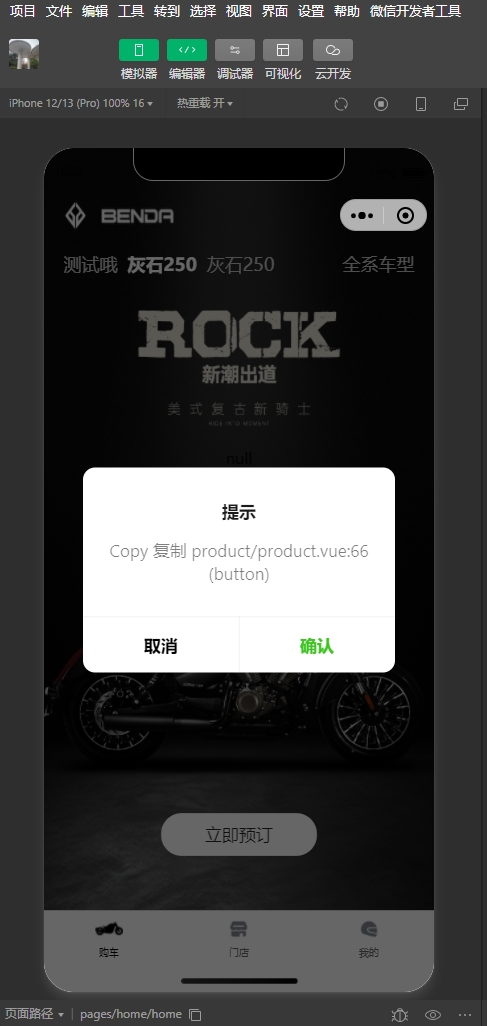
third 第三步 在idea中打开文件搜索框 复制
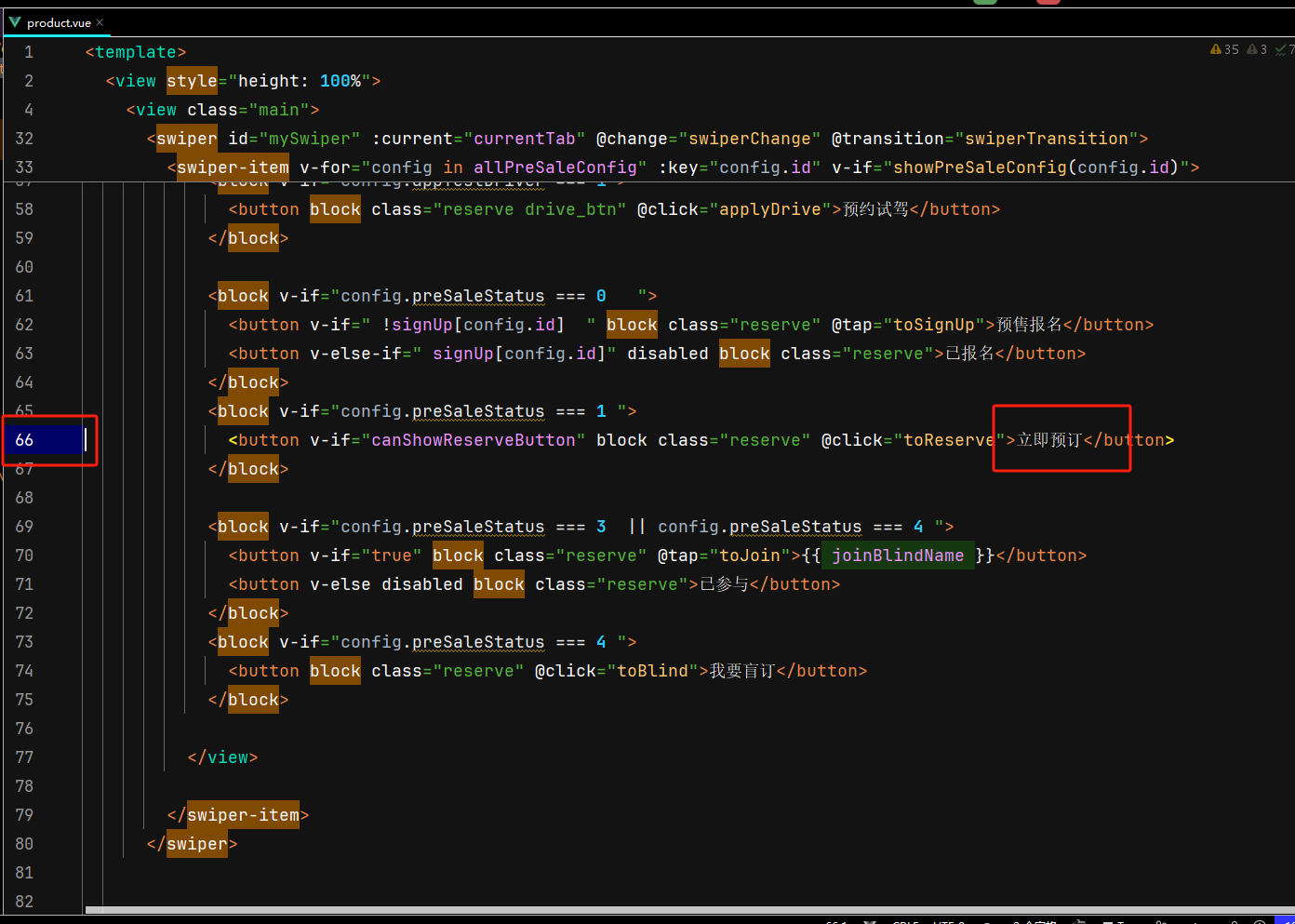
📋 小程序 直接打开idea - 操作说明
- 前提在Idea中配置插件 line_copy_idea_plugin
First 第一步 长按按钮
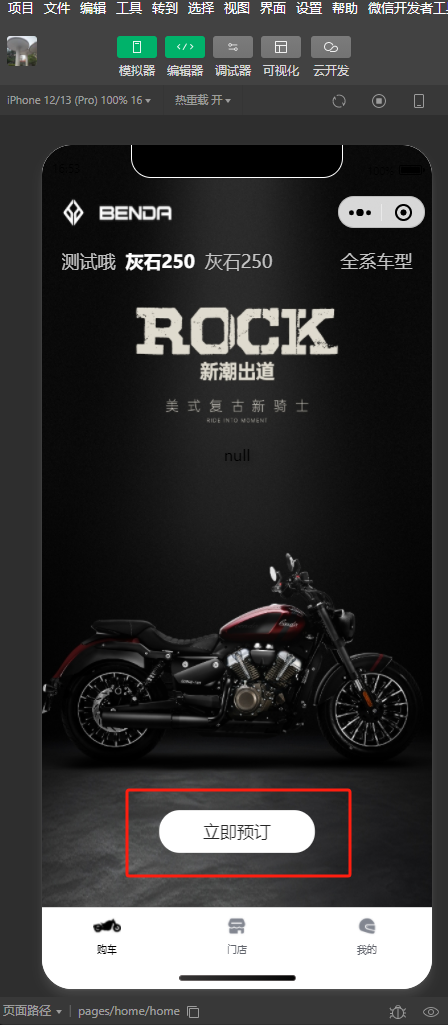
Second 第二步 选择打开IDE
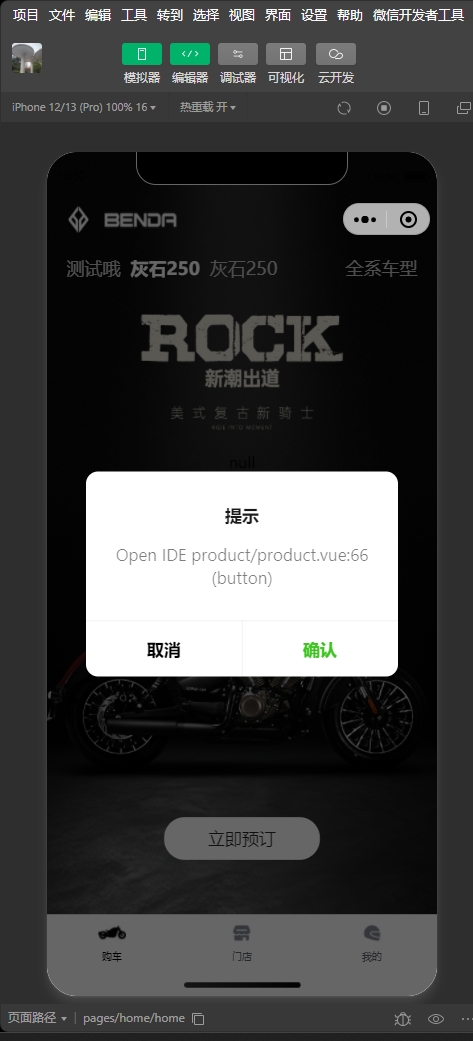
third 第三步 ide自动打开到文件
🪪 License
MIT