
@makcimbx/opencode-pty
v0.6.1
Published
OpenCode plugin for interactive PTY management with safe output, terminal snapshots, and reliable process waiting

Maintainers
 makcimbx
Readme
@makcimbx/opencode-pty
A plugin for OpenCode that provides interactive PTY (pseudo-terminal) management, enabling the AI agent to run background processes, send interactive input, and read output on demand.
Why?
OpenCode's built-in bash tool runs commands synchronously—the agent waits for completion. This works for quick commands, but not for:
- Dev servers (
npm run dev,cargo watch) - Watch modes (
npm test -- --watch) - Long-running processes (database servers, tunnels)
- Interactive programs (REPLs, prompts)
This plugin gives the agent full control over multiple terminal sessions, like tabs in a terminal app.
Features
- Background Execution: Spawn processes that run independently
- Multiple Sessions: Manage multiple PTYs simultaneously
- Interactive Input: Send keystrokes, Ctrl+C, arrow keys, etc.
- Output Buffer: Read output anytime with pagination (offset/limit)
- Pattern Filtering: Search output using regex (like
grep) - Chat-safe Output: Escapes terminal control bytes before returning buffer content
- Terminal Snapshots: Renders TUI output through a headless xterm with seq-based diffs
- Reliable Waiting: Wait for screen conditions or process exit without polling
- Exit Notifications: Get notified when root-session processes finish
- Hard Timeouts: Automatically stop runaway processes after a configured limit
- Permission Support: Checks V2
shellor V1bashrules and canonical working directories - Isolation: Plugin instances have independent state; agent tools only access their own session's PTYs
- Session Lifecycle: Sessions persist until explicitly killed
- Auto-cleanup: PTYs are cleaned up when OpenCode sessions end
- Web UI: Authenticated React-based interface for session management
- V2 TUI Sidebar: Session-scoped process list, live output, kill confirmation and finished-session cleanup
- Real-time Streaming: WebSocket-based live output updates
Setup
The package supports OpenCode 2.0 and OpenCode 1.18.29 or newer through a shared entrypoint.
OpenCode 2.0
Add the published package to your OpenCode V2 config:
{
  "plugins": [{ "package": "@makcimbx/opencode-pty" }]
}
OpenCode V1
Add the package to your OpenCode V1 config:
{
  "$schema": "https://opencode.ai/config.json",
  "plugin": ["@makcimbx/opencode-pty"]
}
OpenCode installs the package from npm at startup. Fully restart OpenCode after changing the plugin configuration.
Updating
Restart OpenCode to get the latest version. If the cached package does not refresh, remove ~/.cache/opencode/node_modules/@makcimbx/opencode-pty and restart OpenCode.
Tools Provided
| Tool | Description |
| -------------------- | --------------------------------------------------------------------------- |
| pty_spawn | Create a new PTY session (command, args, workdir, env, title, notifyOnExit, timeoutSeconds) |
| pty_write | Send input to a PTY (text, escape sequences like \x03 for Ctrl+C) |
| pty_read | Read PTY output buffer as chat-safe text with pagination and regex filtering |
| pty_snapshot | Capture parsed terminal screen as clean text with cursor, size, and hash |
| pty_snapshot_wait | Block until screen matches a regex or content stabilizes |
| pty_list | List all PTY sessions with status, PID, line count |
| pty_kill | Terminate a PTY, optionally cleanup the buffer |
| pty_wait | Block until a PTY session exits, optionally with a timeout |
Slash Commands
This plugin provides slash commands that can be used in OpenCode chat:
| Command | Description |
| -------------------------- | -------------------------------------------------- |
| /pty-open-background-spy | Open the PTY web server interface in the browser |
| /pty-show-server-url | Show the URL of the running PTY web server instance |
| /pty-panel | Toggle the PTY sidebar (OpenCode V2 CLI only) |
V2 CLI sidebar
The package's ./tui entrypoint is loaded automatically by the V2 CLI. Expand PTY
in the session sidebar (or use /pty-panel) to see processes belonging to that session.
Click a process to inspect its live screen, or × to remove it. Running processes
require confirmation; Clear finished never stops running processes. Elapsed time
stops increasing after exit. The panel uses OpenCode's authenticated RPC transport,
including remote clients, and does not start the Web UI server.
Web UI
This plugin includes a modern React-based web interface for monitoring and interacting with PTY sessions.
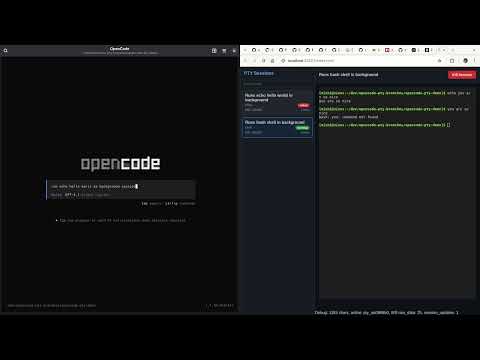
If you instruct the coding agent to run something in background, you have to name it "session",
i.e. "run xy as a background SESSION".
If you name it "task" or "process" or anything else, the agent will sometimes run it as background subprocess using &.
Starting the Web UI
- Run opencode with the plugin.
- Run slash command
/pty-open-background-spy.
This will start the background sessions observer cockpit server and launch the browser with web UI.
Browser commands create a single-use link valid for 30 seconds, then exchange it
for an HttpOnly, SameSite=Strict cookie. Re-run the command if a link expires. Opening
the bare server address without credentials returns 401. HTTP and WebSocket requests
with a foreign Origin or Host are rejected. Only /health is public.
The authenticated Web UI is a trusted human console for this plugin instance: its interactive input is not a sandbox or a per-command shell permission boundary. Keep the server on loopback; do not expose its plaintext HTTP listener to an untrusted network.
Features
- Session List: View all active PTY sessions with status indicators
- Real-time Output: Live streaming of process output via WebSocket
- Interactive Input: Send commands and input to running processes
- Session Management: Kill sessions directly from the UI
- Connection Status: Visual indicator of WebSocket connection status
REST API
The web server provides a REST API for session management:
| Method | Endpoint | Description |
| -------- | -------------------------------- | --------------------------------------------------------------------------- |
| GET | /api/sessions | List all PTY sessions |
| POST | /api/sessions | Create a new PTY session |
| GET | /api/sessions/:id | Get session details |
| POST | /api/sessions/:id/input | Send input to a session |
| DELETE | /api/sessions/:id | Kill a session (without cleanup) |
| DELETE | /api/sessions/:id/cleanup | Kill and cleanup a session |
| GET | /api/sessions/:id/buffer/plain | Get session output buffer (returns { plain: string, byteLength: number }) |
| GET | /api/sessions/:id/buffer/raw | Get session output buffer (raw data) |
| DELETE | /api/sessions | Clear all sessions |
| GET | /health | Server health check with metrics |
Session Creation
curl -X POST http://localhost:[PORT]/api/sessions \
  -H "Authorization: Bearer $PTY_TOKEN" \
  -H "Content-Type: application/json" \
  -d '{
    "command": "bash",
    "args": ["-c", "echo hello && sleep 10"],
    "description": "Test session",
    "timeoutSeconds": 5
  }'
Replace [PORT] with the actual port number shown in the server console output.
Use the exact server origin (including hostname), not a localhost alias. Programmatic
clients require the server's in-memory bearer token (server.auth.token when embedding
PTYServer); browser bootstrap nonces are not bearer tokens. createApiClient(origin,
{ Authorization: 'Bearer …' }) supports authenticated automation.
WebSocket Streaming
Connect to /ws for real-time updates:
// Run from the authenticated Web UI origin; its cookie authenticates the handshake.
const ws = new WebSocket(`${location.origin.replace(/^http/, 'ws')}/ws`)

ws.onmessage = (event) => {
  const data = JSON.parse(event.data)
  if (data.type === 'raw_data') {
    console.log('New output:', data.rawData)
  } else if (data.type === 'session_list') {
    console.log('Session list:', data.sessions)
  }
}
Replace [PORT] with the actual port number shown in the browser when running the slash command output.
Development
Future implementation will include:
App
- A startup script that runs the server (in the same process).
- The startup script will run
bun vitewith an environment variable set to the server URL - The client will use this environment variable for WebSocket and HTTP requests
This will ease the development on the client.
Usage Examples
Start a dev server
pty_spawn: command="npm", args=["run", "dev"], title="Dev Server"
→ Returns: pty_a1b2c3d4
Start a timed session
pty_spawn: command="npm", args=["run", "dev"], title="Dev Server", timeoutSeconds=600
→ Returns: pty_a1b2c3d4
Check server output
pty_read: id="pty_a1b2c3d4", limit=50
→ Shows last 50 lines of output
Filter for errors
pty_read: id="pty_a1b2c3d4", pattern="error|ERROR", ignoreCase=true
→ Shows only lines matching the pattern
Send Ctrl+C to stop
pty_write: id="pty_a1b2c3d4", data="\x03"
→ Sends interrupt signal
Kill and cleanup
pty_kill: id="pty_a1b2c3d4", cleanup=true
→ Terminates process and frees buffer
Run with exit notification
pty_spawn: command="npm", args=["run", "build"], title="Build", notifyOnExit=true
→ Returns: pty_a1b2c3d4
The AI agent will receive a notification when the build completes:
<pty_exited>
ID: pty_a1b2c3d4
Title: Build
Exit Code: 0
Output Lines: 42
Last Line: Build completed successfully.
</pty_exited>

Use pty_read to check the full output.
This eliminates the need for polling—perfect for long-running processes like builds, tests, or deployment scripts. If the process fails (non-zero exit code), the notification will suggest using pty_read with the pattern parameter to search for errors.
Exit notifications are disabled automatically in child/subagent sessions because an asynchronous chat prompt can terminate the subagent response before it reaches the orchestrator. Use pty_wait in subagents instead.
Capture a clean terminal snapshot
pty_read returns buffer lines in a chat-safe text form. Non-printable control bytes are escaped so the tool output does not break the UI, but TUI programs still remain hard to interpret because cursor movement and screen control sequences are only shown literally. For TUI apps (interactive UIs with cursor movement, colors, screen clearing), pty_snapshot solves this:
pty_snapshot: id="pty_a1b2c3d4"
→ Returns clean screen text with cursor position, size, seq number, and content hash
Track screen changes with seq-based diffs
Every snapshot gets a monotonically increasing sequence number (seq) that increments only when the screen content actually changes. Pass since to get only the lines that changed:
pty_snapshot: id="pty_a1b2c3d4", since=5
→ Returns only changed/added/removed lines since seq 5
Wait for specific screen content
Use pty_snapshot_wait to block until a condition is met instead of polling:
pty_snapshot_wait: id="pty_a1b2c3d4", search="error|Error", timeout=30000
→ Resolves when the regex matches the full rendered screen text

pty_snapshot_wait: id="pty_a1b2c3d4", searchAbsent="esc interrupt", timeout=30000
→ Resolves when that text is no longer visible on the rendered screen

pty_snapshot_wait: id="pty_a1b2c3d4", screenStableForMs=2000, timeout=30000
→ Resolves when screen content is unchanged for 2 seconds
When multiple conditions are given, the first to match wins. since only changes the response to a diff against that seq and does not affect when the wait resolves.
Example: Debugging OpenCode itself
One compelling use case is running OpenCode inside OpenCode to observe TUI behavior during development. The agent can interact with the inner instance, send prompts, open menus, and watch exactly how the screen updates:
# 1. Launch OpenCode as a background TUI process
pty_spawn: command="opencode", args=["path/to/project"], title="Inner OpenCode"
→ pty_abc123

# 2. Wait for it to render, get initial screen state
pty_snapshot_wait: id="pty_abc123", screenStableForMs=2000, timeout=15000
→ seq=2, shows OpenCode banner + input field

# 3. Type a prompt and submit
pty_write: id="pty_abc123", data="explain this codebase"
pty_write: id="pty_abc123", data="\n"

# 4. Watch the response stream in, frame by frame
pty_snapshot_wait: id="pty_abc123", screenStableForMs=300, since=2
→ seq=15, diff shows partial response text appearing

pty_snapshot_wait: id="pty_abc123", screenStableForMs=300, since=15
→ seq=28, more text streamed in

pty_snapshot_wait: id="pty_abc123", screenStableForMs=3000, since=28
→ seq=46, response complete (stable for 3s)

# 5. Open the command palette
pty_write: id="pty_abc123", data="\x10"

# 6. See all available commands
pty_snapshot: id="pty_abc123", since=46
→ Shows command palette overlay with menu items

# 7. Toggle the sidebar
pty_write: id="pty_abc123", data="show sidebar\r"
pty_snapshot: id="pty_abc123", since=48
→ Sidebar appears with session info, MCP connections, context usage
This works because pty_snapshot maintains a headless terminal emulator (xterm.js) alongside each PTY session, producing the same parsed screen a human would see -- without any ANSI escape sequence noise.
Wait for a session to finish
Exit notifications require the agent to go idle and wait for the <pty_exited> message.
pty_spawn: command="npm", args=["run", "build"], title="Build"
→ Returns: pty_a1b2c3d4

pty_wait: id="pty_a1b2c3d4"
→ Returns once the build finishes (or <pty_wait_timeout> after timeoutSeconds)
<pty_waited>
ID: pty_a1b2c3d4
Title: Build
Command: npm run build
Status: exited
Exit: 0
Output Lines: 42
Tail: ...
</pty_waited>Use when the agent cannot go idle—for example when a /goal plugin auto-resumes idle agents, or when a subagent's parent interprets idleness as task completion.
Configuration
Environment Variables
| Variable | Default | Description |
| ---------------------- | ---------- | -------------------------------------------------- |
| PTY_MAX_BUFFER_LINES | 50000 | Maximum lines to keep in output buffer per session |
| PTY_WEB_HOSTNAME | ::1 | Hostname for the web server to bind to (IPv6 loopback by default) |
| PTY_WEB_PORT | 0 (random) | Port for the web server (0 = random port) |
Permissions
OpenCode 2.0
V2 uses ordered permissions rules and the shell action. PTY tool calls check the
invoking agent's rules followed by the session's rules; the last matching rule wins.
The Web UI uses the build agent's rules because its requests have no agent tool context.
{
  "permissions": [
    { "action": "shell", "resource": "npm *", "effect": "allow" },
    { "action": "shell", "resource": "git push *", "effect": "deny" },
    { "action": "external_directory", "resource": "*", "effect": "deny" }
  ]
}
Rules requiring ask, including unmatched resources, are treated as denied by the
plugin. Configure explicit allow rules for commands and external working directories
that PTY sessions need. V2 PTY tool calls default to the invoking session's current
directory, including after a session moves. Symlinks and Windows junctions are resolved
before external-directory checks. Tools cannot inspect or modify another session's PTYs.
Exit notifications use queued synthetic messages to resume the existing session without
switching its agent or model. Deleting a session cleans up its PTYs; unloading the V2
plugin also stops its PTYs, closes the Web UI server, and cancels its event subscription.
Cancelling pty_wait or pty_snapshot_wait removes its listeners/timers without killing
the process. Explicit pty_kill, session deletion, unload and hard deadlines stop processes.
OpenCode V1
This plugin respects OpenCode's permission settings for the bash tool. Commands spawned via pty_spawn are checked against your permission.bash configuration.
{
  "$schema": "https://opencode.ai/config.json",
  "permission": {
    "bash": {
      "npm *": "allow",
      "git push": "deny",
      "terraform *": "deny"
    }
  }
}
[!IMPORTANT] Limitations compared to built-in bash tool:
- "ask" permissions are treated as "deny": Since plugins cannot trigger OpenCode's permission prompt UI, commands matching an "ask" pattern will be denied. A toast notification will inform you when this happens. Configure explicit "allow" or "deny" for commands you want to use with PTY.
- "external_directory" with "ask" is treated as "deny": Explicitly allow external working directories when needed. Configuration lookup failures also deny execution rather than silently bypassing permissions.
Example: Allow specific commands for PTY
{
  "$schema": "https://opencode.ai/config.json",
  "permission": {
    "bash": {
      "npm run dev": "allow",
      "npm run build": "allow",
      "npm test *": "allow",
      "cargo *": "allow",
      "python *": "allow"
    }
  }
}
How It Works
- Spawn: Creates a PTY using bun-pty, runs command in background
- Buffer: Output is captured into a rolling line buffer (ring buffer)
- Read: Agent can read buffer anytime with offset/limit pagination
- Filter: Optional regex pattern filters lines before pagination
- Write: Agent can send any input including escape sequences
- Lifecycle: Sessions track status (running/exited/killed), persist until cleanup
- Notify: When
notifyOnExitis true in a root session, sends a sanitized message when the process exits; child sessions usepty_wait - Web UI: React frontend connects via WebSocket for real-time updates
Session Lifecycle
spawn → running → [exited | killed]
                      ↓
              (stays in list until cleanup=true)
Sessions remain in the list after exit so the agent can:
- Read final output
- Check exit code
- Compare logs between runs
Use pty_kill with cleanup=true to remove completely.
Local Development
git clone https://github.com/makcimbx/opencode-pty.git
cd opencode-pty
bun ci          # install packages from bun.lock
bun lint        # Runs Biome linting checks
bun format      # Runs Biome formatting checks
bun typecheck   # Runs TypeScript type checking
bun build:dev   # Build the React app for development
bun unittest    # Runs the unit tests
bun test:e2e    # Runs the e2e tests
To load a local checkout in OpenCode 2.0:
{
  "plugins": [{ "package": "file:///absolute/path/to/opencode-pty/index.ts" }]
}
For OpenCode V1 1.18.29 or newer:
{
  "$schema": "https://opencode.ai/config.json",
  "plugin": ["file:///absolute/path/to/opencode-pty/index.ts"]
}
Older V1 loaders require a function entrypoint. For a local checkout, point plugin at
file:///absolute/path/to/opencode-pty/src/plugin.ts. The package also exports the V1
implementation as @makcimbx/opencode-pty/v1 for wrapper plugins.
Fully quit and restart OpenCode after changing its plugin configuration or plugin code.
Diagrams
Sequence
Use Case 1 – Opening the PTY Monitor Web UI
sequenceDiagram
    participant User as Human User
    participant Chat as OpenCode Chat
    participant Core as OpenCode Core
    participant Plugin as PTY Plugin
    participant Manager as PTY Manager (in Plugin)
    participant WS as WebSocket Server (in Plugin)
    participant Browser as Web Browser

    Note over Plugin,WS: Plugin starts/owns the WS server and Manager

    User->>Chat: Types /pty-open-background-spy
    Chat->>Core: Slash command received
    Core->>Plugin: Dispatches to registered command handler
    Plugin->>Browser: open(server.url.origin)
    activate Browser
    Browser->>WS: Connects → ws://.../ws
    WS->>Manager: Queries for current sessions (manager.list())
    Manager-->>WS: Returns session data
    WS-->>Browser: Sends session_list + subscribes to updates
    Browser-->>User: PTY monitor UI appears (sessions + terminals)
Use Case 2 – Starting a Long-Running Background Process
sequenceDiagram
    participant User
    participant Chat as OpenCode Chat
    participant Agent as AI Agent
    participant Plugin as PTY Plugin
    participant Manager as PTY Manager
    participant PTY as bun-pty Process
    participant WS as WebSocket Server
    participant UI as PTY Web UI (optional)

    User->>Chat: "start vite dev server in background"
    Chat->>Agent: User message
    Agent->>Plugin: Calls pty_spawn(command="vite", args=["dev"], ...)
    Plugin->>Manager: spawn(options)
    Manager->>PTY: Launches real process
    activate PTY
    PTY-->>Manager: stdout/stderr chunks
    Manager->>Manager: Appends to RingBuffer
    Manager->>WS: Publishes raw_data + session_update
    alt UI already open
        WS-->>UI: Real-time terminal output
        UI-->>User: Live xterm.js view
    end
    Plugin-->>Agent: Returns session info
    Agent-->>Chat: "Dev server started (ID: pty_abc123)"
    Chat-->>User: Confirmation message
Use Case 3 – Sending Interactive Input to a Running Session
sequenceDiagram
    participant User
    participant UI as PTY Web UI
    participant WS as WebSocket Server
    participant Manager as PTY Manager
    participant PTY as bun-pty Process

    %% Variant A: Human typing in browser (most common)
    User->>UI: Types "rs<Enter>" or pastes text
    UI->>WS: Sends {type:"input", sessionId, data:"rs\n"}
    WS->>Manager: write(sessionId, data)
    Manager->>PTY: process.write(data)
    PTY-->>Manager: New output (restart message, etc.)
    Manager->>WS: Publishes raw_data
    WS-->>UI: Updates xterm.js live

    %% Variant B: AI sending input
    Note over User,UI: Alternative path – AI controlled
    Agent->>Plugin: pty_write(id, "\x03")  // e.g. Ctrl+C
    Plugin->>Manager: write(id, data)
    Manager->>PTY: process.write("\x03")
Use Case 4 – Reading Output / Logs On Demand
sequenceDiagram
    participant User
    participant Chat
    participant Agent as AI Agent
    participant Plugin as PTY Plugin
    participant Manager as PTY Manager
    participant Buffer as RingBuffer

    User->>Chat: "show me the last 200 lines of the dev server"
    Chat->>Agent: User question
    Agent->>Plugin: pty_read(id, offset?, limit=200, pattern?)
    Plugin->>Manager: read / search request
    Manager->>Buffer: read(offset, limit) or search(pattern)
    Buffer-->>Manager: Matching / paginated lines
    Manager-->>Plugin: Raw or formatted lines
    Plugin-->>Agent: Text response
    Agent-->>Chat: "Here are the logs:\n\n1 | [vite] ... \n..."
    Chat-->>User: Logs displayed in chat
Use Case 5A – Killing / Cleaning Up a Session via Web UI
sequenceDiagram
    participant User
    participant UI as PTY Web UI
    participant HTTP as HTTP Server
    participant Manager as PTY Manager
    participant PTY as bun-pty Process
    participant WS as WebSocket Server

    Note over PTY: Assuming PTY is active (running process)<br>notifyOnExit = false (no chat notification,<br>but WS/UI always gets status updates)

    activate PTY

    User->>UI: Clicks "Kill" / "×" on session
    UI->>HTTP: DELETE /api/sessions/:id  (or /cleanup)
    HTTP->>Manager: kill(id, cleanup?)
    Manager->>PTY: Sends SIGTERM (if running)
    PTY-->>Manager: onExit event (code, signal)
    deactivate PTY
    Manager->>WS: Publishes session_update (status: killed/exited)
    WS-->>UI: UI updates → shows "exited" or removes entry
Use Case 5B – Killing / Cleaning Up a Session via Agent
sequenceDiagram
    participant User
    participant Chat as OpenCode Chat
    participant Agent as AI Agent
    participant Plugin as PTY Plugin
    participant Manager as PTY Manager
    participant PTY as bun-pty Process
    participant WS as WebSocket Server
    participant UI as PTY Web UI (optional)

    Note over PTY: Assuming PTY is active (running process)<br>notifyOnExit = false (no chat notification,<br>but WS/UI always gets status updates)

    activate PTY

    User->>Chat: "kill the dev server"
    Chat->>Agent: User request
    Agent->>Plugin: pty_kill(id, cleanup=true)
    Plugin->>Manager: kill(id, true)
    Manager->>PTY: SIGTERM + remove from list (if cleanup)
    PTY-->>Manager: onExit event (code, signal)
    deactivate PTY
    Manager->>WS: Broadcast session_update (status: killed/exited)
    alt UI open
        WS-->>UI: UI updates → shows "exited" or removes entry
    end
    Plugin-->>Agent: Success response
    Agent-->>Chat: "Session killed"
    Chat-->>User: Confirmation in chat
Use Case 6 – Automatic Exit Notification
sequenceDiagram
    participant PTY as bun-pty Process
    participant Manager as PTY Manager
    participant Plugin as PTY Plugin
    participant Chat as OpenCode Chat
    participant Agent as AI Agent
    participant User

    %%{init: {'sequence': {'messageAlign': 'left'}}}%%

    activate PTY
    Note over PTY: Long-running process (dev server, tests, etc.)
    PTY-->>Manager: Process exits → exitCode
    deactivate PTY
    alt notifyOnExit was true in a root session
        Manager->>Plugin: Triggers exit notification
        Plugin->>Chat: Sends formatted message via SDK<br><pty_exited><br>ID: pty_abc123<br>Exit: 0<br>Lines: 342<br>Last: Server running at http://localhost:5173<br></pty_exited>
        Chat-->>User: Notification appears in chat
        Chat->>Agent: Triggers agent with exit message
    end
    Manager->>WS: Publishes final session_update (status: exited)
    alt UI open
        WS-->>UI: UI shows red "exited" badge / stops live output
    end
License
MIT
Contributing
Contributions are welcome! Please open an issue or submit a PR.
Credits
- OpenCode - The AI coding assistant this plugin extends
- bun-pty - Cross-platform PTY for Bun
- shekohex/opencode-pty - Original plugin and process lifecycle features
- JosXa/opencode-pty - Snapshot, output sanitization, and notification lifecycle improvements