
@malinamnam/pi-phone
v0.0.13
Published
Phone-first remote UI extension for Pi with Tailscale-friendly access

Maintainers
 malinamnam
Readme
pi-phone
A phone-first remote UI for Pi that lets you drive a real Pi session from your phone.
pi-phone starts a small local web server, mirrors your current live Pi CLI session over WebSocket to a mobile web app, and can spawn dedicated parallel pi --mode rpc sessions when you open additional parallel sessions from the phone UI.
What it gives you
- Phone-friendly chat UI for Pi
- Starts by mirroring the live CLI session, then can open real parallel Pi subprocess sessions on demand
- Preserves much more of your Pi setup than a custom mini-backend would
- Parallel sessions continue to work with extension commands, prompt templates, and skills exposed by Pi RPC
- Model switching and thinking-level switching from the phone UI
- Parent + parallel session browser, saved sessions, tree browser, fork flow, stats, compact, reload, and refresh actions
- Ownership handoff between the CLI and phone when editing the mirrored parent session
- Image upload with inline placement tokens from the phone UI
- Optional Tailscale Serve auto-setup for remote access from your phone
- Single active-client mode for safety and simplicity
Screenshot
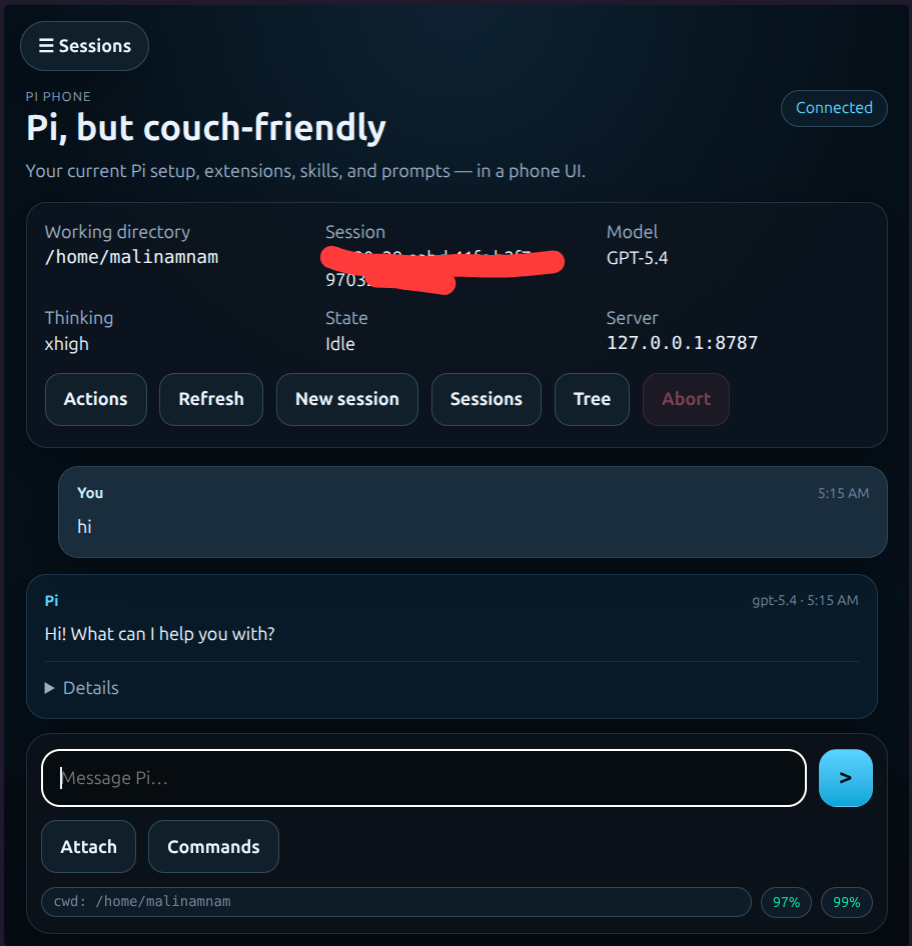
Requirements
- Pi installed and working
- Tested with Pi
0.58.4 - Node.js available for extension dependencies
- Optional but strongly recommended: Tailscale installed and logged in if you want easy remote phone access
Install
Install pi-phone from npm with Pi:
pi install npm:@malinamnam/pi-phoneThen either restart Pi or run:
/reloadIf you want to verify that the package is installed and enabled:
pi list
pi config
Setup guide
1. Open Pi in the project you want to control from your phone
cd /path/to/project
pi
pi-phone initially mirrors the current live Pi session in your current working directory, so start Pi in the repo you want to work on. If you later open additional parallel sessions from the phone UI, those run as dedicated child Pi RPC sessions.
2. Start the phone server
Inside Pi:
/phone-startBy default this:
- binds the web server to
127.0.0.1 - uses port
8787 - uses the current Pi working directory
- sets a
2 houridle auto-stop timeout - auto-generates a token if you did not provide one
- tries to configure Tailscale Serve automatically
3. Open the phone UI
There are two common cases:
If Tailscale setup succeeds
Pi will show a Tailscale URL like:
https://your-device.ts.net/Open that URL on your phone.
If Tailscale setup does not succeed
Pi will keep the local phone server running and show a fallback command. Since the server binds to localhost by default, the easiest path is usually to fix Tailscale and run /phone-start again.
4. Enter the token if prompted
If you did not explicitly disable the token, the extension requires the token shown by Pi.
You can view it again at any time with:
/phone-tokenCommand reference
/phone-start
Examples:
/phone-start
/phone-start 8787
/phone-start 8787 mytoken
/phone-start --port 8787 --token mytoken --host 127.0.0.1
/phone-start --cwd /path/to/project
/phone-start --idle-mins 20
/phone-start --idle-secs 90
Behavior:
- default host:
127.0.0.1 - default port:
8787 - default cwd: current Pi working directory
- default idle auto-stop:
2 hours - auto-generates a random token if you do not provide one
- tries to auto-configure Tailscale Serve
Use - to explicitly disable the token:
/phone-start 8787 -/phone-stop
/phone-stopStops the phone server and also disables the matching Tailscale Serve route when possible.
/phone-status
/phone-statusShows whether the phone server is running, whether the parent session is currently owned by the CLI or phone, and whether Tailscale Serve is currently pointing at it.
/phone-token
/phone-tokenShows the current token, or tells you that token auth is disabled for the current phone server.
Typical usage flow
- Start Pi in your project
- Run
/phone-start - Open the Tailscale URL on your phone
- Enter the token once if prompted
- Work from the phone UI
- When done, run
/phone-stop
Parent and parallel sessions
When Pi Phone is running, the session browser is split into two groups:
- Parent — the live CLI session you already have open in Pi. Selecting it mirrors the same session file, messages, model, thinking level, tree, and session switches you see in the terminal.
- Parallel — additional child
pi --mode rpcsessions spawned from the phone UI. Use these when you want separate work in parallel or when you need extension slash commands that are not supported in the mirrored parent session.
Useful actions in the session browser:
- New Parent starts a fresh session in the live CLI.
- New Parallel spawns a new child Pi RPC session and switches the phone to it.
- Saved sessions lets you reopen sessions for the current cwd inside the currently selected session.
Only one side writes to the parent session at a time. If the phone is currently driving the mirrored parent session, typing in the CLI takes control back once the current response is idle. If the CLI is currently busy on the parent session, the phone will ask you to wait before sending more edits there.
In the mirrored parent session, normal prompts, prompt templates, and skills still work. Extension slash commands are intentionally blocked there; open a parallel session when you want to run those from the phone.
What the phone UI can do
The phone UI starts by mirroring the current CLI session, then uses parallel Pi RPC sessions for additional parallel work. Depending on your current Pi setup, you can:
- send prompts
- attach images
- abort streaming
- steer or queue a follow-up while a response is already streaming
- compact the current session
- start a new parent session or a new parallel session
- switch between the mirrored parent session and parallel sessions
- reload extensions, skills, prompts, and themes
- browse and switch models
- browse and switch thinking levels
- browse prompt templates, skills, and extension commands exposed through Pi RPC
- browse saved sessions
- browse the current session tree and open a branch path as a new active session
- view session stats and cost stats
In the mirrored parent session, prompt templates and skills can still run, but extension slash commands require a parallel session.
Because the extension mirrors the live CLI session first and only falls back to child Pi subprocesses for additional parallel sessions, the phone UI preserves much more of your actual Pi environment than a custom standalone web app would.
Images and inline placement
When you tap Attach, Pi Phone inserts tokens like ⟦img1⟧, ⟦img2⟧ into the composer.
- Leave the tokens where they were inserted to send the images in that order.
- Move the tokens around in your prompt if you want an image to appear at a specific point in the message.
- Delete a token to remove that image from the outgoing prompt.
This is most useful for normal prompts and non-extension slash commands. Extension slash commands do not accept image attachments.
Security and runtime behavior
- The phone server binds to localhost by default.
- If you omit the token, Pi generates a random token for you.
- If you set the token to
-, token auth is disabled. - Only one active phone client is allowed at a time; a new client replaces the old one.
- The phone starts by mirroring the live CLI session and uses a single ownership model: either the CLI or the phone is the active writer at a time.
- If you open additional parallel sessions from the phone UI, those run as child
pi --mode rpcsessions. - The phone server auto-stops after the configured idle timeout.
- The extension removes the matching Tailscale Serve route on idle timeout,
/phone-stop, and parent Pi shutdown. - Parallel child Pi processes set
PI_PHONE_CHILD=1so the extension does not recursively start nested phone servers. - The phone browser stores the token in local storage for convenience.
Notes on quota display
The UI includes a quota pill for supported openai-codex gpt-* models when local Pi auth data makes that information available. If that auth is missing, unsupported, or you are using a different provider, the phone UI still works; the quota pill simply stays hidden.
Troubleshooting
Port already in use
If Pi reports that the port is already in use:
/phone-stop
/phone-start
Tailscale did not auto-configure
Make sure Tailscale is installed, logged in, and available on PATH, then try again:
tailscale status
tailscale serve status
You can also use the manual fallback command shown by Pi.
Invalid token on phone
If the phone UI says the token is invalid, run:
/phone-tokenThen re-enter the latest token. If needed, restart the server with a fresh token:
/phone-stop
/phone-start
Phone cannot edit the parent session right now
If the phone reports that it cannot write to the parent session yet, the live CLI session is still busy or currently owned by the terminal.
Try one of these:
- wait for the current parent response or compaction to finish
- switch the phone to a parallel session and continue there
- stop typing in the CLI until the current parent response is idle, then try again from the phone
Likewise, if the CLI warns that the phone currently owns the parent session, wait for the current phone-driven parent response to finish and then type again in the terminal to take ownership back.
Extension not showing up in Pi
Try:
/reloadThen verify the package is present and enabled:
pi list
pi config
Repository contents
index.ts— tiny package entry that registers the extensionphone-session-pool.ts— tiny compatibility export for the session pool APIsrc/extension/— backend modules for extension registration, server runtime, args, paths, quota, runtime control, sessions, static assets, tailscale, theme mapping, and the child inline-image adaptersrc/session-pool/— parent-session mirroring plus parallel session worker and session pool internalspublic/— mobile web app assetspublic/app/— focused frontend modules for state, UI, rendering, transport, commands, autocomplete, sheets, bindings, and attachments
Package name
pi-phone is published on npm as:
@malinamnam/pi-phone