
@mcpc-tech/unplugin-dev-inspector-mcp
v0.1.49
Published
Universal dev inspector plugin for React/Vue - inspect component sources and API calls in any bundler

Maintainers
 yaonyan
Readme
dev-inspector-mcp


The missing runtime context for AI coding agents.
AI can read your code, but can't see what's happening at runtime. DevInspector provides the missing context: source code location, DOM state, styles, network, console, terminal output, and screenshots.
Two modes: Use with your IDE's AI (Cursor, VSCode) via MCP, or run AI agents directly in the browser via ACP (Claude Code, Codex CLI, Gemini CLI, OpenCode, more).
Using Claude Code or another AI agent? Install the DevInspector skill so your agent knows how to set up and troubleshoot the inspector:
npx skills add mcpc-tech/dev-inspector-mcp
Table of Contents
- Demo Video
- Social Media
- Key Features
- Quick Start
- Agent Skills
- Configuration
- What It Does
- Two Workflow Modes
- MCP Tools
- Custom Inspector Tools
- MCP Prompts
- Architecture
Demo Video
Watch the demo: https://www.youtube.com/shorts/TCt2oOtPS_k
Social Media
Twittter/X Post: https://x.com/yaoandyan/status/1995082020431753600
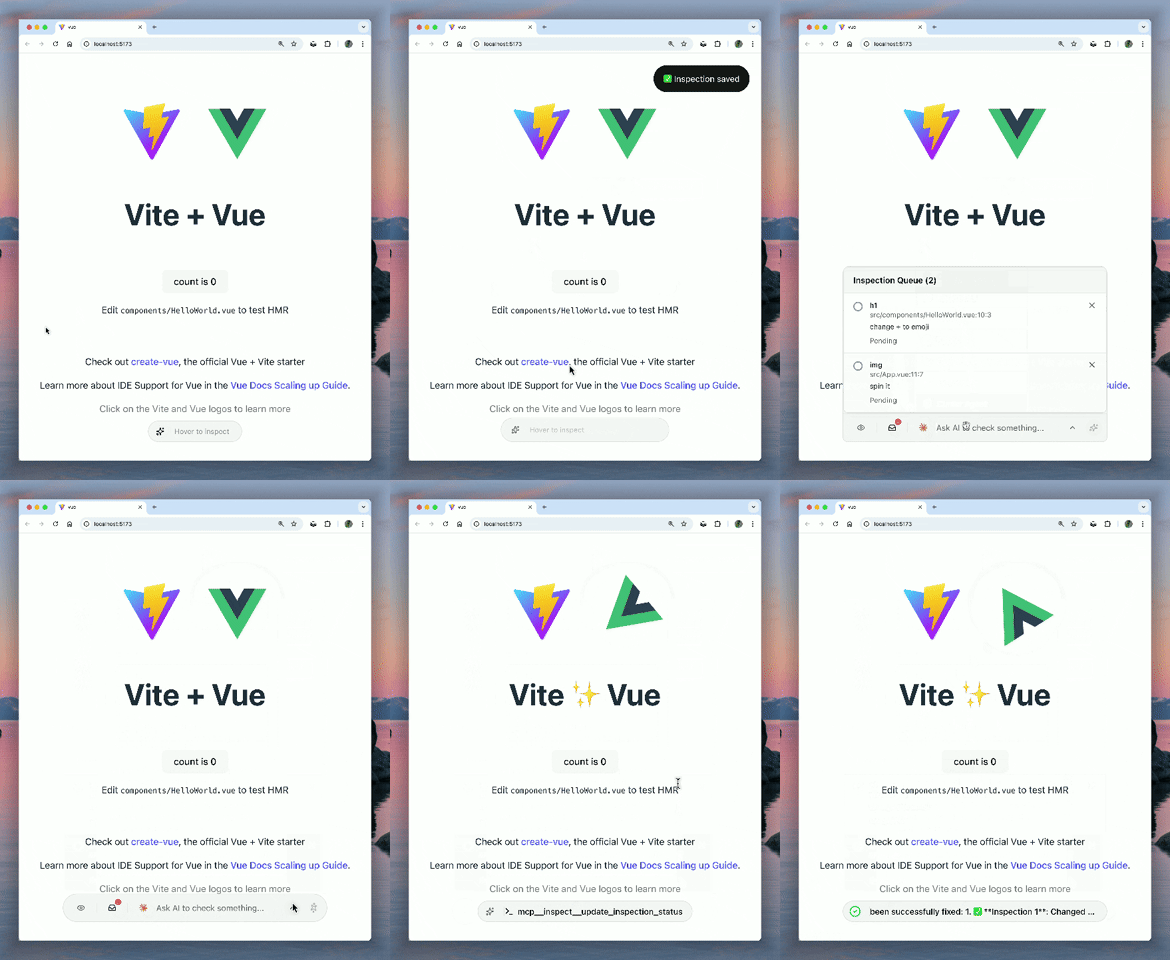
Key Features
Visual Context & Region Selection
Click any element to inspect it, or drag to select a region. AI gets the full context: source code location, computed styles, component hierarchy, IDs, classes, text content, and automatically captures screenshots for pixel-perfect visual understanding.
Page Overview & Accessibility Tree
get_page_info provides AI with a semantic understanding of the page: URL, viewport, and an accessibility tree showing landmarks, headings, forms, and links. AI can navigate the page structure without screenshots.
Universal DevTools Access
AI can access Network and Console logs from any browser (via client-side interception) or full Chrome DevTools (via chrome devtools mcp). It sees what you see, regardless of your environment.
Multi-Agent Workflow
Switch between agents (Claude Code, Codex, Gemini, Opencode...) and track their debugging progress visually with a floating status bar.
Quick Start
Installation
# npm - basic installation
npm i -D @mcpc-tech/unplugin-dev-inspector-mcp

# pnpm - basic installation
pnpm add -D @mcpc-tech/unplugin-dev-inspector-mcp

# yarn - basic installation
yarn add -D @mcpc-tech/unplugin-dev-inspector-mcp
Note: If you don't need the ACP agents (Inspector Bar mode), add
--no-optionalto skip installing agent packages:npm i -D @mcpc-tech/unplugin-dev-inspector-mcp --no-optional pnpm add -D @mcpc-tech/unplugin-dev-inspector-mcp --no-optional yarn add -D @mcpc-tech/unplugin-dev-inspector-mcp --no-optional
Automated Setup (Recommended)
Run the setup command to automatically configure your vite.config.ts, webpack.config.js, or next.config.ts:
npx @mcpc-tech/unplugin-dev-inspector-mcp setupOptions:
--dry-run- Preview changes without applying them--config <path>- Specify config file path (auto-detect by default)--bundler <type>- Specify bundler type: vite, webpack, nextjs--no-backup- Skip creating backup files--help- Show help message
Examples:
# Preview changes before applying
npx @mcpc-tech/unplugin-dev-inspector-mcp setup --dry-run

# Setup specific config file
npx @mcpc-tech/unplugin-dev-inspector-mcp setup --config vite.config.ts

# Setup for specific bundler
npx @mcpc-tech/unplugin-dev-inspector-mcp setup --bundler vite
This will:
- Detect your bundler configuration
- Add the necessary import
- Add the plugin to your configuration
- Create a backup of your config file
Framework Setup
Pick your framework below. Each section is self-contained -- just copy the config.
// vite.config.ts
import DevInspector from '@mcpc-tech/unplugin-dev-inspector-mcp';
import react from '@vitejs/plugin-react'; // or vue(), svelte(), solid(), preact()

export default {
  plugins: [
    DevInspector.vite({ enabled: true }),
    react(),
  ],
};
Plugin order matters: Place
DevInspector.vite()before framework plugins. Otherwise source locations may showunknown:0:0.
Step 1 -- next.config.ts:
import DevInspector, { turbopackDevInspector } from '@mcpc-tech/unplugin-dev-inspector-mcp';

const nextConfig = {
  webpack: (config) => {
    config.plugins.push(DevInspector.webpack({ enabled: true }));
    return config;
  },
  turbopack: {
    rules: turbopackDevInspector({ enabled: true }),
  },
};

export default nextConfig;
Step 2 -- app/layout.tsx (required):
import { DevInspector } from "@mcpc-tech/unplugin-dev-inspector-mcp/next";

export default function RootLayout({ children }) {
  return (
    <html>
      <body>
        <DevInspector />
        {children}
      </body>
    </html>
  );
}
Run with next dev (webpack) or next dev --turbopack (turbopack).
// vite.config.ts
import { reactRouter } from "@react-router/dev/vite";
import DevInspector from '@mcpc-tech/unplugin-dev-inspector-mcp';

export default defineConfig({
  plugins: [
    DevInspector.vite({ enabled: true, entry: "app/root.tsx" }),
    reactRouter(),
  ],
});
// webpack.config.js
const DevInspector = require('@mcpc-tech/unplugin-dev-inspector-mcp');
module.exports = {
plugins: [
DevInspector.webpack({ enabled: true }),
],
};Non-HTML Projects (Miniapps, Library Bundles)
DevInspector.vite({
  enabled: true,
  autoInject: false,
  entry: 'src/main.ts',
})
TypeScript Types
If you import virtual:dev-inspector-mcp, add to your tsconfig:
{
  "compilerOptions": {
    "types": ["vite/client", "@mcpc-tech/unplugin-dev-inspector-mcp/client"]
  }
}
Custom Virtual Module Name
DevInspector.vite({
  enabled: true,
  autoInject: false,
  virtualModuleName: 'virtual:my-custom-inspector',
})
Disable Chrome DevTools
Set disableChrome: true in plugin options or DEV_INSPECTOR_DISABLE_CHROME=1 env var.
Zero Production Impact: In production builds, virtual:dev-inspector-mcp becomes a no-op module.
Supported Frameworks
React, Vue, Svelte, SolidJS, Preact, Next.js (Webpack + Turbopack), React Router v7+. Angular support in progress.
Agent Skills
DevInspector ships a built-in Agent Skill for Claude Code (and compatible AI agents) that teaches the agent how to integrate and troubleshoot the inspector.
Install it with one command:
npx skills add mcpc-tech/dev-inspector-mcpThe skill covers setup for all supported bundlers, common gotchas, and troubleshooting -- so the agent can guide you through the entire integration without back-and-forth.
What are Agent Skills? Skills are Markdown-based instruction sets that AI agents load at session start to gain domain-specific knowledge. See the Claude Code docs for more.
Configuration
Auto-Update MCP Config
The plugin automatically updates MCP configuration files for detected editors when the dev server starts. This saves you from manually configuring MCP endpoints.
Supported editors: Cursor, VSCode, Windsurf, Claude Code, Antigravity
// vite.config.ts
DevInspector.vite({
  // Auto-detect and update (default: true)
  updateConfig: true,

  // Or specify editors manually
  updateConfig: ['cursor', 'vscode'],

  // Or disable
  updateConfig: false,

  // Server name in MCP config (default: 'dev-inspector')
  updateConfigServerName: 'my-app-inspector',
})
Custom editors: For non-standard editors, use customEditors:
DevInspector.vite({
  customEditors: [
    {
      id: 'my-editor',
      name: 'My Editor',
      configPath: '~/.my-editor',        // absolute, ~/relative, or project-relative
      configFileName: 'mcp.json',
      serverUrlKey: 'url',               // default: 'url'
      configFormat: 'mcpServers',        // 'mcpServers' or 'servers' (vscode-style)
    },
  ],
})
Agent Installation
DevInspector supports multiple AI agents via ACP.
For npm-based agents (Claude Code, Codex CLI, Cursor Agent, Droid), you can pre-install them as dev dependencies for faster loading.
For system-level agents, install globally:
Gemini CLI
npm install -g @google/gemini-cliKimi CLI
uv tool install --python 3.13 kimi-cliGoose
pipx install goose-aiOpencode
curl -fsSL https://opencode.ai/install | bashCodeBuddy Code
npm install -g @tencent-ai/codebuddy-codeNote: If you don't pre-install npm-based agents, they will be launched via
npxon first use (slower startup).
Pre-installing npm-based Agents (Recommended)
The recommended way is to install agents during initial setup (see Installation above).
Alternatively, install them later as dev dependencies:
# npm
npm i -D @zed-industries/claude-code-acp

# pnpm
pnpm add -D @zed-industries/claude-code-acp

# Or add directly to package.json
{
"devDependencies": {
"@zed-industries/claude-code-acp": "^0.12.4",
"@zed-industries/codex-acp": "^0.7.1",
"@blowmage/cursor-agent-acp": "^0.1.0",
"@yaonyan/droid-acp": "^0.0.8"
}
}About optionalDependencies: Agent packages are installed by default. If you don't need them, use
--no-optionalwhen installing.
Why install as devDependencies?
- Ensures faster startup (uses local package via
require.resolveinstead ofnpx) - Won't affect production bundle (tree-shaken out unless imported)
- Standard practice for development tools
Custom Agents
This plugin uses the Agent Client Protocol (ACP) to connect with AI agents.
⏱️ Note: Initial connection may be slow as agents are launched via npx (downloads packages on first run).
Default agents: View configuration →
You can customize available AI agents, filter visible agents, and set a default agent:
// vite.config.ts
export default {
  plugins: [
    DevInspector.vite({
      enabled: true,

      // Option 1: Only show specific agents (filters merged agents)
      visibleAgents: ['Claude Code', 'Gemini CLI', 'Goose'],

      // Option 2: Add custom agents (merges with defaults)
      agents: [
        {
          name: "Claude Code", // Matches default - auto-fills icon and env
          command: "npx",
          args: ["-y", "@zed-industries/claude-code-acp"],
        },
        {
          name: "My Custom Agent",
          command: "my-agent-cli",
          args: ["--mode", "acp"],
          env: [{ key: "MY_API_KEY", required: true }],
          meta: { icon: "https://example.com/icon.svg" }
        }
      ],

      // Option 3: Combine both - add custom agents and filter visibility
      agents: [
        {
          name: "My Custom Agent",
          command: "my-agent-cli",
          args: ["--mode", "acp"],
          env: [{ key: "MY_API_KEY", required: true }],
          meta: { icon: "https://example.com/icon.svg" }
        }
      ],
      visibleAgents: ['Claude Code', 'My Custom Agent'], // Only show these

      // Set default agent to show on startup
      defaultAgent: "Claude Code"
    }),
  ],
};
Key Features:
agents: Merges your custom agents with defaults. Agents with the same name as default agents automatically inherit missing properties (icons, env)visibleAgents: Filters which agents appear in the UI (applies after merging). Great for limiting options to only what your team usesdefaultAgent: Sets which agent is selected on startup- If no custom agents provided, defaults are: Claude Code, Codex CLI, Gemini CLI, Kimi CLI, Goose, Opencode, Cursor Agent, Droid, CodeBuddy Code
MCP Servers Configuration
You can configure external MCP servers for agents to access additional tools.
DevInspector.vite({
  mcpServers: [
    // HTTP/SSE Server
    {
      name: 'remote-server',
      type: 'sse', // or 'http'
      url: 'https://api.example.com/sse',
      headers: [{ name: 'Authorization', value: process.env.MCP_TOKEN ?? '' }]
    },
    // Local Stdio Server
    {
      name: 'local-server',
      command: 'npx',
      args: ['-y', '@modelcontextprotocol/server-memory'],
      env: { MY_VAR: 'value' }
    }
  ]
})
What It Does
Click element → Describe issue → AI analyzes → Get fix
- Click any UI element to capture context (source, styles, DOM)
- Describe what's wrong or ask a question about the element
- AI diagnoses using Chrome DevTools integration
- Get intelligent solutions through natural conversation
Examples:
- "Why is this button not clickable?" → AI checks
pointer-events, z-index, overlays - "This API call is failing" → AI analyzes network requests, timing, responses
- "Where is this component?" → Jump to source file and line number
Two Workflow Modes
DevInspector offers two ways to interact with your AI, depending on your preference:
1. Editor Mode
Best for: Code-heavy tasks, refactoring, and maintaining flow.
- How it works: You use your IDE's AI assistant (Cursor, Windsurf, Copilot).
- The Flow: Click an element in the browser -> The context (source, props, styles) is sent to your Editor via MCP -> You ask your Editor to fix it.
- Why: Keeps you in your coding environment.
2. Inspector Bar Mode (Recommended)
Best for: Quick fixes, visual tweaks, or if you don't use an AI editor.
- How it works: You use the floating "Inspector Bar" directly in the browser.
- The Flow: Click "Ask AI" in the browser -> Select an agent (e.g., Claude Code, Custom Script) -> The agent runs in your terminal but interacts with the browser overlay.
- Why: No context switching. Great for "what is this?" questions or network debugging.
MCP Tools
capture_element_context
Capture single element context. Two modes:
- Interactive (default): User clicks element to select
- Automated: Use
selectorparam for programmatic capture
Returns: source location, DOM hierarchy, computed styles, dimensions, user notes, screenshot.
capture_area_context
Capture multiple elements in an area. Two modes:
- Interactive (default): User draws rectangle to select area
- Automated: Use
containerSelectororboundsparam
Returns: array of element contexts (max 50).
get_page_info
Get page overview with accessibility tree. Returns URL, title, viewport, document size, and semantic structure (landmarks, headings, forms, links). Start here to understand the page.
list_inspections
List all captured inspections with ID, element details, source location, notes, and status (pending/in-progress/completed/failed).
update_inspection_status
Update inspection status. Parameters: inspectionId (optional, auto-detects), status ('in-progress'|'completed'|'failed'|'deleted'), message (required for completed/failed).
execute_page_script
Execute JavaScript in browser context. Access: window, document, DOM APIs, React/Vue instances, localStorage. Must return a value.
get_network_requests
Get network requests from browser. Returns list with reqid, method, URL, status. Use reqid param to get full request/response details (headers, body, timing).
get_console_messages
Get console messages from browser. Returns list with msgid, level (log/warn/error), message. Use msgid param to get full message details.
get_stdio_messages
Get dev server stdout/stderr. Returns list with stdioid, stream type, content. Use stdioid param to get full message.
chrome_devtools
Agentic tool for Chrome DevTools access. Provides network inspection, console logs, performance metrics, element interaction, and more.
Custom Inspector Tools
You can register your own custom tools to be used by the AI agent. These tools run directly in the browser context, giving the AI access to your application's state, logic, or any browser APIs.
registerInspectorTool
Use this function to register a tool. It handles the MCP schema definition and implementation in one place.
// main.ts or any entry file
import { registerInspectorTool } from 'virtual:dev-inspector-mcp';

registerInspectorTool({
  name: "get_user_state",
  description: "Get current user session and preferences",
  inputSchema: {
    type: "object",
    properties: {
      includeToken: {
        type: "boolean",
        description: "Whether to include the auth token"
      }
    }
  },
  implementation: (args) => {
    // This runs in the browser!
    const user = window.useUserStore?.getState();

    if (args.includeToken) {
      return { user, token: localStorage.getItem('token') };
    }
    return { user };
  }
});
These custom tools are automatically discovered and made available to the connected AI agent along with the built-in inspector tools.
MCP Prompts
capture_element_context
Capture single element context. Interactive (user clicks) or automated (selector param).
capture_area_context
Capture multiple elements in area. Interactive (user draws rectangle) or automated (containerSelector/bounds param).
list_inspections
View all element inspections in the queue with their status.
launch_chrome_devtools
Launch Chrome DevTools and navigate to a specified URL for debugging and inspection.
Parameter: url (required) - The URL to navigate to (e.g., http://localhost:3000)
get_network_requests
List network requests or get details of a specific one. Always refreshes the list first.
get_console_messages
List console messages or get details of a specific one. Always refreshes the list first.
get_stdio_messages
List stdio (stdout/stderr) messages from the server process. Always refreshes the list first.
Architecture
For a deep dive into how the MCP context, CMCP library, and Puppet binding mechanism work together, see the Architecture Documentation.
Key concepts:
- Hub-and-spoke model: Vite dev server acts as central hub managing multiple client connections
- CMCP bidirectional execution: Server defines tool schemas, browser client provides implementations
- Puppet binding: Enables Chrome DevTools ↔ Inspector message passthrough
- Dynamic rebinding: Automatic connection recovery after browser refresh