
@micropasts/iiif-viewer
v1.0.16
Published
Standalone IIIF Presentation 2.0, 3.0 & 4.0 manifest, deep-zoom, 3D scene, and annotation viewer
Downloads
2,056


Readme
IIIF Viewer (@micropasts/iiif-viewer)


A framework-agnostic IIIF Presentation API 2.x, 3.0 & 4.0 viewer built with OpenSeadragon, Three.js, MapLibre GL JS, and Tailwind CSS v4. Designed for museums, archives, libraries, and digital heritage platforms to display deep-zoom 2D canvases, interactive 3D .glb/.gltf scenes, tables of contents, metadata, annotations, and geographic locations.
- Live Demo: https://micropasts.github.io/iiif-viewer/
- Repository: https://github.com/micropasts/iiif-viewer
- Author: Daniel Pett (MicroPasts)
Table of contents
- Screenshot of interface
- Features
- Installation
- Quick Start
- Framework Integration Examples
- Configuration Options
- Instance Methods
- Local Development & GitHub Pages Build
- Contributing, citation, and security
- License
Screenshot of interface
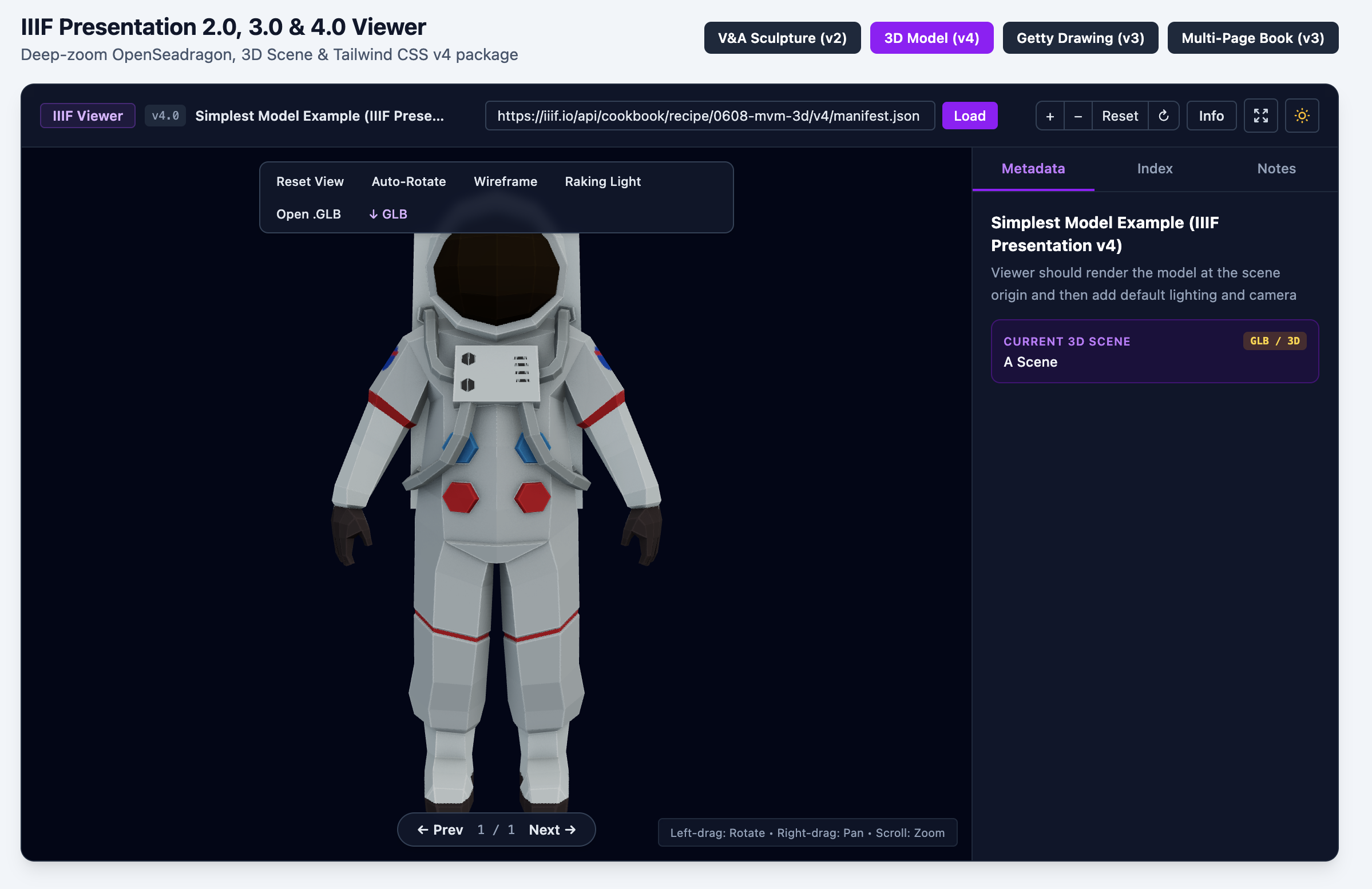
Features
- IIIF Presentation 2.x, 3.0 & 4.0 Support: Detects and normalizes common Presentation 2.x (
sequences/canvases), Presentation 3.0 (items/AnnotationPage), and Presentation 4.0 (Scene/Model/SpecificResource) structures. A Presentation 3 annotation page with painting annotations can also be loaded directly. - Collection and Volume Navigation: Browse Presentation 2.x and 3.0 collections, including nested collections and member manifests, without leaving the viewer.
- Optional navDate Timeline: Navigate dated collection members and canvases in chronological order.
- Deep-Zoom 2D & Interactive 3D in One Filmstrip: Switch between OpenSeadragon tiled/static 2D images and a Three.js WebGL 3D scene viewer (
GLTFLoader+DRACOLoader). The 3D controls include camera presets and reset, auto-rotate, wireframe, raking light, model statistics, a local file picker, and IIIFRotateTransform/ScaleTransform/TranslateTransformsupport. - Presentation 3 Audio and Video: Play audio or video canvases using compact themed controls; video fills the canvas area without cropping and has its own fullscreen button. The playback options menu provides volume, speed and embedded WebVTT captions. Navigate temporal fragments from Notes, Index and search results.
- Image Inspection & Annotations: Zoom, rotate, and adjust brightness, contrast, grayscale, and inversion for 2D images. Image controls are hidden for 3D scenes and filter settings are retained when returning to 2D. The Notes panel displays embedded or referenced annotation text and can focus on supported rectangular
xywhregions. - Optional Side-by-Side Comparison: Compare image, audio/video or 3D canvases, including across manifests, with synchronized 2D navigation and pane-aware information.
- Search & Navigation: Browse thumbnails and nested ranges, or search through a supported IIIF Search API service with a local manifest search fallback. Manifest URLs or IIIF links can also be dropped onto the viewer.
- Maps & Languages: Display manifest and current-canvas
navPlacefeatures on a MapLibre map. Choose among available metadata languages in the sidebar or set a preferred language programmatically. - Configurable Proxy Routing: Rewrite manifest,
info.json, static image, media, model, thumbnail, annotation, search, andnavPlaceURLs through custom prefixes, regex rules, functions, or proxy endpoints viaproxyRoutes,proxyUrl, andassetProxyUrl. - IIIF Access Prompts: Supports common Auth 1 and Auth 2 sign-in flows for manifests, image services and audio/video in both comparison panes, with probe-based redirects and previews where supported.
- HTML Metadata Rendering: Sanitizes HTML inside manifest metadata values, summaries, attributions, and annotations, retaining a limited set of formatting and links.
- Fullscreen & Scoped Dark/Light Themes: Built-in Fullscreen API support (with a fixed-viewport fallback for sandboxed iframes) and isolated
.darkclass theming.
Current limitations
IIIF Auth does not protect 3D models, image-curtain layers, downloads or thumbnails. These require independently accessible URLs or a suitable proxy. The viewer uses the first advertised probe and does not recursively authorize a substitute resource.
A bare manifest 401/403 or CORS failure cannot identify an authorization service. Auth 2 probes need CORS access, token services need working cross-site iframe cookies, and sign-in requires popups. Providers and embedding pages must use HTTPS (localhost is permitted for development). Configure any proxy receiving Auth 1 tokens as a trusted credential recipient.
Audio/video authorization depends on the provider making the content playable using browser-supported cookies or a suitable proxy. Native media elements cannot send Auth 1 bearer tokens. Third-party cookie restrictions and media/CORS policies can still prevent playback after a successful probe.
Collection browsing displays supported members present in the collection response. It does not follow paged collection results or automatically expand references; nested collections are fetched when selected. The viewer does not automatically traverse or guard against cyclic collection links.
Timelines use dates on the current collection's direct members or the primary manifest's canvases only. They do not recursively fetch members or use Range dates, manifest dates as canvas dates, or comparison-pane canvases. Accepted
navDatestrings include zoned ISO date-times with four to six year digits, and explicit BC/BCE/AD/CE year strings as a non-standard convenience. Signed ISO years use astronomical numbering (year 0000 is 1 BCE, -0001 is 2 BCE). Ambiguous free text, unzoned and date-only values, leap seconds, 24:00, and years outside ±99999 are omitted from the timeline but remain accessible through normal navigation. Descriptive dates are not inferred from metadata or labels.Referenced annotation pages and
navPlacecollections are fetched when needed; inaccessible or unsupported references may not appear. Overlays support rectangularxywhregions, not arbitrary annotation selectors.Range navigation uses canvas references it can resolve in the manifest; not all IIIF structures or selectors are supported.
Language maps prefer the selected language, then
none, then the first available language. For Presentation 2 language-tagged arrays, the selected language is preferred; otherwise available values are combined.The local 3D file picker works best with self-contained
.glbfiles; a.gltffile that refers to separate buffers or textures also needs those resources to be accessible.Draco-compressed models use decoders hosted by Google by default. Set
dracoDecoderPathto a directory you host if external decoder requests are undesirable.AV playback depends on browser codec support and the media server. Cross-origin WebVTT tracks require appropriate CORS headers on both media and caption responses; seeking generally requires byte-range support. Volume control and caption rendering depend on browser and device capabilities. Video fullscreen requires the browser Fullscreen API and permission from any embedding iframe.
AV support plays the first recognized painting audio/video body, including a
Choice; it does not compose multiple timed painting bodies or apply source/target temporal offsets. Embedded supplementing WebVTT bodies become caption tracks; referenced external annotation pages and other caption formats are not loaded as tracks. Temporal navigation acceptst=startort=start,endin seconds orHH:MM:SS, optionally prefixednpt:. It seeks without autoplay or enforcing the fragment end.
Sidebar
The Bootstrap integration example maps Bootstrap colours to the viewer's --iiif-* tokens and lets you load a manifest or collection URL. It loads Bootstrap and the published viewer from CDNs; external manifests and images require network access and suitable CORS headers.
When a Collection is loaded through manifestUrl / url, manifest / data, loadManifest, or setManifest, the Collections button opens a separate browser even if the Info sidebar is closed or its tabs are restricted. Choose nested collections, use the breadcrumbs to go back, and select a manifest to open it. By default the browser appears immediately rather than automatically selecting a volume; scrubber mode instead opens the first direct manifest as described below. Reopening the browser retains the current path. Collection labels, descriptions, metadata, thumbnails and dates are shown when supplied. Changing language updates the collection labels. A selected manifest replaces the primary view and drives the usual filmstrip, Info tabs, inspector and callbacks; comparison closes when loading a different resource.
Try Browse a collection in the demo to navigate a nested collection and open a sample manifest.
Set timeline: true to show a chronological list of dated direct members in the Collections browser. For manifests with dated canvases, the Timeline toolbar button opens a separate canvas timeline; choosing an entry uses the normal canvas navigation and marks the active canvas. Dated sub-collections are selectable and their own members appear when opened. Entries with the same instant retain their original order. The list displays dates as supplied, including their timezone. Other items remain in the collection list or filmstrip. Try Browse a navDate timeline in the demo with the IIIF Cookbook example.
Alternatively, timeline: 'scrubber' opens the first direct manifest (in collection order) at its first canvas when entering a collection. If there are no direct manifests, the collection browser opens instead; sub-collections are not fetched automatically. Use Timeline to open a compact overlay at the bottom of the primary pane when the current collection or manifest has dated items. Drag the canvas slider or use the arrow keys to navigate; the collection slider opens the selected member when you release it or use the arrow keys. Selected manifests start at their first canvas. The Collections browser remains available for undated items and nested navigation. Stops are evenly spaced in chronological order, not proportionally spaced by elapsed time; large timelines show at most 40 decorative dots. Dates are formatted using the viewer language, retaining their original local time and timezone (the original string is available on hover). BC/BCE and AD/CE year-only strings sort at the start of the named year; they are not valid IIIF navDate values and are supported as a convenience. If the current canvas is undated, the panel says so and the first dated canvas can be selected with the slider. Close or Escape dismisses the overlay. Try the Wellcome collection timeline scrubber demo with the dated issues from Wellcome Collection; their canvases themselves have no navDate.
Referenced collections and manifests use the manifest proxy route (or proxyUrl) and fetchOptions; thumbnails use the thumbnail route (or assetProxyUrl). Relative member IDs are resolved against the collection ID or source URL. Remote servers must permit the configured cross-origin requests. Inline member resources with full content do not require a fetch. onManifestLoad and onCanvasChange fire for selected manifests and canvases, not for collections.
Remote collection requests use the same authorization prompts as manifests, including compatible collection substitutes. Authorization events for collections use resourceType: 'manifest'; selecting an inline collection does not probe its services.
- Metadata: View the manifest summary, metadata, attribution, rights, related links, and technical details. Long summaries can be expanded. The language selector is offered when multiple languages are found in the manifest label, summary, or metadata.
- Index: Navigate supported structural ranges and nested ranges by selecting an entry; temporal range targets seek AV canvases.
- Notes: Read annotations for the current canvas. Select Zoom region for supported
xywhregions or a time cue to seek an AV canvas; use Hide Boxes / Show Boxes to toggle image overlays. Referenced annotation pages are fetched when their canvas is opened. - Search: Search through a detected IIIF Search API service when available. If no service is detected or its request fails, search locally through manifest and canvas labels, metadata, and loaded annotations. Local search matches text without HTML formatting and does not fetch annotation pages from unvisited canvases; an empty response from a working remote service does not trigger a local search.
- Map: View and select geographic locations from the manifest and current canvas.
Maps
The Map tab displays embedded or referenced navPlace features from the manifest and current canvas, including supported points, lines, and polygons. Select a feature on the map or in the location list; canvas-linked locations can navigate to their canvas.
The map is loaded on demand. The static demo serves its MapLibre worker as a separate same-origin asset; library builds inline the worker so consumers do not need to deploy a separate file.
To check both built worker paths, run npm run build && npm run build:docs, then RUN_BUILD_E2E=1 npx playwright test e2e/navplace-build.e2e.js.
The default basemap is OpenFreeMap Liberty, a free OpenStreetMap-based style that requires no API key. MapLibre displays the required map attribution. Supply mapStyle to use another MapLibre-compatible style. The map worker is bundled with the viewer. Restrictive Content Security Policies may need to allow blob: workers and data: module imports, as well as requests to the map provider.
Installation
From npm
npm install @micropasts/iiif-viewerFrom GitHub Packages
Add a .npmrc file in your project root:
@micropasts:registry=https://npm.pkg.github.comThen install:
npm install @micropasts/iiif-viewerQuick Start
Vanilla JS / ES Modules
Bundlers resolve the declared npm dependencies. Direct browser imports of the ES module require an import map or a CDN that resolves those dependencies.
import { IIIFViewer } from '@micropasts/iiif-viewer';
import '@micropasts/iiif-viewer/style.css';

const viewer = new IIIFViewer('#iiif-viewer', {
  manifestUrl: 'https://iiif.vam.ac.uk/collections/O24955/manifest.json',
  theme: 'dark',
  height: '680px',
});
Ensure your HTML contains the target mount element:
<div id="iiif-viewer"></div>Instantiate the viewer in a browser with a DOM; 3D models and the map also require WebGL support. Each viewer mounts in an open Shadow DOM and injects its own compiled styles, isolating Tailwind preflight from the host page. The style.css import is retained for compatibility but is no longer required.
Tailwind's generated @property rules are not reliably registered from a shadow root. The viewer supplies matching scoped defaults for its generated utilities instead of registering --tw-* properties globally, which could change a host application's styles. MapLibre styles are installed inside the viewer when its map is opened.
See the Shadow DOM isolation demo for a host page with its own heading and button styles.
Call viewer.destroy() when removing the viewer, such as when a framework component unmounts. Multiple viewers can be mounted in separate elements.
Customising Colours & Styles
Set semantic CSS custom properties on the host element; they are inherited into the Shadow DOM. The viewer supplies light and dark defaults when a property is not set.
#iiif-viewer {
  --iiif-accent: #b45309;
  --iiif-accent-hover: #92400e;
  --iiif-accent-contrast: #fff;
  --iiif-bg: #f8fafc;
  --iiif-surface: #fff;
  --iiif-surface-muted: #f1f5f9;
  --iiif-text: #1e293b;
  --iiif-text-muted: #475569;
  --iiif-border: #cbd5e1;
  --iiif-radius: 0.75rem;
}
Alternatively, pass themeVars: { '--iiif-accent': '#b45309' } to the constructor or call viewer.setThemeVars({ '--iiif-accent': '#b45309' }) later. Values must be strings; pass null to remove an inline property and return to the CSS cascade. Supply colours with adequate contrast for the chosen theme.
Try the interactive Customise viewer colours example in the demo.
Load a manifest without the URL bar
Set manifestUrl to load a manifest when the viewer is created, showUrlInput: false to hide the URL input and Load button, and allowManifestDrop: false to disable loading by dropping a manifest URL:
<div id="iiif-viewer"></div>import { IIIFViewer } from '@micropasts/iiif-viewer';
const viewer = new IIIFViewer('#iiif-viewer', {
manifestUrl: 'https://iiif.io/api/cookbook/recipe/0009-book-1/manifest.json',
showUrlInput: false,
allowManifestDrop: false,
theme: 'light',
height: '680px',
language: 'en',
showSidebar: true,
initialCanvas: 0,
});The manifest and its resources must be accessible to the browser, including any required CORS permissions. See Configuration Options for all available options.
Drag-and-drop is enabled by default, independently of the URL bar. Disabling it only prevents manifest drops; image and model drag controls still work, and your application can still call viewer.loadManifest(url). These options are not access controls. The preset buttons in the demo are part of the demo page, not the viewer; omit them from your page if they are not needed.
Explore the examples gallery for focused demos of navigation, comparison, inspection, configuration and integration. The configuration playground combines common options in one viewer and generates matching code. Colour, ruler and measurement changes apply live; other changes restart the viewer and reset its current view. showSidebar: false does not remove the sidebar; the Info button can still open it. Many examples use a local copy of the supplied Caryatid manifest; images are served by the British Museum and remain subject to the rights statement in the manifest. Remote resources require network access and suitable CORS settings.
Configure external viewer links
The Metadata tab links to Universal Viewer and Tify by default. Add other services using URL templates containing {manifest}:
const viewer = new IIIFViewer('#iiif-viewer', {
  manifestUrl: 'https://example.org/manifest.json',
  externalViewers: {
    mode: 'append', // use 'replace' to omit the default links
    viewers: [
      { label: 'My IIIF tool', url: 'https://example.org/viewer?manifest={manifest}' },
    ],
  },
});
Each {manifest} is replaced with the URL-encoded manifest ID, or the loaded URL when the manifest has no ID. Templates must be absolute HTTP or HTTPS URLs. mode defaults to 'append'. To hide the entire section, set externalViewers: false (or use 'replace' with an empty viewers array). The section is also hidden when neither a manifest ID nor a loaded URL is available.
Language and selection callbacks
const viewer = new IIIFViewer('#iiif-viewer', {
  manifestUrl: 'https://example.org/iiif/manifest.json',
  language: 'en',
  onManifestLoad(parsed, raw) {
    console.log('Parsed manifest:', parsed.label);
  },
  onCanvasChange(canvas, index) {
    console.log('Selected:', index, canvas.label);
  },
  onSelectLocation(feature, { canvasIndex }) {
    console.log('Location:', feature.properties, canvasIndex);
  },
});

viewer.setLanguage('fr');
onManifestLoad runs after parsing, not after every asset has finished loading. With an inline manifest, callbacks can run during construction, before the viewer variable is assigned.
Using Custom Proxy Routes (Local Dev / CORS)
When a manifest contains embedded asset URLs pointing to a local dev server (such as http://localhost:8000/images/...) or an origin lacking Access-Control-Allow-Origin headers, configure proxyRoutes, proxyUrl, or assetProxyUrl:
const viewer = new IIIFViewer('#iiif-viewer', {
  manifestUrl: 'http://localhost:8000/finds/1704/iiif/manifest',
  // Prefix map rewriting both manifest and embedded .glb / image URLs
  proxyRoutes: {
    'http://localhost:8000/images': '/images',
    'http://localhost:8000/finds': '/finds',
  },
});
You can also pass an array of { match, replace, types } rules or a resolver function:
const viewer = new IIIFViewer('#iiif-viewer', {
  manifestUrl: 'https://example.org/iiif/manifest.json',
  proxyRoutes: (url, resourceType) => {
    if (resourceType === 'model' && url.startsWith('http://localhost:8000/')) {
      return `/api/proxy-glb?url=${encodeURIComponent(url)}`;
    }
    return url;
  },
});
The first matching array or prefix-map rule wins. A resolver can return a falsy value to fall back to proxyUrl or assetProxyUrl. These options only rewrite URLs; the destination must actually serve or proxy the resource with appropriate CORS headers. proxyUrl and assetProxyUrl append the URL encoded with encodeURIComponent.
The viewer rewrites the manifest URL, image service info.json or static image URL, model URL, thumbnail URL, external annotation and navPlace URLs, and search endpoint URL. It does not rewrite subsequent image tile requests, external resources referenced by a .gltf file, or map style and tile requests; configure those hosts accordingly. fetchOptions applies to manifest and remote search requests, not image, model, annotation, or navPlace requests.
Passing an Inline Manifest Object
const viewer = new IIIFViewer('#iiif-viewer', {
  manifest: myManifestJsonObject,
  theme: 'light',
  showUrlInput: false,
});
If both manifest and manifestUrl are supplied, the inline manifest takes precedence.
Framework Integration Examples
TypeScript
The package ships TypeScript declarations; the viewer itself remains JavaScript. Import the viewer and any needed option or callback types:
import { IIIFViewer } from '@micropasts/iiif-viewer';
import type { IIIFViewerOptions, NormalizedCanvas } from '@micropasts/iiif-viewer';

const options: IIIFViewerOptions = {
  manifestUrl: 'https://example.org/manifest.json',
  themeVars: { '--iiif-accent': '#7e22ce' },
  onCanvasChange(canvas: NormalizedCanvas, index: number) {
    console.log(index, canvas.label);
  },
};
const viewer = new IIIFViewer('#viewer', options);
// Call viewer.destroy() when the viewer is no longer needed.
Declarations are built into dist/ and resolved through the package's ESM and
CommonJS exports. Run npm run build followed by npm run test:types to check
the public types against TypeScript consumer examples.
UMD Script Tag
The UMD bundle includes its runtime dependencies and does not require separate
OpenSeadragon or Three.js scripts. Copy dist/iiif-viewer.umd.cjs from the
installed package to your server and serve it with a JavaScript MIME type.
<!doctype html>
<html lang="en">
<head>
  <meta charset="utf-8">
  <title>IIIF viewer</title>
</head>
<body>
  <div id="viewer"></div>
  <script src="/assets/iiif-viewer.umd.cjs"></script>
  <script>
    const viewer = new window.IIIFViewer.IIIFViewer('#viewer', {
      manifestUrl: 'https://iiif.io/api/cookbook/recipe/0001-mvm-image/manifest.json',
      height: '680px',
    });
    // Call viewer.destroy() when removing the viewer.
  </script>
</body>
</html>
The page and assets must be served over HTTP(S); the manifest and image servers must permit cross-origin requests. No separate viewer stylesheet is required.
React
import { useEffect, useRef } from 'react';
import { IIIFViewer } from '@micropasts/iiif-viewer';
import '@micropasts/iiif-viewer/style.css';

export function MuseumIIIFViewer({ manifestUrl, theme = 'dark', proxyRoutes = null }) {
  const containerRef = useRef(null);
  const instanceRef = useRef(null);

  useEffect(() => {
    if (!containerRef.current) return;
    instanceRef.current = new IIIFViewer(containerRef.current);

    return () => {
      instanceRef.current?.destroy();
      instanceRef.current = null;
    };
  }, []);

  useEffect(() => {
    instanceRef.current?.setTheme(theme);
  }, [theme]);

  useEffect(() => {
    instanceRef.current?.setProxyRoutes(proxyRoutes);
  }, [proxyRoutes]);

  useEffect(() => {
    if (manifestUrl) instanceRef.current?.loadManifest(manifestUrl);
  }, [manifestUrl]);

  return <div ref={containerRef} />;
}
Vue 3
<script setup>
import { onMounted, onBeforeUnmount, ref, watch } from 'vue';
import { IIIFViewer } from '@micropasts/iiif-viewer';
import '@micropasts/iiif-viewer/style.css';

const props = defineProps({
  manifestUrl: { type: String, required: true },
  theme: { type: String, default: 'dark' },
  proxyRoutes: { type: [Object, Array, Function], default: null },
});

const container = ref(null);
let viewer = null;

onMounted(() => {
  viewer = new IIIFViewer(container.value, {
    manifestUrl: props.manifestUrl,
    theme: props.theme,
    proxyRoutes: props.proxyRoutes,
  });
});

watch(() => props.manifestUrl, (url) => url && viewer?.loadManifest(url));
watch(() => props.theme, (theme) => viewer?.setTheme(theme));
watch(() => props.proxyRoutes, (routes) => viewer?.setProxyRoutes(routes));

onBeforeUnmount(() => viewer?.destroy());
</script>

<template>
  <div ref="container" />
</template>
Configuration Options
| Option | Type | Default | Description |
| :--- | :--- | :--- | :--- |
| manifestUrl (or url) | string | '' | URL of a IIIF Presentation manifest or Presentation 2.x/3.0 collection to fetch on mount. |
| manifest (or data) | object \| string | null | Pre-loaded IIIF manifest or collection JSON object or JSON string. |
| proxyRoutes | object \| array \| function | null | Rewrites URLs of type 'manifest', 'image', 'media', 'model', 'thumbnail', 'annotation', 'search', or 'navplace'. Accepts { prefix: replacement }, [{ match, replace, types }] with string or RegExp matches, or (url, resourceType) => string. Array rule types is optional. |
| proxyUrl | string | '' | Prefix URL prepended to encodeURIComponent(url) when fetching manifests and collections. |
| assetProxyUrl | string | '' | Prefix URL prepended to encodeURIComponent(url) for downstream resources when no proxyRoutes rule matches. |
| dracoDecoderPath | string | Google CDN 1.5.7 | Path/URL to Draco WASM/JS decoders for Draco-compressed .glb models. |
| mapStyle | string \| object | OpenFreeMap Liberty | MapLibre style URL or style object for the navPlace map. |
| theme | 'dark' \| 'light' | 'dark' | Initial scoped theme for the viewer container. |
| themeVars | object | {} | CSS custom properties (--iiif-*) applied inline to the host. See Customising Colours & Styles. |
| logo | { src: string, alt?: string } \| null | null | Optional toolbar image before the IIIF Viewer badge. Its aspect ratio is preserved within 120 × 32 CSS pixels. src can be a relative or absolute image URL; alt defaults to an empty string for a decorative logo. |
| language | string | 'en' | Preferred language code for manifest labels and metadata. |
| summaryCollapseLength | number | 300 | Plain-text summary length above which a Show more control appears; set to 0 or a negative number to disable collapsing. |
| physicalRuler | boolean | false | Enable the physical scale and manual calibration controls for 2D images. |
| layersCurtain | boolean | false | Enable the image-layer curtain and comparison canvas controls for 2D images. |
| sideBySide | boolean | false | Enable the Compare button and programmatic split-pane comparison. |
| measurement | boolean | false | Enable point-to-point, polyline and area measurement for 2D images. |
| persistCanvasTransform | boolean | false | Keep 2D rotation and horizontal/vertical flips when navigating within a manifest. |
| permalink | boolean \| object | false | Enable copyable view links and URL restoration; use { prefix: 'name' } to isolate multiple viewers. |
| inspector | boolean | false | Enable the IIIF JSON inspector drawer for manifests and the current canvas or scene. |
| timeline | boolean \| 'scrubber' | false | Enable chronological collection-member navigation and a primary-canvas timeline; true uses a drawer, 'scrubber' a bottom pane. |
| imageDownload | boolean \| object | false | Enable full-canvas image downloads; optionally configure sizes, limits and full-resolution access. |
| height | string | '680px' | CSS height of the viewer container when not in fullscreen; the viewer has a 540px minimum height. |
| showUrlInput | boolean | true | Shows or hides the manifest URL input bar in the top toolbar. |
| allowManifestDrop | boolean | true | Allows manifest URLs or IIIF links to be dropped onto the viewer for loading. |
| showSidebar | boolean | true at widths ≥ 768px; otherwise false | Initial visibility of the Metadata / Index / Notes / Search / Map sidebar. |
| resizableSidebar | boolean | false | Enable desktop information-panel resizing; the mobile overlay remains unchanged. |
| sidebarTabs | string[] | All five tabs | Select one or more Info tabs using metadata, structures (Index), annotations (Notes), search, and map. Tabs retain their standard order; the first enabled tab is selected initially. |
| externalViewers | false \| object | Universal Viewer and Tify | Hide, append to, or replace links in the Metadata tab. See Configure external viewer links. |
| initialCanvas | number | 0 | Zero-based index of the initial canvas or 3D scene to display. |
| fetchOptions | RequestInit | {} | Optional manifest, collection and search fetch options (such as credentials or custom headers); the viewer supplies its own abort signal. |
| onAuthChange | function | null | Called with { status, resourceType, service, error } for manifest, image and media access changes in either pane. Status is unauthorized, forbidden, authorized, or error; tokens are not included. |
| onSelectScene | function | null | Optional callback (container, sceneData, meta) => instance for custom 3D scene rendering. |
| onManifestLoad | function | null | Called as (parsedManifest, rawManifest) after parsing, before all resources necessarily finish loading. |
| onCanvasChange | function | null | Called as (canvas, index) when a canvas or scene is selected. |
| onSelectLocation | function | null | Called as (feature, { canvasIndex }) when a location is selected from the map or list. The index can be absent or null for a manifest-level location. Map clicks provide a MapLibre feature; list selections provide a normalized GeoJSON feature. |
| onCompareChange | function | null | Called when comparison opens, closes, or the secondary canvas or manifest changes. |
onSelectScene receives the container element, normalized scene data (modelUrl, format, transforms, and thumbnail), and { theme, title }. The modelUrl is already resolved through proxy routing. The returned instance may implement destroy(), setTheme(theme), and handleResize(); the viewer calls these when available.
For example, logo: { src: '/images/organisation-logo.png', alt: 'Organisation name' } adds an accessible organisational logo. The browser loads the image directly, independently of IIIF proxy settings. Use an empty alt for a purely decorative image.
For example, sidebarTabs: ['metadata', 'search'] displays only Metadata and Search. The array must contain at least one valid, unique tab ID. If Notes is omitted, clicking an annotation still focuses it but does not open the Notes panel. Hiding tabs is a presentation choice, not an access control; it does not remove manifest data or annotation overlays.
Physical ruler, measurement and image curtain
These tools are opt-in. Their buttons appear in the top toolbar for 2D images, not 3D scenes; the controls open over the image:
const viewer = new IIIFViewer('#viewer', {
  manifestUrl: 'https://example.org/manifest.json',
  physicalRuler: true,
  measurement: true,
  layersCurtain: true,
});
Ruler: Open Ruler to show a physical scale bar. The viewer reads the canvas physicalDimensions extension with the IIIF physical-dimensions profile, a positive physicalScale in units per canvas pixel, and physicalUnits of mm, cm, or in. The image and canvas must have proportional dimensions for this automatic calibration. Otherwise, enter millimetres per source image pixel, or select Draw calibration line, drag across a known distance within the image, enter its length in millimetres, and select Calibrate from line. Escape cancels drawing. Manual calibration is kept per canvas until a new manifest is loaded; Use manifest scale resets it. Measurements are only as accurate as the metadata or the supplied calibration, and assume uniform scale across the image.
Measurement: Open Measure, choose a type and select Start. Select two image points for a point-to-point distance; for a polyline or polygon area, select vertices and then Finish. Escape cancels the current drawing. Measurements use source-image pixels, or millimetres and square millimetres when a valid manifest or manual ruler scale is available. Polygon area uses the shoelace formula; use non-self-intersecting polygons for meaningful areas. Results update when calibration changes and remain on their canvas until cleared, a new manifest is loaded, or inspection tools are reconfigured. They are not saved or exported as annotations. Drawing requires a pointer or touchscreen. Image downloads do not include measurements.
Curtain: Open Curtain to compare full-canvas painting images and IIIF Choice alternatives. Additional layers start hidden; select Show for the layer to compare. The slider reveals each visible layer from the left or top, according to the direction; layers can be hidden or moved up. A second canvas can also be selected as an overlay when both canvases declare identical dimensions. Source images must also have identical pixel dimensions. Only full-canvas images without selectors or transforms are supported; cropped or positioned painting regions are not compared. Image alignment is not automatic: matching dimensions do not guarantee that the subjects are registered. Layer settings reset when changing the comparison canvas or navigating between canvases. Image URLs use the normal image proxy routing and require appropriate CORS permissions.
Side-by-side comparison
Set sideBySide: true and select Compare to open a second pane. Open Comparison settings to choose a canvas or scene, swap panes, or, when showUrlInput is enabled, load a secondary manifest URL. The settings panel is non-modal; close it with its close button or Escape. Manifest requests use the configured manifest proxy and fetchOptions; images, models, annotations and maps use normal asset routing and require appropriate CORS permissions. Use primary manifest returns to the main resource. The filmstrip always controls the primary pane; focus or interact with a pane to make the Info panel follow it. The toolbar's zoom, rotation and filters apply to the active 2D pane. Ruler, measurement, curtain, downloads and permalinks remain bound to the primary pane.
Sync View starts enabled for two 2D canvases and synchronizes normalized image centers and zoom relative to each image's home view. It can be unlocked and is unavailable for 3D scenes or audio/video. Different aspect ratios, viewport constraints and rotations can still produce different visible regions; this is not image registration. The panes stack on narrow screens. Swap Panes exchanges canvases; when manifests differ it promotes the secondary manifest to primary and retains the former primary as secondary. Loading a new primary manifest or closing comparison disposes the secondary pane.
The callback receives { open, activePane, secondaryManifest, secondaryManifestUrl, secondaryCanvasIndex, secondaryCanvas }; secondary fields are null on close. Programmatic enterSideBySide() requires both the option and a loaded manifest. Unlike layersCurtain, this mode does not overlay or align image layers, and can compare 2D, AV and 3D resources.
Persistent canvas orientation
The rotate button turns the 2D image by 90 degrees; horizontal and vertical image-axis flips are available in Filters. By default, rotation and flips reset when navigating to a different canvas or 3D scene. Set persistCanvasTransform: true to carry them between canvases in the same manifest, including when passing through a 3D scene. Loading a new manifest always resets the orientation. The setting does not affect 3D camera orientation, zoom, pan or filters. The Reset view button resets zoom and pan, not orientation.
Share a view
Set permalink: true to show Copy link to current view and restore supported links when the viewer initializes. The main demo viewer has this enabled. viewer.getPermalink() also returns the link or throws an error when the view cannot be shared. Copying requires clipboard permission and a secure browser context.
Links retain unrelated page parameters and the hash, and add iiif-manifest, iiif-canvas (zero-based), iiif-xywh, iiif-lang, iiif-rotation and iiif-flip. xywh is the unrotated viewport rectangle in source-image pixels, including any space outside the image. Rotation and image-axis flips are included so the region can be restored in the same orientation. A different viewport aspect ratio may show additional image area. Links require a manifest loaded from an HTTP(S) URL; in-memory manifests and 3D views cannot be shared. A link reloads the manifest through the recipient's normal proxy and fetch configuration. The URL and its query parameters are exposed to recipients, so do not share links containing private or credential-bearing URLs.
Only opted-in viewers consume these parameters. For multiple viewers use a distinct prefix, for example permalink: { prefix: 'book' }, which uses book-manifest, book-canvas, and so on. Invalid or unavailable link state is reported in the viewer. This format is viewer-specific, not IIIF Content State.
Inspect IIIF JSON
Set inspector: true to add an Inspector toolbar button. The drawer overlays the viewer without changing its viewport. Choose Manifest or Current canvas to inspect the original loaded JSON as a lazily expandable tree or syntax-highlighted raw JSON. The current canvas selection follows navigation; the manifest view shows the active canvas in its context label. Copy or download exports the selected JSON, formatted with indentation. Clipboard access requires a browser secure context and permission.
The inspector displays the loaded resource, not the viewer's normalized data: separately fetched annotation pages or other linked resources are not expanded. For standalone AnnotationPage inputs, synthetic viewer canvases have no original canvas JSON, so only the loaded page can be inspected.
Download an image
The optional Download toolbar control exports a full-canvas PNG, including visible curtain layers, the current right-angle rotation, flips and image filters. It does not include zoom, annotations, or the ruler. Set imageDownload: true to use the default width presets of 500, 1000 and 2000 pixels and a 16-million-pixel output limit, or configure them:
new IIIFViewer('#viewer', {
  manifestUrl: './examples/caryatid-manifest.json',
  imageDownload: {
    widths: [300, 600],
    maxPixels: 4000000,
    maxWidth: 2000,
    maxHeight: 3000,
    excludeSizes: [{ width: 533, height: 698 }],
    allowOriginal: false,
  },
});
Sizes advertised in the manifest and image-service info.json are listed, along with supported width presets and a full-resolution composite. Sizes exceeding either source's service limits, the configured limits, or maxPixels are disabled with a reason. maxWidth and maxHeight are optional positive integer bounds; excludeSizes excludes exact unrotated output dimensions. allowOriginal defaults to true; setting it to false hides both full-resolution choices, including the composite. Width presets are offered only for services advertising width resizing. All visible comparison layers must support the selected size; incompatibilities are reported on export.
The separate full-resolution download does not include layers, rotation, flips or filters. For a static image it downloads the manifest image file; for an IIIF service it requests the full-resolution JPEG, which is a service derivative and not necessarily the archival original. Both are subject to maxWidth, maxHeight, excludeSizes and service limits, but not maxPixels (which limits canvas exports). The true original file is not generally exposed by an IIIF image service. Composite exports of partial-canvas painting images and 3D scenes are not supported. Requests use image proxy routing; the image service and all selected layers must allow browser CORS access. Errors are shown in the panel. Exporting does not grant permission to reuse an image: consult the provider's rights and terms.
IIIF authorization
When an access-controlled manifest or image information response advertises IIIF Auth 1 or Auth 2 services, the viewer can show a sign-in or retry prompt. Auth 2 probes on canvas and audio/video painting bodies are also checked before playback. Where a probe provides a compatible location or substitute, the viewer displays it; denied access remains visible as a non-blocking prompt when a preview is available. Auth 1 image services can use bearer tokens for information and tile requests; tile requests are scoped to the image service origin.
The viewer opens the provider's sign-in page in a separate window and requests a token from its token service in a hidden iframe. Tokens stay in memory and are cleared on destruction. When a provider advertises a logout service, a sign-out button opens its logout page and clears the corresponding token. onAuthChange notifies the host about access changes without including the token.
Auth services must be reachable over HTTPS (HTTP localhost is allowed for development). Cross-origin providers must configure CORS and, for cookie-based content, credentialed CORS. Popups and third-party cookies may need to be allowed. Auth 1 bearer requests do not follow redirects for manifests or image information; an image service's advertised tile base must share the resolved information URL's origin. Proxy endpoints receiving credentials must be trusted. The browser may reject media, cookies or codecs even after a successful probe.
The authorization demo simulates a provider in the browser; it is not a real access-control server.
Instance Methods
| Method | Signature | Description |
| :--- | :--- | :--- |
| loadManifest | async loadManifest(url) | Fetches a IIIF manifest or collection from the given URL (applying proxyRoutes / proxyUrl). |
| setManifest | async setManifest(jsonOrString) | Parses a manifest or collection JSON object or string directly. |
| goToCanvas | async goToCanvas(index) | Navigates to the specified zero-based canvas or 3D scene index. |
| setProxyRoutes | setProxyRoutes(routes) | Updates proxyRoutes at runtime and reloads the active canvas/scene. |
| setInspectionTools | setInspectionTools({ physicalRuler, layersCurtain, measurement }) | Enables or disables 2D inspection tools at runtime; omitted options retain their current values. Changing the options resets manual calibration, measurements and layer controls. |
| enterSideBySide | enterSideBySide() | Opens comparison when enabled and a manifest is loaded; otherwise throws. |
| exitSideBySide | exitSideBySide() | Closes comparison and disposes secondary resources. |
| toggleSideBySide | toggleSideBySide() | Opens or closes comparison. |
| getPermalink | getPermalink() | Returns a shareable URL for the loaded 2D image view when permalink is enabled; throws if the view cannot be shared. |
| resolveUrl | resolveUrl(url, resourceType) | Resolves a URL through configured proxyRoutes, assetProxyUrl, or proxyUrl. |
| setTheme | setTheme('dark' \| 'light') | Switches the viewer theme between dark and light mode. |
| setThemeVars | setThemeVars(vars) | Updates --iiif-* host properties; use null to remove an inline value. |
| setLanguage | setLanguage(language) | Updates manifest, canvas, and range labels and metadata for the selected language. |
| toggleTheme | toggleTheme() | Toggles between dark and light mode. |
| toggleSidebar | toggleSidebar() | Shows or hides the sidebar. |
| enterFullscreen | async enterFullscreen() | Expands the viewer to fullscreen (with fixed-viewport fallback). |
| exitFullscreen | async exitFullscreen() | Exits fullscreen mode. |
| toggleFullscreen | toggleFullscreen() | Toggles fullscreen mode. |
| destroy | destroy() | Aborts outstanding manifest/search requests and cleans up the map, OpenSeadragon, Three.js resources, event listeners, and DOM nodes. |
loadManifest and setManifest display fetch or parsing errors in the viewer instead of propagating them to the caller. Their completion does not guarantee that asynchronously loaded images, models, annotations, or maps have finished rendering. goToCanvas ignores indices outside the manifest's canvas range.
Keyboard shortcuts
When the viewer container itself has keyboard focus, use the left/right arrows to change canvas, I to toggle the sidebar, and F to toggle fullscreen. For 2D images, + or = zooms in, - zooms out, and 0 resets the view. Escape exits the fullscreen fallback. These shortcuts do not override keyboard interaction with controls inside the viewer.
Use the arrow keys to navigate the sidebar tabs (Home and End select the first and last tab). With the 2D image focused, arrow keys pan and +/- zoom; the Filters panel also has pan buttons. With the 3D model focused, arrow keys pan, Shift plus arrow keys rotate, and +/- zoom. The 3D Move view menu provides buttons for these actions without dragging. The map has pan buttons, and locations can be selected from the list beneath it.
Set resizableSidebar: true to resize the desktop information panel using its left-hand divider. Drag it or use Left/Right arrows when it has focus; Home and End select the minimum and maximum widths. Open Panel width at the bottom of the panel for narrower, wider, and reset buttons. The width is retained when the panel is closed and reopened, for the lifetime of the viewer, and is constrained to leave room for the image. On narrow screens the panel remains an overlay.
In narrow 3D viewer areas, the controls are collapsed behind 3D controls to leave more room for the model. Open the button to use the controls, and close it again or press Escape to return focus to the button.
Accessibility
The viewer includes labeled controls, visible keyboard focus, status announcements, and keyboard and non-drag alternatives for image, model, and map navigation. These measures do not by themselves establish WCAG conformance: integrators should provide meaningful descriptions of visual content, check contrast and responsive layouts in their host page, and test with keyboard and assistive technologies. External maps, custom 3D renderers, and manifest content may introduce additional accessibility issues.
See the accessibility statement for known limitations, testing, and how to report a barrier.
Local Development & GitHub Pages Build
The demo has an optional Take a tour walkthrough covering the viewer, comparison and colour examples, and the Shadow DOM isolation demo. It is powered by Driver.js (MIT license) and is not part of the published viewer library.
Use Node.js 22 and npm for local development (the current project uses Vite 6). Vite 8 requires Node.js 20.19+ or 22.12+ and a change to the docs build's manualChunks configuration; it is not currently configured for this project.
# Install dependencies
npm install

# Start local dev server (includes /images and /finds proxy to http://localhost:8000)
npm run dev

# Build npm library bundle into dist/
npm run build

# Build static demo site into docs/ for GitHub Pages
npm run build:docs

# Run the unit and component tests
npm test

# Install Chromium once, then run browser tests
npx playwright install chromium
npm run test:e2e

# Optionally test the live Fitzwilliam miniature manifest and image service
IIIF_LIVE_TEST=1 npm run test:e2e -- e2e/miniature-live.e2e.js
Vitest covers the parser, components, and services. Playwright exercises navigation, annotations, maps, 3D controls, keyboard behavior, and selected contrast checks in Chromium. By default, browser tests use local fixtures and a mocked map style rather than external IIIF or map services; the optional live test requires network access. They do not replace manual accessibility or assistive-technology testing.
Contributing, citation, and security
See CONTRIBUTING.md for development and pull request guidance, CITATION.cff for citation metadata, and SECURITY.md for private vulnerability reporting. These files are maintained in the repository.
License
This project is licensed under the Mozilla Public License Version 2.0 (MPL-2.0) — see the LICENSE.md file for details.