
@mindpilot/mcp
v0.5.1
Published
See through your agent's eyes. Visualize legacy code, architect new systems, understand everything.

Maintainers
 abrinz
Readme
Mindpilot MCP


See through your agent's eyes. Visualize legacy code, inspect complex flows, understand everything.
[!TIP] Mindpilot is now available as a lightweight agent skill—no local MCP server needed. Ask your agent to diagram something and it builds a self-contained, interactive Mermaid viewer you can open in your browser or publish as a Claude artifact.
Install with:
npx skills add abrinsmead/skills/mermaid-viewer
Why Mindpilot?
- Visualize Anything: Use your coding agent to generate on-demand architecture, code, and process diagrams to view your code from different perspectives.
- Vibe Checks: AI-generated code can accumulate unused and redundant constructs. Use visualizations to spot areas that need cleanup.
- Local Processing: Diagrams are never sent to the cloud. Everything stays between you, your agent, and your agent's LLM provider(s).
- Export & Share: Export any diagram as a vector image.
Prerequisites
Node.js v20.0.0 or higher.
Quickstart
Claude Code
claude mcp add mindpilot -- npx @mindpilot/mcp@latest
Cursor
Under Settings > Cursor Settings > MCP > Click Add new global MCP server and configure mindpilot in the mcpServers object.
{
  "mcpServers": {
    "mindpilot": {
      "command": "npx",
      "args": ["@mindpilot/mcp@latest"]
    }
  }
}
VS Code
Follow the instructions here for enabling MCPs in VS Code: https://code.visualstudio.com/docs/copilot/chat/mcp-servers
Go to Settings > Features > MCP, then click Edit in settings json
Then add mindpilot to your MCP configuration:
{
  "mcp": {
    "servers": {
      "mindpilot": {
        "type": "stdio",
        "command": "npx",
        "args": ["@mindpilot/mcp@latest"]
      }
    }
  }
}
Windsurf
Under Settings > Windsurf Settings > Manage Plugins, click view raw config and configure mindpilot in the mcpServers object:
{
  "mcpServers": {
    "mindpilot": {
      "command": "npx",
      "args": ["@mindpilot/mcp@latest"]
    }
  }
}
Zed
In the AI Thread panel click on the three dots ..., then click Add Custom Server...
In the Command to run MCPserver field enter npx @mindpilot/mcp@latest and click Add Server.
Configuration Options
- Port: The server defaults to port 4000 but can be configured using the
--portcommand line switch. - Data Path: By default, diagrams are saved to
~/.mindpilot/data/. You can specify a custom location using the--data-pathcommand line switch.
Multi-Client Support
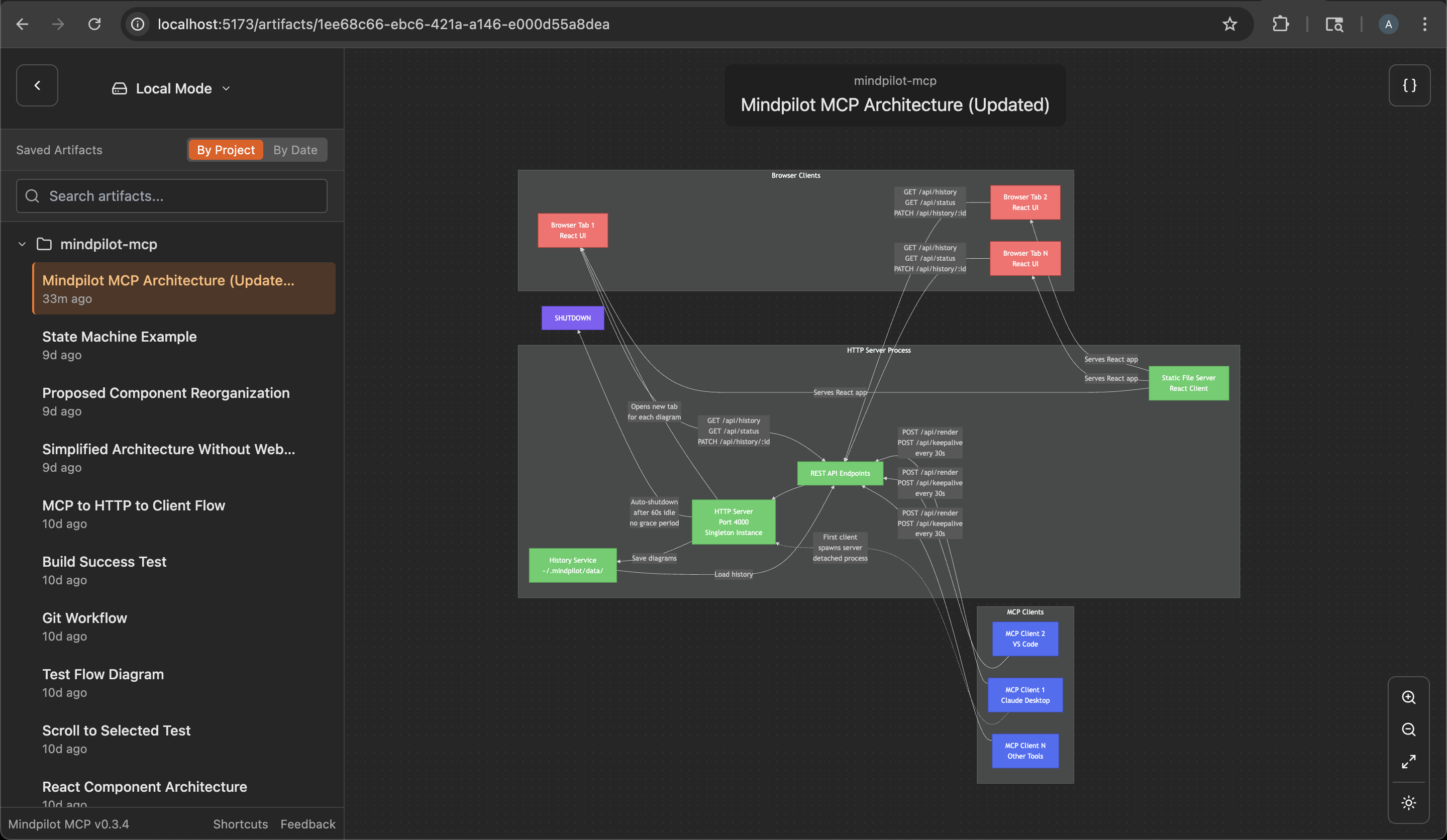
Mindpilot intelligently handles multiple AI assistants running simultaneously. When you have multiple Claude Desktop windows or IDE instances open:
- The first mcp client to use Mindpilot starts a shared web server
- Additional assistants automatically connect to the existing server
- All assistants share the same diagram history and web interface
- The server will automatically shuts down a minute after the last MCP clinet disconnects
This means you can work with multiple MCP hosts at once without port conflicts, and they'll all contribute to the same collection of diagrams.
Anonymous Usage Tracking
Mindpilot MCP collects anonymous usage data to help us understand how the product is being used and improve the user experience.
Disabling Analytics
If you prefer not to share anonymous usage data, you can disable analytics by adding the --disable-analytics flag to your MCP configuration:
Claude Code:
claude mcp add mindpilot -- npx @mindpilot/mcp@latest --disable-analyticsOther IDEs:
Add "--disable-analytics" to the args array in your configuration:
{
  "command": "npx",
  "args": ["@mindpilot/mcp@latest", "--disable-analytics"]
}
Using the MCP server
After configuring the MCP in your coding agent you can make requests like "create a diagram about x" and it should use the MCP server to render Mermaid diagrams for you in a browser connected to the MCP server.
You can optionally update your agent's rules file to give specific instructions about when to use mindpilot-mcp.
Example requests
- "Show me the state machine for WebSocket connection logic"
- "Create a C4 context diagram of this project's architecture."
- "Show me the OAuth flow as a sequence diagram"
How it works
Frontier LLMs are well trained to generate valid Mermaid syntax. The MCP is designed to accept Mermaid syntax and render diagrams in a web app running on http://localhost:4000 (default port).
Troubleshooting
Port Conflicts
If you use port 4000 for another service you can configure the MCP to use a different port.
Claude Code example:
claude mcp add mindpilot -- npx @mindpilot/mcp@latest --port 5555
Custom Data Path
To save diagrams to a custom location (e.g., for syncing with cloud storage):
Claude Code example:
claude mcp add mindpilot -- npx @mindpilot/mcp@latest --data-path /path/to/custom/location
Other IDEs:
{
  "command": "npx",
  "args": ["@mindpilot/mcp@latest", "--data-path", "/path/to/custom/location"]
}
asdf Issues
If you use asdf as a version manager and have trouble getting MCPs to work (not just mindpilot), you may need to set a "global" nodejs version from your home directory.
cd
asdf set nodejs x.x.x
Development Configuration
Configure the MCP in your coding agent (using claude in this example)
claude mcp add mindpilot -- npx tsx <path to...>/src/server/server.ts
Run claude with the --debug flag if you need to see MCP errors
Start the development client (Vite) to get hot module reloading while developing.
npm run dev
Open the development client
localhost:5173