
@mosetta/ide-plugin-symbols
v0.0.14
Published
Go to definition, and the list of usages with a preview — one key for both.

Maintainers
 pre-fabricated
Readme
Symbols
@mosetta/ide-plugin-symbols · Go to definition, and the list of usages with a preview — one key for both.
What it does
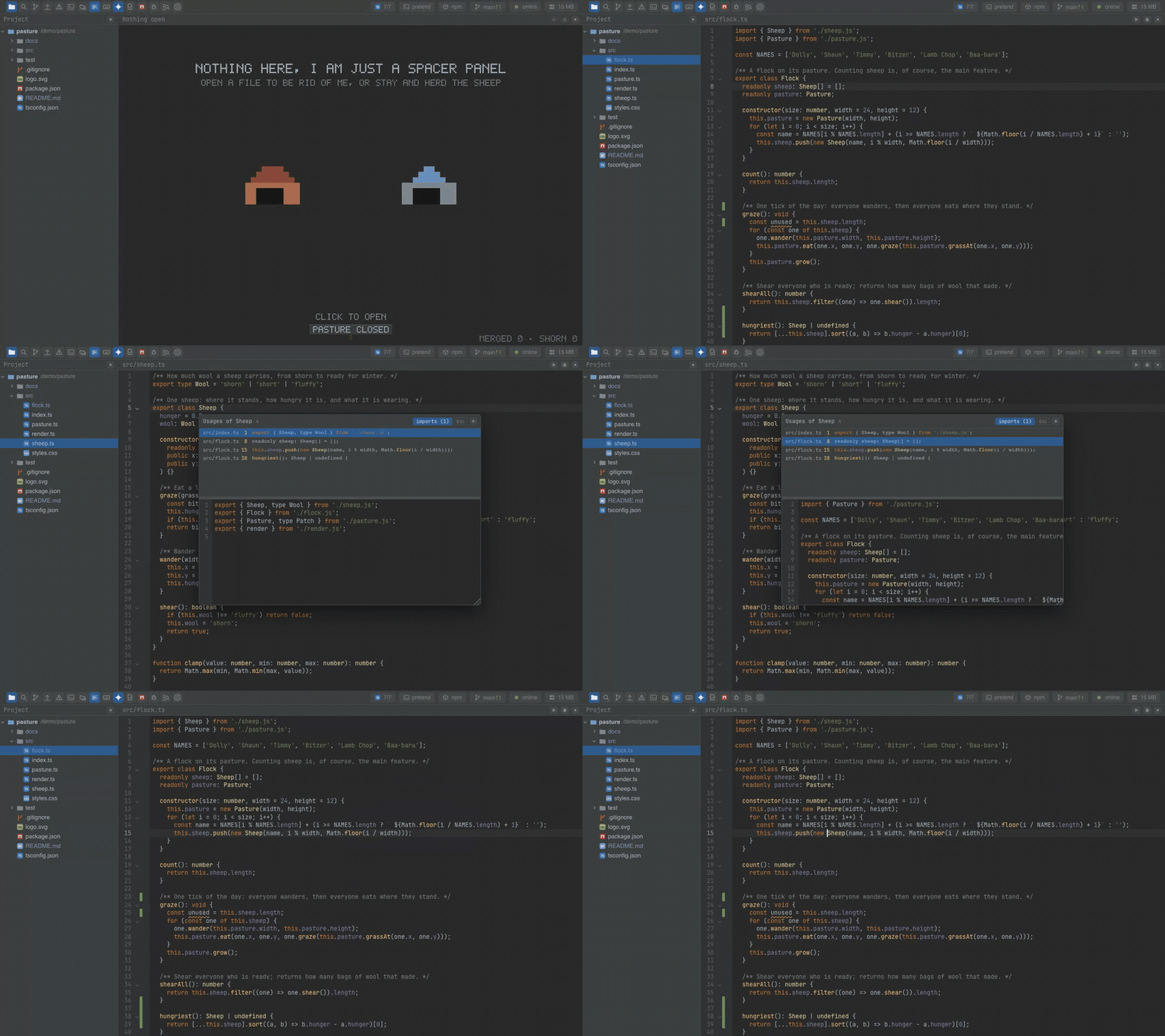
Put the caret on a name and press Cmd+B (Ctrl+B), or Cmd-click it:
- on a usage, you jump to its definition;
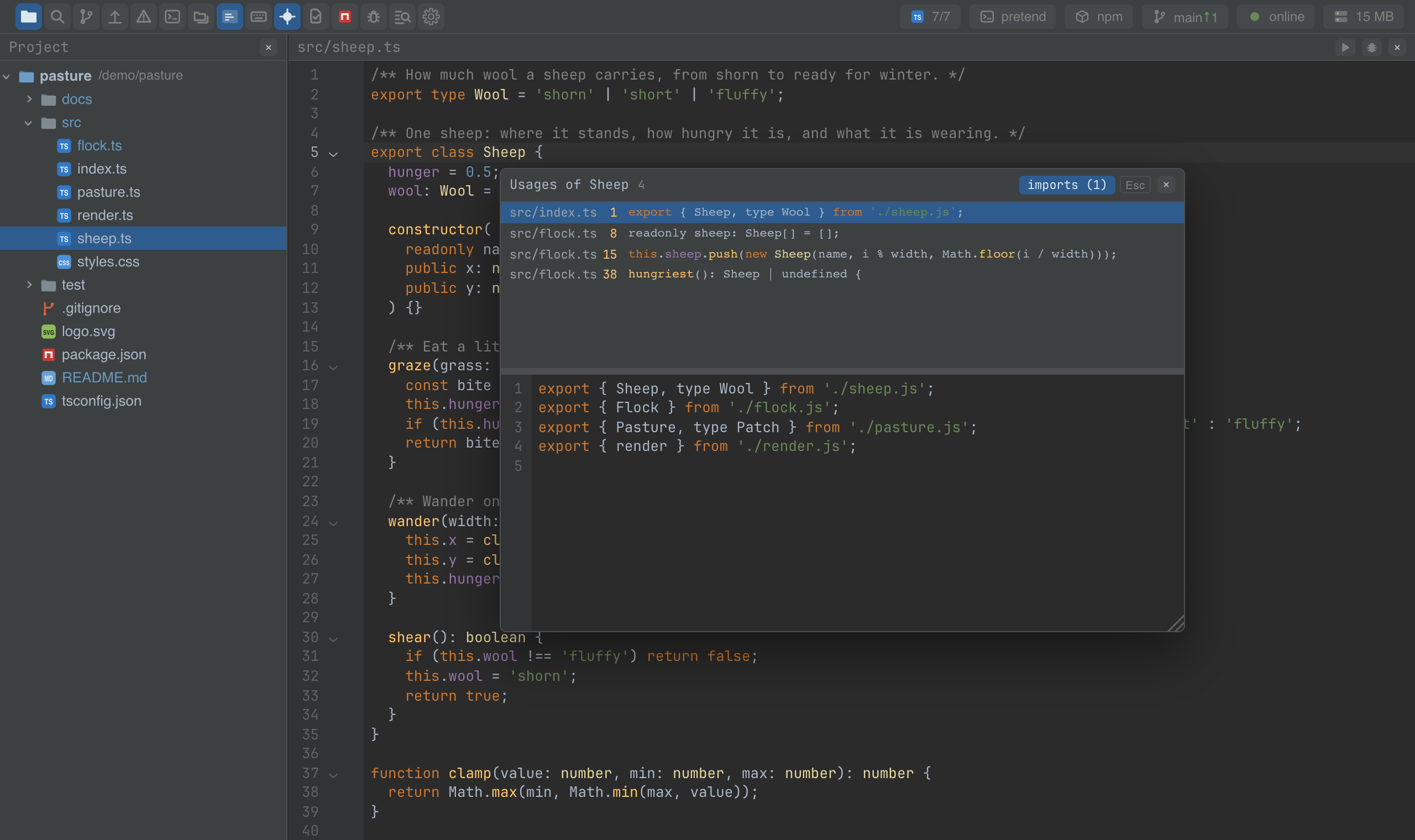
- on the definition, a list of usages opens next to the name, with the code around each one in a preview. Arrows move, Enter goes there.
Import lines are hidden from the list by default — they are usages in name only — and a switch in the list brings them back. The answers come from the language server, so they are as good as the server's understanding of the project.
The plugin also parses the project's TypeScript symbols in the background on the daemon's side, which is what makes functions, classes and interfaces findable in search everywhere.
Keys
| Command | macOS | Windows and Linux |
|---|---|---|
| symbol.goto — definition, or usages | Cmd+B, Cmd+click | Ctrl+B, Ctrl+click |
Screenshots and demos
Watch the video · Try it in the browser
Using it from another plugin
The symbols plugin has no registry keys of its own; it is a consumer. It answers the
editor's onSymbolAsk, asks the language servers plugin for definition and
references, and adds a search.source for symbols.
To ask the same questions from your plugin, go to the language servers plugin directly:
import LspPlugin from '@mosetta/ide-plugin-lsp';

const lsp = this.ide.getPlugin(LspPlugin);
const sites = await lsp.references('src/flock.ts', 6, 14);
for (const site of sites) console.log(site.path, site.line, site.preview);
Its state is on the instance for anything that wants to draw the same list:
import SymbolsPlugin from '@mosetta/ide-plugin-symbols';

const { symbols } = this.ide.getPlugin(SymbolsPlugin);
symbols.hideImports.value = false; // show import lines in the usages list