
@msareen/voice-notes-organizer
v0.9.0
Published
Import, transcribe, translate and organize voice recordings from voice recorders and SD cards - a replacement for the stalled desktop software that ships with them.

Maintainers
 msareen
Readme
Voice Note Organizer
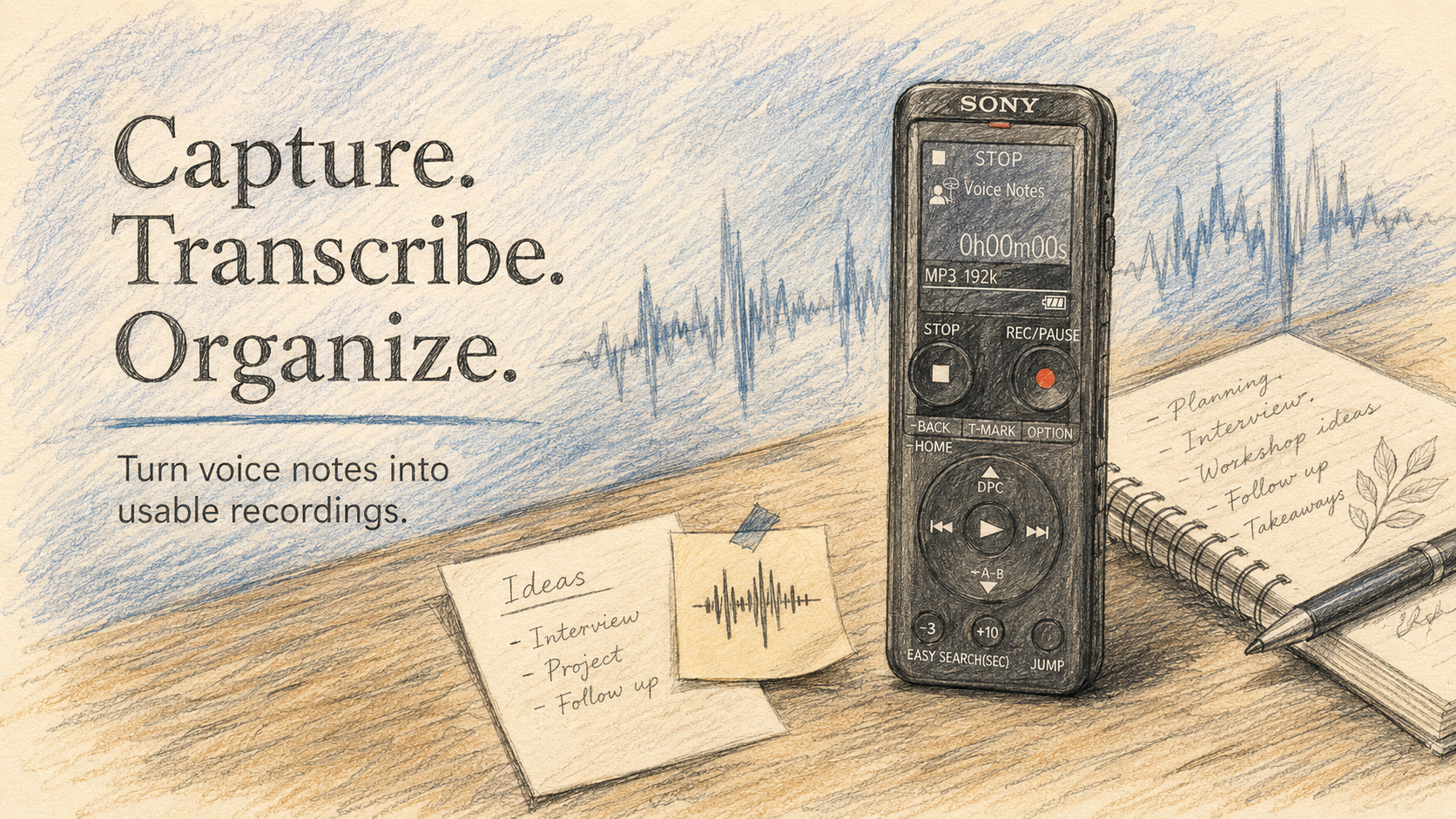
A small utility to import, organize, transcribe and visualize your recordings, using your favourite voice recorder.
Works on macOS, Windows, and Linux. Everything runs on your machine — no account, no upload, no subscription.
Getting started
Four steps, and you're done. You need Bun 1.2+ on the
machine; everything else vno setup installs for you.
- Install the CLI.
bun install -g @msareen/voice-notes-organizer - Set up ffmpeg and whisper.cpp.
Guides you through installing both, plus the transcription models.vno setup - Open the UI.
vno v - Install it as an app. Click Install on the "Install Voice Notes as an app" banner (bottom right) — it becomes a proper desktop app with its own window and icon, no browser tab required. That's the whole setup.
From here, plug in your recorder and import from the app — or set up an import folder if your recordings live on a network share or non-removable drive instead. Everything else is a flag or a setting — see the app below for what it can do.
Why this exists
Because Sony stopped updating Sound Organizer 2.
If you own a Sony voice recorder (like me), Sound Organizer 2 is the companion software you're handed — and it has seen no meaningful update in a very long time. In 2026 it still does little beyond basic import and sync. There is no transcription, nothing to search the contents of a recording, no way to fix what was written down, and no sign that any of it is coming. Meanwhile the open-source world got good enough at speech-to-text that a recording can just become text, locally, for free.
Or use your phone — you know what the best sound recorder is, the one you have with you every time. It supports both. Plaude is too expensive, and frankly I don't see the point.
So the point of the project was narrow and specific: keep using the recorder hardware, replace the software that shipped with it. The recorder is fine. The desktop app is what stalled, but now it almost acts as a companion to everything.
Built with digital record-keeping in mind — recordings land in a predictable
folder you own, transcripts are written as plain .vtt files next to the audio
(readable in any text editor, no database, no lock-in), and every part of it
runs on your machine.
The LLM Angle
The recordings are kept in plain .vtt files — a low entry barrier for any
LLM agent you want to use.
The Power of Whisper.cpp
The project was started with whisper, which was no doubt good, but dead slow. With the power of whisper.cpp it just rolls, and GPU acceleration is supported in the project.
The app
vno v opens a two-pane organizer in your browser. Everything the CLI can do
can be done from here, and the page is live: edits, deletes and imports take
effect on disk immediately.
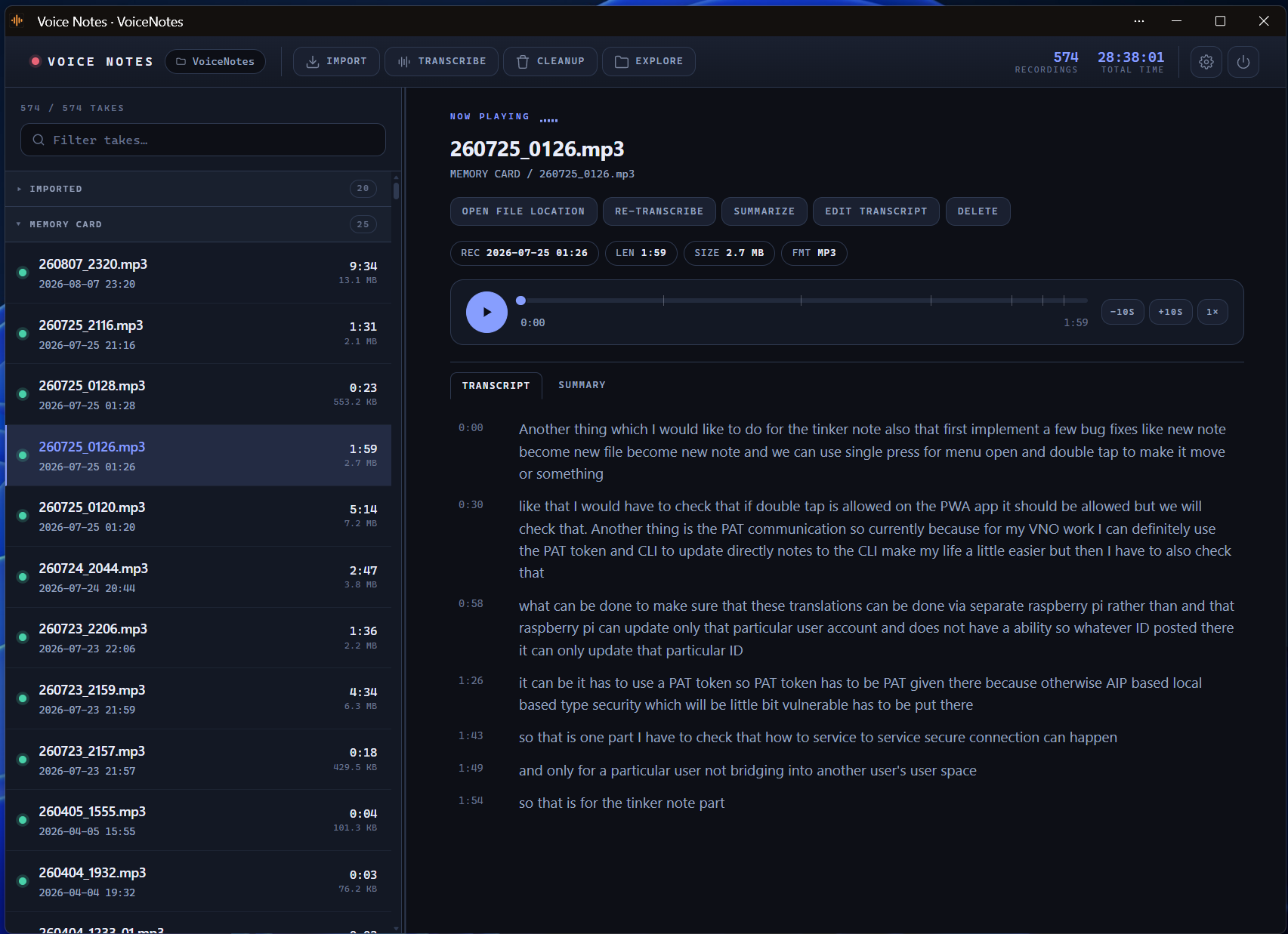
- Takes list — newest first, grouped by device, with a green LED where a transcript exists. The filter box searches names and transcript text, so you can find a recording by something said in it — matches show the words they matched on, and stay highlighted in the transcript.
- Follow-along transcript — the current line highlights and scrolls as the audio plays. Click any line to jump straight to that moment.
- Fix what whisper got wrong — an in-page editor with one box per line. Your edits never disturb the timings.
- Full toolbar — import, transcribe, cleanup, explore and settings, all without leaving the page. Long jobs show a progress bar and stream whisper.cpp's live output into a log panel.
- Optional Summary tab — turn a transcript into a short summary with a local llama.cpp model, right next to the transcript. Off by default until you set it up, and can be hidden again from Settings without losing any summary you've already generated.
- Six themes — dark, light, high-contrast, or follow your system. Pick one in Settings and watch the page change as you click.
- Installs as an app — a manifest and service worker make it installable, so it gets its own window, icon and Start Menu entry instead of living in a browser tab.
- Private by construction — bound to
127.0.0.1behind a session token kept in~/.vno, so nothing else on the machine can reach it. Close the app and the CLI exits.
📖 Full UI documentation → — every pane, dialog and keyboard shortcut.
Installation, in detail
The four steps above are all most people need. If you want the long version —
prerequisites, bunx, updating and uninstalling, or installing ffmpeg and
whisper.cpp by hand instead of letting vno setup do it:
Transcription is slow — but it is free. It runs on your own machine, so expect to wait; a long recording on a big model can take a while, though whisper.cpp is several times faster than the old Python implementation on the same hardware.
Commands
| Command | Aliases | What it does |
| --- | --- | --- |
| vno | vno import | Detect your recorder, import anything new, open the UI |
| vno transcribe | vno t, vno --t | Pick recordings and transcribe (or translate) them |
| vno transcribe <file> | vno t <file> | Transcribe one file directly — no picker, no prompts |
| vno summarize <file> | — | Summarize one recording's transcript with llama.cpp (optional) |
| vno visualize | vno v, vno viz, vno vis, vno --v | Open the browser UI |
| vno cleanup | — | Delete recordings shorter than 3 seconds, after confirming |
| vno cleanup -f <files> | — | Delete named recordings and their transcripts |
| vno cleanup ledger | — | Forget which recordings you deleted, so they import again |
| vno explore [file] | vno open | Open the target folder in Explorer / Finder, or reveal one recording |
| vno setting | vno settings | Interactive wizard for the common settings |
| vno status | — | Is vno ready to transcribe? Reports only; exits 0/1 so scripts can gate on it |
| vno setup | vno doctor | Check ffmpeg + whisper.cpp, offer to install what's missing |
| vno config | — | Print the path to the config file |
A few things worth knowing up front:
Import remembers your devices. The first time a volume appears you're asked whether to import it, and whether to pin a subfolder (for recorders that bury audio under
PRIVATE\SONY\VOICE\…). After that it's silent. Files land flat, one folder per device, and re-running copies nothing twice.Import can auto-translate. After the first import,
vnooffers once to translate new notes to English as they come in, and remembers your answer.Transcribe has a searchable picker. Just start typing to filter;
Spaceto toggle,Ctrl+Afor all,Enterto go. One.vttis written next to each audio file.Or name a file and skip all of it. No picker, no model prompt, and the file doesn't have to live in your target folder — so it works on any audio lying around, not just what you've imported.
vno t interview.mp3                  # transcript lands next to the audio
vno t interview.mp3 -o notes.vtt     # ...or wherever you point -o
vno t interview.mp3 -o -             # ...or to stdout, for piping
vno t screencast.mp4 -o notes.vtt    # video works too - ffmpeg pulls the audio out
This form is built to script: it exits non-zero if the transcription fails, and with
-o -the transcript is the only thing on stdout, sovno t clip.mp4 -o - 2>/dev/null | your-toolpipes cleanly.Video files transcribe too, in this direct mode.
.mp4,.mkv,.movand.webmall work — ffmpeg pulls the audio track out, video ignored. They're not part of the library import (which is audio-only), just this one-shot form.Nothing deletes without asking. Only
cleanupand the UI's delete buttons remove files, always behind a confirmation. Import and transcribe never delete anything.Missing tools are caught before the work starts. Any command that needs ffmpeg or whisper.cpp checks for them first and offers the install, so you never get halfway through and stall. Nothing installs without your say-so.
📖 Full CLI reference → — every flag, in detail.
Configuration
Change what you need from the UI's Settings dialog or vno setting — target
folder, import sources, model, language, theme and the rest. You shouldn't
need to hand-edit anything, but it all lives in one file if you want to:
~/.vno/config.json (vno config prints the path).
Supported audio — .mp3 .wav .m4a .aac .flac .ogg .oga .wma .aiff .opus
.amr .3gp. Anything else on the volume is ignored.
📖 Full configuration reference → — every key, in detail.
Summarization, optional and local
Turn a transcript into a short summary with llama.cpp running small "edge" instruct models — same locally-run, no-account, no-upload deal as transcription, and entirely optional: nothing else in vno depends on it, and the app works exactly as before if you never touch it.
vno setup --llamaInstalls llama.cpp itself via brew/winget, then offers a curated,
checksum-verified checklist of small models (sub-1GB up to ~6GB, grouped by
size) to pick from — or just drop your own .gguf file into the models
folder it creates. Pick as many as you like and switch between them later.
vno summarize 250810_1328 # writes 250810_1328.summary.txtOr click Summarize on a transcribed recording in the app — it runs in the background and lands in a Summary tab next to the transcript. The tab can be hidden from Settings if you'd rather not see it; existing summaries are never deleted, only hidden.
📖 Full summarization guide → — models, the prompt override, and how the Summary tab works.
Documentation
| Page | What's in it |
| --- | --- |
| Installation | Prerequisites, bunx, updating, installing the dependencies by hand |
| The browser UI | Every pane, button, dialog and keyboard shortcut |
| CLI reference | Every command and flag, in full |
| Configuration | ~/.vno/config.json, key by key |
| Import & sync | Volume detection, flat imports, remembered devices |
| Transcription | Whisper models, translation, the .vtt format |
| Summarization | Optional: installing llama.cpp, picking a model, the Summary tab, vno summarize |
| Troubleshooting | When whisper, ffmpeg, volumes or the browser misbehave |
| Architecture | Source layout, the local HTTP API, working on the code |
Development
git clone https://github.com/msareen/voice-notes-organizer.git
cd voice-notes-organizer

bun install
bun bin/vno.ts        # runs your working copy
bun run typecheck     # tsc over the CLI, the browser modules and the worker
There is no build step. vno is TypeScript that Bun runs directly, and the UI's CSS and modules are read from disk on each request — the browser ones are type-stripped on the way out — so a browser reload is enough to see an edit. See Architecture for the source layout and the ground rules.
License
MIT