
@muuktest/amikoo-playwright
v2.2.0
Published
Playwright DOM failure capture library. Automatically captures DOM state and screenshots when tests fail.


Readme
@muuktest/amikoo-playwright


Automatically captures DOM state and screenshots when Playwright tests fail. Configures the Amikoo MCP server and updates your Playwright fixture so test errors can be analyzed and repaired by the Amikoo Repair Agent.
The Amikoo Repair Agent auto-heals 70–80% of broken test cases, saving days of manual maintenance every month.
Table of Contents
- How It Works
- Compatibility
- Prerequisites
- Installation
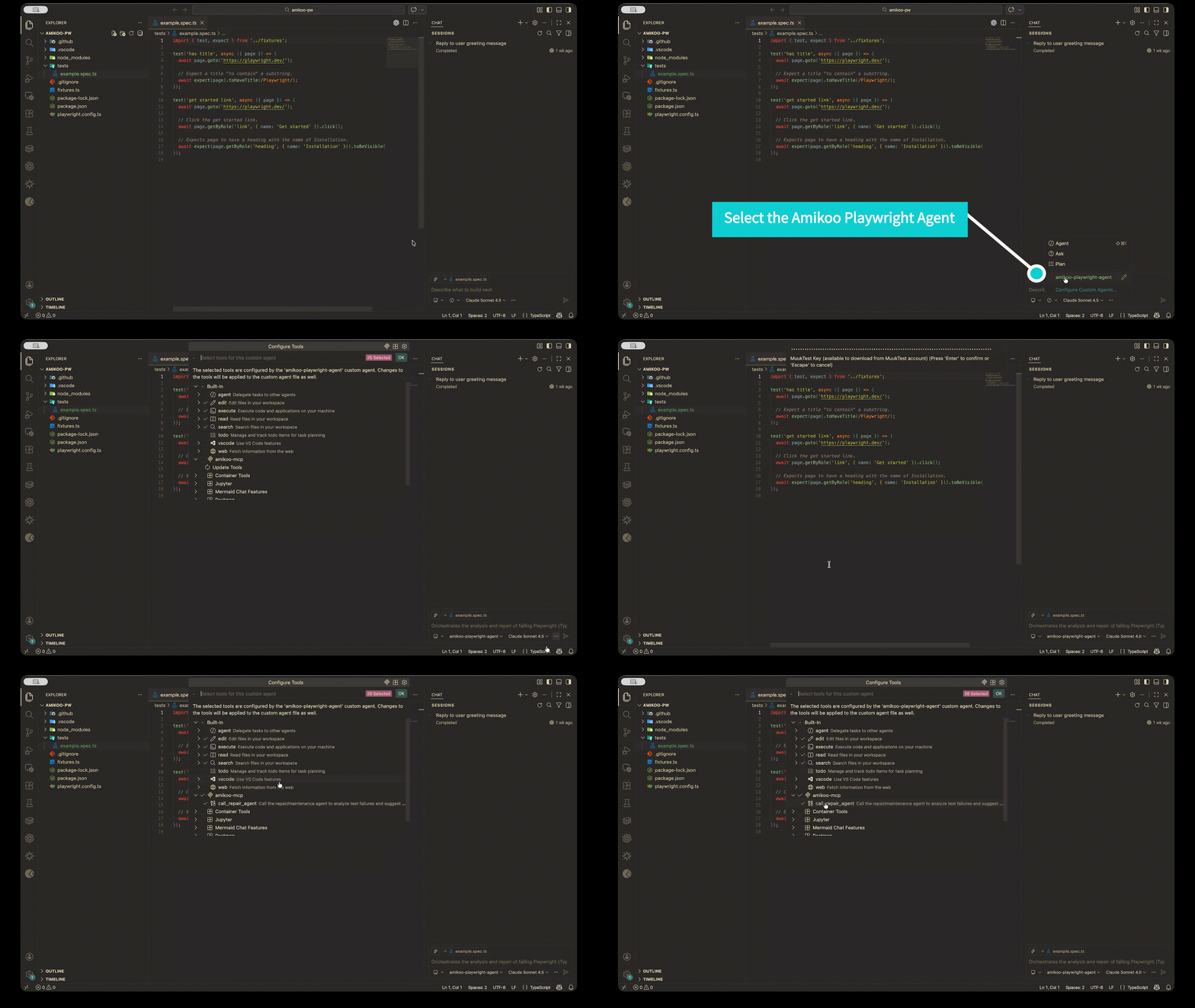
- Setting Up the Agent in VS Code
- How to Run
- Troubleshooting
- Learn More
- Privacy & Data Handling
- Support
- License
How It Works
- Capture — When a Playwright test fails, the modified fixture automatically saves a DOM snapshot and a screenshot of the page at the moment of failure. The captured data is stored in your project's
test-resultsdirectory. - Analyze — The Amikoo MCP server receives the failure context and determines what changed — broken selectors, shifted page structure, timing issues, and more.
- Repair — The Amikoo Repair Agent proposes targeted fixes to your test code (updated selectors, adjusted waits, corrected assertions), which you review and accept inside VS Code.
Compatibility
| Requirement | Supported Versions | |---|---| | Node.js | 18, 20, 22+ | | Playwright | 1.40+ | | VS Code | 1.101+ | | OS | macOS, Windows, Linux |
Prerequisites
Before installing, make sure you have the following set up:
1. VS Code 1.101 or later
Copilot Chat agent support requires VS Code 1.101+. Download it from code.visualstudio.com. If you already have VS Code installed, check your version via Help → About and update if needed (Help → Check for Updates).
2. GitHub Copilot
GitHub Copilot is required — the free tier is enough, no paid plan is needed. If you don't have it yet, sign up at github.com/features/copilot. Once signed up, install the GitHub Copilot and GitHub Copilot Chat extensions from the VS Code Marketplace and sign in with your GitHub account.
3. A working Playwright project
Your tests must run successfully before adding Amikoo. If you're starting from scratch, follow the Playwright Getting Started guide to set up a project and verify your tests pass with npx playwright test.
4. Amikoo access token
You'll need a token to authenticate with the Amikoo service. If you don't have one yet, request one here. Keep it handy — VS Code will prompt you for it the first time you run the agent.
Installation
Step 1. Install the package:
npm install @muuktest/amikoo-playwrightStep 2. Run the setup command:
npx @muuktest/amikoo-playwright initThe init command will:
- Scan the project to detect existing fixtures, test files, config, and language (TS/JS, ESM/CJS)
- Preview all planned changes and ask for confirmation
- Create or update a Playwright fixture (
fixtures.ts/fixtures.js) to capture DOM state and screenshots on failure - Update test file imports to use the local fixture instead of
@playwright/test - Create or update
.vscode/mcp.jsonwith the Amikoo MCP server configuration - Create or update
.github/agents/amikoo-playwright.agent.mdwith the repair agent template - Add the Amikoo reporter to
playwright.config.ts/js
Setting Up the Agent in VS Code
- Open your Playwright project in VS Code 1.101+ with GitHub Copilot active.
- Open the Chat panel:
- Mac:
⌃ Control+⌘ Command+I - Windows / Linux:
Ctrl+Alt+I - Or via the menu: View → Chat
- Mac:
- Click the Agent dropdown at the top of the Chat panel and select amikoo-playwright-agent.
Note: The first time you run the agent, VS Code will prompt you for your access token. Enter the token you received when you requested access.
How to Run
Repairing a Failing Test
- Run your failing Playwright test as usual (e.g.,
npx playwright test). When the test fails, Amikoo automatically captures the necessary context data inside thetest-resultsdirectory. - Open the Chat panel in VS Code.
- Ask the
amikoo-playwright-agentto fix the failing test.
Note: If Copilot prompts for permission to run a tool or command, select Allow.
Important: When the agent proposes changes to a file, you must select "Keep Changes" before proceeding. Otherwise the agent will continue without the fix applied, and the test will fail again at the same point.
The agent will:
- Analyze the captured error context.
- Identify the relevant files in your project.
- Propose and apply fixes to your test or related code using
amikoo-mcp. - Re-run the test to verify the issue has been resolved.
Good to Know
- The agent repairs one test at a time. If multiple errors exist, it resolves them sequentially, re-running after each fix.
- The process ends automatically once the test passes.
- Only test failures that occur after Amikoo is fully installed and configured can be analyzed and repaired.
Troubleshooting
The agent doesn't appear in the Chat panel dropdown
Verify that VS Code is version 1.101 or later and that GitHub Copilot is installed and active. Restart VS Code after updating. Also confirm that npx @muuktest/amikoo-playwright init completed without errors.
"Invalid token" or authentication error Double-check that you entered the correct access token. If your token has expired, request a new one.
Test fails but no context data is captured
The fixture only captures data on test failure. Verify the init step completed successfully and that your Playwright config references the Amikoo fixture. Try deleting the test-results directory and re-running the test.
Agent proposes a fix but the test still fails Make sure you selected "Keep Changes" when prompted. If the fix was not applied, the agent will hit the same failure on the next run.
Learn More
See the MCP server documentation for details on the agent and available tools.
Privacy & Data Handling
Amikoo captures DOM snapshots and screenshots only when tests fail. This data is used to analyze failures and propose repairs.
For details on data collection, storage, and retention, see our Privacy Policy.
Support
For support, contact [email protected].
License
This project is licensed under the MIT License. See LICENSE for details.