
@peculiarnewbie/peek
v0.3.1
Published
Instant-connect remote desktop host for LAN and Tailscale. The client is a browser tab.

Maintainers
 peculiarnewbie
Readme
peek
A remote desktop host for LAN and Tailscale that connects instantly. It is meant for the times you want another PC's screen for a few seconds, where a five-second connect is most of the wait.
The host stays running and idle. A browser tab is the client. Capture only runs while a client tab is open and visible, so connecting costs one WebSocket handshake and one frame.
The host runs on Windows, or on Linux under a Wayland compositor that offers the wlroots protocols (niri, sway, Hyprland, river). The client is any modern browser.
Install
npm install -g @peculiarnewbie/peek     (or: bun add -g, pnpm add -g)
peek install
peek pair
The package holds the binary for Windows x64 and Linux x64 and arm64; Node
only starts it. peek install copies it to a fixed place and starts it at
logon from there (details for Windows
and Linux), and
peek pair pairs a browser through the hosted client.
It also prints a link to the machine's own page, which pairs a browser with that
machine alone; that page asks for the code when opened without one.
Once installed, peek updates itself (below). After updating the
package instead, run peek install again: with no flags it keeps the flags of
the last install (it prints them), flags after it replace them, and
peek install --defaults starts peek with none. peek uninstall removes it.
To try peek once without installing anything, with Tailscale running:
npx @peculiarnewbie/peek pairWith no peek running yet, peek pair starts one in that terminal and prints
a link and QR code to pair a browser; peek runs until you press Ctrl+C.
Without Tailscale, the link is to the machine's own page at its address on
this network, for a device on the same network.
Numbers
The point is a short wait for the screen, so that is what is measured, with
bench/first-frame.ts at medium quality.
Over Tailscale, from a Linux laptop to a Windows desktop (1920×1200) on
another network, connected directly with a ping of 8 to 16 ms, peek 0.3.0
started with --keep-gpu (two passes of 20 connections from idle, one
straight after):
| | Median | p90 | |---|---|---| | Connect to an idle host, until the whole first frame (304 KB) has arrived | 135–151 ms | 191–215 ms | | The same within 5 s of the last connection (capture still set up) | 125 ms | 154 ms | | Of that, capturing and encoding the full screen | 6.2 ms | 7.8 ms | | Socket open (TLS and WebSocket handshakes) | 41–55 ms | 50–62 ms |
Most of the rest is carrying the frame: the more detail on the screen, the
bigger it is and the longer it takes. Without --keep-gpu, starting from
idle took 191–210 ms on this machine.
On the machine itself, a Linux laptop (niri, 1920×1080) connecting to its own peek (0.3, with Vitals on and Power off, as installed), which is peek's own share of the wait:
| | Median | p90 | |---|---|---| | Connect to an idle host, until the whole first frame (198 KB) has arrived | 22 ms | 24 ms | | The same within 5 s of the last connection (capture still set up) | 12 ms | 15 ms | | Of that, capturing and encoding the full screen | 8.1 ms | 11 ms | | Socket open | 1.3 ms | 1.8 ms |
Idle, the host captures nothing: peek and its Vitals process used 20 ms of CPU over two minutes (0.02% of a core) and held 18 MB of memory between them (proportional set size, after the runs above). The binary is 4.6 MB.
The browser then decodes and draws the frame, a few milliseconds more. Stats → First frame in the client shows the whole wait as you see it.
To measure a host yourself (it must accept the connection: use --no-token
from the same machine, or pass the token):
bun bench/first-frame.ts ws://127.0.0.1:9182/ws [runs] [token]   # cold: waits out the 5 s idle release
bun bench/first-frame.ts ws://127.0.0.1:9182/ws 20 --warm       # warm: back to back
Update
An installed peek updates itself: when a new version is out, each machine's card in the hosted client says so, with an Update button, and so does Settings once a machine is open. The machine downloads the new version from its release channel on GitHub, checks it against the release's SHA256SUMS, swaps it in for its own file and restarts on it, a few seconds without the screen. It looks for one every six hours.
peek update does the same from a terminal on the machine. It asks the
running peek to update itself, so the service needs no administrator
terminal for it; with no peek running, it replaces the installed file.
peek update --checkcompares the installed version with the channel's.peek update --rollbackgoes back to the version the last update replaced.peek update --channel nextmoves to the nightlies, and--channel stableback. https://next.peek.peculiarnewbie.com is the hosted client that matches them.
Anyone with the access token or a paired browser can ask for an update, as
they can for everything else; it only ever installs the newest published
build of the machine's channel. A --view-only peek does not take the
request. Picking a channel and going back are for peek update alone.
A peek from before 0.3.1 cannot update itself: update it once with npm and
peek install, as it was installed.
Run
peek (Linux: from inside the Wayland session)Or build it yourself:
cargo build --release
target\release\peek.exe        (Windows)
target/release/peek            (Linux, from inside the Wayland session)
Building needs Bun (or Node) as well as Rust: the browser client is bundled as part of the build.
It prints URLs ending in #<token>, each saying where it works (this
machine, your network, Tailscale). Open the one for your network or
Tailscale on another device. The browser remembers the token after
the first visit, so a bookmark is enough from then on.
If you only connect over Tailscale, --no-token drops the token: open
http://<host's Tailscale IP or name>:9182/ on any device on your tailnet.
Only connections that arrive over Tailscale are accepted then, so your
tailnet decides who can connect (see Security).
| Flag | Meaning |
|---|---|
| --no-token | No access token; accept Tailscale connections only |
| --web <origin> | The hosted client allowed to connect with paired tokens (default https://peek.peculiarnewbie.com; none turns it off) |
| --bind <ip> | Address to listen on (default: all interfaces) |
| --port <n> | Port (default 9182) |
| --fps <n> | Frame rate cap (default 60) |
| --view-only | Ignore mouse, keyboard and clipboard from clients |
| --no-clipboard | Do not synchronise the clipboard |
| --detach | Windows: start in the background with no window, then return |
| --keep-gpu | Windows: keep the GPU device open while idle, so connecting from idle is faster (costs some memory; on a laptop it can keep a discrete GPU awake) |
| --service | Windows: run as a service, for the login and lock screens and UAC prompts; set it up with peek install --service (details) |
| --log <file> | Also append log lines to a file |
| -v | Log every input event and periodic throughput |
peek logs shows the last 50 lines the running peek logged, however it was
started (as a service it has no console); -f keeps showing new ones, -n
<lines> shows more. Pass the same --port the host uses, if not the default.
In the client
Hover the dot at the top to show the toolbar; the pin keeps it open.
- Pause stops the host sending the screen while keeping the connection open. Click the page or press Space to resume. Nothing is sent while paused; after five seconds the host also releases the capture.
- Settings has three presets (Saver, Balanced, Crisp) and the individual
settings, each applied as soon as it is picked:
- Quality: JPEG quality while moving / once still:
lowest30 / 65,low45 / 75,medium70 / 90,high85 / 95. Still regions are also re-sent with full colour resolution at medium and high. - Resolution: full, or half in each direction.
- Motion:
softsends regions at half resolution while they change; they are re-sent at full resolution a quarter second after they stop. - Lossless text: text and flat UI go out as lossless WebP, exact the first time, so they need no sharp re-send; tiles that look like photos or gradients stay JPEG. A first frame of text is 10 to 60% smaller and a typed character about 240 bytes instead of 1.7 KB; browsers take a few milliseconds longer to decode it. On by default. With soft motion, changing regions still go soft and the lossless copy follows once they stop.
- Frame rate: at most 60, 30, 15 or 10 per second. Changes in between are combined, not dropped.
- Monitor, when the host has more than one.
- Pause when unfocused: pause while the browser window is in the background and resume when it is focused again. On by default; remembered per browser.
- Quality: JPEG quality while moving / once still:
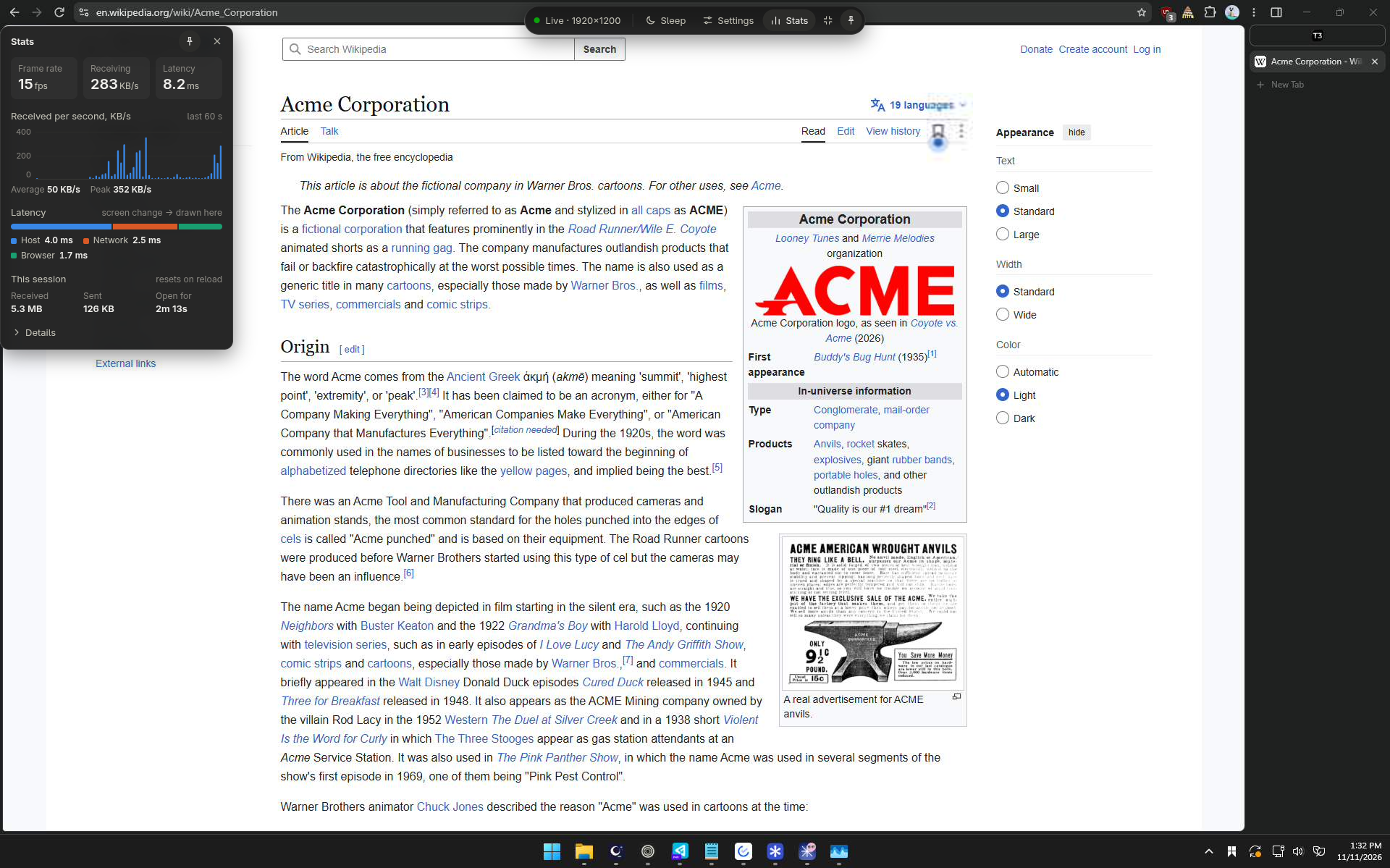
- Stats is one line (frame rate, receive rate, latency) until hovered; its pin keeps it open, and its title bar drags it anywhere. Open, it shows frame rate, receive rate and latency, a 60-second chart of data received (hover a bar for its value) with its average and peak, latency split into host (capture to send), network (half the round trip) and browser (receive to draw), and the data received and sent since the page was opened, and the first frame: how long the screen took to appear after connecting (and, in Details, after opening the page).
On a phone or tablet
Tap the dot to open the toolbar; tap the screen to close it. The toolbar's Trackpad / Touch button switches between two ways of using a finger:
| Gesture | Trackpad (default) | Touch | |---|---|---| | One finger moving | moves the pointer, faster for quick flicks | drags | | Tap | left click at the pointer | left click there | | Long press | holds the left button: move to drag | right click | | Tap, then touch again and move | drags | | | Two-finger tap | right click | right click | | Three-finger tap | middle click | middle click | | Two fingers moving together | scroll | scroll | | Pinch | zoom around the pointer | zoom and pan |
The host's screen capture has no pointer in it, so the client draws one.
In Trackpad mode a zoomed view keeps the pointer in the middle of the screen and moves with it. Near the remote screen's edges the view stops and the pointer carries on to the edge.
Gestures work anywhere above the keyboard bar, not only on the remote screen itself.
A keyboard bar is always at the bottom; the remote screen fits into the space above it. The client never opens the phone's keyboard by itself: tap the field when you want it.
- Send text is a draft for the phone's own keyboard: type and correct it on the phone, then the keyboard's Send key (or ↵ in the bar) types it on the host in one go. With the field empty, Send presses Enter on the host, and Backspace (or arrows, if the phone's keyboard has them) go through as keys. ⌫ in the bar is always the host's Backspace.
- The keyboard button at its left swaps in a PC keyboard for what a phone keyboard lacks. Ctrl, Alt, Win and Shift apply to the next key (tap again to let go; tap Win twice for the Start menu); press and hold one to lock it. Fn shows F-keys, a numpad, and the navigation keys and arrows. Held keys repeat. ✎ goes back to the text field.
Full-screen frame sizes on a 1920x1200 desktop, from
cargo test --release -- --ignored --nocapture frame_sizes:
| Quality | Moving | Moving, soft | Sharp | |---|---|---|---| | lowest | 123 KB | 44 KB | 176 KB | | low | 146 KB | 54 KB | 202 KB | | med | 188 KB | 71 KB | 337 KB | | high | 250 KB | 94 KB | 450 KB |
Half resolution divides each of these by about 2.7.
Install on Windows: firewall rule and start at logon, as administrator
Two things need administrator rights once:
- Windows Firewall blocks a new program's inbound connections until it is allowed, so other devices cannot connect before this.
- Windows drops input injected into windows that run as administrator (Task Manager, installers) unless peek is elevated too.
peek installWindows asks for administrator rights once. peek is copied to
%LOCALAPPDATA%\Programs\peek\peek.exe, allowed through the firewall
(private and Tailscale addresses only), and started elevated and hidden by a
logon task, logging to %APPDATA%\peek\peek.log. Flags after install are
for that peek: with peek install --no-token the firewall rule admits
Tailscale addresses only. Run again without flags, it keeps those of the last
install, logon task or service; --defaults drops them. peek uninstall
undoes all of it. To reach the
login screen, the lock screen and UAC prompts as well, install it as a
service
instead.
From a source checkout, the same from an elevated PowerShell, running
target\release\peek.exe in place:
.\scripts\install-autostart.ps1-Remove undoes it, and flags for peek go in -PeekArgs (-PeekArgs '' for
none). Without -PeekArgs or -Service it keeps the flags and the kind of
the install there now.
Run as a Windows service: login screen, lock screen and UAC prompts
peek started at logon runs inside your session, so it stops at the edges of it: Windows shows the login screen, the lock screen and UAC prompts on a secure desktop of its own, which peek cannot see or type into, and while nobody is signed in there is no peek at all. A service gets past both, the way Sunshine does:
peek install --serviceThis installs a Windows service named peek in place of the logon task. The
service runs as SYSTEM in session 0, which has no screen. It listens there
and keeps every connection, and starts a second peek, also as SYSTEM, in the
session at the console to capture the screen and take input. That one
follows Windows onto the secure desktop and back, so the login screen, the
lock screen and UAC prompts show up and take input like anything else.
- When someone signs out or switches users, the service starts the second peek again in the new session. Connections stay open: the picture stops for a few seconds and comes back on the login screen, with nothing to reconnect.
- peek is copied to
%ProgramFiles%\peek\peek.exe, where only administrators can replace what SYSTEM runs. - Its token, paired browsers and log (
peek.log) are in%ProgramData%\peek. Only administrators and the user who ranpeek install --servicecan read that folder, sopeek pair,peek clientsandpeek logswork for that user without administrator rights; anyone else needs an administrator terminal. - The token and paired browsers move over from
%APPDATA%\peek, so bookmarks and paired browsers keep working. Plainpeek installkeeps the service and its flags; flags without--service, or--defaults, go back to the logon task and take them back. peek uninstallremoves the service; the settings folder stays.
To reach the login screen over Tailscale, turn on Run unattended in Tailscale's settings on this PC: otherwise Tailscale disconnects while nobody is signed in.
The risk: anyone with the token or a paired browser can then do anything someone at the keyboard could, at the login screen too: sign in with any password they know, and answer UAC prompts. Keep the token and paired browsers to devices you trust as much as the PC itself.
Ctrl+Alt+Del cannot be sent yet, so a PC set to ask for it before signing in (common on a domain) stays at that prompt.
Install on Linux: key access, start at login, firewall
Keys are sent through a uinput keyboard, which needs write access to
/dev/uinput. Many distributions grant it to the logged-in user already
(KDE Connect and Steam ship a rule for it); check with
getfacl /dev/uinput for a user:<you>:rw- line. If it is missing, as root:
echo 'KERNEL=="uinput", SUBSYSTEM=="misc", TAG+="uaccess", OPTIONS+="static_node=uinput"' \
  > /etc/udev/rules.d/60-peek-uinput.rules
udevadm control --reload && udevadm trigger --name-match=uinput
Without it peek still shows the screen and the mouse and typed text still work; it says so at startup.
To start peek with the graphical session (a systemd user service, which niri and sway sessions start):
peek installThis copies peek to ~/.local/share/peek/peek and writes
~/.config/systemd/user/peek.service; flags after install go on its
ExecStart line. Run again without flags, it keeps that line's flags;
--defaults drops them. peek uninstall removes both. From a source checkout,
by hand:
cp target/release/peek ~/.local/bin/
cp scripts/peek.service ~/.config/systemd/user/
systemctl --user enable --now peek
journalctl --user -u peek shows its output, including the URLs.
If a firewall is on, it has to let port 9182 in. With ufw, for Tailscale and a home LAN:
sudo ufw allow in on tailscale0 to any port 9182 proto tcp
sudo ufw allow from 192.168.0.0/16 to any port 9182 proto tcp
tailscale serve (below) connects from the host itself and needs no rule.
Install the client as an app (HTTPS through Tailscale)
The client can be installed as an app called peek (home screen icon, full screen, no address bar). Browsers only allow that over HTTPS, which Tailscale can provide:
- In the Tailscale admin console, under DNS, enable HTTPS Certificates. (This puts your machine and tailnet names in the public Certificate Transparency logs.)
- On the host, once:
tailscale serve --bg 9182. Tailscale then serveshttps://<machine>.<tailnet>.ts.net/to your tailnet with a certificate it renews itself, and passes connections to peek. It is remembered across restarts;tailscale serve resetundoes it. - Open that address in Chrome on the phone and choose Install app (or Add to home screen).
Connections through tailscale serve reach peek from the host itself, which
peek accepts in either mode. Do not expose that port with tailscale funnel:
it would put peek on the internet.
One site for all your machines
https://peek.peculiarnewbie.com is the same client, served from one place
and paired with any number of machines. It opens on a page of them; each
machine has its own address (/screen/hp-book), and the toolbar's back button (or
the browser's) returns to the list, like a KVM switch. In Chrome, allow
Local network access when the site asks, or it cannot reach your tailnet.
The site only serves the page:
the browser connects straight to each machine over Tailscale, and the list
of machines and their tokens stay in that browser.
The browser reaches each machine at https://<machine>.<tailnet>.ts.net,
which needs, once per tailnet, HTTPS Certificates turned on in the
Tailscale admin console under DNS (this puts machine and tailnet names in
the public Certificate Transparency logs). peek pair sets up the rest: it
runs tailscale serve --bg http://127.0.0.1:9182 if Serve does not already
forward there (and says so, with the command that undoes it), and Tailscale prints a link if the tailnet still has to allow
Serve. On Linux, Tailscale may first ask for
sudo tailscale set --operator=$USER. The first connection to a machine can
take a few seconds while Tailscale fetches its certificate.
Serve's HTTPS port 443 can only go to one app. If another one has it (T3
Code's t3 pair --tailscale wants it too), peek pair says so and leaves it
alone; peek pair --serve-port 8443 (or 10000, the other ports Serve
offers) puts peek there instead, at https://<machine>.<tailnet>.ts.net:8443.
peek finds the port Serve uses for it by itself, so pairing links and codes
name it, and later peek pair runs, peek install and the service need no
flag. A browser paired before the move needs pairing again.
Then pair each browser with each machine:
peek pairon the machine prints a link and a QR code with a one-time code (it works once, for five minutes). If peek is not running, it starts peek in that terminal first. Open the link on the device, or enter the machine's name and the code under Add a machine. On a phone, Scan QR code there reads it with the camera (where the browser can read QR codes, as Chrome on Android does); the camera app works too.- Or, in a client already connected to the machine, Settings → Pair a device shows the same QR code, for a phone to scan.
The browser trades the code for a token of its own. peek clients lists
the paired browsers and peek unpair <id> removes one.
On the machine's side:
- Sockets from the site are accepted only with a paired token (or the
machine's own access token), even with
--no-token. Requests from any other site are refused. - The machine keeps only a hash of each token, in
clients.jsonin its config folder, next tohost-id(which tells machines apart) andlocal-secret(which letspeek pairask the running peek for a code). - Chrome may ask once whether the site may access devices on your local network: allow it, since that is how it reaches your machines.
The site is a TanStack Start app in client/site/. Its home, the
short setup docs at /docs/ (client/site/pages/docs.html) and the changelog at /changelog/
(client/site/pages/changelog.html) are rendered when it is built, so they read as plain pages to
search engines and link previews; a machine's page, pairing and /plugins are drawn in the browser,
and a small Worker answers those addresses with the page they load in. client/hosted/ has the link
preview banner, robots.txt, llms.txt and the sitemap. Machine pages are under /screen/, so they never take
those paths. The site deploys with Cloudflare's cf CLI: cd client && bun run
deploy:hosted (the script runs cf under Node, which it needs; Bun cannot
load its config). To run your own copy, set your worker name and domain in
client/cloudflare.config.ts, deploy, and start peek with --web
https://your.domain.
Beyond the screen: providers
A machine can offer more than its screen, through providers: programs peek starts beside itself. A provider can describe a view using the client's stock controls, or offer its own page served by the machine in a frame. Four come with peek:
- Vitals. Processor, memory and storage: one line on each machine's card in the hosted client, and figures in the stats panel.
- Power (Windows). Sleep on a machine's card, and Wake while it is asleep. A sleeping machine runs nothing, so another paired machine on the same network sends the Wake-on-LAN packet; without one online, and a wired card Windows lets wake the machine, Sleep is not offered. The first sleep is a test: the machine sleeps and is woken 15 seconds later. If no packet wakes it, it wakes itself after two minutes, where its power settings allow wake timers, and the card says what to check. Off by default: turn it on under Settings → Manage plugins on the machine to sleep and on the one that wakes it, which can be a Linux machine.
- Files. Browse the folders you choose, and download from them. Off by default: turn it on and pick the folders under Settings → Manage plugins.
- Processes. What is running, with its processor and memory use, and ending a program after asking; by default only your own. Off by default.
You can add your own: peek provider add <name> -- <command>; a running
peek starts it straight away. It runs as the same user as peek. docs/providers.md
has what a provider and a client say to each other, and
examples/provider/hello.mjs is one in a single file. The parts of that
which let a provider know of your other machines are provisional.
A plugin packages a provider with a peek-plugin.json, settings and an
optional page. Settings → Manage plugins installs one from a folder, a
.tgz, an HTTPS git address or npm, and starts, stops, updates and removes
it without restarting peek. A plugin is a program that runs with peek's
rights (SYSTEM under the Windows service), so install only ones you trust.
See the plugin contract and
the page protocol. The default screen stays built in;
screen as a plugin is an opt-in
viability experiment.
How it works
- Capture: DXGI Desktop Duplication on Windows, wlr-screencopy on Wayland. Either delivers a frame only when the screen changed, so a still desktop costs nothing.
- Diff: the screen is cut into 64-pixel tiles and each frame is compared with the last. Changed tiles are merged into rectangles.
- Encode: each rectangle is sent as a JPEG, encoded in parallel. Regions
go out at lower quality while changing and are re-sent sharply once still.
With lossless text, tiles where at least three quarters of the pixels
repeat their left or upper neighbour (text, flat UI) are sent as lossless
WebP instead, with the other tiles painted flat and sent as JPEG on top.
The WebP encoder (
src/webp.rs) reads the screen buffer row by row, so it needs no copy of the image. - Backpressure: the client acknowledges each frame after drawing it, and the host keeps at most two unacknowledged. A slow link gets fewer frames, not growing lag.
- Input: positions travel as fractions of the monitor. Keys travel as
physical key codes, so the host's keyboard layout decides what is typed.
Windows injects both with
SendInput. On Wayland the pointer is a wlr virtual pointer bound to the monitor, keys go through a uinput keyboard (so the compositor's own shortcuts work, as with a real keyboard), and text sent from a phone is typed through a virtual keyboard whose keymap holds exactly those characters; the seat's own keymap is put back after. - Clipboard: text up to 1 MB and images up to 8 MB (as PNG), both ways. The host pushes its clipboard to clients when it changes. In the other direction, pressing Ctrl+V in the client sends the local clipboard to the host before the paste. On Windows a pasted image goes on the clipboard as PNG and as a bitmap, so older programs can paste it too, and a copied one is read from either. On Wayland this goes through wlr-data-control. Clipboard images in Settings turns images off in both directions.
Security
- Every socket, and every request to a provider, needs a token: the
machine's access token, stored in
%APPDATA%\peek\token(%ProgramData%\peek\tokenfor the service) (Windows) or~/.config/peek/token(Linux), readable only by its owner; or a paired browser's own token. Pairing trades a one-time code (peek pair, five minutes, once) for one; the machine keeps only its hash, andpeek unpairrevokes it. - Connections from anything but private, link-local and Tailscale addresses are refused.
- A socket is accepted only from the page peek served, whose
Originmust match the address it connected to, or from the hosted client named by--web(nonerefuses it). Otherwise any web page open on a trusted device could open one. - Traffic is plain HTTP: encrypted by the tunnel over Tailscale, in the clear on a LAN. The hosted client reaches a machine over HTTPS, through Tailscale Serve.
- Anyone with a token has full control of the desktop. Treat it like a password.
- Plugins and providers are programs that run with peek's rights (SYSTEM
under the Windows service). A plugin's page is served by the machine
itself, in a frame on the machine's own address, so in the hosted client it
cannot reach the tokens of your other machines; what it can reach of this
machine, its program running there already could. A paired browser may install plugins unless
peek plugin remote-install offsays otherwise; it can always turn them on and off.--view-onlyrefuses input, the clipboard and every provider's actions.
With --no-token:
- Anyone on your tailnet who can reach the host has full control. That suits a tailnet of only your own devices; with shared machines or other users, limit who reaches it with Tailscale ACLs, or keep the token. The hosted client still needs a paired token.
- A connection must come from a Tailscale address to one of the host's Tailscale addresses, so a LAN device that gives itself a 100.x address gets nowhere. Everything else is refused, loopback aside.
- The page must be opened by IP address,
localhost, the bare machine name or its*.ts.netname. Any other name could be a stranger's domain pointed at the host (DNS rebinding).
Limits
- The lock screen, the login screen and UAC prompts can be seen and controlled only with peek installed as a service (Windows; Ctrl+Alt+Del cannot be sent).
- On Wayland the drawn pointer is always an arrow: other programs cannot learn the pointer's shape there. niri shows peek as a screencast while a client is watching.
- GNOME and KDE Plasma lack the wlroots protocols peek uses on Linux.
- The Windows key, Alt+Tab and Ctrl+W are taken by the client's own browser and OS. The Fullscreen button captures them, but only on an HTTPS page.
- On a plain-HTTP page, text copied on the host reaches the local clipboard only right after a key press or click in the client, which a copy on the remote normally is.
- An image copied on the host reaches the local clipboard only on an HTTPS page (the hosted client, or Tailscale Serve), and only while the screen is showing. Browsers let no plain-HTTP page put an image on the clipboard. Safari refuses it outside a click or key press.
- Safari raises no paste event outside a text field, so there Ctrl+V pastes what the host already has.
- No audio, no sending files to the host (Files only downloads from it), no phone keyboard.
- Full-screen motion (video, games) uses a lot of bandwidth. This is built for desktop work.
Layout
src/main.rs               arguments, token, startup, `peek pair` / `clients` / `unpair` / `logs` / `provider`
src/server.rs             HTTP + WebSocket, authentication, pairing endpoints, requests and messages for providers
src/screen.rs             a client's session with the screen: its view, input dispatch, clipboard watcher
src/provider.rs           providers, each a process of its own: the pipe protocol, the core's end, starting them again
src/vitals.rs             the vitals provider: processor, memory and storage, as views
src/power.rs              the power provider: sleep, sending Wake-on-LAN for another machine, and its cards
docs/providers.md         what a provider and a client say to each other, and how to add a provider
examples/provider/        a provider in one file
src/pairing.rs            one-time codes, paired browsers' token hashes
src/install.rs            `peek install` / `uninstall`: the fixed copy, logon task, service or systemd unit
src/engine.rs             capture loop, tile diff, JPEG encoding, per-client state
src/platform/mod.rs       the interface a backend provides
src/platform/windows/     Desktop Duplication, SendInput, clipboard, pointer shape, the service
src/platform/linux/       wlr-screencopy, virtual pointer, uinput, data-control
build.rs                  builds the client before the host is compiled
bench/first-frame.ts      time from connecting to the first frame (`bun bench/first-frame.ts`)
client/src/connection.ts  the socket: connecting, frame decoding, stats counters
client/src/input.ts       mouse, keyboard and clipboard to the host
client/src/state.ts       settings and UI state, as Solid signals
client/src/components/    toolbar, settings, stats panel, overlays, machine list, pairing
client/src/hosted.ts      the hosted client: paired machines, pairing, reachability
client/site/              the hosted site (TanStack Start): its routes, docs and changelog
client/machine/index.html the page a machine serves itself, built into one file
client/src/views.ts       what providers ask to be shown: asking them, records carried between machines
client/cloudflare.config.ts  deploys the hosted site to Cloudflare (`bun run deploy:hosted`)
npm/                      the npm package: its manifest and the launcher that picks a binary
scripts/npm-release.mjs   builds every platform, packs the npm package, stages it
The client is TypeScript and Solid 2, bundled by
Vite from client/machine/index.html into one HTML file
(client/dist/index.html) that is embedded in the binary. cargo build runs that bundling through build.rs, so it needs
Bun (or Node with npm) installed.
For work on the client alone, run a host, then bun run dev in client/:
it serves the client with hot reload on http://localhost:5173 and forwards
the socket to the host on port 9182. bun run dev:hosted serves the hosted
site (client/site/) the same way, in Cloudflare's local runtime.
To try a client change against your other machines, npm run dev:tunnel in
client/ serves the hosted client from the dev server at
https://dev.peek.peculiarnewbie.com, through a Cloudflare Tunnel, with hot
reload. Machines on a nightly (peek update --channel next) trust that site
by default; released builds do not. It needs the tunnel's credentials, which
live on one machine: setting it up is described in scripts/dev-tunnel.mjs.
cargo test runs the unit tests. cargo test -- --ignored adds the ones
that need a real desktop session. On Linux, the test that clicks and types
only runs with PEEK_TEST_NESTED=1, against a nested compositor (start
niri from inside the session; it opens as a window with its own
WAYLAND_DISPLAY).
Releasing
The version is the one in Cargo.toml. On Windows, with the Linux targets
and cargo-zigbuild:
rustup target add x86_64-unknown-linux-gnu aarch64-unknown-linux-gnu
pip install ziglang
cargo install cargo-zigbuild --locked
node scripts/npm-release.mjs            # build all three, pack into dist/npm/
node scripts/npm-release.mjs --stage    # and stage it on npm
Staging uses npm login, or a stage-only token in NPM_TOKEN. A staged
version is not installable until it is approved with 2FA, on npmjs.com or
with npm stage approve <id>. The Linux builds target glibc 2.28.
Once it is approved, publish the same binaries on GitHub, where installed peeks update from:
node scripts/github-release.mjs --skip-build # v<version>, as the latest releaseIt tags the commit, which must be pushed, and never replaces a release.
Nightlies go out with node scripts/nightly.mjs, as the rolling nightly
prerelease.