
@pilotso11/pdflight
v0.1.7
Published
PDF viewer with precise text highlighting and smart search
Downloads
570


Readme
pdflight
PDF viewer library with precise text highlighting and smart search.
Features
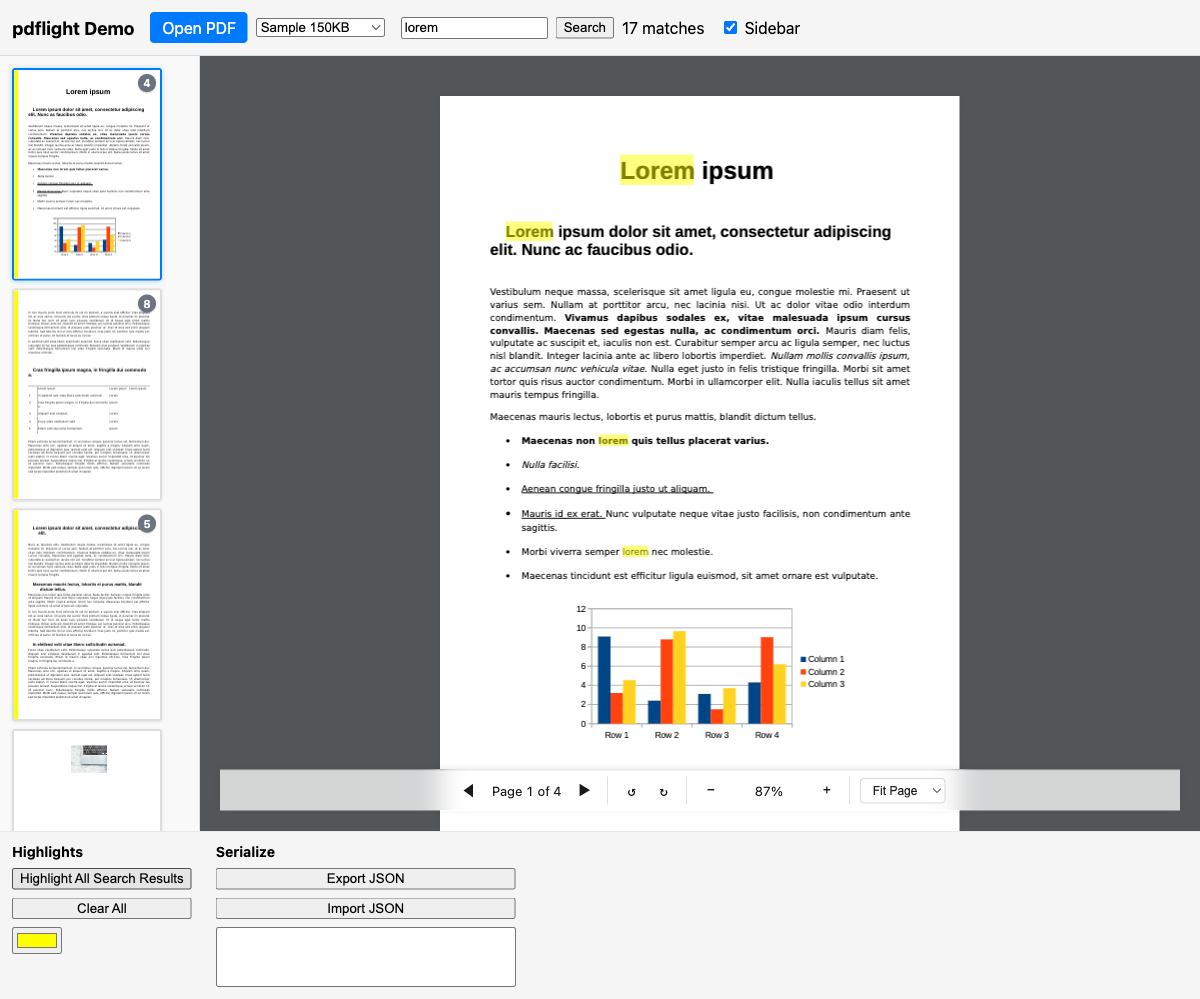
- Precise text highlighting — overlays that accurately cover rendered text using font-metrics-based character positioning
- Smart search — handles subscripts, superscripts, hyphenated words, cross-column text, and fragmented text spans
- Framework-agnostic — vanilla TypeScript, works with any framework (examples)
- Bundled pdf.js — includes pdf.js as a direct dependency, no peer deps
Install
npm install @pilotso11/pdflightQuick Start
import { PdfViewer } from '@pilotso11/pdflight';

const viewer = new PdfViewer(containerElement);
await viewer.load('/path/to/document.pdf');

// Search
const matches = await viewer.search('search term');

// Highlight
viewer.addHighlights(matches.map((m, i) => ({
  id: `h-${i}`,
  page: m.page,
  startChar: m.startChar,
  endChar: m.endChar,
  color: 'rgba(255, 255, 0, 0.5)',
})));
CDN Usage
Use pdflight directly in HTML without any build tools. The URLs below always point to the latest release:
Script Tag
<script src="https://pilotso11.github.io/pdflight/pdflight.iife.js"></script>
<script>
  const viewer = new pdflight.PdfViewer(document.getElementById('viewer'), {
    toolbar: true,
    sidebar: true,
  });
  viewer.load('document.pdf');
</script>
ES Module
<script type="module">
  import { PdfViewer } from 'https://pilotso11.github.io/pdflight/pdflight.js';
  const viewer = new PdfViewer(document.getElementById('viewer'), {
    toolbar: true,
    sidebar: true,
  });
  viewer.load('document.pdf');
</script>
Versioned URLs are also available (e.g. pdflight-0.1.0.iife.js). See the releases page for version history and CDN URLs.
See the live demo.
Demo
Run bun run dev and open http://localhost:5173 to see the demo app exercising all features.
Development
bun install          # Install dependencies
bun run build        # Build the library
bun run dev          # Start dev server with demo app
bun run test         # Run unit tests
bun run test:coverage # Run tests with coverage
bun run lint         # ESLint check
bun run typecheck    # TypeScript type checking
bun run build:cdn    # Build self-contained CDN bundles (IIFE + ESM)
bun run test:e2e     # Run Playwright browser tests
Framework Examples
pdflight is framework-agnostic. Every integration follows the same pattern:
- Mount — pass a container DOM element to
new PdfViewer(element, options) - Use — call
viewer.load(),viewer.search(),viewer.addHighlights()etc. - Cleanup — call
viewer.destroy()when the component unmounts
Vanilla JS
<div id="viewer"></div>
<input id="search" type="text" placeholder="Search…" />
<button id="go">Search</button>
<button id="clear">Clear</button>

<script type="module">
  import { PdfViewer } from 'https://pilotso11.github.io/pdflight/pdflight.js';

  const viewerEl = document.getElementById('viewer');
  const searchInput = document.getElementById('search');
  const goButton = document.getElementById('go');
  const clearButton = document.getElementById('clear');

  if (!viewerEl || !searchInput || !goButton || !clearButton) {
    throw new Error('One or more required DOM elements are missing.');
  }

  const viewer = new PdfViewer(viewerEl, {
    toolbar: true,
    sidebar: true,
  });

  await viewer.load('/sample.pdf');

  goButton.addEventListener('click', async () => {
    const query = searchInput.value.trim();
    if (!query) return;

    viewer.removeAllHighlights();
    const matches = await viewer.search(query);
    viewer.addHighlights(matches.map((m, i) => ({
      id: `h-${i}`,
      page: m.page,
      startChar: m.startChar,
      endChar: m.endChar,
      color: 'rgba(255, 255, 0, 0.4)',
    })));
  });

  clearButton.addEventListener('click', () => {
    viewer.removeAllHighlights();
    searchInput.value = '';
  });
</script>
React
import { useRef, useEffect, useState, useCallback } from 'react';
import { PdfViewer } from '@pilotso11/pdflight';

export default function PdfViewerApp({ url }: { url: string }) {
  const containerRef = useRef<HTMLDivElement>(null);
  const viewerRef = useRef<PdfViewer | null>(null);
  const [query, setQuery] = useState('');

  useEffect(() => {
    if (!containerRef.current) return;
    const viewer = new PdfViewer(containerRef.current, { toolbar: true });
    viewerRef.current = viewer;
    viewer.load(url);
    return () => viewer.destroy();
  }, [url]);

  const handleSearch = useCallback(async () => {
    const viewer = viewerRef.current;
    if (!viewer || !query.trim()) return;
    viewer.removeAllHighlights();
    const matches = await viewer.search(query);
    viewer.addHighlights(matches.map((m, i) => ({
      id: `h-${i}`, page: m.page,
      startChar: m.startChar, endChar: m.endChar,
      color: 'rgba(255, 255, 0, 0.4)',
    })));
  }, [query]);

  return (
    <div>
      <input value={query} onChange={(e) => setQuery(e.target.value)}
        onKeyDown={(e) => e.key === 'Enter' && handleSearch()} placeholder="Search..." />
      <button onClick={handleSearch}>Search</button>
      <div ref={containerRef} style={{ width: '100%', height: 'calc(100vh - 48px)' }} />
    </div>
  );
}
Vue 3
<script setup lang="ts">
import { ref, onMounted, onUnmounted } from 'vue';
import { PdfViewer } from '@pilotso11/pdflight';

const props = defineProps<{ url: string }>();
const containerRef = ref<HTMLDivElement>();
const query = ref('');
let viewer: PdfViewer | null = null;

onMounted(() => {
  if (!containerRef.value) return;
  viewer = new PdfViewer(containerRef.value, { toolbar: true });
  viewer.load(props.url);
});

onUnmounted(() => {
  viewer?.destroy();
  viewer = null;
});

async function handleSearch() {
  if (!viewer || !query.value.trim()) return;
  viewer.removeAllHighlights();
  const matches = await viewer.search(query.value);
  viewer.addHighlights(matches.map((m, i) => ({
    id: `h-${i}`, page: m.page,
    startChar: m.startChar, endChar: m.endChar,
    color: 'rgba(255, 255, 0, 0.4)',
  })));
}
</script>

<template>
  <div>
    <input v-model="query" @keydown.enter="handleSearch" placeholder="Search..." />
    <button @click="handleSearch">Search</button>
    <div ref="containerRef" style="width: 100%; height: calc(100vh - 48px)" />
  </div>
</template>
Svelte
<script lang="ts">
  import { onMount, onDestroy } from 'svelte';
  import { PdfViewer } from '@pilotso11/pdflight';

  export let url: string;
  let container: HTMLDivElement;
  let viewer: PdfViewer | null = null;
  let query = '';

  onMount(() => {
    viewer = new PdfViewer(container, { toolbar: true });
    viewer.load(url);
  });

  onDestroy(() => {
    viewer?.destroy();
    viewer = null;
  });

  async function handleSearch() {
    if (!viewer || !query.trim()) return;
    viewer.removeAllHighlights();
    const matches = await viewer.search(query);
    viewer.addHighlights(matches.map((m, i) => ({
      id: `h-${i}`, page: m.page,
      startChar: m.startChar, endChar: m.endChar,
      color: 'rgba(255, 255, 0, 0.4)',
    })));
  }
</script>

<div>
  <input bind:value={query} on:keydown={(e) => e.key === 'Enter' && handleSearch()}
    placeholder="Search..." />
  <button on:click={handleSearch}>Search</button>
  <div bind:this={container} style="width: 100%; height: calc(100vh - 48px);" />
</div>
Styling
pdflight injects default styles for the toolbar and sidebar at runtime by appending a <style> tag to <head>. Because injection happens when the viewer is constructed, the library's styles may appear after your app's CSS in source order. To reliably override them, use a more specific selector (e.g. .my-app .pdflight-thumbnail) or load your overrides after the viewer is initialized.
Sidebar Configuration
The sidebar accepts a config object for dimensional properties:
const viewer = new PdfViewer(container, {
  sidebar: {
    thumbnailWidth: 180,  // Default: 150 (px) — drives canvas resolution + CSS width
    gap: 12,              // Default: 8 (px) — margin between thumbnails
    padding: 12,          // Default: 8 (px) — container padding
  },
});
Pass sidebar: true for defaults, or sidebar: false / omit to disable.
CSS Class Reference
All library-created DOM elements use .pdflight-* classes:
| Class | Description |
|-------|-------------|
| .pdflight-page-container | Wrapper around each rendered PDF page |
| .pdflight-toolbar | Built-in toolbar bar |
| .pdflight-toolbar-top | Added when toolbar position is 'top' |
| .pdflight-toolbar-btn | Toolbar buttons |
| .pdflight-toolbar-group | Toolbar button group (with separator) |
| .pdflight-toolbar-select | Toolbar dropdown selects |
| .pdflight-sidebar-container | Added to the sidebar container element |
| .pdflight-thumbnail | Individual thumbnail wrapper |
| .pdflight-thumbnail-active | Active page thumbnail |
| .pdflight-thumbnail-label | Page number label below thumbnail |
| .pdflight-thumbnail-edge-bar | Colored left edge bar (highlight indicator) |
| .pdflight-thumbnail-badge | Count badge (match/highlight counts) |
| .pdflight-highlight | Highlight overlay div |
| .pdflight-tooltip | Tooltip shown on highlight hover |
Overriding Default Styles
The library injects its styles via a <style> element in <head>. Your CSS loads after and wins by specificity:
/* Make active thumbnail border green instead of blue */
.pdflight-thumbnail-active {
  border-color: #28a745;
  box-shadow: 0 1px 6px rgba(40, 167, 69, 0.3);
}

/* Larger page labels */
.pdflight-thumbnail-label {
  font-size: 13px;
  padding: 4px 0;
}

/* Dark theme toolbar */
.pdflight-toolbar {
  background: rgba(30, 30, 30, 0.9);
  color: #f0f0f0;
}
How It Works
Smart Search
pdflight builds a normalized text index from pdf.js's getTextContent() data:
- Concatenates all text items into a single searchable string
- Maps each character back to its source text item and position
- Normalizes whitespace, rejoins hyphens, handles unicode
Precise Highlighting
Unlike solutions that use DOM measurement, pdflight computes highlights from pdf.js's glyph-level position data:
- Computes bounding rectangles from each text item's
transformmatrix, with descender adjustment for characters like p, g, y - Uses per-character widths from pdf.js font objects for precise partial-word highlighting
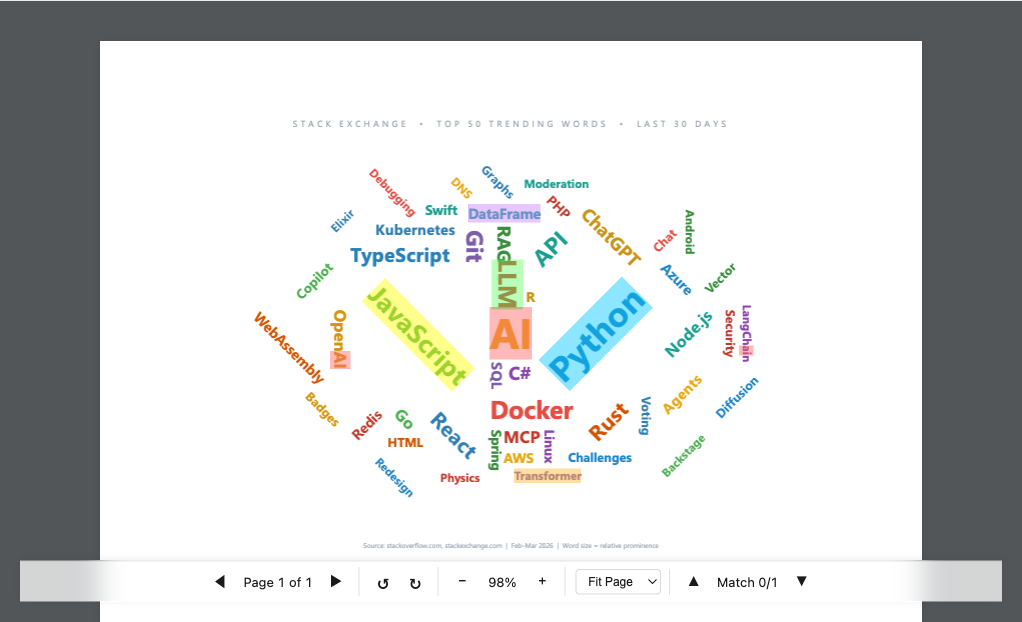
- Decomposes rotation from the transform matrix (
atan2(b,a)) to highlight text at any angle — word clouds, diagonal labels, rotated pages - Merges adjacent rectangles on the same line for efficient DOM rendering
- Survives zoom/pan/resize/rotation by recomputing from source data — no DOM measurement needed
Row-Addressable Text
For server-side search or LLM fact-extraction use cases where results reference page and line numbers:
// LLM returns: "Invoice total found on page 3, line 5"
const matches = await viewer.findText('Invoice total', {
  page: 3,
  nearRow: 5,    // filter + sort by proximity to this row
});
viewer.addHighlight({ id: 'fact-1', ...matches[0], color: 'yellow' });

// Control the proximity window (PDF units) — default is ±5 rows of text
const nearby = await viewer.findText('total', {
  page: 3,
  nearRow: 5,
  maxDistance: 50,       // tighter window
});

// Disable filtering, sort only
const sorted = await viewer.findText('total', {
  page: 3,
  nearRow: 5,
  maxDistance: Infinity, // return all matches, sorted by proximity
});

// Highlight an entire row
const row = await viewer.getRow(3, 5);
viewer.addHighlight({
  id: 'row-5', page: row.page,
  startChar: row.startChar, endChar: row.endChar,
  color: 'rgba(0, 200, 255, 0.3)',
});

// Get all rows on a page
const rows = await viewer.getRows(1);
const count = await viewer.getRowCount(1);
Rows are computed by clustering text items by y-coordinate proximity — no native "line" concept exists in PDFs, so pdflight groups items within half a font-height of each other. Row numbering is 1-based from the top of the page.
When nearRow is specified, findText filters results by actual vertical distance (y-coordinates), not row number. This matters for documents with images or charts — two adjacent row numbers can be far apart visually. The default maxDistance is 5 × avgLineSpacing, which skips outlier gaps (like images) when computing spacing. Set maxDistance: Infinity to disable filtering and only sort by proximity.
Why pdflight?
Most PDF highlighting libraries position overlays by measuring DOM elements. This breaks when the text layer drifts from the canvas — a well-documented pdf.js problem. pdflight computes geometry directly from glyph-level font metrics, bypassing the DOM entirely.
See docs/WHY.md for a detailed comparison with react-pdf-highlighter, ngx-extended-pdf-viewer, PSPDFKit, and others.
License
MIT