
@pipedream/google_chat
v0.2.1
Published
Pipedream Google Chat Components


Readme
Overview
The Google Chat API allows you to build custom bots for Google Chat, enabling automated interactions with users within a chat space. By leveraging this API on Pipedream, you can create powerful workflows that respond to messages, automate tasks, and connect Google Chat with other services. Pipedream's serverless platform provides a seamless way to invoke these APIs based on triggers from Google Chat or other apps.
Example Use Cases
Automated Helpdesk Bot: Deploy a bot that listens for specific keywords in Google Chat messages. When a user mentions a support-related keyword, the bot can reply with helpful information or create a ticket in a service like Zendesk.
Meeting Scheduler: Set up a workflow that triggers when someone requests a meeting in a Google Chat room. The bot can interact with Google Calendar to find available slots and propose meeting times directly within the chat.
CI/CD Notifications: Integrate with GitHub to send updates on code commits, pull requests, or build statuses from your CI/CD pipeline into a Google Chat room, keeping your development team informed in real-time.
Getting Started
Creating a Google Chat app
In order to connect your workspace Google Chat account to Pipedream, you'll need do the following:
Create a Google Chat app in Google Cloud (a Google workspace account is required).
Connect this app using custom OAuth clients on Pipedream. See the directions here on how to configure a custom OAuth client on Pipedream.
Sign in to the Google Cloud Console
Select an existing project or create a new one

- Select APIs & Services
- Click Enable APIs & Services
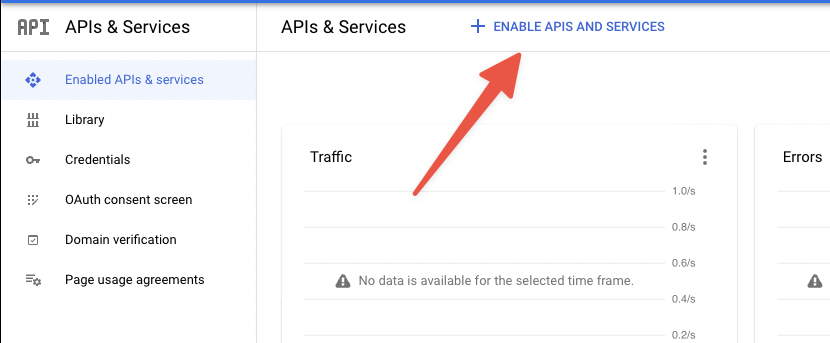
- Search for and select Chat API
- Click Enable

- Click OAuth consent screen on the left side
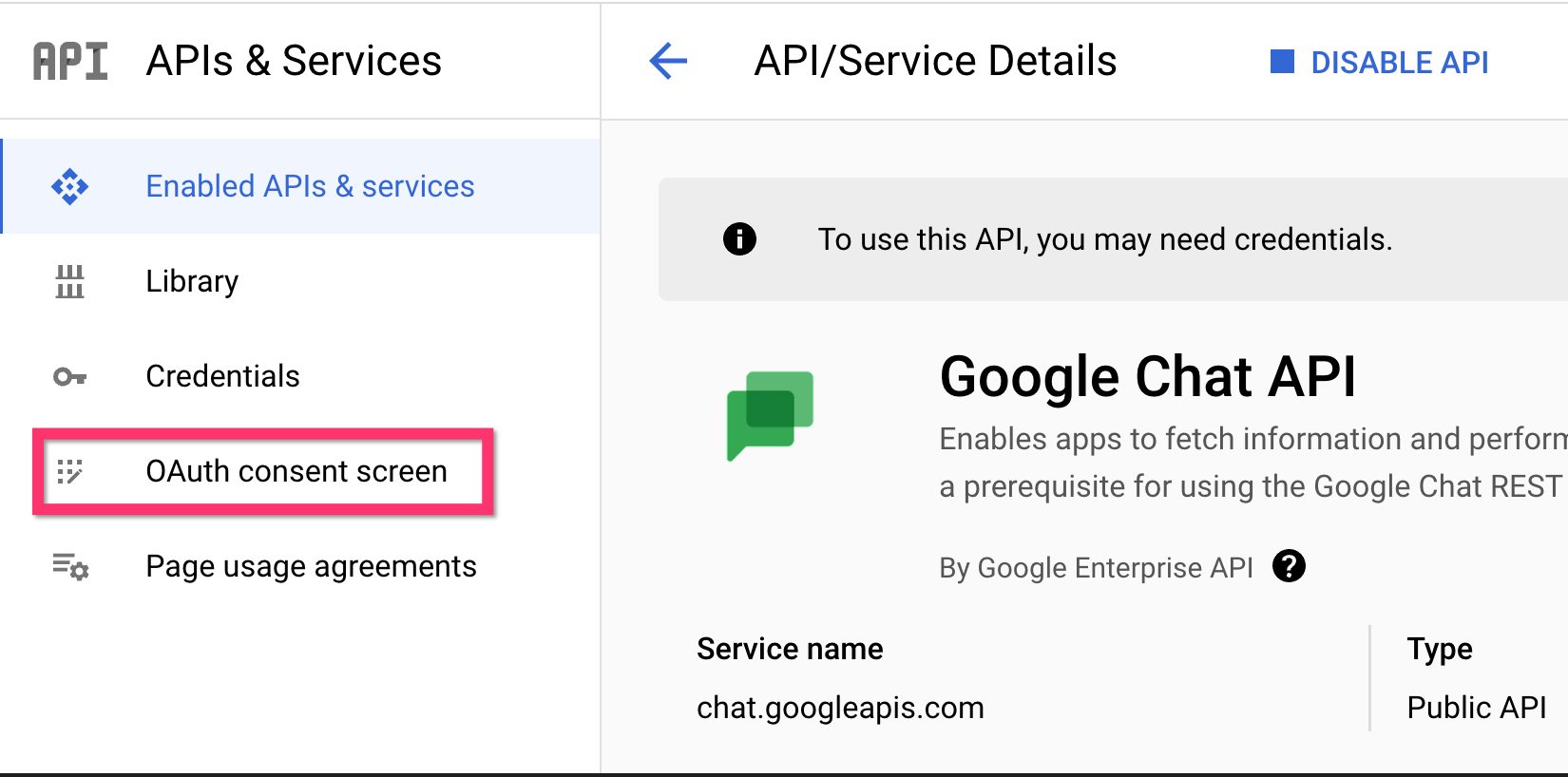
- If you only intend to use this application within your organization, select Internal (recommended) and click "Create." In this mode, your app is limited to Google Workspace users within your organization. If you select External, you will need to go through the process of app verification in order use any sensitive or restricted scopes.

- Fill in the required fields and click Save and Continue
- Under Authorized Domains, add
pipedream.com - Click Add or remove scopes and Filter by
Chat APIselect whichever scopes you intend to use and then click "Update". For more information about available Google Chat scopes, please see this overview. - Click Save and Continue to finish the Scopes step
- You should be prompted with a Summary page.
Create OAuth Credentials in Google Cloud
You will need to generate a set of OAuth credentials to connect your new Google Chat app to Pipedream.
Navigate to the Credentials section on the left side.
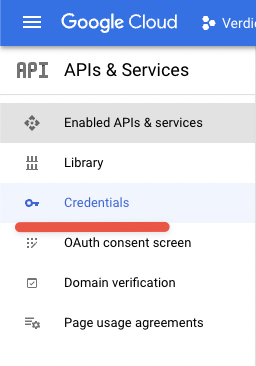
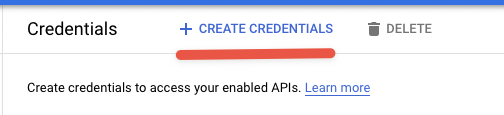
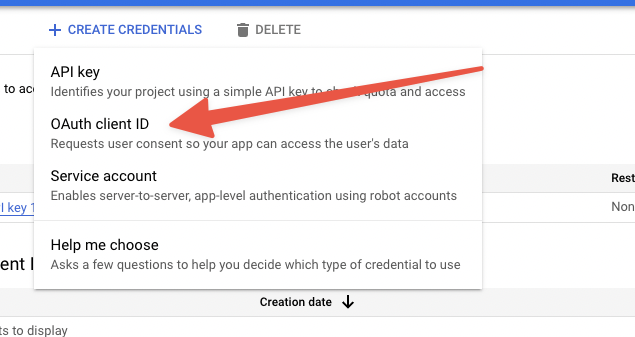
Click Create Credentials at the top and select *“OAuth client ID
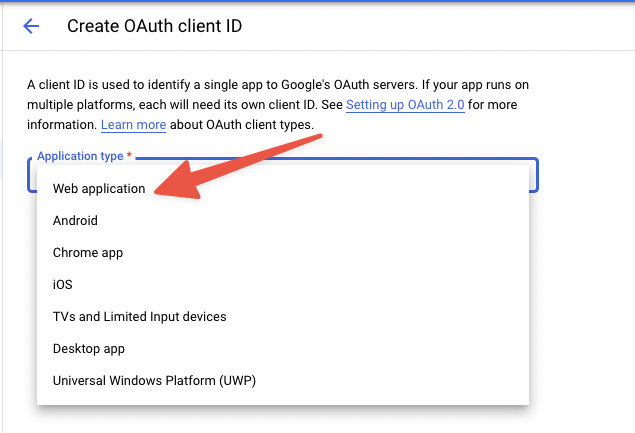
- Select Web application for Application type
- Give your app a name.
Create a Custom OAuth Client in Pipedream
Navigate to the workspace where you want to connect your Google Chat app, and go to Accounts, then OAuth Clients, and click **New OAuth Client.
Search for the "Google Chat" app and name your custom OAuth client. You will get a unique Redirect URI which you will need to configure in Google.
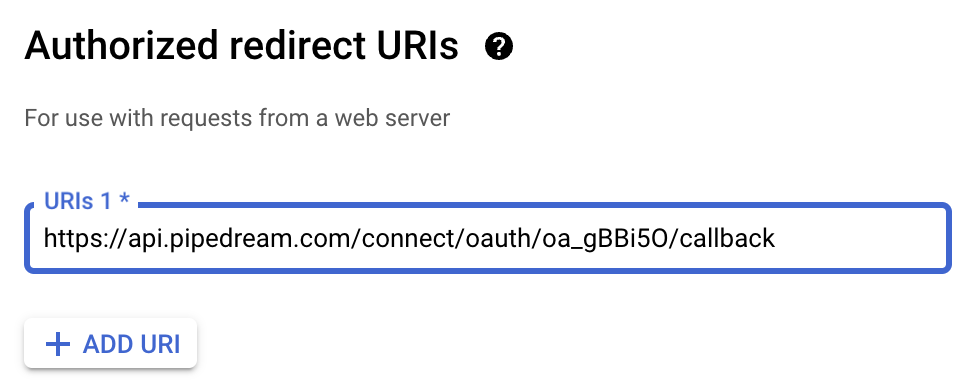
In the Google Cloud app configuration, under Authorized redirect URIs, click Add URI and enter the Redirect URI of your custom Google Chat client.
- Click Create to create your new OAuth keys
- Note the client ID and client Secret, but keep these private and secure
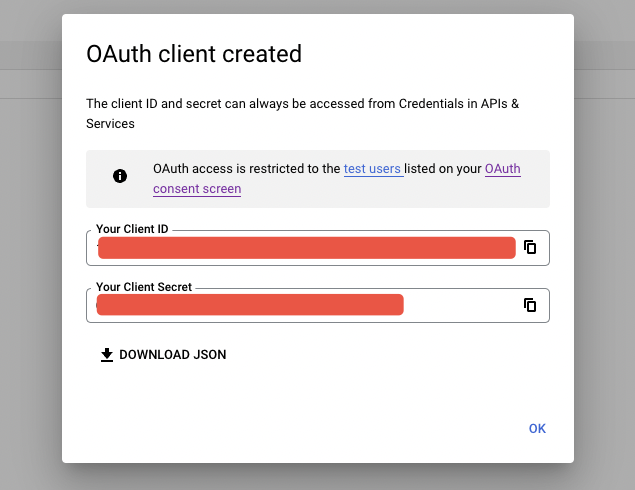
- Add your Client ID and Client Secret to your custom OAuth Google Chat client on Pipedream.
Configure your Google Chat application
Click Enable APIs & Services on the top-left navigation bar, then Google Chat API.
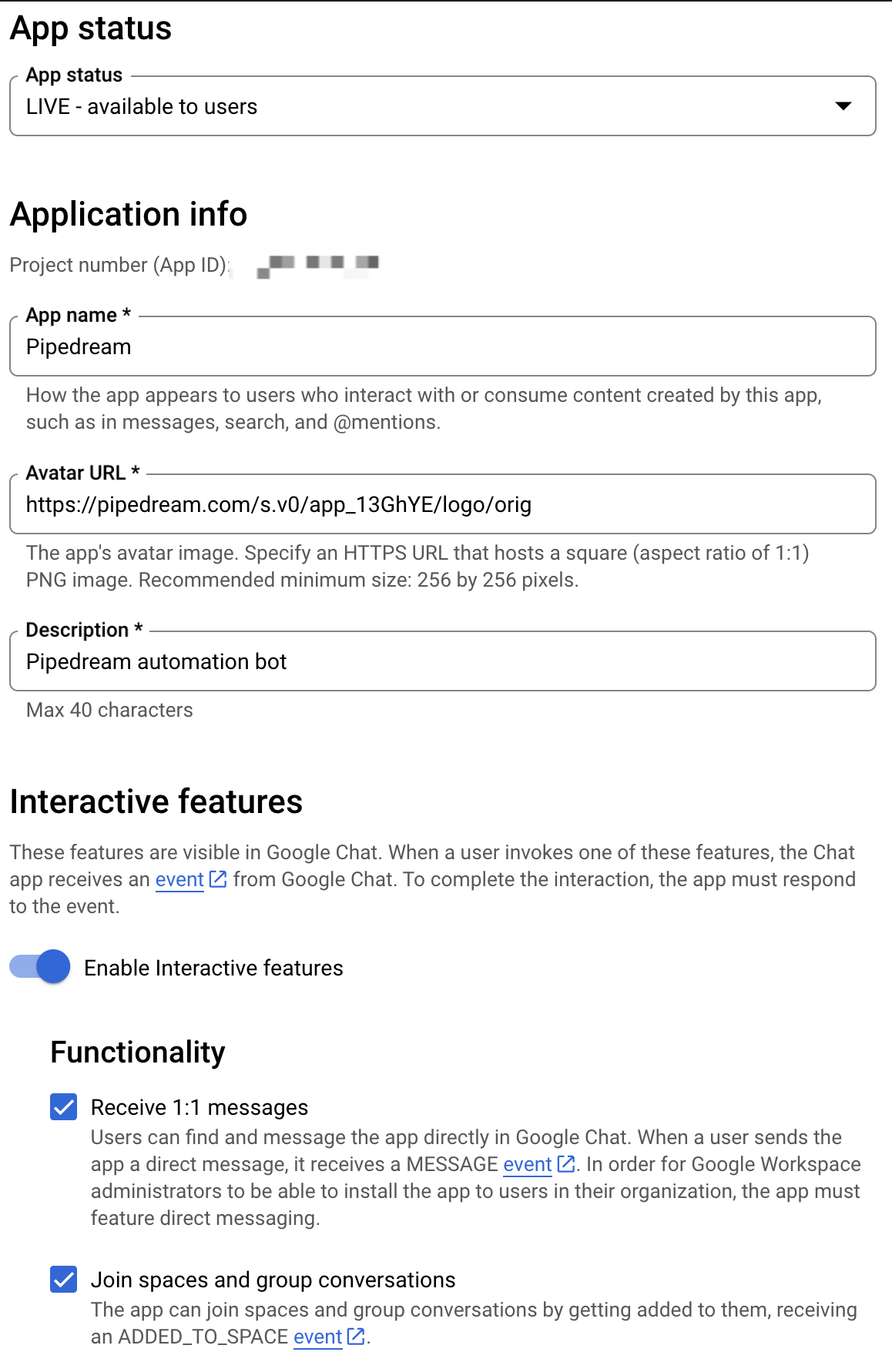
Click Configuration
Fill in the required details - please note that the values you provide here will be the name of the app that you add to your Google Chat workspace.
You can name the application whatever you'd like for the app to be called within the Google Chat workspace, e.g. Pipedream
If you'd like to use the Pipedream logo for the avatar, use the URL https://pipedream.com/s.v0/app_13GhYE/logo/orig for the Avatar URL
Add a Description.
Select any Interactive features you require for your app.
Add an App URL, ideally, an HTTPS URL that you control, or you can provide the following app url https://pipedream.com/apps/google-chat-developer-app.
Under Visibility, add the email addresses of the individuals or groups within your Google Workspace organization.
Click Save.
Connect your Google Chat app Pipedream with your Google Chat app OAuth credentials
At this point, you should have a Google Chat App under your Google Project, and a custom OAuth client on Pipedream. Make sure that the scopes in your custom OAuth client match the scopes you enabled in Google Cloud.
You should now be able to use your Google Chat application that you created on Pipedream!
Publish your Google Chat app (EXTERNAL ONLY)
Google has a 7 day expiration window on refresh tokens for applications that are set to External users with a publishing status of "Testing", so you will need to Publish your application in order to maintain your account connection.
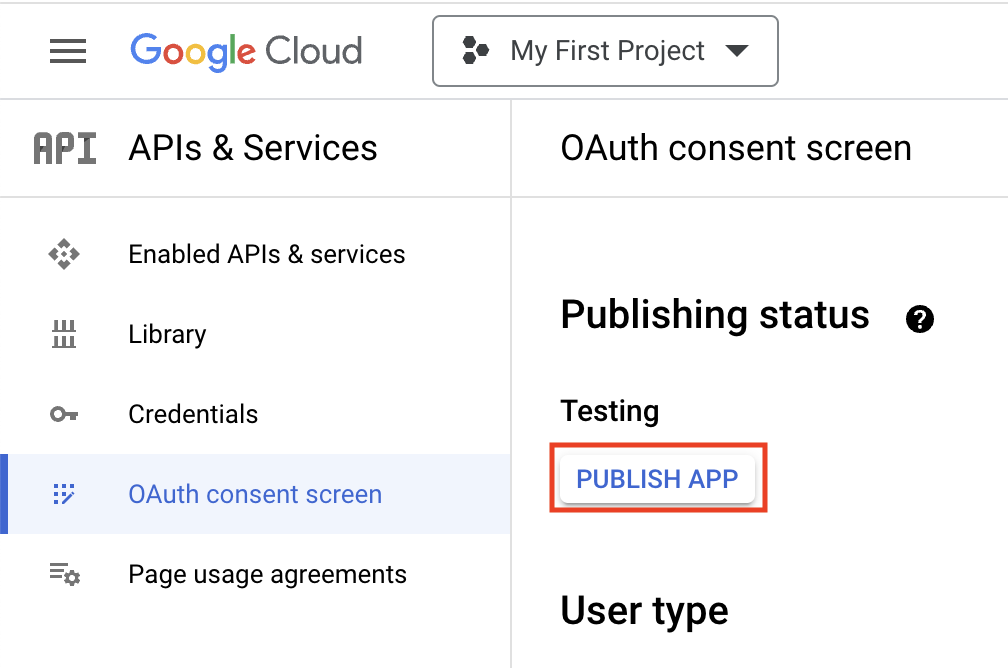
- Navigate to your application, and click OAuth Consent Screen on the lefthand sidebar.
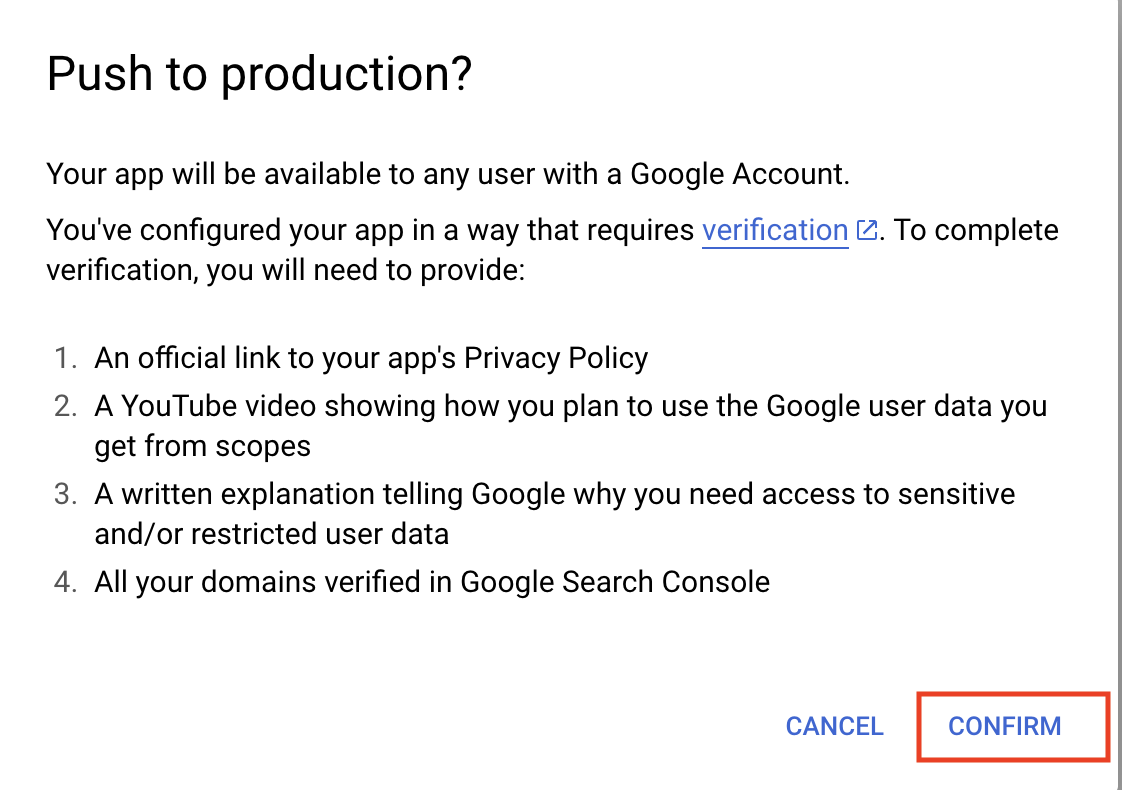
- Under Publishing status, click Publish App. If you included any sensitive or restricted scopes in your app, there will be a disclosure stating that you will need to go through the process of verification. Click Confirm.
- Your application will not be available externally unless you share your client_id with others, and you will not have to go through the verification process unless you intend to onboard over 100 users.
- The publishing status should be set to In production, and your account should maintain its connection without an expiration window.
Troubleshooting
Application disconnects after 7 days If your developer application disconnects after 7 days, you need to follow the steps above to Publish your Google Chat app in order to keep your account connected.