
@pipedream/google_fit_developer_app
v0.0.2
Published
Pipedream Google Fit (Developer App) Components


Readme
Overview
Google Fit (Developer App) provides a robust API for accessing and storing a user's health and wellness data collected from various devices and apps. With it, you can read and write different types of fitness data, such as steps, calories burned, and heart rate, enabling the development of personalized health dashboards, proactive fitness reminders, and integrative health reports. Using Pipedream, this data can be ingested and combined with other services to automate health tracking, set goals, and even inform healthcare providers or coaching systems of a user's progress.
Getting Started
The Google Fit Developer App in Pipedream can integrate with either a personal Gmail account or a Google workspace email account. Either option involves creating a custom Google App in the Google Cloud Console. This process does not involve any code or special approval by Google. The steps are outlined below:
Creating a Google Fit app
In order to connect your personal or workspace Google Fit account to Pipedream, you'll need to create a custom OAuth app in Google Cloud.
- Sign in to the Google Cloud Console
- Select an existing project or create a new one

- Select APIs & Services
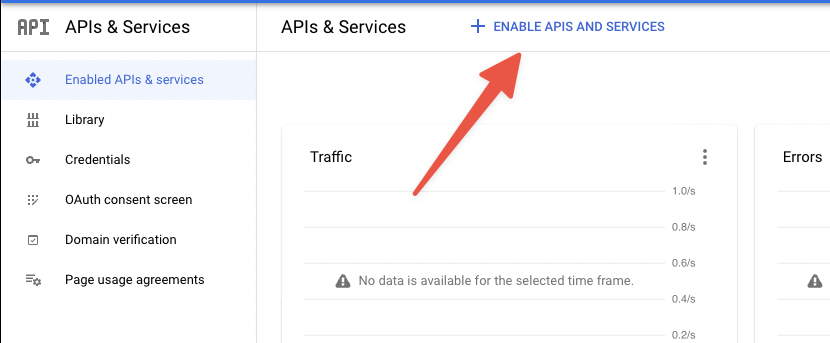
- Click Enable APIs & Services
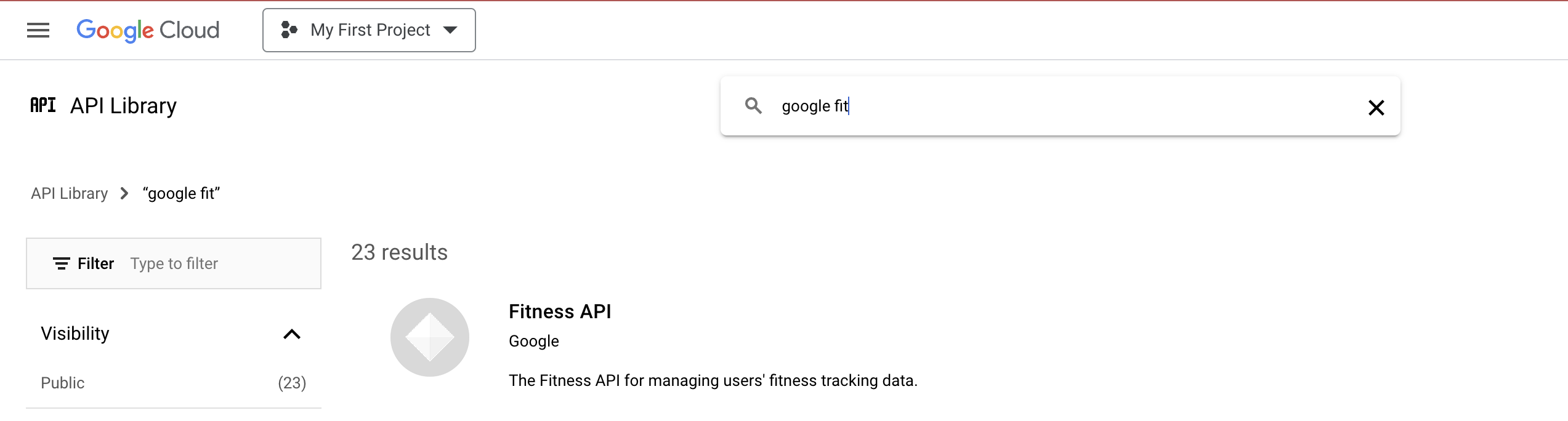
- Search for and select Fitness API
- Click Enable
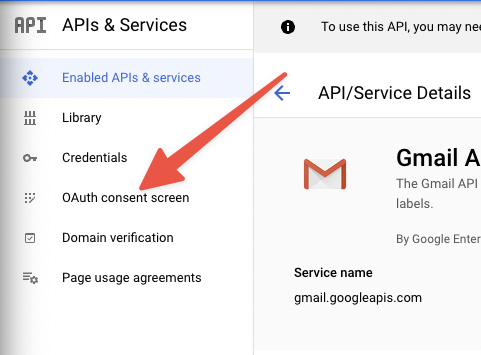
- Click OAuth consent screen on the left side
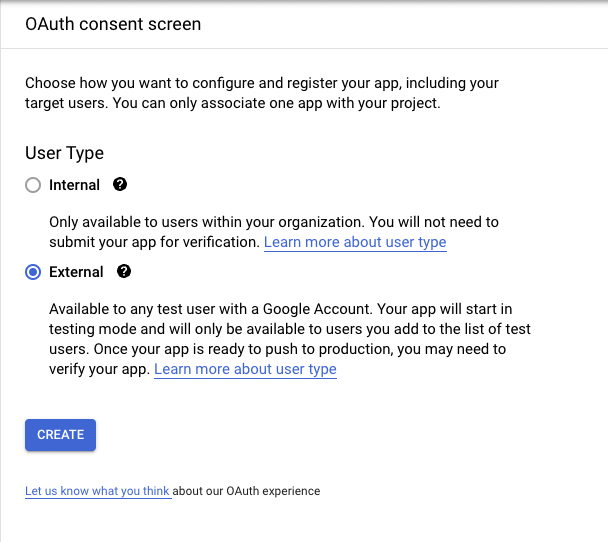
- Select External User Type and click “Create”
- Fill in the required fields and click Save and Continue
- Under Authorized Domains, add
pipedream.com - Click Add or remove scopes and Filter by
Fitness APIselect whichever scopes you intend to use and then click "Update". For more information about available Google Fit scopes, please see this overview. - Click Save and Continue to finish the Scopes step
- Add your own email as a Test User by clicking Add Users then typing in your email in the prompt then clicking Add again. Then finally click Save and Continue to finish the Test Users portion.
- You should be prompted with a Summary page.
Now you've created an unlisted Google Fit app that you can integrate with Pipedream.
Create OAuth Credentials
You will need to generate a set of OAuth credentials to connect your new Google Fit app to Pipedream properly.
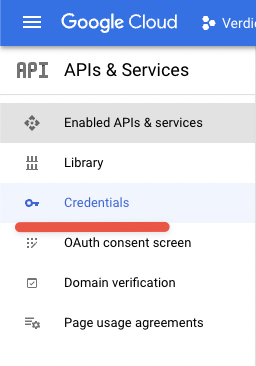
Navigate to the Credentials section on the left side.
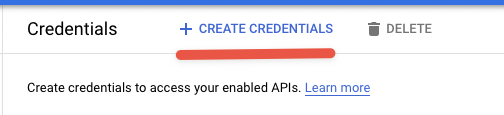
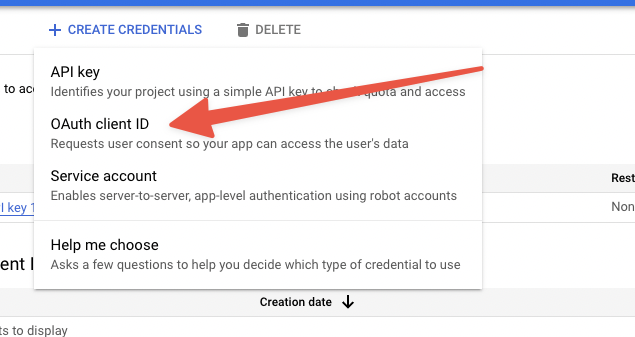
Click Create Credentials at the top and select *“OAuth client ID
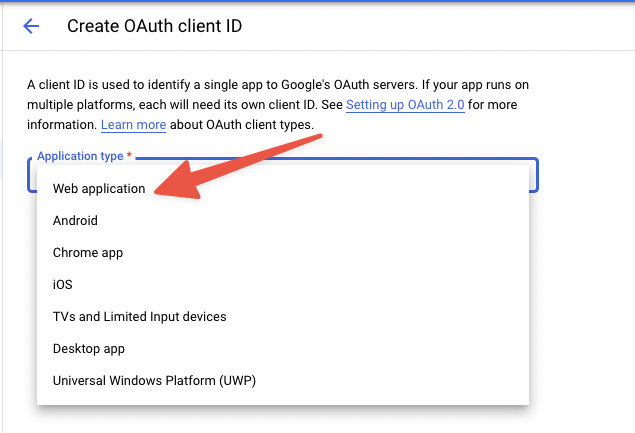
- Select Web application for Application type
- Name the app “Pipedream”
- Click Add URI and enter
https://api.pipedream.com/connect/oauth/oa_gA6iex/callback
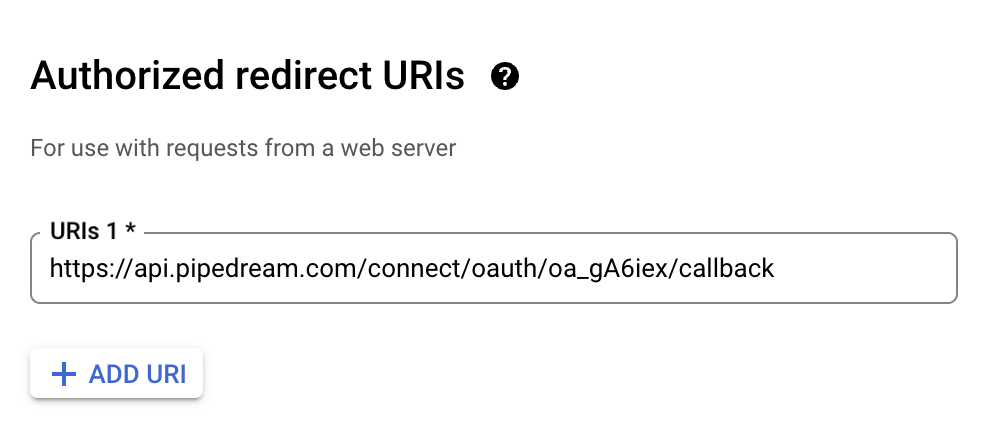
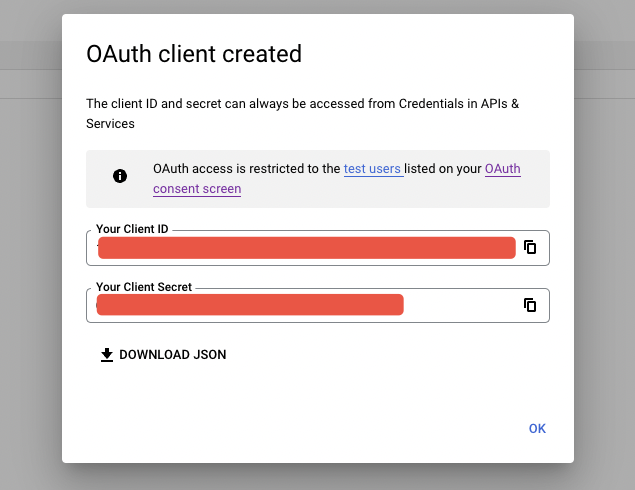
- Click Create to create your new OAuth keys
- Note the client ID and client Secret, but keep these private and secure
Connect your Google Fit app Pipedream with your Google Fit app OAuth crendentials
At this point, you should have a Google Fit App under your Google Project, and a set of OAuth keys.
Now when prompted in Pipedream after trying to connect a Google Fit Developer App, copy and paste your OAuth credentials.
Add the scopes that you chose when setting up the app in a space-separate list.
Then click Connect
If you did not publish your Google Fit App in the Google Cloud Console, just click Continue to ignore the warning.
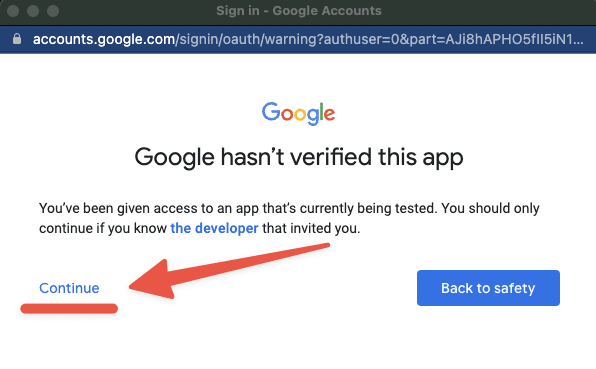
Check all of the necessary scopes you'll need for your workflows
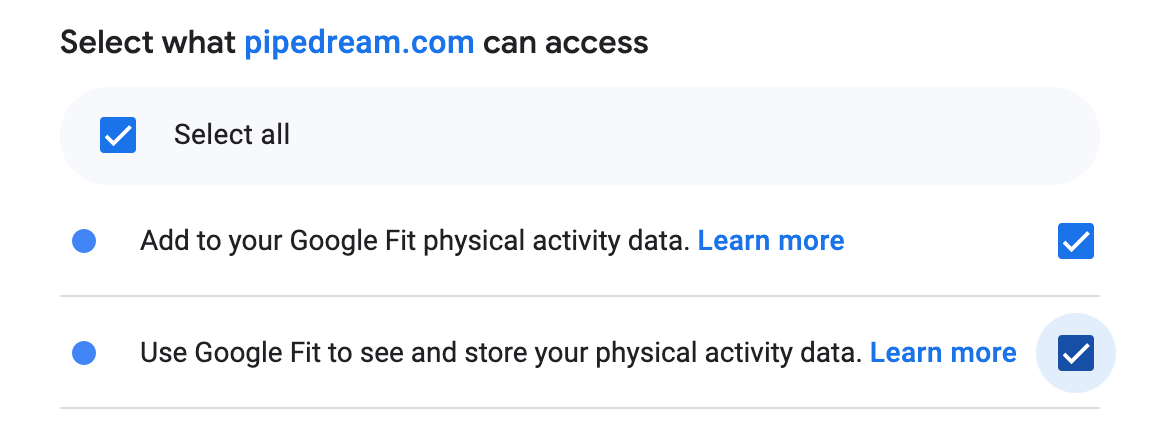
Click the final Connect and your custom Google Fit app should be integrated into Pipedream!
Publish your Google Fit app
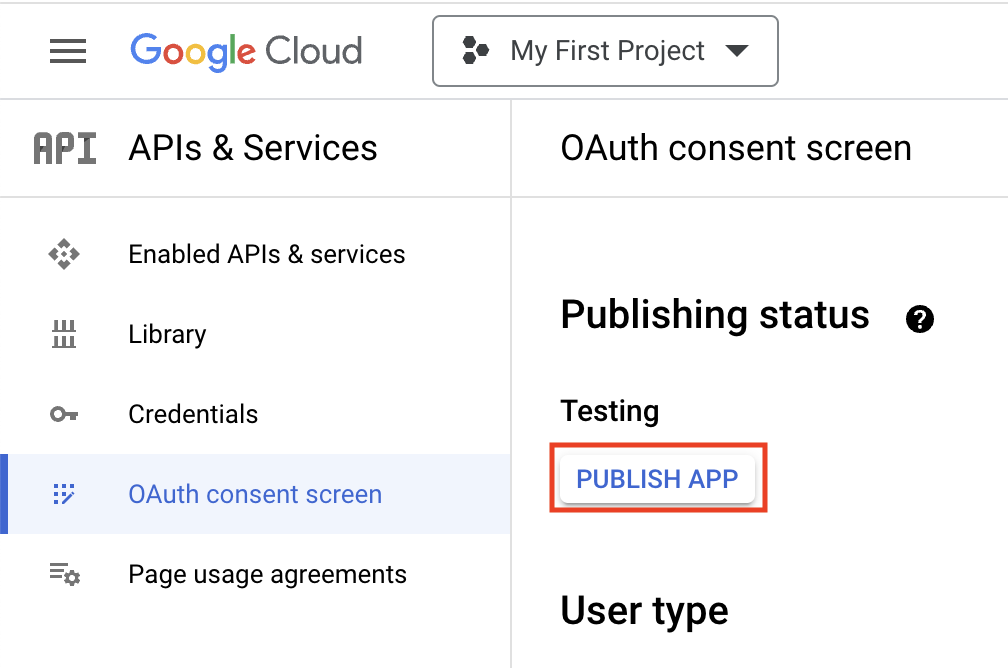
Google has a 7 day expiration window on refresh tokens for applications with a publishing status of "Testing", so you will need to Publish your application in order to maintain your account connection.
- Navigate to your application, and click OAuth Consent Screen on the lefthand sidebar.
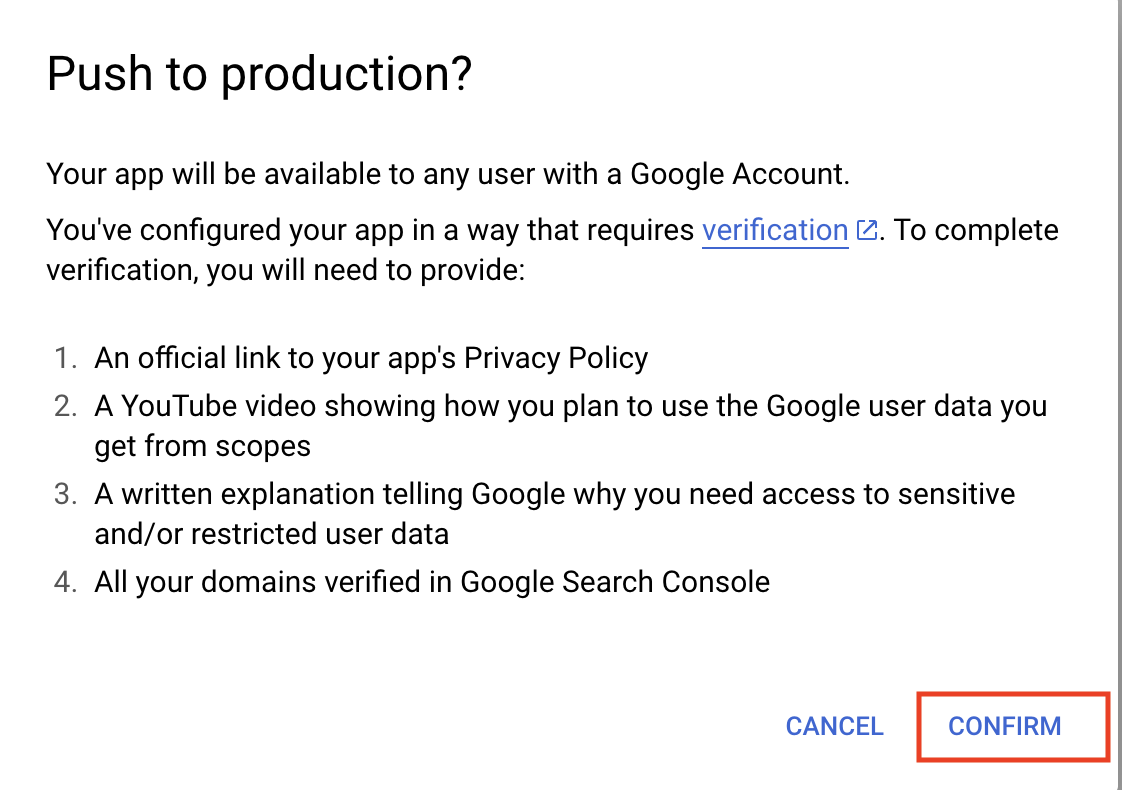
- Under Publishing status, click Publish App. If you included any sensitive or restricted scopes in your app, there will be a disclosure stating that you will need to go through the process of verification. Click Confirm.
- Your application will not be available externally unless you share your client_id with others, and you will not have to go through the verification process unless you intend to onboard over 100 users.
- The publishing status should be set to In production, and your account should maintain its connection without an expiration window.
Example Use Cases
Daily Health Summary Email: Combine Google Fit data with Pipedream's email service to send a daily summary of a user's fitness activity. A workflow could fetch the previous day's data, including steps taken, calories burned, and sleep analysis, then format this information and send it via an automated email to encourage consistent fitness tracking and goal setting.
Smart Home Integration for Fitness Reminders: Integrate Google Fit data with smart home devices using Pipedream. If a user's activity level is lower than a set threshold by a certain time of day, the workflow could trigger a smart home device, like a smart speaker, to remind the user to take a walk or perform their workout routine.
Health Dashboard Sync: Sync Google Fit data with a custom health dashboard app. Data can be pulled at regular intervals to update the dashboard, allowing users or health coaches to view trends and insights over time. This could be extended by connecting it to a data visualization tool like Google Data Studio for enhanced reporting capabilities.
Troubleshooting
Application disconnects after 7 days If your developer application disconnects after 7 days, you need to follow the steps above to Publish your Google Fit app in order to keep your account connected.