
@quietmind/mdx-docs
v2.0.3
Published
MDX Docs turns MDX files into routed documentation pages with a built-in layout, sidebar, and navigation.


Readme
@quietmind/mdx-docs
MDX Docs turns MDX files into routed documentation pages with a built-in layout, sidebar, and navigation.
⚡ A lightweight React framework for building MDX documentation sites.
MDX Docs is a React + Vite framework for building MDX-powered documentation sites. Write pages in Markdown with embedded React components, and get a fully-featured site with syntax highlighting, dark/light mode, and responsive navigation out of the box.
Demo: https://mdxdocs.com/
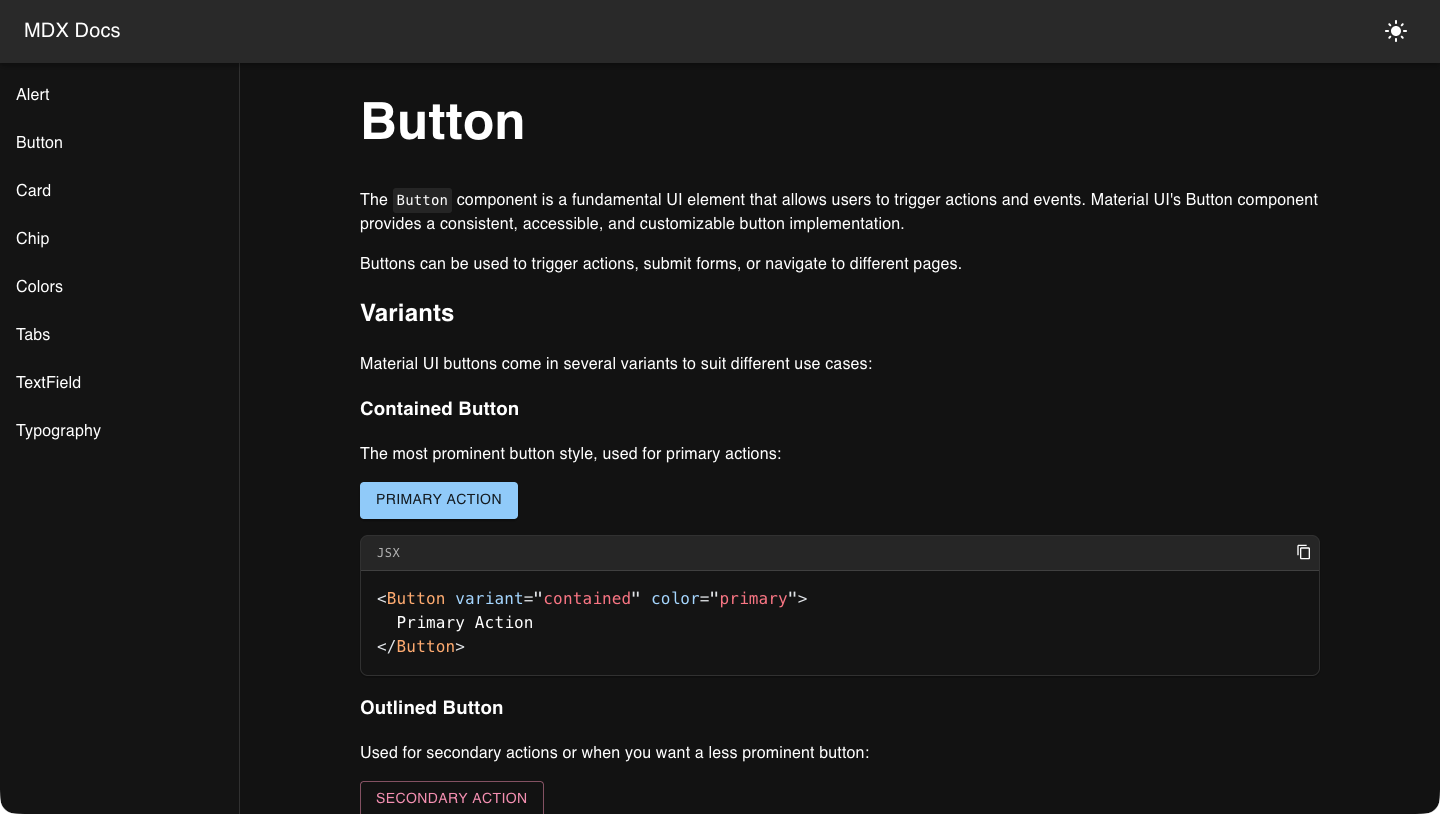
Features
- MDX pages — write Markdown with embedded React components
- Syntax highlighting with copy-to-clipboard on code blocks
- Dark/light mode with system preference detection
- Responsive sidebar navigation
- Built on React, Material UI, and Vite
Quick Start
Create a new documentation site:
npx create-mdx-docs@latest my-docsCreate an MDX file in pages/:
import { Button } from "@mui/material"

# Button

<Button variant="contained" color="primary">
  Primary Action
</Button>

```jsx
<Button variant="contained" color="primary">
  Primary Action
</Button>
```
Register your page in config/pages.js:
const GettingStartedMDX = lazy(() => import("@pages/getting-started.mdx"))

export const pages = [
  // ...existing pages
  {
    name: "Getting Started",
    route: "/getting-started",
    component: GettingStartedMDX,
  },
]
Pages with isDefault: true do not appear in the sidebar navigation.
Each page can optionally define its own SEO metadata:
{
  name: "Getting Started",
  route: "/getting-started",
  component: GettingStartedMDX,
  title: "Getting Started — My Site",
  description: "How to install and configure My Site.",
}titlesets the browser/document title for that page, falling back tosite.namewhen omitted.descriptionsets the page's meta description, falling back tosite.descriptionwhen omitted.
Both fields update automatically during client-side navigation and are written into each page's generated HTML during production builds.
Static Site Generation
Production builds automatically prerender every configured page route:
dist/index.html
dist/getting-started/index.html
dist/examples/index.html
dist/404.html
Each file contains the rendered MDX content, page title, meta description, Open Graph metadata, and Twitter metadata before JavaScript runs. React then hydrates that HTML in the browser, so embedded React and Material UI components remain interactive.
404.html is the site's 404 page, which Netlify, Cloudflare Pages and GitHub
Pages serve with a 404 status for any unknown URL. It shows pages/404.mdx if
the site has one, and a built-in "Page not found" page otherwise. It's marked
noindex, has no canonical or og:url tag, and isn't listed in the sitemap. An
existing public/404.html is never overwritten.
Prerendering requires static routes such as /getting-started. Dynamic route
patterns containing parameters or wildcards are not supported.
To disable prerendering or use non-default entry and output paths:
createMdxDocsConfig({
  rootDir: import.meta.dirname,
  entry: "src/main.jsx",
  outDir: "build",
  prerender: false,
})
Configure your site name and description in config/site.js.
export const site = {
  name: "My Site",
  description: "My site description",
  url: "https://docs.example.com",
}
Setting url to your site's absolute URL enables two SEO features during
production builds: per-page <link rel="canonical"> and og:url tags, and a
generated sitemap.xml listing every prerendered route. When the site is
deployed at the domain root, a robots.txt pointing at the sitemap is written
too (an existing public/robots.txt is never overwritten). Pages can opt out of
the sitemap with excludeFromSitemap: true in config/pages.js. Without url,
both features are skipped.
Writing MDX
MDX files are JSX, not HTML. A few things to keep in mind:
- Inline styles must be objects, not strings —
style={{ marginRight: '0.5rem' }}notstyle="margin-right: 0.5rem". A CSS string will cause a runtime error due to Emotion's JSX transform. - Use
classNameinstead ofclass. - Self-close void elements:
<img />,<br />,<hr />.
Favicon
Place your favicon in the public/ directory and add a <link> tag to index.html:
<head>
  <!-- ... -->
  <link rel="icon" type="image/svg+xml" href="/favicon.svg" />
</head>
Vite serves files in public/ at the root path, so public/favicon.svg is accessible as /favicon.svg. Use .ico, .png, or .svg depending on your file.
Project Structure
my-docs/
├── pages/
│   └── home.mdx
├── config/
│   ├── pages.js
│   └── site.js
├── public/
│   └── favicon.svg
├── index.html
├── main.jsx
├── vite.config.js
└── package.json
Vite serves files in public/ at the root path, so public/favicon.svg is accessible as /favicon.svg. Use .ico, .png, or .svg depending on your file.
Manual Installation
1. Install Package
npm install mdx-docs2. Install Peer Dependencies
npm install react react-dom react-router-dom \
  @emotion/react @emotion/styled \
  @mui/material @mui/icons-material \
  @mdx-js/react @mdx-js/rollup \
  prism-react-renderer prismjs \
  vite @vitejs/plugin-react
MUI 9 is required. Projects still on MUI 7 can stay on mdx-docs 1.x.
3. main.jsx
import "@quietmind/mdx-docs/index.css"
import { createApp } from "@quietmind/mdx-docs"
import { pages } from "./config/pages.js"
import { site } from "./config/site.js"

createApp({ pages, site })
4. config/site.js
export const site = {
  name: "My Site",
  description: "My site description",
  url: "https://docs.example.com",
}
5. config/pages.js
import { lazy } from "react"

const HomeMDX = lazy(() => import("@pages/home.mdx"))

export const pages = [
  {
    name: "Home",
    route: "/",
    component: HomeMDX,
    isDefault: true,
  },
]
6. vite.config.js
import { defineConfig } from "vite"
import { createMdxDocsConfig } from "@quietmind/mdx-docs/vite"
import { site } from "./config/site.js"

export default defineConfig(
  createMdxDocsConfig({ rootDir: import.meta.dirname, site })
)
7. index.html
<!DOCTYPE html>
<html lang="en">
  <head>
    <meta charset="UTF-8" />
    <meta name="viewport" content="width=device-width, initial-scale=1.0" />
    <meta name="description" content="%SITE_DESCRIPTION%" />
    <title>%SITE_NAME%</title>
  </head>
  <body>
    <div id="root"></div>
    <script type="module" src="/main.jsx"></script>
  </body>
</html>
Theming
Pass a theme option to createApp to customize your site's colors and typography. All existing createApp({ pages, site }) calls continue to work unchanged.
Simple
Set a brand color and/or font family:
createApp({
  pages,
  site,
  theme: {
    primaryColor: "#6200ea",
    fontFamily: '"Inter", sans-serif',
  },
})
Presets
Import a built-in color preset for a quick start:
import { createApp, themes } from "@quietmind/mdx-docs"

createApp({ pages, site, theme: themes.ocean })
Available presets: themes.ocean, themes.forest, themes.rose.
Presets can be extended:
createApp({ pages, site, theme: { ...themes.ocean, fontFamily: '"Inter", sans-serif' } })Advanced
Use the light and dark keys to change the MUI palette for each color mode, and the top-level typography and components keys for MUI theme settings that apply to both modes. Palettes are deep-merged into the built-in ones, so you only need to specify what you want to change:
createApp({
  pages,
  site,
  theme: {
    primaryColor: "#6200ea",
    typography: { h1: { fontWeight: 800 } },
    light: {
      palette: { background: { default: "#f0f4f8" } },
    },
    dark: {
      palette: { primary: { main: "#bb86fc" } },
    },
  },
})
Mode-specific palettes take precedence over primaryColor, and typography takes precedence over fontFamily.
Each mode's colors are CSS variables, so prerendered pages show the visitor's color mode before JavaScript loads. For a style that should only apply in one mode, use theme.applyStyles in a component override:
createApp({
  pages,
  site,
  theme: {
    components: {
      MuiAppBar: {
        styleOverrides: {
          root: ({ theme }) =>
            theme.applyStyles("dark", { backgroundColor: "#000" }),
        },
      },
    },
  },
})
light and dark only take a palette. createApp throws an error for anything else under them, like typography or components, so put those in the top-level keys.
Tech Stack
- React, Material UI, Emotion
- Vite, MDX
- React Router DOM
- Prism React Renderer
The exact supported ranges live in peerDependencies in
package.json, which is always current — unlike a version
number written into prose.
Contributing
Contributions are welcome! See CONTRIBUTING.md for branch and pull request steps plus local development setup, including the optional weave merge driver.
Related Projects
License
MIT