
@react-component-selector-mcp/react
v2.1.2
Published
React component selector with browser selection UI

Maintainers
 zakstam
Readme
React Component Selector MCP

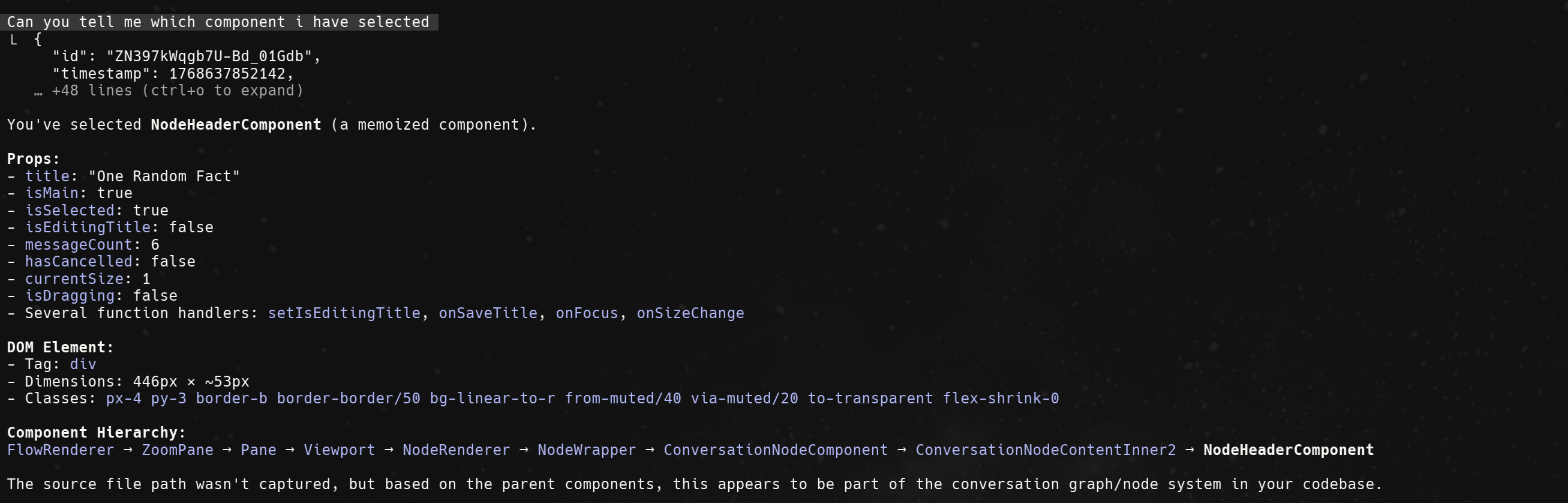
Select React components visually in the browser and expose selection data to Claude Code via MCP.
Quick Start
1. Install
npm install @react-component-selector-mcp/react2. Wrap Your App
// In your root layout (app/layout.tsx, _app.tsx, or main.tsx)
import { ComponentPicker } from "@react-component-selector-mcp/react";

export default function RootLayout({ children }) {
  return <ComponentPicker>{children}</ComponentPicker>;
}
3. Configure MCP
Create .mcp.json in your project root:
{
  "mcpServers": {
    "react-component-selector": {
      "command": "npx",
      "args": ["@react-component-selector-mcp/cli", "mcp"]
    }
  }
}
Restart Claude Code to load the MCP server.
Claude Code Setup
Copy this prompt to Claude Code to automate the setup:
Set up react-component-selector-mcp in this project:
1. Install @react-component-selector-mcp/react
2. Wrap the root layout with <ComponentPicker>{children}</ComponentPicker>
3. Create .mcp.json with: {"mcpServers":{"react-component-selector":{"command":"npx","args":["@react-component-selector-mcp/cli","mcp"]}}}
Usage
- Start your dev server and open the app in browser
- Press Ctrl+Alt+C (Windows/Linux) or Cmd+Option+C (Mac)
- Click any component to select it
- Ask Claude about the selected component
MCP Tools
| Tool | Description |
|------|-------------|
| get_selected_component | Returns the most recently selected component |
| wait_for_selection | Waits for user to select a component |
| get_selection_history | Returns recent selections |
Component not detected
- Ensure
ComponentPickerwraps your entire app - Verify React version is 18.0.0 or higher
MCP connection failed
- Check status:
npx @react-component-selector-mcp/cli status - Stop and restart:
npx @react-component-selector-mcp/cli stop - Restart Claude Code after changing MCP configuration
Source location not available
Source locations require development mode with @babel/plugin-transform-react-jsx-source (enabled by default in CRA, Next.js, Vite).
# Check daemon status
npx @react-component-selector-mcp/cli status

# Stop daemon
npx @react-component-selector-mcp/cli stop

# Custom ports (default: WebSocket 3333, API 3334)
npx @react-component-selector-mcp/cli mcp --ws-port 4444 --api-port 4445
When using custom ports, update the component to match:
<ComponentPicker port={4444}>{children}</ComponentPicker>Contributing
See CONTRIBUTING.md for development setup.