@redshark61/dropdown
v1.0.8
Published
Dropdown react component


Readme
Dropdown
Introduction
This component is a dropdown that allows you to select one or more items from a list. It is fully customizable and can be used in any React project.
In addition to providing a great amount of classes and styles, the component also provides a lot of props to handle the dropdown behavior, such as onSelectionChange to handle the selection of an item, or a hidden input to store the selected items.
Preview
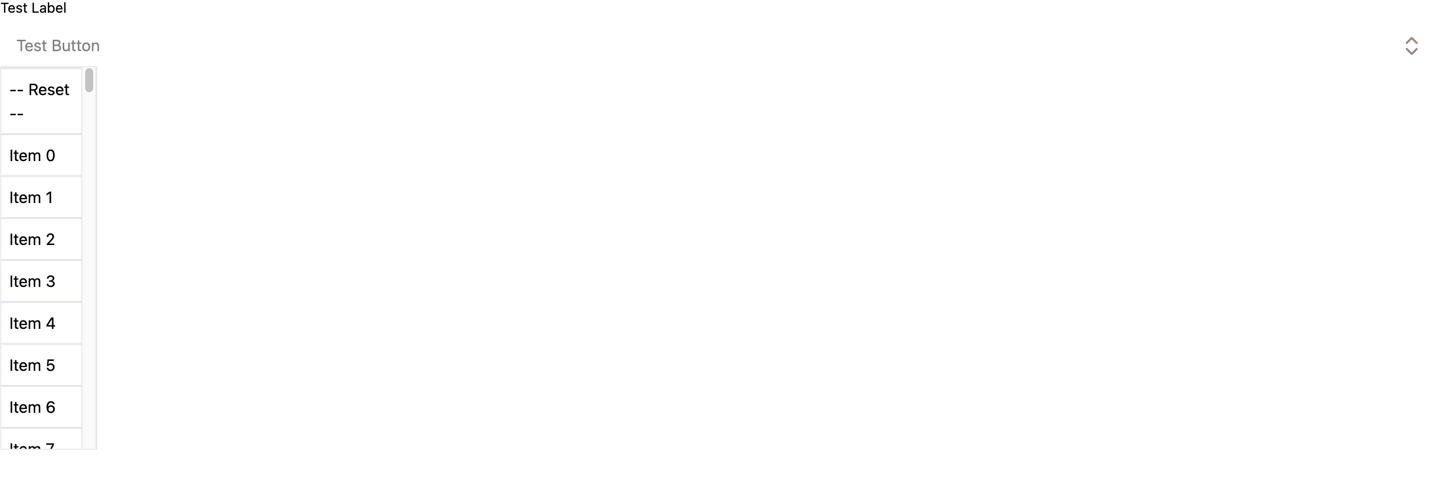
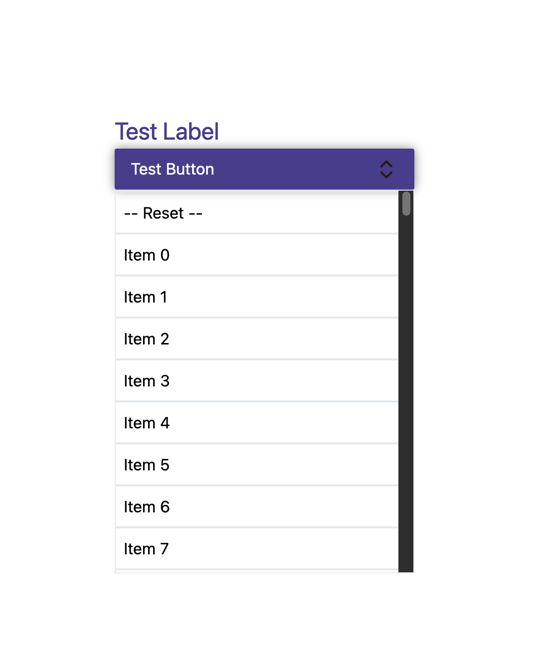
Here you have a preview of the most basic dropdown without any customization.
Minimum requirements
The component requires the following props:
items ({id: string; value: string;}[]): an array of objects containing the items to display in the dropdown.id (string): the id of the hidden input that will store the selected items.label (string): the label of the dropdown. Only required ifdisplayLabelis true.displayLabelis true by default meaning that the label is also required by default.
Customization
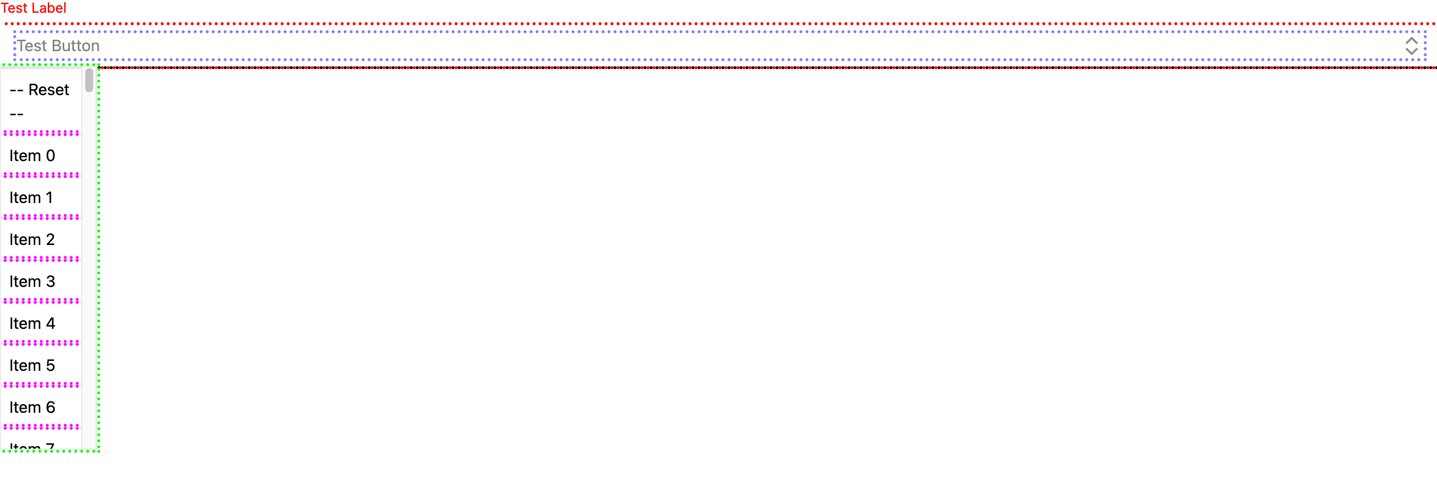
All available class:
<DropDown
    items={items}
     id={"id"}
     label={"Test Label"}
     placeholder={"Test Button"}
     dropdownClass={"border-black"}
     boxClass={"border-red"}
     headerClass={"border-blue"}
     listClass={"border-green"}
     itemClass={"border-purple"}
     labelClass={"color-red"}
/>
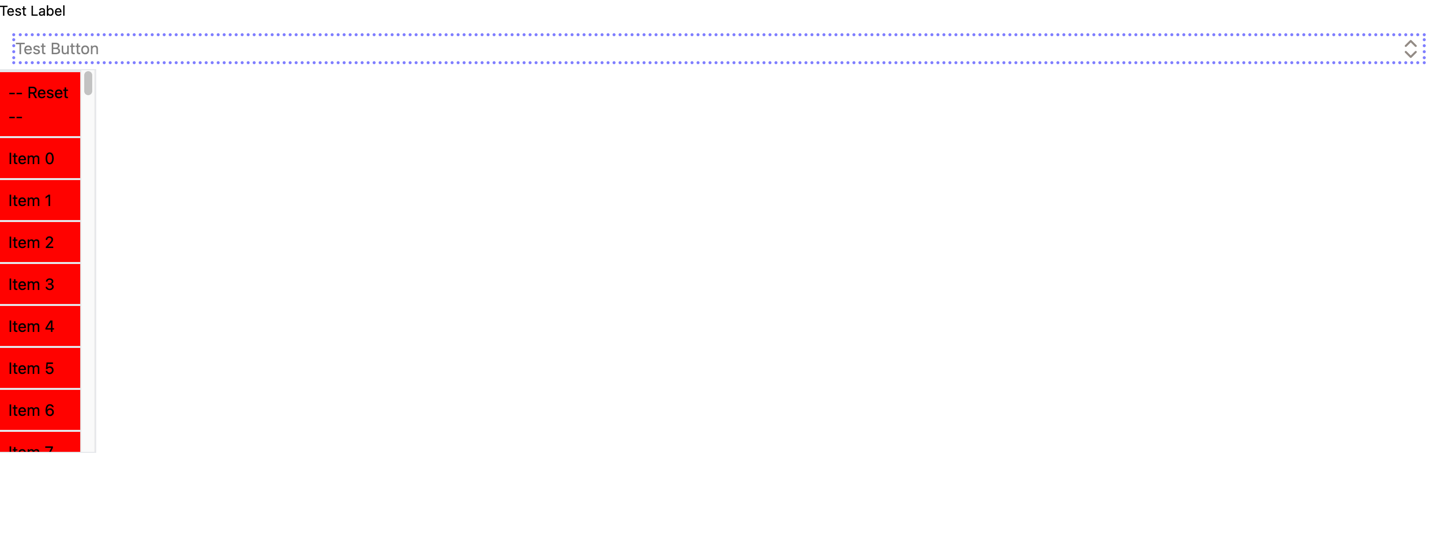
In addition to their corresponding class, you can pass the same attribute with the style suffix instead of classto customize the dropdown more precisely (e.g boxStyle instead of boxClass).
 <DropDown
  items={items}
  id={"id"}
  label={"Test Label"}
  placeholder={"Test Button"}
  headerClass={"border-blue"}
  itemStyle={{backgroundColor: "red"}}
/> 
Example
JSX
<DropDown
    items={items}
     id={"id"}
     label={"Test Label"}
     placeholder={"Test Button"}
     dropdownClass={"dropdown"}
     boxClass={"box"}
     headerClass={"header"}
     headerStyle={{opacity: 1}}
     listClass={"list"}
     itemClass={"item"}
     labelClass={"label"}
     labelStyle={{fontSize: "1.5rem"}}
/>
CSS
.dropdown{
    width: 300px;
    margin: 40% auto auto;
}

.box{
    background: darkslateblue;
    border-radius: 4px;
    box-shadow: 0 0 10px rgba(0,0,0,0.5);
}

.header{
    color: white;
}

.list{
    width: 100%;
}

.label{
    color: darkslateblue;
}
.item{
    background: white;
}
Other props
multiSelect (boolean): if true, the dropdown will allow multiple selection. If false, only one item can be selected at a time. The default value is false.multiSelect={true}: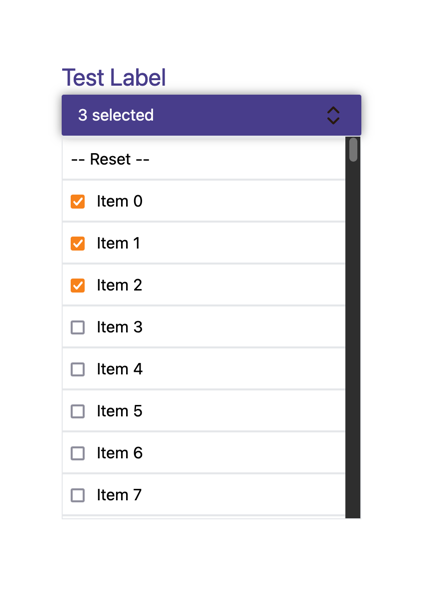
displayArrow (boolean): if true, the arrow icon will be displayed. If false, the arrow icon will be hidden. The default value is true.displayArrow={false}: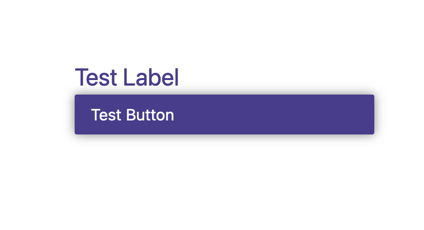
displayLabel (boolean): if true, the label will be displayed. If false, the label will be hidden. The default value is true.displayLabel={false}: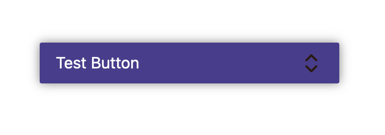
displayReset (boolean): if true, the reset button will be displayed. If false, the reset button will be hidden. The default value is true.displayReset={false}: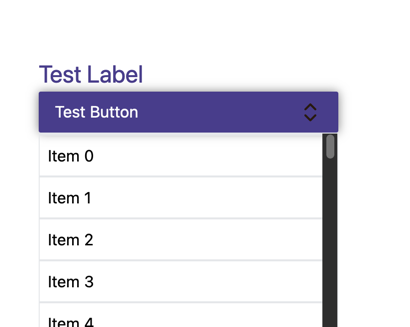
position ("top" | "bottom"): the position of the dropdown box. The default value is bottom.position={"top"}: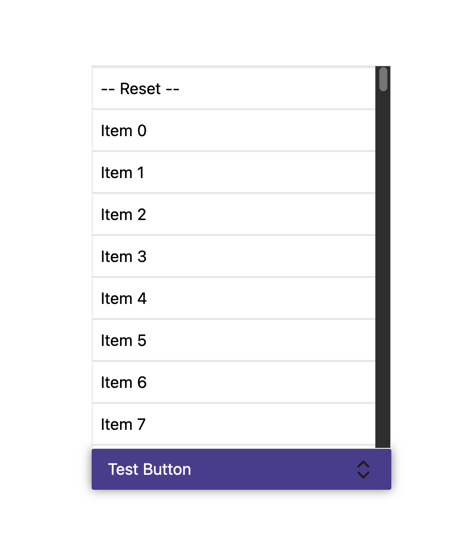
customImage (string): change the arrow icon.customImage={"./src/assets/arrow.png"}: