
@rs-dsh/dsh-quote
v0.3.4
Published
Quote passages from DSH Web conversations into your next message as composer chips, each with an optional note you can edit; sent quotes render as cards.

Maintainers
 romanys
Readme
@rs-dsh/dsh-quote
Quote passages from a DeepSeek Harness conversation into your next message, each with an optional note, so the model knows exactly which part you mean.
Install
dsh plugin --profile <name> add @rs-dsh/[email protected]Then reload the DSH web page.
To install from this repository instead, pinned to the release tag:
dsh plugin --profile <name> add 'github:romany-saad/dsh-plugins#[email protected]&path:packages/dsh-quote'The package adds itself, and the shared rs-dsh core it is drawn with, to the profile. Do not also add dsh-quote or dsh-core to the profile's own cordis.patch.yml.
Requirements
- DSH 0.2.1-rc.2 or later. It is tested with 0.2.1-rc.2 and 0.2.2-rc.1.
From DSH 0.2.2, DSH has its own Quote text button, which puts the passage into the message as a plain Markdown quote. dsh-quote's Quote sits next to it and adds the note, the hover card and the editable chip. Use either one.
- A profile with the web GUI (
@deepseek-ai/dsh-web-app), such asweb. The plugin works in the web GUI only.
Use
Quote a passage
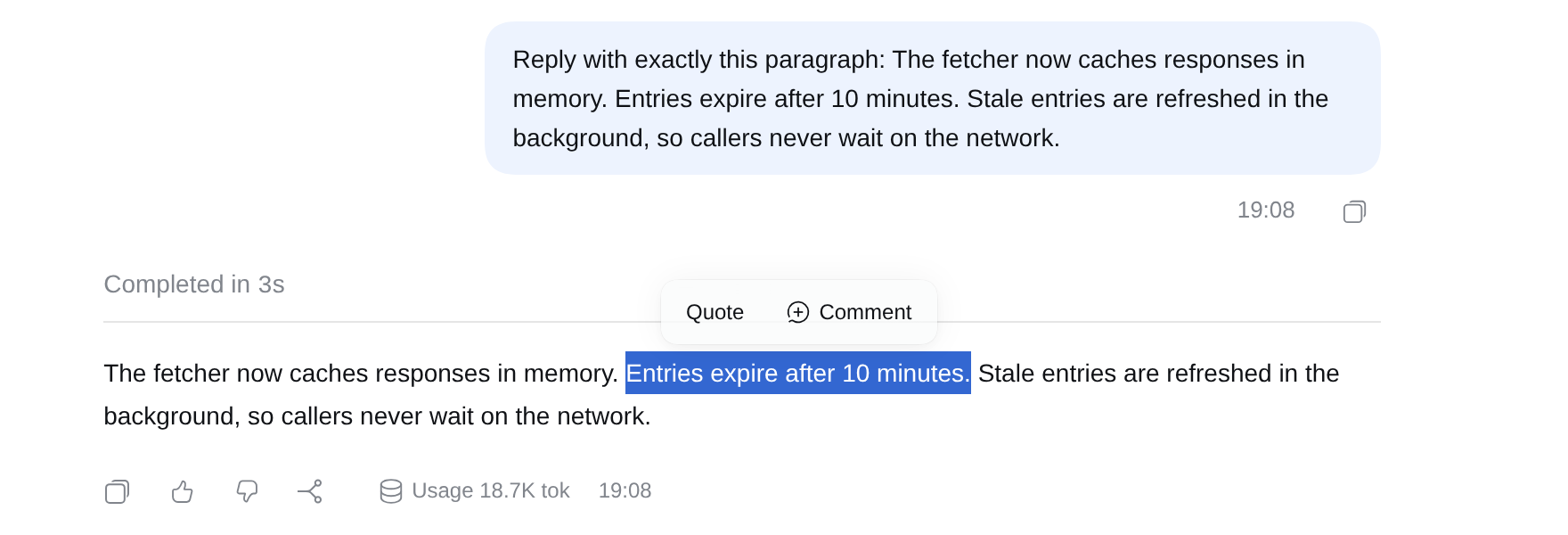
Select text anywhere in the conversation and press Quote. With other rs-dsh plugins installed, such as dsh-threads, their actions sit in the same toolbar.
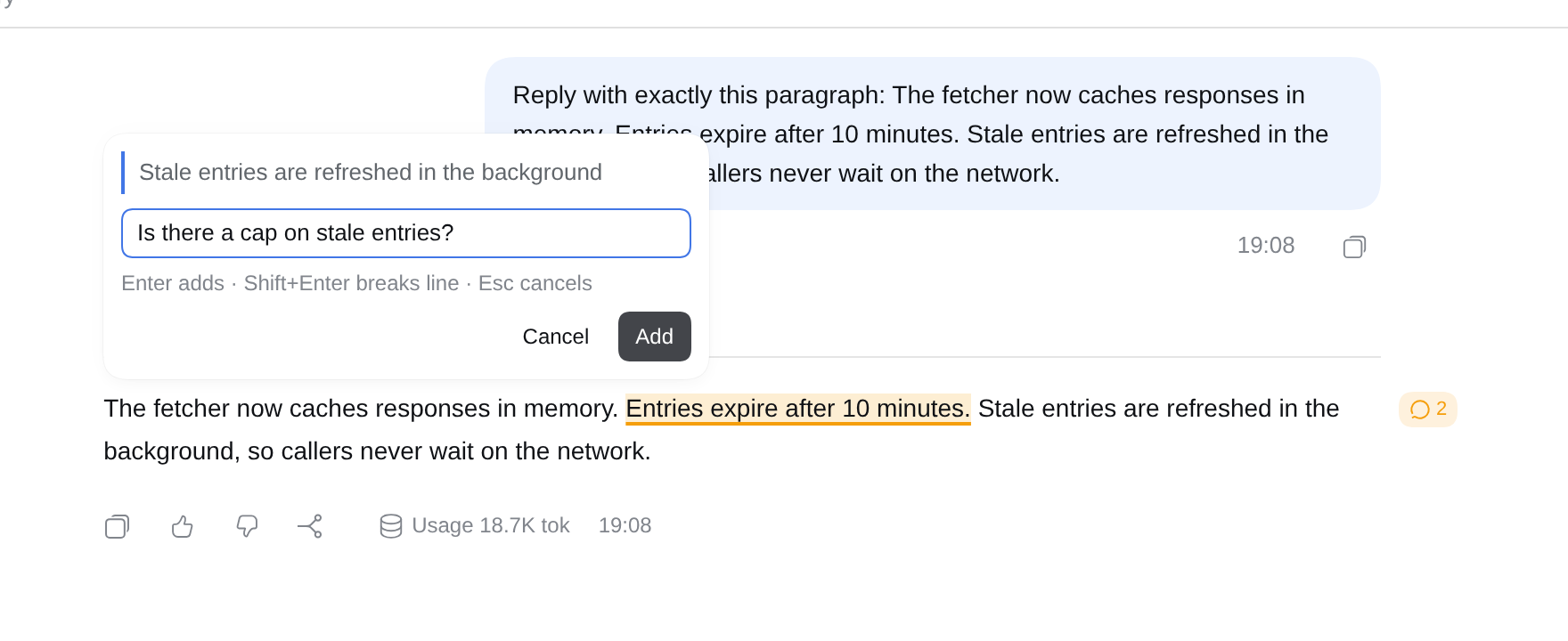
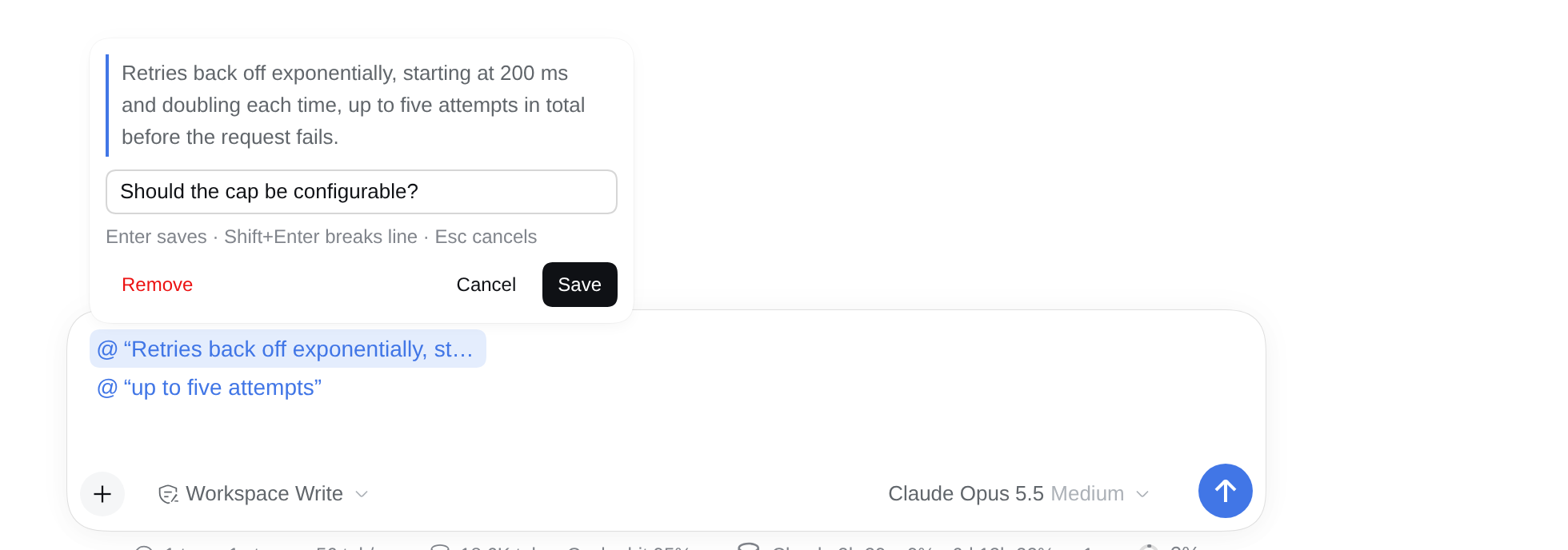
A box opens for an optional note. Type your note and press Enter, or press Enter on an empty box to quote without a note. Shift+Enter starts a new line in the note, and Esc cancels.
Your quotes in the message box
Each quote appears in the message box as a chip. Quotes stack one per line above your question, in the order you added them. Add as many as you like, then type your question below them.
Each quoted passage stays lightly highlighted in the conversation until you send the message, so you can see what you have already quoted. The highlight goes when you send the message, or when you delete or remove the quote's chip.

The chips are part of your message:
- Send works even when the message holds only quotes.
- Backspace deletes a chip like any other character.
- Reloading the page keeps them.
@fileand@sessionmentions in the same message keep working.
See and edit a quote
Hover a chip to see the full passage and your note.
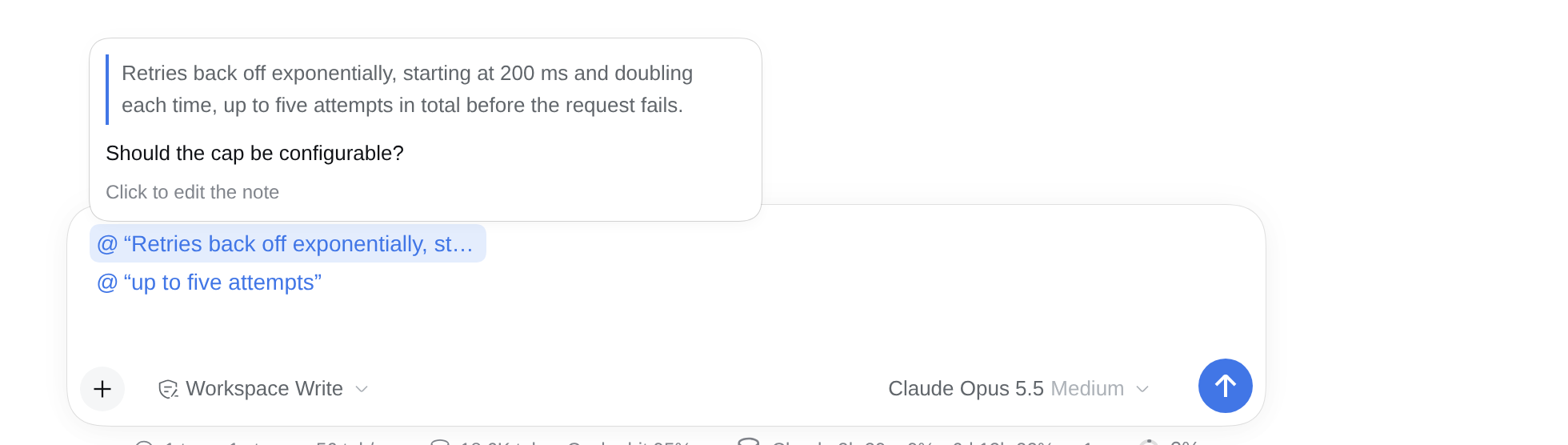
Click a chip to change its note. Save keeps the change, Remove deletes the quote, and Cancel leaves it as it was.
After you send
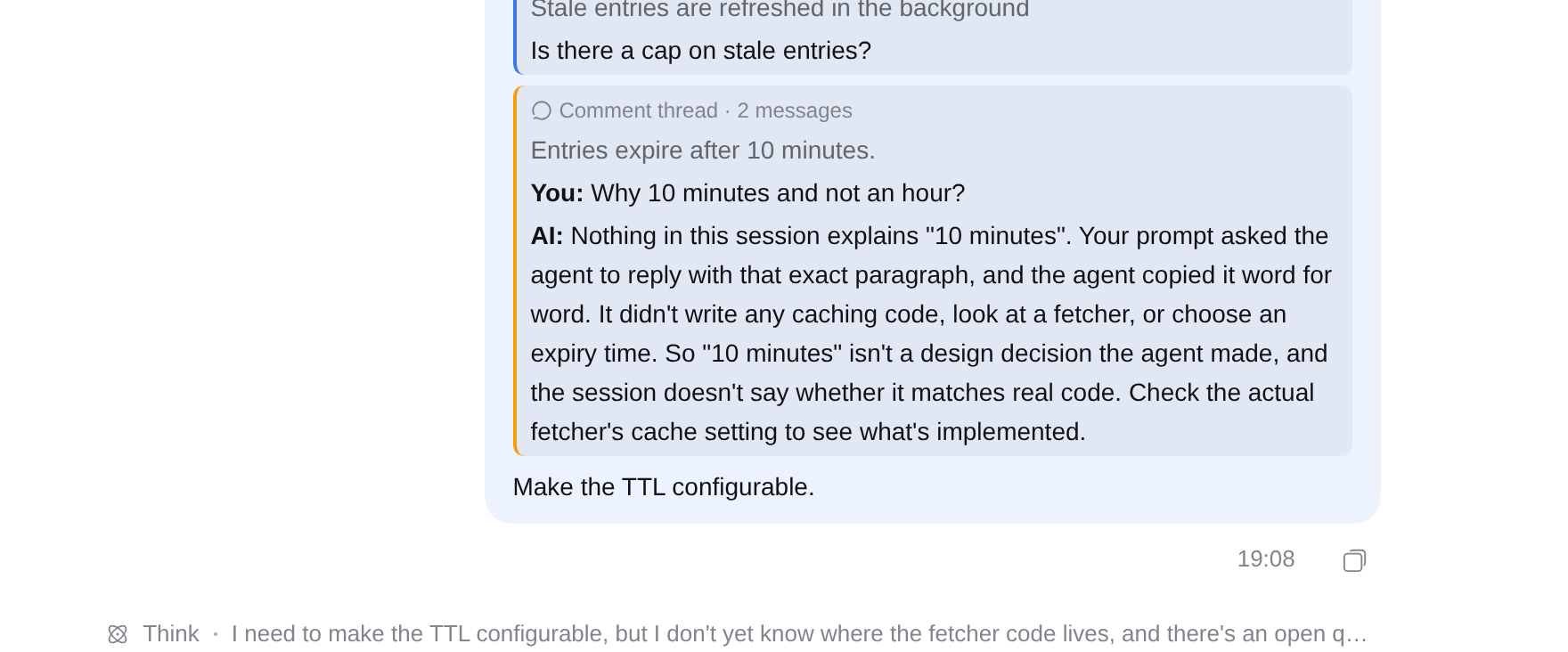
Your sent message shows each quote as a card, with your note under it, followed by your question (see the screenshot at the top). Long quotes show three lines; click a card to read all of it.
The model receives each quote with its note, and can answer each one.
Limits
- Web GUI only. Messages viewed in the terminal UI or in an export show the quotes as tagged text blocks, not cards.
- The chip shows an
@sign. DSH has its own icons for files, folders and sessions only, so quote chips use the generic@marker. - Not while sending or in a command. You cannot add a quote while a message is being sent, or while the message box holds a
/command. A notice tells you why, and nothing changes. - The highlight lasts while the page shows that message. It is lost if you switch conversations or reload the page, or if the message is drawn again. The quote stays in the message box either way.
- Copying a chip gives plain text. Copying a chip copies
>and the start of the passage. Pasting that back does not make a new chip.
More
- CHANGELOG.md
- MIT License
- For maintainers: DEVELOPING.md