
@sandeshgrangdan/spotify-tui
v0.26.1
Published
A terminal user interface for Spotify, with an app-like home screen. Fork of spotify-tui, modernized for the post-2024 Web API.

Maintainers
 sandeshgrangdan
Readme
spotify-tui




A Spotify client for the terminal written in Rust. Run it with spt or
spotify-tui.
This is a fork of spotify-tui by Alexander Keliris (Rigellute) and its 94 contributors, kept going because upstream stopped at 0.25.0 while several of the Spotify endpoints it relied on were withdrawn. It ships through this repo's GitHub Releases and npm rather than crates.io, where the name still belongs to upstream. Version numbering continues from upstream's 0.25.0, the licence is unchanged (MIT), and the config directory is still
~/.config/spotify-tuiso an existing install keeps its credentials.
This fork is modernized for rspotify 0.16 / ratatui 0.29 and the post-2024 Spotify Web API. On top of upstream it adds:
- Home screen with Music and Podcast modes (
Pswitches). Music lists Made For <you>, Recommended Stations, Jump Back In and Your Top Artists; podcasts list Your Shows, Latest Episodes and Continue Listening. See The home screen. - Mixes and stations built on the client, because Spotify withdrew the endpoints that used to power them: genre-clustered "Daily Mix"-style mixes, On Repeat, and per-artist radio (
r) assembled from artist top tracks - A podcast feed you can pick from: recent episodes across every saved show, newest first, with unplayed episodes marked and the time left on part-played ones
- Synced lyrics side panel (
y) from lrclib.net, scrolling with playback - Queue view (
Q): see what's next, pop items, skip to a queue entry - Playlist management: add tracks/episodes to a playlist (
t), create playlists (Nin the playlist pane), remove tracks from your own playlists (D) - New Releases and personal Top Tracks rows in the library
- Episode search alongside songs/artists/albums/playlists/podcasts
- Errors as toasts: a failed request shows a self-clearing note in the top-right instead of taking over the screen
- Liked/followed icons synced across search results, artist and album pages
- A working CLI (
spt playback/play/list/search) against the current API
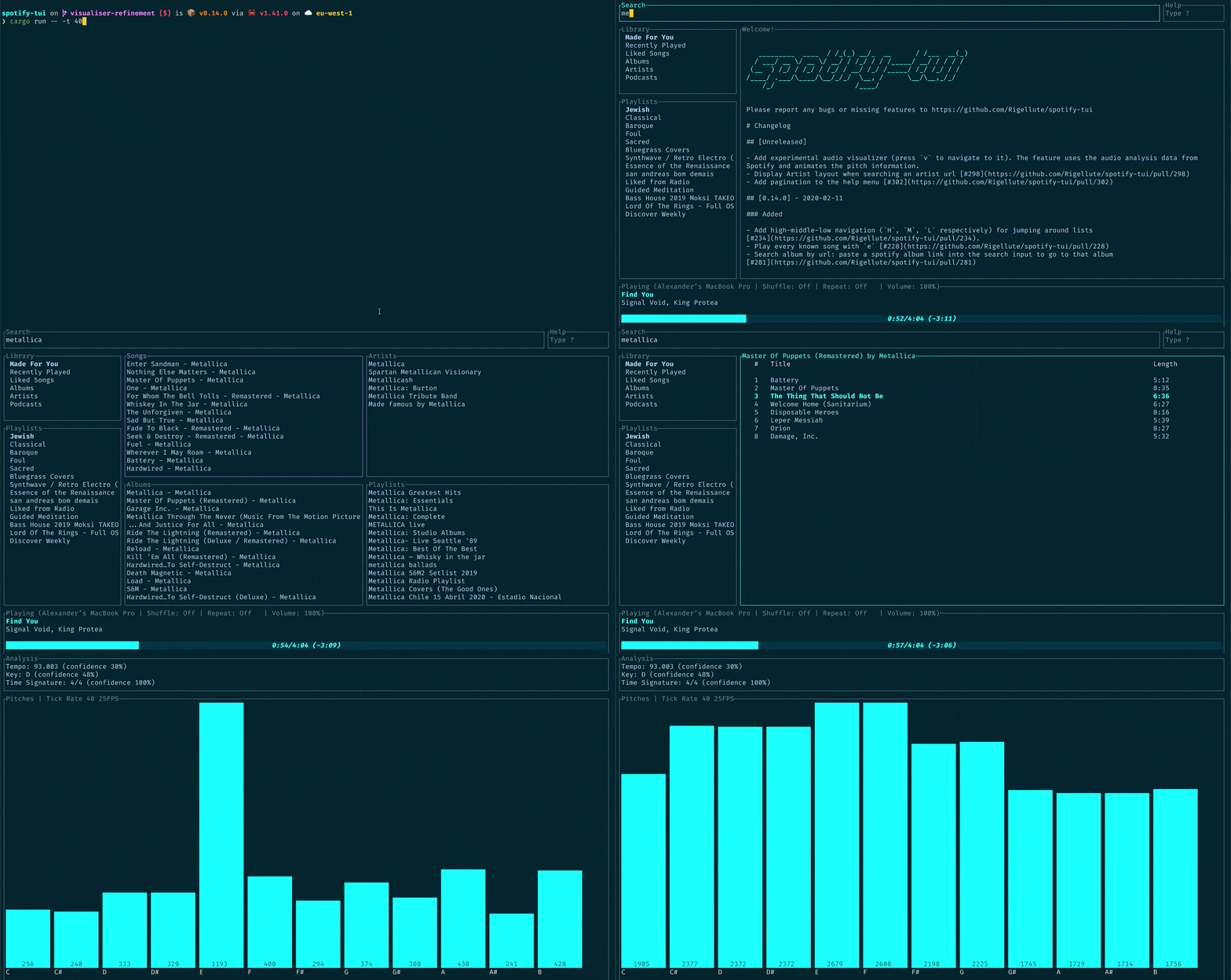
The terminal in the demo above is using the Rigel theme.
Installation
The command is spt, with spotify-tui installed as an alias for it, so either
name works. Every release carries prebuilt binaries for macOS and
Linux on both x86_64 and aarch64, x86_64 Windows, and a static x86_64 musl build,
so nothing below except the source build compiles anything. Windows on ARM runs
the x86_64 build under emulation.
From binaries (Linux, macOS, Windows)
- Download the latest release binary for your system —
.tar.xzfor Linux and macOS,.zipfor Windows — and unpack it - Move
sptsomewhere on yourPATH
Each release also publishes a sha256.sum covering every artifact, plus a
per-file .sha256, if you want to verify the download.
Install prebuilt binaries via shell script (Linux, macOS)
curl --proto '=https' --tlsv1.2 -LsSf https://github.com/sandeshgrangdan/spotify-tui/releases/download/v0.26.1/spotify-tui-installer.sh | shThe script picks the archive matching your platform and installs spt into
$CARGO_HOME/bin (falling back to $HOME/.cargo/bin), telling you if that
directory isn't on your PATH.
Install prebuilt binaries via powershell script (Windows)
powershell -ExecutionPolicy Bypass -c "irm https://github.com/sandeshgrangdan/spotify-tui/releases/download/v0.26.1/spotify-tui-installer.ps1 | iex"npm
The npm package wraps the same prebuilt binaries and exposes both spt and
spotify-tui:
npm install -g @sandeshgrangdan/spotify-tuiDrop the -g to add it to a single project instead.
Cargo
The only method that compiles. Install a Rust toolchain, then:
cargo install --git https://github.com/sandeshgrangdan/spotify-tuiDon't reach for cargo install spotify-tui: that crates.io name is upstream's
and still serves 0.25.0. This fork isn't published to crates.io at all.
If upstream is already installed the install stops, because the spt binary
already exists — this fork uses the same binary name, so add --force to
replace it.
TLS needs nothing installed: this fork links rustls, so there is no OpenSSL or
libssl-dev requirement. Clipboard support does link against X11/xcb, so a
Linux source build wants their development packages:
sudo apt-get install -y pkg-config libxcb1-dev libxcb-render0-dev libxcb-shape0-dev libxcb-xfixes0-devUpdating
The shell and PowerShell installers place an updater alongside the binary, so later upgrades are just:
spotify-tui-updateFor the other two methods: npm update -g @sandeshgrangdan/spotify-tui, or
cargo install --force --git https://github.com/sandeshgrangdan/spotify-tui.
Connecting to Spotify’s API
spotify-tui needs to connect to Spotify’s API in order to find music by
name, play tracks etc.
Instructions on how to set this up will be shown when you first run the app.
But here they are again:
- Go to the Spotify dashboard
- Click
Create an app- You now can see your
Client IDandClient Secret
- You now can see your
- Now click
Edit Settings - Add
http://127.0.0.1:8888/callbackto the Redirect URIs- It must be
127.0.0.1, notlocalhost— Spotify no longer acceptslocalhost, and this is the addresssptlistens on - If you pick a custom port below, use the same port here
- It must be
- Scroll down and click
Save - You are now ready to authenticate with Spotify!
- Go back to the terminal
- Run
spt - Enter your
Client ID - Enter your
Client Secret - Press enter to confirm the default port (8888) or enter a custom port
- You will be redirected to an official Spotify webpage to ask you for permissions.
- After accepting the permissions, you'll be redirected to localhost. If all goes well, the redirect URL will be parsed automatically and now you're done. If the local webserver fails for some reason you'll be redirected to a blank webpage that might say something like "Connection Refused" since no server is running. Regardless, copy the URL and paste into the prompt in the terminal.
On first run spt asks which device to play on, because the Web API cannot
start playback without one. That choice is written to client.yml, so later
starts go straight to the home screen — press d whenever you want to switch
devices, and the sidebar's Devices pane marks the current one with ●.
And now you are ready to use the spotify-tui 🎉
You can edit the config at anytime at ${HOME}/.config/spotify-tui/client.yml.
Re-authenticating
Two files sit side by side in that directory:
| File | Holds |
| --- | --- |
| client.yml | client id and secret, the redirect port, and the last device you played on |
| .spotify_token_cache.json | the OAuth token, including the permissions it was granted |
The permissions are baked into the cached token, so a build that asks Spotify for
a new permission cannot use an older token. If a feature starts reporting a 403
that looks like a missing permission, delete the cache and run spt again to log
in fresh:
rm ~/.config/spotify-tui/.spotify_token_cache.jsonUsage
The binary is named spt.
Running spt with no arguments will bring up the UI. Press ? to bring up a help menu that shows currently implemented key events and their actions.
There is also a CLI that is able to do most of the stuff the UI does. Use spt --help to learn more.
The home screen
spt opens on a home screen of sections, each one a list you can walk through:
| Mode | Sections |
| --- | --- |
| Music | Made For <you> · Recommended Stations · Jump Back In · Your Top Artists |
| Podcasts (P) | Your Shows · Latest Episodes · Continue Listening |
Moving around is two-level, so j/k never has to mean both "next section" and
"next row":
| Key | Action |
| --- | --- |
| j / k | pick a section — and once you are inside one, move through its rows |
| Enter | step into the selected section, then open or play the selected row |
| Esc or q | step back out of a section, then out to the sidebar |
| h | leave for the library sidebar |
| H / M / L | jump to the first / middle / last row of a section |
| P | switch between Music and Podcast modes |
What Enter opens, section by section:
- Made For <you> — a mix, in the track table. Mixes are genre clusters of your top artists ("Rock Mix", "Nu Metal Mix"), plus On Repeat (your short-term top tracks) and any Spotify-owned playlist that really is in your library (Discover Weekly, Release Radar, artist mixes).
- Recommended Stations — an artist station. Each one blends in the artists closest to the seed by genre, which is what the "With …" subtitle names.
- Jump Back In — your listening history, played from that track on.
- Your Top Artists — the artist page.
- Your Shows — that show's episode list.
- Latest Episodes — plays the episode. A leading
●marks episodes you have not played; rows readshow · 3d ago · 1h 17m, or… · 24m leftonce started. - Continue Listening — resumes a part-played episode.
Two things to know about the rest of the UI: errors appear as a small toast in
the top-right for a few seconds and leave the screen you are on alone, and the
sidebar's Devices pane marks the device playback is on with ● (press d to
switch).
Command line
Here are some example to get you excited.
spt play --name "Your Playlist" --playlist --random # Plays a random song from "Your Playlist"
spt play --name "A cool song" --track # Plays 'A cool song'

spt playback --like --shuffle # Likes the current song and toggles shuffle mode
spt playback --toggle # Plays/pauses the current playback

spt list --liked --limit 50 # See your liked songs (50 is the max limit)

# Looks for 'An even cooler song' and gives you the '{name} from {album}' of up to 30 matches
spt search "An even cooler song" --tracks --format "%t from %b" --limit 30
Configuration
A configuration file is located at ${HOME}/.config/spotify-tui/config.yml
(not to be confused with client.yml which handles spotify authentication)
The following is a sample config.yml file:
# Sample config file

# The theme colours can be an rgb string of the form "255, 255, 255" or a string that references the colours from your terminal theme: Reset, Black, Red, Green, Yellow, Blue, Magenta, Cyan, Gray, DarkGray, LightRed, LightGreen, LightYellow, LightBlue, LightMagenta, LightCyan, White.
theme:
  active: Cyan # current playing song in list
  banner: LightCyan # the "spotify-tui" banner on launch
  error_border: Red # border of the error toast
  error_text: LightRed # error message text in the toast (e.g. "status code 403 Forbidden")
  hint: Yellow # the "Loading…" indicator
  hovered: Magenta # hovered pane border
  inactive: Gray # borders of inactive panes
  playbar_background: Black # background of progress bar
  playbar_progress: LightCyan # filled-in part of the progress bar
  playbar_progress_text: Cyan # song length and time played/left indicator in the progress bar
  playbar_text: White # artist name in player pane
  selected: LightCyan # a) selected pane border, b) hovered item in list, & c) track title in player
  text: "255, 255, 255" # text in panes
  header: White # header text in panes (e.g. 'Title', 'Artist', etc.)

behavior:
  seek_milliseconds: 5000
  volume_increment: 10
  # The lower the number the higher the "frames per second". You can decrease this number so that the audio visualisation is smoother but this can be expensive!
  tick_rate_milliseconds: 250
  # Enable text emphasis (typically italic/bold text styling). Disabling this might be important if the terminal config is otherwise restricted and rendering text escapes interferes with the UI.
  enable_text_emphasis: true
  # Controls whether to show a loading indicator in the top right of the UI
  # whenever communicating with Spotify API. Set to false to keep that box on
  # "Type ?" permanently.
  show_loading_indicator: true
  # Disables the responsive layout that makes the search bar smaller on bigger
  # screens and enforces a wide search bar
  enforce_wide_search_bar: false
  # Determines the text icon to display next to "liked" Spotify items, such as
  # liked songs and albums, or followed artists. Can be any length string.
  # These icons require a patched nerd font.
  liked_icon: ♥
  shuffle_icon: 🔀
  repeat_track_icon: 🔂
  repeat_context_icon: 🔁
  playing_icon: ▶
  paused_icon: ⏸
  # Sets the window title to "spt - Spotify TUI" via ANSI escape code.
  set_window_title: true

# Every binding below is listed with its default, so you only need to include
# the ones you want to change.
keybindings:
  # Key stroke can be used if it only uses two keys:
  # ctrl-q works,
  # ctrl-alt-q doesn't.
  #
  # These are reserved for navigation and cannot be remapped, so `spt` refuses
  # to start if a binding claims one: h j k l H M L, the arrow keys, Backspace
  # and Enter. That also means `submit` (Enter by default) is effectively fixed.
  back: "q"

  jump_to_album: "a"

  # Shift modifiers use a capital letter (also applies with other modifier keys
  # like ctrl-A)
  jump_to_artist_album: "A"
  jump_to_context: "o"

  next_page: "ctrl-d"
  previous_page: "ctrl-u"
  jump_to_start: "ctrl-a"
  jump_to_end: "ctrl-e"

  manage_devices: "d"
  manage_queue: "Q"
  toggle_lyrics: "y"
  # Switches the home screen between Music and Podcast sections
  toggle_home_mode: "P"

  decrease_volume: "-"
  increase_volume: "+"
  toggle_playback: " "
  seek_backwards: "<"
  seek_forwards: ">"
  next_track: "n"
  previous_track: "p"
  shuffle: "ctrl-s"
  repeat: "ctrl-r"

  copy_song_url: "c"
  copy_album_url: "C"
  help: "?"
  search: "/"
  audio_analysis: "v"
  basic_view: "B"
  add_item_to_queue: "z"
  # Opens the playlist picker for the selected track or episode
  add_to_playlist: "t"
  # Creates a playlist, from the playlist pane
  create_playlist: "N"
Limitations
This app uses the Web API from Spotify, which doesn't handle streaming itself. So you'll need either an official Spotify client open or a lighter weight alternative such as spotifyd.
If you want to play tracks, Spotify requires that you have a Premium account.
Without one the player endpoints answer 403, and the toast in the corner will
say so.
What the Spotify API no longer allows
Spotify withdrew several endpoints from third-party apps in November 2024, and
changed more in February 2026. These are not bugs in spt and no version of it
can bring the data back — this is how the app works around them:
| No longer available | What spt does instead |
| --- | --- |
| /recommendations | Stations and mixes are assembled on the client from artist top tracks — the r key, and the home screen's mixes |
| Daily Mix / Discover Weekly as a browsable list | Spotify's own mixes are not returned by current_user_playlists, so personal mixes are built from genre clusters of your top artists. Spotify-owned playlists still appear when they really are in your library |
| /artists/{id}/related-artists | The artist page loads without its related-artists pane; station blends use genre overlap across your own artists instead |
| /audio-analysis and /audio-features | The analysis view (v) says the request is refused with 403 rather than drawing an empty chart |
| Search limit above 10 | Search requests are clamped to 10 results per page |
There is also no saved-episodes endpoint available to this client, so the podcast sections are built from your saved shows and their recent episodes.
Using with spotifyd
Follow the spotifyd documentation to get set up.
After that there is not much to it.
- Start running the spotifyd daemon.
- Start up
spt - Press
dto go to the device selection menu and the spotifyd "device" should be there - if not check these docs
Libraries used
Development
- Install OpenSSL
- Install Rust
- Install
xorg-dev(required for clipboard support) - Clone or fork this repo and
cdto it - And then
cargo run
Windows Subsystem for Linux
You might get a linking error. If so, you'll probably need to install additional dependencies required by the clipboard package
sudo apt-get install -y -qq pkg-config libssl-dev libxcb1-dev libxcb-render0-dev libxcb-shape0-dev libxcb-xfixes0-devContributors
Thanks goes to these wonderful people (emoji key):
This project follows the all-contributors specification. Contributions of any kind welcome!
Roadmap
The goal is to eventually implement almost every Spotify feature.
High-level requirements yet to be implemented
- Be able to scroll through result pages in every view
The table below is inherited from upstream and predates the API withdrawals
described in Limitations — some rows
marked "Yes" (artist_related_artists, audio analysis) describe endpoints
Spotify has since closed to third-party apps.
| API method | Implemented yet? | Explanation | Essential? |
| ------------------------------------------------- | ---------------- | ------------------------------------------------------------------------------------------------------------------------------------------------------------ | ---------- |
| track | No | returns a single track given the track's ID, URI or URL | No |
| tracks | No | returns a list of tracks given a list of track IDs, URIs, or URLs | No |
| artist | No | returns a single artist given the artist's ID, URI or URL | Yes |
| artists | No | returns a list of artists given the artist IDs, URIs, or URLs | No |
| artist_albums | Yes | Get Spotify catalog information about an artist's albums | Yes |
| artist_top_tracks | Yes | Get Spotify catalog information about an artist's top 10 tracks by country. | Yes |
| artist_related_artists | Yes | Get Spotify catalog information about artists similar to an identified artist. Similarity is based on analysis of the Spotify community's listening history. | Yes |
| album | Yes | returns a single album given the album's ID, URIs or URL | Yes |
| albums | No | returns a list of albums given the album IDs, URIs, or URLs | No |
| search_album | Yes | Search album based on query | Yes |
| search_artist | Yes | Search artist based on query | Yes |
| search_track | Yes | Search track based on query | Yes |
| search_playlist | Yes | Search playlist based on query | Yes |
| album_track | Yes | Get Spotify catalog information about an album's tracks | Yes |
| user | No | Gets basic profile information about a Spotify User | No |
| playlist | Yes | Get full details about Spotify playlist | Yes |
| current_user_playlists | Yes | Get current user playlists without required getting his profile | Yes |
| user_playlists | No | Gets playlists of a user | No |
| user_playlist | No | Gets playlist of a user | No |
| user_playlist_tracks | Yes | Get full details of the tracks of a playlist owned by a user | Yes |
| user_playlist_create | No | Creates a playlist for a user | Yes |
| user_playlist_change_detail | No | Changes a playlist's name and/or public/private state | Yes |
| user_playlist_unfollow | Yes | Unfollows (deletes) a playlist for a user | Yes |
| user_playlist_add_track | No | Adds tracks to a playlist | Yes |
| user_playlist_replace_track | No | Replace all tracks in a playlist | No |
| user_playlist_recorder_tracks | No | Reorder tracks in a playlist | No |
| user_playlist_remove_all_occurrences_of_track | No | Removes all occurrences of the given tracks from the given playlist | No |
| user_playlist_remove_specific_occurrenes_of_track | No | Removes all occurrences of the given tracks from the given playlist | No |
| user_playlist_follow_playlist | Yes | Add the current authenticated user as a follower of a playlist. | Yes |
| user_playlist_check_follow | No | Check to see if the given users are following the given playlist | Yes |
| me | No | Get detailed profile information about the current user. | Yes |
| current_user | No | Alias for me | Yes |
| current_user_playing_track | Yes | Get information about the current users currently playing track. | Yes |
| current_user_saved_albums | Yes | Gets a list of the albums saved in the current authorized user's "Your Music" library | Yes |
| current_user_saved_tracks | Yes | Gets the user's saved tracks or "Liked Songs" | Yes |
| current_user_followed_artists | Yes | Gets a list of the artists followed by the current authorized user | Yes |
| current_user_saved_tracks_delete | Yes | Remove one or more tracks from the current user's "Your Music" library. | Yes |
| current_user_saved_tracks_contain | No | Check if one or more tracks is already saved in the current Spotify user’s “Your Music” library. | Yes |
| current_user_saved_tracks_add | Yes | Save one or more tracks to the current user's "Your Music" library. | Yes |
| current_user_top_artists | No | Get the current user's top artists | Yes |
| current_user_top_tracks | No | Get the current user's top tracks | Yes |
| current_user_recently_played | Yes | Get the current user's recently played tracks | Yes |
| current_user_saved_albums_add | Yes | Add one or more albums to the current user's "Your Music" library. | Yes |
| current_user_saved_albums_delete | Yes | Remove one or more albums from the current user's "Your Music" library. | Yes |
| user_follow_artists | Yes | Follow one or more artists | Yes |
| user_unfollow_artists | Yes | Unfollow one or more artists | Yes |
| user_follow_users | No | Follow one or more users | No |
| user_unfollow_users | No | Unfollow one or more users | No |
| featured_playlists | No | Get a list of Spotify featured playlists | Yes |
| new_releases | No | Get a list of new album releases featured in Spotify | Yes |
| categories | No | Get a list of categories used to tag items in Spotify | Yes |
| recommendations | Yes | Get Recommendations Based on Seeds | Yes |
| audio_features | No | Get audio features for a track | No |
| audios_features | No | Get Audio Features for Several Tracks | No |
| audio_analysis | Yes | Get Audio Analysis for a Track | Yes |
| device | Yes | Get a User’s Available Devices | Yes |
| current_playback | Yes | Get Information About The User’s Current Playback | Yes |
| current_playing | No | Get the User’s Currently Playing Track | No |
| transfer_playback | Yes | Transfer a User’s Playback | Yes |
| start_playback | Yes | Start/Resume a User’s Playback | Yes |
| pause_playback | Yes | Pause a User’s Playback