
@shipworthy/video-to-shorts
v1.0.0
Published
A command-line tool for automatically converting long-form videos into engaging short-form content using AI-powered scene analysis.


Readme
@shipworthy/video-to-shorts
A command-line tool for automatically converting long-form videos into engaging short-form content using AI-powered scene analysis.
Examples
- Lott Gaming - my gaming YouTube channel
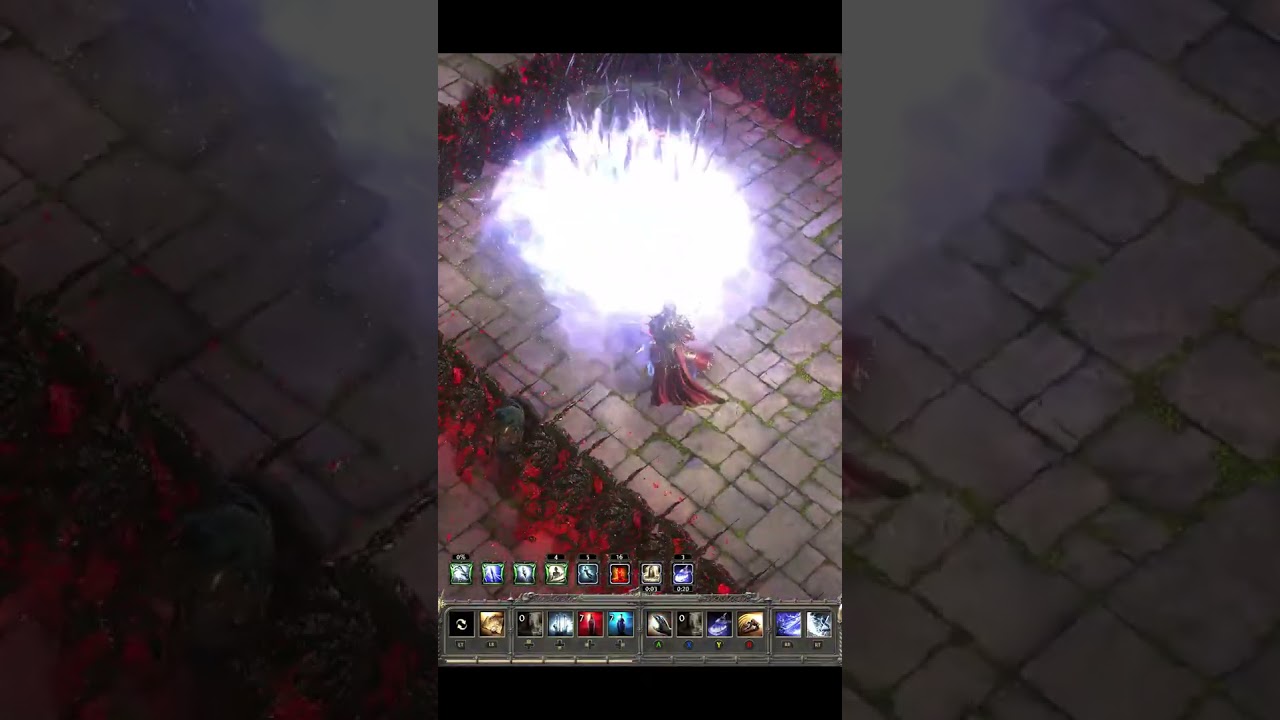
Installation
Using yarn:
yarn global add @shipworthy/video-to-shortsOr using pnpm:
pnpm add -g @shipworthy/video-to-shortsPrerequisites
- FFmpeg (will be automatically installed on all major platforms)
- OpenAI API key
FFmpeg Installation
The CLI will automatically attempt to install FFmpeg if it's not found:
- On macOS: Uses Homebrew to install FFmpeg (will install Homebrew automatically if needed)
- On Ubuntu/Debian Linux: Uses apt to install FFmpeg
- On Windows: Downloads and installs FFmpeg automatically in user's home directory
For other Linux distributions, please install FFmpeg using your distribution's package manager.
Quick Start
- Set your OpenAI API key:
export OPENAI_API_KEY=your-api-key- Process videos:
# Process a directory of videos
video-to-shorts /path/to/videos

# Process a single video
video-to-shorts /path/to/video.mp4
Usage
Process Videos
Process videos into short-form content:
video-to-shorts <input> [options]Required Arguments:
<input>- Directory containing videos or path to a single video file
Optional Options:
-o, --output <path>- Output directory for processed videos (default: ./video-to-shorts inside input directory)-t, --temp <path>- Temporary directory for frame extraction (default: system temp directory)-c, --config <json|path>- Analyzer config as JSON string or path to JSON file-f, --frame-interval <number>- Analyze one frame every N frames (higher values = faster but less precise) (default: 30)-p, --parallel-frames <number>- Number of frames to analyze in parallel within each video (default: 4)-j, --jobs <number>- Number of videos to process concurrently (default: number of CPU cores)-s, --start <time>- Start time of the video (format: HH:MM:SS or MM:SS)-e, --end <time>- End time of the video (format: HH:MM:SS or MM:SS)-k, --openai-api-key <key>- OpenAI API key (can also be set via OPENAI_API_KEY environment variable)-d, --debug- Enable debug mode with verbose logging-v, --version- Display version information-h, --help- Display help for command
Examples
Basic Usage
# Process all videos in the current directory
video-to-shorts .

# Process a single video
video-to-shorts ./video.mp4

# Process videos with debug logging enabled
video-to-shorts ./videos --debug

# Process videos with a specific output directory
video-to-shorts ./videos -o ./shorts

# Process 2 videos concurrently (max: number of CPU cores)
video-to-shorts ./videos -j 2

# Process videos with custom frame analysis settings
video-to-shorts ./videos -f 60 -p 3  # Analyze every 60th frame, 3 frames in parallel

# Process a specific portion of videos
video-to-shorts ./videos -s 00:30 -e 02:00  # Process from 30s to 2min mark

# Process a video with start/end times in filename
video-to-shorts ./00:00:30-00:02:00.mp4  # Process from 30s to 2min mark

# Use analyzer config from a file
video-to-shorts ./videos -c ./video-to-shorts.json

# Use analyzer config as JSON string
video-to-shorts ./videos -c '{"keep": "Content is engaging", "confidenceThreshold": 0.8}'
Video File Naming
You can specify start and end times for a video by naming it in the format HH:MM:SS-HH:MM:SS.mp4. For example:
00:00:30-00:02:00.mp4- Process from 30 seconds to 2 minutes01:30:00-01:35:00.mp4- Process from 1 hour 30 minutes to 1 hour 35 minutes
This is an alternative to using the -s and -e command line options.
Analyzer Configuration
The analyzer config can be provided in two ways:
- As a path to a JSON file
- As a JSON string directly in the command line
Example JSON configuration:
{
  "keep": "Content is interesting, important, or high quality",
  "remove": "Content is unwanted, irrelevant, or of poor quality",
  "speedUp": "Content is repetitive, slow, or less interesting but still relevant",
  "confidenceThreshold": 0.7,
  "openaiApiKey": "your-api-key"  // Optional, can also be set via environment variable or CLI flag
}
Each field defines how the analyzer should process the video:
keep: Scenes that should be kept as-isremove: Scenes that should be removed from the final videospeedUp: Scenes that should be sped upconfidenceThreshold: Minimum confidence level (0-1) required for a decision to be acceptedopenaiApiKey: Your OpenAI API key (optional if provided via environment or CLI)
Using a configuration file:
video-to-shorts ./videos -c ./video-to-shorts.jsonUsing a JSON string:
video-to-shorts ./videos -c '{"keep": "Content is engaging", "remove": "Content is boring"}'Supported Video Formats
- MP4 (.mp4)
- AVI (.avi)
- MOV (.mov)
Troubleshooting
- FFmpeg not found: The CLI will attempt to install FFmpeg automatically. If this fails, please install FFmpeg manually and ensure it's available in your system's PATH
- API Key errors: Make sure your OpenAI API key is valid and has sufficient credits
- Permission errors: Ensure you have read/write permissions for input and output directories
- JSON parsing errors: When using JSON string in command line, make sure to properly escape quotes and use single quotes around the entire string