
@simplesmoothsafe/pptb-audit-matrix
v0.2.2
Published
Org, table and column audit flags on one screen: cross-environment diff against a second connection or a snapshot, bulk set with preview and confirm, CSV and snapshot export.

Maintainers
 dataverse-mcp-pro
Readme
Audit Config Matrix
Dataverse auditing is three switches at three levels — organization, table, column — and no screen shows all three at once, let alone two environments side by side. This tool does, inside Power Platform ToolBox: the whole audit configuration on one page, diffed against a second environment, and fixed in bulk behind a preview.
What it does
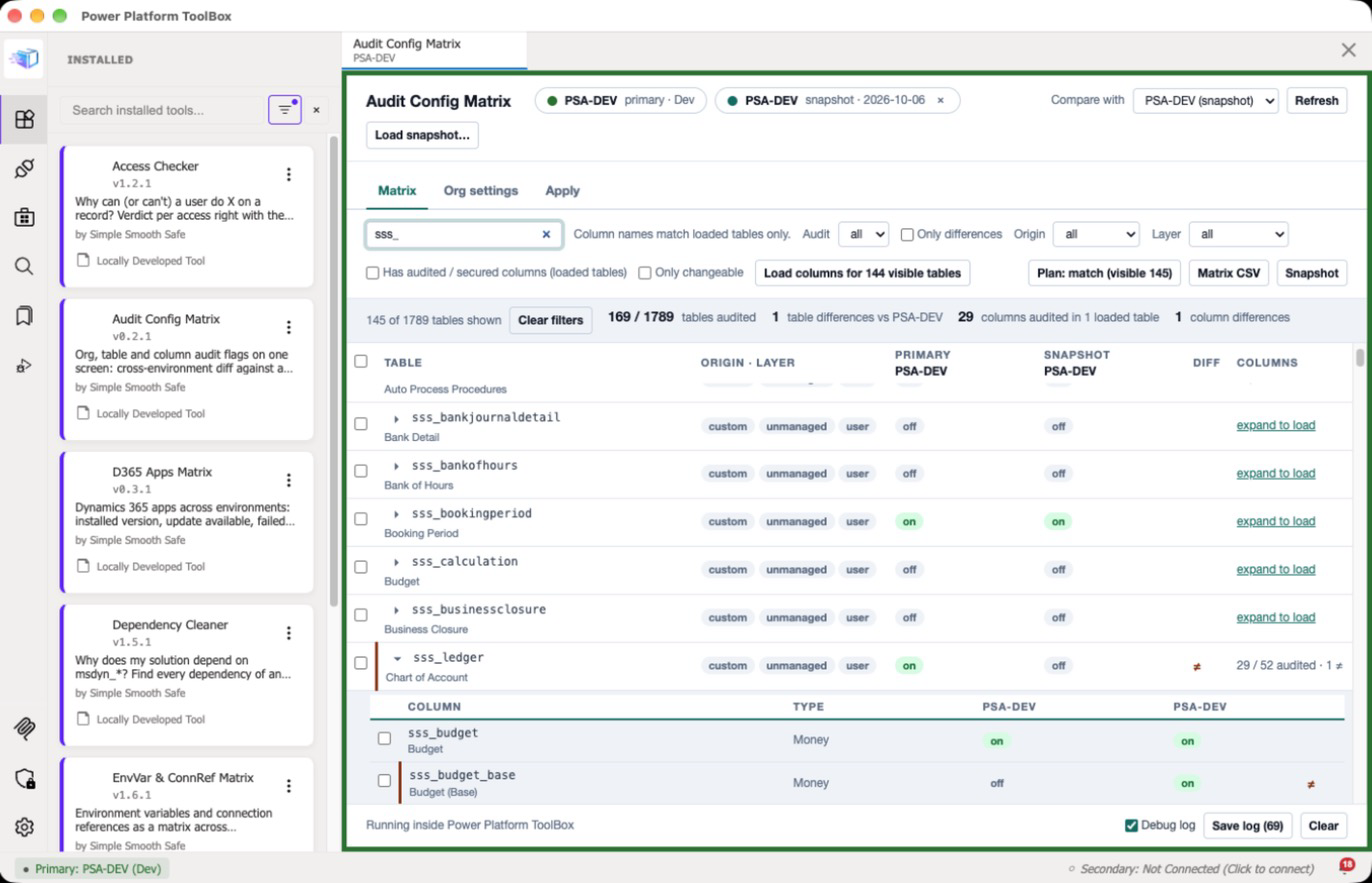
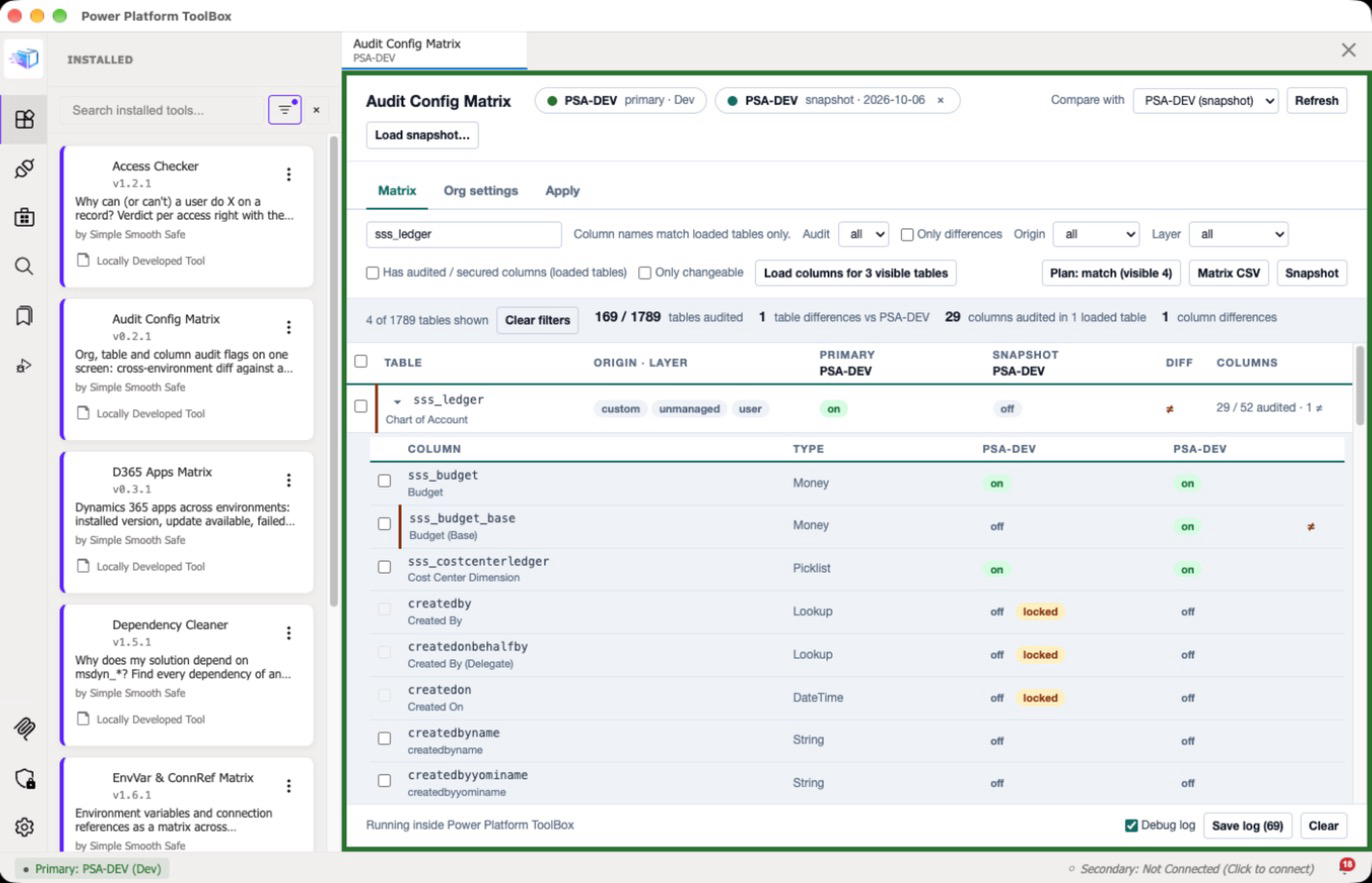
- Matrix — rows are tables, and a row expands to its auditable columns. Each cell is that environment's audit flag:
on,off,—(not present) orlockedwhen the managing solution forbids the change. A≠marks anything the two environments disagree about. - Two environments — the ToolBox primary connection, compared with the secondary connection or with a snapshot loaded from file. Snapshots let you diff against an environment you are not connected to, and double as audit evidence.
- Counts — tables audited, table differences, and columns audited / differing in the tables you expanded. Column flags are read per table on expand, so the column counts name their scope instead of guessing an environment-wide total.
- Filters — text, audit on / off, only differences, origin (custom tables vs the ones Microsoft ships, from
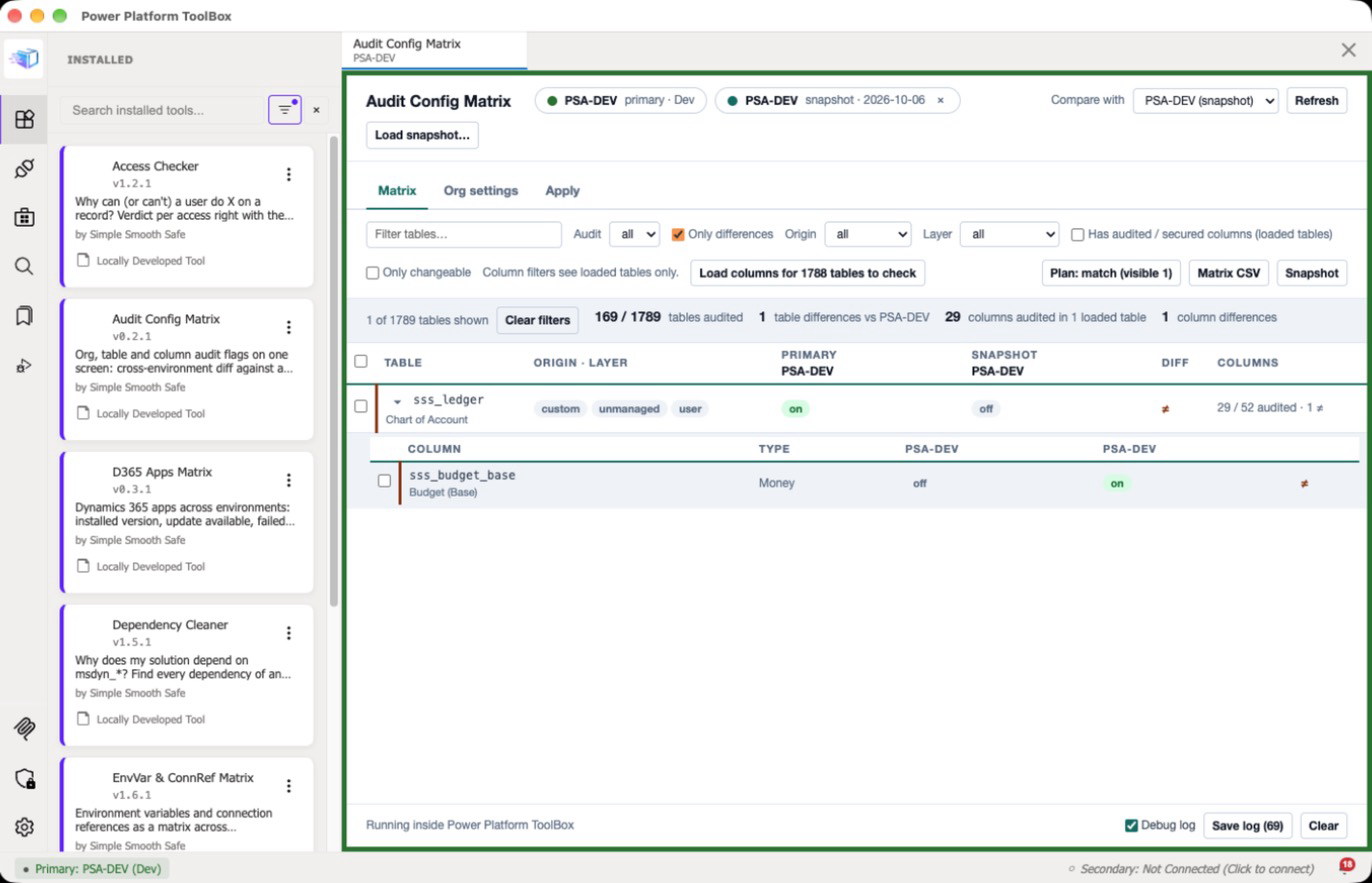
IsCustomEntity; a first-time viewer of an environment with more than 100 tables starts on custom), layer (unmanaged / managed), "has audited or secured columns", and Only changeable (hides locked tables and columns, which this tool cannot write). Column-level filters see tables whose columns are loaded; Load columns for N visible tables reads the rest (three at a time, cancellable) without expanding them. - Auditing is an AND across three levels — organization, table, column. A column captures nothing unless all three are on, so a green column under a table with auditing off is a false reassurance: it is marked
inertand counted separately as "audited columns capturing nothing". If the organization switch itself is off, the matrix says so at the top — a screen full of green flags in an environment that records nothing is exactly what you opened this tool to find out — and the apply preview repeats it, because the writes will set the flags and still capture nothing. - Org settings —
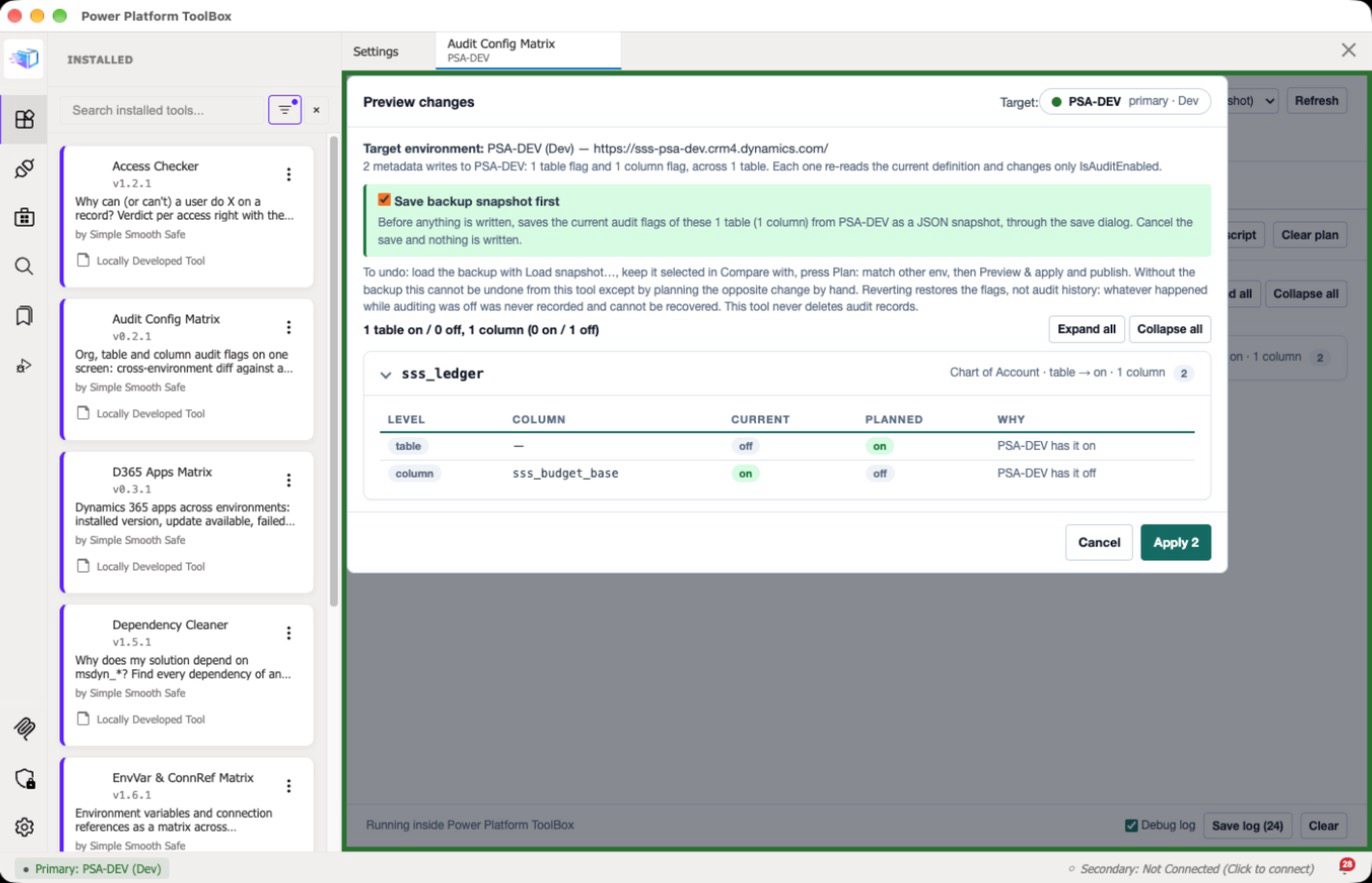
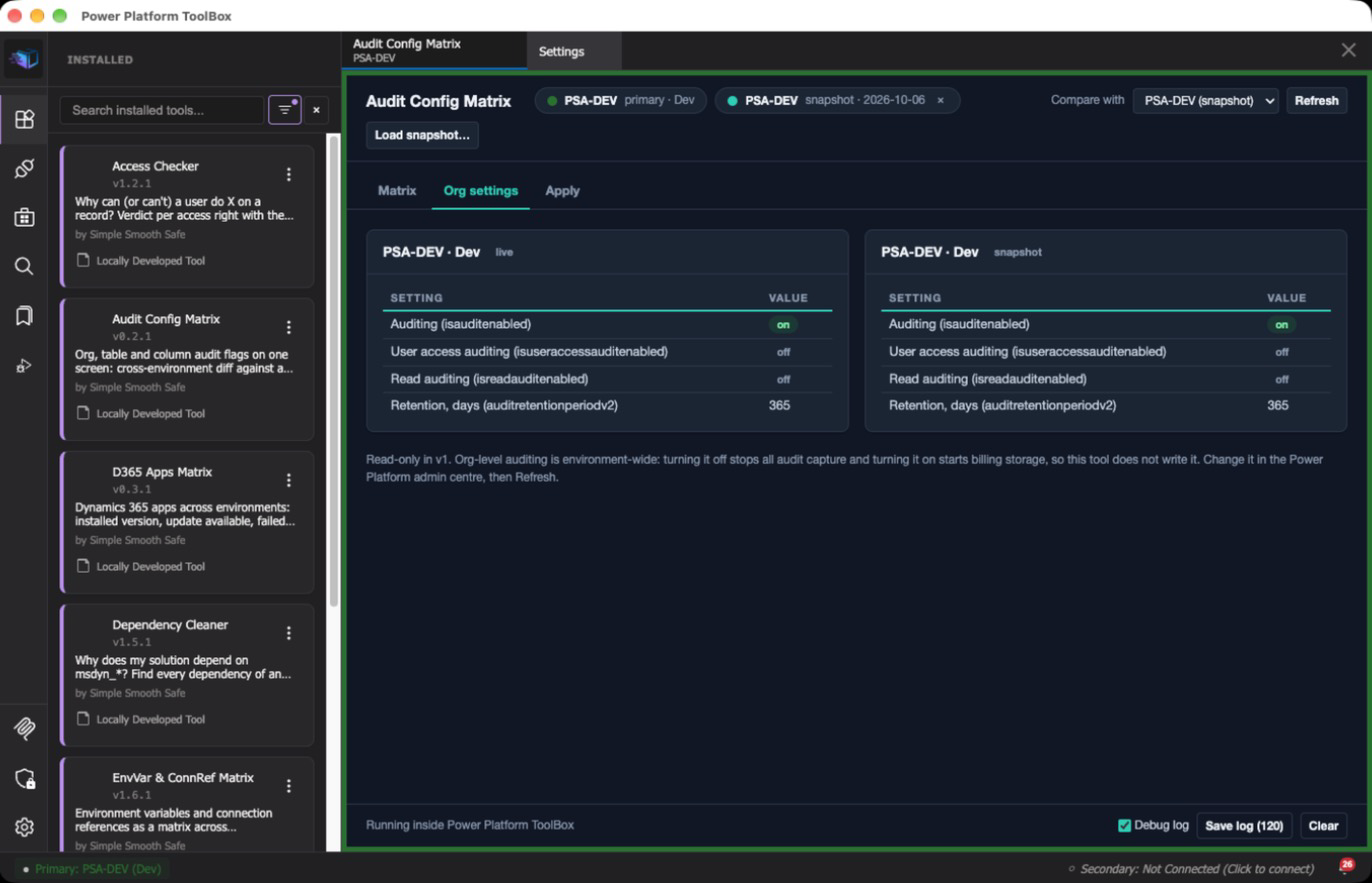
isauditenabled,isuseraccessauditenabled,isreadauditenabledand the retention, for both environments, side by side. Retention is read fromauditretentionperiodv2and the legacyauditretentionperiod, because plenty of environments carry the value only in the old column with v2 null; the card names which one it came from. A field an environment does not return is shown asunknown, never as a crash. Read-only in v1: org-level auditing is environment-wide — off stops all capture, on starts billing audit storage — so that decision stays in the admin centre. - Apply — select tables and columns and plan "audit on" / "audit off", or build the whole plan in one click with Plan: match other env. The plan opens with a one-line summary and folds per table, each item with a × to drop it. Every plan goes through a preview that names the target environment (name, type and URL), counts the table and column flags it will write, and lists each operation with its current value, planned value and reason. Save backup snapshot first is ticked by default: before anything is written, the current flags of the planned tables and columns are saved as a JSON snapshot through the save dialog (cancel the save and nothing is written). Then per-row ok / fail (failures first, "Only failures" on when any failed). Successful rows leave the plan; failed ones stay in it, and the rows you had expanded come back expanded after the reload.
- Undo — load the backup with Load snapshot… (it becomes the comparison, its chip reads "backup snapshot"), press Plan: match other env, then Preview & apply and publish. The backup records only the tables and columns that plan wrote, so only those are compared and planned.
- Publish — metadata changes only take effect once published, so after a successful batch the tool offers a publish scoped to the tables it actually wrote, behind its own confirm that names the environment and the number of tables.
- Export — matrix CSV (level, table, column, both flags, differs, locked, managed), a JSON snapshot of the primary environment, and the pending plan as CSV or as a PowerShell script that performs the same Web API calls.
About the writes
Writes ship enabled, for table and column flags, on the primary connection only. They follow the retrieve-modify-PUT pattern the ToolBox metadata API documents, with guardrails:
- every write re-reads the full, fresh definition first — the matrix projection is never sent back;
- only
IsAuditEnabled.Valueis changed, rebuilt from the flag just read, withMSCRM.MergeLabelson so other languages' labels survive; - response-only annotations are stripped and
@odata.typenormalised; - a locked flag (
CanBeChanged: false) is never planned and is re-checked at write time; - at most 3 tables are written in parallel, items of one table in order, with progress and a Cancel button;
- nothing is written without an explicit preview and confirm, and a backup of the flags it changes is saved first unless you untick it.
Org-level switches are read-only (see above). If your environment does not allow metadata writes from a tool at all, export the plan instead: the CSV and the PowerShell script describe exactly the same change.
What this tool changes
It writes to Dataverse only on the primary connection, only the two kinds of audit flag below, and only after a preview and an explicit confirm. The secondary connection and loaded snapshots are only ever read.
Dataverse / Power Platform writes
| Change | How | Scope | Before it runs | Way back |
|---|---|---|---|---|
| Table audit flag (EntityMetadata.IsAuditEnabled) set on or off — a schema/metadata change | Retrieve-modify-PUT of the table definition (EntityDefinitions(LogicalName=…), through the ToolBox updateEntityDefinition) with MSCRM.MergeLabels. The PUT carries the whole definition just read, with only IsAuditEnabled.Value changed. | The tables in the plan. Locked flags (CanBeChanged: false) are never planned and are re-checked at write time. Bulk: up to 3 tables in parallel. | Preview naming the target environment (name, type, URL), the number of table and column flags and tables, and every item's current and planned value; then Apply N. | Save backup snapshot first (on by default) saves the current flags of the planned tables and columns to a JSON file before writing. To revert: Load snapshot… that file, Plan: match other env, Apply, publish. Without the backup, only by planning the opposite change by hand. |
| Column audit flag (AttributeMetadata.IsAuditEnabled) set on or off — a schema/metadata change | Retrieve-modify-PUT of the column definition (…/Attributes(LogicalName=…), through updateAttribute) with MSCRM.MergeLabels, same rules as above. | The columns in the plan (only columns of tables whose columns were loaded can be planned). | Same preview and confirm, in the same batch. | Same backup and revert path. |
| Publish customizations (PublishXml) | publishCustomizations per table, after a batch with at least one successful write. | Only the tables a successful write touched. Publishing a table also publishes any other unpublished customizations pending on that table. | Its own confirm, naming the environment (name, type, URL) and the number of tables. | Cannot be undone. To back out, revert the flags (backup → match → Apply) and publish again. |
Reverting restores the flags, not audit history: whatever happened while a table or column was not being audited was never recorded, and it cannot be recovered afterwards. This tool never reads, deletes or changes audit records.
Files — written only where you choose in the ToolBox save dialog: the matrix CSV, a snapshot JSON of the primary environment, the backup snapshot JSON saved before Apply, the plan as CSV or as a PowerShell script (the tool does not run it), and the debug log when you save it. Load snapshot… only reads the file you pick.
Browser storage — localStorage keeps your own view settings for this tool (filters, whether the origin default was applied) and the debug-log switch. Nothing else.
Nothing else. Org-level audit settings (isauditenabled, user access and read auditing, retention) are shown read-only. The tool does not create, delete or rename tables or columns, change data records, solutions, security roles, ownership or any other metadata property, and never writes to the secondary connection.
Screenshots
Captured in Power Platform ToolBox against a Dataverse Sandbox environment, compared with a snapshot taken from it before a test change.
Install
From the ToolBox marketplace — search for "Audit Config Matrix" once listed.
From npm (ToolBox Debug menu) — Settings → enable Show Debug Menu → Debug → Install from npm → @simplesmoothsafe/pptb-audit-matrix.
From source
cd tools/audit-matrix
npm install
npm run build
Then in ToolBox: Debug → Load Local Tool → select the tools/audit-matrix folder.
Usage
- Pick a primary connection in ToolBox, and a secondary one to compare two live environments. The tool needs at least the primary.
- Tables and org settings load on open. Pick the comparison environment in Compare with, or Load snapshot… to compare against a file.
- Expand a table to read its column flags. Columns are fetched per table, for both environments, and cached for the session.
- Filter to the differences, select what should change, and plan it — or press Plan: match other env to build the whole plan from the diff.
- On the Apply tab, preview, confirm, and publish when asked. The preview names the target environment and calls out a Production target. Keep Save backup snapshot first ticked and store the file: it is your way back.
- Snapshot saves the primary environment (including the columns you expanded) as JSON for later comparison.
- To undo an Apply: Load snapshot… → pick the
audit-backup.<environment>.<timestamp>.jsonfile, press Plan: match other env, Preview & apply, and publish. Expand (or Load columns for) the tables whose columns were changed first, so their column flags are compared.
Notes:
- Auditing only captures anything when the org-level switch is on, then the table's, then the column's. The Org settings tab is there so that precondition is visible before you turn on 200 tables.
- Intersect, private and logical tables are filtered out, as are attributes that cannot be audited.
- Metadata reads and writes are slow. Expect a few seconds per table on a large plan, and use the progress and Cancel in the status bar.
- Metadata collections are not paged; environments with extremely large metadata could be truncated.
- The backup taken before Apply and the revert path through it were tested against a Dataverse Sandbox environment on 2026-10-06: apply a table and a column flag, publish, revert from the backup, publish, and the environment matched its earlier snapshot again.
- The exported PowerShell script has not yet been run against a live environment.
- Not yet verified against a live environment (mocked end-to-end test only): a connection user without the privilege to change metadata, an expired or removed connection, and a write the environment rejects (it should stay in the plan as a failed row).
Debug log
For troubleshooting, tick Debug log in the footer, reproduce the problem, then Save log: a audit-matrix-debug-<timestamp>.txt file with every ToolBox, Dataverse and Power Platform API call the tool made (the exact query or request, the response or error, timing), notifications, connection events and uncaught errors. The switch is remembered for this tool; ?debug=1 also turns it on. Off, nothing is recorded.
The file is written only where you save it. Secrets (keys named like password, secret, token, authorization) are redacted, and long strings, arrays and binary payloads are truncated, but responses still contain record data such as names and ids: review the file before you share it.
Privacy
All data stays between ToolBox and your Dataverse environments: the tool talks to Dataverse only through the ToolBox dataverseAPI bridge, requests no CSP exceptions, and sends nothing anywhere else. Snapshots and exports are written to files you choose.
Development
npm run build       # typecheck + Vite IIFE bundle + dist checks
npm run dev-watch   # rebuild on change; reload the tool tab in ToolBox
npm run validate    # @pptb/validate manifest rules
npm run e2e         # Playwright smoke test against dist/ with a mocked ToolBox host (needs playwright + Chromium)
Stack: TypeScript, Vite, no framework, no runtime dependencies. Types from @pptb/types. Design notes and the decision table: docs/AUDIT-MATRIX-PLAN.md.
AI Assistance
Substantial parts of this tool's code and documentation were generated with Claude Code (Anthropic) and reviewed, tested and maintained by the contributors listed in package.json. Real-environment testing status is stated in this README where a feature has not yet been verified.
Credits
Built and maintained by Duarte Clemente (Simple Smooth Safe).
License
MIT. See LICENSE.