
@spaxe-dev/zen-mcp
v0.5.0
Published
An agent harness for Zen Browser. Native spaces, background research tabs, and in-browser questions.

Maintainers
 spaxe-dev
Readme
Zen MCP is an MCP server that lets an AI agent work inside Zen Browser using Zen's own spaces, folders, and tabs. The agent can research in background tabs, read and search pages without switching what you are looking at, ask you a question in a small in-browser card, and show the evidence behind an answer.
Status: 0.4.x, pre-1.0. Windows is the only platform with a live-tested Zen launch. The public API, tools, and configuration keys can still change. See Current maturity and Known limitations.
What it does
- Opens tabs in the background, reads them, and searches them without changing the active tab or taking over your screen.
- Clicks one control or types into one field when you explicitly ask the agent to operate a page, using named refs from an interactive read instead of agent-supplied JavaScript. Frame controls and frame reads are supported.
- Creates and organizes native Zen spaces, folders, pinned tabs, essentials, split views, and Glance previews.
- Shows progress cards with a real Stop button, asks questions in Zen chrome, and supports a global Pause switch.
- Verifies citations with Evidence Mode: it reuses or opens the source, finds the quoted passage, marks it with a temporary overlay, and records the match method and confidence.
- Saves window layouts as sessions and reusable space templates.
- Enforces policy outside the model with read-only mode, a domain allowlist, an audit log, one-time consent, and an owned-browser boundary.
There are 53 tools, 5 live resources, and 3 prompts. Tool arguments are structured, results are typed, and page content is treated as data, not instructions. The full surface is in docs/tools.md.
Who it is for
- Zen users who want an agent in their actual browser and not a separate headless copy.
- Research and triage workflows where opening twenty background tabs, reading them, and producing a source-backed summary is the job.
- People using an MCP client such as Claude Code, Cursor, or another client that can launch a stdio server.
- Users who want browser automation with explicit boundaries: the agent controls only a browser Zen MCP started, and you can pause it or make it read-only.
It is not a general WebDriver replacement. Clicking and typing exist so an agent can complete a specific step you asked for; there is no page screenshot, file upload, download handling, or unattended bot loop, and both tools are blocked in read-only mode.
What makes it different
An owned browser, not an attached session. Zen MCP launches its own Zen with agent access, proves through a per-launch nonce that the browser answering on Marionette is the one it started, then closes every other connection and the listening socket. It never adopts a Zen window you opened yourself. The owned browser is quit on a normal server shutdown; a crash or SIGKILL can leave it running.
Native Zen constructs. Spaces, folders, pins, essentials, split view, and Glance use Zen's internal APIs, so the result behaves like something you did in the UI instead of a separate extension's bookkeeping.
Background first. Reads, evidence checks, waits, and page actions work on loaded tabs in any space, including spaces that are not currently rendered. zen_read_page, zen_read_pages, zen_find_text, zen_search_tabs, and zen_wait_for do not select, scroll, or highlight anything unless you ask for it. zen_click and zen_type act on the tab you name, not on whatever tab is in front, and report whether the page visibly changed.
You stay in control. One approval covers the server session. The persistent banner has a Pause button that blocks subsequent browser work. Read-only mode, the domain allowlist, and the audit log add policy the model cannot talk its way around. There are no per-action approval cards.
Evidence, not just prose. A citation can be checked in the browser: the agent supplies the URL, quote, and optional context, and the server matches the passage in fixed code, scrolls to it, and paints an inert overlay. The model never supplies JavaScript.
Feature overview
| Area | What you get | | --- | --- | | Research | Background page reads in text, Markdown, links, tables, metadata, outline, an interactive element list, or a CSS-selected element; literal search across tabs; Evidence Mode for single or batched citations | | Organization | Spaces, folders, tabs, pins, essentials, split view, Glance, Firefox containers | | Awareness | History search, recently closed tabs, bookmarks, duplicate and stale tab audit, domain grouping | | Coordination | Progress card with Stop, in-browser questions, notifications, tab watches, one event stream | | Repeatability | Session snapshots and reusable space templates, including folders | | Policy | Owned browser, one-time consent, global Pause, read-only mode, domain allowlist, JSONL audit log | | Interface | 53 tools, 5 resources, 3 prompts, structured results, progress notifications, cancellation |
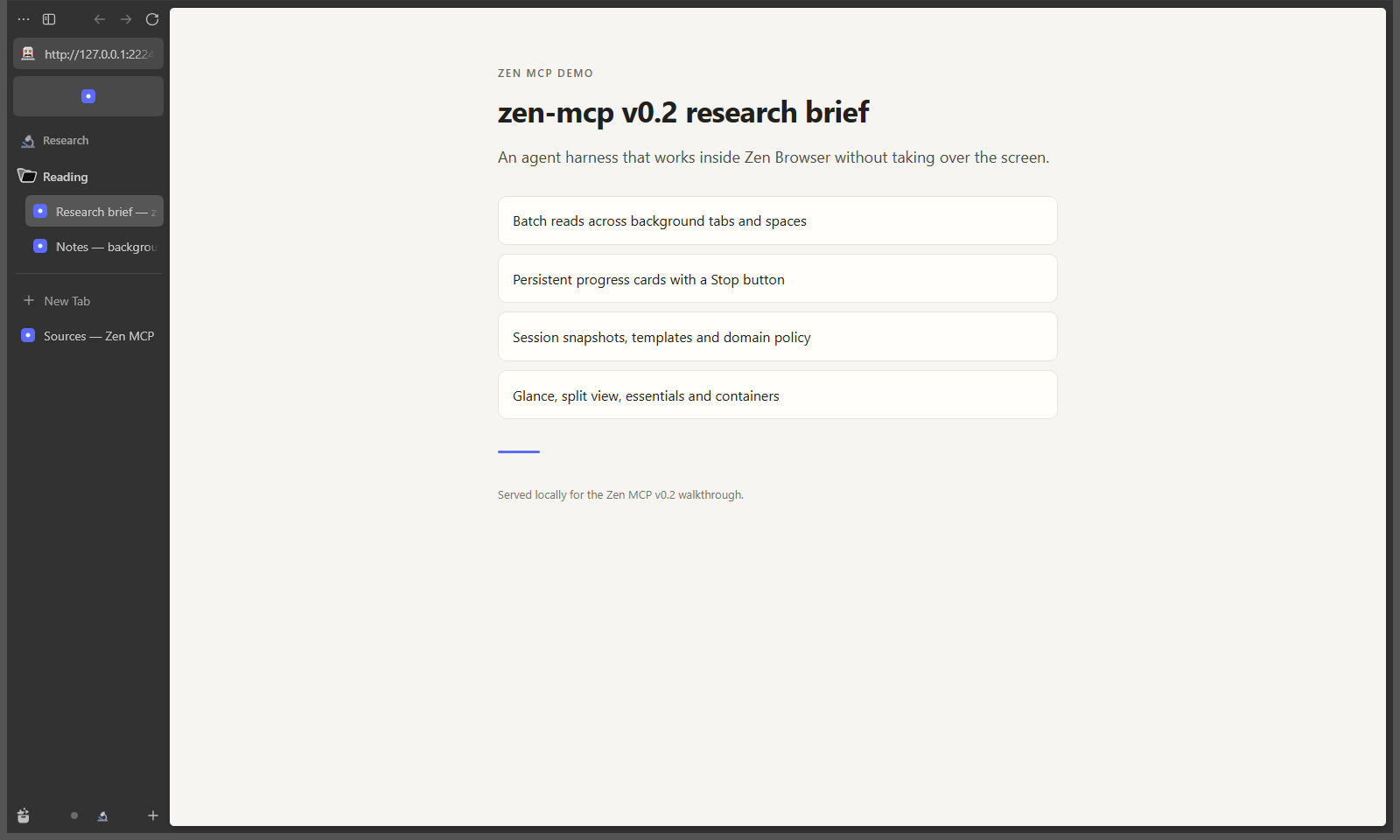
More screenshots: progress and Stop, split view, question card, Glance.
Quick start
Requirements
- Node.js 22 or newer. CI runs Node 22 and 24 on Windows, Ubuntu, and macOS.
- Zen Browser installed. Zen MCP starts Zen itself; it does not attach to a running browser.
- An MCP client that can launch a stdio server.
- A desktop session. The live integration suite needs one; everyday tool calls need a running Zen window.
| Platform | Status | Zen version | Evidence date | | --- | --- | --- | --- | | Windows | Verified live: launch, consent, evidence, shutdown | 1.24b | 2026-11-02 | | macOS | Unverified live; code paths and CI only | n/a | 2026-11-02 | | Linux | Unverified live; distro, Flatpak, and Snap paths pass CI only | n/a | 2026-11-02 |
"CI only" means typecheck, build, and unit tests pass; it does not mean a real Zen launch has been observed. Treat macOS and Linux as untested until a live launch, the consent card, and a clean shutdown have passed on that platform.
Install
npm install -g @spaxe-dev/zen-mcp
zen-mcp setup
To upgrade later, run zen-mcp update. It checks npm, compares the latest
release with the installed version, and runs the matching global install
command (npm, pnpm, yarn, or bun). zen-mcp update --check only
reports the versions, and zen-mcp doctor includes the same update status.
The running server also checks once at startup and offers a newer release in
the browser banner: Update installs it, and dismissing leaves a small
icon that reopens the offer.
Or run setup without a global install:
npx @spaxe-dev/zen-mcp setupEach GitHub release also attaches a package tarball and SHA256SUMS:
npm install -g ./zen-mcp-0.5.0.tgz
zen-mcp setup
From a source checkout:
git clone https://github.com/spaxe-dev/zen-mcp.git
cd zen-mcp
npm install
npm run build
npm link            # optional: puts `zen-mcp` on PATH
The installed command is zen-mcp. Nothing is installed into Zen itself; the bridge is injected at runtime.
Run setup and check the machine
zen-mcp setup      # detects Zen, writes a config, prints an MCP snippet
zen-mcp onboard    # pick MCP clients and add Zen MCP to their config
zen-mcp doctor     # config, executable, Marionette, bridge, profile, policy
zen-mcp status     # config, profile mode, and port state
zen-mcp update     # check npm and install the latest release
setup writes %APPDATA%\zen-mcp\config.json on Windows. On macOS and Linux it writes $XDG_CONFIG_HOME/zen-mcp/config.json when XDG_CONFIG_HOME is set, otherwise ~/.config/zen-mcp/config.json. Override the path with ZEN_MCP_CONFIG. The data directory defaults to data beside the config file.
Connect an MCP client
Run the picker:
zen-mcp onboardIt lists Claude Code, Claude Desktop, Cursor, VS Code, Codex CLI, Gemini CLI, OpenCode, oh-my-pi, DeepSeek Harness, ZCode, Windsurf, Cline, Zed, Roo Code, Kilo Code, Continue, Amp, Crush, Qwen Code, Kiro, Warp, Copilot CLI, Factory Droid, Amazon Q, Goose, LM Studio, Junie, and Pi. The list scrolls inside the picker, and clients found on this machine are preselected. Use the arrow keys, Page Up, Page Down, Home and End to move, space to toggle, and enter to confirm. Zen MCP merges a zen-mcp entry into each selected client's own configuration file and leaves other servers alone. Choose Other MCP client to print a step-by-step runbook for any agent: known config paths, the right entry shape for JSON, nested JSON, VS Code, Zed, TOML, YAML and shell clients, merge rules, a validation checklist, and a completion report.
For scripts or a shell without a TTY, name the clients:
zen-mcp onboard --clients claude-code,cursor
zen-mcp onboard --clients all --command /path/to/zen-mcp
zen-mcp onboard --clients other
Claude Code by hand:
claude mcp add zen-mcp -- zen-mcp serveAny MCP client:
{
  "mcpServers": {
    "zen-mcp": {
      "command": "zen-mcp",
      "args": ["serve"]
    }
  }
}
If zen-mcp is not on PATH, use the absolute path to dist/cli.js as command and keep args as ["serve"]. Running the CLI with no command also starts the server.
Approve the browser once
On the first tool call, Zen MCP launches its own Zen window with a dedicated agent profile. The call waits for an approval card in Zen. Click Allow this session, then call the tool again if the first call timed out.
- Approval is stored for the life of the MCP server process. Relaunching the owned browser does not show the card again.
- Not now closes the browser Zen MCP started and keeps the server unapproved until it restarts.
- A timeout leaves the card open and returns an error. Nothing is read or changed before approval.
- The approval card is the only per-session approval. There are no per-action confirmation cards; use Pause, read-only mode, and the domain allowlist for finer control.
Try a first job
Ask your client something like:
Make a GitHub space, find my pull requests that are waiting on a reply, and tell me which ones need attention without switching my current tab.
The agent can create the space, open the PRs in the background, read them, and show a notification card that jumps to the space.
Use a dedicated profile
The default is a dedicated agent profile under the data directory, separate from your everyday Zen profile. It starts with no cookies, logins, or history from normal browsing.
zen-mcp setup --dedicated-profile          # explicit default
zen-mcp setup --profile /path/to/profile   # custom dedicated profile
Use the normal profile only when the agent must see pages where you are signed in:
zen-mcp setup --use-default-profileWith the normal profile, quit Zen completely before the agent launches it. The server refuses to launch while a normal Zen process is running, so it never attaches to or shares that session. The agent can then read signed-in pages and send their text to whichever model provider your MCP client uses.
Do not point profilePath at your normal profile unless that is the tradeoff you want. The profile lock check makes a conflict fail fast, but it does not make sharing a profile private.
Safety at a glance
| Control | Default | What it does | Limits |
| --- | --- | --- | --- |
| Browser ownership | Always on | Launches its own Zen, proves identity with a nonce and moz:processID, then closes the Marionette listener to every other client | A local process can race for the port before lockdown; the race is detected, not eliminated |
| Consent | On | Shows one approval card per server process before the first read or change; decline closes the owned browser | After a decline, restart the server to ask again; a timeout leaves the card open |
| Pause | Available in the banner | Blocks browser tools with paused, hides the progress card, defers questions, and skips watch polls until Resume | A command already running in Zen may finish; its result is discarded. Pause is not persisted, and existing evidence overlays are not removed |
| Read-only mode | Off | Blocks all 32 tools in the mutating set, including zen_launch, page clicks and typing, a read-only server's auto-launch, and on-screen progress, question, and notification cards | Reads, lists, events, collected answers, and the audit log still work; session and template listings still show stored URLs |
| Domain allowlist | Empty | Matches an exact host or a subdomain on a label boundary before opening, previewing, verifying, watching, restoring a session, or applying a template | It is rechecked immediately after opening, but slow, script, or meta redirects can land elsewhere afterwards; reads recheck the tab URL |
| Page actions | Read-only blocks them | An interactive read tags controls with refs, including frame-prefixed refs; click and type resolve one ref or CSS selector through a fixed script and use Marionette's native input commands | A click is a real input that can submit a form, start a download, navigate, or purchase. The allowlist checks the tab URL, target frame URL, and link target, not what an in-page script does afterwards. Refs expire after another interactive read or a navigation. Typed text is capped at 10,000 characters; password values are never returned and file inputs are refused |
| Private windows | Excluded | The bridge is not injected into private windows and an existing bridge is destroyed | This path is not covered by the automated live suite; treat it as a best-effort boundary |
| Audit log | On | Appends one JSON line per tool call, including blocked calls, with URLs reduced to scheme, host, and path | Argument summaries are bounded; sensitive values are digested, but a preview of the summarized arguments can remain |
| Data storage | Local only | Sessions, templates, audit log, and the default agent profile live in the data directory; files are owner-only where the platform supports POSIX modes | Any process running as your user can read them; contents are not encrypted at rest |
The full threat model and enforcement details are in docs/security.md.
Current maturity and platform support
Zen MCP is usable but pre-1.0. The tool surface and configuration keys have changed between minor releases, and they can change again.
- Windows is the only platform with a live-tested launch, consent card, evidence overlay, and shutdown against Zen 1.24b.
- macOS and Linux compile and pass unit tests on CI, but no live Zen launch has been verified. Report what you see if you test them.
- The live suite is manual. It needs Zen and a desktop session and is not part of CI or the release workflow.
- Unit tests are broad but not exhaustive. On Windows,
npm testruns the full unit suite and skips five POSIX-specific tests. The live suite has 34 declarations across three files. - One agent browser per machine. Current Zen builds use Marionette port 2828, and this server cannot share it.
Known limitations
- Marionette is fixed at 2828 in current Zen builds. Two Zen MCP servers cannot run at once.
- A lost Marionette session cannot be re-attached, because the listener stays shut. Quit the browser and start a new one.
- Reads and evidence search one document at a time. Frame text is available with
framePath, and interactive reads collect frame controls with refs such asf0-e3; canvas, images, SVG, and closed shadow roots are not read. Text reads skip open shadow roots and form controls; use an interactive read for form controls, which includes controls in open shadow roots. - Page actions use fixed scripts. They reach frames through explicit refs or
framePath, but not closed shadow roots or canvas content, and a ref from an older interactive read is rejected after another interactive read or a navigation. - A click or typed key is a real browser input. It can submit a form, start a download, navigate, or make a purchase; the domain allowlist is checked before and after, but it cannot prevent an in-page script from acting on its own.
- Hidden and unloaded tabs behave differently: a loaded tab in a background space can be read, but a tab that has not loaded returns
tab_not_loaded. - PDF reads depend on Zen's PDF viewer and are unreliable for hidden tabs. Open the PDF and retry if you get
pdf_unreadable. - Fuzzy evidence matches are reported with
verified: false. A batch isokonly when every citation matched and every match was verified. - Watches live in the server process and do not survive a restart.
- The startup race before lockdown and same-user local attackers are outside what the harness can fully prevent.
See docs/troubleshooting.md#known-limitations for the complete list.
Documentation
| Document | Contents | | --- | --- | | docs/tools.md | Every tool, resource, prompt, and client-visible behavior | | docs/reading-and-evidence.md | Read formats, pagination, Evidence Mode, matching rules, and text search | | docs/configuration.md | CLI commands, config keys, environment variables, and data paths | | docs/architecture.md | How the launcher, bridge, and MCP surface fit together | | docs/security.md | Threat model and enforcement boundaries | | docs/troubleshooting.md | Error messages, diagnostics, and known limitations | | CHANGELOG.md | Release history | | CONTRIBUTING.md | Build, test, and review expectations |
Troubleshooting
The first tool call is waiting for approval. Click Allow this session on the card in the agent's Zen window. If the call already timed out, call the tool again; the card stays open.
A tool fails with paused. Someone pressed Pause in the Zen banner. Wait for the user to press Resume; do not retry in a loop.
Marionette is already listening on port 2828. Another Zen or WebDriver session owns the port. Zen MCP will not attach to it. Quit that browser or stop the other tool, then try again. Current Zen builds always use 2828, so changing marionettePort usually does not help.
A tool reports actor_unavailable. The owned browser disconnected. Quit that Zen window and call zen_launch to start a new owned browser; this server cannot re-attach.
More in docs/troubleshooting.md.
Security
To report a vulnerability, use the private GitHub Security Advisories channel described in SECURITY.md. Do not open a public issue or pull request for a security problem.
Contributing
Changes are reviewed for correctness and blast radius because this project controls a real browser. Read CONTRIBUTING.md before starting work.
License
MIT. See LICENSE.