
@strapi-community/cloudinary-media-library
v1.0.3
Published
Cloudinary Media Library Custom Field for Strapi
Downloads
323


Readme
A Strapi plugin that adds a custom field for selecting Cloudinary media assets using Cloudinary's official Media Library widget.
📋 Table of Contents
- ✨ Features
- 📋 Requirements
- 📦 Installation
- 🔐 Getting Cloudinary Credentials
- ⚙️ Setting up Configuration File
- 🔒 Managing Permissions
- 👨💻 Development & Testing
- 🔗 Links
- 💬 Community Support
- 📄 License
✨ Features
- Seamlessly integrate Cloudinary Media Library into Strapi admin panel
- Select and manage media assets directly from Cloudinary
- Custom field for Cloudinary media assets
- Support for images, videos and other media types
- Automatically includes Cloudinary media URLs and metadata in Strapi API responses (when using the Cloudinary media field)
📋 Requirements
- Strapi v5.0.0 or later
- Node.js 18+
- Cloudinary Bucket
📦 Installation
npm install @strapi-community/cloudinary-media-library@latest
# or
yarn add @strapi-community/cloudinary-media-library@latest
🔐 Getting Cloudinary Credentials
To retrieve your Cloudinary credentials:
- Go to https://cloudinary.com/console
- Select Settings > API keys
- Copy your cloud name and API key.
You don’t need the API secret for this integration — only cloud name and API key.
⚙️ Setting up Configuration File
Your plugin settings should go in config/plugins.ts. Here’s an example:
export default {
  'cloudinary-media-library': {
    enabled: true,
    config: {
      cloudName: 'your-cloud-name',
      apiKey: 'your-api-key',
      encryptionKey: '32 chars encryption key',
    },
  },
};
Additionaly you can set up cloudName and apiKey properties through Settings page in the Admin panel. Please note that this configuration will overwrite config/plugin.ts
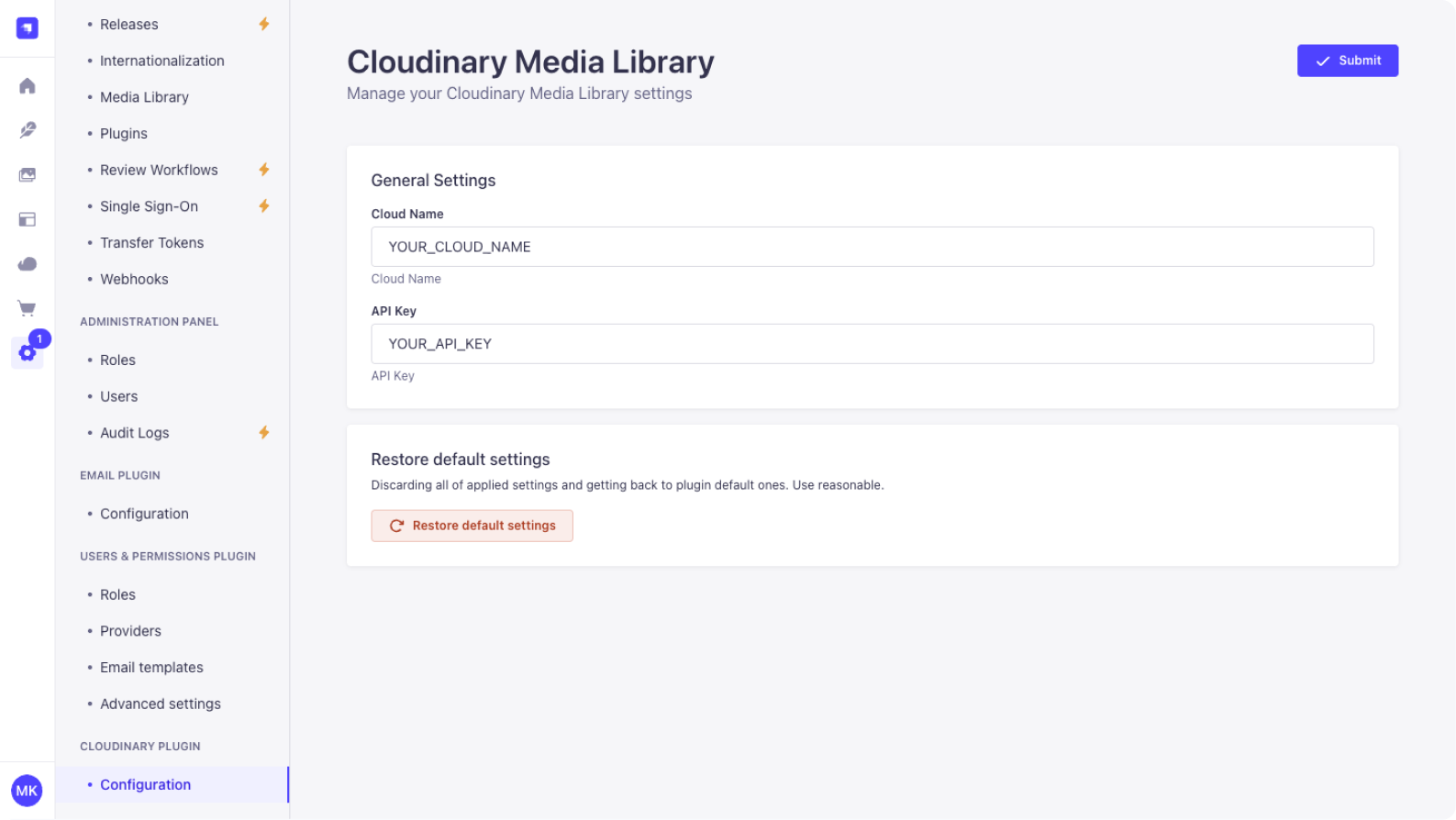
These options are passed directly to the Cloudinary Media Library widget.
IMPORTANT You must set the encryptionKey property in the config file. This key is required for Strapi to encrypt credentials in the database. If you don’t provide encryptionKey as a 32-character string, the media library will not work.
Setting up strapi::security middlewares to avoid CSP blocking Cloudinary
When using Cloudinary's Media Library Plugin, modern browsers enforce Content Security Policy (CSP) rules. These policies prevent scripts, images, frames, and other resources from loading if they originate from domains not explicitly allowed — which will cause the Cloudinary widget to break.
To fix this, you need to explicitly allow Cloudinary domains in Strapi's security middleware configuration.
Edit ./config/middlewares.js
export default [
  'strapi::logger',
  'strapi::errors',
  {
    name: 'strapi::security',
    config: {
      contentSecurityPolicy: {
        useDefaults: true,
        directives: {
          'connect-src': ["'self'", 'https:'],
          'img-src': [
            "'self'",
            'data:',
            'blob:',
            'https://market-assets.strapi.io',
            'https://console.cloudinary.com',
            'https://res.cloudinary.com',
          ],
          'script-src': [
            "'self'",
            'example.com',
            'https://media-library.cloudinary.com',
            'https://upload-widget.cloudinary.com',
            'https://console.cloudinary.com',
          ],
          'media-src': [
            "'self'",
            'data:',
            'blob:',
            'https://console.cloudinary.com',
            'https://res.cloudinary.com',
          ],
          'frame-src': [
            "'self'",
            'https://media-library.cloudinary.com',
            'https://upload-widget.cloudinary.com',
            'https://console.cloudinary.com',
          ],
          upgradeInsecureRequests: null,
        },
      },
    },
  },
  'strapi::cors',
  'strapi::poweredBy',
  'strapi::query',
  'strapi::body',
  'strapi::session',
  'strapi::favicon',
  'strapi::public',
];
🔐 Managing Permissions
The Cloudinary Media Library plugin supports two types of role-based permissions to control access to its features:
| Permission | Description |
| ---------- | ------------------------------------------------------------------------------------------------------------------------------ |
| Read | Allows the user to view Cloudinary credentials in the Settings page and upload media using the Cloudinary input field. |
| Settings | Grants full access to modify Cloudinary configuration (cloud name and API key). |
How to manage permissions
- Go to the Strapi Admin Panel.
- Navigate to Settings → Administration Panel → Roles.
- Select a role (e.g.,
AuthenticatedorSuper Admin). - Select the Plugins section.
- Find and expand cloudinary-media-library.
- Check the permissions you want to enable:
☑ Read☑ Settings
- Save changes.
👨💻 Development & Testing
- Build:
yarn build - Test backend:
yarn test:server - Test frontend:
yarn test:ts:front
🔗 Links
💬 Community support
- GitHub (Bug reports, contributions)
You can also used official support platform of Strapi, and search [VirtusLab] prefixed people (maintainers)
- Discord (For live discussion with the Community and Strapi team)
- Community Forum (Questions and Discussions)
📄 License
See the MIT License file for licensing information.